
How to Restore Apple Watch From a Backup
Need to reset or switch iPhones? Here’s how to restore your Apple Watch from a backup, what data comes back, and how to make sure everything syncs properly.

So, you’re considering resetting your Apple Watch, maybe to fix a glitch or because you’re switching devices. The big question is: how do you back it up? Since there’s no obvious manual backup button on the watch, many users aren’t sure whether their data is safe. While this can feel confusing, Apple Watch backups happen automatically through your paired iPhone.
This guide explains how Apple Watch backups work, what’s included in a backup, and how to restore your Apple Watch step by step.
Does Apple Watch Automatically Back Up?
Unlike iPhones or iPads, Apple Watch doesn’t have a separate backup system. Instead, backups are created automatically and stored on your paired iPhone.
Here’s how it works:
- A backup is created when you unpair your Apple Watch from your iPhone.
- The backup is stored on the paired iPhone, not on the watch itself.
- When your iPhone backs up to iCloud or a computer, the Apple Watch backup is included within it.
What Data Gets Restored on Apple Watch (And What Doesn’t)
You might assume an Apple Watch backup includes everything on your device, from settings and saved data to paired Bluetooth accessories. In reality, only certain types of data are restored, while some items must be set up again.
Here’s what gets restored and what doesn’t:
Data That Gets Restored
When you restore from a backup, the following typically returns:
- App data and installed apps
- Watch face layout and complications
- System settings and preferences
- Messages settings
- Notification settings
- Health and fitness data if iCloud Health syncing is enabled
- Accessibility and Dock settings
Data That Does NOT Get Restored
You will need to set up some items again:
- Apple Pay cards
- Bluetooth device pairings
- Apple Watch passcode
- Certain calibration data
- Some Mail and Messages data, which may sync again afterward and appear gradually
What to Do Before Restoring Apple Watch From a Backup
Before pairing your Apple Watch again to restore it from a backup, make sure:
- Your iPhone is running the latest available iOS version.
- Your Apple Watch battery is at least 50 percent.
- Wi-Fi and Bluetooth are turned on.
- Both devices remain close together.
- Your iPhone is signed in with the same Apple ID that was used when you unpaired the Apple Watch.
- If you’re pairing the Apple Watch with a new iPhone, your previous iPhone’s backup has been restored to it.
- iCloud Health is enabled if you want health data restored.
If you haven’t yet unpaired your Apple Watch, unpairing it first creates the most recent backup.
How to Restore Your Apple Watch From a Backup
To restore your Apple Watch from a backup, you must first unpair it from the paired iPhone using the Watch app. Here’s how:
- Open the Watch app and tap All Watches.
- Tap the i button next to your Apple Watch.
- Tap Unpair Apple Watch.
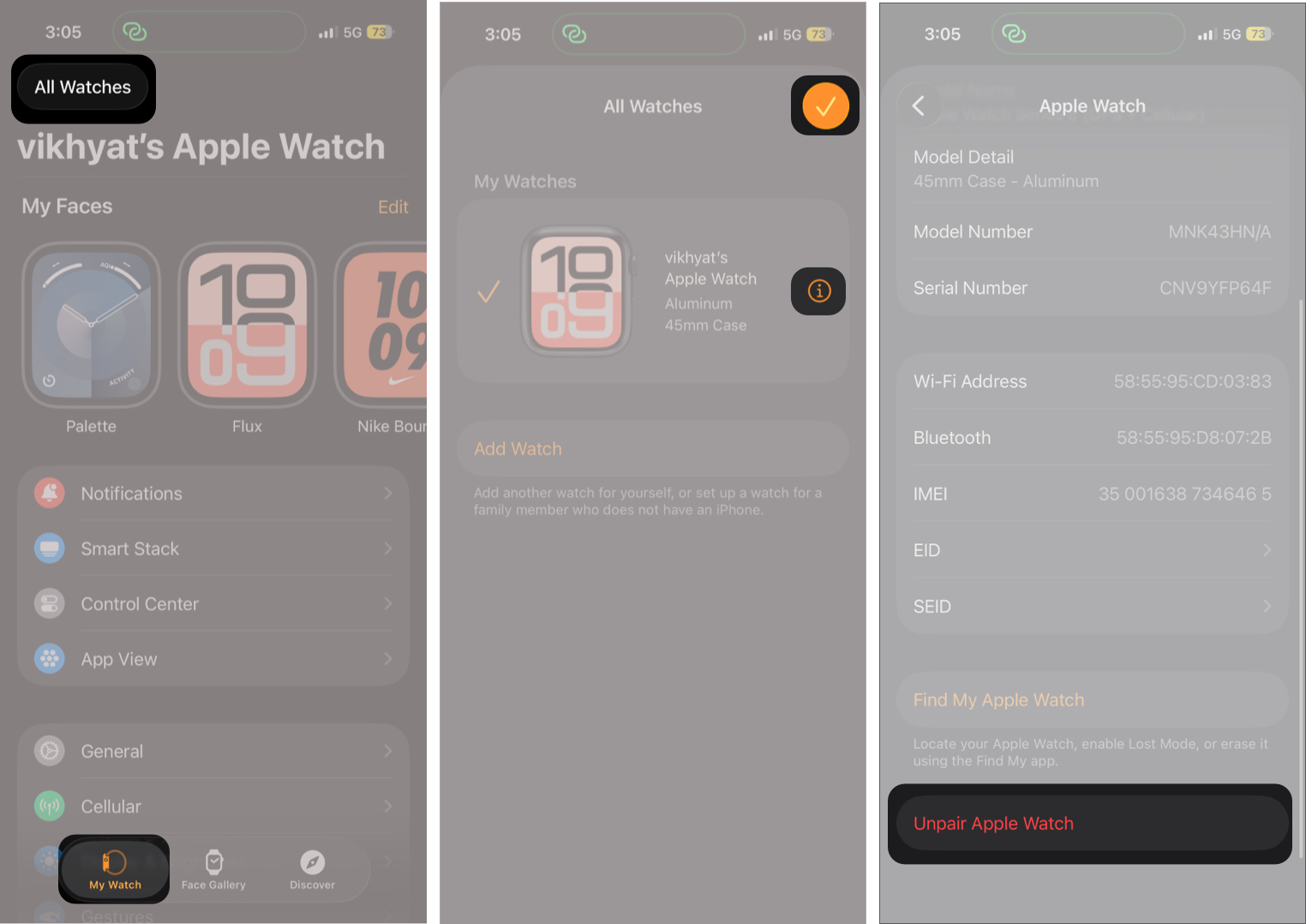

This automatically creates a fresh backup.
Once the unpairing process is complete, you can restore the watch using the latest backup or an older one, if available. Follow these steps:
- Press and hold the Side button until the Apple logo appears on the Apple Watch.
- Next, bring the Apple Watch close to your iPhone. The pairing pop-up should appear automatically. If it doesn’t, open the Watch app on your iPhone and tap Pair Apple Watch.
- Select Set Up for Myself or Set Up for a Family Member based on your need.
- Now, position your Apple Watch in the frame to begin the pairing process.
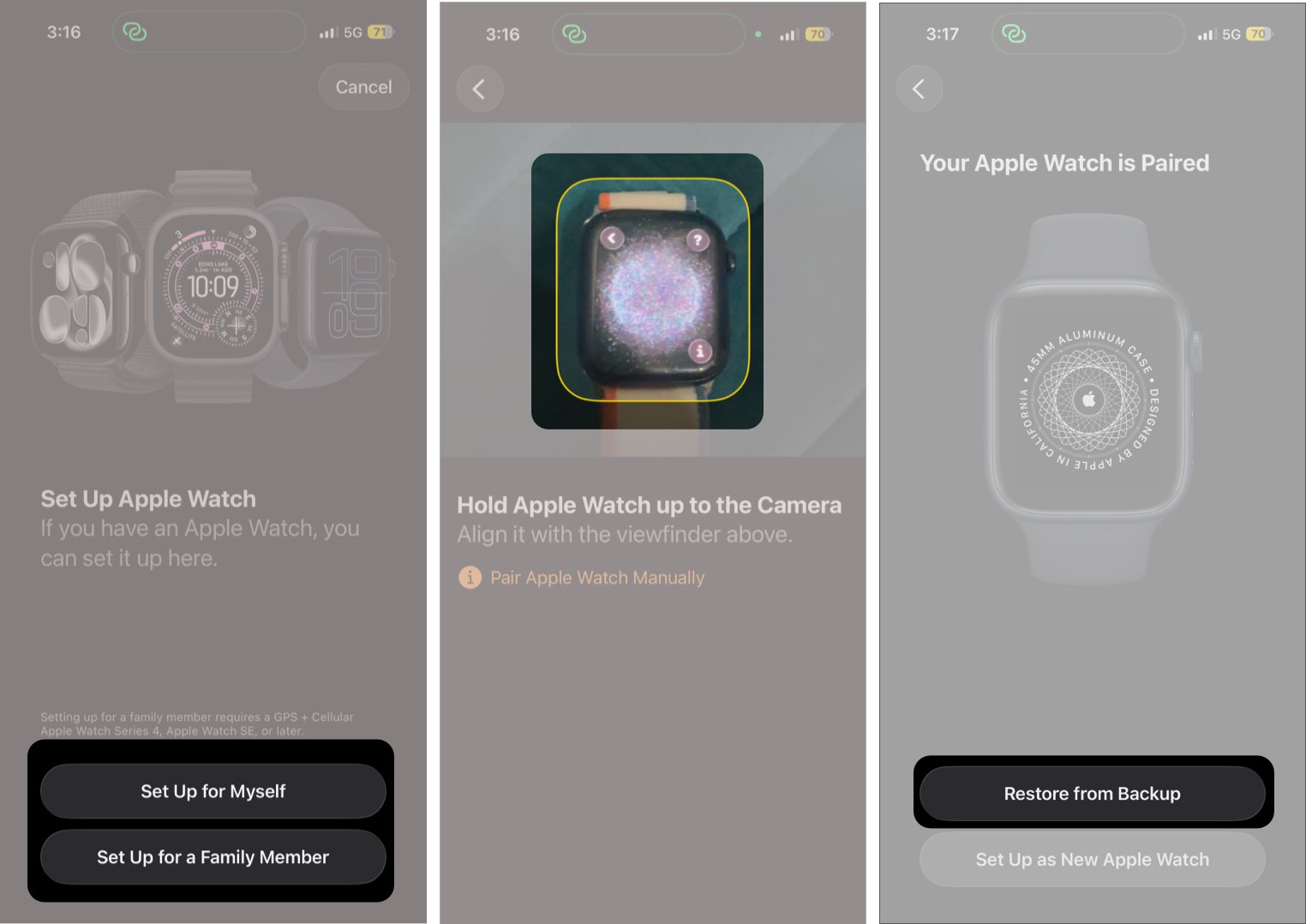
- Once pairing is complete, the Watch app will ask if you want to restore from a backup or set up the Apple Watch as new. Select Restore from Backup.
- Select the backup you want to restore.
- Once done, follow the on-screen instructions to set up your Apple Watch.
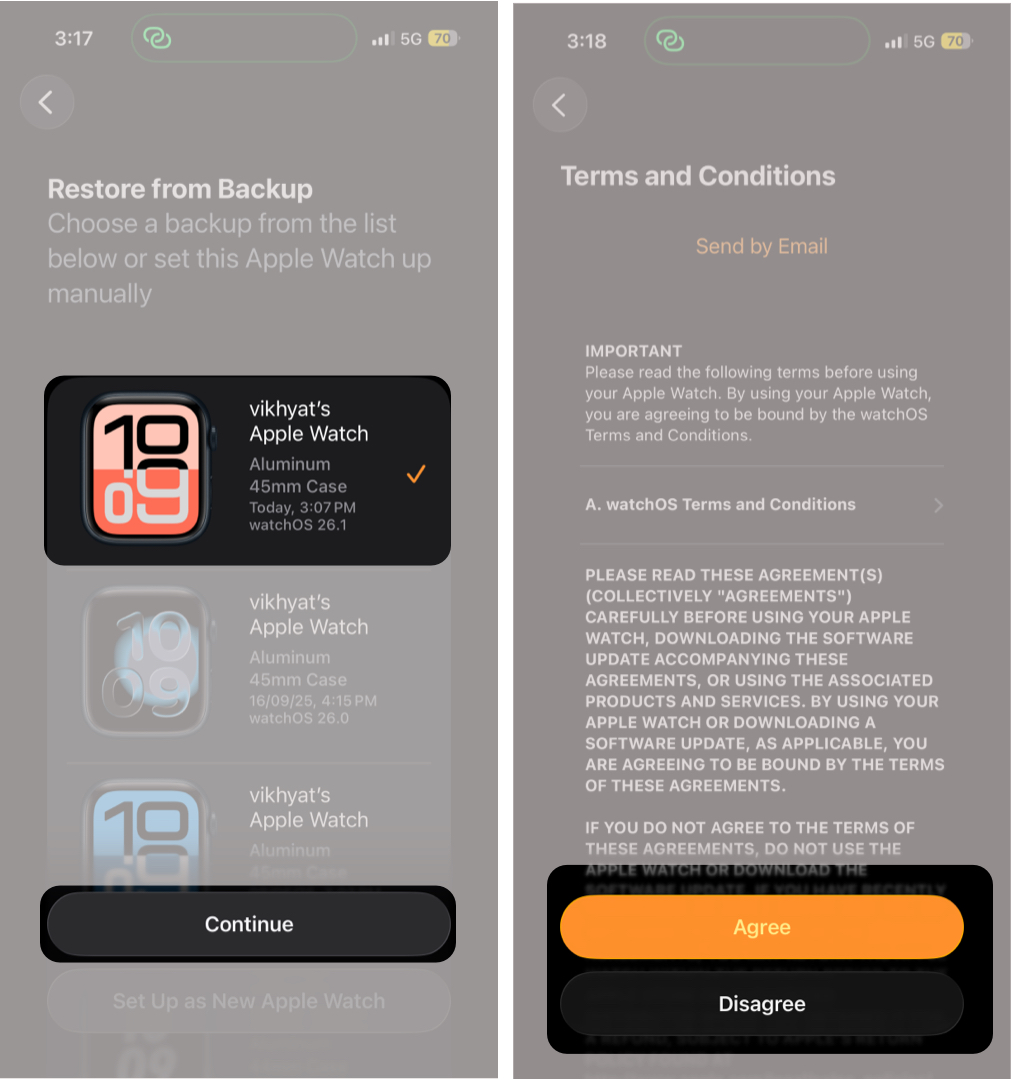


After setup finishes, apps and data will continue syncing in the background.
How to Restore Apple Watch to a New iPhone
If you’ve upgraded to a new iPhone, you must first restore it using your previous iPhone’s backup. You can restore from either a local backup on a Mac or Windows PC or from an iCloud backup.
Once that’s complete, follow the steps in the previous section to restore your Apple Watch from the existing backup.
How to Check if an Apple Watch Backup Exists Before Resetting
Apple doesn’t show Apple Watch backups as a separate list, which can make it difficult to confirm whether one exists before resetting your watch. However, because Apple Watch backups are stored within your iPhone backup, an existing iPhone backup also means an Apple Watch backup is available.
Here’s how to check:
- Go to Settings → iCloud → iCloud Backup.
- Check the date and time of the last successful backup.
- If the backup was created recently, your Apple Watch backup is included in it.
Apple Watch Not Restoring From Backup? Try These Fixes
If the restore option doesn’t appear or fails:
- Update both iPhone and Apple Watch software.
- Make sure both devices use the same Apple ID.
- Restart your iPhone and Apple Watch.
- Restore the iPhone backup first if you’ve switched phones.
- Keep both devices connected to Wi-Fi during setup.
You like to read: How to Mirror Your Apple Watch on Your iPhone
How Long Does an Apple Watch Restore Take?
There’s no fixed timeline for restoring an Apple Watch backup. The restore time depends on the size of the backup, your internet speed, and how much data needs to sync back to the watch.
In most cases, the initial restore process takes between 10 and 30 minutes. After that, apps, photos, and messages continue syncing in the background.
For the fastest restore experience, keep your Apple Watch and iPhone close together, connected to Wi-Fi, and plugged into a charger. A large app library or extensive health and fitness data may increase the overall syncing time.
Can You Restore an Apple Watch Without an iPhone?
No. You cannot restore an Apple Watch without an iPhone. Apple Watch backups are tied to the paired iPhone, so you must use an iPhone to restore your data. If you don’t have access to the original iPhone backup or you reset the watch directly from the watch itself, it must be set up as new.
Back to Normal
That’s how you restore your Apple Watch from a backup. Unlike the iPhone, restoring an Apple Watch is straightforward because Apple automates most of the process. As long as your iPhone backup exists, pairing the watch again and selecting the correct backup quickly brings back your apps, settings, and familiar layout.
If you’re still facing issues restoring your Apple Watch, let us know in the comments.
Frequently Asked Questions
Here are some more Apple Watch guides for you…

Written by
VikhyatVikhyat has a bachelor's degree in Electronic and Communication Engineering and over five years of writing experience. His passion for technology and Apple products led him to the tech writing space, where he specializes in writing App features, How-to guides, and troubleshooting guides for fellow Apple users. When not typing away on his MacBook Pro, he loves exploring the real world.
View all posts →More from Apple Watch

Apple Watch Not Responding? 8 Fixes That Actually Work
Is your Apple Watch unresponsive or stuck on a black screen? Here are 8 proven fixes to help you unfreeze it and get it working again quickly.
VikhyatMarch 3, 2026
How to Mirror Your Apple Watch on Your iPhone: A Simple Guide
Want to control your Apple Watch using your iPhone? This guide explains how to turn on Apple Watch Mirroring, use it easily, and fix common issues.
 Arshmeet KaurFebruary 27, 2026
watchOS 26.4 Developer Beta 2 Is Here: How to Download It on Your Apple Watch
Try watchOS 26 early! Follow this quick guide to download the developer beta on your Apple Watch and explore the latest features before anyone else.
VikhyatFebruary 24, 2026