There can be times when Fortnite acts up, and the infamous “invalid Pak” error is one of the more common errors faced by the game’s players on PC. However, as widespread as it is, it is also fixable by following a set of instructions.
Pak is short for package, which is a type of file that contains compressed game data. From textures to audio, various game assets are stored in these Pak files by the devs. Sometimes, a Pak file can get corrupted and lead to critical issues in games such as Fortnite. If you encountered the Pak error in Fortnite and want to resolve it at the earliest, go through the solutions given in this article.
Getting started
There are a few different precautionary measures that you can opt for to rule out any external cause of errors in Fortnite. The following guidelines not only help with avoiding technical issues like the “Pak is invalid” error but also a host of other potential hiccups.
- Ensure you have at least 10 GB of free space in the drive where Fortnite is installed.
- Disable your VPN before running Fortnite.
- If possible, install Fortnite in the same folder where Epic Games Launcher is installed. In some cases, doing this has helped players get rid of errors.
Methods to resolve the Fortnite “Pak is invalid” error
1. Verify game files
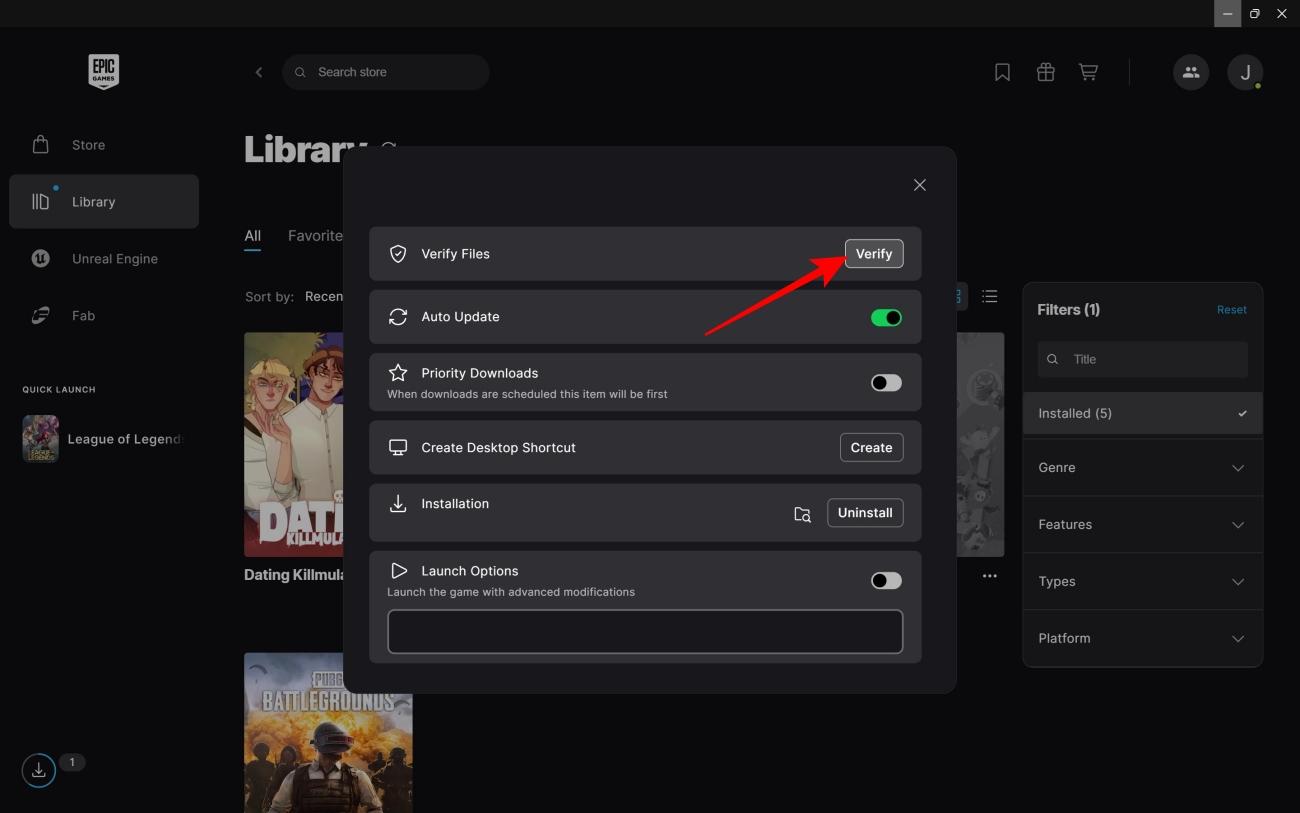
Given that game files can, over time, get corrupted and become unusable, most storefronts provide an option to verify game files and revert any changed files to their original form. Epic Games Launcher also offers users a way to do this. Keep the following steps in mind for verifying game files on this storefront.
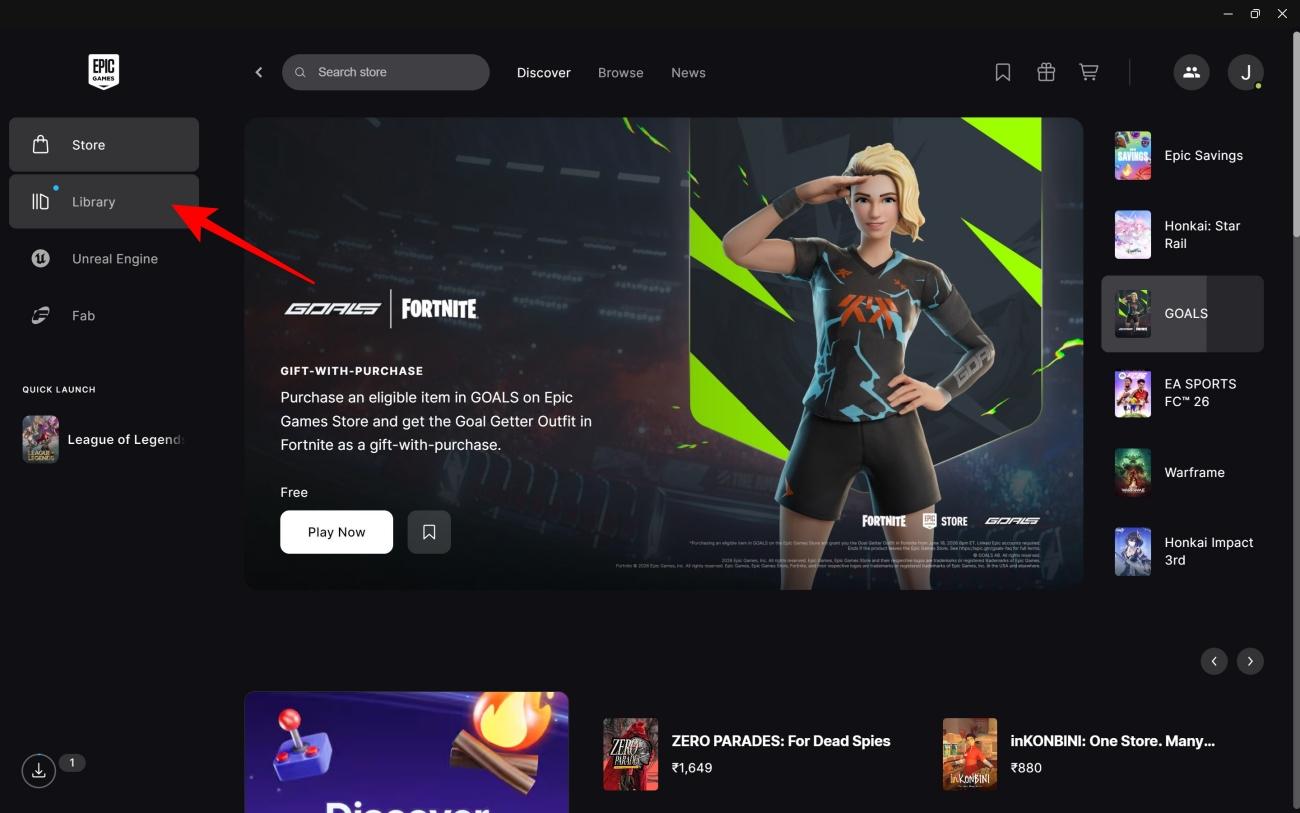
- In the Epic Games Launcher, click on “Library“
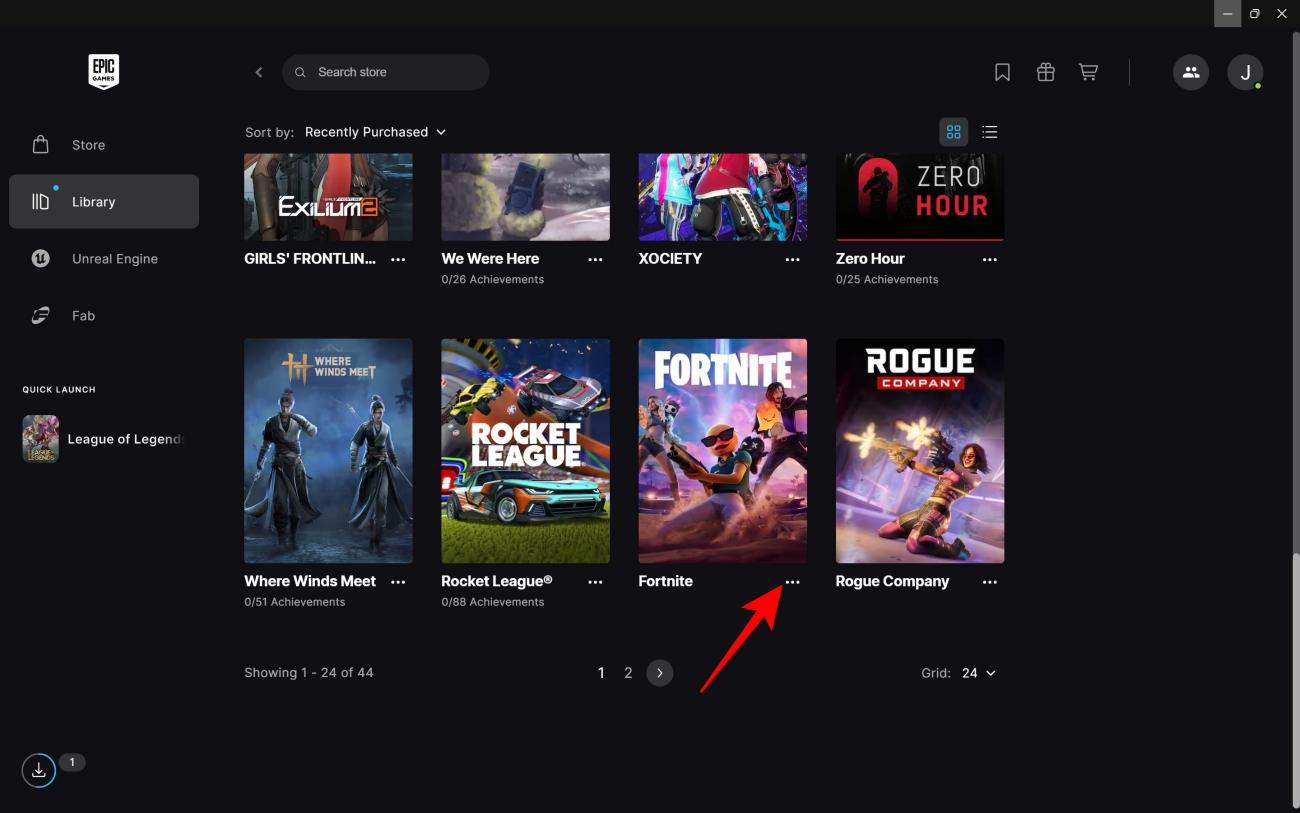
- From the list of games, look for Fortnite and click on the three dots next to it
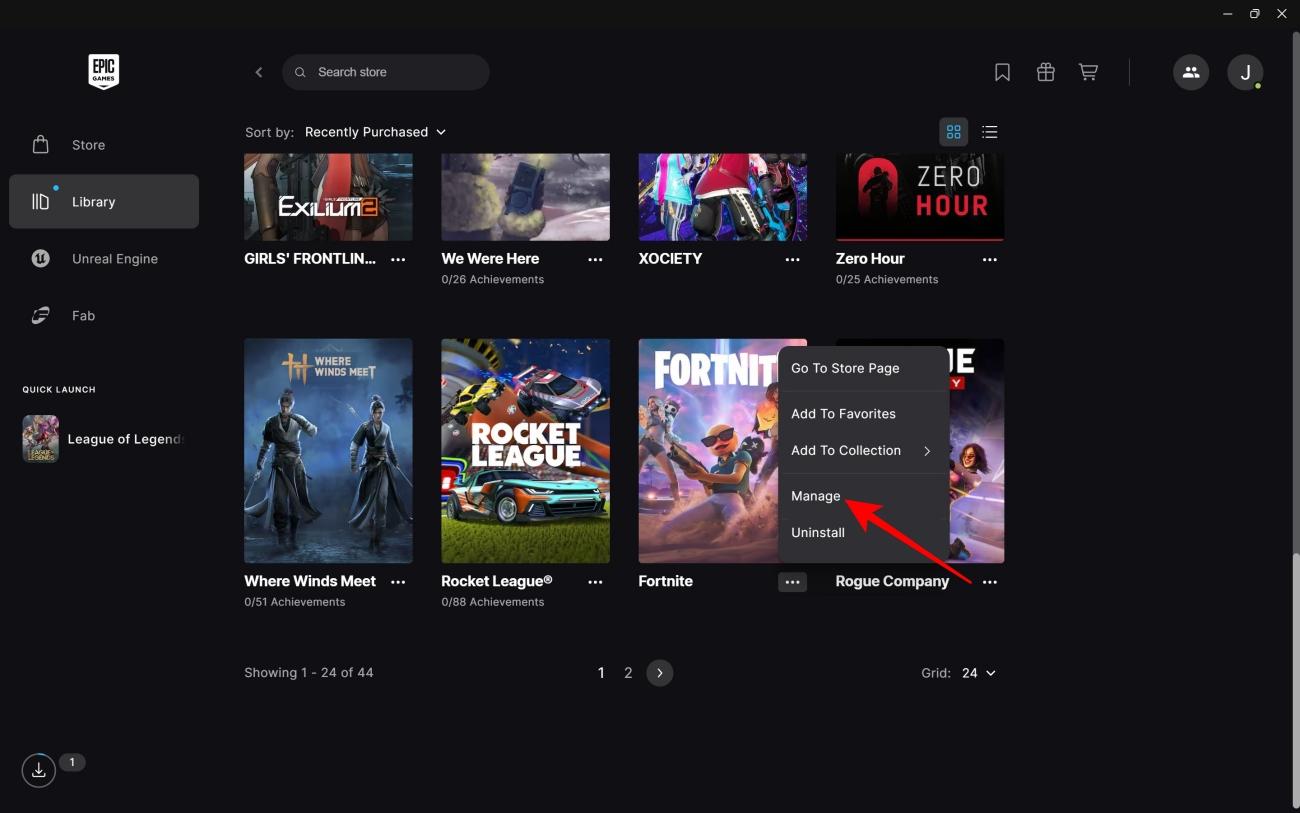
- Click on “Manage“
- In the window that appears, click on “Verify” and let the process finish.
2. Delete the game cache and then verify
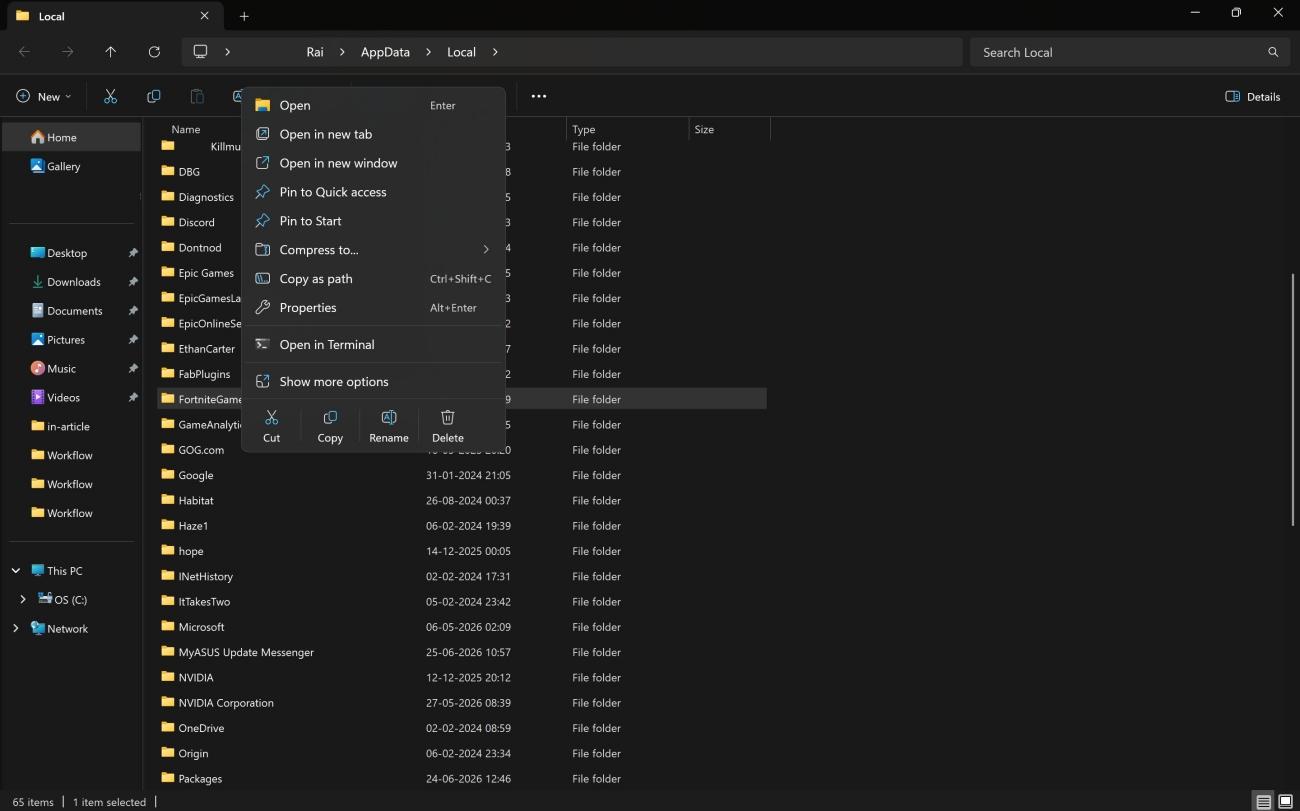
In certain cases, deleting the folder named ‘FortniteGame’ can resolve the invalid Pak issue. Don’t fret because of the folder’s name, it doesn’t delete your game but only its settings files. As a result, it’s advisable to take a screenshot of your existing Fortnite settings before you move on to the next steps.
Additionally, make sure Fortnite or the Epic Games Launcher isn’t running in the background as you proceed with the following method.
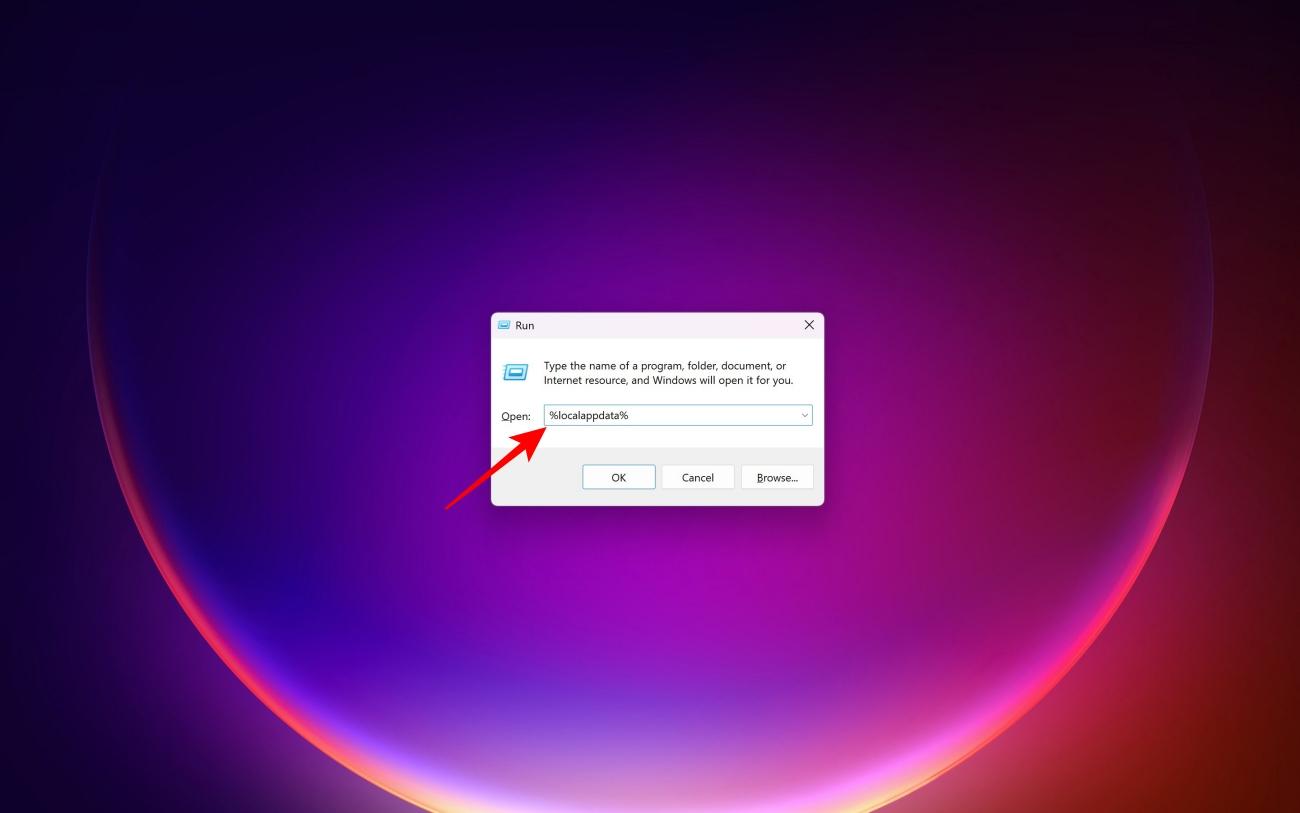
- Hold the Windows key and ‘R‘ to launch Run
- In the text field that shows up, enter “%localappdata%“
- In the window that opens, look for the FortniteGame folder and delete it
- Restart the computer
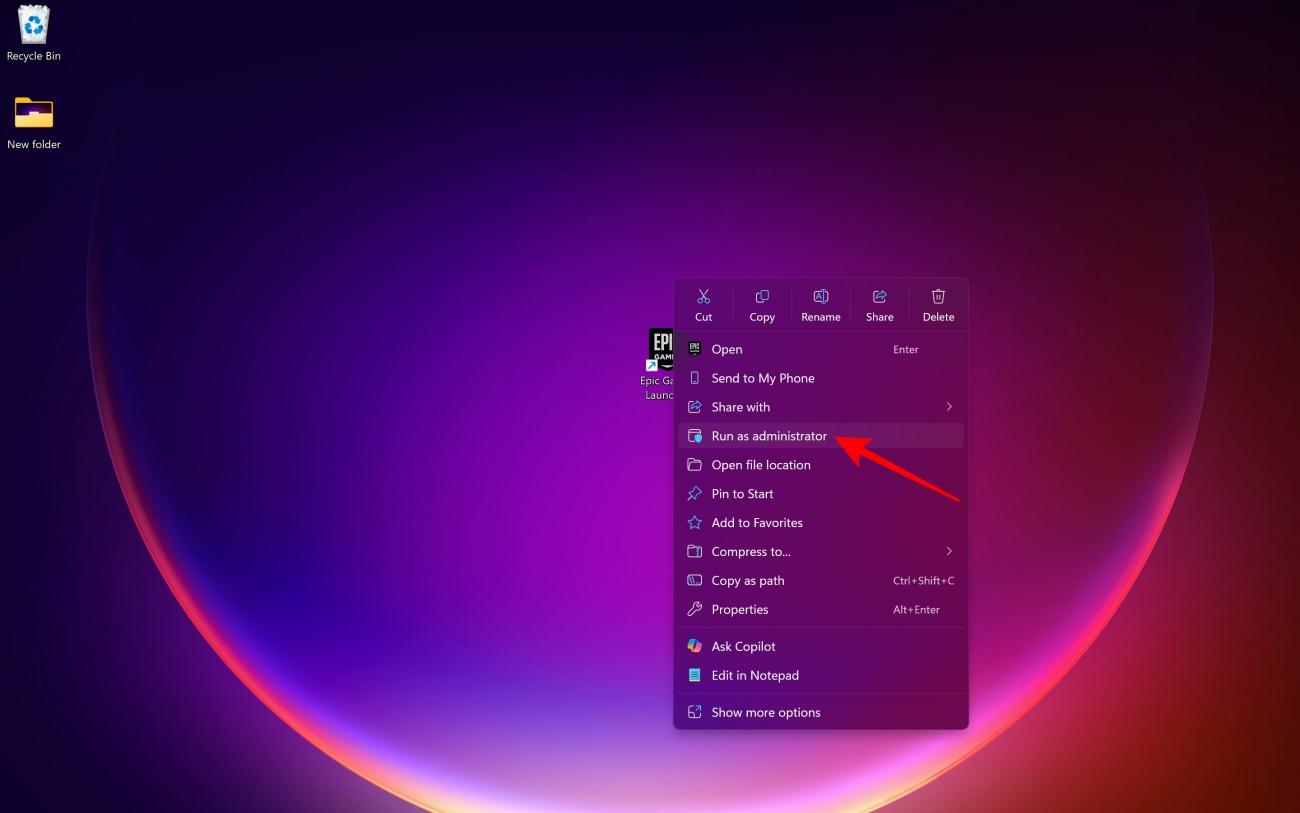
- Right-click on Epic Games Launcher and select “Run as administrator“
- Now, follow the previous method (verifying game files) once again.
3. Reinstall Fortnite
When all else fails, a completely fresh installation is often the way to go. It’s worth noting that doing this only deletes game files and doesn’t delete your Fortnite progress, as the latter is stored on Epic’s servers and is linked to your Epic Games account. For uninstalling and then reinstalling Fortnite, you can check out the steps below.
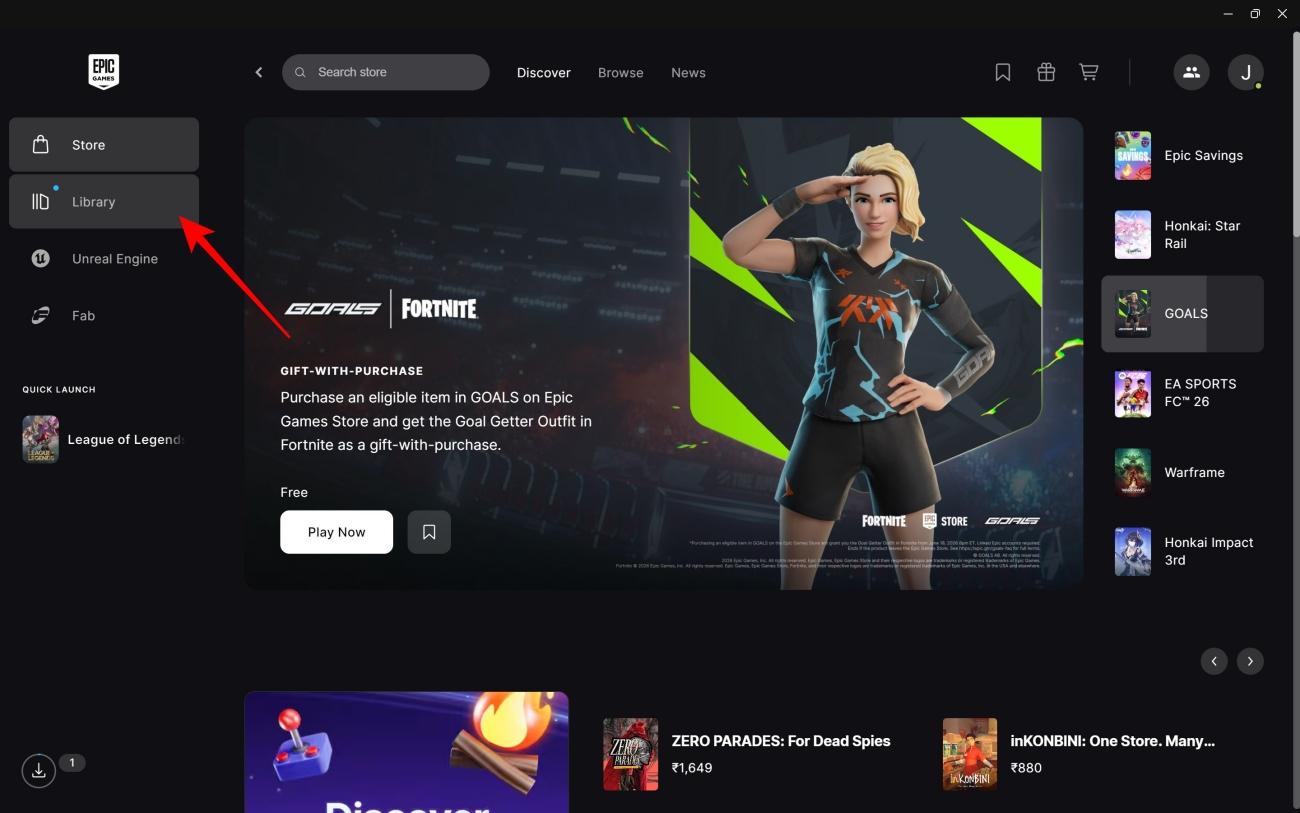
- In the Epic Games Launcher, click on “Library“
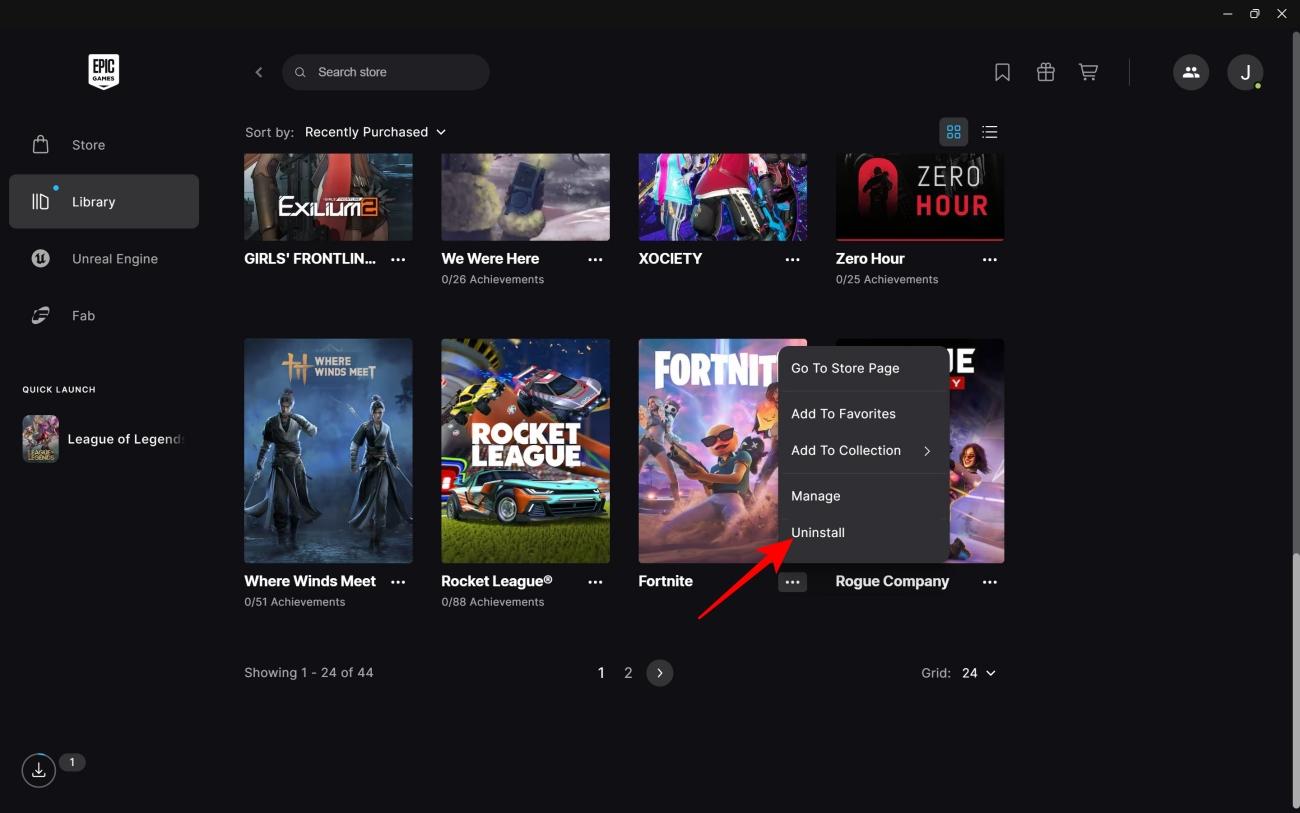
- From the list of games, look for Fortnite and click on the three dots next to it
- Click on “Uninstall“
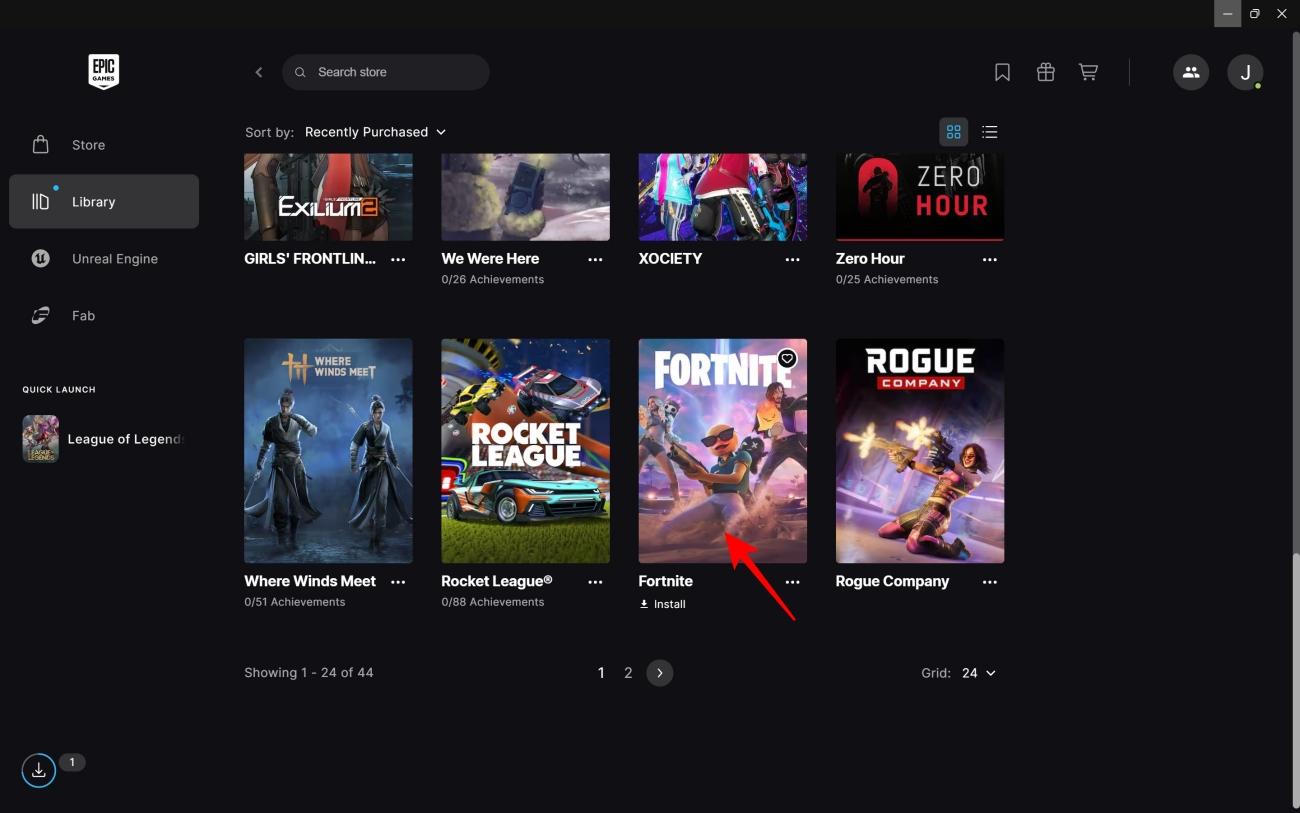
- Once the uninstallation has finished, click on the Fortnite game tile/image
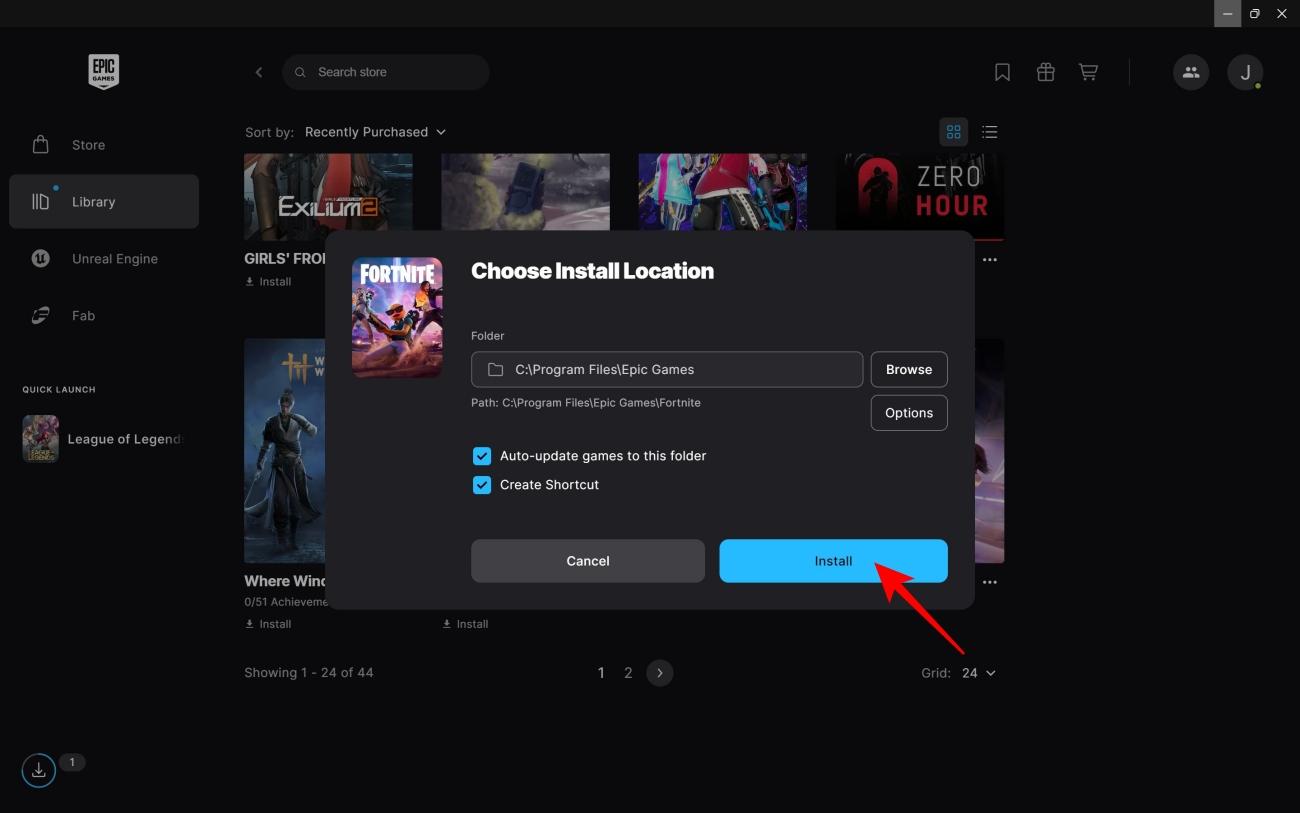
- In the window that appears, click on “Install“.
Final thoughts
Keeping an extremely popular online game like Fortnite running is undoubtedly a gargantuan task. Hence, it’s only natural that sometimes things go a bit awry, resulting in errors and annoying issues popping up.
Thanks to the veterans at Epic Games, whenever any technical problems surface in the multiplayer game, the remedy is shared with the players sooner rather than later. In parallel, the vast community behind the game also comes up with its own fixes and suggestions on social media.
The way both these fronts complement each other in providing solutions ensures that Fortnite stays accessible for as many players around the world as possible.
Missed This? Check It Out