
I’ve lost count of how many times I’ve published an Instagram Story only to spot a typo, forget to add music, or notice a misplaced sticker seconds later. Until now, the only way to fix these issues was to delete the Story and reupload it, losing the views and engagement it had already received.
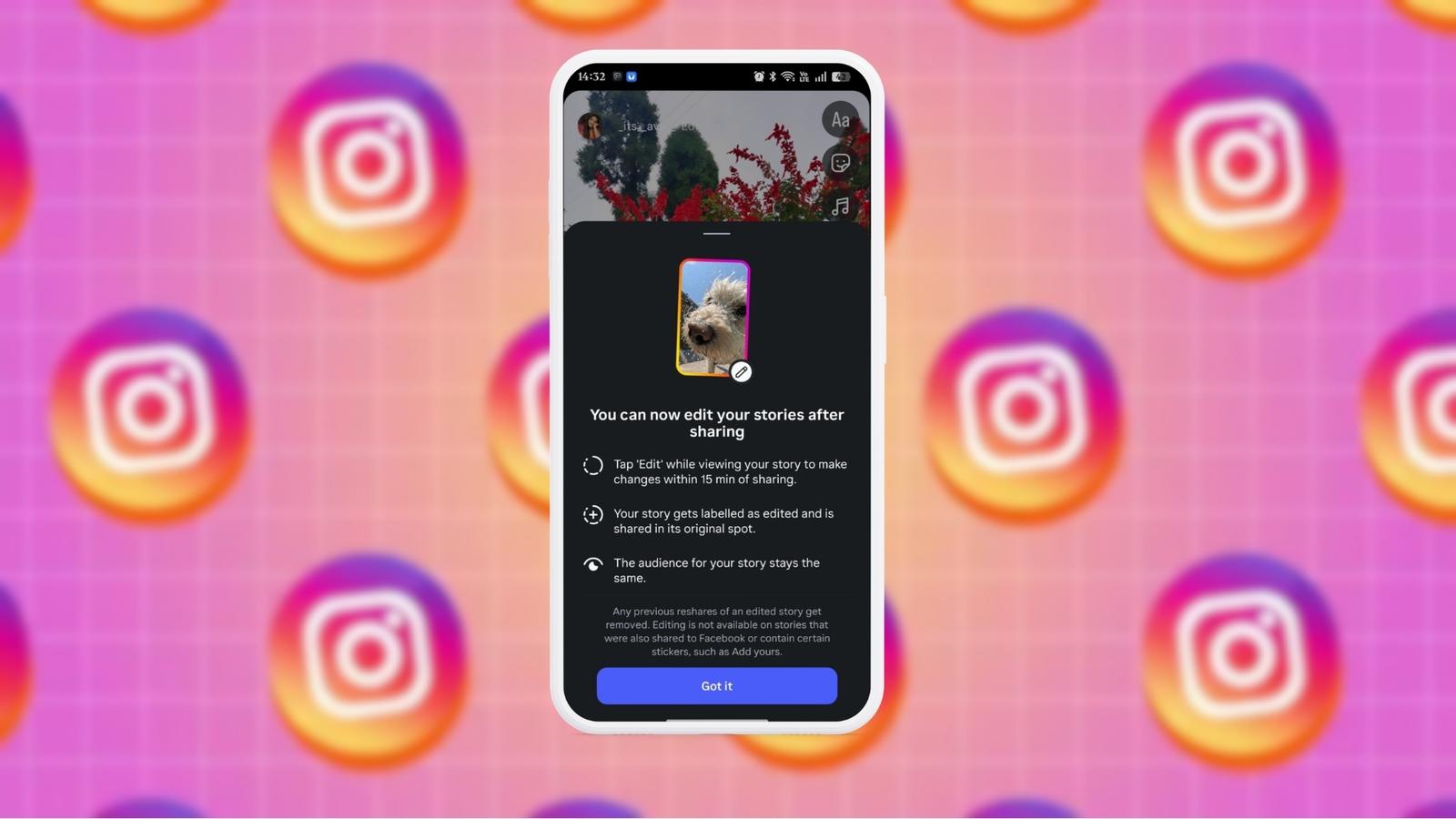
Instagram is finally addressing this long-standing frustration. As announced by Instagram head Adam Mosseri, you can now edit certain elements of a Story after publishing without deleting the original or losing its existing views, likes, and replies. There’s a catch, though: you have to do it within 15 minutes.
Here’s how to use Instagram’s Story editing feature, what you can change after posting, and what limitations you should know about.
How to edit a posted Story
You no longer need to delete an Instagram Story just because you spotted a spelling mistake or forgot to add a song. Instagram now offers an editing option directly inside a published Story.
Follow these steps:
- Open Instagram on your iPhone or Android phone.
- Tap your profile picture to view your published Story.
- Tap the three-dot menu (More) in the bottom-right corner.
- Select Edit Story.
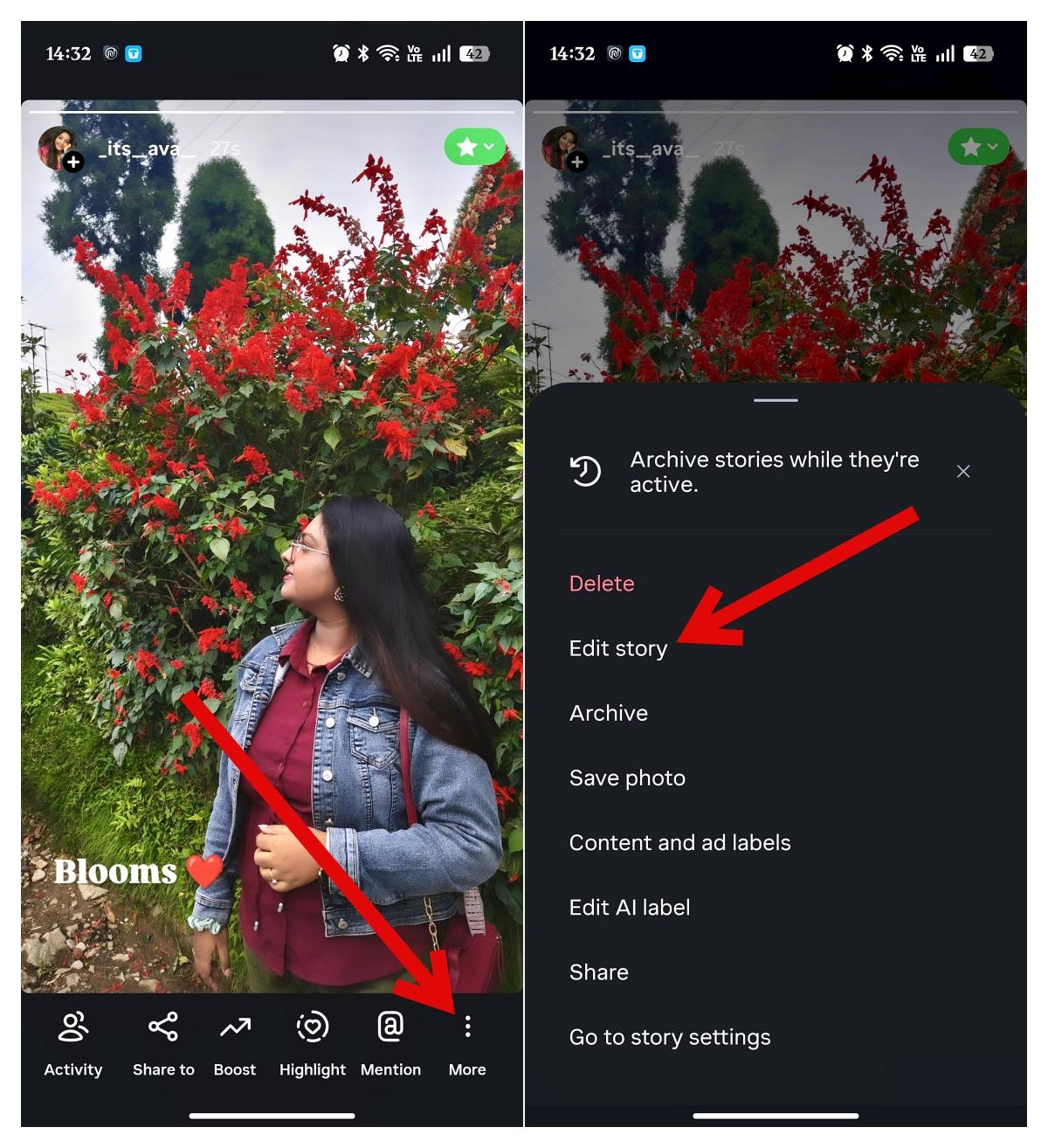
- Make changes to the filter, text, music, stickers, or drawings.
- Tap Save Changes to upload the edited Story. Your audience stays the same.
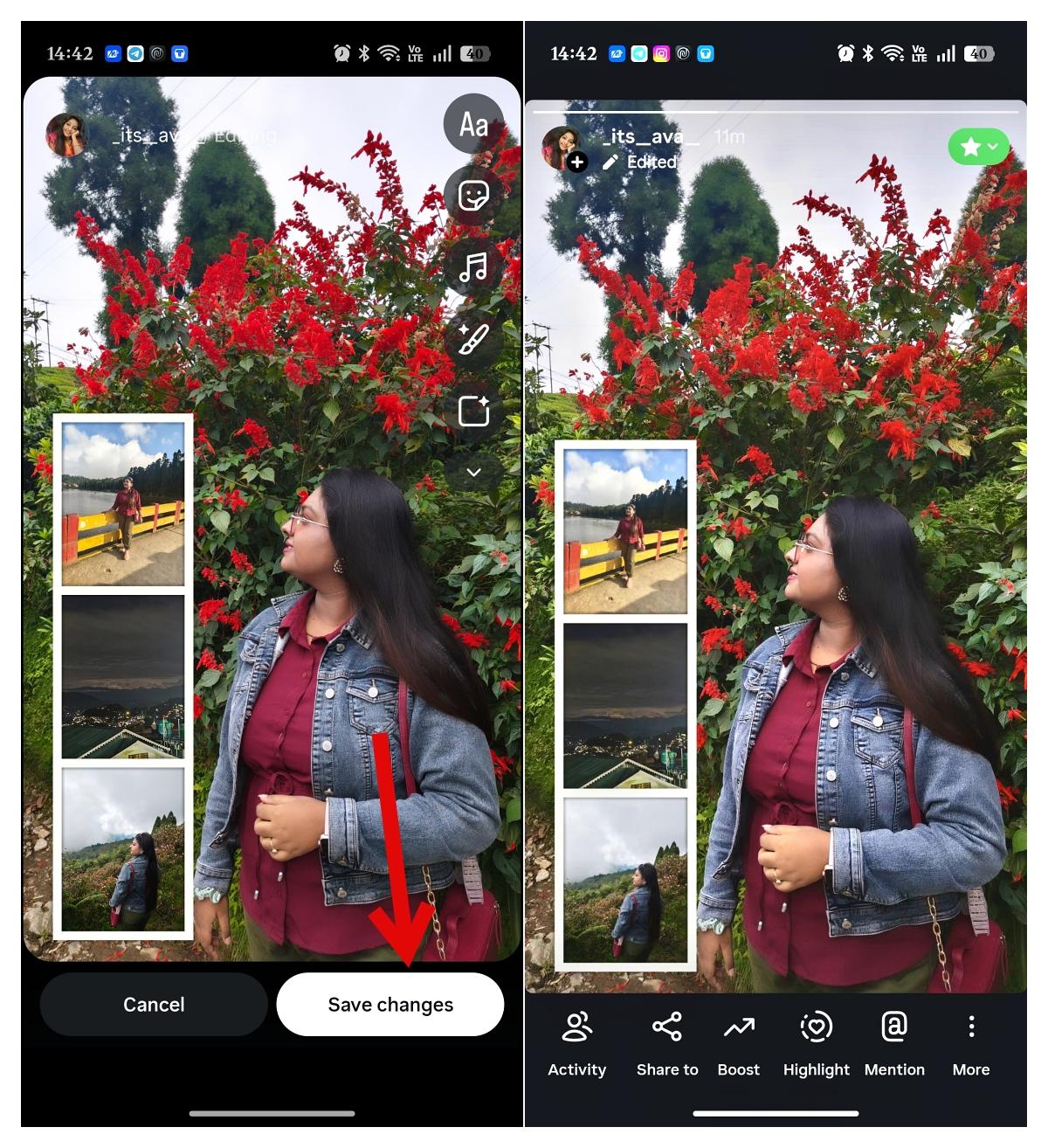
That’s it! Your changes will appear on the existing Story without requiring you to upload the entire photo or video again. Viewers will see an Edited label at the top, under your username.
I’d recommend checking your Story immediately after publishing it. The 15-minute window is short, especially if you’re sharing promotional content or multiple updates.
What can you edit in an Instagram Story after publishing?
Instagram doesn’t let you edit your Story freely after it goes live. Instead, the update focuses on the following:
- Text: Fix typos or adjust the existing text. This is especially helpful if you often post announcements or promotions.
- Music: Picked the wrong song or forgot to add music? You can now change or add music to a published Story within the editing window.
- Stickers: You can modify existing stickers in your published Story or add new ones. This is handy if you regularly use location tags and decorative stickers.
- Drawings: If you’ve used the drawing tool to highlight something or add handwritten details to a Story, you can adjust them after publishing or add new ones.
- Effects: Change or apply filters and effects, including Restyle AI. If you do, enable the Add AI label for transparency.
- Mentions: Forgot to tag your friend? You can add mentions after posting the Story.
One limitation: You can’t treat this as a full editing tool. Instagram hasn’t introduced an option to replace the original photo or video through post-publication editing.
What happens when you edit an Instagram Story?
The best part of this update isn’t simply the ability to fix mistakes. It’s that you don’t have to sacrifice your existing engagement to do so.
Here’s what happens after editing:
- Views remain: Your Story doesn’t lose its existing view count.
- Likes and replies remain: You don’t have to start collecting engagement again.
- Edited label appears: Instagram marks modified Stories with an Edited label.
- Audience remains the same: Editing doesn’t change who can see your Story.
Note:
If someone has reshared your original Story, that reshare will be removed when you edit the original.
I think preserving existing engagement is what makes this update genuinely useful. Otherwise, editing would offer little advantage over simply reposting the content.
Can’t find the Edit Story option on Instagram? Try these fixes
If Edit Story isn’t showing up in your Instagram app, it doesn’t necessarily mean something is wrong with the app itself. Run through these checks.
1. The 15-minute window has closed
This is the first thing I’d check. Instagram only allows editing within 15 minutes of publishing. Once that window expires, you’ll have to delete and repost the Story to make changes.
2. Your Instagram app needs an update
Open the App Store or Google Play Store, search for Instagram, and install any available update. Running an older version could prevent you from accessing newer features.
3. Check feature availability
Instagram often rolls out new features in phases. Even though the company has announced Story editing, the update may not reach everyone right away. Wait a while and check again.
4. Make sure the Story isn’t shared to Facebook
Stories shared to both Facebook and Instagram don’t support the new editing option. If you regularly cross-post content, try a Story published only on Instagram.
5. Look at your stickers
Some interactive stickers, such as Add Yours, can also block post-publication editing. If the option is missing even though you meet the other requirements, the Story’s content could be responsible.
Other Instagram Stories features introduced alongside editing
Post-publication editing isn’t the only improvement Instagram is bringing to Stories. The platform is also introducing a few creative additions:
- New sticker designs: Additional fonts, colors, and shapes give you more ways to personalize Stories.
- Easier photo selection: Selecting multiple photos when creating a Story should become more convenient.
- More background options: New blur, color, and gradient options let you create more visually appealing backgrounds.
These aren’t groundbreaking changes, but they make the Story creation experience a little more flexible.
The 15-minute limit is tight, but it fixes a real problem
I wouldn’t call this a complete solution to Instagram’s editing limitations. A 15-minute window feels surprisingly short. If you publish a Story and notice a mistake half an hour later, you have no option but to delete it and post the content again. You also can’t replace the original photo or video, so don’t expect a full editing experience.
Still, I think this is one of those small Instagram updates that can make a meaningful difference to everyday use. Being able to fix a typo, change a song, or adjust a sticker without losing existing engagement is genuinely useful.