

My Gmail storage kept creeping up, and for the longest time, I couldn’t figure out why. Then I checked properly. It wasn’t photos or attachments. It was years of promotional emails sitting quietly in the background. Sale alerts, newsletters, random signups, things I don’t even remember subscribing to. All of it just piling up over time.
The real problem wasn’t knowing what to delete. It was how you had to do it. Open one email, scroll down, unsubscribe, go back, repeat. Do that across dozens of senders, and you lose patience halfway through. It’s the kind of task you start but rarely finish.
That’s when I came across Gmail’s Manage Subscriptions feature, and it genuinely changed how I clean my inbox.
What Is Gmail’s Manage Subscriptions Feature
Gmail now groups subscription-based emails into a dedicated section called Manage Subscriptions.
Instead of showing individual emails, it shows the senders behind them. Newsletters, shopping alerts, app updates, and services you’ve signed up for over time all appear in one place.
That small shift changes everything.
You’re no longer dealing with emails one by one. You’re dealing with the source of the clutter.
How to clean your Gmail using Manage Subscriptions
Once you know where to look, the process is simple and surprisingly fast.
- Open the Gmail app and tap the three vertical lines (More options) button in the top left corner.
- Now, scroll down and tap Manage Subscriptions.
- Here you’ll see a list of senders that regularly email you.
- Tap any sender to open all emails from them.
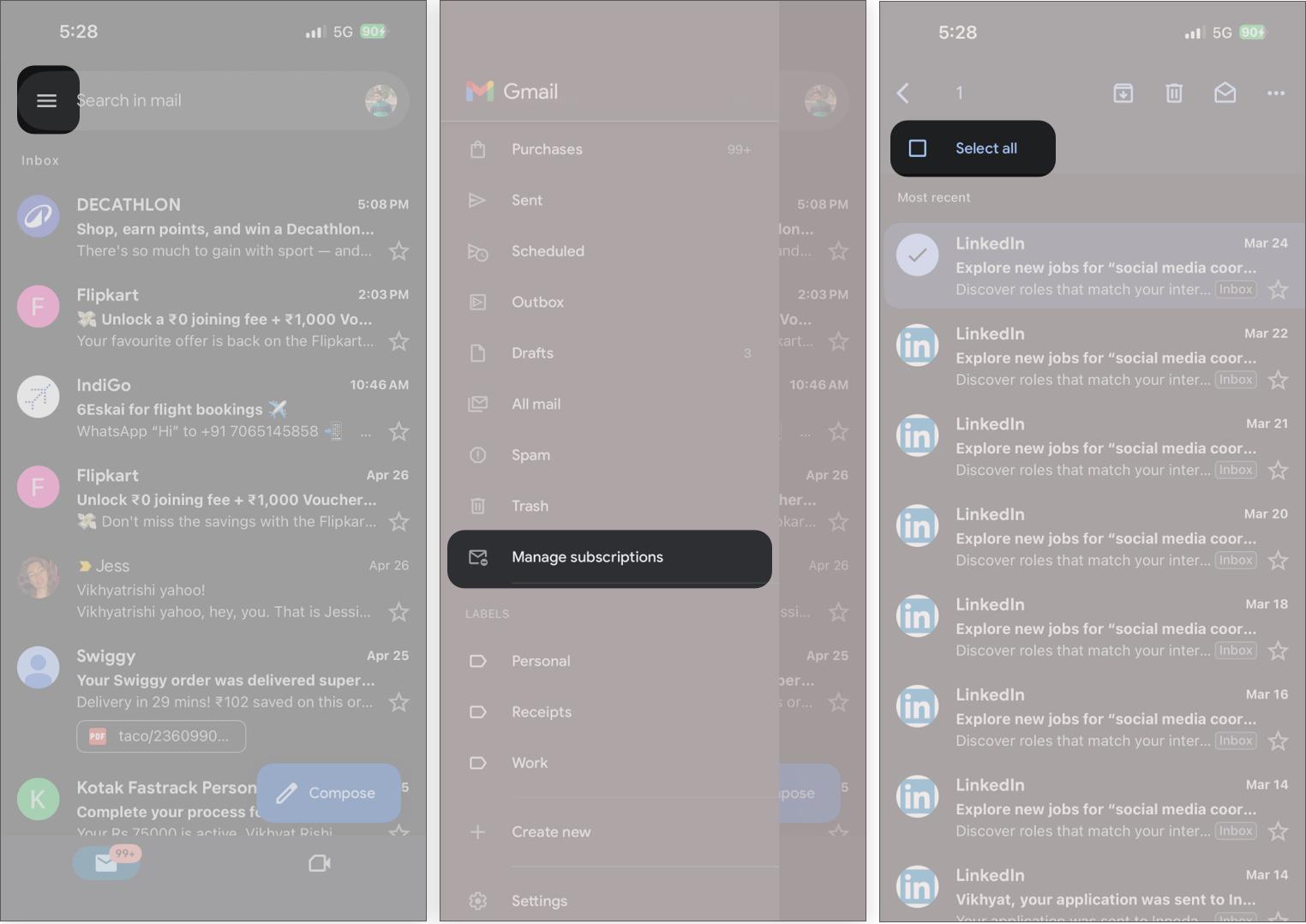
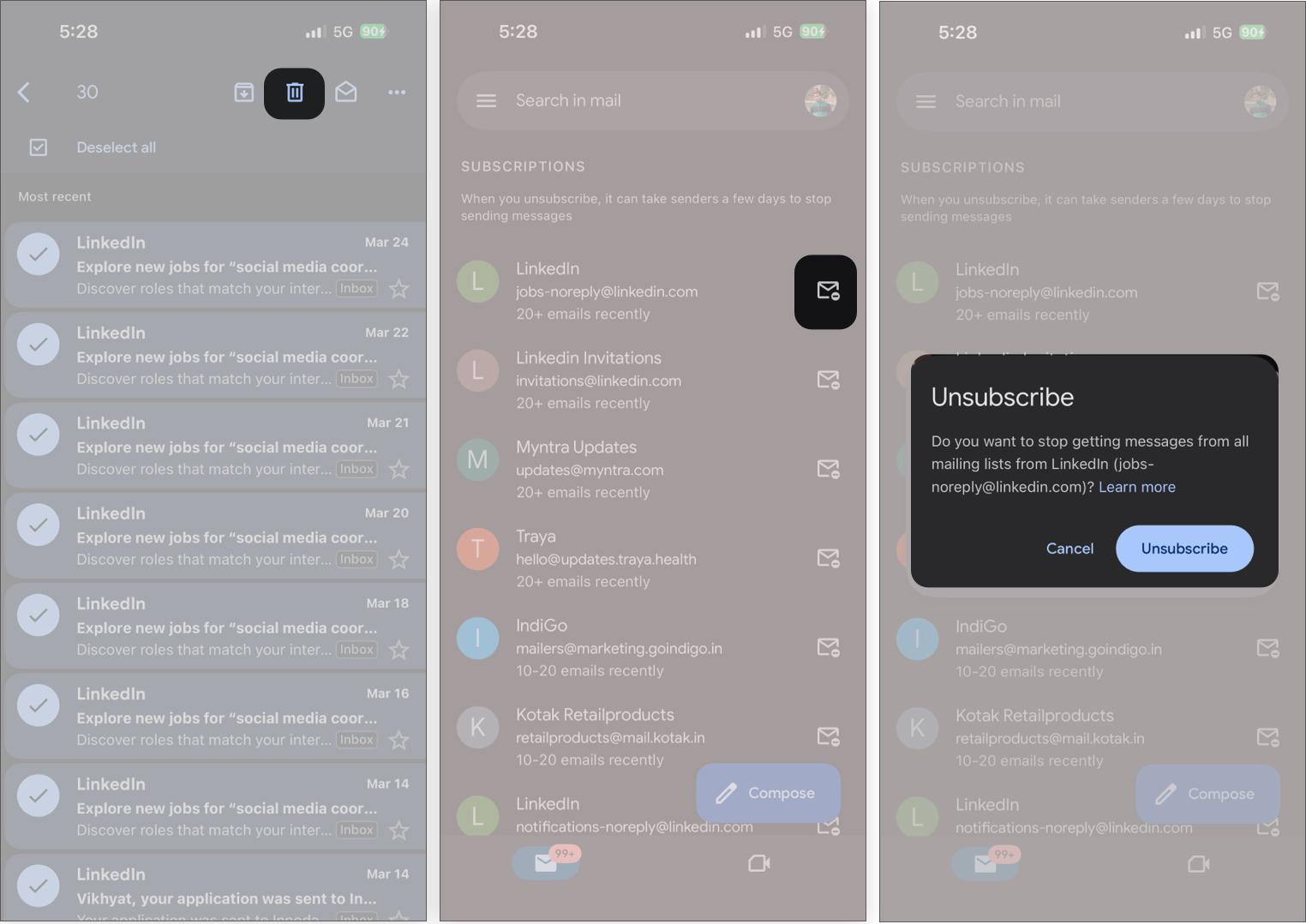
- Tap the sender profile icon, then select the Select All checkbox, and hit Delete.
- Repeat this until all the emails from the particular sender are deleted.
- Next, head back to the sender’s list.
- Tap the Unsubscribe button next to the sender’s name.
- Hit Unsubscribe to confirm.
Repeat this for a few senders, and you’ll start noticing the difference almost immediately.
Why Manage Subscriptions is better than deleting emails manually
The traditional way of cleaning Gmail doesn’t scale.
You deal with one email at a time. Even after spending time on it, the inbox barely looks different because you’re only removing pieces of the problem, not the source.
This method flips that approach. Inside Manage Subscriptions, everything is grouped by sender. You can see exactly who is filling up your inbox and how much they’ve sent over time.
Open one sender, delete everything, unsubscribe once, and you’re done. You’re not just cleaning. You’re stopping the clutter from coming back.
That’s what makes it effective.
Must Read: How to send Gmail emails through ChatGPT
What changes after you unsubscribe from every unnecessary subscription
Once you remove unnecessary subscriptions, the difference shows up immediately in how your inbox behaves:
- Fewer incoming emails from promotions and newsletters.
- Important emails stay visible instead of getting buried.
- Less scrolling to find what actually matters.
- Inbox feels quieter and easier to manage.
- Storage stops filling up as quickly.
- You don’t need to clean your inbox as often.
It doesn’t just look cleaner. It feels easier to use.
The mistake most people make when cleaning Gmail
Most people jump straight to unsubscribing. That only solves half the problem.
It stops future emails, but everything that has already accumulated stays in your inbox. That’s why it still feels cluttered even after unsubscribing.
The better approach is simple: Delete first, then unsubscribe.
Open the sender, clear all existing emails, and then unsubscribe. That way, you remove the backlog and prevent it from building up again.
Why this Gmail trick actually saves time
Cleaning your Gmail inbox usually feels like something you’ll do later. It’s repetitive, time-consuming, and rarely feels worth finishing.
This changes that. Instead of spending an hour cleaning emails one by one, you spend a few minutes removing entire sources of clutter.
Once that’s done, your inbox stops filling up the same way. And keeping it clean becomes effortless instead of something you constantly have to fix.
Final thought
This is one of those small features that doesn’t look like much until you actually use it.
But once you do, going back to the old way feels unnecessarily slow. If your Gmail storage is filling up and your inbox feels overwhelming, this is easily the fastest way to reset it without turning it into a long cleanup session.
You might also like: