
Claude puts dictation beside full Voice mode and three very different Cowork approval modes behind a hand, fast-forward, and warning symbol. Mixing them up can change how Claude handles your prompt or acts on your behalf.
This guide decodes the icons in Claude’s current web and desktop interface. Your layout may look slightly different depending on your device, plan, workspace settings, and Anthropic’s rollout. If you’re still deciding whether to switch AI tools, this hands-on ChatGPT vs Claude comparison explains the practical differences beyond the interface.
Claude chat box icons
The main composer combines chat modes, model controls, attachments, and two kinds of voice input. Here is what each symbol does.
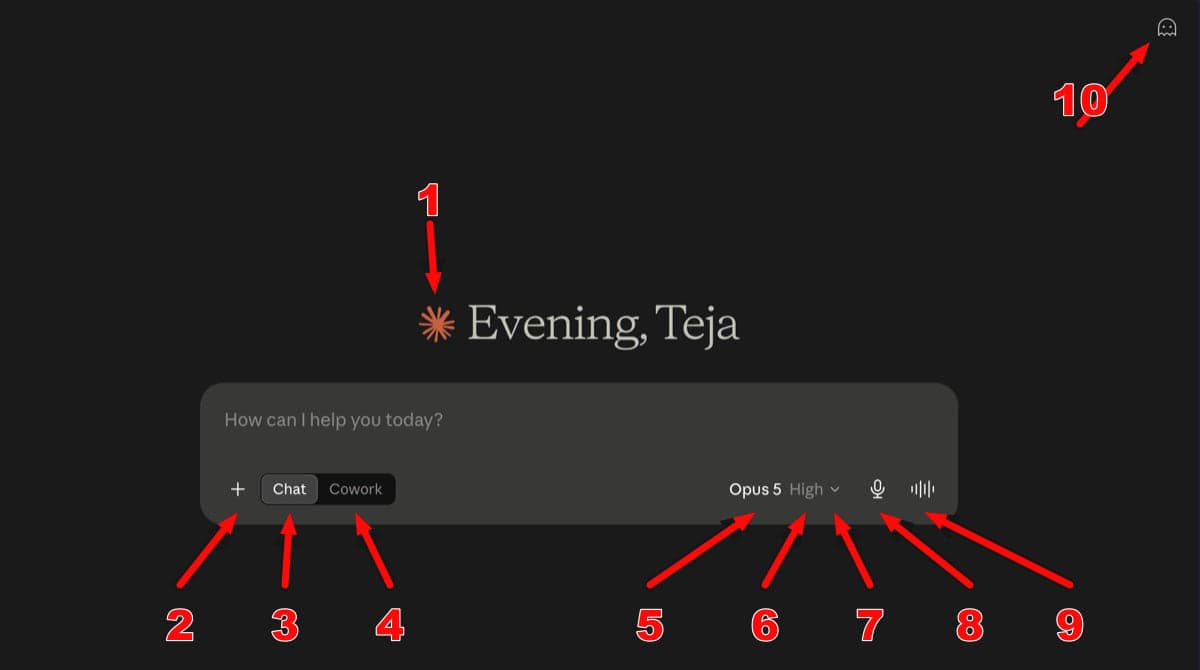
| No. | Icon or symbol | What it means |
|---|---|---|
| 1 | Claude starburst | Claude’s logo. The orange mark beside the greeting is branding, not a button. |
| 2 | + (plus) | Opens the attachment and tools menu. You can add files, take a screenshot, use skills, connect apps, or turn on search tools. |
| 3 | Chat | Starts a normal Claude conversation. Use this for questions, writing, analysis, and everyday prompts. |
| 4 | Cowork | Starts an agent-style task where Claude can work with projects, files, connectors, and other tools. |
| 5 | Model name, such as Opus 5 | Shows the model selected for the next response. Click it to choose another available model. |
| 6 | Effort label, such as High | Controls how much work Claude puts into a response. Higher effort can improve difficult answers, but it is slower and uses more of your allowance. |
| 7 | Down chevron (⌄) | Opens the model and effort menu. A chevron elsewhere usually means there are more choices. |
| 8 | Microphone | Starts dictation. Claude converts your speech into text in the prompt box, but does not speak its answer aloud. |
| 9 | Sound waveform | Starts full Voice mode, where you speak to Claude and hear its replies. |
| 10 | Ghost | Opens an Incognito chat. The conversation is not saved to your normal history and is not added to Claude’s memory. |
The model and effort labels work together. Lower effort stretches your usage further for routine requests; higher effort is better saved for difficult work.
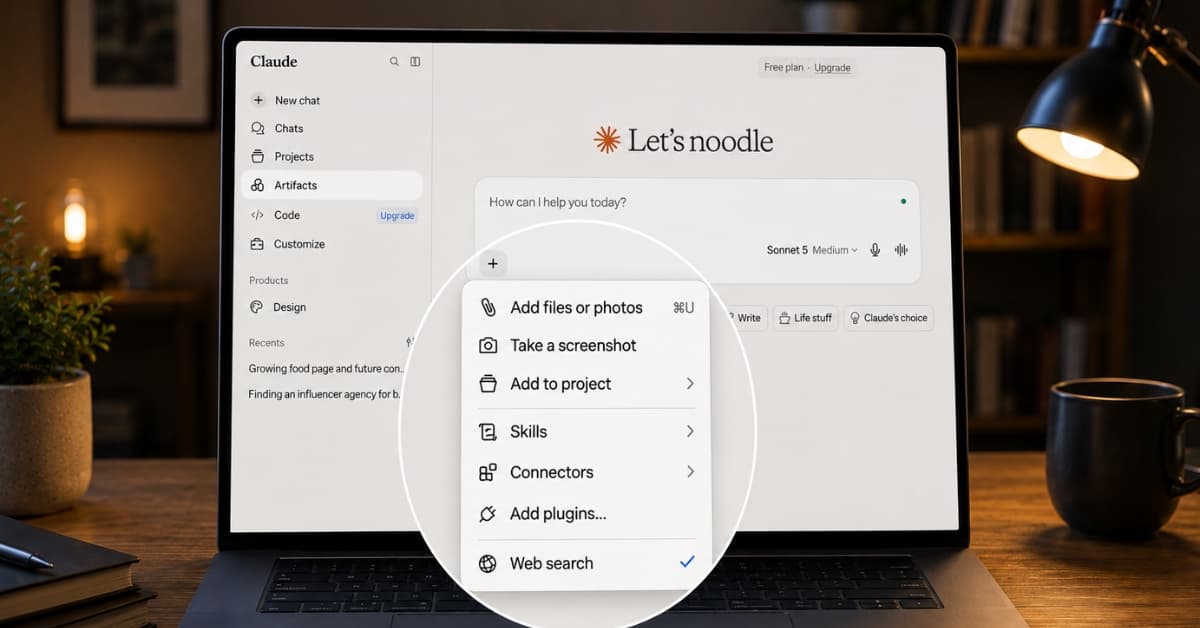
What the icons inside the plus menu mean
Clicking the plus button reveals more than attachments. It is also where Claude keeps search, Research, skills, connectors, and plugins.
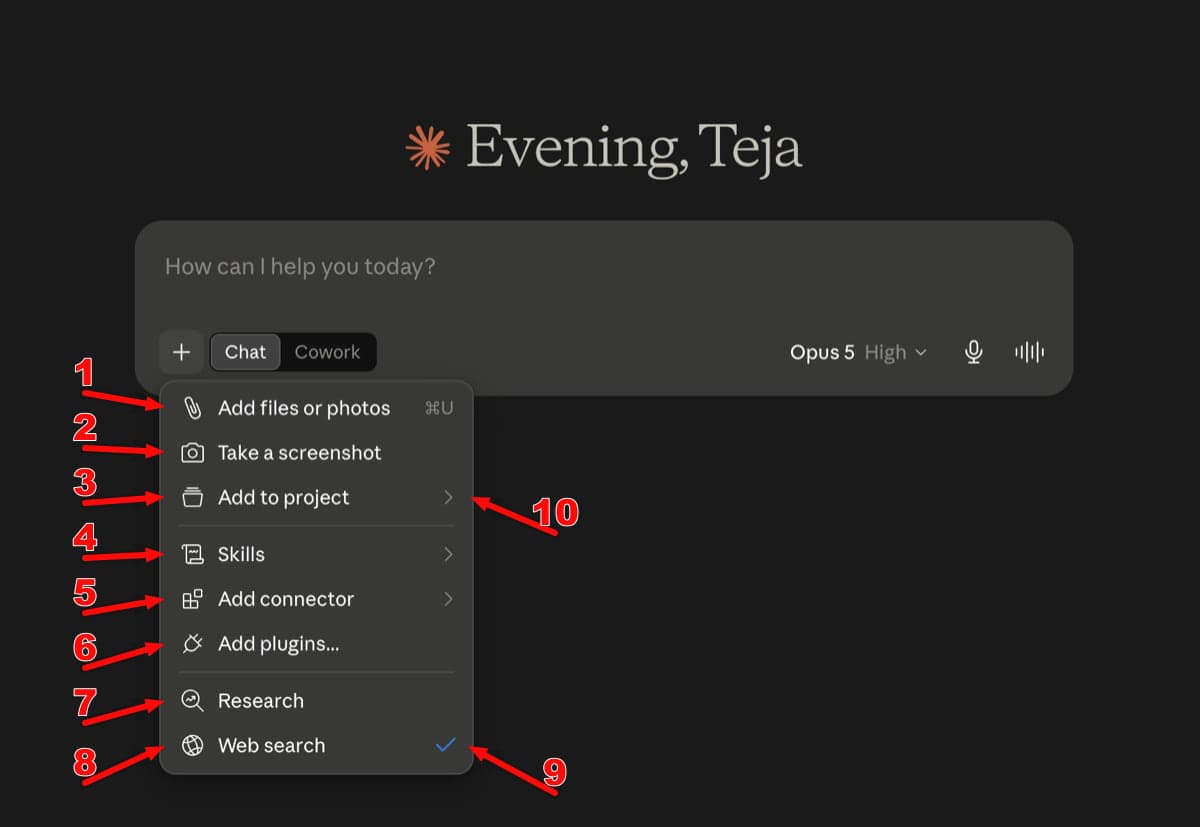
| No. | Icon | Option | What it does |
|---|---|---|---|
| 1 | Paperclip | Add files or photos | Uploads a document or image for Claude to read. You can also drag files into the chat. |
| 2 | Camera | Take a screenshot | Captures part of your screen and attaches it to the prompt. |
| 3 | Project tray | Add to project | Places the conversation inside a Claude project so it can use that project’s context and instructions. |
| 4 | Scroll/page | Skills | Applies a saved workflow or set of instructions to the conversation. |
| 5 | Four small blocks | Add connector | Connects Claude to a supported service or data source. |
| 6 | Plug | Add plugins | Opens the plugin options that extend what Claude can do. |
| 7 | Magnifying glass with a chart | Research | Runs broader, multi-step research across sources. It is better for a detailed brief than a quick fact. |
| 8 | Globe | Web search | Lets Claude search the live web for current information and include source links. |
| 9 | Blue check mark | Enabled | Shows that the option beside it, such as Web search, is currently turned on. Click it again to disable it. |
| 10 | Right chevron (›) | Submenu | Opens another list, such as available projects, skills, or connectors. |
The plain magnifying glass and the Research symbol are easy to mix up. A normal magnifying glass searches a list or page; Research asks Claude to investigate a topic through multiple searches.
Claude sidebar icons
The left sidebar is the quickest route to conversations, projects, generated work, schedules, and customization.
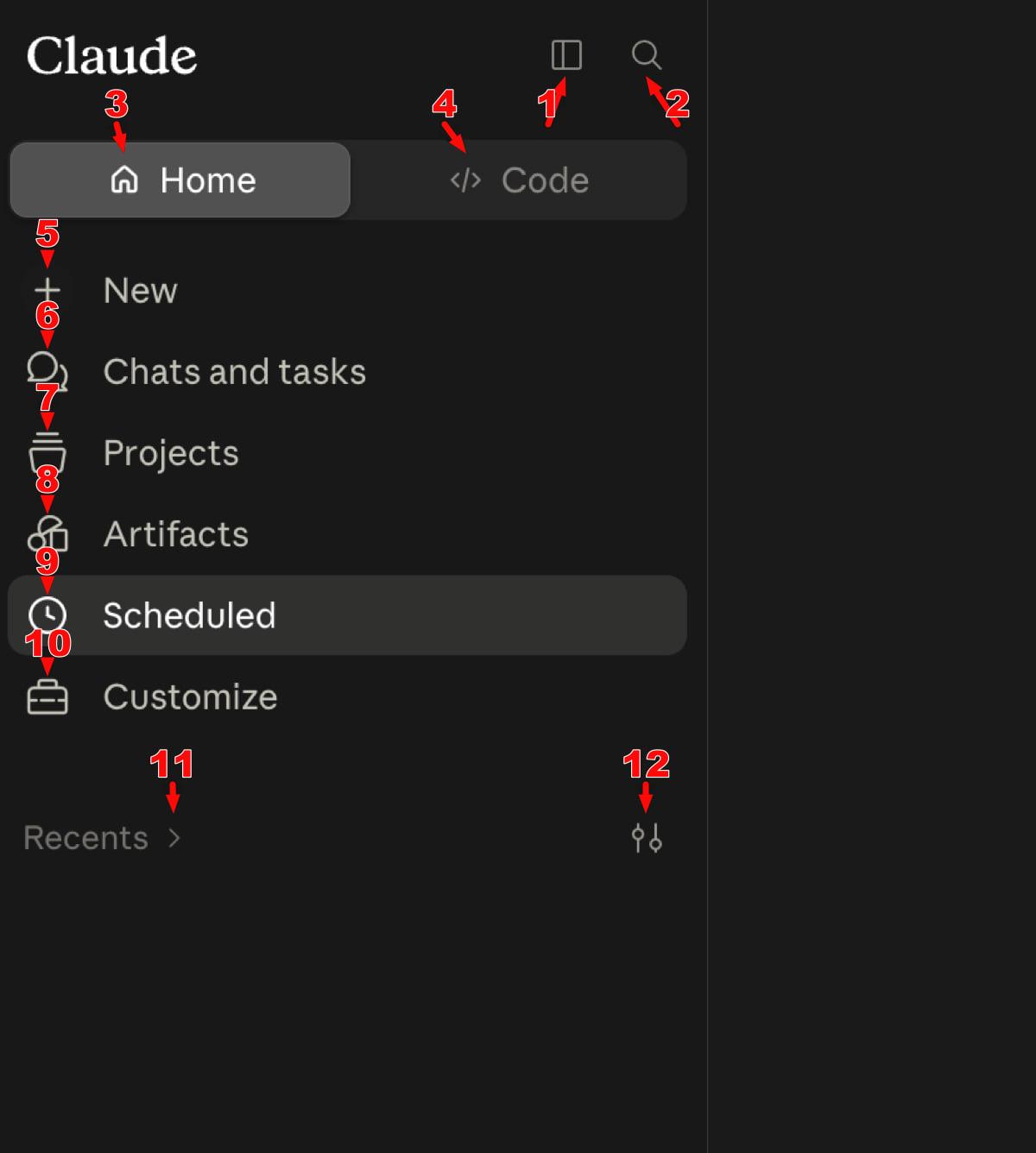
| No. | Icon | Label | What it opens |
|---|---|---|---|
| 1 | Split rectangle | Sidebar control | Collapses or expands the navigation panel. |
| 2 | Magnifying glass | Search | Finds chats, tasks, or items in the current Claude area. |
| 3 | House | Home | Returns to the main Claude start screen. |
| 4 | Code brackets | Code | Switches from the regular Claude area to Claude Code. |
| 5 | + (plus) | New | Starts a new chat or task. |
| 6 | Two chat bubbles | Chats and tasks | Opens your conversation and Cowork task history. |
| 7 | Tray/container | Projects | Opens workspaces that group related chats, files, instructions, and context. |
| 8 | Three connected shapes | Artifacts | Opens Claude’s library of generated apps, tools, visualizations, and standalone content. |
| 9 | Clock | Scheduled | Shows recurring and on-demand Cowork tasks. |
| 10 | Briefcase | Customize | Opens Claude’s customization area for skills, connectors, plugins, and related controls. |
| 11 | Chevron beside Recents | Recent items | Expands or collapses your recent conversations. |
| 12 | Sliders | Filter or sort | Changes which recent items appear. |
Chats and tasks page controls
The history page adds controls for finding and managing conversations.
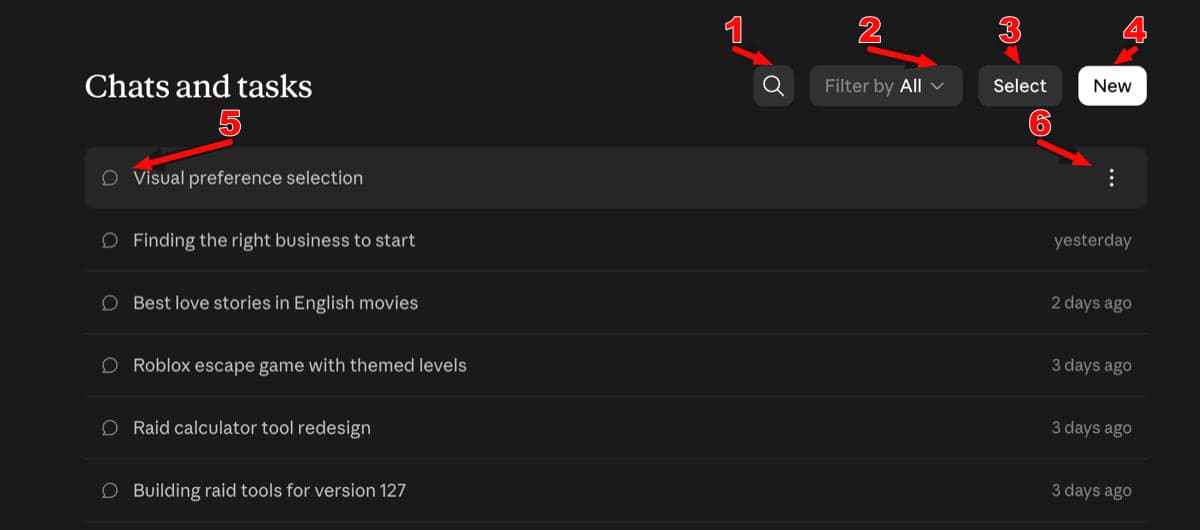
| No. | Icon or control | What it does |
|---|---|---|
| 1 | Magnifying glass | Searches your chat and task history. |
| 2 | Filter by chevron | Narrows the list by conversation type. |
| 3 | Select | Enables bulk actions for multiple conversations. |
| 4 | New | Starts another chat or task. |
| 5 | Chat bubble | Marks the row as a conversation. |
| 6 | Three vertical dots | Opens actions for that chat or task, such as rename or delete. |
Some sidebar items are plan-dependent. For example, the clock is tied to scheduled Cowork tasks, so it may not appear on every account.
Cowork project and approval symbols
Cowork can take actions instead of only replying with text, which is why its approval icons matter more than they first appear. You can also read how Claude Cowork works across iPhone, web, and desktop before handing it a larger task.
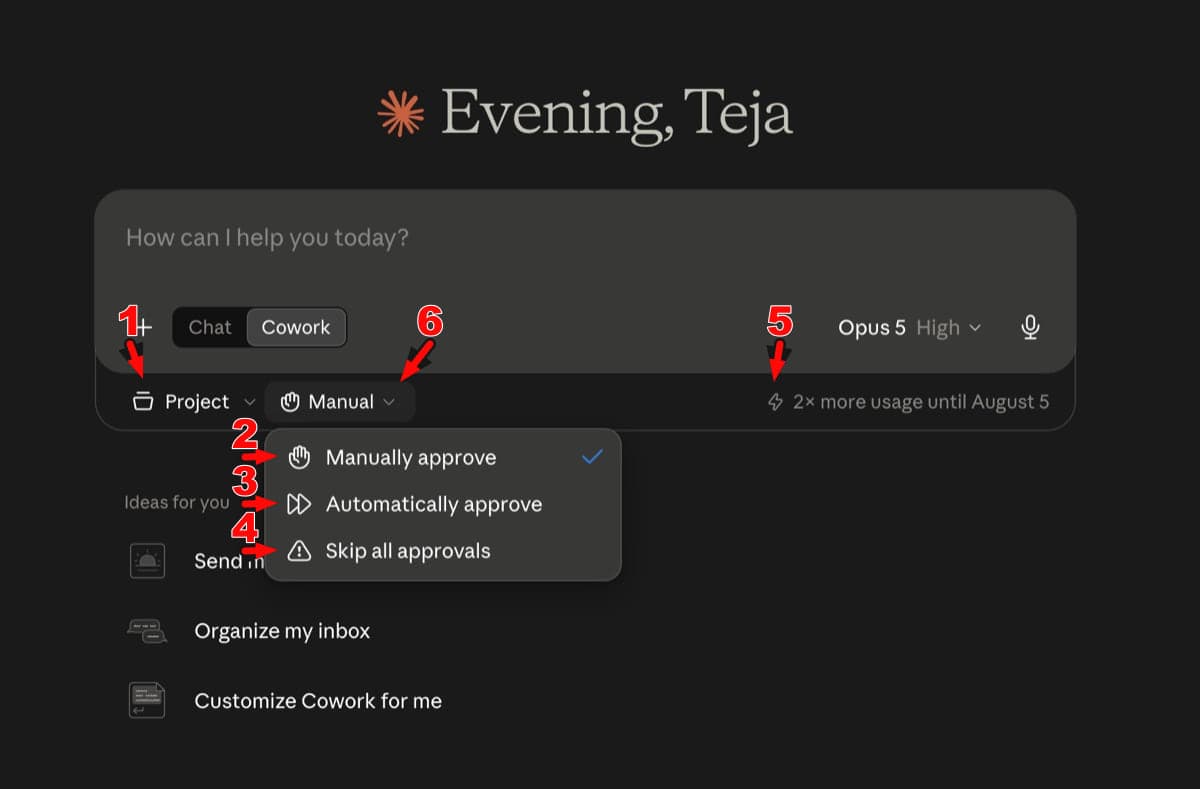
| No. | Icon | Label | What it means |
|---|---|---|---|
| 1 | Project tray | Project | Chooses the project and context Cowork should use. |
| 2 | Hand | Manually approve | Claude pauses before actions that need permission. This is the safest default when files, messages, or accounts are involved. |
| 3 | Fast-forward | Automatically approve | Claude keeps working while checking actions for safety. It pauses or blocks an action when needed. |
| 4 | Warning triangle | Skip all approvals | Claude acts without asking and without the automatic safety review. Use this only when you fully trust every file, site, connector, and action involved. |
| 5 | Lightning bolt | Extra usage | Marks a temporary usage multiplier or allowance, such as “2× more usage.” |
| 6 | Down chevron | More options | Opens the project or approval-mode picker. |
Cowork project picker symbols
Opening the Project menu reveals another small group of controls.
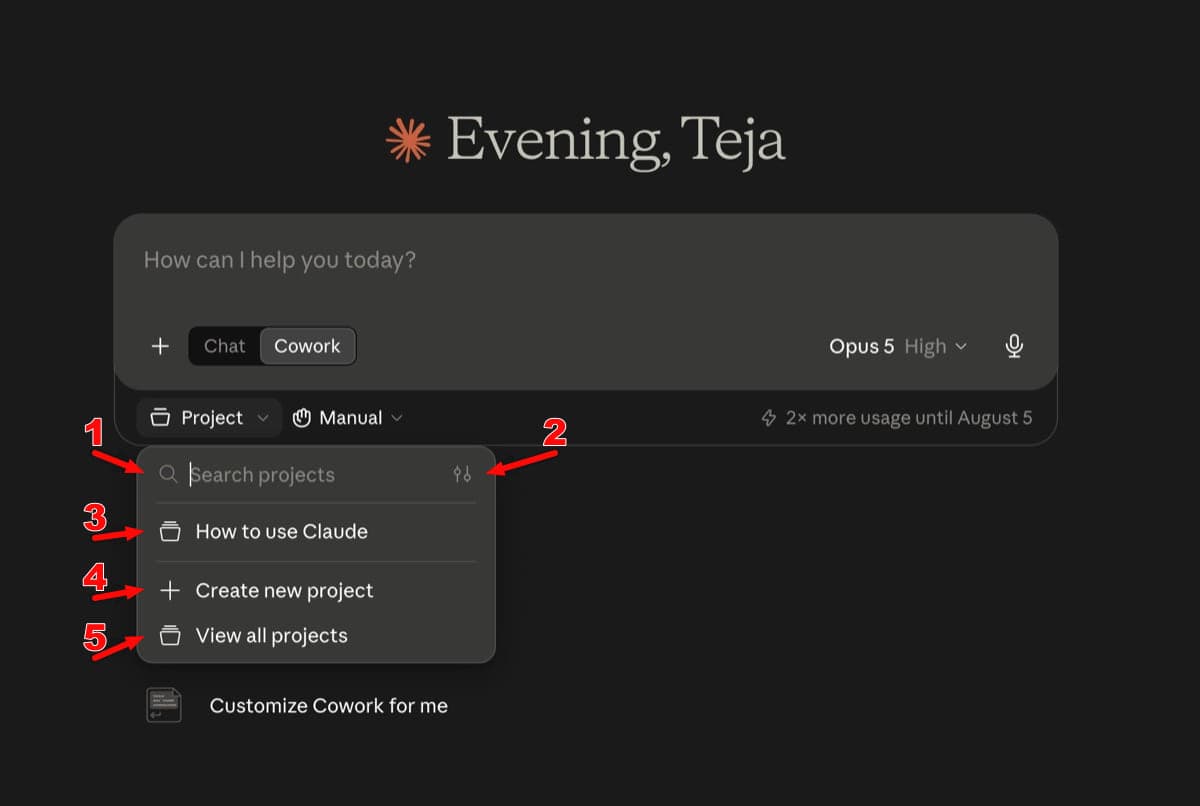
| No. | Icon | What it does |
|---|---|---|
| 1 | Magnifying glass | Searches projects by name. |
| 2 | Sliders | Filters or sorts the project list. |
| 3 | Project tray beside a project name | Opens that project. |
| 4 | + (plus) | Creates a new Cowork project. |
| 5 | Project tray beside View all | Opens the full project library. |
Stick with the hand icon until you understand the task. Automatically approve is a useful middle ground, while Skip all approvals removes the check that could catch an unsafe action.
Account menu icons
Click your profile initials in the lower-left corner to open account, plan, help, and app controls.
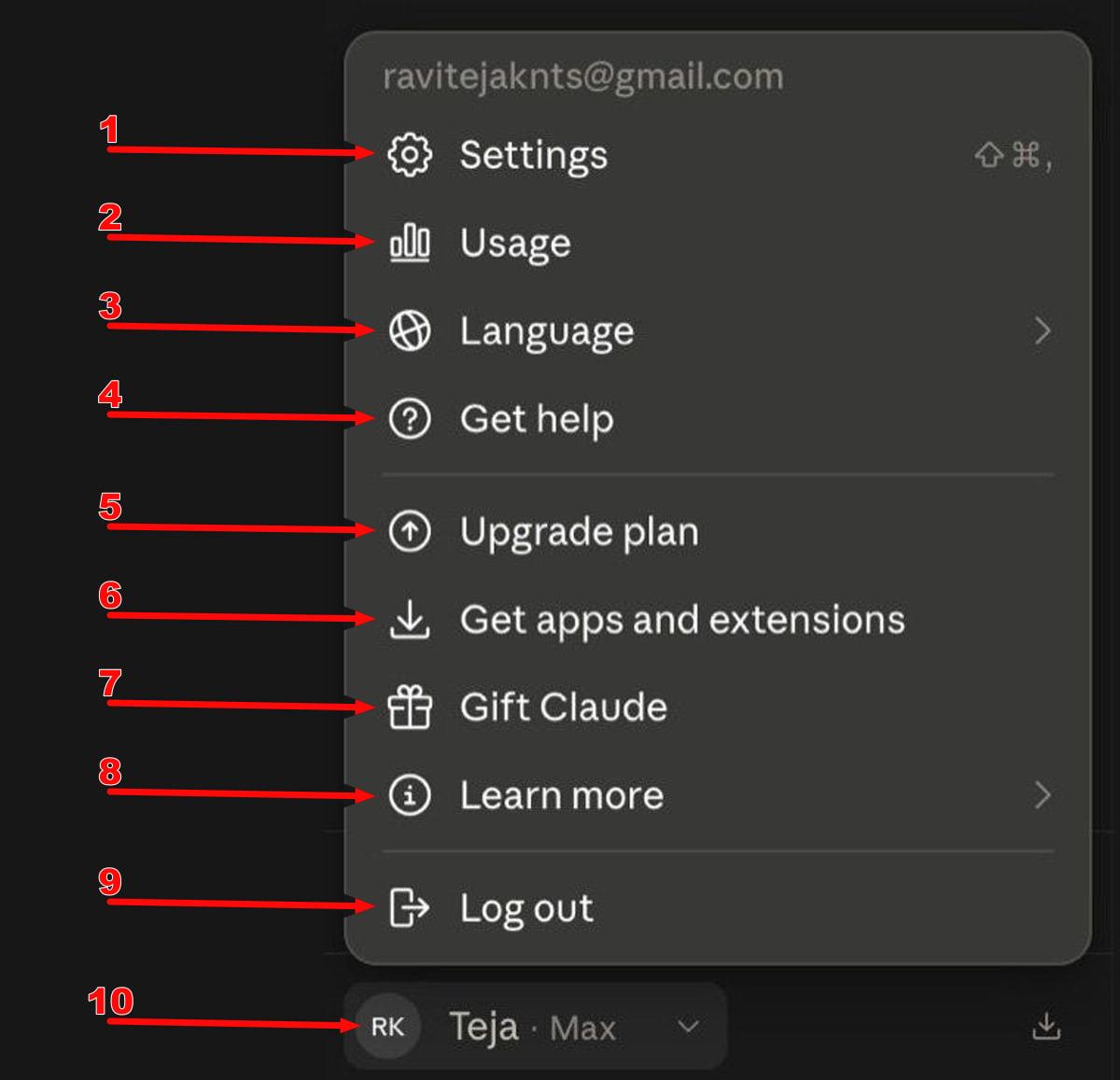
| No. | Icon | Label | What it does |
|---|---|---|---|
| 1 | Gear | Settings | Opens Claude’s settings. The symbols shown beside it are the keyboard shortcut: Shift-Command-Comma on Mac. |
| 2 | Bar chart | Usage | Shows session and weekly usage against your plan limits. |
| 3 | Globe | Language | Changes Claude’s interface language. |
| 4 | Question mark in a circle | Get help | Opens support and help options. |
| 5 | Up arrow in a circle | Upgrade plan | Shows paid-plan upgrade choices. |
| 6 | Download arrow | Get apps and extensions | Opens Claude’s desktop, mobile, browser, or extension downloads. |
| 7 | Gift box | Gift Claude | Opens Claude’s gifting options where available. |
| 8 | Information symbol | Learn more | Opens product information and related links. |
| 9 | Door with arrow | Log out | Signs the current account out. |
| 10 | Profile initials and down chevron | Account menu | Shows the signed-in account and plan, and opens this menu. |
Icons in Claude Settings
Most Settings symbols repeat familiar ideas, but a few are specific to Claude’s products.
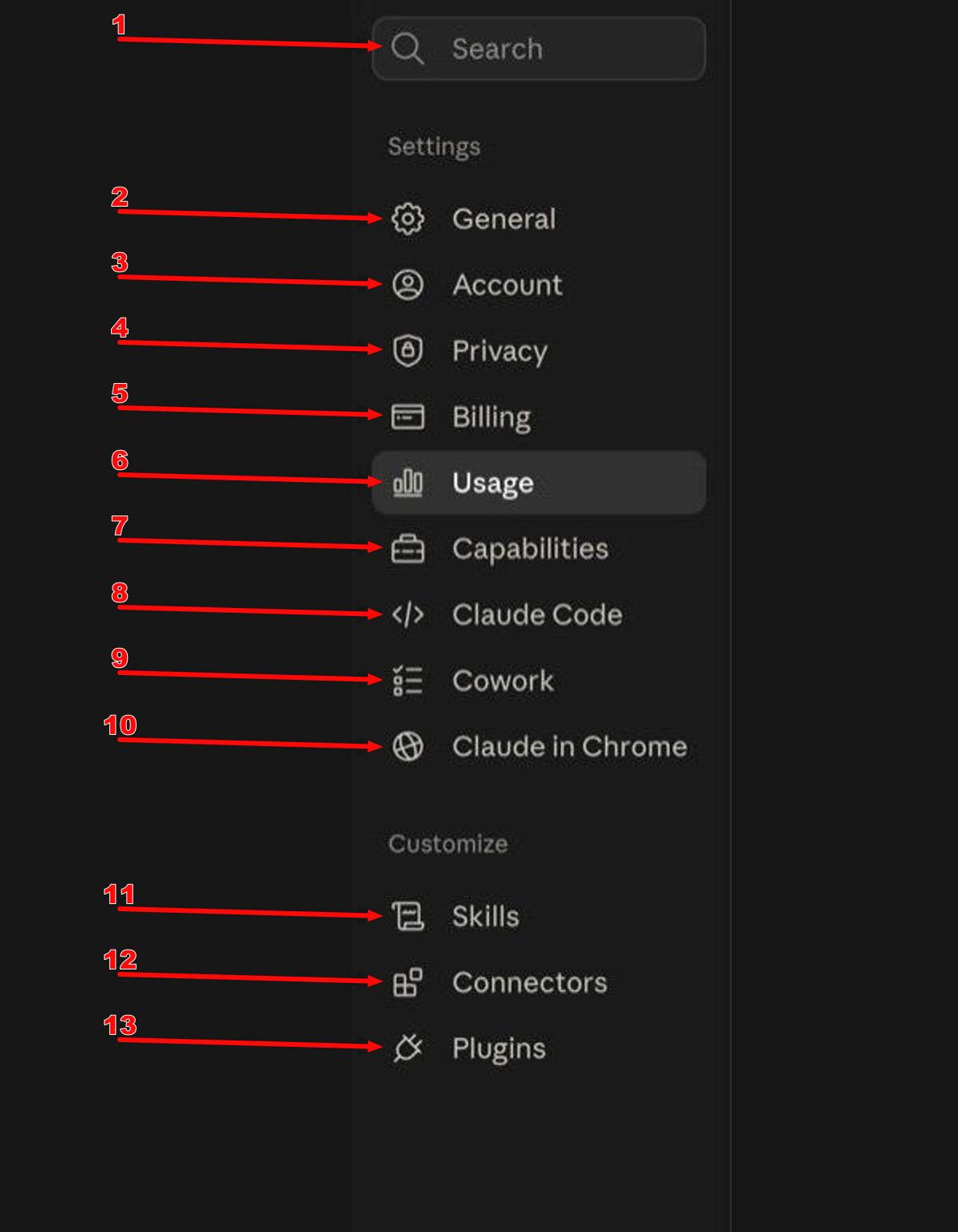
| No. | Icon | Setting | What you manage |
|---|---|---|---|
| 1 | Magnifying glass | Search | Finds a setting by name. |
| 2 | Gear | General | Appearance, behavior, and general preferences. |
| 3 | Person in a circle | Account | Account details and profile-related controls. |
| 4 | Shield with lock | Privacy | Privacy and data controls. |
| 5 | Card | Billing | Subscription and payment details. |
| 6 | Bar chart | Usage | Session and weekly model-usage meters. |
| 7 | Briefcase | Capabilities | Enables or configures Claude features available to the account. |
| 8 | Code brackets | Claude Code | Claude Code-related setup and controls. |
| 9 | Checklist | Cowork | Cowork settings and permissions. |
| 10 | Globe | Claude in Chrome | Browser integration settings. |
| 11 | Scroll/page | Skills | Installed and custom skills. |
| 12 | Four blocks | Connectors | Connected services and their permissions. |
| 13 | Plug | Plugins | Installed plugins and plugin controls. |
Other symbols on a Settings page
These controls appear in the main Settings panel rather than the navigation list.
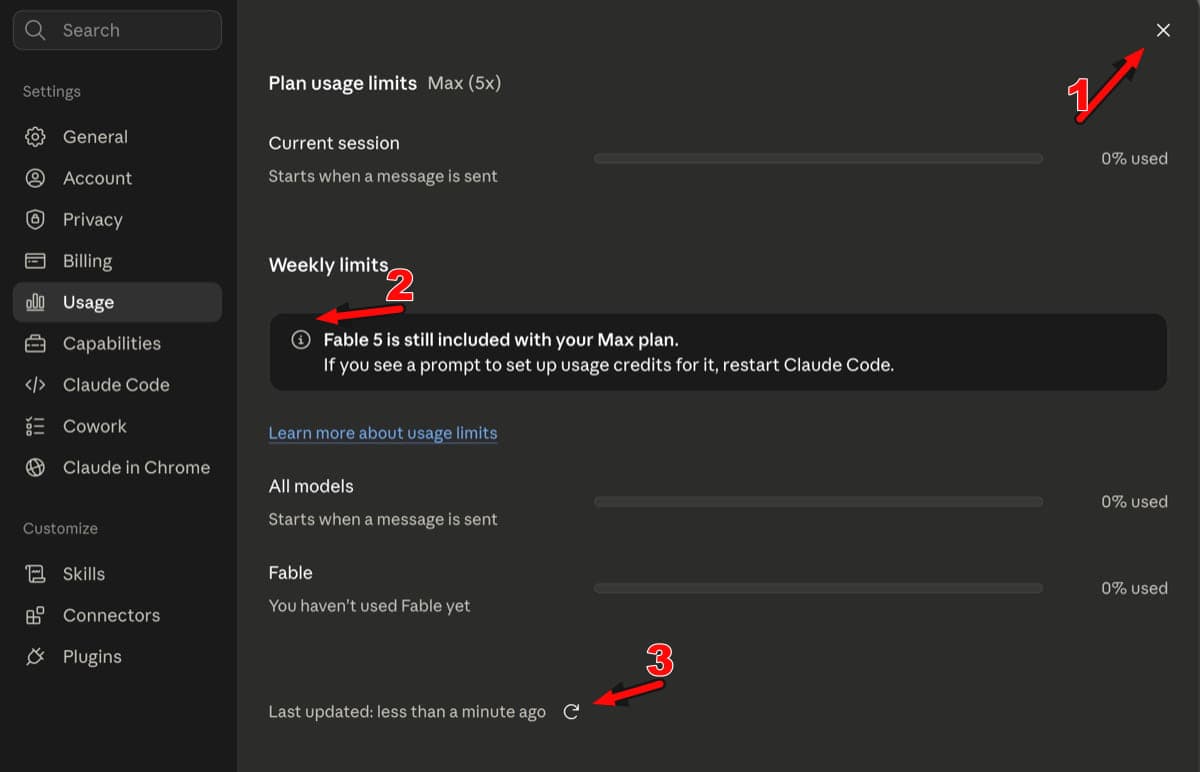
| No. | Icon | What it does |
|---|---|---|
| 1 | X | Closes Settings and returns to Claude. |
| 2 | Information symbol | Explains an important limit, requirement, or plan message. |
| 3 | Circular arrow | Refreshes the usage figures shown on the page. |
The Usage bars show how much of each allowance you have consumed; they are not download progress bars. Claude’s usage dashboard updates consumption across supported Claude products.
The Claude symbols people confuse most
If you only remember five distinctions, make them these:
- Microphone vs waveform: The microphone types what you say; the waveform begins a spoken conversation.
- Ghost vs profile: The ghost starts an Incognito chat; your initials open the account menu.
- Web search vs Research: Web search handles quick current questions; Research performs a broader investigation.
- Hand vs fast-forward vs warning: These are Cowork’s manual, automatic, and no-approval modes.
- Tray vs briefcase: The tray usually represents Projects; the briefcase represents Customize or Capabilities.
If your layout differs, check the icon’s nearby label before clicking; Anthropic moves controls and rolls out features by plan. You can also compare Claude with other AI apps for iPhone and iPad.
You might also like: