iPhone videos, downloaded clips, or old family footage don’t always look their best. Poor lighting, repeated sharing, and compression can leave videos looking grainy, fuzzy, or low in detail. Problems that barely show up on a phone screen often become obvious on a larger Mac display. And sharing them on social media? It’s hard to feel confident posting a blurry, pixelated mess.
Thankfully, VideoProc Converter AI helps address these quality issues with a powerful set of AI tools for image and video enhancement. It lets anyone upscale videos to 4K and images to 10K, while also deblurring and denoising footage to produce cleaner, sharper results without losing the original detail, whether it’s old memories or everyday clips.
What is the videoproc converter AI
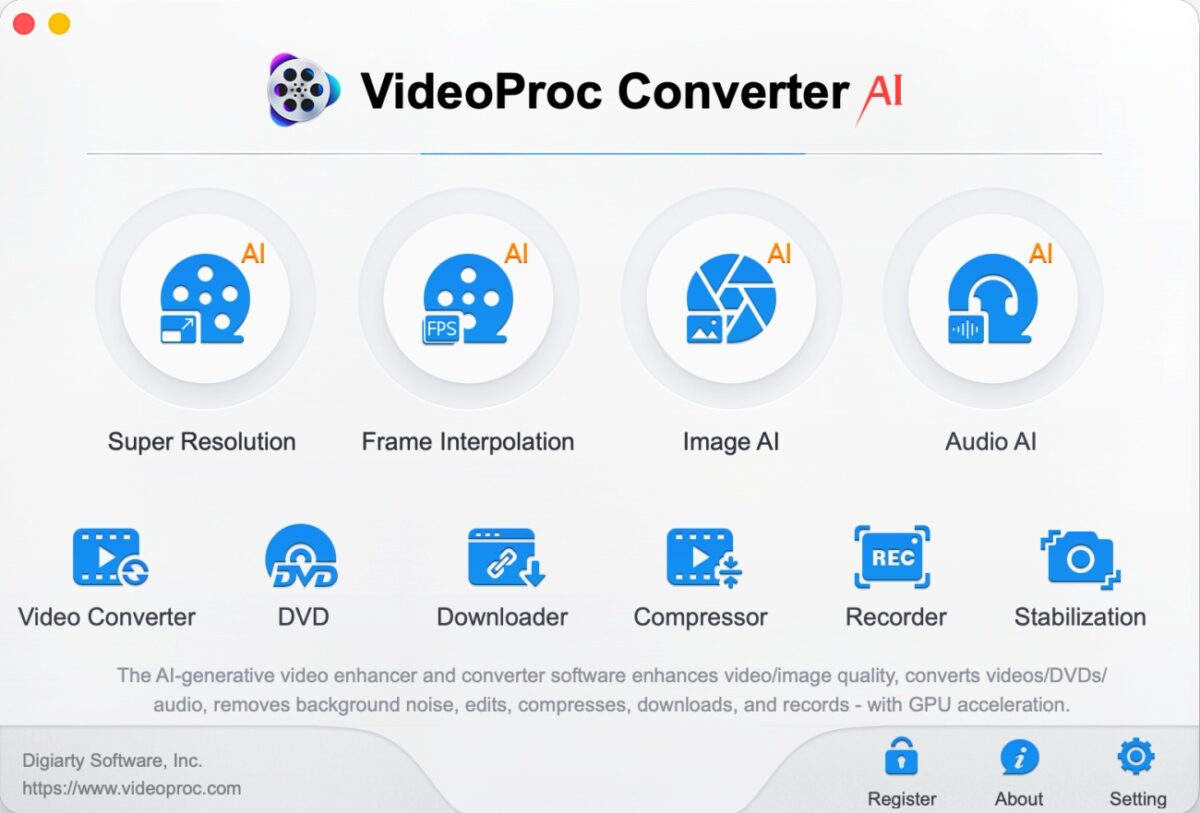
VideoProc Converter AI an all-in-one video/image enhancer and converter that focused on AI-powered video and image enhancement and media conversion. Its Super Resolution feature can upscale videos to 4K and images to 10K while preserving natural detail and texture, and it also brings together other AI tools like frame interpolation, stabilization, face restoration, and audio denoising in one place. Beyond AI enhancement, it also features handy utilities for video conversion, downloading, compression, and screen recording, making it highly practical for everyday media tasks. Thanks to support for Apple Silicon GPU acceleration (M1/M2/M3/M4/M5) and its straightforward interface, it remains fast and highly efficient even during demanding media processing tasks.
Bonus:
You can download and test out VideoProc Converter for free, or enjoy the time-limited special offer— a 62% off discount for the lifetime license.
Let’s explore videoproc converter’s AI video enhancement toolkit
1. Upscale video resolution and quality with AI super resolution
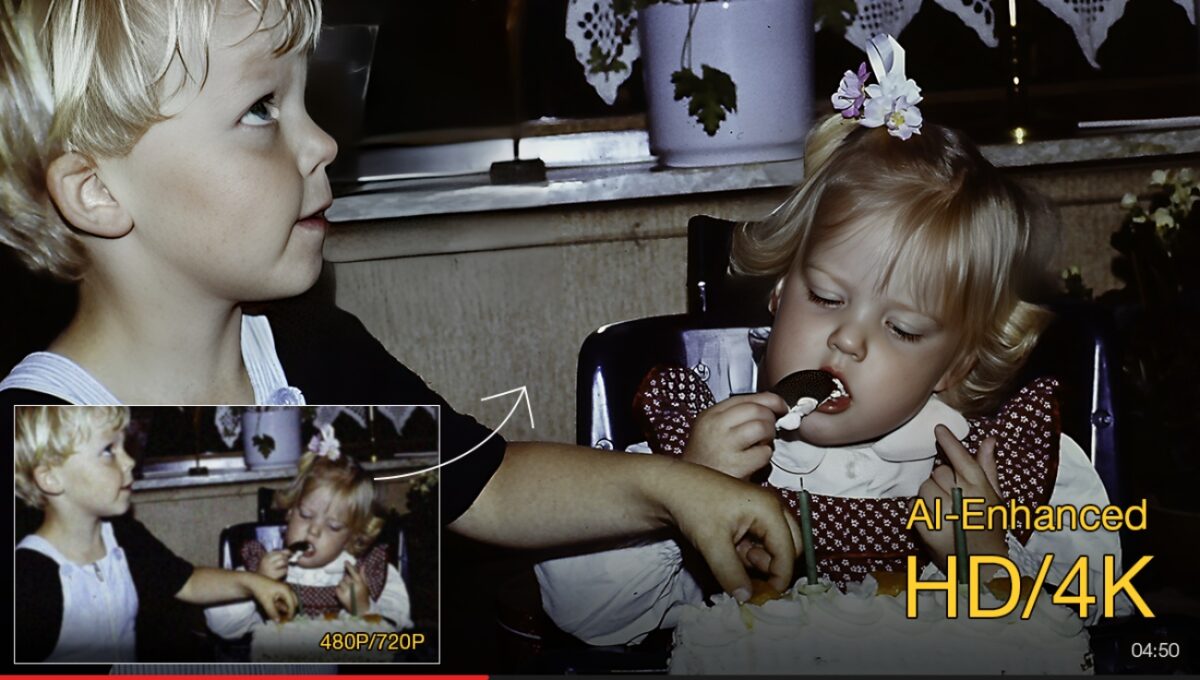
Old family videos, compressed social media clips, low-resolution footage and AI-generated videos often look blurry or soft on modern Retina displays and larger screens. VideoProc Converter AI utilizes Super Resolution technology, which relies on deep-learning models trained on large datasets of high-definition visuals. This technology enhances video quality and upscales footage by up to 4x, reaching resolutions up to 4K. It also resolves common quality issues, such as noise, blurriness, pixelation, and compression artifacts. By reconstructing missing details and refining textures, it delivers clearer and more natural-looking results.
Common Use Cases
- Upscale low-resolution iPhone records, cropped footage, and iPhone recording to 4K.
- Reduce noise in low-light footage such as night scenes, underwater clips, and wild animal shots.
- Share pixelated videos on X, WhatsApp, and other social media platforms with better clarity.
- Eliminates blurriness in low-bitrate exports, social media re-uploads, and drone footage, etc.
- Restore older media such as VHS tapes, DVDs, and other legacy video formats.
How to upscale and enhance video quality with super resolution
- Download and run VideoProc Converter AI. Hit Super Resolution. Add your video(s).
- Pick an AI model for enhancing your video. I usually go with Gen Detail V3 for fine details like hair and edges, and Real Smooth V3 for compressed or low-quality videos where noise reduction matters more. Of course, results can vary depending on the footage, so I’d suggest trying all of them to see which works best.
- Select the upscale ratio (2x, 3x, or 4x), or directly choose a target resolution such as 2K or 4K. Custom resolution settings are also supported.
- Choose the target formats like ProRes for editing workflows, H.264 for general playback compatibility, or AV1 for smaller file sizes with limited compatibility. Hit RUN.

2. Increase FPS for smooth playback with AI frame interpolation
While most iPhone recordings, AI-generated videos, gameplay footage, and action or drone footage may look fine at normal speed, motion can become less smooth when you slow them down, view them on high-refresh displays, or use them in editing workflows. VideoProc Converter AI addresses this with its Frame Interpolation technology, which uses deep learning to generate intermediate frames and convert videos from lower frame rates to higher ones. It can upscale standard 24/30/60 FPS footage to 120 FPS or even higher, improving overall motion fluidity.
Common Use Scenarios:
- Enhance gameplay recordings for smoother motion on high-refresh-rate displays.
- Upscale animation or AI-generated videos for more natural and fluid motion.
- Boost FPS of sports/action/game footage to create cinematic slow-motion playback.
- Unify mixed frame-rate clips for consistent playback in video editing projects.

How to Increase FPS with AI:
- Install and run VideoProc Converter AI. Hit Frame Interpolation. Drag and drop to load your video(s).
- Choose an output frame multiplier from 2x to 5x. For example, setting it to 5x for a 30 FPS video will result in a 150 FPS output.
- Choose your output format. Click RUN to start boosting the frame rate of your video(s).

3. Stabilize shaky footage with AI stabilization
Videos from older devices often show slight camera shake due to limited stabilization, while even newer devices can still produce distracting motion in walking, travel, or fast-moving scenes. The AI Stabilization in VideoProc Converter AI provides a one-click way to remove camera shake from videos, even in scenes with complex motion and large camera shifts, while preserving the original video resolution.
Common Use Scenarios:
- Stabilize the shaky, wobbly motion caused by walking, running, or shooting handheld.
- Eliminate high-frequency vibrations and sudden shifts in aerial footage captured by strong winds.
- Tame shaking and jolts in footage mounted on helmets or bike during off-road or bumpy ride.

How to Stabilize Footage with AI: Go to Stabilization in VideoProc Converter. Drag and drop to add your footage. Select Stabilization mode and Preset to stabilize the video. Choose the Crop Type. Hit RUN.
4. Remove background noise from videos with AI audio
Footage from everyday recordings often contains unwanted background noise such as wind, traffic, hum, or indoor echo, which can make the audio unclear or distracting. VideoProc Converter AI’s AI Audio Denoising helps remove these background noises while preserving the original voice and important audio details, delivering cleaner sound.
Common Use Scenarios:
- Reduce wind noise in outdoor, travel, or drone footage for better audio clarity.
- Remove echo and room noise from indoor recordings or vlog content.
- Enhance voice clarity in social media videos and compressed clips.
How to Clear Audio Noise: Go to Audio AI in VideoProc Converter AI and import your video files by dragging them in. Enable Noise Suppression, choose an AI model, and click RUN to start removing background noise from your video audio.
Beyond Video: Image AI & Powerful Multimedia Utilities
1. AI image enhancer: Deblur, denoise, and 10K upscale
Low resolution, compression artifacts, and soft details frequently ruin otherwise great photos. This is particularly frustrating with vintage family photographs, where faded colors and blurry faces prevent us from printing or preserving them. That’s exactly what VideoProc Converter AI’s Image AI is designed for. It automatically cleans up blurry, pixelated, or grainy photos, and lets you enlarge them by 2x, 3x, or 4x to reach up to 8K/10K clarity. Plus, this capable image upscaler can automatically sharpen blurry faces and add realistic colors to old, faded pictures.
Usage Scenarios:
- Increase DPI of cropped product photos and family portrait crops for high-quality printing.
- Upscale legacy logos, web memes, and AI-generated images to reuse them in photo edits.
- Fix blurriness in handheld snapshots, out-of-focus close-ups, and fast-moving action photos.
- Clear grain/noise/pixelation from low-light party snaps and high-ISO nighttime cityscapes.
- Restore faded colors and blurry faces in scanned prints, vintage black-and-white portraits…

2. Powerful Multimedia Toolkit: Convert, Compress, Edit, Download, and More
Designed to simplify your daily workflow, VideoProc Converter AI equips Mac users with a toolbox of practical, easy-to-use media utilities for your everyday projects:
- Convert 420+ formats. This helps you turn QuickTime-unsupported files (like MKV, AVI, WMV, and FLAC) into native MP4 or MOV for seamless playback on Mac, iPad, and Apple TV.
- Compress bloated 4K iPhone footage, heavy drone shots, or massive ProRes files. This helps you reclaim precious local SSD storage, making files easier to back up to iCloud or share via AirDrop.
- Quickly cut, crop, merge, trim, adjust colors, and apply 29-quick edits. It is the perfect lightweight video editor for fast rough-cuts before you import assets into iMovie or Final Cut Pro.
- Download online videos and audio from over 1,000 sites directly for offline viewing, archiving, or editing.
- Capture your Mac screen, FaceTime HD camera, or even a connected iPhone/iPad screen.
Limited-time deal: Get videoproc converter AI at 62% off
Grab a lifetime license of VideoProc Converter AI for one Mac at just $39.95. Or, upgrade to the Family License to cover 2-5 Macs for only $59.95 (up to 62% off). Your purchase is completely risk-free with a 30-day money-back guarantee and includes free lifetime updates.
Exclusive Bonus Gift: Buy this all-in-one AI video and photo enhancer today and receive four additional premium apps for free, including an AI background removal tool.