
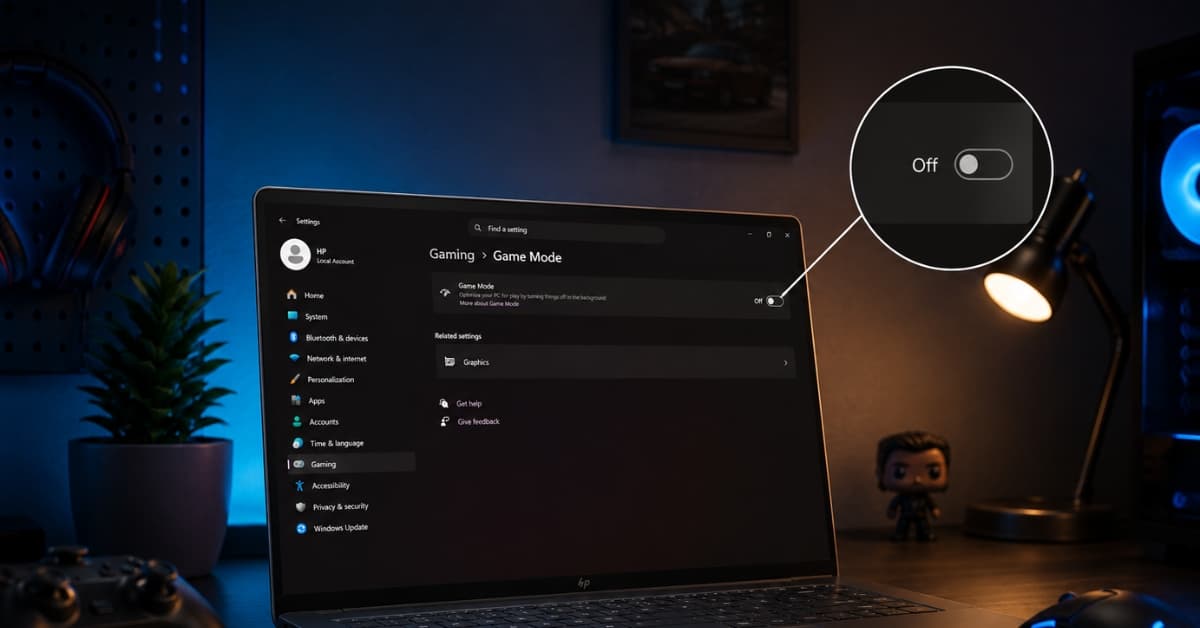
I always assumed Windows Game Mode was helping my games. After all, Microsoft designed it specifically to improve gaming by prioritizing system resources for the game you’re playing. It sounded like a feature you should simply leave enabled and forget about.
However, after noticing occasional stutters and inconsistent frame pacing in a few games, I decided to check whether Game Mode is really helping my PC in any way. The results surprised me because disabling Game Mode did not increase my average FPS greatly but helped to make the gameplay smoother and improved CPU behavior in some titles.
Here are the best Windows settings for gaming performance, and whether you should turn off Game Mode.
What Windows Game Mode actually does
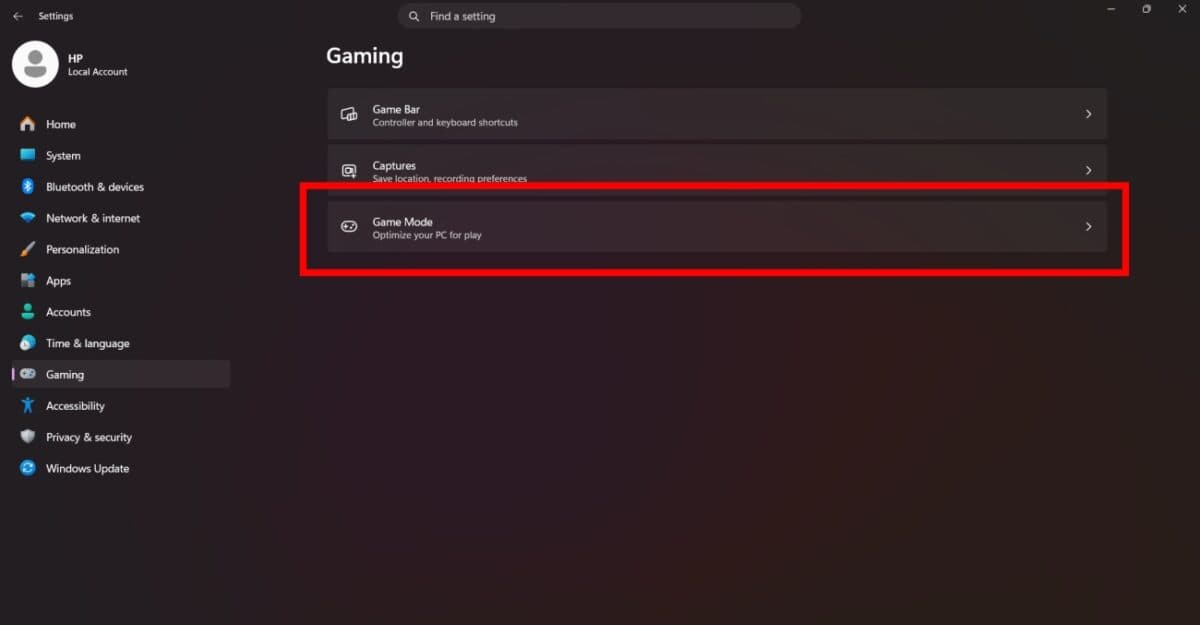
Windows Game Mode is a built-in feature designed to improve gaming performance by giving your game higher priority over most background processes. When enabled, Windows attempts to allocate more CPU resources to the active game while reducing interruptions from unnecessary system tasks.
Some of the things Game Mode is designed to do include:
- Prioritize the running game over background applications.
- Reduce Windows Update activity while gaming.
- Adjust CPU scheduling to favor game processes.
- Work alongside gaming-related Windows features such as Xbox Game Bar.
That sounds great on paper, but there’s one misconception I see quite often: many people assume Game Mode automatically increases FPS. That’s not how it works.
Here’s a quick comparison.
| Game Mode Does | Game Mode Doesn’t |
|---|---|
| Prioritize game processes | Overclock your CPU or GPU |
| Reduce some background activity | Guarantee higher FPS |
| Limit Windows Update interruptions | Fix hardware bottlenecks |
| Optimize resource scheduling | Eliminate every background app |
On modern gaming PCs with powerful processors, Windows already manages resources very efficiently. In those cases, the additional scheduling changes introduced by Game Mode may have little effect. In some situations, I even faced minor performance inconsistencies.
Why I decided to turn it off
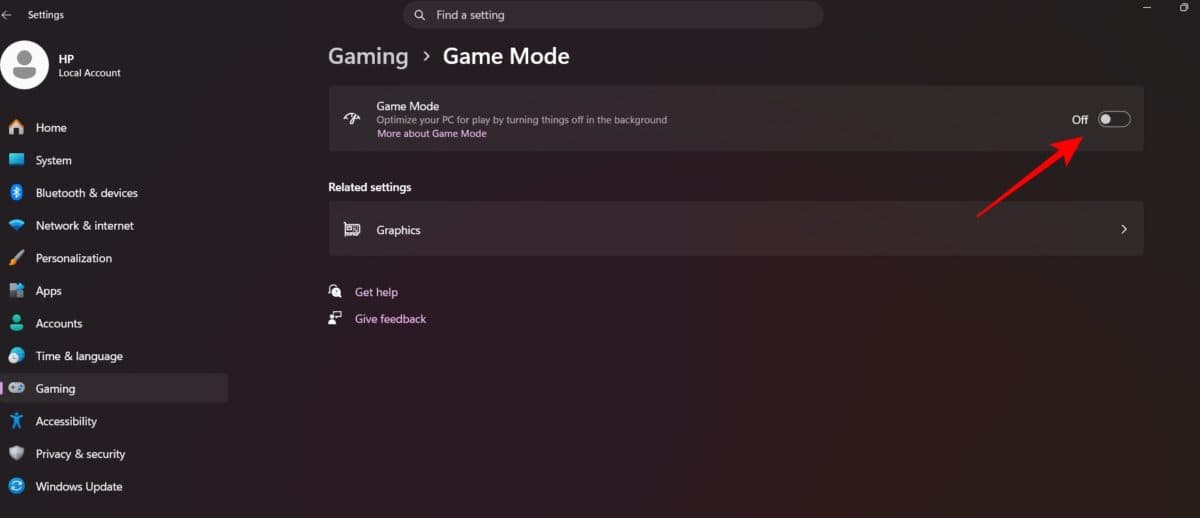
The reason I started experimenting was that some of my games simply didn’t feel as smooth as they should have.
Average FPS looked perfectly fine, but I noticed:
- Random micro-stutters during gameplay
- Frame pacing that felt inconsistent
- Occasional FPS drops in CPU-heavy scenes
- CPU utilization fluctuating more than expected
- GPU usage not always staying close to full load
Since these symptoms usually point toward CPU scheduling or background resource management, Game Mode became one of the first settings I decided to test.
My gaming results before and after
Rather than relying on a single benchmark run, I tested multiple games several times using identical graphics settings and gameplay scenarios.
My system for the test included i7-13700H + RTX 4060 Laptop + 16GB DDR5 + Windows 11 25H2. I also closed unnecessary background applications before every test to eliminate as many variables as possible.
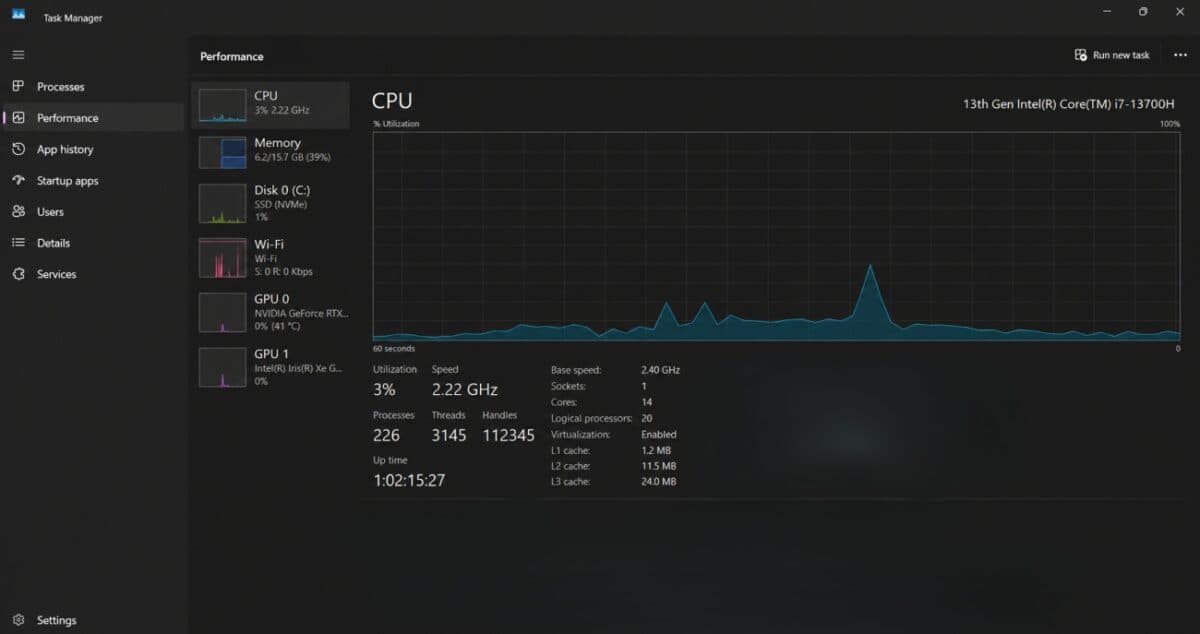
Average FPS
The average FPS difference between Game Mode enabled and disabled wasn’t dramatic.
| Game | Game Mode OFF (Avg / 1% Low) | Game Mode ON (Avg / 1% Low) |
|---|---|---|
| Cyberpunk 2077 | 82.4 / 61.7 FPS | 82.9 / 62.1 FPS |
| Counter-Strike 2 | 245.1 / 142.3 FPS | 246.8 / 154.6 FPS |
| Shadow of the Tomb Raider | 114.7 / 82.1 FPS | 115.2 / 83.0 FPS |
| Forza Horizon 5 (Edge + Discord open) | 94.6 / 48.2 FPS | 96.1 / 71.5 FPS |
Depending on the game, the difference was only a few frames per second. In some titles, there was almost no measurable change at all. However, higher FPS doesn’t always mean smoother gameplay.
1% Low FPS
Where I noticed more meaningful differences was in the 1% low FPS numbers. These represent the slowest 1% of rendered frames and are a much better indicator of gameplay smoothness than average FPS.
Without Game Mode, frame drops happened less often in many games, and as a result, there was smoother camera motion and less hitching.
If you’re troubleshooting gaming performance, I recommend paying close attention to 1% lows instead of focusing only on the highest FPS number.
Frame Time consistency
Frame times became the greatest improvement that I have noticed.
With Game Mode enabled, I occasionally noticed small spikes during CPU-intensive moments. These didn’t always reduce average FPS enough to show up in benchmarks, but I could feel them while playing.
Disabling Game Mode made the frame time graph more consistent and smooth, with fewer sudden spikes. That translated into gameplay that simply felt smoother, even when the FPS counter barely changed.
CPU and GPU behavior
I also monitored CPU and GPU utilization during testing.
On my system:
- CPU boost clocks stayed more consistent.
- CPU scheduling appeared more stable.
- GPU utilization remained closer to full load in certain games.
- Overall system responsiveness felt slightly better during gameplay.
Again, these improvements weren’t huge, but together they made the gaming experience noticeably more enjoyable.
Why turning off Game Mode helped
After comparing all the benchmarks, I don’t think Game Mode itself is a “bad” feature. Instead, I believe my particular hardware simply didn’t benefit from the way Windows was prioritizing workloads.
- My PC didn’t need extra scheduling: With plenty of CPU cores available and few apps running in the background, Windows already had enough resources to manage games efficiently. In that situation, Game Mode didn’t have much optimization to perform.
- Better CPU boost behavior: Disabling Game Mode allowed the processor to boost more consistently during CPU-heavy scenes. Even small improvements in boost behavior can reduce frame-time spikes.
- Fewer scheduling conflicts: NVIDIA, AMD, and Intel graphics already include their own optimizations for games. Enabling additional scheduling through Windows Game Mode may occasionally create unnecessary overlap rather than improving performance.
- Frame pacing improved more than FPS: Smooth gameplay matters more than chasing the highest FPS number. Average FPS barely changed, but improved frame pacing made games feel noticeably better to play.
When you should keep Game Mode enabled
Even though switching off Game Mode helped me more with my PC, I would not advise anyone to disable it for good. There is a reason why Microsoft introduced Windows Game Mode, and in many cases, it may really boost your gaming experience.
Here are a few situations where I’d keep it enabled.
1. You have an older or budget gaming PC
If your PC has a quad-core processor or limited system resources, background tasks can have a much bigger impact on gaming performance. Game Mode can help by giving the game higher priority and reducing interruptions from other processes.
2. You frequently multitask while gaming
Many gamers leave several apps open while playing, including:
- Discord
- Google Chrome
- Spotify
- Steam downloads
- RGB control software
- Game launchers
In these situations, Game Mode may help prevent those background applications from competing with your game for CPU resources.
3. You record or stream gameplay
If you regularly use OBS Studio, Xbox Game Bar, or other recording software, it’s worth testing Game Mode before turning it off. In some cases, priority of the game process over others may help minimize performance issues.
4. You’re using a gaming laptop
Gaming laptops often have stricter power and thermal limits than desktop PCs. Because of that, Windows’ built-in optimizations can sometimes produce better results than manual tweaking.
Quick Recommendation
| Situation | Recommendation |
|---|---|
| Modern high-end gaming PC | Test with Game Mode OFF |
| Older gaming PC | Leave it ON |
| Budget laptop | Usually keep it ON |
| Recording or streaming | Benchmark both settings |
| Experiencing stuttering | Compare ON vs. OFF |
| Minimal background apps | Try disabling it |
The key takeaway is simple: don’t assume one setting is universally better. Spend 15–20 minutes benchmarking both options to see which performs best on your system.
Other Windows settings I tested to improve my gaming experience
Together with Game Mode, I tried a couple of other Windows settings. Some made a noticeable difference, while others had little to no impact on my system.
1. Hardware-Accelerated GPU Scheduling (HAGS)
HAGS allows the graphics card to manage its own memory scheduling instead of relying entirely on the CPU.
On my PC, I didn’t notice a significant FPS increase, but some newer games felt slightly more responsive with it enabled. Since results vary depending on your GPU and drivers, it’s another setting worth benchmarking.
2. Xbox Game Bar
A lot of people confuse Xbox Game Bar with Game Mode, but they’re separate features.
Game Bar provides overlays for screenshots, performance monitoring, and game recording. If you never use these features, disabling the overlay may reduce background activity slightly, although I didn’t notice a major performance gain.
3. Fullscreen optimizations
Windows’ Fullscreen Optimizations can improve compatibility in some games but may introduce input lag or inconsistent performance in others.
For older DirectX games, disabling this setting occasionally resulted in smoother gameplay. For newer titles, I generally left it enabled.
4. Variable Refresh Rate (VRR)
If your monitor supports G-Sync, FreeSync, or Windows Variable Refresh Rate, make sure it’s enabled.
Unlike Game Mode, VRR can have a much bigger impact on perceived smoothness by reducing screen tearing and minimizing stutter when frame rates fluctuate.
5. High Performance Power Plan
I also compared the Balanced and High Performance power plans.
The differences were very minor on modern processors, because the Windows Balanced power plan allows aggressive CPU boosts during gaming, and switching to another power plan doesn’t result in FPS gain on my machine.
6. Memory Integrity (Core Isolation)
Memory Integrity is a Windows security feature that can slightly reduce performance in CPU-bound workloads.
Disabling it may improve gaming performance on some systems, but I recommend doing so only if you understand the security trade-offs. For most gamers, the difference is small enough that leaving it enabled is the safer choice.
7. Background Startup Apps
This ended up having a bigger impact than I expected.
Turning off unnecessary applications, like RGB controllers, cloud synchronization, and unused launchers, made background CPU activity lower.
In fact, cleaning up startup apps made a more noticeable difference than changing several Windows gaming settings.
Final verdict: Should you turn off Windows Game Mode?
After testing Game Mode across multiple gaming sessions, I came away with one conclusion: there isn’t a universal answer.
Disabling Game Mode on my PC did not result in any great increase in average FPS, although there were definite improvements in frame pacing and occasional stutters, making gameplay smoother. I found these to be more important changes compared to the gain in a few frames per second.
It does not mean, however, that Game Mode is not effective at all. In case you have an older processor, have a budget laptop, or play while multitasking, keeping Game Mode turned on will give you better performance. Windows designed the feature to prioritize games under heavier system loads, and it can do that effectively in the right scenarios.
My advice is simple:
- Benchmark your favorite games with Game Mode enabled.
- Turn it off and repeat the exact same tests.
- Compare more than just average FPS—look at 1% lows, frame times, CPU utilization, and overall smoothness.
- Keep whichever setting delivers the best real-world experience on your hardware.
Gaming performance isn’t determined by a single Windows feature. Drivers, power settings, background applications, game optimizations, and your hardware all play important roles.
In my case, switching Game Mode off was definitely worth the effort as it gave me smoother gameplay. This may work for you too, but maybe keeping it on will bring even better results. It all depends on your PC configuration and how you use it. The most effective thing is to test the difference for yourself.
In case you missed: