
What is the Red Dot on Apple Watch and how to get rid of it?
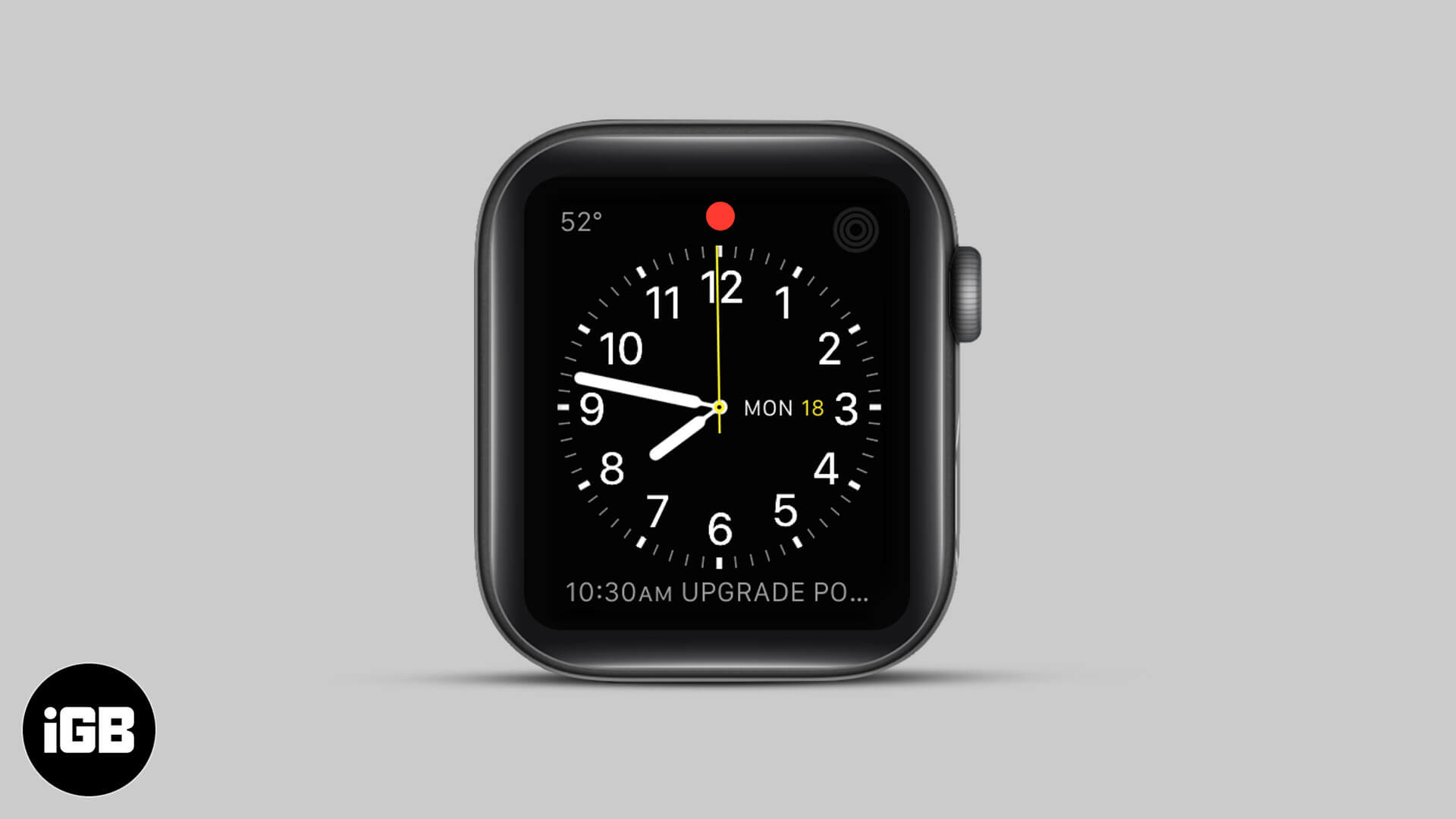
The Apple Watch offers an incredibly convenient way of staying connected to your iPhone. You can see all your messages, emails, calls, etc. right from your wrist, without needing to pick up your phone. As part of this functionality, you might have noticed a red dot at the top of your screen. If you want to learn more about it, keep reading to know what is the red dot on Apple Watch screen and how to get rid of it.
What Does Red Dot on Apple Watch Mean?
The red dot on your Apple Watch is a notifications indicator. It appears when you have new notifications to look at, such as for messages or specific apps. This is handy to know at a glance when something needs your attention. Then you can quickly check your notifications as explained below. Or, if you find the dot distracting, you can choose to turn it off too. Let’s learn more.
How to Check Notifications on Apple Watch
To view the notifications you have received on your Apple Watch, all you have to do is swipe down from the top of the screen with your watch face turned on.
Then, you can tap on each notification to read it. Or, if there are multiple notifications, you can scroll through using the digital crown.
To delete a notification, swipe left on it and tap the X button.
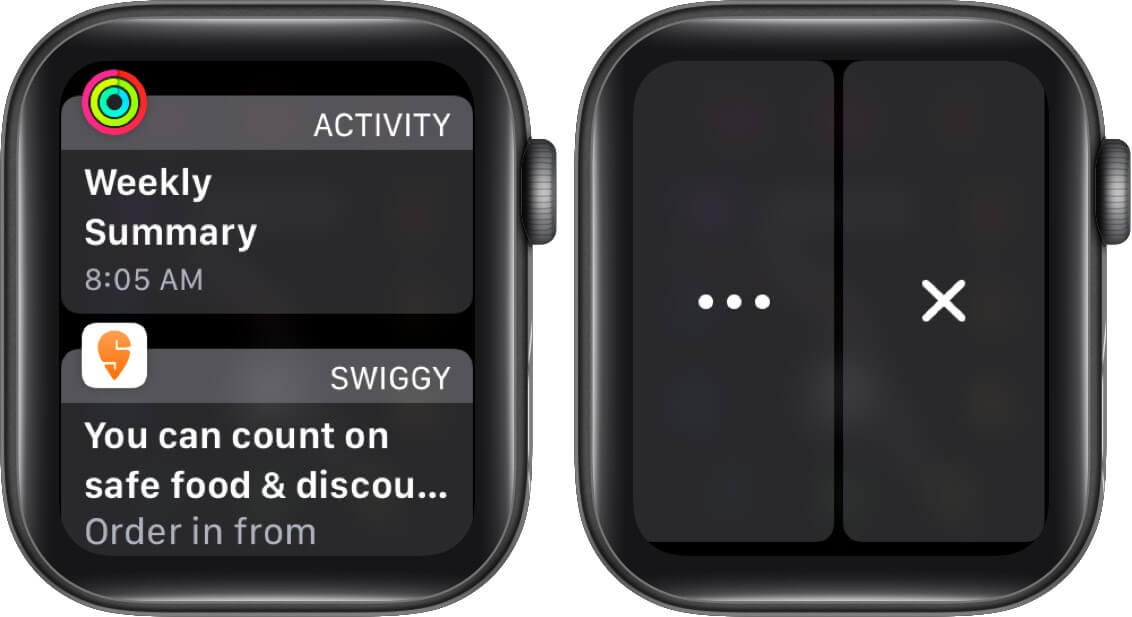
Or, scroll down on the individual notification and select Dismiss at the bottom of the screen. Please note that doing this will also dismiss the notification on your iPhone.

You can also delete multiple notifications at the same time, by scrolling down and tapping on Clear. Then, tap on Clear All.

Once you view or dismiss notifications, the red dot will disappear from your watch face until you have new unread notifications.
Of course, you have complete control to customize the notifications that you get on Apple Watch. Or you can disable them altogether. If you want to keep notifications but turn off the red dot indicator, follow the steps below.
How to Hide Red Dot on Apple Watch
It’s easy to turn off the red dot on your Apple Watch from the Settings or the Watch app on your iPhone. Let’s look at both methods.
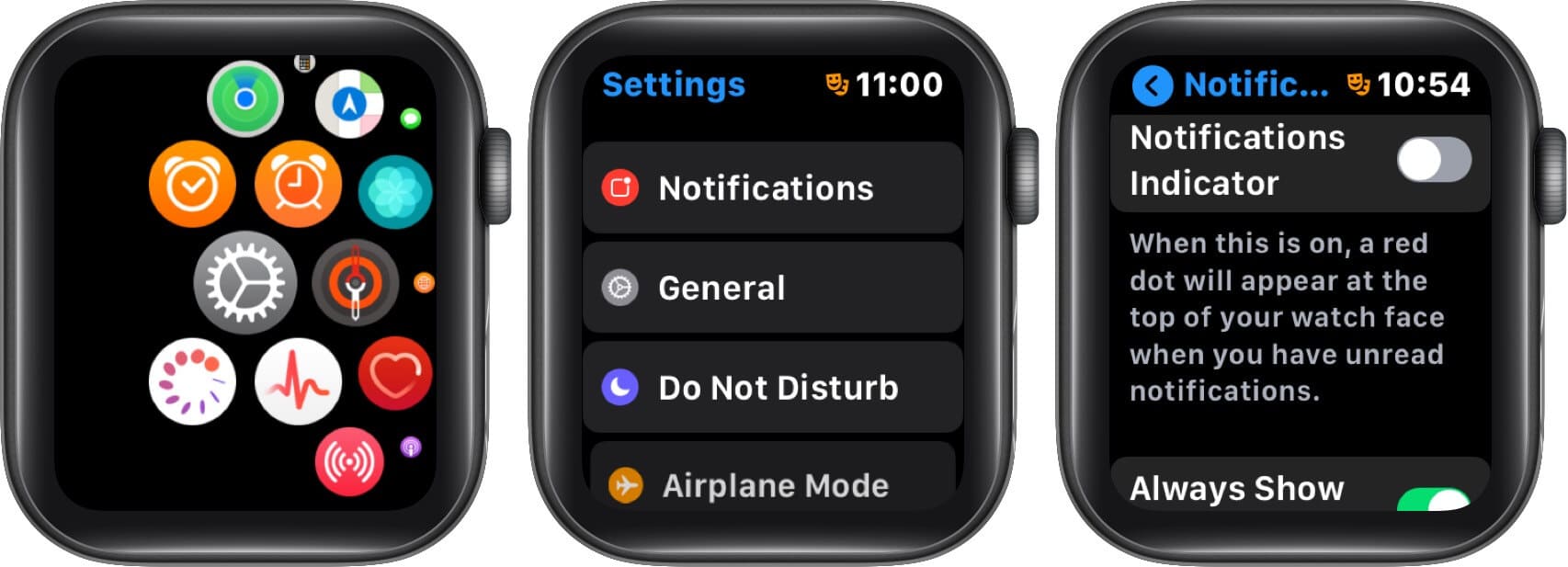
On Apple Watch
- Press the Digital Crown and then go to the Settings app.
- Tap on Notifications.
- Toggle OFF the Notifications Indicator.
On iPhone
- Open the Watch app on your iPhone.
- Go to Notifications.
- Toggle OFF the Notifications Indicator.
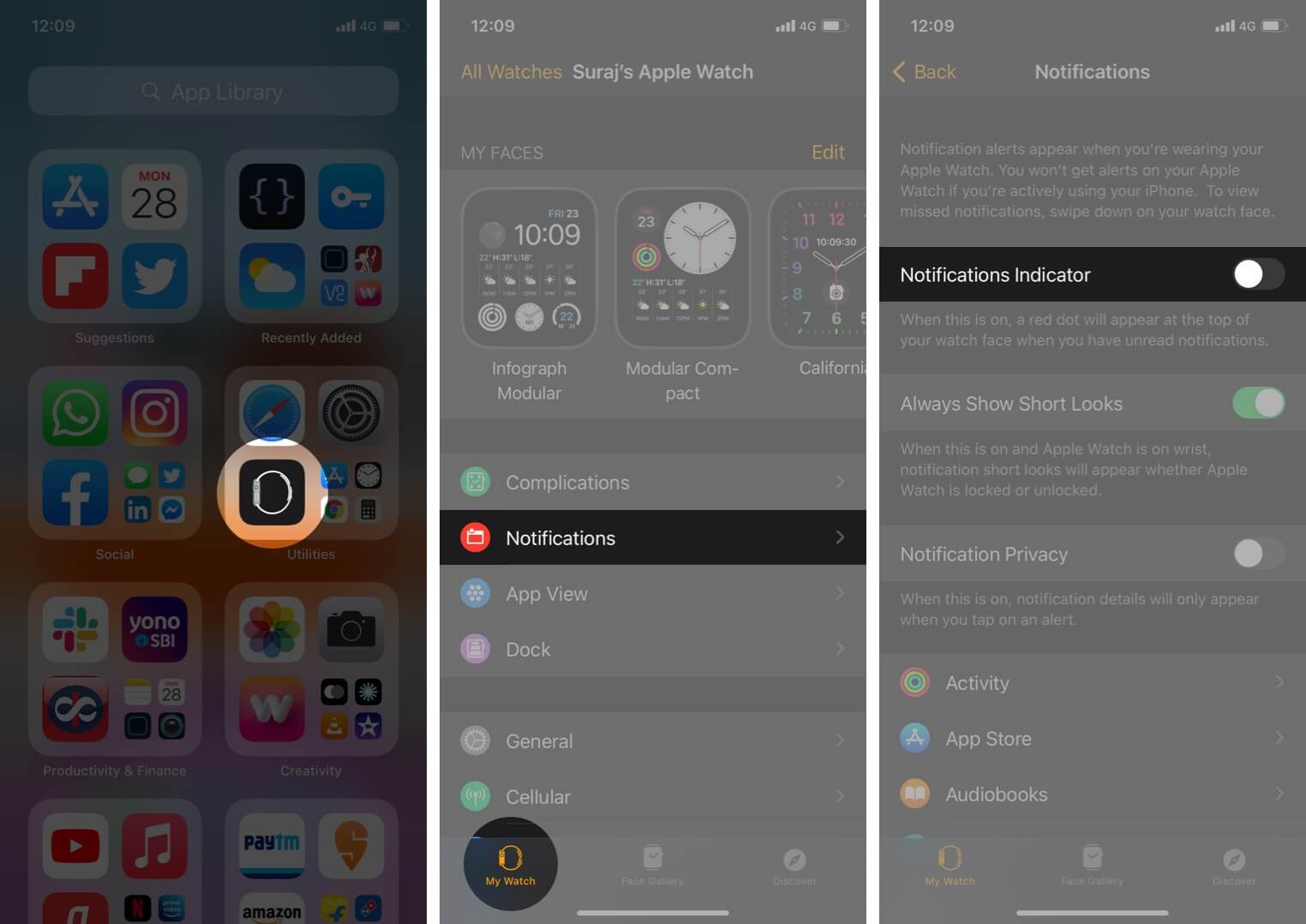
You can always turn on this red dot indicator in the future if you like.
Summing Up
We hope this tutorial has clarified what the red dot on Apple Watch means and how to get rid of it. If you have any other questions about your Apple Watch, let us know in the comments below.
Read Next

Written by
Mehak SiddiquiMehak has a master’s degree in communication and over ten years of writing experience. Her passion for technology and Apple products led her to iGeeksBlog, where she specializes in writing product roundups and app recommendations for fellow Apple users. When not typing away on her MacBook Pro, she loves being lost in a book or out exploring the world.
View all posts →More from Apple Watch

Apple Watch Not Responding? 8 Fixes That Actually Work
Is your Apple Watch unresponsive or stuck on a black screen? Here are 8 proven fixes to help you unfreeze it and get it working again quickly.
 VikhyatMarch 3, 2026
How to Mirror Your Apple Watch on Your iPhone: A Simple Guide
Want to control your Apple Watch using your iPhone? This guide explains how to turn on Apple Watch Mirroring, use it easily, and fix common issues.
 Arshmeet KaurFebruary 27, 2026
How to Restore Apple Watch From a Backup
Need to reset or switch iPhones? Here’s how to restore your Apple Watch from a backup, what data comes back, and how to make sure everything syncs properly.
VikhyatFebruary 23, 2026