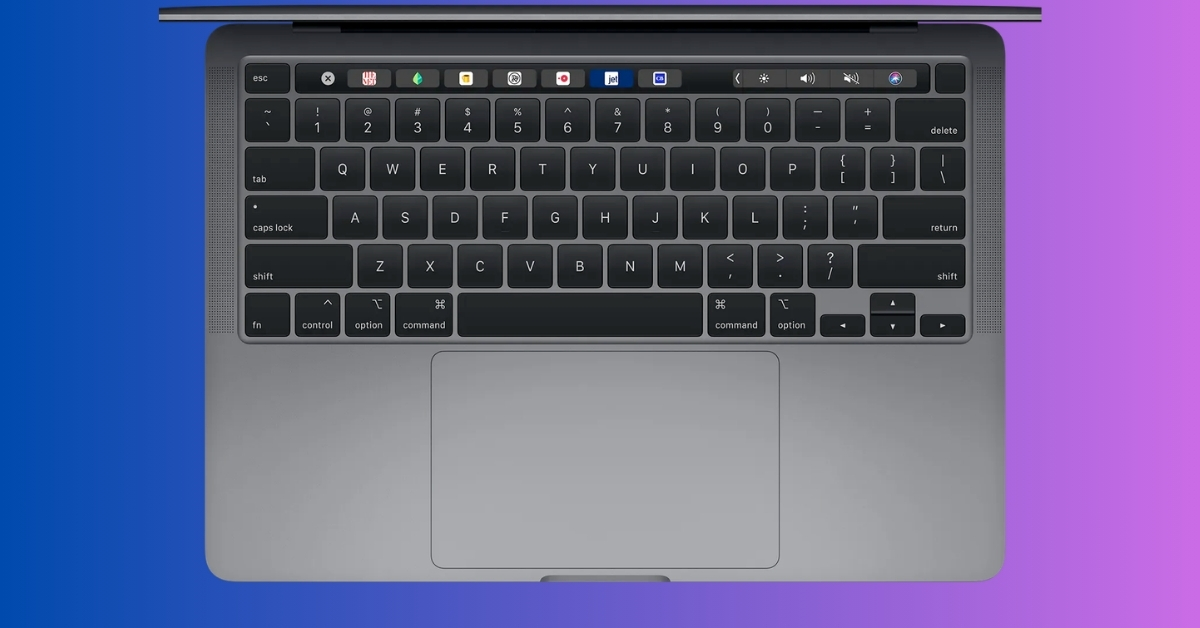
When I first started using a Mac, I relied heavily on the trackpad for almost everything. It felt natural, but not particularly fast. Over time, I started noticing how much quicker things could be with keyboard shortcuts. So I picked up a few, used them daily, and slowly built the habit.
Now, I don’t even think about them. My hands just move, and things happen instantly. The biggest change isn’t just speed. It’s flow. I don’t break focus to reach for the trackpad or click through menus anymore. Everything feels more continuous.
If you’re still relying on the trackpad most of the time, these are the shortcuts that genuinely changed how I use my Mac.
The Mac shortcuts that replaced my trackpad
Most of my daily Mac usage now runs through these shortcuts. They’ve replaced the need to constantly reach for the trackpad and made everything feel quicker and more seamless.
Command + Space for Spotlight Search
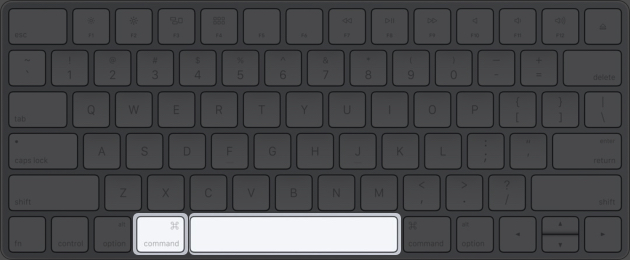
This is the one I probably use the most. Instead of hunting for apps in the Dock or digging through app lists like the old Launchpad, I just hit Command + Space to open the Spotlight and type a few letters.
And the best part is that it’s not limited to opening apps. You can search documents, perform quick calculations, convert units, and even get definitions. Once it adapts to your usage, the results feel almost predictive, which removes the need to dig through folders or menus.
Command + Tab for app switching
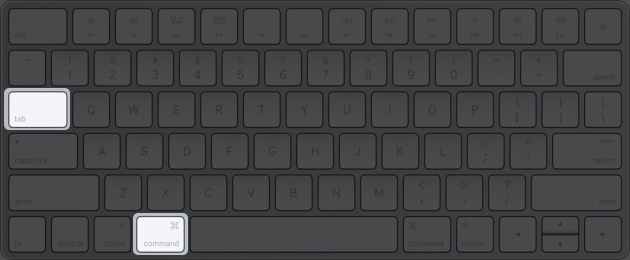
When working on multiple apps at once, this shortcut keeps everything fluid.
Press Command + Tab and hold Command to cycle through apps. Once you get used to it, you’ll stop clicking icons entirely. It’s faster, cleaner, and keeps your hands on the keyboard.
Command + Q and Command + W for control
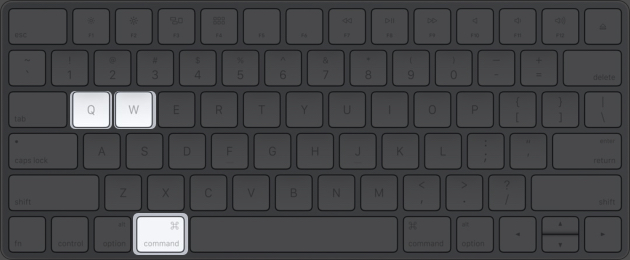
Understanding the difference between these two will change how you manage apps on your Mac.
Command + W closes the current window or tab, while Command + Q quits the app entirely. Knowing the difference prevents accidental app closures and helps maintain a cleaner workspace.
It also makes multitasking easier since you can close what’s unnecessary without disrupting the entire app session.
Shortcuts that make writing and editing faster
A big part of my workflow involves writing and editing, and these shortcuts make the process feel much smoother. They reduce minor interruptions and help keep the focus on the content rather than the mechanics.
Command + Shift + Arrow keys for selection
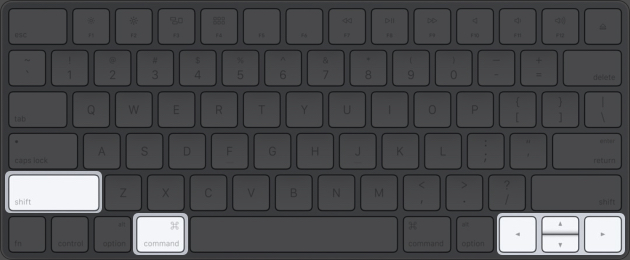
Text selection becomes far more precise with this shortcut. Instead of dragging the cursor, you can instantly select entire lines or sections.
This is particularly useful when editing long drafts, restructuring paragraphs, or making quick formatting changes. It reduces friction and makes editing feel more controlled.
Option + Delete for smarter deletion

Instead of deleting one character at a time, this deletes an entire word in one go. When I’m rewriting sentences or fixing mistakes, this feels way more natural and efficient.
Command + Control + Space for emojis

While emojis don’t belong in formal writing, they’re a big part of everyday conversations. This shortcut brings up the emoji picker instantly without breaking your flow.
It’s much faster than switching input methods or searching for emojis manually.
Window management shortcuts I rely on
Managing multiple windows used to feel messy, but these shortcuts make it much easier to stay organized. Switching, hiding, and navigating between apps now feels a lot more controlled.
Control + Arrow keys for Mission Control

This gives a complete overview of all open windows, making it easier to navigate when multiple apps are active. Instead of guessing where something is, everything is visible at once. It’s a faster way to regain context when the screen feels cluttered.
Command + M to minimize instantly

This quickly moves a window out of sight without closing it.
It helps maintain a clean workspace while keeping things accessible. Compared to dragging windows around, it’s significantly quicker and more intentional.
Finder shortcuts that save me time daily
File management is something you do all the time, and these shortcuts cum Finder tricks make it quicker without having to think too much. Small actions like creating folders or previewing files become almost instant.
Command + Shift + N for a new folder

Creating a new folder becomes almost instant with this. No right-clicking, no menus, just a quick shortcut, and you’re done.
It’s one of those small things that add up when you regularly organize files.
Command + Delete to move to Trash

Instead of dragging files to the Trash, this does it instantly, keeping file management quick. It also saves you from those moments where you try to drop a file into the Trash but accidentally drop it on the Dock instead, which just breaks the flow.
Using the shortcut feels more reliable and consistent, since the action happens immediately without depending on precise cursor placement.
Space bar for Quick Look

Quick Look is easily one of the most underrated features on macOS. Just select a file and press Space, and you get a full preview without opening it.
It’s incredibly useful when you’re going through multiple files and just need a quick glance before deciding what to open.
Screenshot shortcuts I use without thinking
Taking screenshots is another major part of my everyday workflow, and these shortcuts make sure it doesn’t interrupt what I’m doing. Everything happens quickly and exactly how I need it.
Command + Shift + 4 for custom screenshots

This is perfect when you only need a specific part of the screen. You can select exactly what you want instead of capturing everything and cropping later.
It saves time and keeps things more precise from the start.
Command + Shift + 5 for full screenshot controls

This Mac keyboard shortcut opens the full screenshot panel, which also includes options for screen recording. It’s all built into macOS, so there’s rarely a need for third-party tools.
Command + Shift + 4, then Spacebar for precise window capture

After pressing Command + Shift + 4, hitting the Spacebar lets you capture an entire window instead of manually selecting an area. Just hover over the window you want, and it highlights automatically before you click.
It’s much quicker when you need a clean, properly framed screenshot without worrying about alignment or edges.
Underrated shortcuts that quietly improve everything
These aren’t used constantly, but they make a noticeable difference when needed. They solve small problems quickly and keep things running smoothly in the background.
Command + H to hide apps

This is one of those shortcuts that doesn’t feel important until you start using it regularly. Instead of minimizing a window, it hides the entire app from view while keeping it active in the background.
It’s useful when you want to quickly clear distractions without closing anything. The workspace feels cleaner instantly, and switching back is just as quick.
Command + Option + Esc for force quit

Every now and then, an app just stops responding, and nothing seems to work. This shortcut brings up the force quit window instantly, so you can close the problematic app without restarting your Mac.
It’s not something you use every day, but when you need it, it saves a lot of frustration and time.
Command +, to open app settings

Almost every Mac app supports this shortcut, and it takes you straight to its app settings. This Mac Keyboard shortcut eliminates the need to scan menus or guess where preferences are hidden.
Once it becomes a habit, going through the menu bar starts to feel like an extra step you don’t really need.
What changed once I started using these
At first, remembering shortcuts felt like extra effort. But after a few days, they stopped feeling like shortcuts and started feeling like the default way to use my Mac.
The biggest shift wasn’t just speed, but the sense of flow. I no longer break concentration to move my hand, search for something, or click through menus. Everything happens in a continuous rhythm.
How to get comfortable with Mac keyboard shortcuts
Getting comfortable with shortcuts doesn’t happen overnight, but the following small habits make the process much easier:
- Start with 3 to 4 shortcuts you’ll use daily instead of trying to learn everything.
- Repeat them consistently until they feel automatic.
- Avoid switching back to the trackpad for basic actions.
- Place a small cheat sheet near your workspace for quick recall.
- Add new shortcuts only after the previous ones feel natural.
- Use them in real tasks, not just for practice.
- Focus on flow, not speed, at first.
Signing off….
Once keyboard shortcuts start becoming a habit, going back to the trackpad begins to feel slow and slightly frustrating. The ones shared here aren’t just occasional tricks; they’re part of my everyday workflow. Bringing them into your routine makes your Mac feel faster, smoother, and far more efficient without needing any upgrade.
If there’s a Mac shortcut you swear by, share it in the comments. Would love to try it out.