Recently, I noticed something strange while recording videos on my iPhone. Every time I zoomed in, the video looked sharper, but the audio felt off. It sounded distant, uneven, almost like it was coming from the wrong direction.
At first, I blamed the environment. But after testing it a few times, I realized the real issue: zooming itself was messing with the audio.
What’s surprising is that this isn’t a bug. It’s a built-in feature called Audio Zoom that quietly changes how your iPhone captures sound the moment you zoom in. Here’s what’s happening and how you can fix it.
Why does iPhone video zoom affect audio quality?
Here’s the part Apple doesn’t make obvious. When you zoom while recording, your iPhone automatically enables something called Audio Zoom. There’s no prompt or indicator. It just activates in the background.
Audio Zoom tries to match your sound to the camera zoom. So when you zoom in visually, your iPhone narrows the microphone pickup range to focus on the subject.
In theory, that sounds useful.
In practice, it doesn’t always work well.
Here’s what I noticed after testing multiple clips:
- Background noise gets aggressively suppressed
- My voice sometimes sounds distant, even when I haven’t moved
- Audio can feel compressed or slightly artificial
- Small movements confuse the mic direction, causing inconsistency
The biggest problem is that you don’t notice any of this while recording. You only hear it when you play the video back.
How to turn off Audio Zoom on iPhone
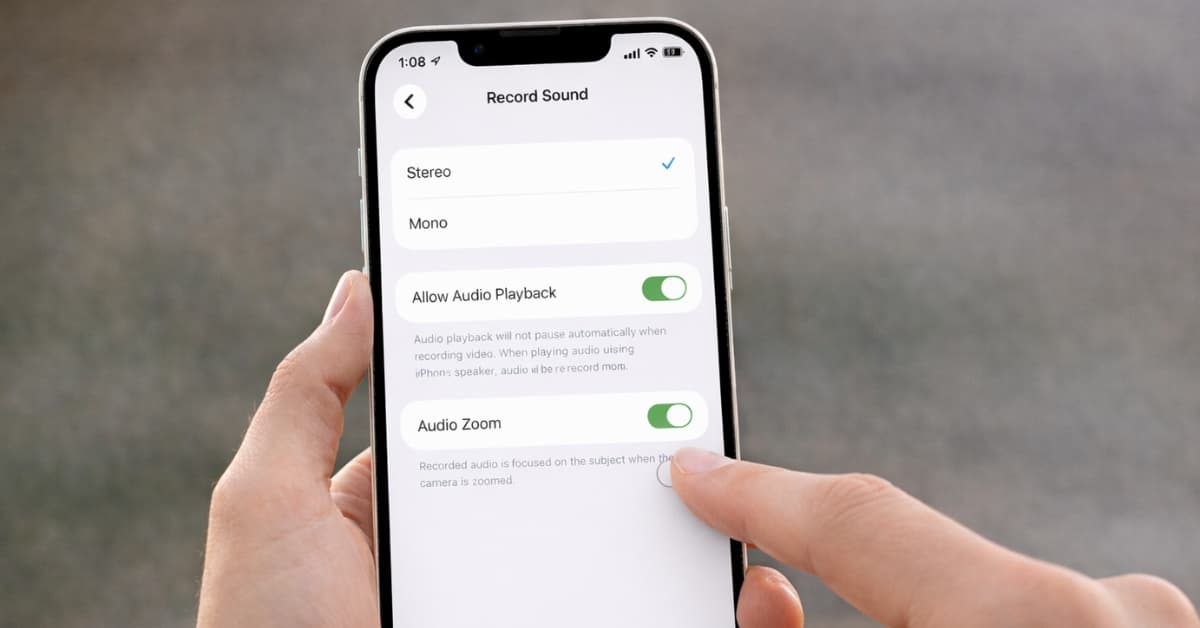
I expected a complicated workaround, but it turns out the fix is simple. iOS 26.4 added a toggle to disable Audio Zoom, and turning it off made an immediate difference.
Here’s what to do:
- Open Settings.
- Go to Camera.
- Tap Record Sound.
- Toggle Audio Zoom to OFF.
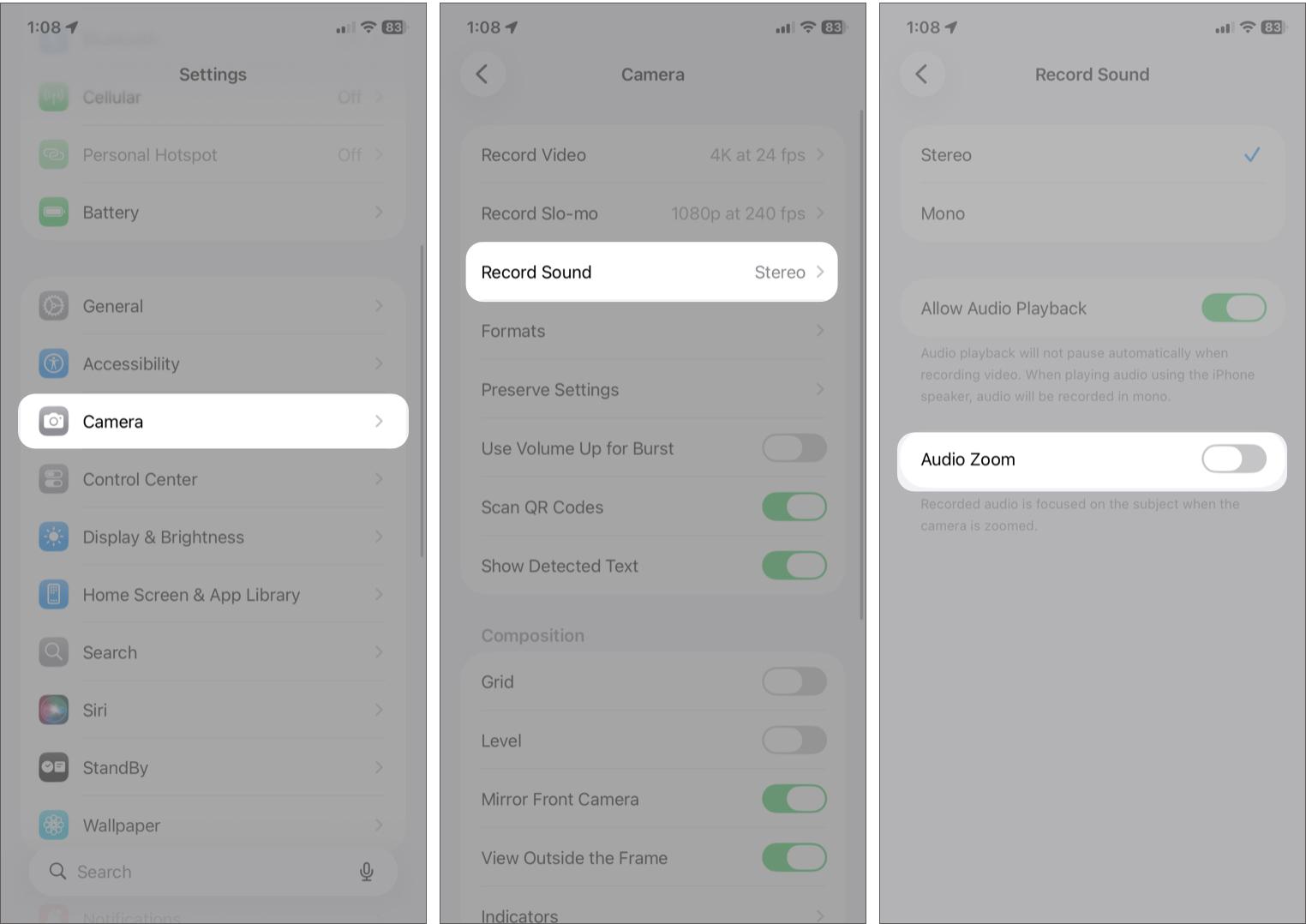
If the option is greyed out, your iPhone might be set to Mono audio. Audio Zoom only works with Stereo or Spatial Audio, so switch that first.
What changed after turning it off
The improvement was noticeable right away.
- My voice sounded fuller and more natural
- Background audio stayed consistent instead of “pulsing”
- No random drops or shifts when reframing
- The recording finally matched the real environment
If you care about natural sound, especially for events or ambient recordings, this is an easy win.
Things to know about Audio Zoom on iPhone
- Zoom ≠ just visual. On iPhone, zooming silently changes how your audio is recorded.
- “Smart” features aren’t always better. Audio Zoom tries too hard and ends up over-processing.
- You can’t fix bad audio later. Video can be edited. Audio damage is much harder to repair.
- Consistency beats cleverness. I’d take stable, slightly noisy audio for a more natural experience over glitchy “focused” sound any day.
When should you use Audio Zoom?
Audio Zoom isn’t useless. It works well in specific situations:
- Talking-head videos
- Interviews or conversations
- Walking vlogs with constant framing changes
- Noisy environments where you want to isolate a subject
In those cases, it can actually help focus on voices. But for most recordings, it’s not ideal as a default.
Final thoughts: Should you turn off Audio Zoom on iPhone?
After testing this across multiple videos, one thing is clear: Audio Zoom is one of those features that sounds good in theory but can hurt your results in real use.
Since it’s enabled by default, most people don’t even realize it’s affecting their recordings.
If your iPhone videos sound off when you zoom in, try turning it off. It’s a small change, but it makes a noticeable difference.
You may like to read