
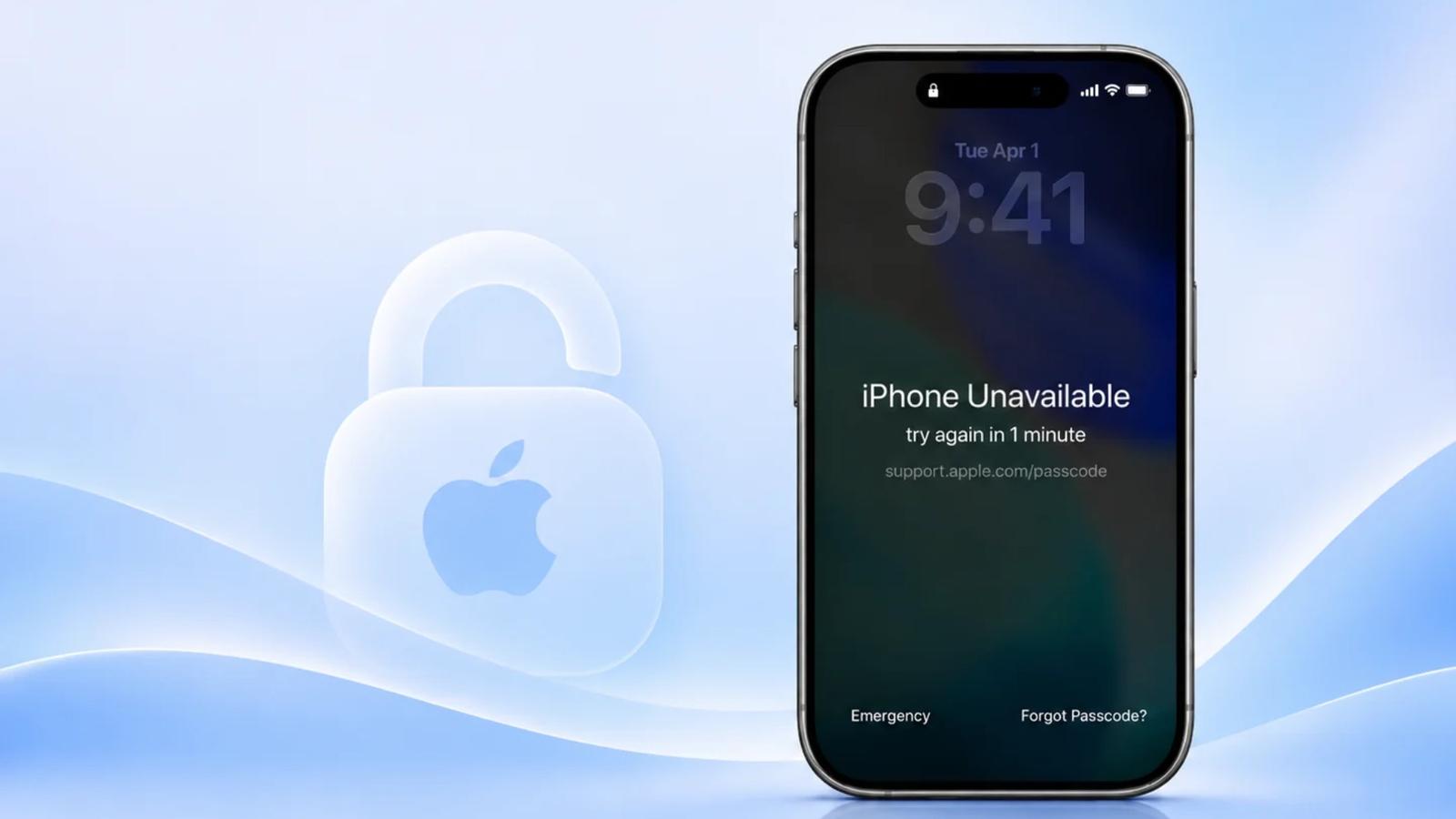
Seeing “iPhone Unavailable” on your screen can be frustrating, especially when you need immediate access to your photos, messages, or important files. Whether you’ve forgotten your passcode or entered the wrong one too many times, your iPhone may temporarily or permanently prevent you from unlocking it.
Fortunately, there are several ways to reset an unavailable iPhone, including Apple’s built-in recovery options and third-party tools such as Fonelora iPhone Unlocker.
In this guide, we’ll explain why the error appears, walk through four practical solutions, and compare their requirements to help you choose the most suitable method.
Why Does Your iPhone Say “iPhone Unavailable”?
The “iPhone Unavailable” message is an Apple security feature triggered by multiple incorrect passcode attempts to prevent unauthorized access.
Common causes include:
- Entering the wrong screen passcode repeatedly.
- Forgetting a recently changed passcode.
- Someone else, such as a child, accidentally entering incorrect passcodes.
- Face ID or Touch ID becoming unavailable, requiring manual passcode verification.
Initially, your iPhone may display “iPhone Unavailable, try again in 1 minute.” Further incorrect attempts can lead to longer lockouts or a screen without a countdown.
If you remember your passcode, wait for the timer to expire. Otherwise, you’ll need a recovery method.
Important:
Most passcode removal methods erase local data. If you recently changed your passcode, check Apple’s 72-hour Passcode Reset option first.
How to Reset an Unavailable iPhone: 4 Methods
Method 1. Reset iPhone Unavailable Using “Forgot Passcode?”
Best for: Users who know their Apple Account credentials and want to reset their iPhone without a computer.
Apple provides a built-in reset feature on supported iPhones running iOS 15.2 or later. For iOS 17 and newer, you’ll typically see the “Forgot Passcode?” option on the unavailable screen.
Steps:
- On the “iPhone Unavailable” screen, tap Forgot Passcode? when the option becomes available.
- Select Start iPhone Reset.
- Enter your Apple Account password to sign out of your account.
- Tap Erase iPhone to confirm the factory reset.
- Once your iPhone restarts, follow the setup instructions and restore an available backup.
For iOS 15.2 or iOS 16, you may see Erase iPhone directly instead.
Limitations:
- Requires an internet connection and Find My to have been enabled.
- Requires your Apple Account password.
- Erases local data and settings.
One exception worth checking: On iOS 17 or later, if you changed your passcode within the previous 72 hours, tapping Forgot Passcode? > Enter Previous Passcode may allow you to use your old passcode and create a new one without erasing data.
If the reset option is missing or you cannot meet its requirements, consider the following methods.
Method 2. Reset an Unavailable iPhone with Recovery Mode
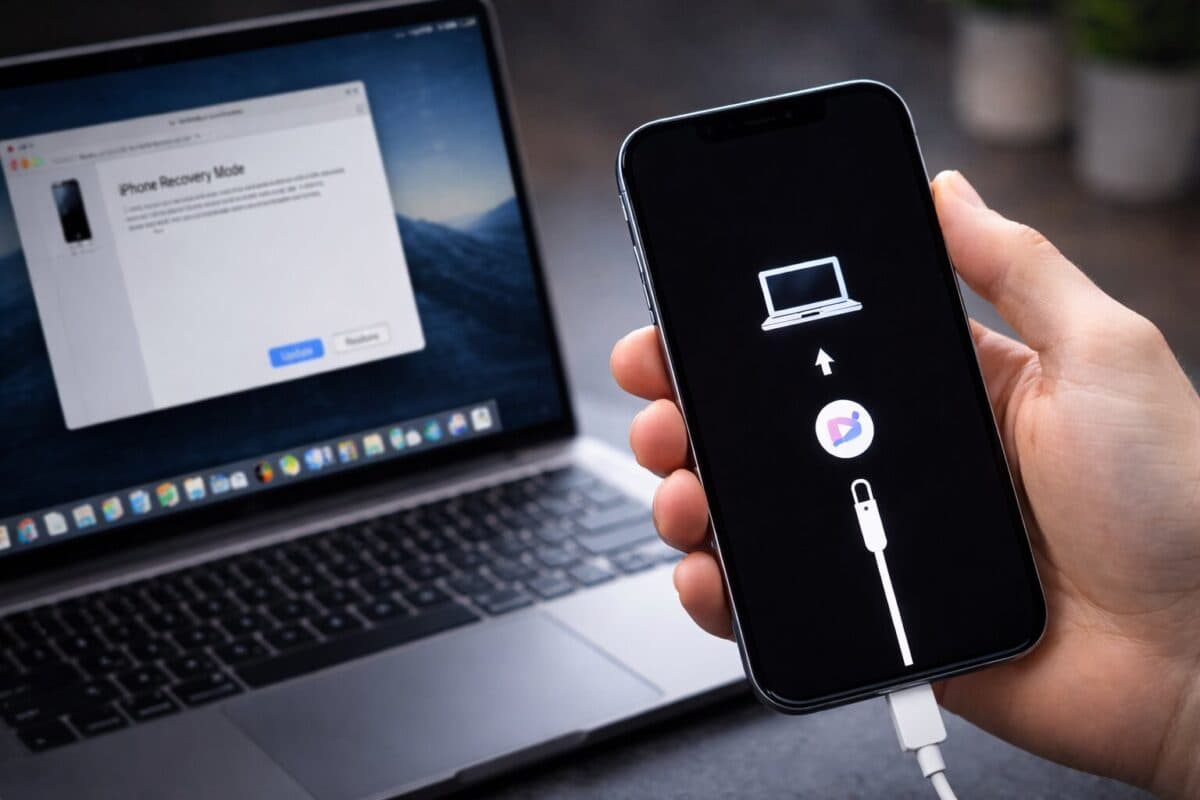
Best for: Users who have a computer and prefer an official Apple restoration method.
If the on-device reset option is unavailable, Apple allows you to restore your iPhone using a Mac or Windows computer.
Recovery Mode is a built-in troubleshooting feature that allows a computer to restore the iPhone’s software even when the device cannot be unlocked normally.
Steps:
- Turn off your iPhone.
- Connect it to your computer while holding the appropriate recovery button. On Face ID models and iPhone 8 or later, hold the Side button until the recovery-mode screen appears.
- Open Finder on a Mac or the Apple Devices app on Windows.
- Select your iPhone and choose Restore when prompted.
- Wait for the restoration to finish, then set up your iPhone again.
For older iPhones, the recovery-mode button differs by model. Check Apple’s instructions before starting.
Limitations:
- The restore process permanently erases local data.
- Entering recovery mode requires the correct button procedure.
- A stable computer connection is necessary.
- Activation Lock may still require the previously linked Apple Account.
This method is free and reliable when the device and computer work properly, although it involves more manual steps than a guided unlocking tool.
Method 3. Erase an Unavailable iPhone Through iCloud Find Devices
Best for: Users who remember their Apple Account credentials and previously enabled Find My.
You can also remotely erase your iPhone through Apple’s Find Devices service without connecting the locked phone to a computer.
This option can be especially useful if your unavailable iPhone is not physically nearby or you prefer to initiate the reset from another device.
Steps:
- Visit iCloud Find Devices using another phone or computer.
- Sign in with the Apple Account associated with your unavailable iPhone.
- Select the locked iPhone from your device list.
- Choose Erase This Device and follow the confirmation instructions.
- Once the erase finishes, set up the iPhone again.
Limitations:
- Find My must have been enabled before the lockout.
- You need access to the associated Apple Account.
- If the iPhone is offline, the erase request will remain pending until it reconnects.
- All local data is erased, and Activation Lock remains enabled.
If you cannot use Apple’s on-device reset feature, find Recovery Mode too complicated, or prefer a more guided approach, the following option may be worth considering.
Method 4. Reset an Unavailable iPhone with Fonelora iPhone Unlocker
Best for: Users who have forgotten their iPhone screen passcode, cannot access the on-device reset option, or prefer a guided unlocking process.
Apple’s official recovery methods are useful, but they may not be convenient for everyone.
For example, some iPhones do not display the “Forgot Passcode?” option on the lock screen. Others require users to manually enter Recovery Mode, troubleshoot connection issues, or restore the system through a computer.
For users unfamiliar with these procedures, the process can feel unnecessarily complicated.
In these situations, Fonelora iPhone Unlocker offers an alternative way to remove the screen lock from a supported iPhone using a Windows PC or Mac.
The software is designed to address common iOS locking problems, including:
- iPhone Unavailable and Security Lockout screens.
- Forgotten 4-digit, 6-digit, or custom screen passcodes.
- Devices requiring a passcode when Face ID or Touch ID cannot be used.
- Supported iPhones and iPads locked by a forgotten screen passcode.
Unlike manual recovery procedures, Fonelora provides a visual interface that guides users through the unlocking process. You don’t have to memorize complicated button combinations or independently manage every recovery step.
How to Remove the iPhone Unavailable Screen with Fonelora
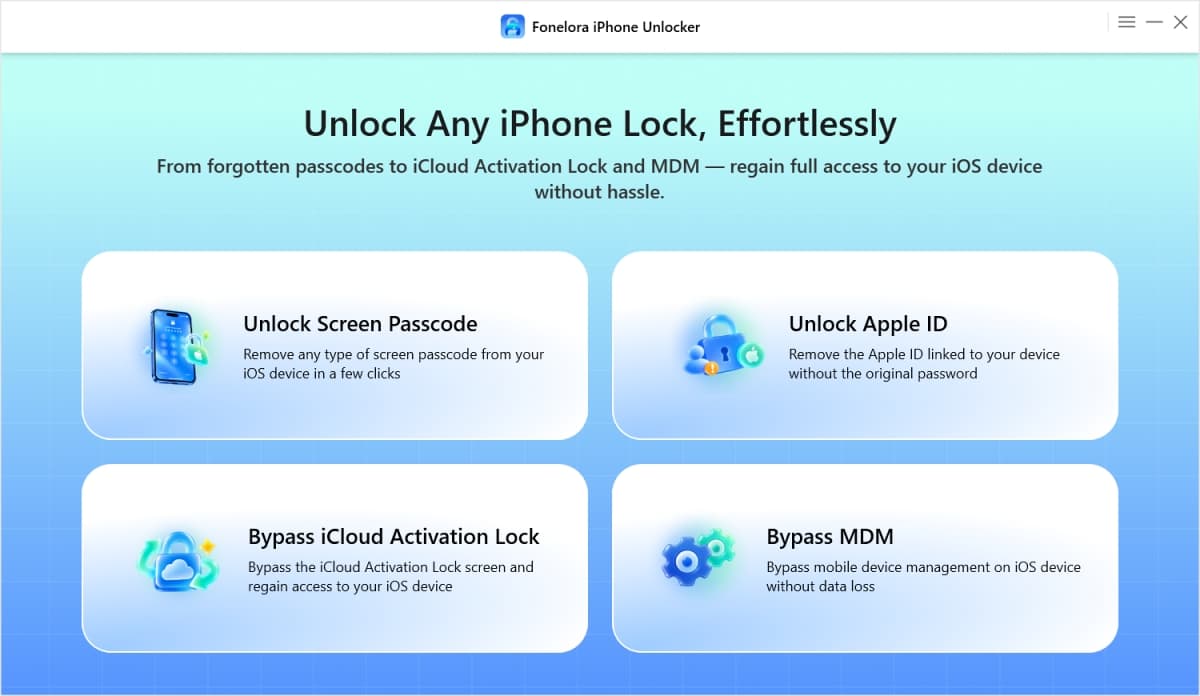
Step 1. Install Fonelora iPhone Unlocker
Download and install Fonelora iPhone Unlocker on your Windows computer or Mac.
Launch the program and select Unlock Screen Passcode from the main interface.
Step 2. Connect Your Unavailable iPhone
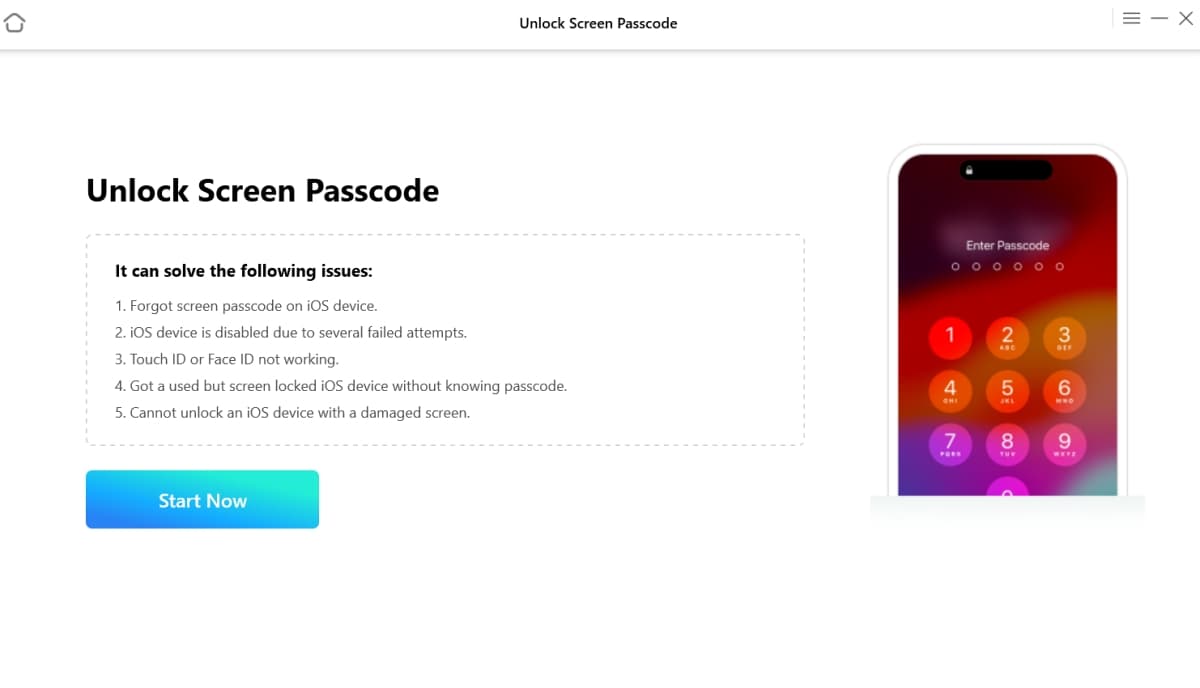
Connect your iPhone to the computer using a compatible USB cable. Click Start Now and follow the instructions to establish the connection.
Step 3. Remove the Screen Lock and Set Up Your iPhone
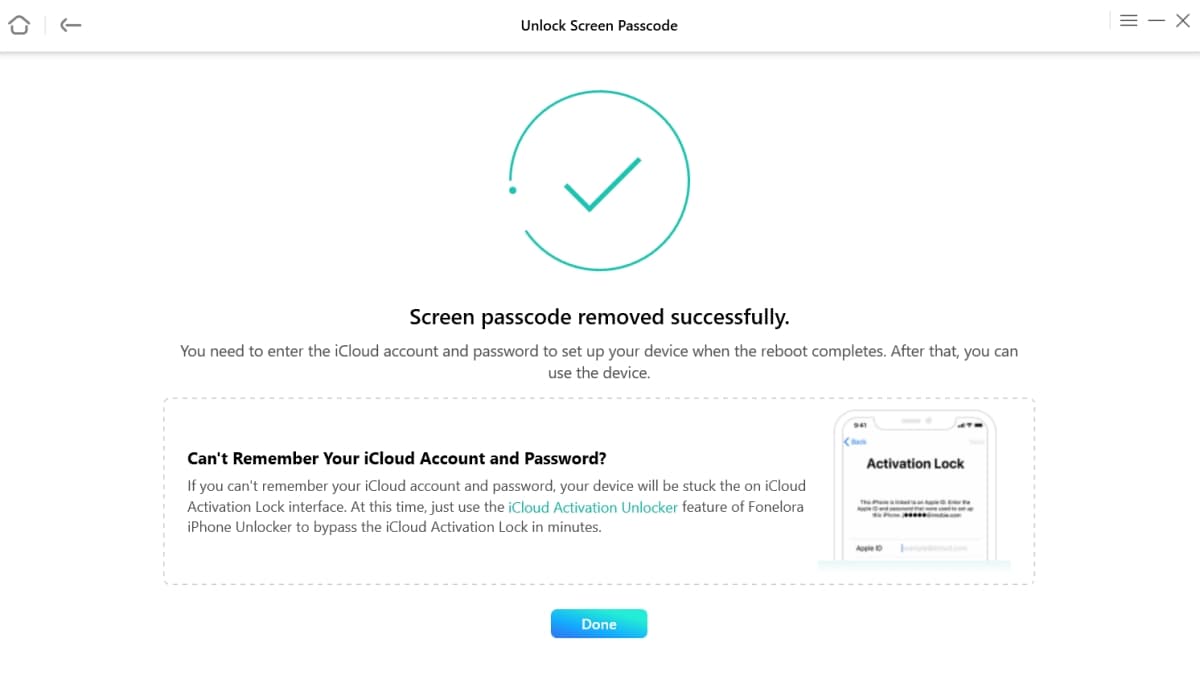
Follow the on-screen instructions to prepare the required device files and confirm the unlocking process. Keep your iPhone connected until the screen lock is removed. Once completed, you can set up your iPhone with a new passcode and restore an available backup.
Which iPhone Unavailable Reset Method Is Best?
Each solution has different requirements. The following comparison can help you decide.
| Method | Computer Required | Apple Account Password Required | Erases Data | Cost |
|---|---|---|---|---|
| Forgot Passcode? reset | No | Yes | Yes* | Free |
| Apple Recovery Mode | Yes | Not to restore; may be needed for activation | Yes | Free |
| iCloud Find Devices | No | Yes | Yes | Free |
| Fonelora iPhone Unlocker | Yes | Not to unlock; may be needed for activation | Yes | Paid |
*Apple’s 72-hour previous-passcode recovery can preserve data when eligible.
Try Apple’s previous-passcode recovery or built-in reset option first. If these aren’t available, Fonelora iPhone Unlocker offers a simpler, guided alternative for compatible devices, though data may be erased.
Final Verdict
An “iPhone Unavailable” message doesn’t mean your device is permanently locked. Whether you use the Forgot Passcode option, Recovery Mode, or iCloud Find Devices, Apple’s official methods can help you reset your iPhone under the right conditions.
However, if these options aren’t available or you find the recovery process too complicated, Fonelora iPhone Unlocker offers a simpler, guided alternative. With its straightforward interface and step-by-step instructions, you can remove the screen lock from a supported iPhone without navigating complex recovery procedures on your own.