
Instagram not sharing to Facebook on iPhone? 5 Ways to fix it!
A few years ago, Instagram provided users with an option to easily share their Instagram posts to their Facebook account using the ‘Post to Other Apps…’ option. However, it may happen that this option doesn’t work perfectly at times. For example, users have complained about Instagram not sharing to Facebook even after being notified that the post was shared successfully.
If you are facing a similar problem, this article is for you! I have compiled 5 easy fixes to help you successfully share your Instagram posts to Facebook.
How to fix Instagram not sharing to Facebook on iPhone
Want to make Instagram share your posts to Facebook? You don’t need to look beyond these fixes!
1. Ensure that your Instagram and Facebook accounts are linked
One of the prerequisites for sharing your Instagram post on Facebook is to have both accounts linked together. Therefore, you must ensure that both accounts are properly connected before you share anything.
- Launch Instagram on your iPhone → Tap your profile icon at the bottom right.
- Select the hamburger menu from the top right.
- Select Accounts Centre → Tap on Sharing across profiles under Connected experiences.
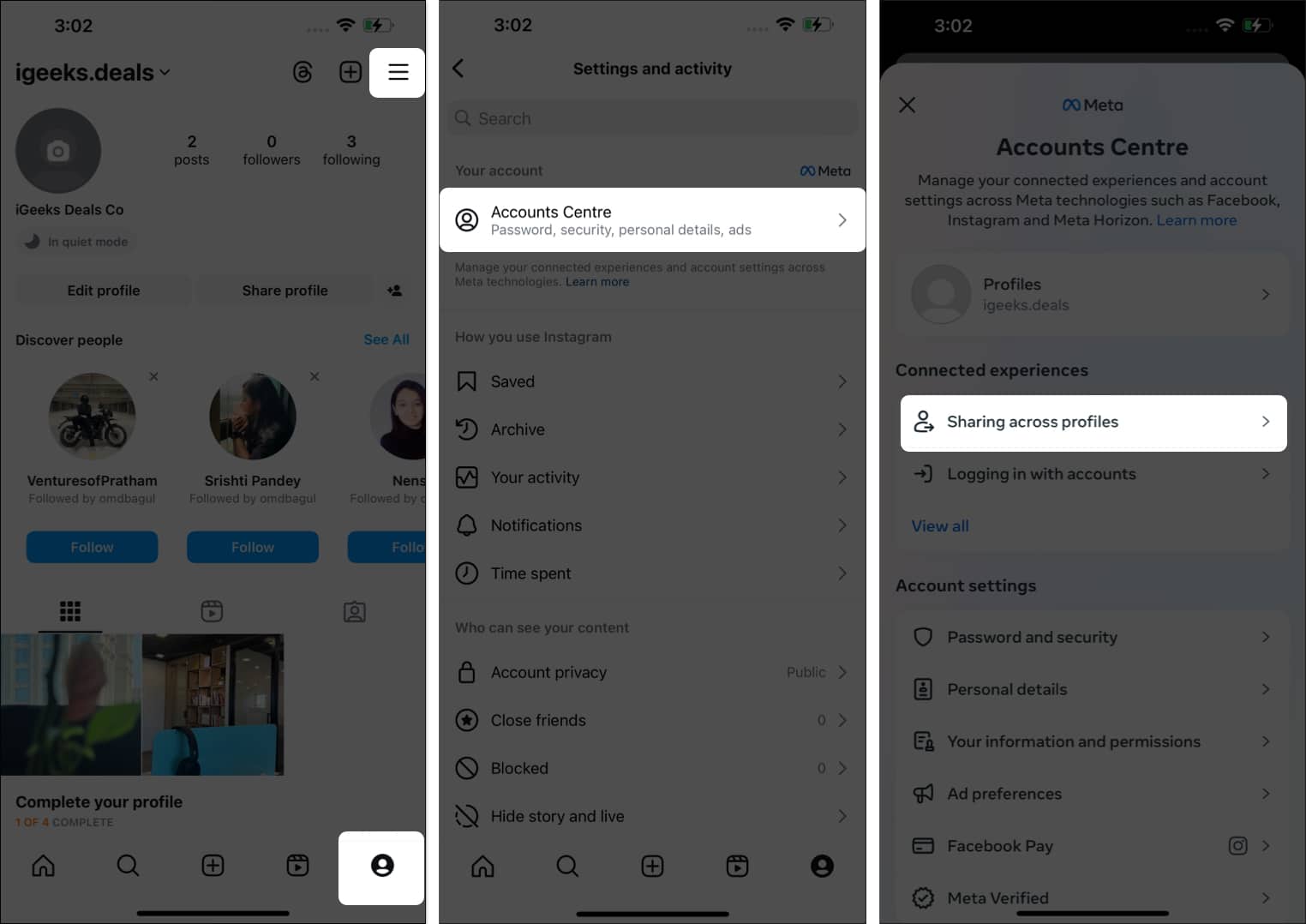
- Check if your Facebook account is listed on the page. If it’s not, move on to the next step.
- Tap Add accounts and select Add Facebook account.
- Enter your Facebook account credentials and tap Continue.
You won’t need to enter anything if you have Facebook installed.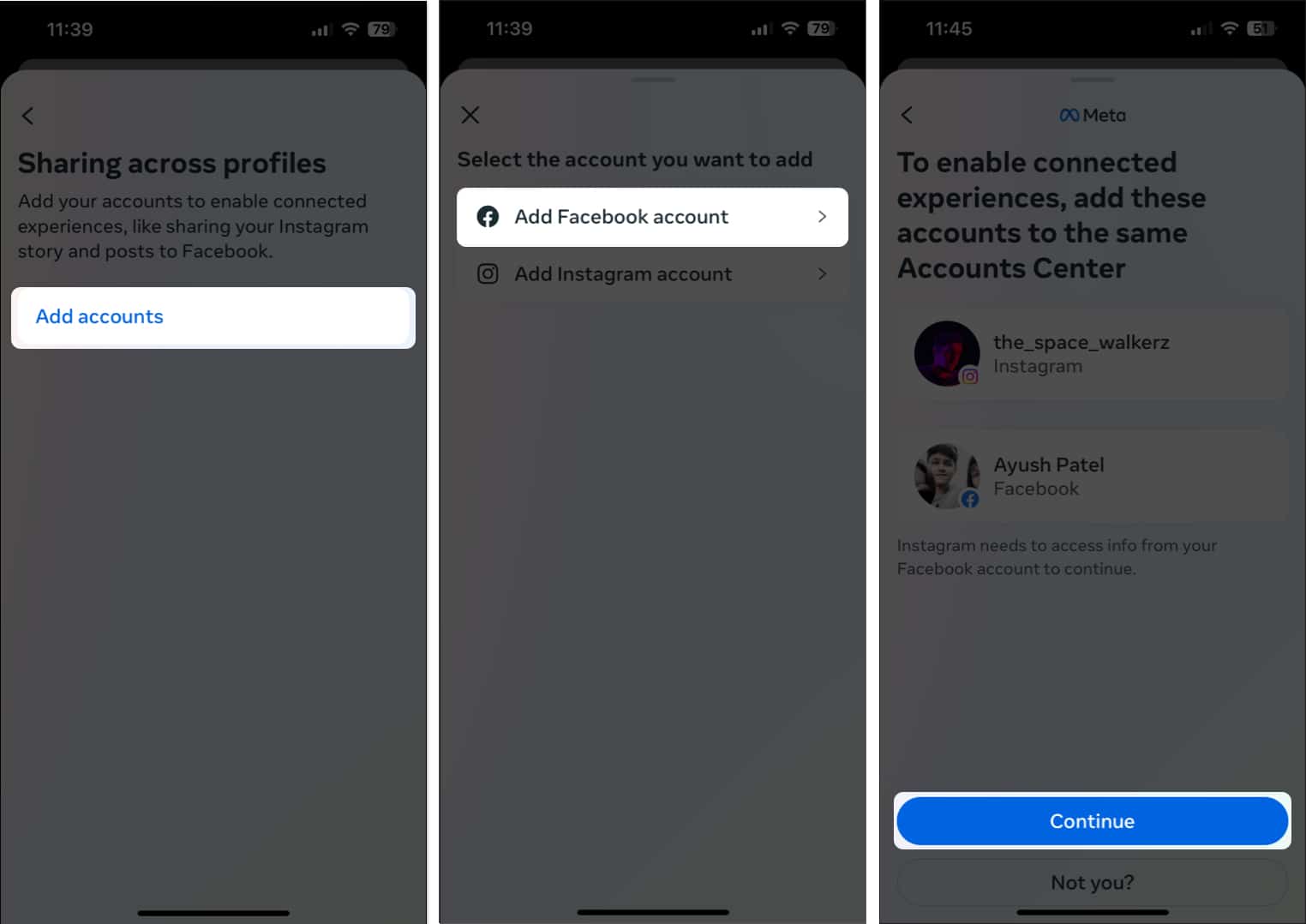
2. Change Instagram sharing preferences in the Meta Accounts Centre
Once you link your Instagram account with Facebook, you must select what content you want to share to your Facebook account or a page connected to your Facebook account.
If you haven’t done this, follow the steps below to change the Instagram sharing preferences in the Meta Accounts Centre.
- In Instagram, tap your profile picture at the bottom right.
- Select the hamburger menu.
- Navigate to Accounts Centre → Sharing across profiles.
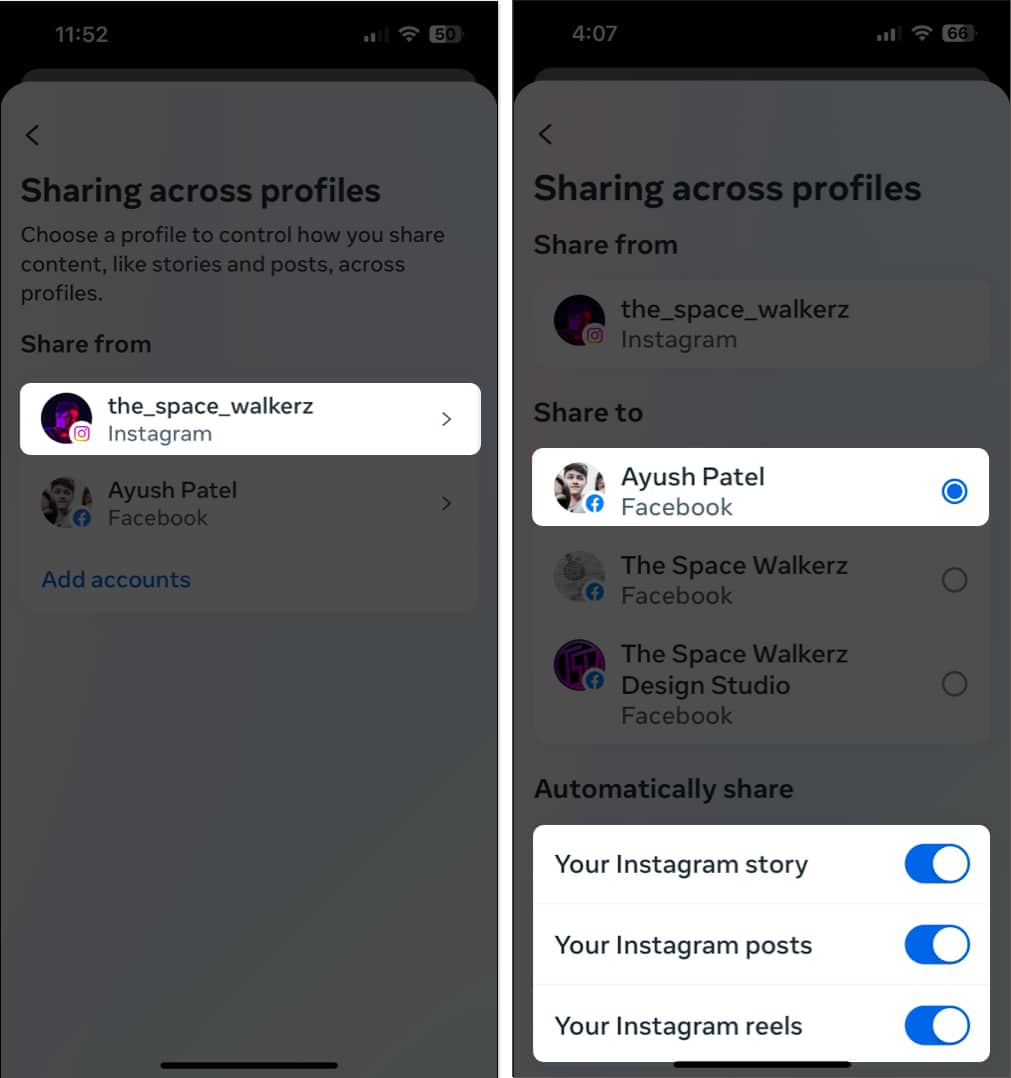
- Tap and select your Instagram username.
- Under Share to, select your main Facebook profile instead of the pages connected to it.
- Under the Automatically share label, toggle on Your Instagram story, Your Instagram posts, and Your Instagram reels.
3. Relink your Facebook account to Instagram
Often, glitches or bugs within Facebook and Instagram can prevent cross-posting from working as expected. If you want to phase out the possibility, you must relink your Facebook account to your Instagram account, as detailed in the steps listed below.
- In Instagram, tap your profile picture → Select the hamburger menu
- Navigate to Accounts Centre → Accounts.
- Tap the Remove button next to your Facebook profile.
- On the confirmation page, tap Remove account.
- Then, tap Continue → Choose Remove <Your Facebook Name>.
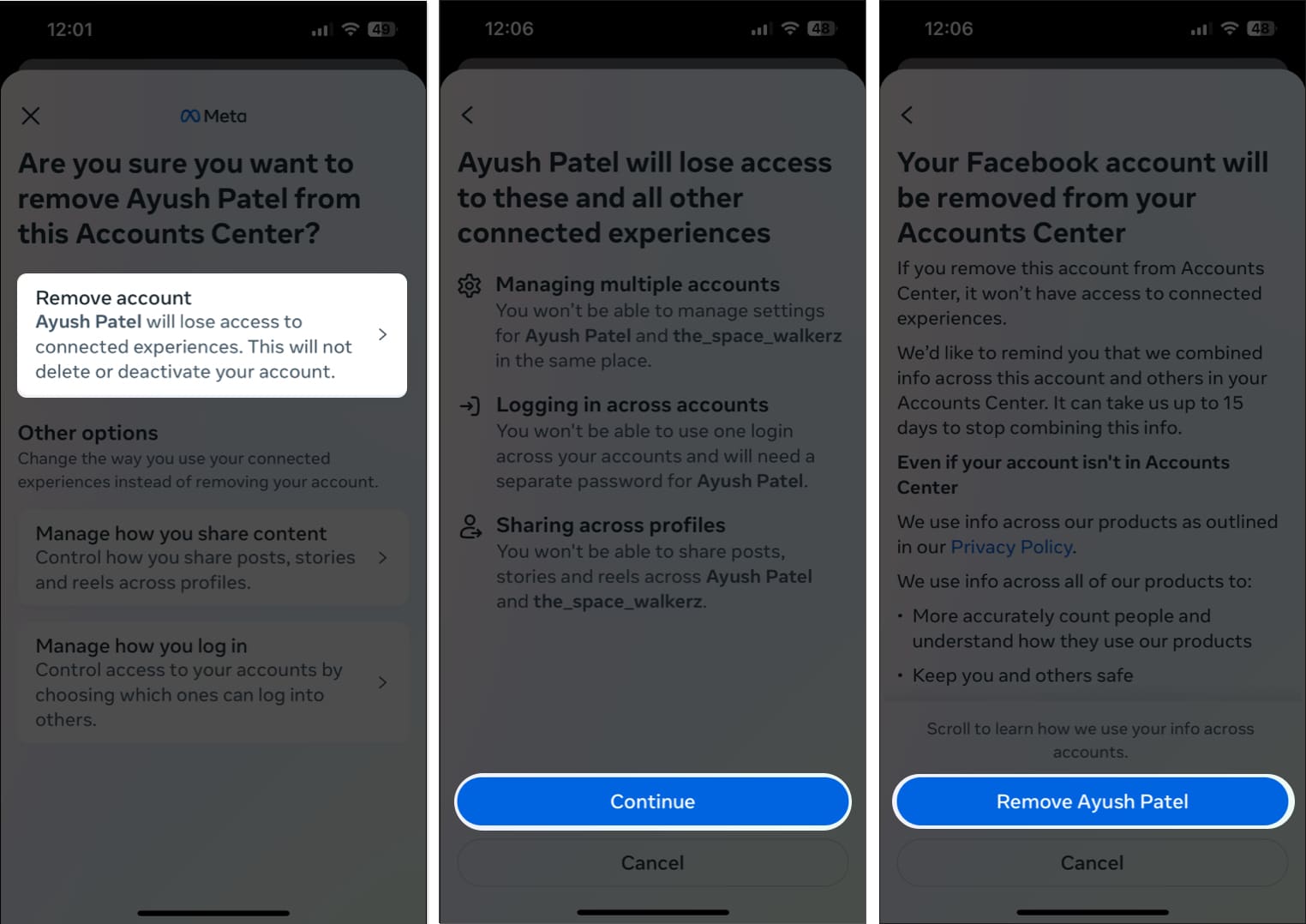
- Now, follow the steps listed in the first solution to link your Facebook account to Instagram.
4. Re-login to your Instagram and Facebook account
If the previous methods didn’t help fix your issue, you can try logging out and logging into your Instagram and Facebook accounts to see if that does the trick for you. Here are the steps on how you can do this:
- Launch Instagram and tap your profile picture at the bottom right.
- Select the hamburger menu.
- Scroll down and tap Log out.
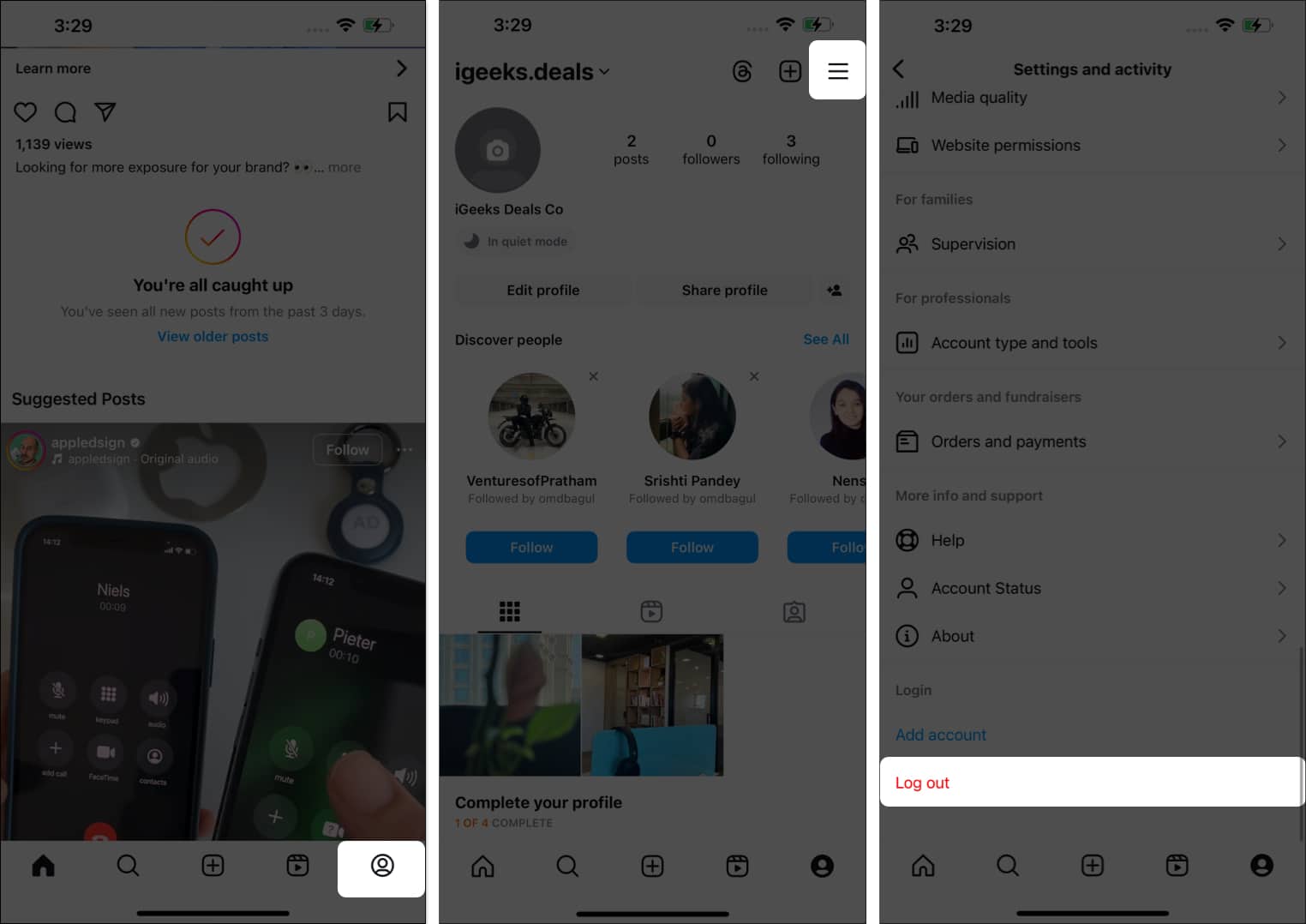
- Now, launch Facebook and tap your profile picture at the bottom right.
- Scroll down and tap Log out.
You might see a prompt to save login info. Tap Not Now if you remember your credentials. - Select Log Out to confirm your choice.
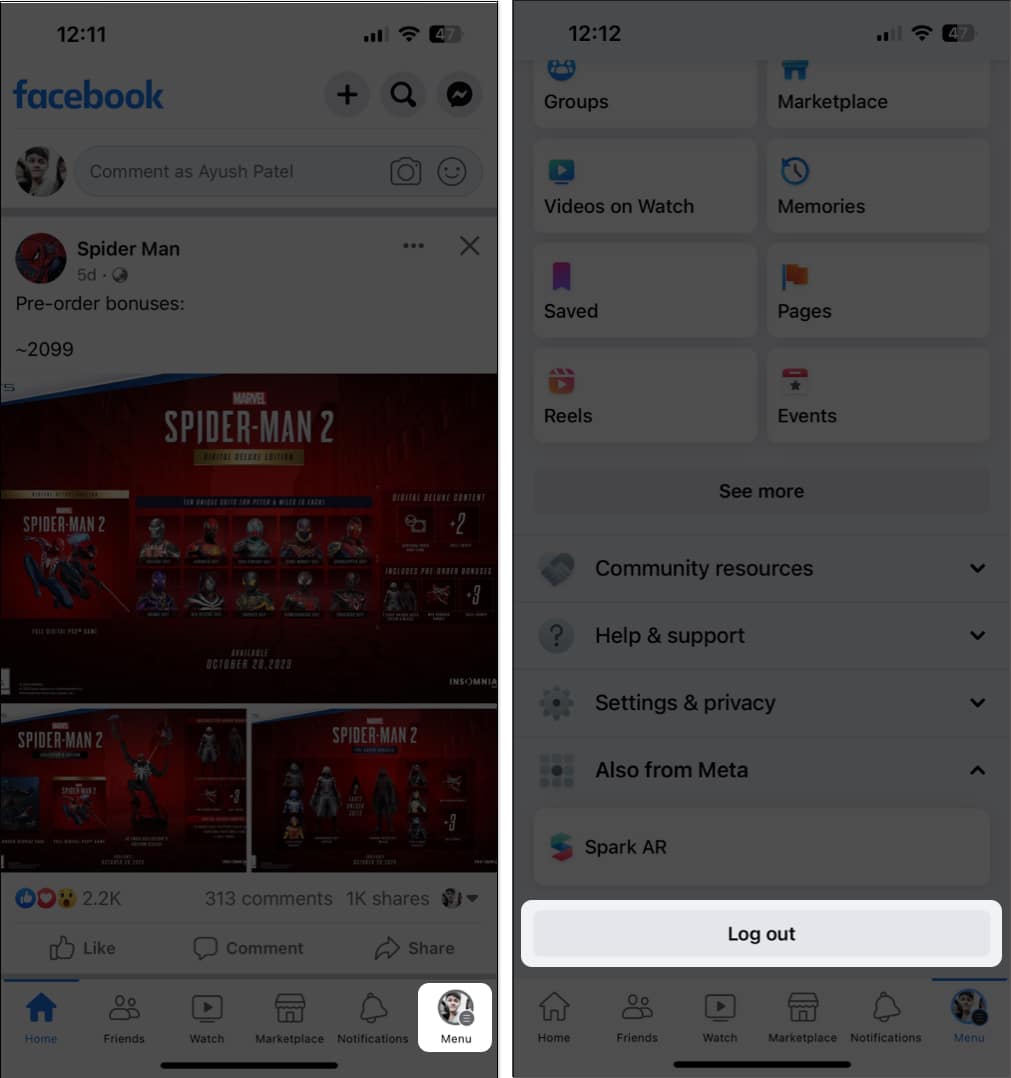
- Enter your credentials and tap Log in to access your Facebook and Instagram accounts.
5. Change your Facebook Account’s Password
If you haven’t changed your Facebook account password in a while, it would be a good idea to do it now.
Apart from improving your account’s security, doing this will let you log out from all Facebook sessions running on other devices so you can clear out any glitches that may prevent you from sharing your Instagram post across Facebook.
- Open Facebook and tap your profile picture at the bottom right.
- Tap the Settings icon (gear icon) at the top right corner → See more in Accounts Centre.
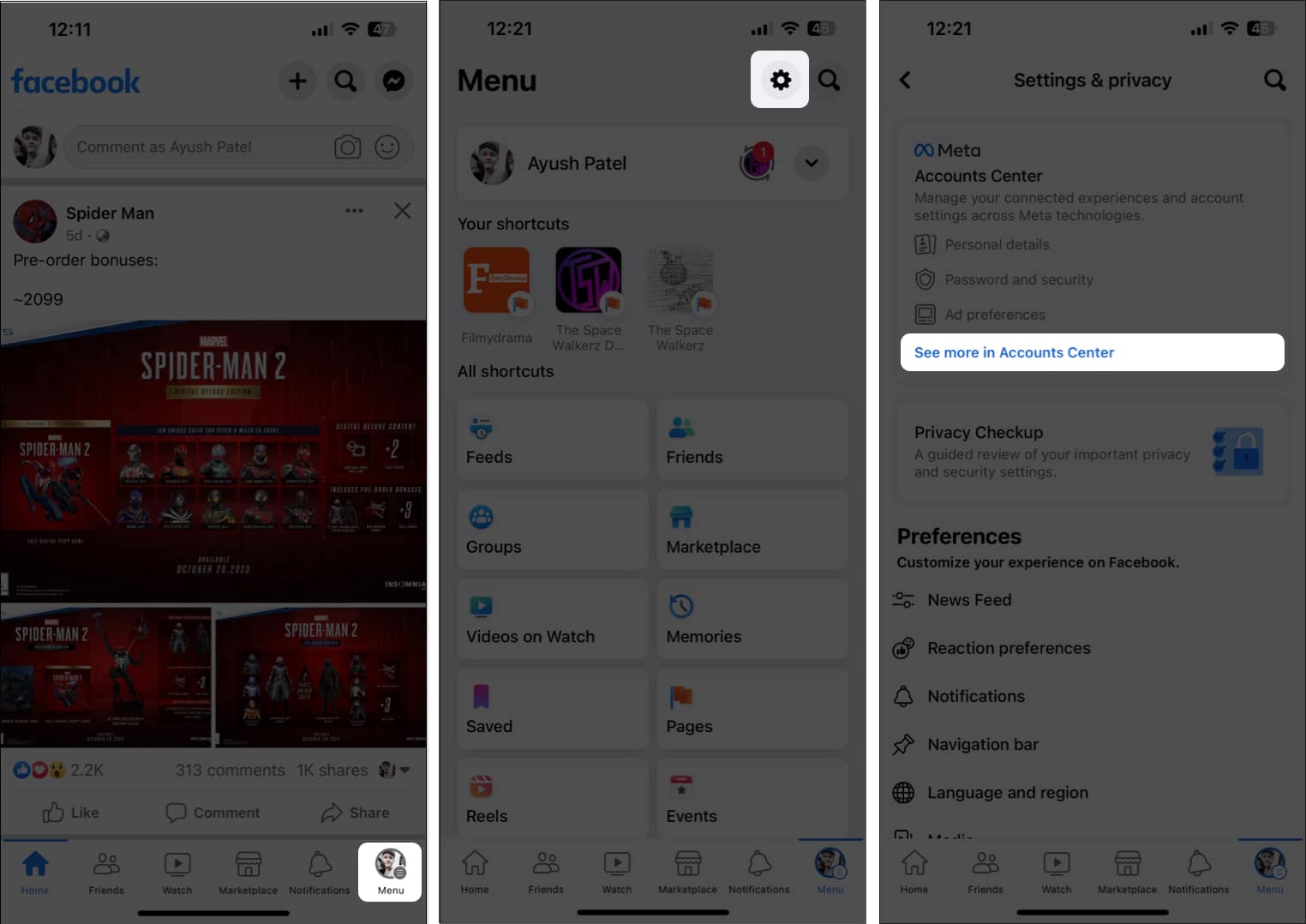
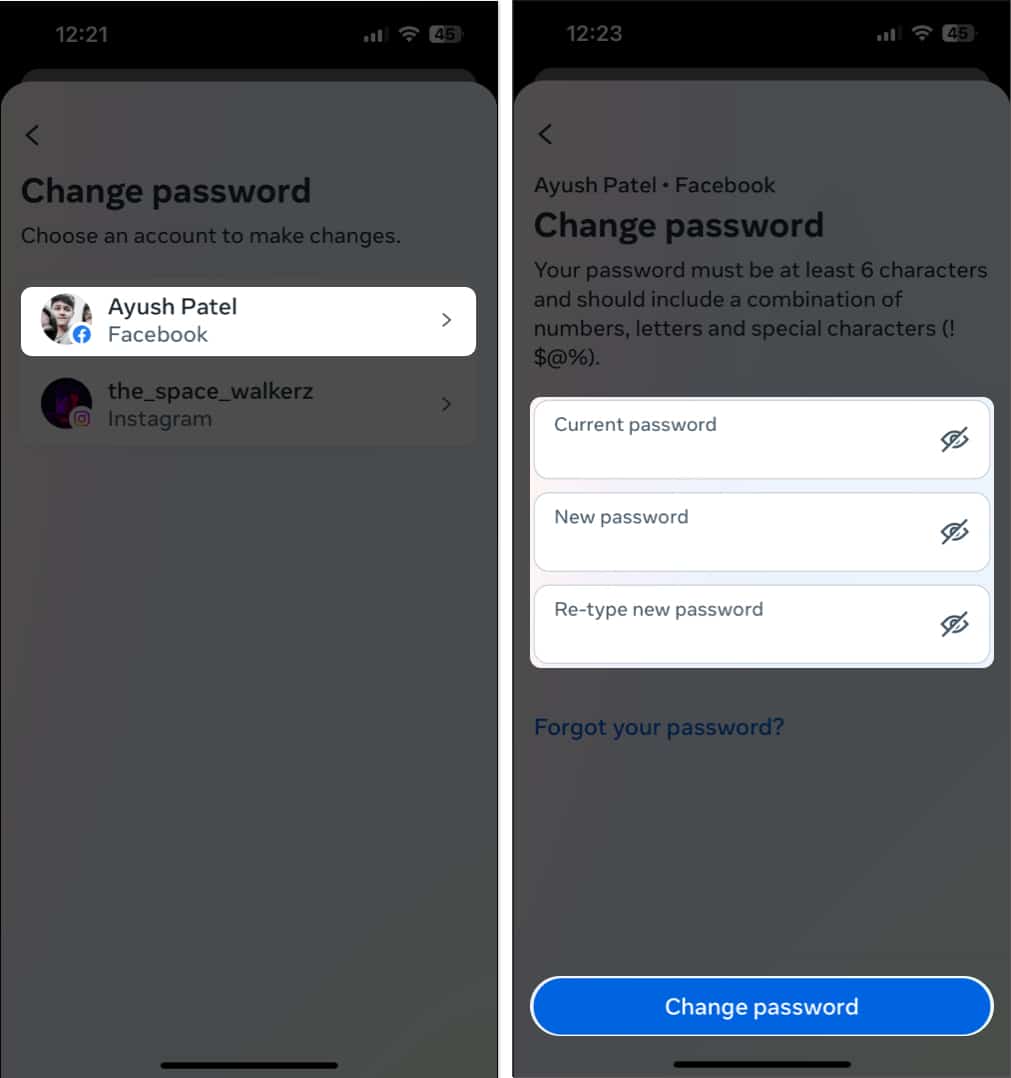
- Now tap Password and security → Change password.
- Select your Facebook profile, and type in your current and the new password. Then, tap Change password.
Wrapping up…
I hope this article will help you to fix the Instagram share to Facebook not working issue. If you have any further questions, drop them in the comments below. I’ll be happy to respond.
Also read:

Written by
AbhinavI have been a tech enthusiast for as long as I can remember. I enjoy explaining tech to the internet and doing this since I was old enough to understand mathematics. At iGeeksBlog, I will be guiding the internet in solving some common issues with their iPhone, iPad, Mac, AirPods, and Apple Watch. When not writing, you can find me preparing for my debut standup show or roaming around with my camera in the whole city.
View all posts →More from How-to

Snapchat Parental Controls: How to Set Up Family Center and Keep Your Teen Safe
Snapchat’s Family Center lets parents monitor their teen’s friend activity and screen time without reading private messages. Here’s how to set it up and what to expect.
 VikhyatMarch 3, 2026
How to Block and Unblock Someone on Instagram
Instagram lets you block or unblock someone in seconds. Follow these simple steps to take full control of your privacy and online peace.
 Ava BiswasMarch 2, 2026
Apple Watch Not Responding? 8 Fixes That Actually Work
Is your Apple Watch unresponsive or stuck on a black screen? Here are 8 proven fixes to help you unfreeze it and get it working again quickly.
VikhyatMarch 3, 2026