Apple introduced Workout Buddy in watchOS 26, giving Apple Watch users an AI-powered fitness companion that provides motivational voice feedback during workouts. With watchOS 27, Apple has made this feature more useful by adding new fitness insights, personalized milestone encouragement, and support for workouts without your iPhone nearby.
If you want a little extra motivation during a run, walk, cycling session, or strength-training workout, Workout Buddy can help you stay focused and understand your progress. In this guide, I’ll explain what’s new in Workout Buddy in watchOS 27, which devices you need, how to set it up, and how to troubleshoot common problems.
What is Workout Buddy on Apple Watch?
Workout Buddy is an Apple Intelligence-powered feature built into the Workout app on Apple Watch. It analyzes your fitness history alongside data from your real-time workout data to deliver personalized audio encouragement.
Instead of simply announcing your distance or elapsed time, Workout Buddy can recognize milestones, highlight your progress, and offer motivation based on your activity history. It can also provide insights into your pace, distance, and workout duration.
Here’s what Workout Buddy can do in watchOS 27:
- Personalized motivation: Receive encouraging audio feedback based on your fitness history and current workout at the start of your workout.
- Real-time workout insights: Hear about your progress in areas such as pace, distance, and workout duration.
- Milestone celebrations: Get encouragement when you achieve milestones, such as completing your fastest 10K, closing your Activity rings, or reaching a yearly distance goal.
- Post-workout summaries: Hear a recap of your session, including information such as total workout time and calories burned.
- iPhone-free workouts: Continue using Workout Buddy without carrying your paired iPhone, provided your Apple Watch has a Wi-Fi or cellular connection.
- Spanish-language support: Use Workout Buddy in Spanish as well as English, subject to device, language, and regional availability.
watchOS 27 has also expanded the fitness data Workout Buddy uses to make its feedback more personal and relevant to your progress. For example, it highlighted that I spent most of my workout in a particular heart rate zone in the last session.
Apple has developed a new text-to-speech engine trained using the voices of real Apple Fitness+ trainers. The result? A voice that sounds more like your upbeat gym coach than a robotic assistant—personalized and energetic.
Requirements to use Workout Buddy on Apple Watch
Before you get started, make sure you meet these conditions:
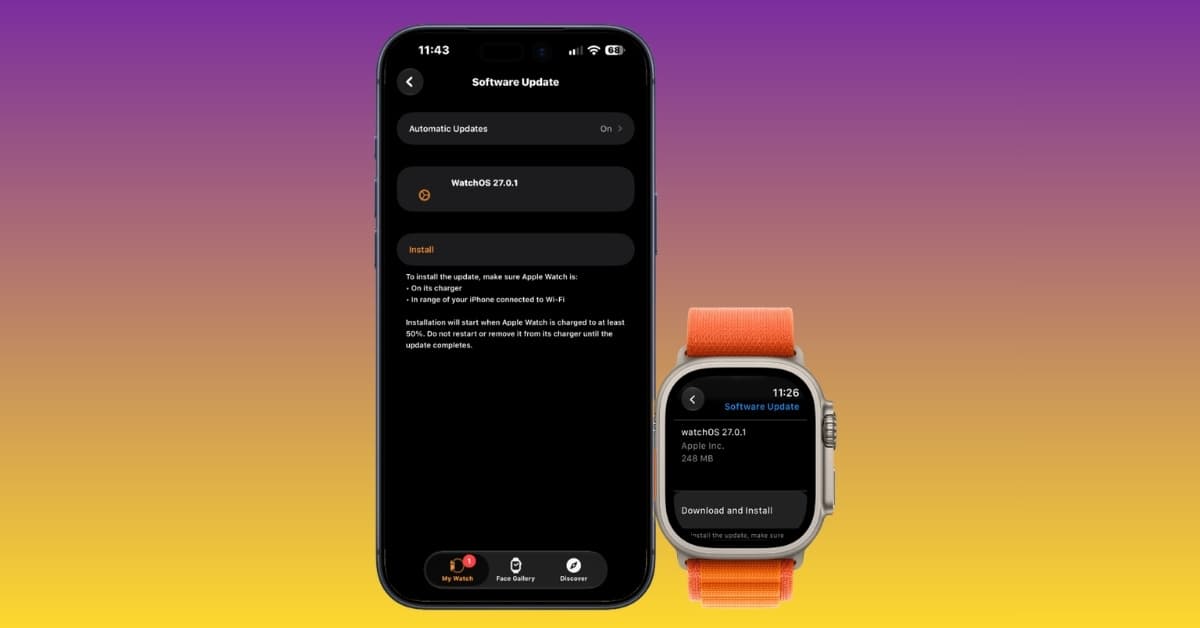
- Required Apple Watch: Available on watchOS 26-compatible Apple Watch models (Series 6 or later). However, to enjoy the latest experience, you need an Apple Watch running watchOS 27 or later. It’s available on Apple Watch Series 9 or later.
- Compatible iPhone: Your Apple Watch must be paired with an Apple Intelligence-supported iPhone, such as an iPhone 15 Pro or a newer model, running iOS 26 or later.
- Bluetooth headphones: Connect AirPods or other compatible headphones to your Apple Watch or iPhone to hear audio feedback clearly during workouts.
- Supported language: Set your device and Siri languages to English or Spanish.
- Optional: If you want to use Workout Buddy without your paired iPhone nearby, your Apple Watch needs a Wi-Fi or cellular connection.
Apple Intelligence availability varies by device, region, and language. Simply installing watchOS 27 won’t make Workout Buddy available if your paired iPhone or language settings don’t meet the requirements.
How to set up Workout Buddy on Apple Watch
Before you start using Workout Buddy on your Apple Watch, you must first set it up:
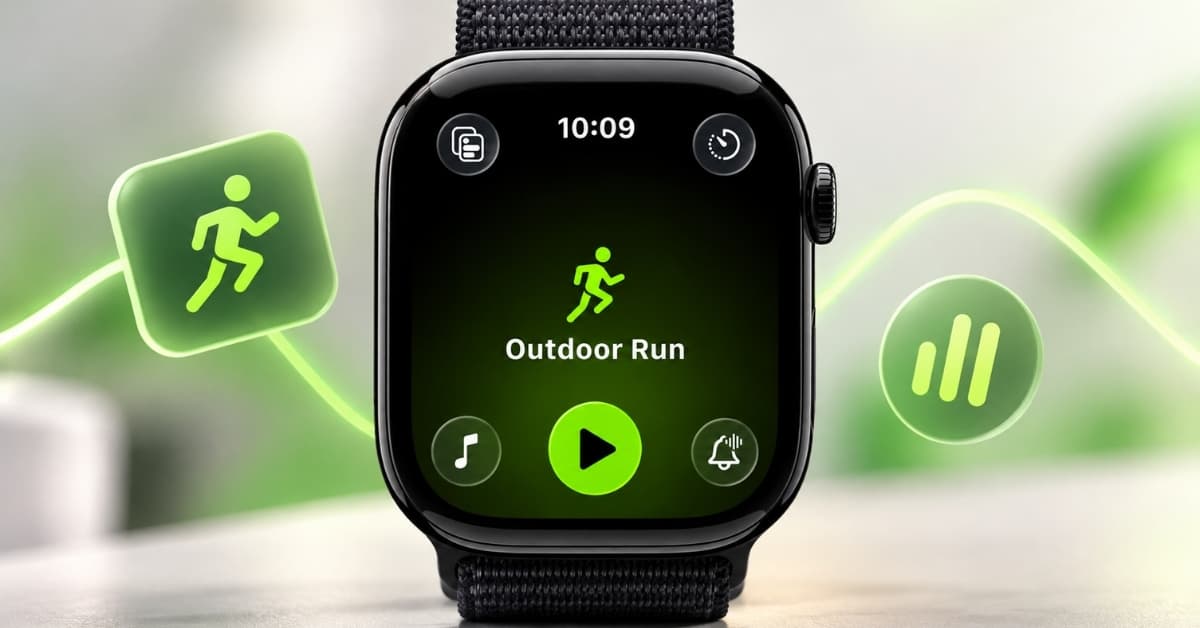
- Open the Workout app on your Apple Watch.
- Turn the Digital Crown to find the workout you want to use. Select a supported one:
- Outdoor and Indoor Run
- Outdoor and Indoor Walk
- Outdoor and Indoor Cycle
- Hiking
- Elliptical
- Stair Stepper
- High Intensity Interval Training (HIIT)
- Functional and Traditional Strength Training
- Tap the Alerts icon in the top-left corner.
- Scroll and tap Workout Buddy.
- Toggle on Use Workout Buddy.
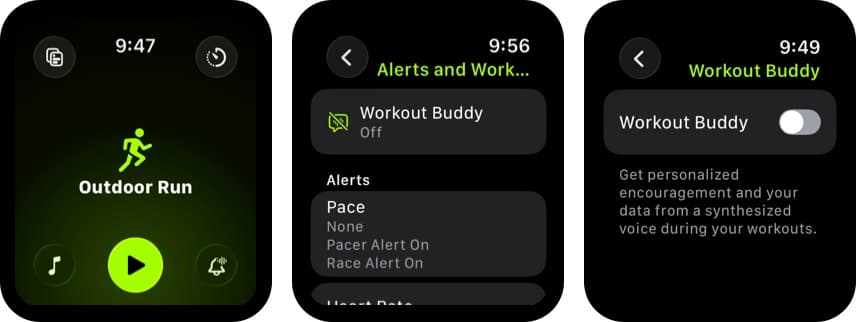
- Choose your preferred voice.
- Tap the Back button to return to the workout screen.
If you want to use Workout Buddy without your iPhone nearby, set it up beforehand and make sure your Apple Watch has a Wi-Fi or cellular connection, you have compatible Bluetooth headphones, and the required Apple Intelligence settings are enabled.
How to use Workout Buddy during a workout
Once everything’s set up, you don’t need to do anything; Workout Buddy activates automatically when you start the workout.
Here’s how it works:
- In the Workout app, select the workout you enabled Workout Buddy in and hit the Play (Start) button to begin your workout.
- Workout Buddy kicks in immediately with a motivational phrase like, “Let’s crush that 5K today!”
- During the session, it provides relevant updates about your progress, including pace, distance, workout duration, and achievements.
- You may receive audio encouragement when you achieve a notable fitness milestone, such as “Congratulations on crossing 500 miles.”
- At the end, you’ll get a custom audio recap—“You ran 3.5 miles at an 8:20 pace. Great job beating last week!”
The exact messages vary depending on your workout and recorded fitness data. I received different announcements in every session. Also, don’t expect every milestone to trigger an audio prompt.
The best part is everything is processed on-device, ensuring your privacy while also allowing it to work offline—no internet connection is needed.
Customizing Workout Buddy to match your style
Apple already knew that not all users may be thrilled about the prospect of having an AI cheerleader during a challenging run or other training sessions.
That’s why Apple has made Workout Buddy optional, so you can decide when to use it. You can also choose a voice and mute the feature during a workout if you want some quiet time.
- You don’t have to use Workout Buddy for every activity. Turn it on for certain workouts and keep it disabled for others.
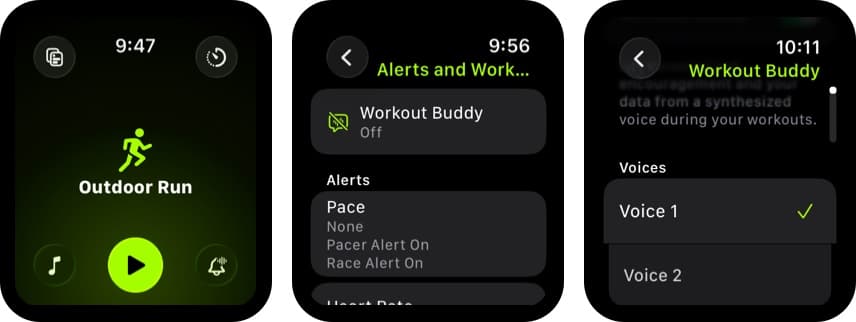
- Adjust the voice style: Similar to Siri, Workout Buddy offers multiple voice styles to choose from. To do so, open the Workout app → Select a supported workout → Tap Alerts → Workout Buddy → Choose Voice Style.
- Mute Workout Buddy: You don’t need to stop your workout if you no longer want to hear the coaching. While your workout is running, swipe right on the workout screen and tap Mute.
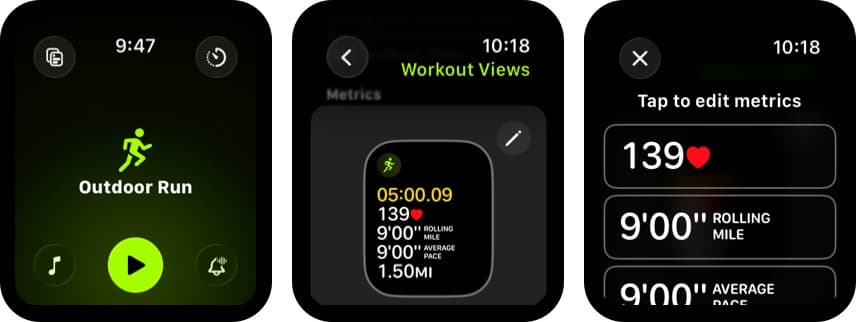
- Customize the on-screen data in your Workout app alongside the voice coaching. To do so, open the Workout app → Select a supported workout → Tap Workout Views → Tap the Edit button and make the desired changes.
Workout Buddy not working on Apple Watch? Try these fixes
If Workout Buddy isn’t responding, providing audio feedback, or appearing in the Workout app, try these troubleshooting steps.
- Check device compatibility: Check whether your Apple Watch is running the latest watchOS update. Additionally, the paired iPhone is an iPhone 15 Pro or newer model with iOS 26 or later installed.
- Connect Bluetooth headphones: Workout Buddy only works when AirPods or other Bluetooth earbuds are connected to your Apple Watch or iPhone. Press the Side button to open the Control Center → tap the AirPlay icon → ensure your headphones are selected.
- Check language settings: Workout Buddy requires your device and Siri languages to be set to English or Spanish.
- Enable Workout Buddy for selected activity: The feature isn’t enabled by default. Therefore, ensure that you have enabled it for the supported workout in the Workout app.
- Check your watch’s internet connection: If you’re leaving your paired iPhone behind, your Apple Watch needs a Wi-Fi or cellular connection before starting your session.
- Check audio volume: Ensure your AirPods or Bluetooth headphones aren’t muted.
- Restart both devices: If nothing works, there might be a bug affecting the functionality. Restarting your devices often eliminates such bugs and glitches.
Is Workout Buddy in watchOS 27 worth using?
Workout Buddy is a useful addition for people who appreciate a little encouragement during exercise. The improvements in watchOS 27 make it more practical by adding personalized fitness insights, milestone recognition, Spanish-language support, and the ability to use it without carrying your paired iPhone nearby.
It’s not a replacement for a human coach, and it won’t necessarily provide detailed training advice during every workout. Instead, think of it as an optional fitness companion that makes it easier to stay motivated and track your progress.
If you already use your Apple Watch to track your runs, walks, cycling sessions, or strength workouts, Workout Buddy is worth trying. You can enable it for the activities where you find audio encouragement helpful and mute it whenever you prefer to exercise in silence.
Have you tried Workout Buddy yet? Share your experience or questions in the comments.
Related articles worth reading: