
Apple Watch Now Supports AirTag Precision Finding — How to Set It Up
Lost your keys again? Your Apple Watch can now lead you right to your AirTag with Precision Finding. This guide includes setup steps, requirements, and tips for quickly tracking down lost items.

Apple continues to improve how its devices work together, and one of the latest updates brings a useful feature to your wrist. The Apple Watch can now help you locate nearby AirTags using Precision Finding, making it easier to track down lost items without pulling out your phone.
With this feature, you can use your watch to locate an AirTag attached to items, like your keys, backpack, or wallet, using haptic, visual, and audio feedback. Sounds good, right? In this guide, I’ll show you how to set up Precision Finding on Apple Watch and quickly find your AirTag 2.
What Is Precision Finding?
Precision Finding is a tracking technology built into Apple’s ecosystem that helps you locate nearby items more accurately than traditional location tracking.
Normally, the Find My network can show the general location of a lost item on a map. For example, it may tell you that your keys are somewhere in your house. But Precision Finding goes a step further. It shows the exact direction and distance to the AirTag, guiding you step by step to it.
This technology relies on the Apple Ultra Wideband (UWB) chip, which allows devices to detect spatial awareness with high accuracy. In simple terms, it helps your device understand where another device is located relative to you.
Previously, Precision Finding was mainly available on compatible iPhone models. Now, the latest AirTag 2 boasts the 2nd-gen U2 Ultra Wideband chip, same as the Apple Watch Series 9 and iPhone 15 and later. It enables 1.5x the range of the older version and lets users enjoy a smart tracking experience directly from their wrist.
Requirements to Use AirTag Precision Finding on Apple Watch
Before using Precision Finding on your Apple Watch, you need to make sure your devices meet a few requirements.
- An Apple Watch Series 9 or later, or Apple Watch Ultra 2 or later. The watch must also be paired with a compatible iPhone.
- An AirTag 2 that is already connected to your Apple Account and appears in the Find Items app on your watch. If you haven’t set up your AirTag yet, you can do that through the Find My app on your iPhone.
- Your Apple Watch should run watchOS 26.2.1 or later. Also, keep your iPhone up to date to iOS 26.2.1 or later for better sync.
- Wi-Fi, Bluetooth, and Find My network must be enabled on both your iPhone and Apple Watch.
How to Set Up AirTag Precision Finding on Apple Watch
Usually, you go to the Find Items app on your watch to check the location of your devices or AirTags. However, it’s not the same for Precision Finding. The process of setting it up on your Apple Watch is a bit tricky, as the option is hidden in Control Center rather than in the Find Items app.
Follow these steps below:
- Press the Side button of your Apple Watch to open Control Center.
- Scroll the Digital Crown to go to the bottom and tap Edit.
- Tap the Add button (plus icon) in the top-left corner.
- Scroll down and select Find Items from the app list.
- Now tap Find AirTag > Choose and select the item you want to add to your Control Center for Precision Finding.
- Tap the checkmark at the top right corner to save and hit Done.


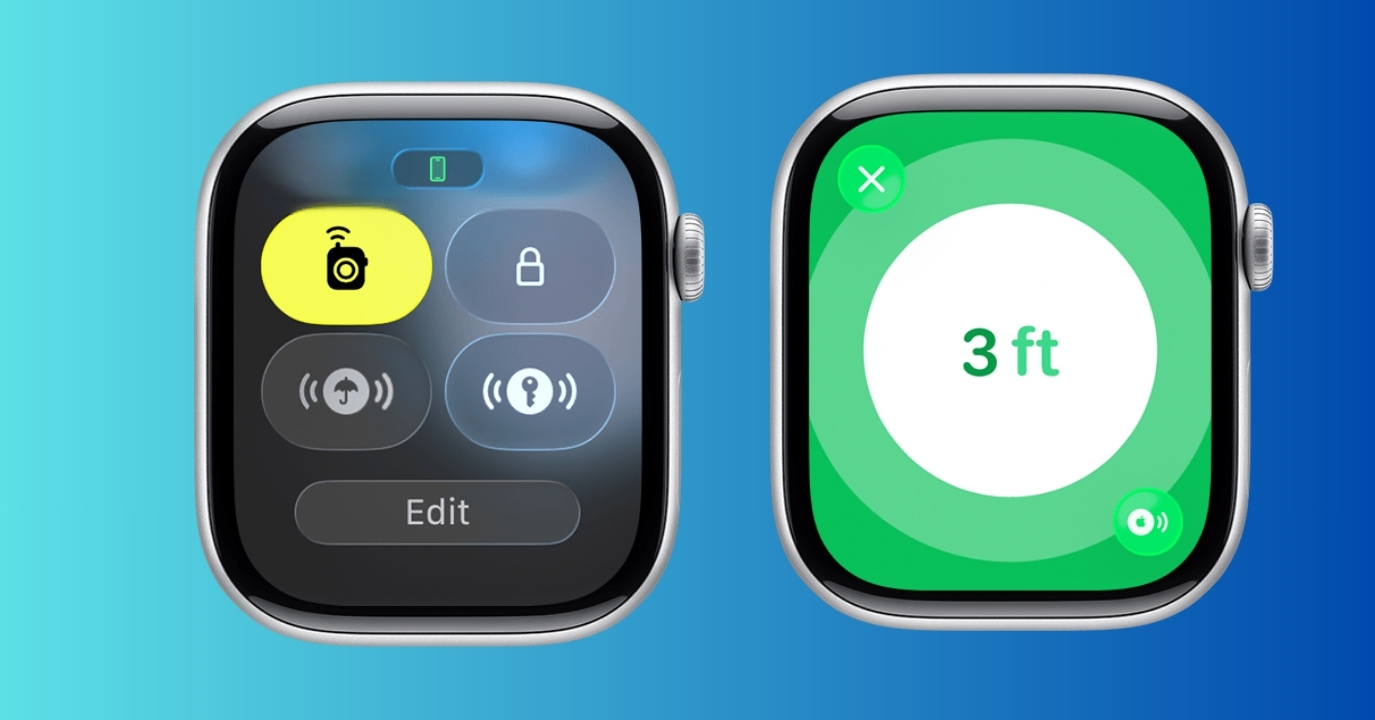
That’s all! You will notice an icon indicating your item in the Control Center. Suppose your AirTag 2 is attached to your keys, so the tile will appear as a key with Find My signs. This helps you quickly identify items when searching.
How to Find AirTag 2 with Apple Watch Precision Finding
Once you have added your AirTag to your watch Control Center, the rest of the process is easy. When you need to find the item:
- Press the Side button to open Control Center, then scroll down.
- Tap the item tile.
- Your watch will immediately show an animation stating, “Can’t Find [item name]?” and begin searching for the AirTag nearby.
- Try to move around and wait for a few seconds.
- Once the watch detects the signal, the Precision Finding interface will appear. You will see a directional arrow pointing toward the item along with the distance measurement.
- Simply follow the arrows on the screen and move slowly. The watch will update the distance and direction in real time.
- The screen will turn green when you get close to your AirTag.
- If the item is hidden under furniture, inside a bag, or behind something, tap the Play Sound button in the bottom-left corner. The AirTag will emit a sound, making it easier to find if it’s nearby but out of sight.

When This Feature Is Most Useful
Precision Finding on Apple Watch is helpful in many everyday situations.
- Finding misplaced keys at home: Instead of searching every room, you can quickly open the Find Items app on your watch and follow the directions.
- Locating a bag at the airport: If your luggage has an AirTag attached, your watch can help you find it quickly in a crowded baggage claim area. You can also share your AirTag with the airport authority to find the lost luggage.
- Looking for items in a busy office or café: Left your bag somewhere? Precision Finding can guide you directly to it without scanning the entire space.
This feature is also convenient when pulling out your iPhone isn’t practical. Since the watch is always on your wrist, you can start searching instantly.
Troubleshooting If Precision Finding Doesn’t Work on Apple Watch
Sometimes, Precision Finding may not appear or work as expected on your Apple Watch. Fortunately, most issues are easy to fix.
| Issues | Solutions |
|---|---|
| AirTag doesn’t appear on the Apple Watch | Make sure your iPhone and Apple Watch are connected and signed into the same Apple Account. Restart both devices. |
| Precision Finding doesn’t appear | This feature only works when the item is within 27 feet. Also, ensure your devices are running the latest versions of iOS and watchOS |
| Devices not updating location | Check if Wi-Fi, Bluetooth, Location Services, and Find My are enabled. AirTag must have enough battery. |
Note:
that the feature is not available on Apple Watch SE models.
Final Thoughts
If you often misplace small but important items, Precision Finding on Apple Watch can be a very helpful tool. With just a few taps on your watch, you can quickly locate your AirTag 2 and get back to your day without reaching for your phone.
This feature. The setup only takes a few minutes and adds convenience, making everyday situations less stressful. If you found this guide helpful, consider sharing it with friends or family who use Apple devices. You can also explore some more practical ways to use AirTags in daily life.
Frequently Asked Questions
Topics

Written by
Ava BiswasAva is a die-hard Apple aficionado and seasoned writer with a knack for breaking down complex tech concepts into easily digestible content. Having honed her writing and editing skills over 4 years at renowned media houses like TechBurner, Ava crafts informative and engaging articles including troubleshooting guides, product reviews, editorials at iGeeksBlog. When not typing, you can find her exploring the latest Apple releases or pondering the future of tech innovation.
View all posts →