
Green Light on Apple Watch: What it is and how to Turn it Off?
If you want to save battery life and get rid of annoying illumination, check out our guide on how to turn off the green light on Apple Watch.
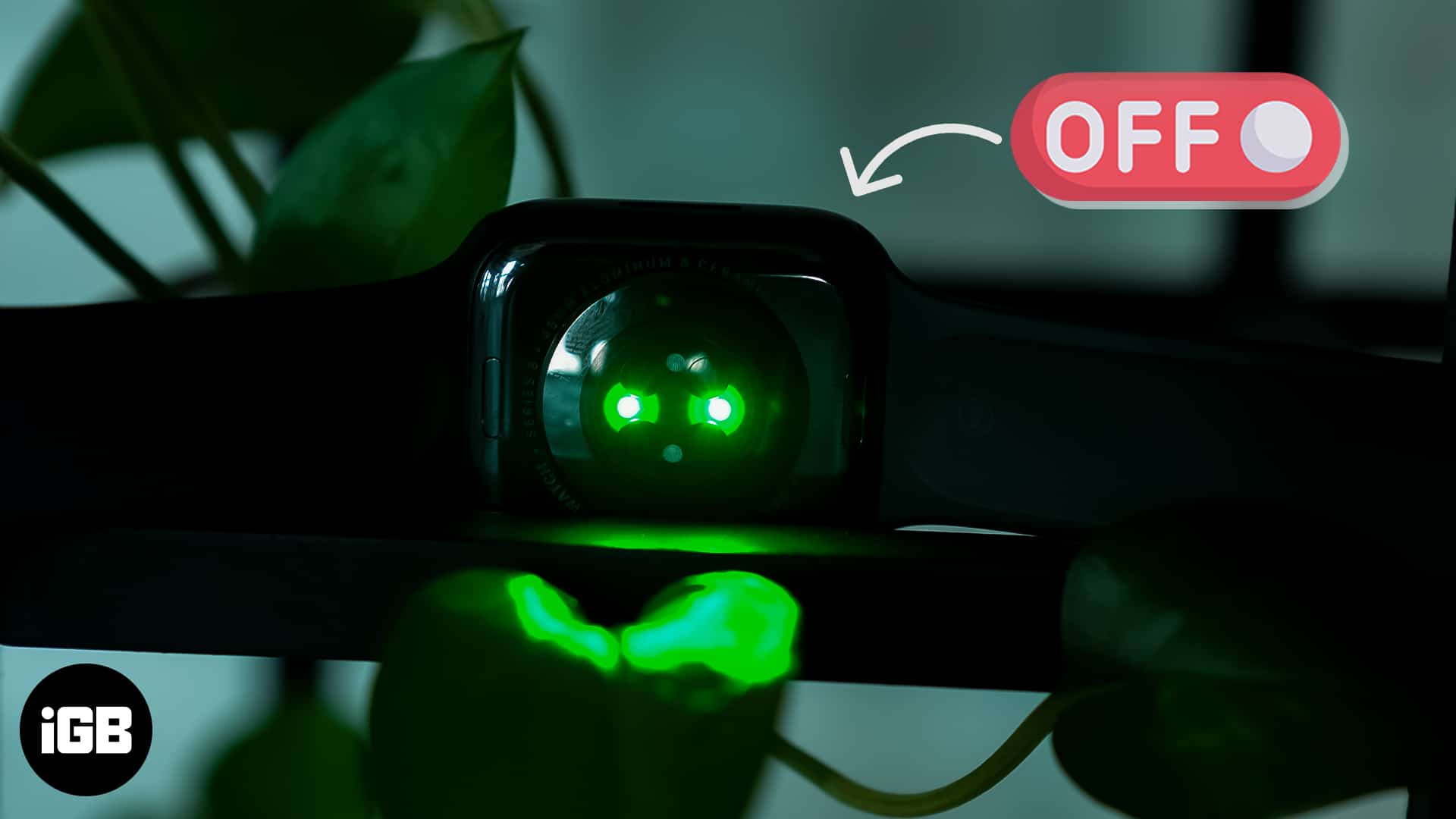
- The green light on Apple Watch tracks heart rate using LEDs and photodiodes to measure blood flow at your wrist during activity and rest.
- You can disable the green light in Settings by toggling off Heart Rate under Privacy & Security on your Apple Watch or iPhone.
- Turning off the green light saves battery and stops interruptions, but it also prevents continuous heart rate data collection in the Health app.
- The green light is completely safe for skin, since it only detects blood flow and doesn’t cause irritation or damage.
- Apple Watch also uses a red light sensor to measure blood oxygen levels, adding deeper health insights alongside heart rate monitoring.
Although the Apple Watch is an excellent wearable addition for iPhone users, it might take some time to get used to everything it has to offer. Users are often unaware of the bright green lights that illuminate the Apple Watch’s back.
In this post, I’ll explain what green light is and how to turn it off on your Apple Watch.
What is the green light on my Apple Watch?
Your Apple Watch’s green light is an optical heart sensor that indicates your heart rate. Apple used green light because blood is an excellent absorber of this particular color.
They combined the green LED lights with light-sensitive photodiodes, which can measure how much blood is flowing through your wrist. When wearing your Apple Watch properly, it releases green light that passes through the wrist hundreds of times per second, measuring blood flow and counting the number of heartbeats each minute.
Additionally, the number of times your heart beats each minute (Beats Per Minute) is depicted under the BPMs section. Adults typically have resting heart rates of 60 to 100 BPM, according to the American Heart Association.
How to turn off the green light on Apple Watch
Your watch’s green light can be annoying when you’re trying to sleep or focus without it catching your eye. Here’s how to turn it off from your Apple Watch or iPhone.
How to turn off the green lights from your Apple Watch
- Press the Digital Crown → open the Settings app.
- Scroll down and tap Privacy & Security → select Health.
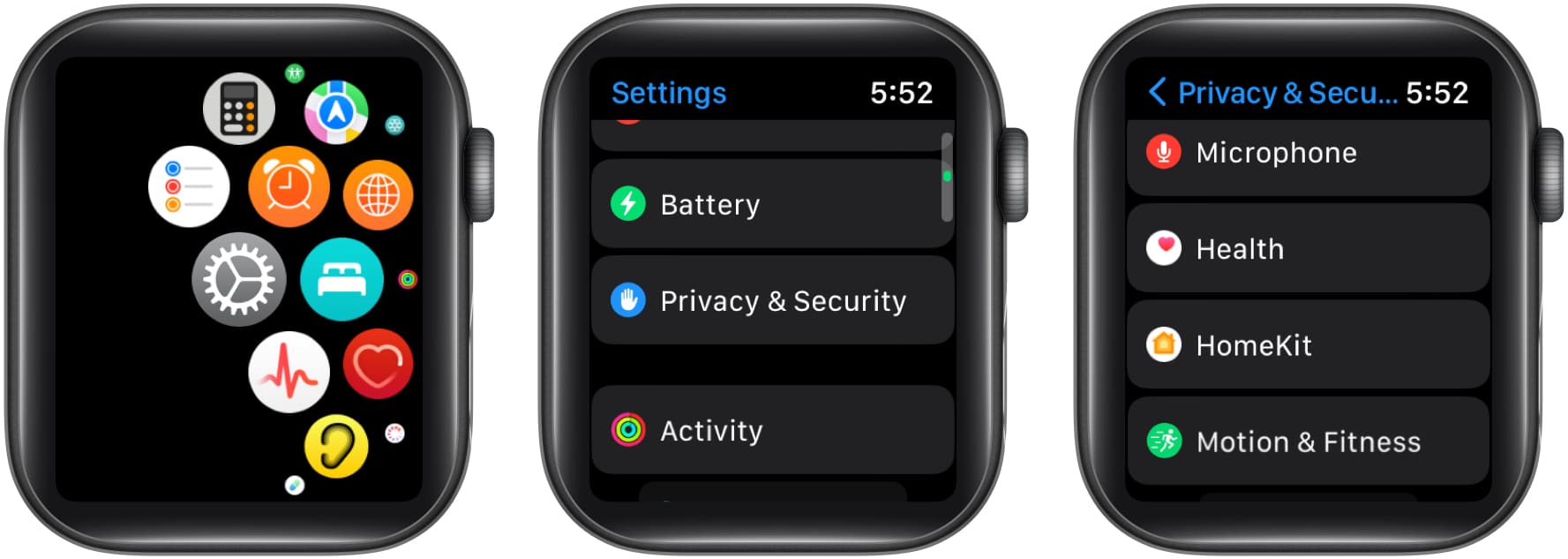
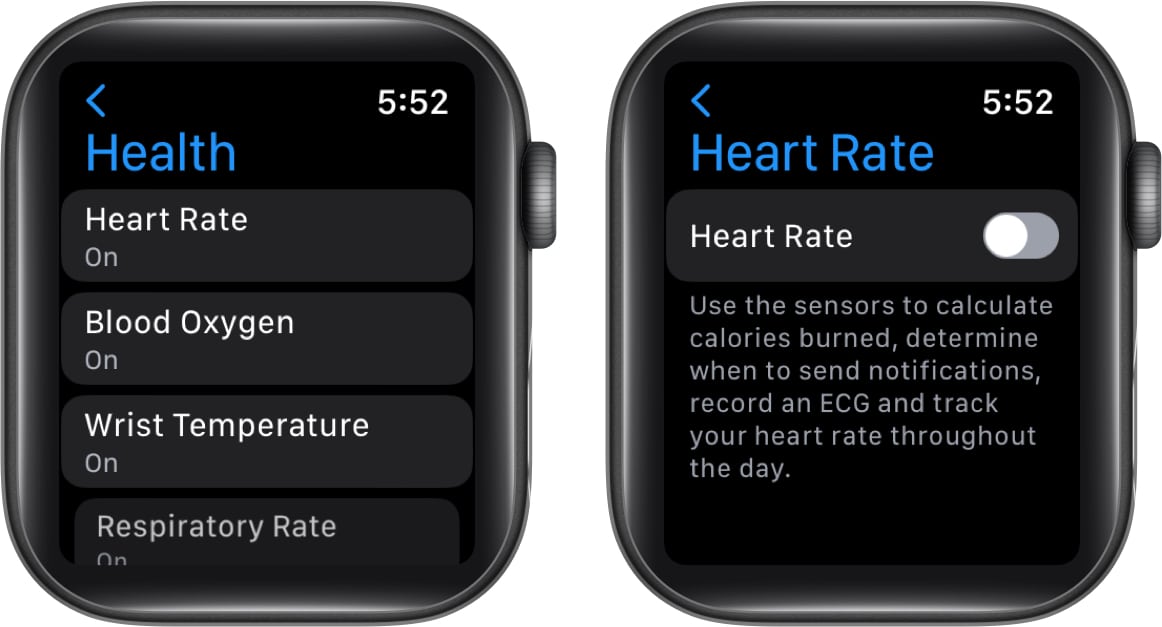
- Tap Heart Rate.
- Toggle off the button next to Heart Rate.
How to turn off the green lights from your iPhone
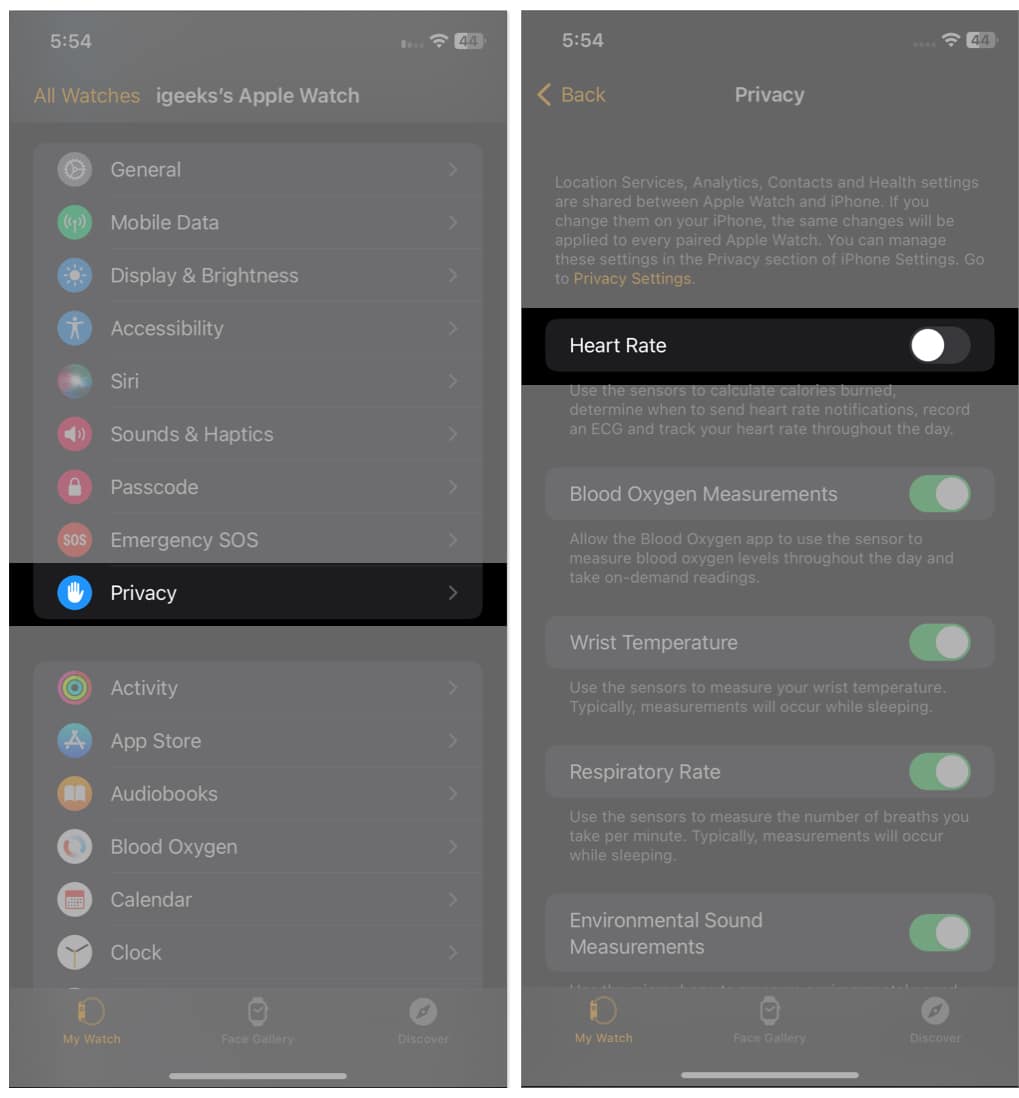
- Launch the Watch app.
- Tap Privacy in the My Watch tab.
- Toggle off Heart Rate.
Video: Green Lights on Apple Watch: Harming Your Skin?
Wrapping up…
That’s it! It’s quick and straightforward to switch off the green light on your Apple Watch. While turning off the green light prevents your Apple Watch from providing regular heart rate data, it also offers benefits, including battery life preservation and interruption prevention.
Frequently Asked Questions

Written by
Bhaskar SharmaBhaskar is a tech guru who turned wordsmith. Hiding his B.Tech degree in a closet, he ditched the corporate path to simplify tech for everyone. For the past 5 years, he's been dishing out how-tos, reviews, and sharp insights. But there's more! He's a witty interview champ and has been sharing his wisdom for 3 years. Furthermore, he has honed his editing skills for 1.5 years and is now delving into marketing to assist newcomers. When not jamming his fingers on those mechanical keyboards, you may find him on strings or engaging in sports. And by evening, his quotes will be appearing on your Instagram feeds.
View all posts →More from Apple Watch

Apple Watch Not Responding? 8 Fixes That Actually Work
Is your Apple Watch unresponsive or stuck on a black screen? Here are 8 proven fixes to help you unfreeze it and get it working again quickly.
 VikhyatMarch 3, 2026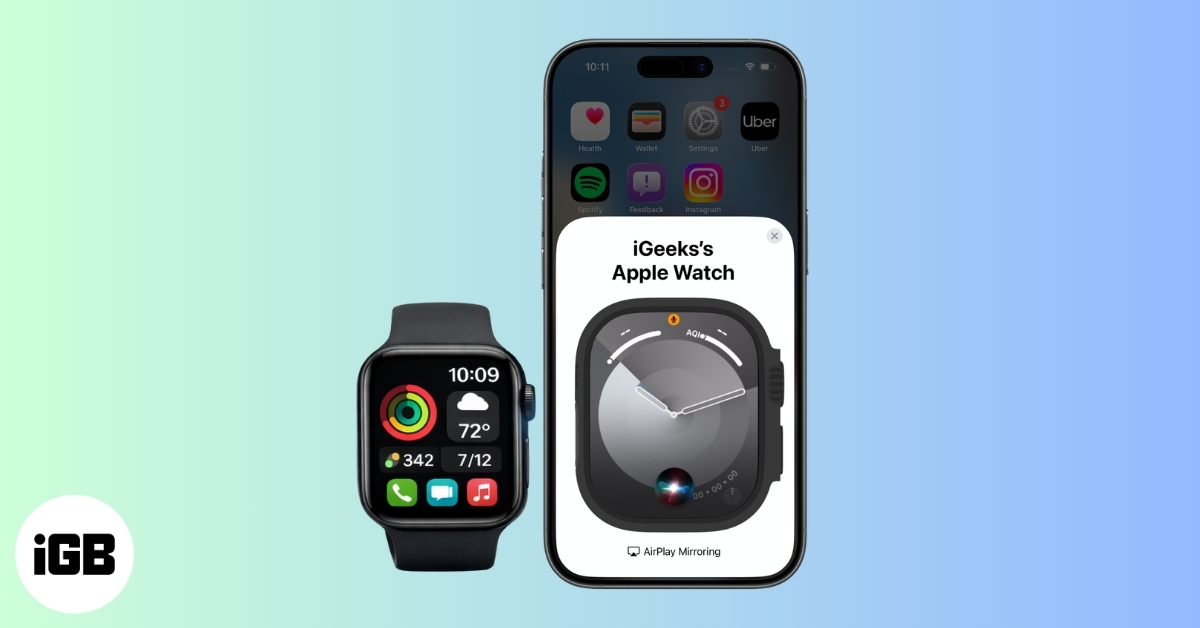
How to Mirror Your Apple Watch on Your iPhone: A Simple Guide
Want to control your Apple Watch using your iPhone? This guide explains how to turn on Apple Watch Mirroring, use it easily, and fix common issues.
 Arshmeet KaurFebruary 27, 2026
How to Restore Apple Watch From a Backup
Need to reset or switch iPhones? Here’s how to restore your Apple Watch from a backup, what data comes back, and how to make sure everything syncs properly.
VikhyatFebruary 23, 2026