
How to turn off or on AirPods Pro 2 charging case sounds
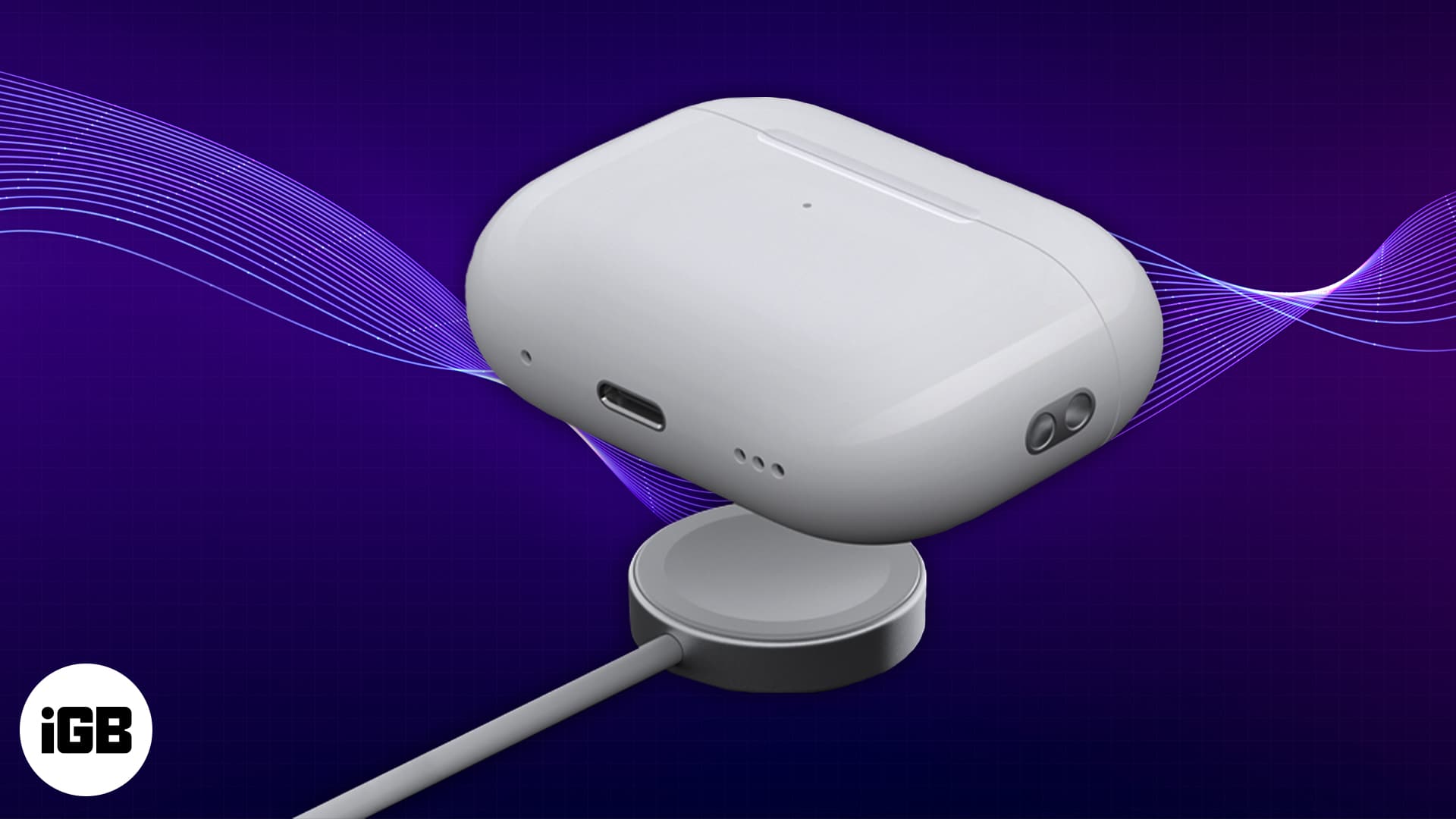
Apple’s recently-launched AirPods Pro 2 offers a lot more features than its predecessors. One of the significant upgrades exclusive to the new buds is its charging case. It now has a speaker that plays an audible chime for specific alerts.
Just in case you find the audible sound notification of the AirPods Pro 2 charging case unnecessary and distracting, you can always turn it off. Here’s how to do it.
What do the AirPods Pro 2 charging case sounds indicate?
Apple has added a layer of new functionalities to the AirPods Pro 2 with the more powerful H2 chip. It has enhanced sound quality and heightened 3D listening experience with Personalized Spatial Audio.
You can also locate your AirPod Pro 2 with ease. Unlike in other models, you can see the location of each of your buds and the charging case separately on the Find My app.
But what sets the AirPods Pro 2 apart from its predecessor are the upgrades Apple added to the case. The new U1 technology lets you track your charging case with Precision Finding through Find My.
Not only that, but the re-engineered AirPods Pro 2 case now has an in-case speaker at the bottom of the case, which lets you locate it faster by playing loud tones. The speaker also emits tones whenever:
- Charging has started.
- You pair it to a device.
- Your AirPods Pro 2 is low on battery.
How to disable AirPods Pro 2 charging case sounds
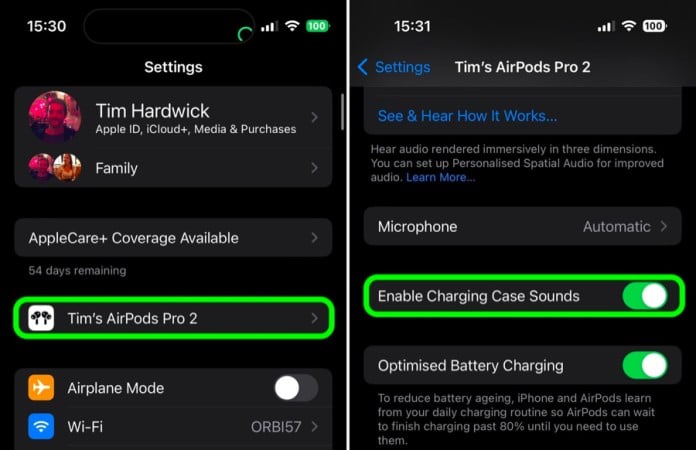
- Ensure your AirPods Pro 2 is paired and connected to your iPhone or iPad.
- Head to Settings.
- Tap [your names]’s AirPods Pro 2 just under your name.
- Scroll down until you find Enable Charging Case Sounds, which is enabled by default. Toggle it off.
Wrapping up…
AirPods Pro 2 rocks with its new U1 chip-powered charging case. The in-case speaker is not only helpful in locating misplaced cases, but it can alert you of daily actions like pairing and charging.
What do you think about the charging case sounds? Are you a fan, or you’d rather disable it? Let us know your thoughts below!
Read more:
Topics

Written by
Rachel Ann Tee-MelegritoRachel, an experienced Apple technology writer since 2021 and a long-time user since 2003, began her journey with a silver iPod Classic. Currently, she owns an array of modern Apple gadgets. At iGeeksBlog, her expertise shines through in the crafting of comprehensive how-to articles, informative guides, and well-curated roundups.
View all posts →More from How-to

How to Turn Off Location on Snapchat (Step-by-Step Guide)
Want to stop sharing your location on Snapchat? This guide explains how Snapchat location sharing works and shows simple ways to turn off your location using Ghost Mode or phone settings. Stay in control of your privacy in just a few steps.
 VikhyatMarch 5, 2026
Snapchat Parental Controls: How to Set Up Family Center and Keep Your Teen Safe
Snapchat’s Family Center lets parents monitor their teen’s friend activity and screen time without reading private messages. Here’s how to set it up and what to expect.
VikhyatMarch 3, 2026
How to Block and Unblock Someone on Instagram
Instagram lets you block or unblock someone in seconds. Follow these simple steps to take full control of your privacy and online peace.
 Ava BiswasMarch 2, 2026