Switching to Apple Music from Spotify doesn’t require starting your music collection from scratch. With the right steps, you will be able to transfer your playlists, albums, and even liked songs to Apple Music in just a few steps.
In this guide, we’ll share how to transfer Spotify playlist to Apple Music, what you can transfer, what won’t move over, common issues, and how to keep your albums organized afterward.
Requirements Before You Start
Many users would like to switch to Apple Music for better integration with their devices, features that are only offered by Apple, or simply to try a new app. The good news is that transferring your playlists is easier than ever.
Before you begin:
- Your iPhone or iPad must be on iOS 18 or later.
- You need an active Spotify account.
- You must have an Apple Music subscription.
- Make sure both apps are installed and logged into.
- A stable internet connection.
- Toggle on Sync Library from Settings > Apps > Music on your iPhone and other Apple devices.
How to Transfer Music and Playlists from Spotify to Apple Music
There are two simple ways to do this: directly on your iPhone/iPad or through a web browser.
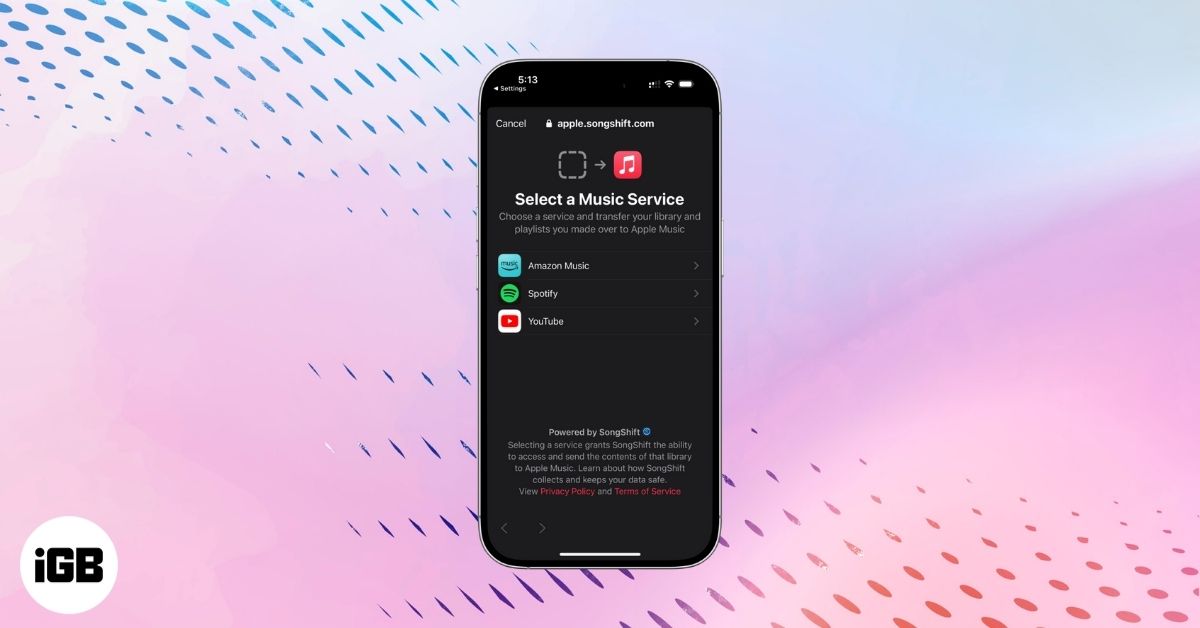
Apple has partnered with SongShift to let users move playlists from other music services like Spotify, YouTube Music, Amazon Music, etc., to Apple Music within the app. So, you don’t need to rely on third-party tools anymore.
On iPhone or iPad
- Open Settings, scroll down and tap Apps, and select Music.
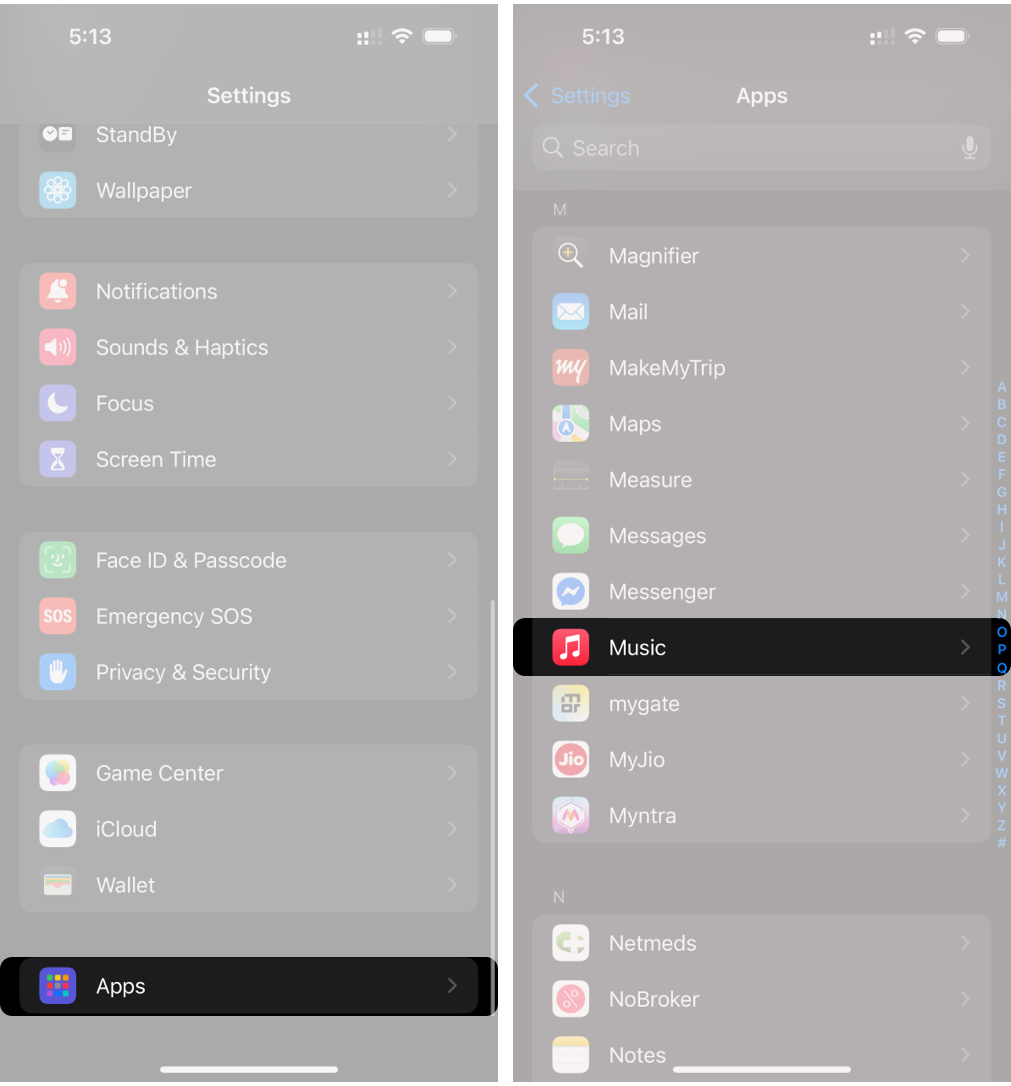
- Tap Transfer Music from Other Music Services.
- Now, you will see a list of music streaming services. Select Spotify from the list and sign in with your credentials.
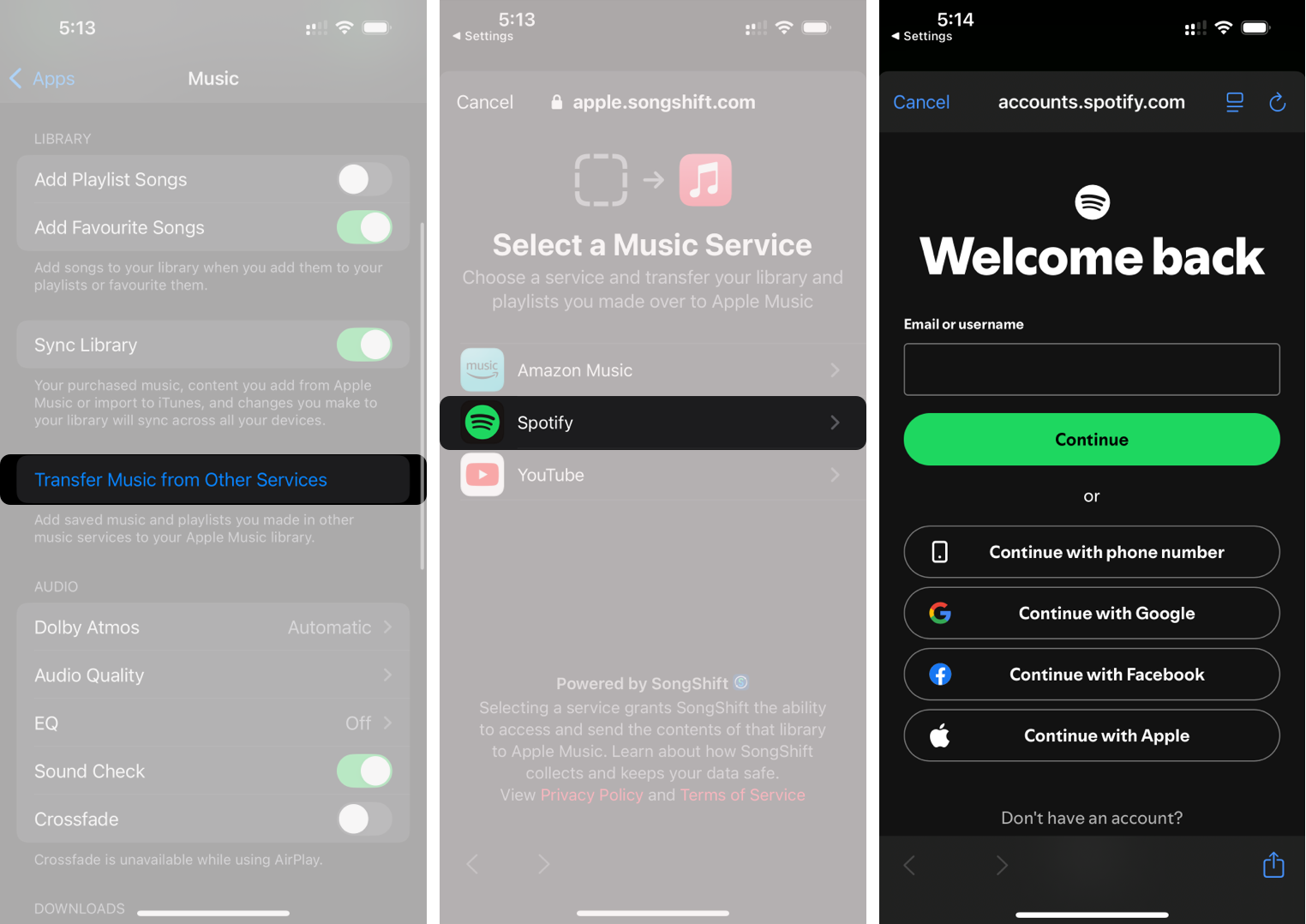
- If prompted, grant permission to SongShift to access your content.
- Choose the songs, albums, and playlists you want to transfer. Then tap Add to Library.
- Wait for Apple songs to identify matches for your songs in the Apple Music catalog. You will see a progress bar on the top. Depending on your transfer size, it may take a while.
- Once this process is complete, you’ll see one of the following messages:
- Transfer Complete: Apple song added the song to your library.
- Some Music Needs Review: Although Apple Music couldn’t locate a perfect match, it found comparable alternative versions of the song.
Now, you can enjoy your favorite playlists in Apple Music. The feature is also available on the Android app.
Using Web
If you don’t have your iPhone or iPad nearby or stream music on your Mac or PC, worry not! You can convert Spotify playlist to Apple Music using Safari or another browser:
- Open your preferred web browser and visit music.apple.com.
- Click Sign In at the top right corner and enter your Apple ID and password.
- Now, click your profile photo and select Transfer Music from the dropdown.
- Select the songs and playlists you wish to import and click Add to Library.
- Apple Music will match the songs in its catalogue. Once done, you will see Transfer Complete or Some Music Needs Review if certain songs were not found.
What You Can and Can’t Import from Spotify
Though the process is super easy and beginner-friendly, it has some restrictions. You can move:
- User-created playlists (public, private, and collaborative)
- Liked songs
- Saved albums
- Most metadata, like song order
What you can’t transfer
- Spotify-only content (podcasts, local files, DJ mixes)
- Spotify curated or editorial playlists
- Songs not available on Apple Music
However, note that even if not all the songs get transferred to Apple Music, you can still access the original playlists and songs on Spotify. It is a one-way sync only.
Review Imported Songs in Apple Music
As I mentioned above, if Apple Music couldn’t find the exact song from Spotify, it will curate an alternative and ask you to review it. You can add or reject the suggestion within 30 days from the initial transfer.
To review alternate versions:
- Go to Settings > Apps > Music on the iPhone that initiated the transfer.
- Tap Review Current Transfer.
- Select the alternate version of the song you want to keep and tap Save to add it to your library.
On the web, click your profile picture and select Review, then follow the same process. Apple Music may take a few minutes to finish syncing across all your devices.
Note:
If there are songs remaining for review, you can’t start another import from other music services on your iPhone.
Troubleshooting Transfer Issues
Even with native tools, you may hit small bumps. Here’s how to handle the most common ones:
| Issues | Solutions |
| Missing or unavailable songs | Review the alternatives or search manually in Apple Music |
| Transfer Music option is not showing | The feature is only available in the United States, the United Kingdom, Brazil, Canada, France, Germany, and Mexico. |
| Stuck/slow transfers or “Something Went Wrong” alert | Switch to Wi-Fi instead of cellular and ensure good internet connectivity |
| Some of your playlists is missing | Playlists created by Spotify won’t be imported. |
| Can’t start a transfer | Servers are busy, or your transfer is completed yet |
If you are still facing issues, you may contact Apple Support or Spotify customer care.
Say Bye Bye to Spotify in Minutes!
Moving from Spotify to Apple Music doesn’t have to be complicated. With a few minutes of setup, you can bring over your favorite playlists, albums, and liked songs without losing your musical history. Follow the steps above, review your imported music, and enjoy a smooth listening experience on Apple Music.
What do you think about this new Apple Music feature? Let us know in the comments below!