
How to share your location from Apple Watch
Technological advances make it easier to tackle our tasks, communicate with loved ones, and even feel safer. Whether you’re in an area where you don’t feel comfortable or would like your pal to join you for some fun, you can share your location right from the Apple Watch on your wrist.
- How to enable location sharing on Apple Watch
- How to share your location with Apple Watch using Find People
- Send your location using Messages from Apple Watch
- How to stop sharing your location on Apple Watch
How to enable location sharing on Apple Watch
You can keep your iPhone in your pocket or at home if you have the cellular Apple Watch model and share your current location with your wearable in just a few taps. But first, you have to enable the feature on your Apple Watch.
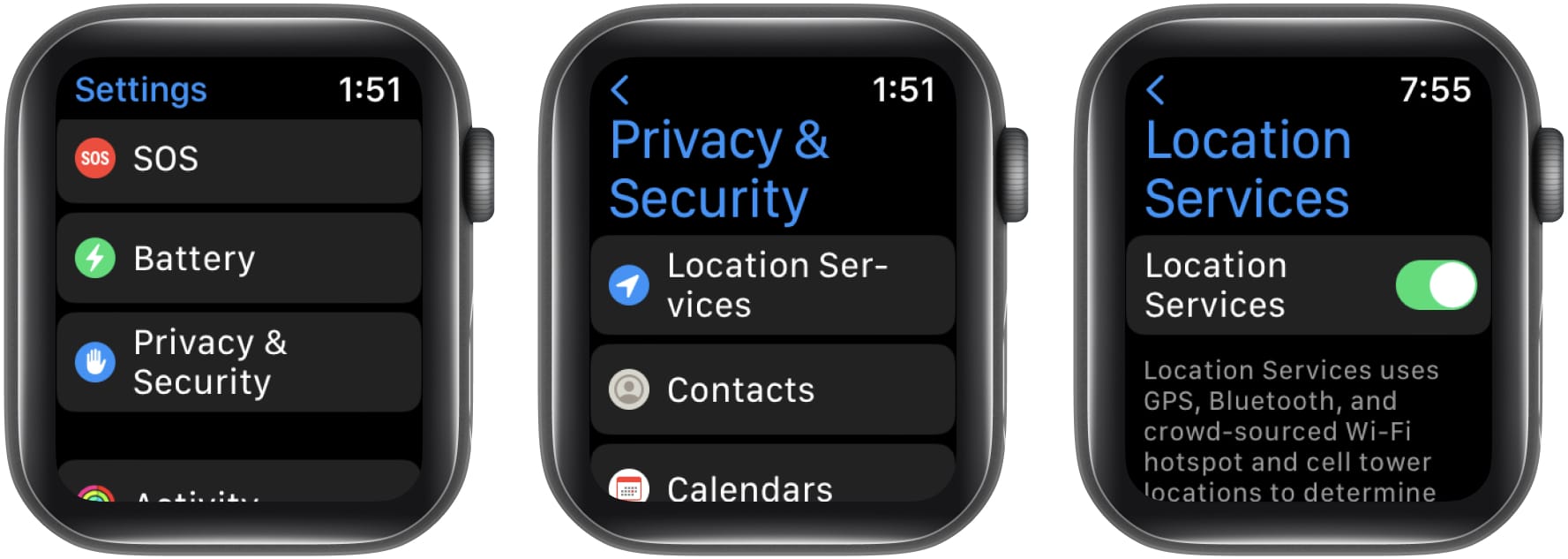
- Open the Settings app → scroll down and select Privacy & Security.
- Tap Location Services → ensure the toggle for Location Services is enabled.
- Then scroll down and turn on the toggle for Share My Location.
It allows you to share your spot in the Find People and Messages apps, which we’ll describe next.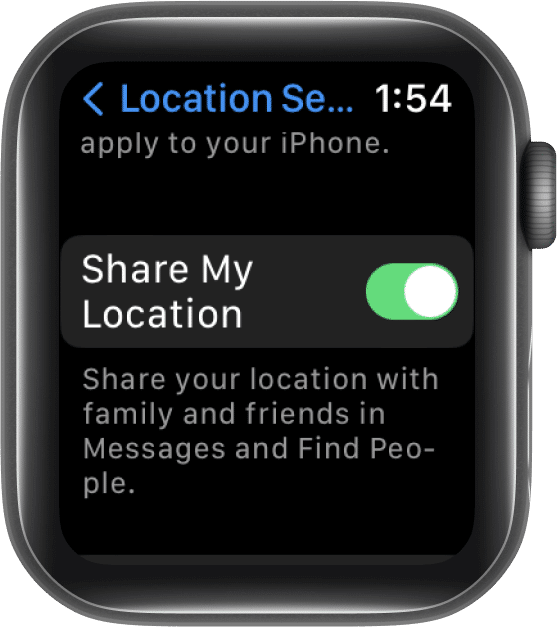
How to share your location with Apple Watch using Find People
The Find People app on Apple Watch isn’t just for locating others. You can use it to share your own location with family or friends.
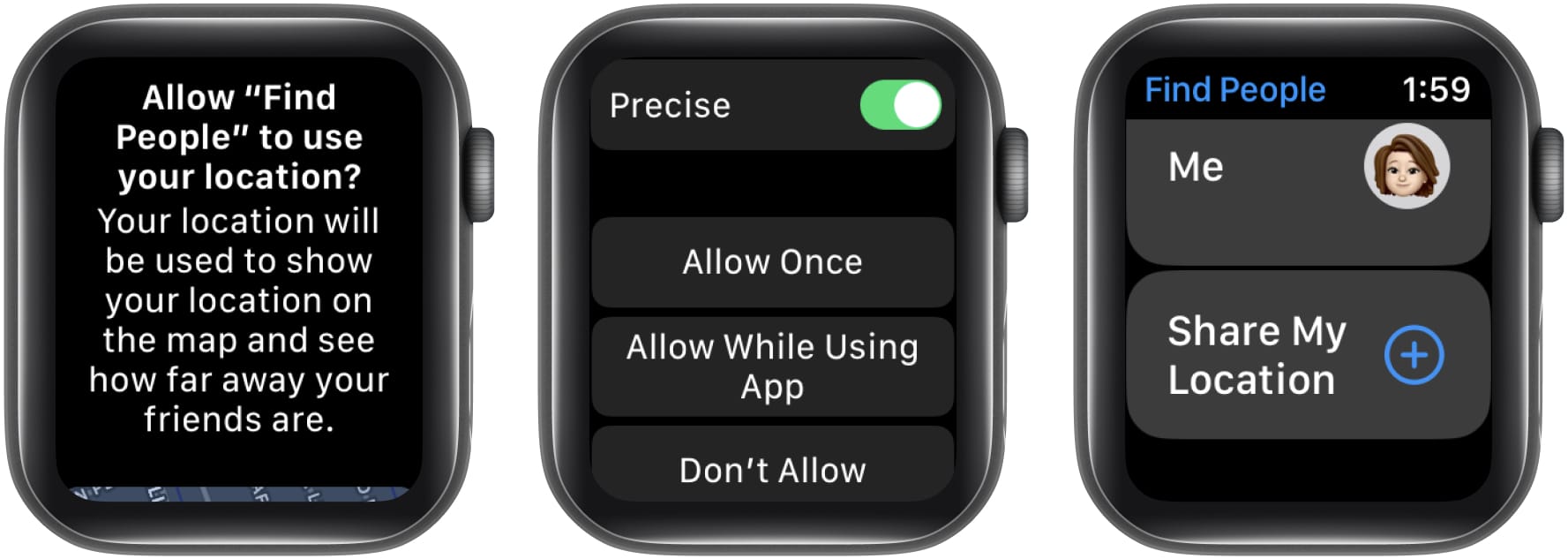
- Open the Find People app on your Apple Watch.
- Here, you can optionally turn on the toggle for Precise. This provides a more pin-pointed location.
- If a prompt appears, confirm that you want to allow Find People to use your location. Scroll down to the bottom and pick Allow Once or Allow While Using App.
- When you finish, you’ll be on the main Find People screen. Scroll down and pick Share My Location.
- You may use the microphone, your contacts list, or the dial pad to locate your friend.
- After that, you’ll be asked to pick a timeframe. You can share your location for an hour, until the end of the day, or forever. And, that’s it!
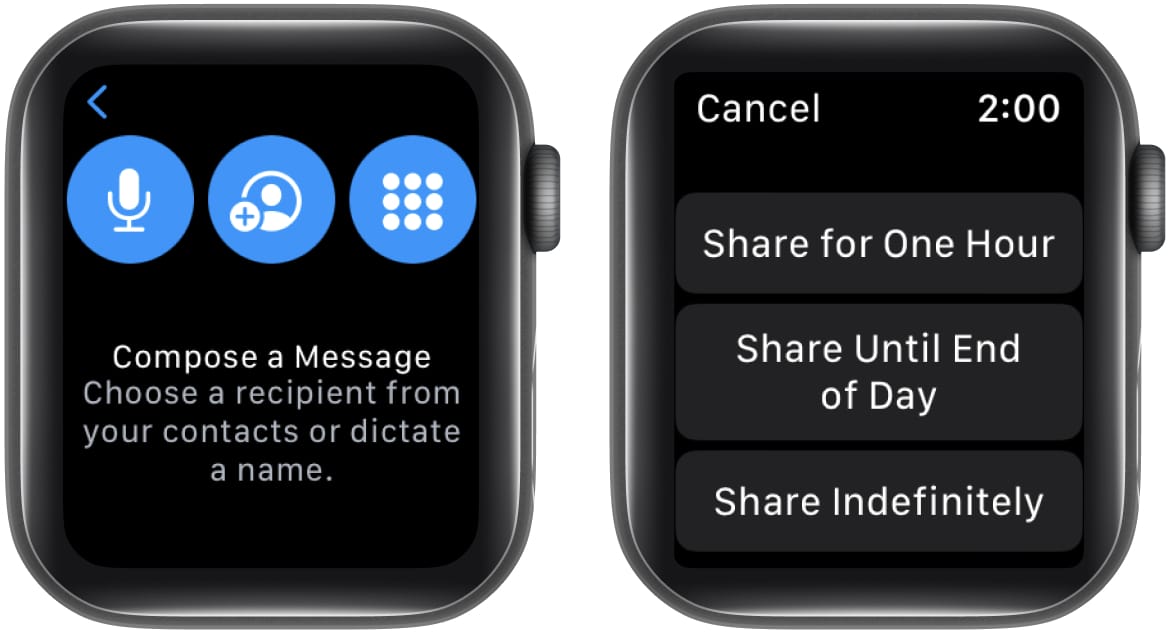
Your friend should then receive your location. They can tap to view it and then tap again to get directions to their spot using the Maps app.
Send your location using Messages from Apple Watch
If you’re already conversing with the person you want to share your location with, you can do so using the Messages app.
- Scroll to the bottom of the conversation and select Send Location.
- Your current spot will then pop into a text message in the form of a tiny map. It’ll be sent immediately without the need for you to even tap Send.
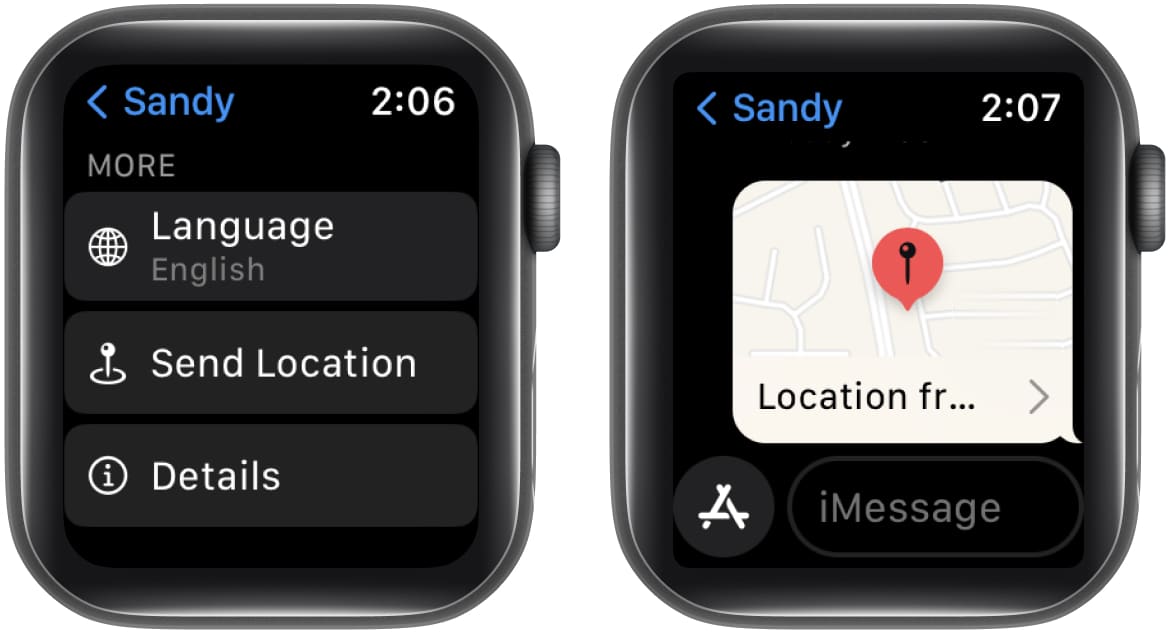
- In case you see a prompt, toggle on Precise and choose Allow Once or Allow While Using App.
Like the Find People method above, your location is then sent to your pal, which they can view using Apple Maps on their own device.
How to stop sharing your location on Apple Watch
When you want to stop sharing your location, you can do so in a couple of different ways.
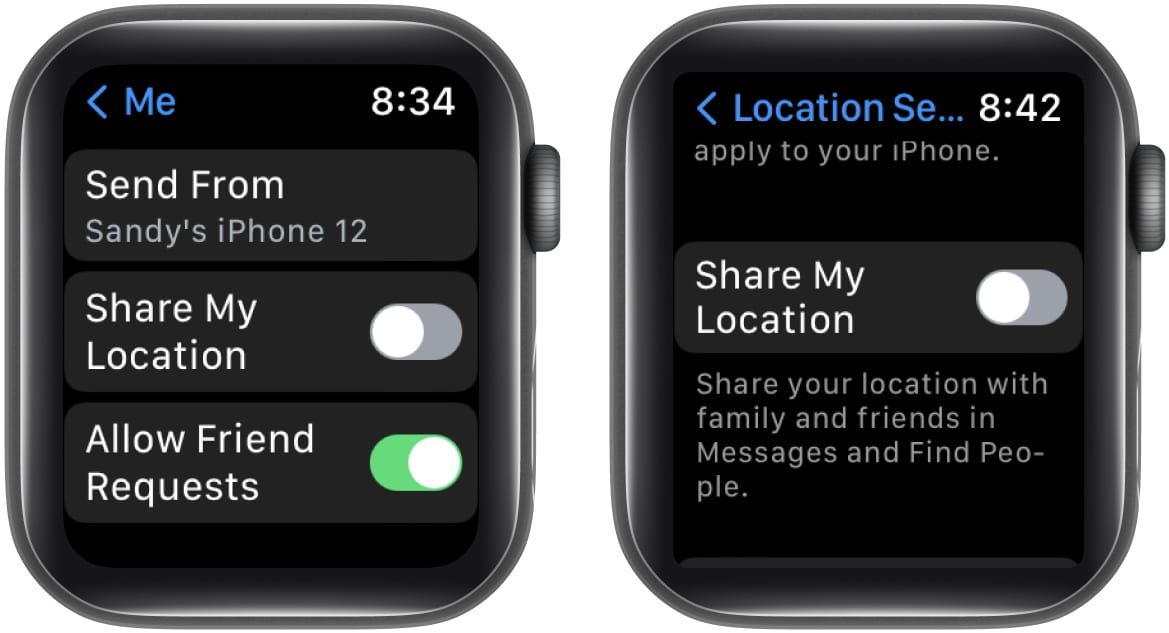
- If you shared your spot using Find People, reopen the app and select the person you’re sharing with. Scroll down and toggle off Share My Location.
- To stop sharing your location completely, open the Settings app→ select Privacy & Security → pick Location Services → toggle Share My Location.
Sharing is caring…
Your Apple Watch gives you a quick and easy way to share your current location. Whether for safety, fun or just as an FYI, you can send your spot to a friend or family member in seconds. Will you give this feature a try?
For more, look at how to use the Compass app’s Waypoints and Backtrack features on Apple Watch when you’re out on a hike.
Read more:

Written by
SandySandy relishes crafting how-tos, listicles, and explainers, empowering others to unlock the full potential of their Apple devices. She joined iGeeksBlog in 2023, and her decade-long experience in tech writing shines through, starting with Apple products in 2015 and further enriched by collaborations with prestigious publications like Lifewire, How-To Geek, Digital Trends, iDownloadBlog, MakeUseOf, groovyPost, and AppleToolbox.
View all posts →More from Apple Watch

Apple Watch Not Responding? 8 Fixes That Actually Work
Is your Apple Watch unresponsive or stuck on a black screen? Here are 8 proven fixes to help you unfreeze it and get it working again quickly.
 VikhyatMarch 3, 2026
How to Mirror Your Apple Watch on Your iPhone: A Simple Guide
Want to control your Apple Watch using your iPhone? This guide explains how to turn on Apple Watch Mirroring, use it easily, and fix common issues.
 Arshmeet KaurFebruary 27, 2026
How to Restore Apple Watch From a Backup
Need to reset or switch iPhones? Here’s how to restore your Apple Watch from a backup, what data comes back, and how to make sure everything syncs properly.
VikhyatFebruary 23, 2026