
What Is WhatsApp Disappearing Messages and How to Turn It On
Do you want WhatsApp chats to disappear after a certain period of time? Learn how to turn on disappearing messages in WhatsApp on your iPhone or desktop.
- WhatsApp’s disappearing messages auto-delete after 24 hours, 7, or 90 days to keep conversations clean and private without manual cleanup.
- Enable disappearing messages on iPhone per chat by tapping the contact name, selecting ‘Disappearing Messages,’ and choosing a time limit.
- You can set a default timer for all new chats under Settings > Privacy > Default Message Timer to auto-apply disappearing mode.
- Group admins control disappearing messages in group chats and their timer applies to all future messages unless changed.
- The desktop version supports disappearing messages too — open chat info and set a timer just like on the mobile app.
Keeping your conversations private is essential, especially if you share confidential information. Thankfully, WhatsApp includes a disappearing messages feature, which is a fantastic way to make your chats a bit more private and temporary.
Whether you’re using your iPhone or desktop, this guide will walk you through enabling and managing disappearing messages with ease. Let’s get to it.
What Is Disappearing Messages on WhatsApp?
Disappearing messages are one of the many amazing features of WhatsApp. The way it works is that it automatically deletes messages from a chat after a certain period. Once enabled, all new messages in the chat will vanish after a set time, ensuring that your conversations stay private and clutter-free. You can choose from 24 hours, 7 days, or 90 days. This can be especially useful for sensitive discussions or when you simply want to keep your chat history tidy.
How to Turn On or off Disappearing Messages in WhatsApp on iPhone
Now that you know what WhatsApp’s Disappearing Messages feature is, here’s how to enable it on your iPhone for chats.
- Open WhatsApp on your iPhone and go to the chat where you want to enable disappearing messages.
- Tap on the contact’s name at the top of the chat screen to open the chat info.
- Scroll down and tap on Disappearing Messages.
- Now, select a timer of your choice. You can choose from either 24 hours, 7 days, or 90 days.
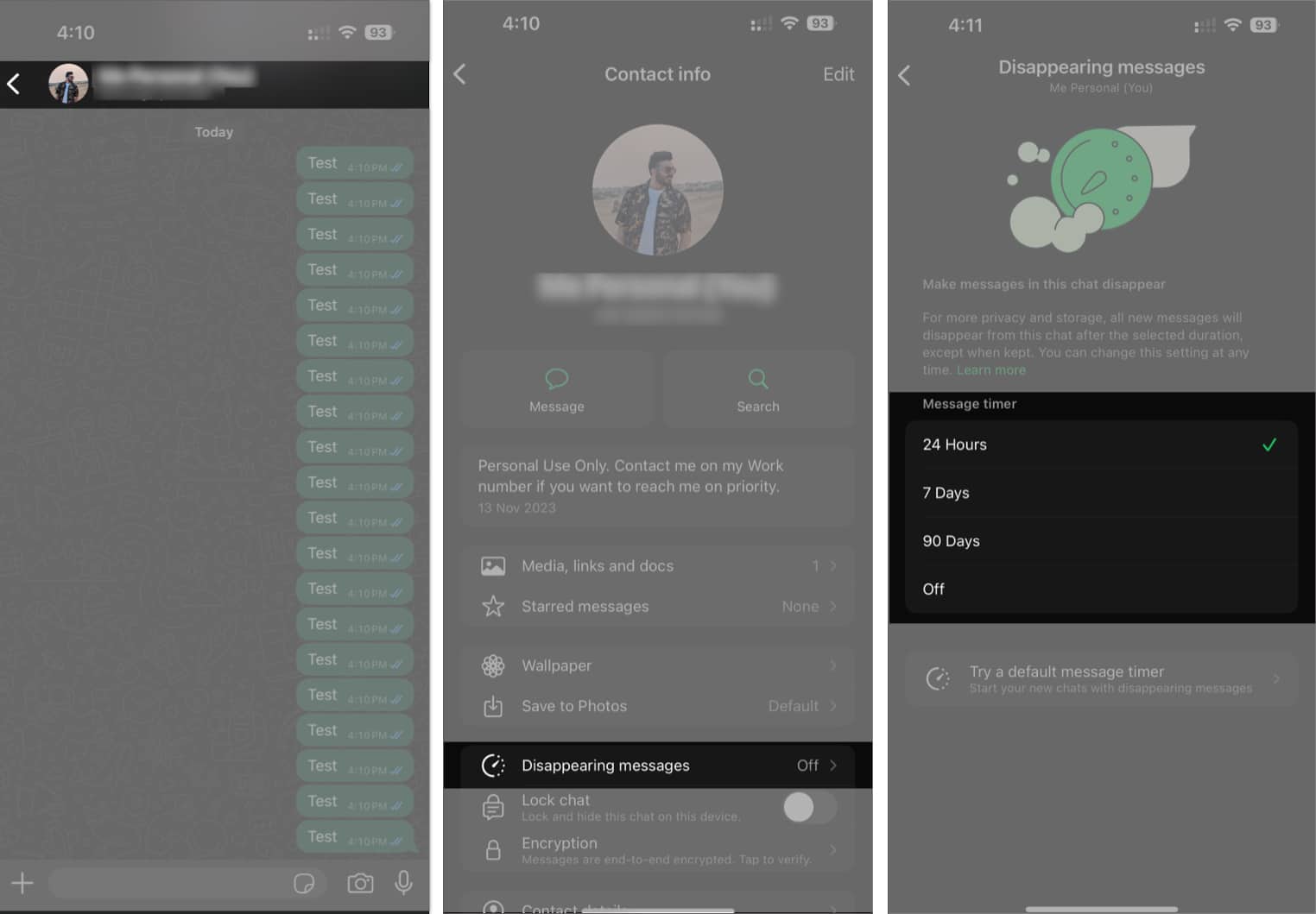
And that’s it. Now, all new messages sent in this chat will disappear after the set period.
How to Enable or Disable Disappearing Messages in WhatsApp for All Chats
While the above method applies for single chats, you can also set disappearing messages as default for all new chats. Here’s how:
- Open WhatsApp on your iPhone.
- Navigate to Settings → Privacy.
- Scroll down and tap on Default Message Timer.
- Here, you can set the timer for disappearing messages for all new chats.
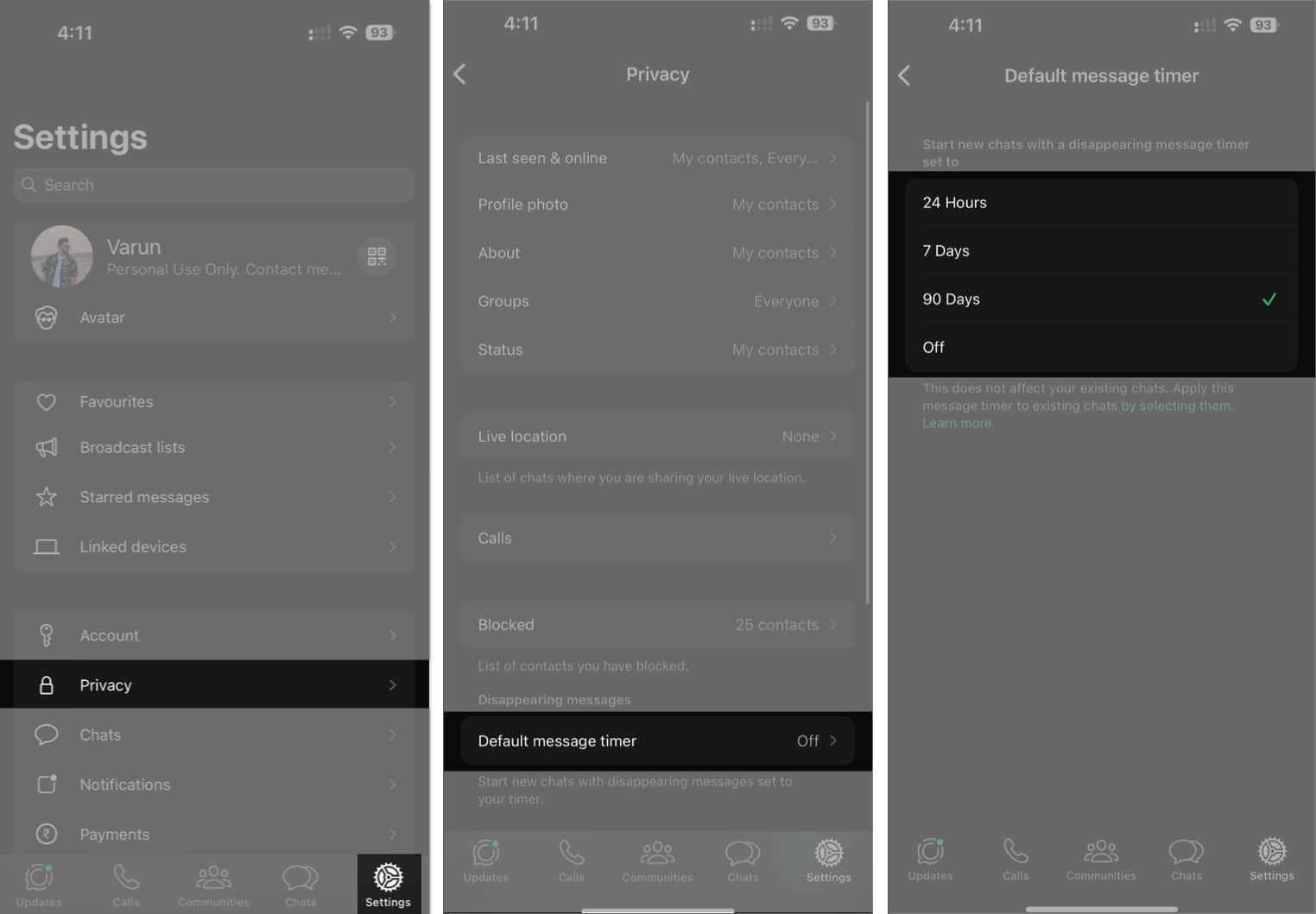
Once done, all new chats will start with disappearing messages. Once the timer runs down, the messages will automatically disappear.
How to Enable or Disable Disappearing Messages in WhatsApp Group Chats
Enabling disappearing messages in group chats is similar to doing it in individual chats. However, only group admins can change this setting. If you’re the admin of a group, here’s how to enable disappearing messages for that group on iPhone.
- Open the group chat inside WhatsApp.
- Tap on the group name at the top of the screen to access the group info.
- Scroll down and select Disappearing Messages.
- Finally, choose your preferred time.
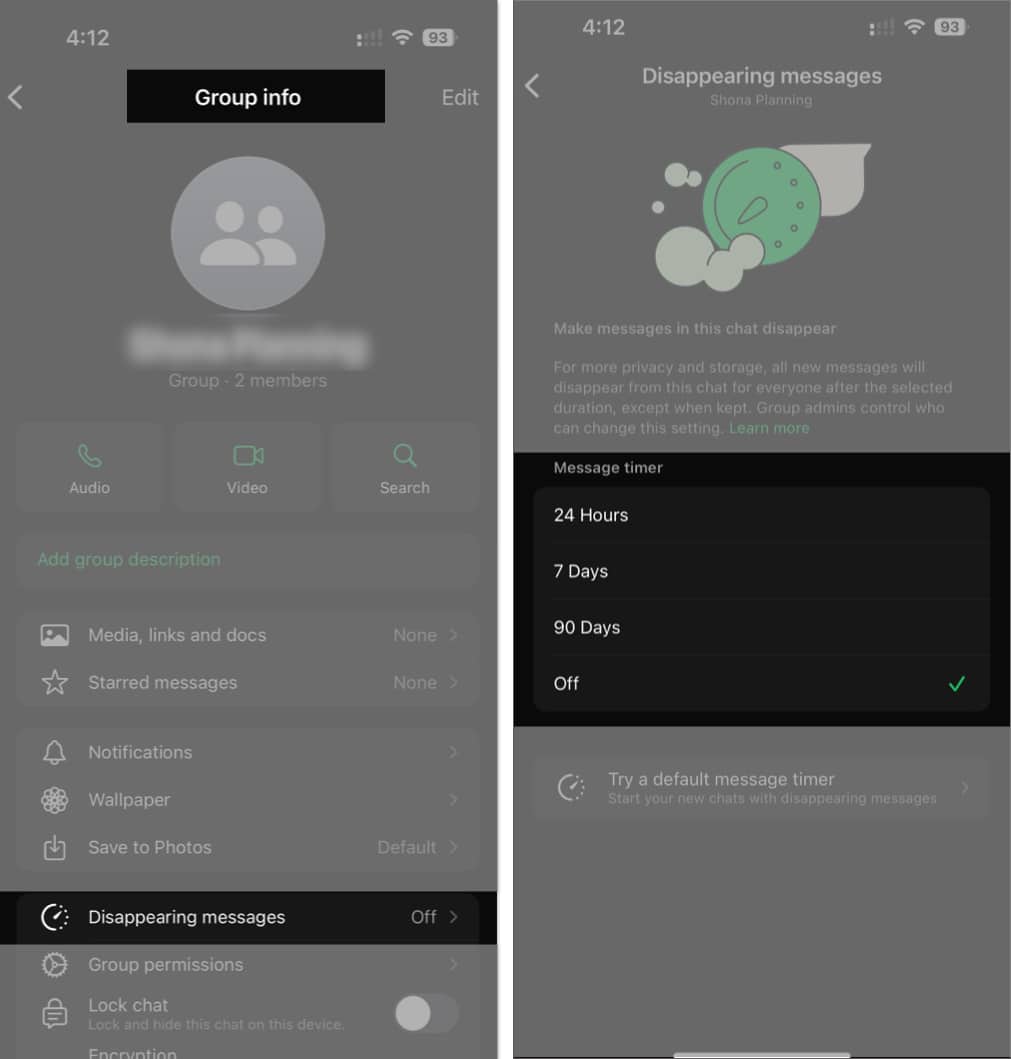
And that’s it. All future messages sent in the group will automatically disappear after the timer runs out.
Note:
How to Enable Disappearing Messages in WhatsApp on Desktop
If you’re using WhatsApp on your desktop, you can still enjoy the disappearing messages feature. Here’s how:
- Open WhatsApp Web or the WhatsApp Desktop app and navigate to the chat where you want to enable disappearing messages.
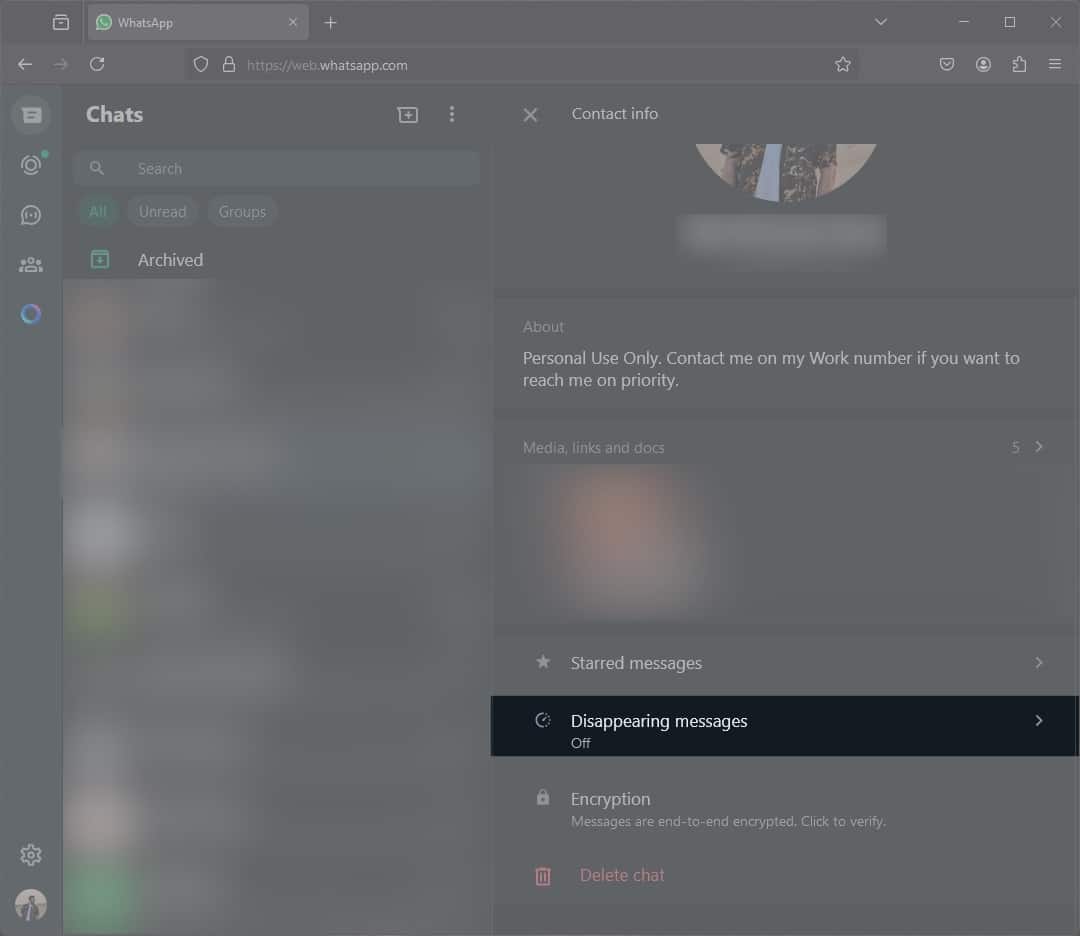
- Click on the contact’s name at the top to open the chat info.
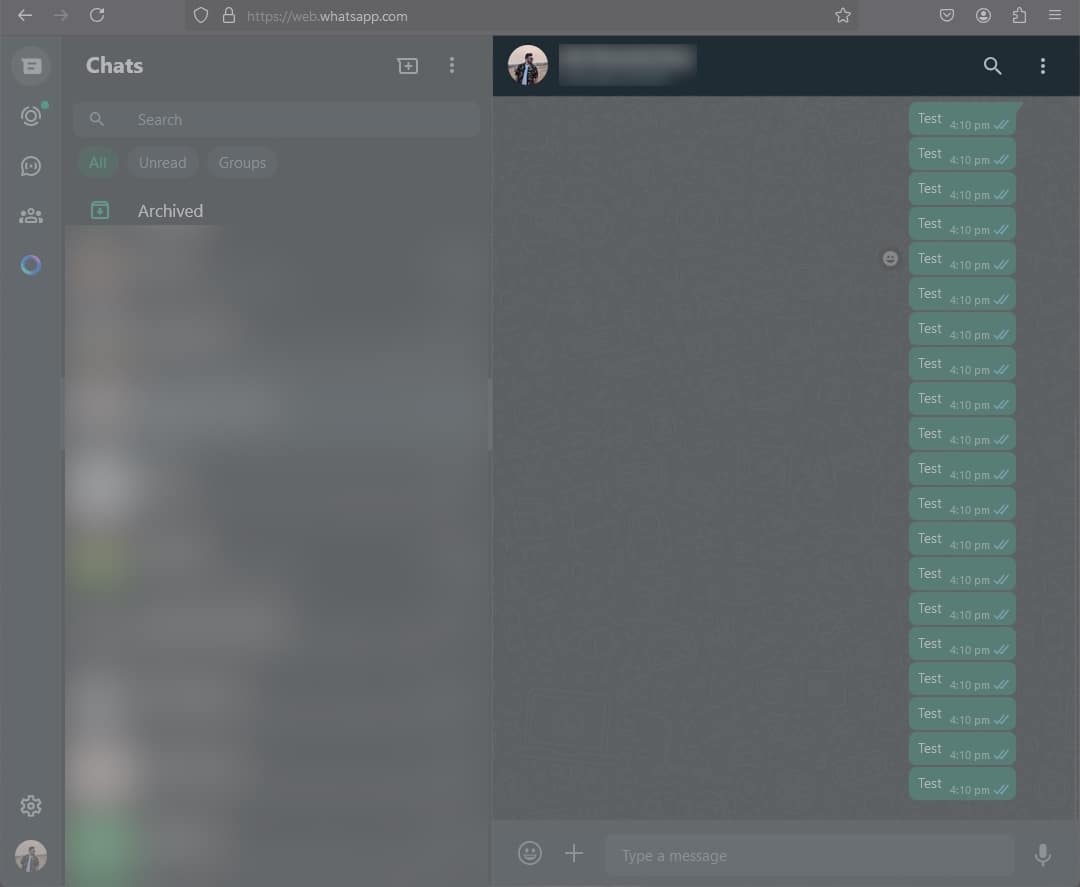
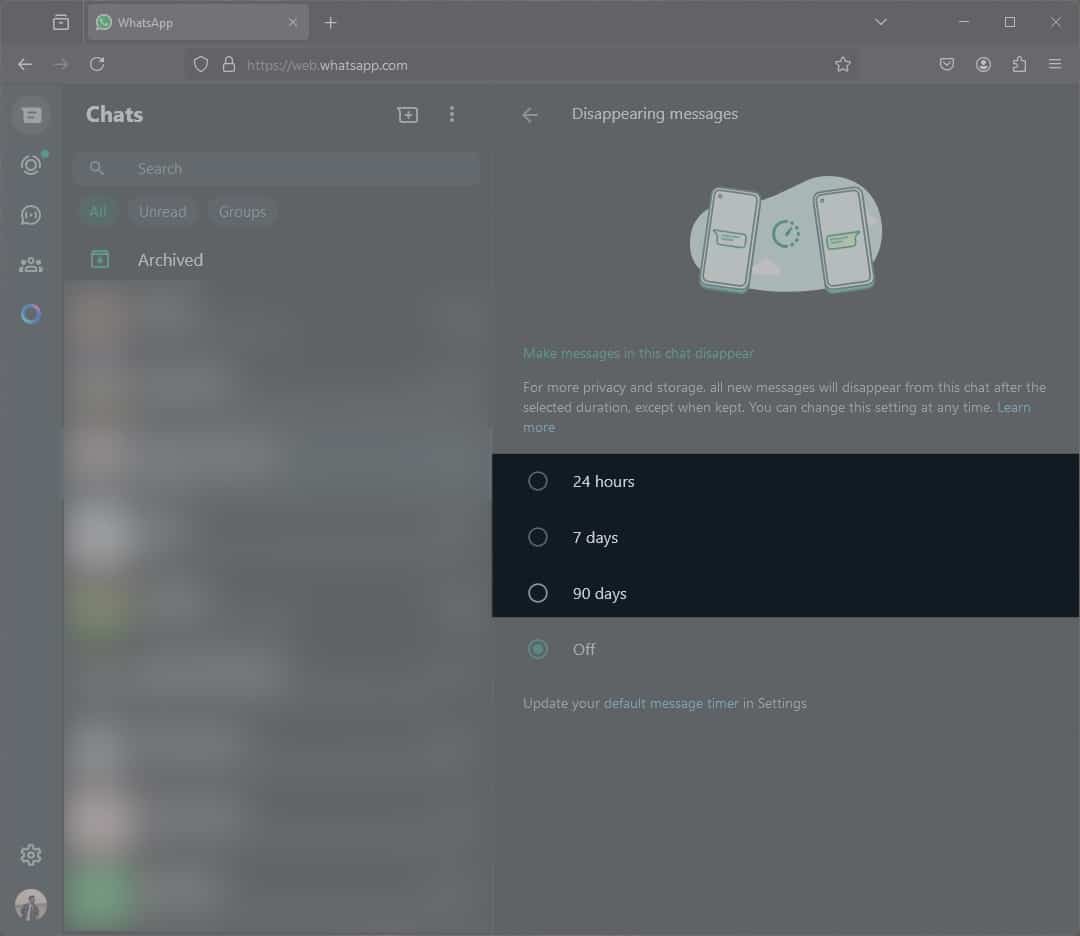
- Scroll down and select Disappearing Messages.
- Finally, select 24 hours, 7 days, or 90 days as per your preferences.
Signing Off…
Disappearing messages on WhatsApp are a handy feature for those who value privacy or just want to keep their chat history minimal. The feature adds an extra layer of privacy to your WhatsApp chats. Whether you’re using an iPhone or desktop, enabling this feature is a breeze, and now you can control which messages stay and which ones go.
Frequently Asked Questions
Topics

Written by
Mehak SiddiquiMehak has a master’s degree in communication and over ten years of writing experience. Her passion for technology and Apple products led her to iGeeksBlog, where she specializes in writing product roundups and app recommendations for fellow Apple users. When not typing away on her MacBook Pro, she loves being lost in a book or out exploring the world.
View all posts →More from How-to

Snapchat Parental Controls: How to Set Up Family Center and Keep Your Teen Safe
Snapchat’s Family Center lets parents monitor their teen’s friend activity and screen time without reading private messages. Here’s how to set it up and what to expect.
 VikhyatMarch 3, 2026
How to Block and Unblock Someone on Instagram
Instagram lets you block or unblock someone in seconds. Follow these simple steps to take full control of your privacy and online peace.
 Ava BiswasMarch 2, 2026
Apple Watch Not Responding? 8 Fixes That Actually Work
Is your Apple Watch unresponsive or stuck on a black screen? Here are 8 proven fixes to help you unfreeze it and get it working again quickly.
VikhyatMarch 3, 2026