

Burning through your mobile data too fast is frustrating. One moment everything feels normal, and the next you are dealing with slow speeds, carrier alerts, or surprise overage charges. In most cases, this happens because apps refresh in the background, videos stream in high quality, and system services quietly consume cellular data without you noticing.
Fortunately, both iPhone and iPad include powerful controls that let you block data-hungry apps, reduce background activity, and monitor usage in real time.
If you keep hitting your data cap or notice sudden spikes, you are in the right place. Keep reading to learn how to restrict cellular data usage on iPhone and iPad.
Why Your iPhone or iPad Uses So Much Cellular Data
Several system features and third-party apps quietly consume data in the background. Common causes include:
- Automatic app updates
- iCloud photo syncing
- Social media background refresh
- Streaming apps preloading content
- Weak Wi-Fi triggering a switch to cellular data
The fixes below address all of these issues.
Check Which Apps Are Using the Most Cellular Data
Before changing any settings, it is important to identify which apps are using the most data.
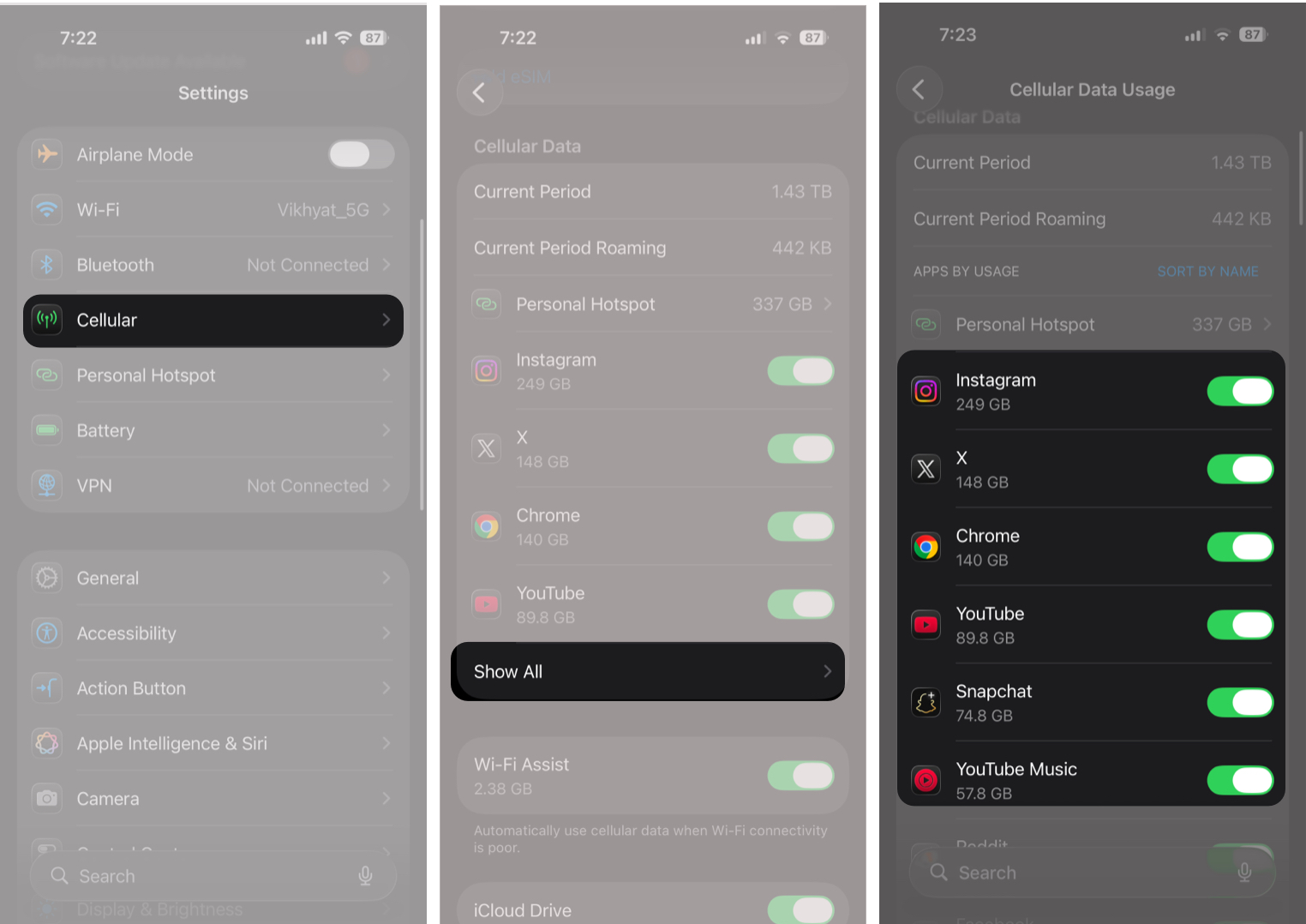
- Open Settings and tap Cellular.
- Here, scroll down and tap Show All under Cellular Data.
- Now, scroll through the list of apps to see how much data each app has used.
Restrict Cellular Data for Specific Apps
Some apps use cellular data even if you rarely open them. Social media, shopping apps, cloud storage services, and news apps often refresh content automatically, which can quietly drain your data plan.
iOS and iPadOS let you control which apps can use cellular data. Turning off access for nonessential apps helps save data for things like navigation, messaging, and email.
- Open Settings and tap Cellular.
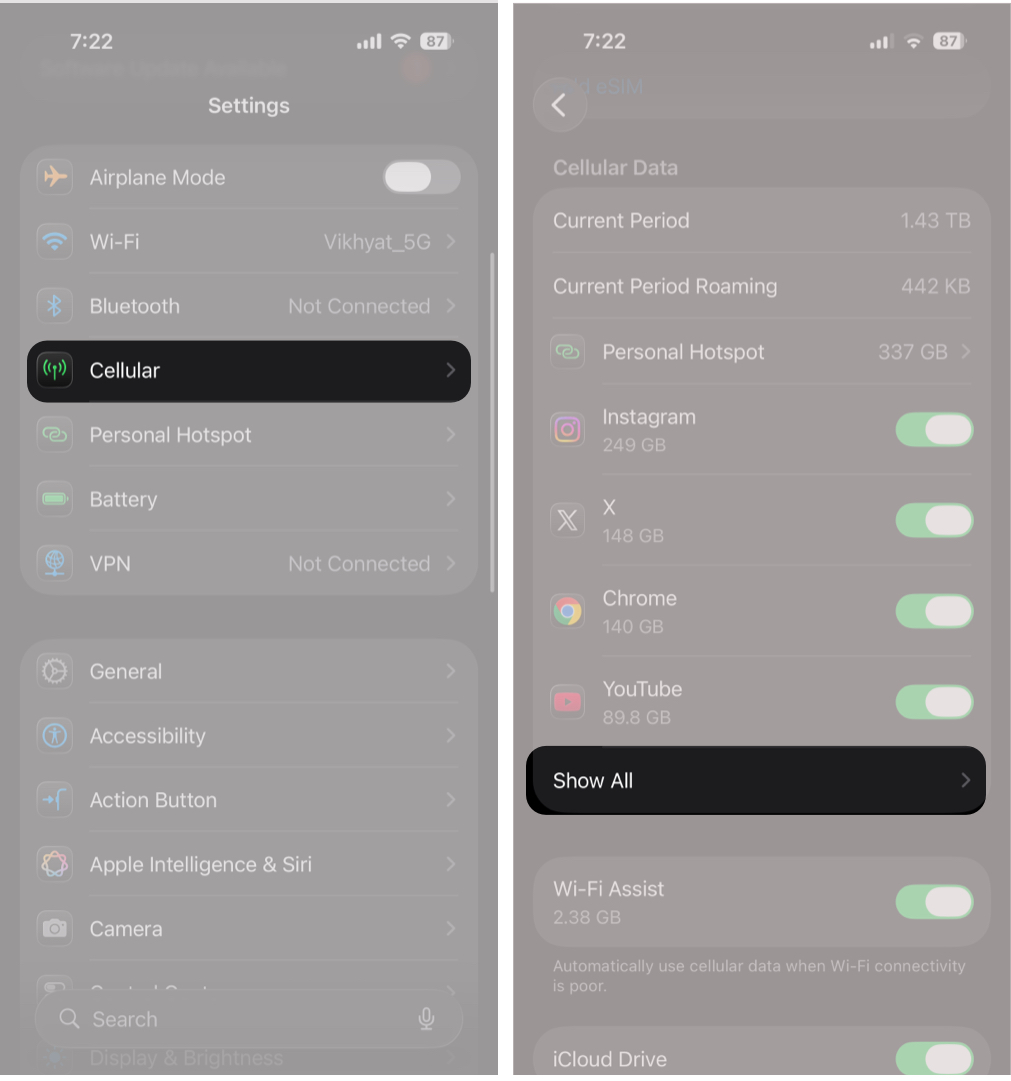
- Here, tap Show All under Cellular Data.
- Now, scroll through the list of all apps and toggle off cellular data for the ones you do not need on mobile data.
Disable Background App Refresh on Cellular Data
Many apps refresh content in the background, even when you are not using them. Limiting this can save hundreds of megabytes each month.
- Go to Settings → General → Background App Refresh.
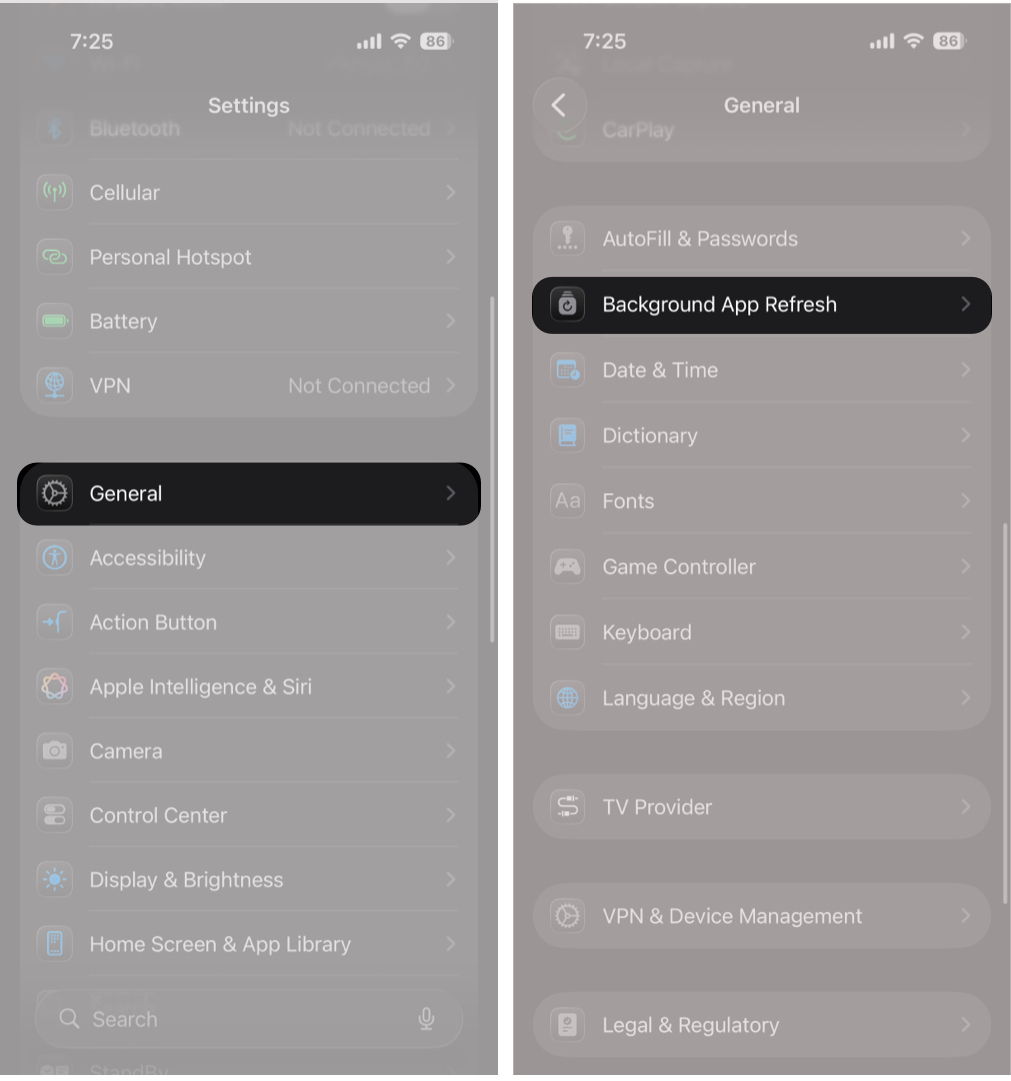
- Here, tap Background App Refresh again.
- Now, select Wi-Fi or Off.
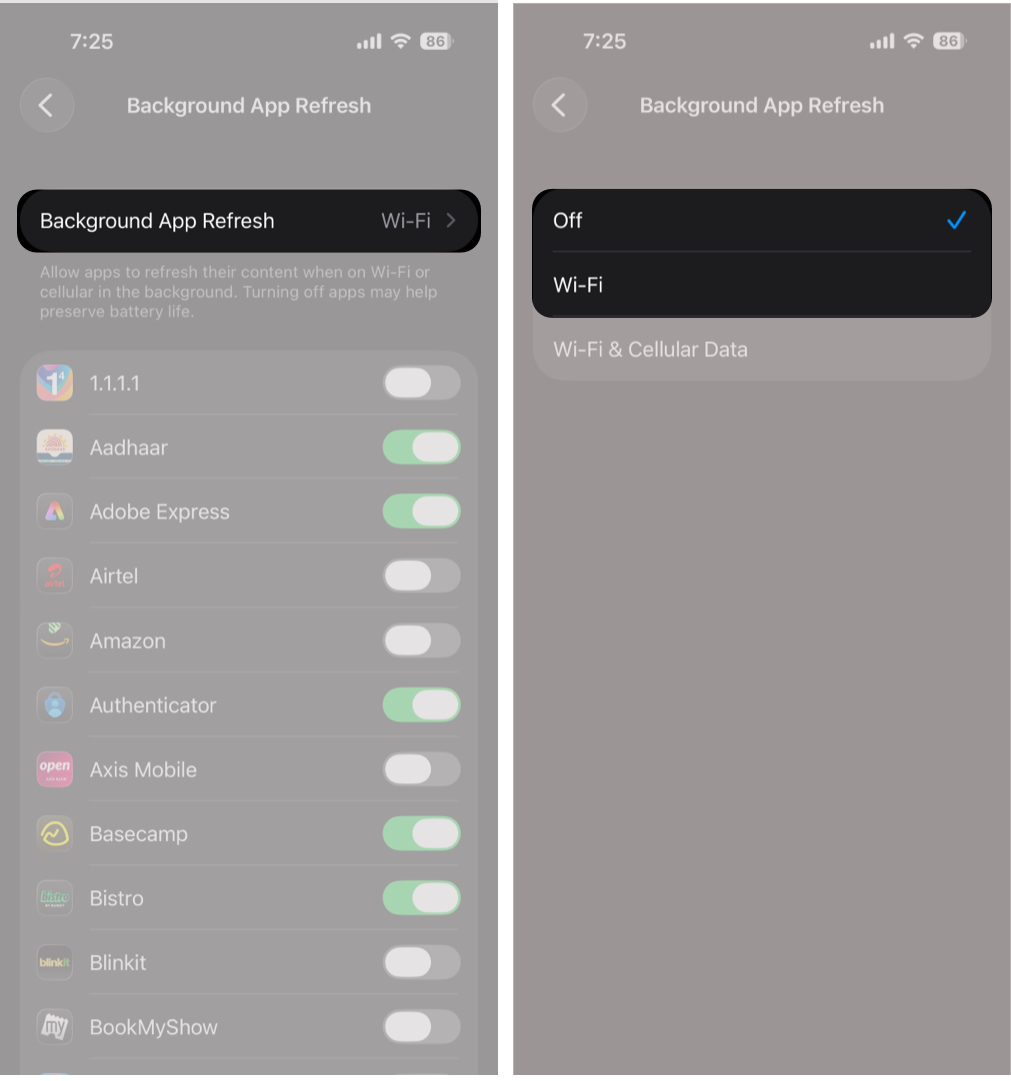


Choosing Wi-Fi allows apps to update only when connected to a Wi-Fi network, blocking background cellular usage.
Use Low Data Mode to Reduce Mobile Data Usage
Low Data Mode minimizes background activity and pauses nonessential system tasks.
- Go to Settings → Cellular.
- Here, tap Cellular Data Options.
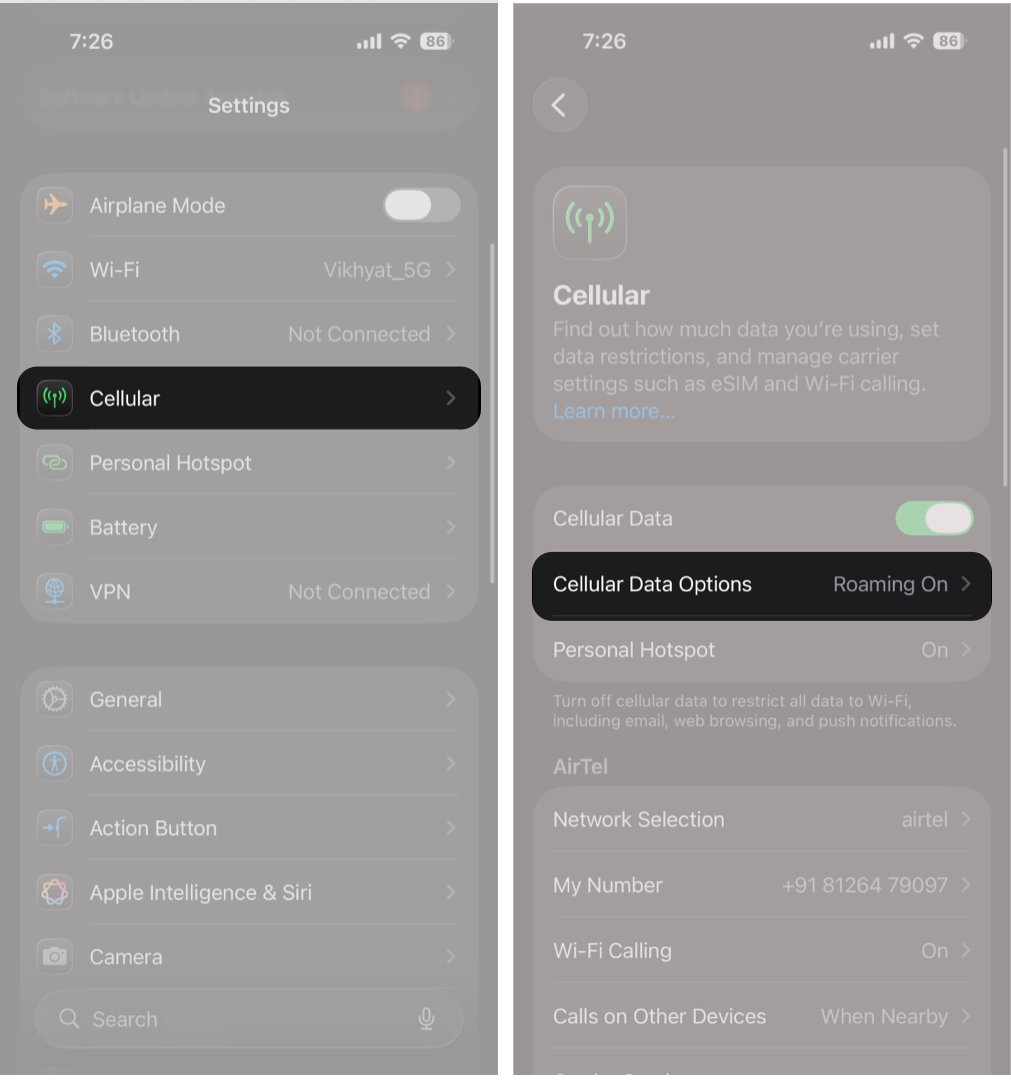
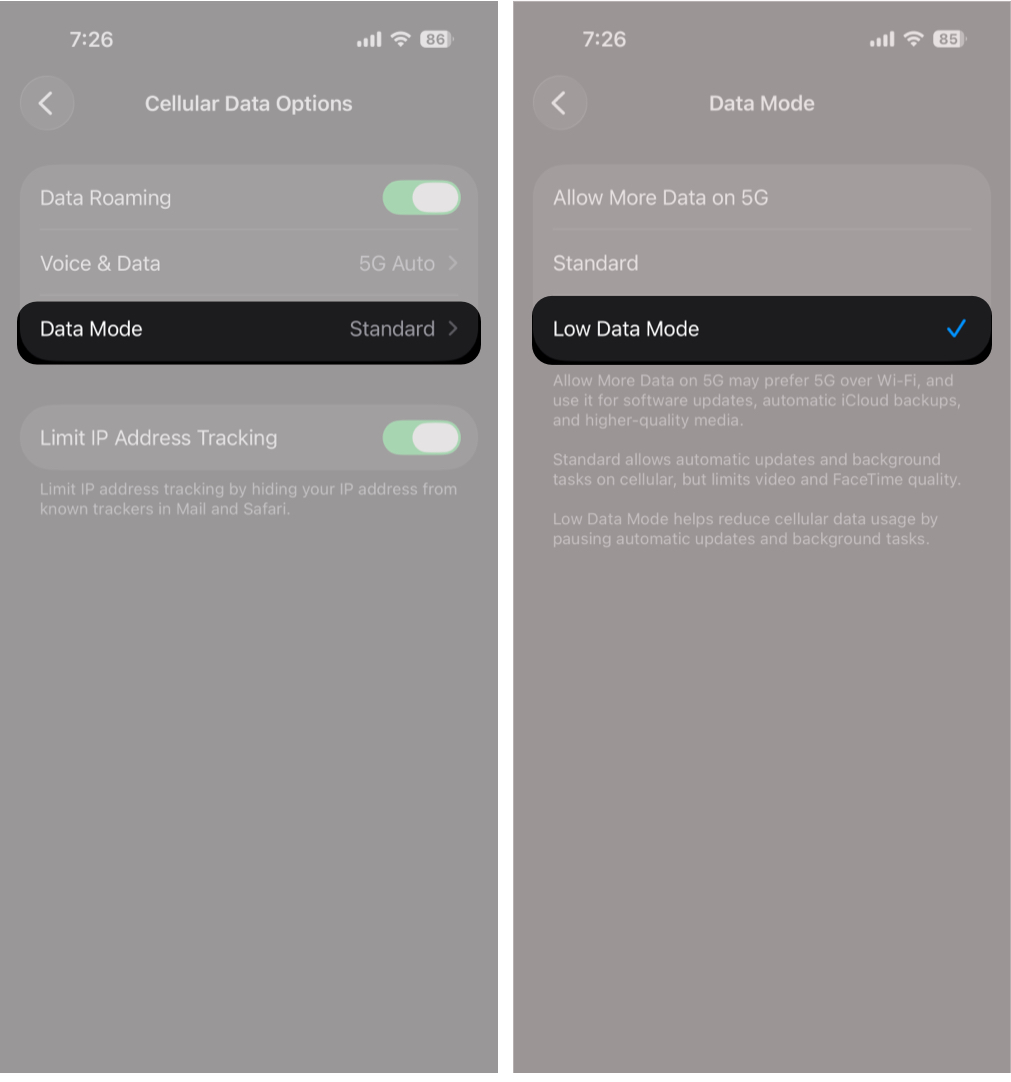
- Now, tap Data Mode.
- Next, select Low Data Mode.


4. Turn Off Wi-Fi Assist
Wi-Fi Assist automatically switches to cellular data when your Wi-Fi connection is weak. While helpful in some situations, it often causes unexpected data usage.
- Go to Settings → Cellular.
- Here, scroll down and toggle off Wi-Fi Assist.
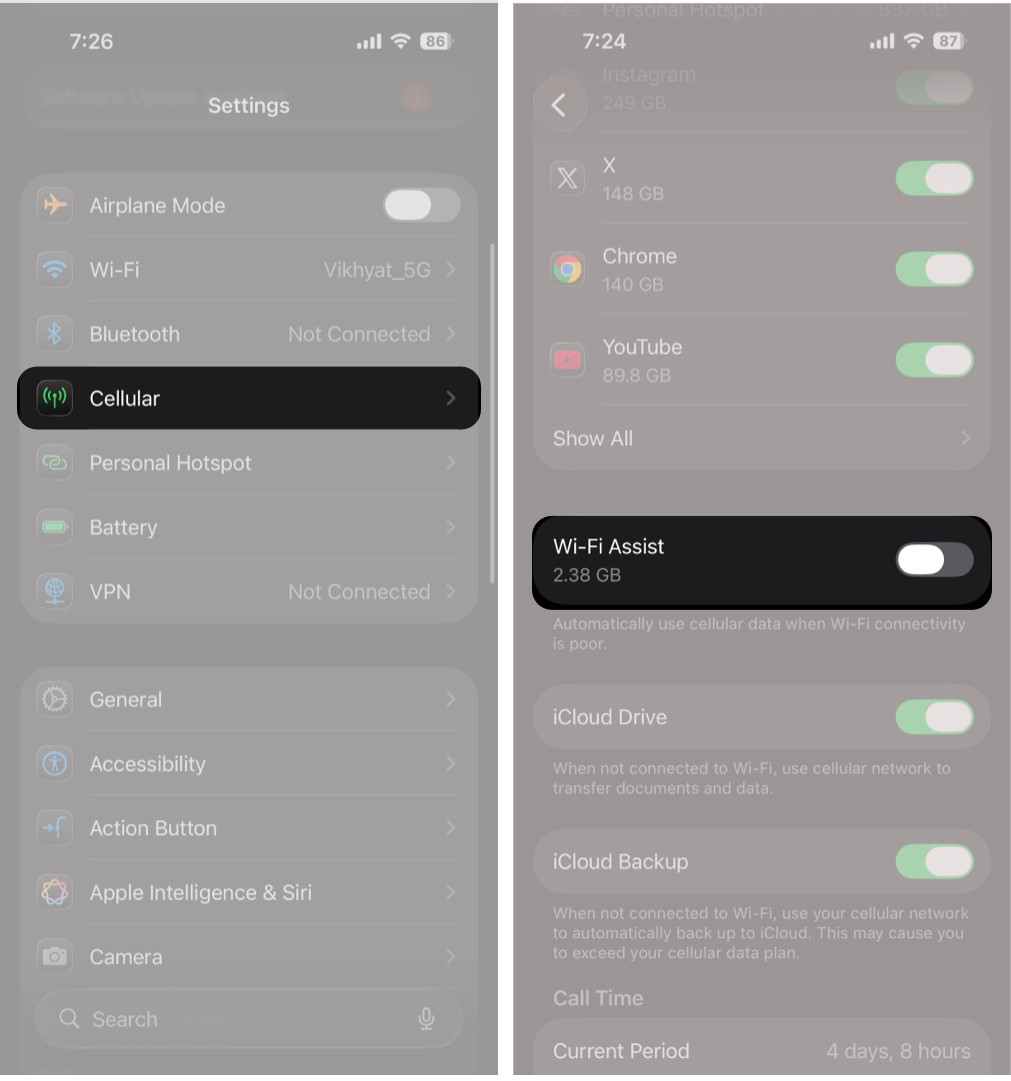

Your device will now stay on Wi-Fi instead of switching to mobile data automatically.
Reduce Cellular Data Usage for Streaming and Downloads
Streaming apps often default to high-quality playback on cellular data. To reduce usage:
- Set video streaming apps to Standard or Data Saver quality.
- Download music, shows, and movies on Wi-Fi for offline viewing.
Use Screen Time to Restrict Cellular Data
If a child’s device is using too much mobile data, Screen Time provides an effective way to lock down cellular settings. This is especially useful for shared family iPads or a child’s iPhone.
Once enabled, children cannot change cellular settings without permission.
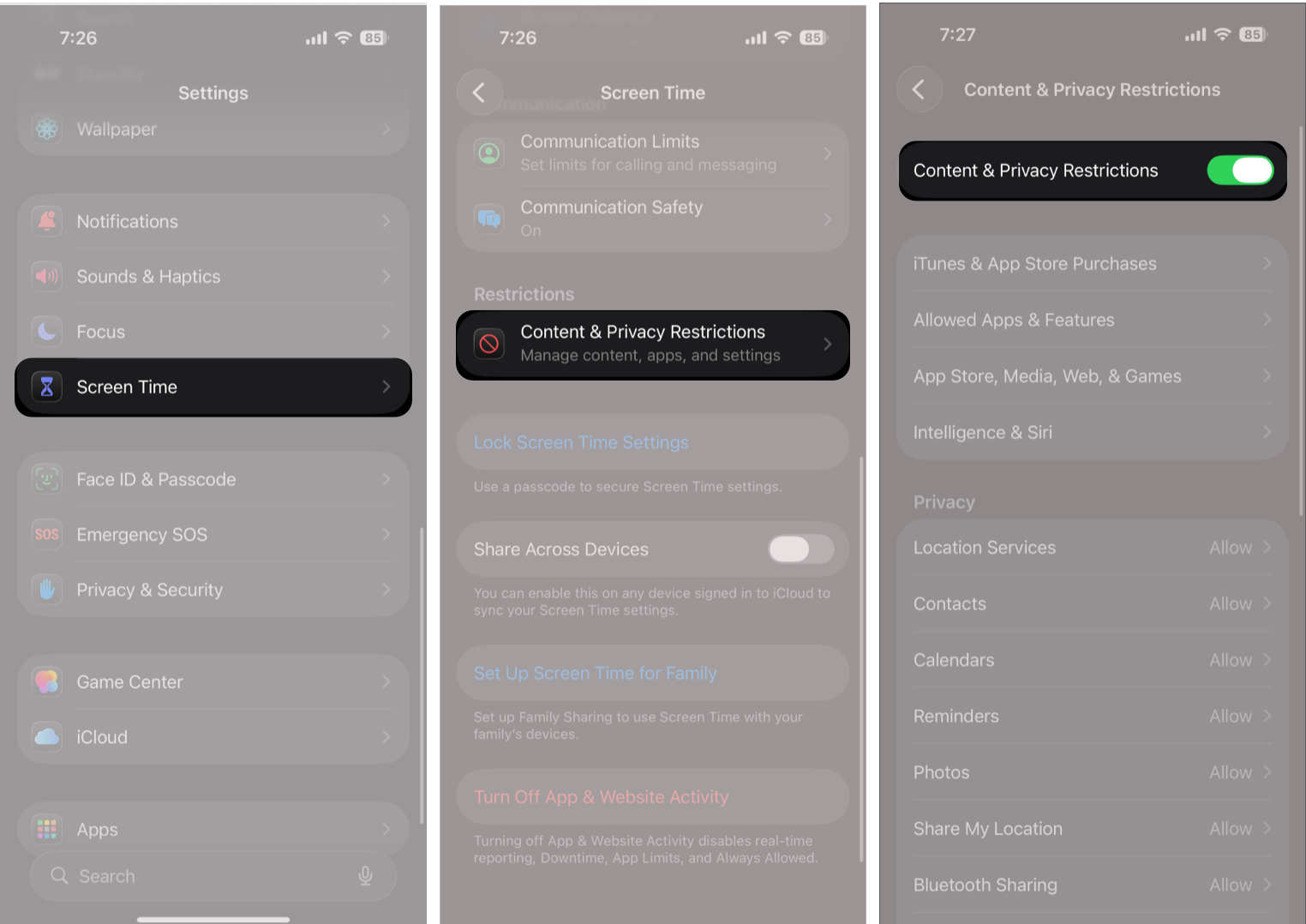
- Open Settings → Screen Time.
- Set up Screen Time if it is not already.
- Here, tap Content & Privacy Restrictions.
- Toggle on Content & Privacy Restrictions.
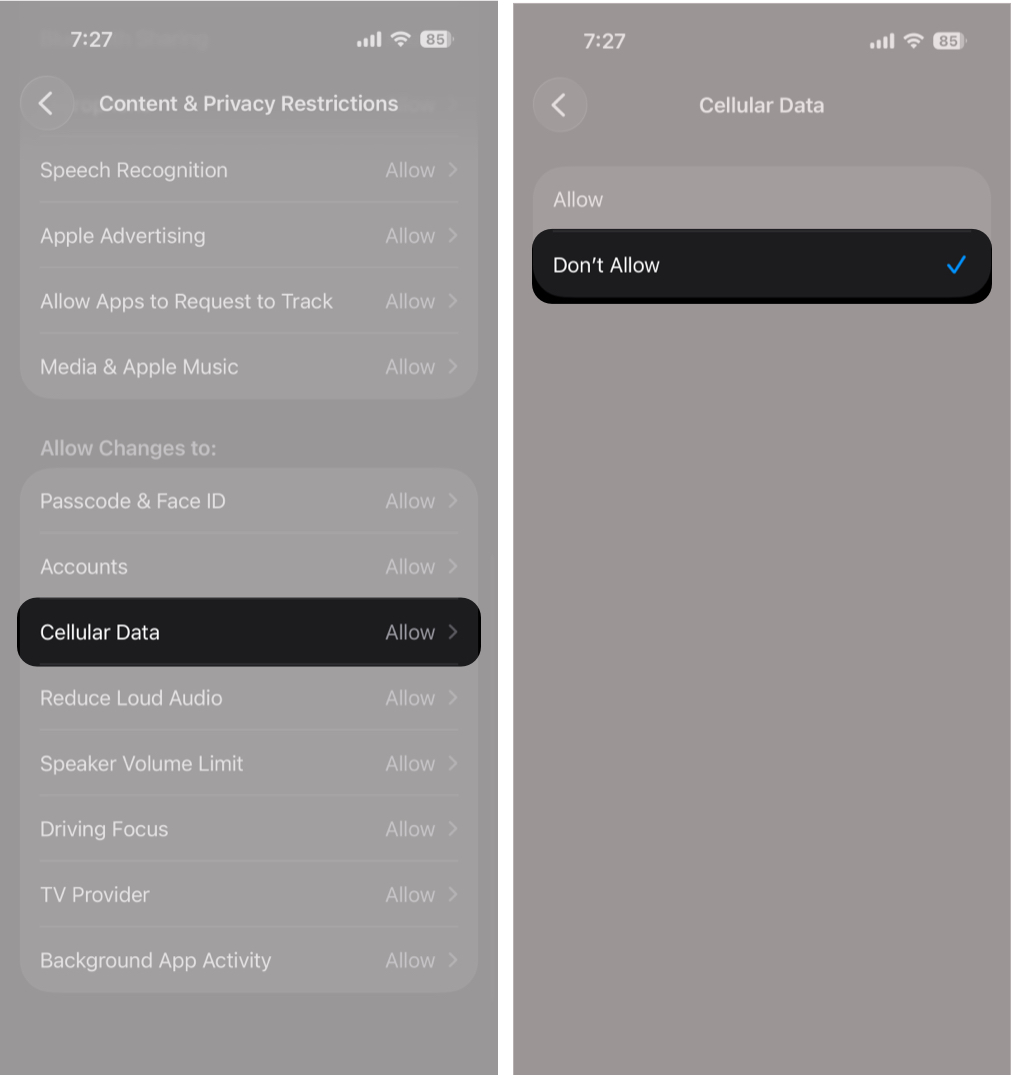
- Now, scroll down and tap Cellular Data under “Allow Changes to.”
- Next, select the Don’t Allow option.


Reduce iCloud and Photo Sync on Cellular Data
Photos and backups are among the largest data consumers.
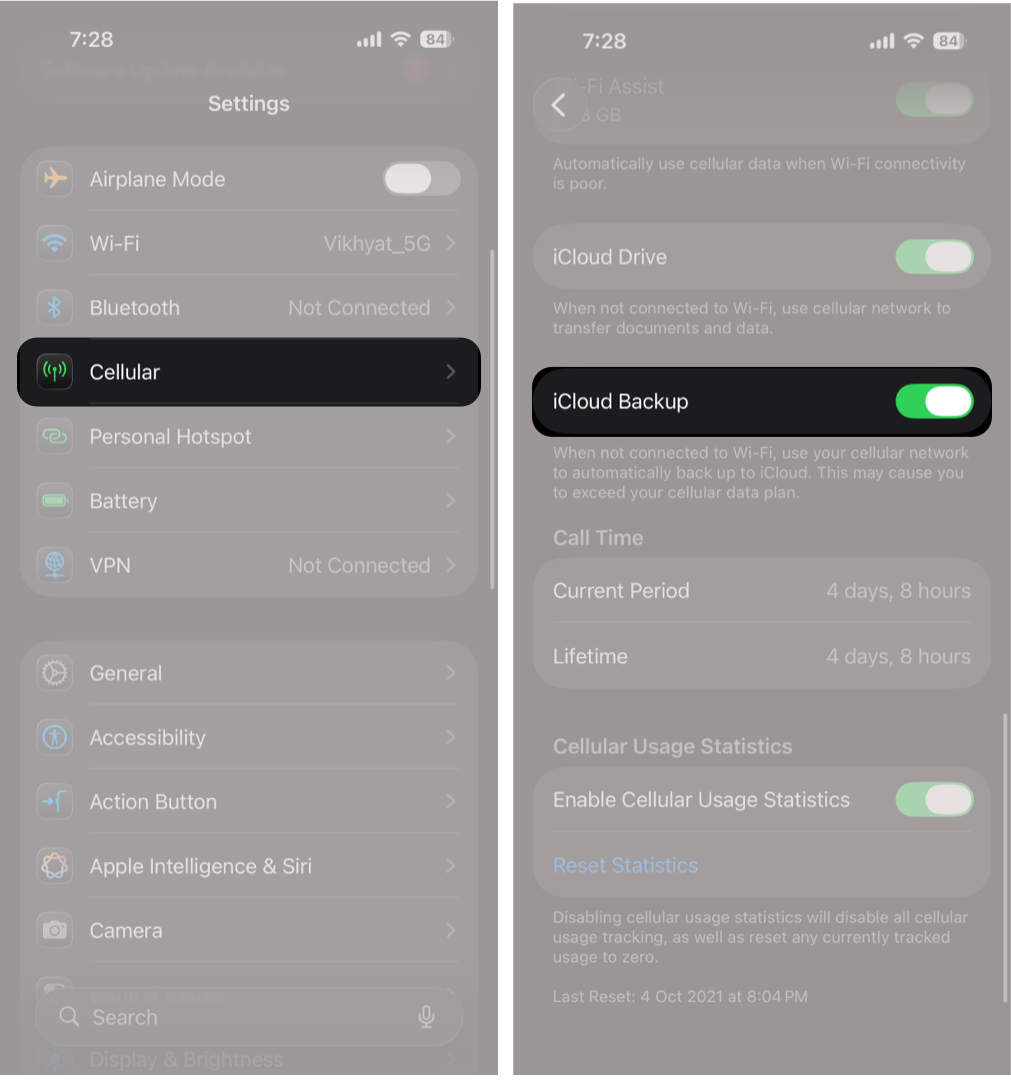
To turn off iCloud backups on cellular data:
- Open Settings → Cellular.
- Scroll down and toggle off iCloud Backup.

To stop Photos from using cellular data:
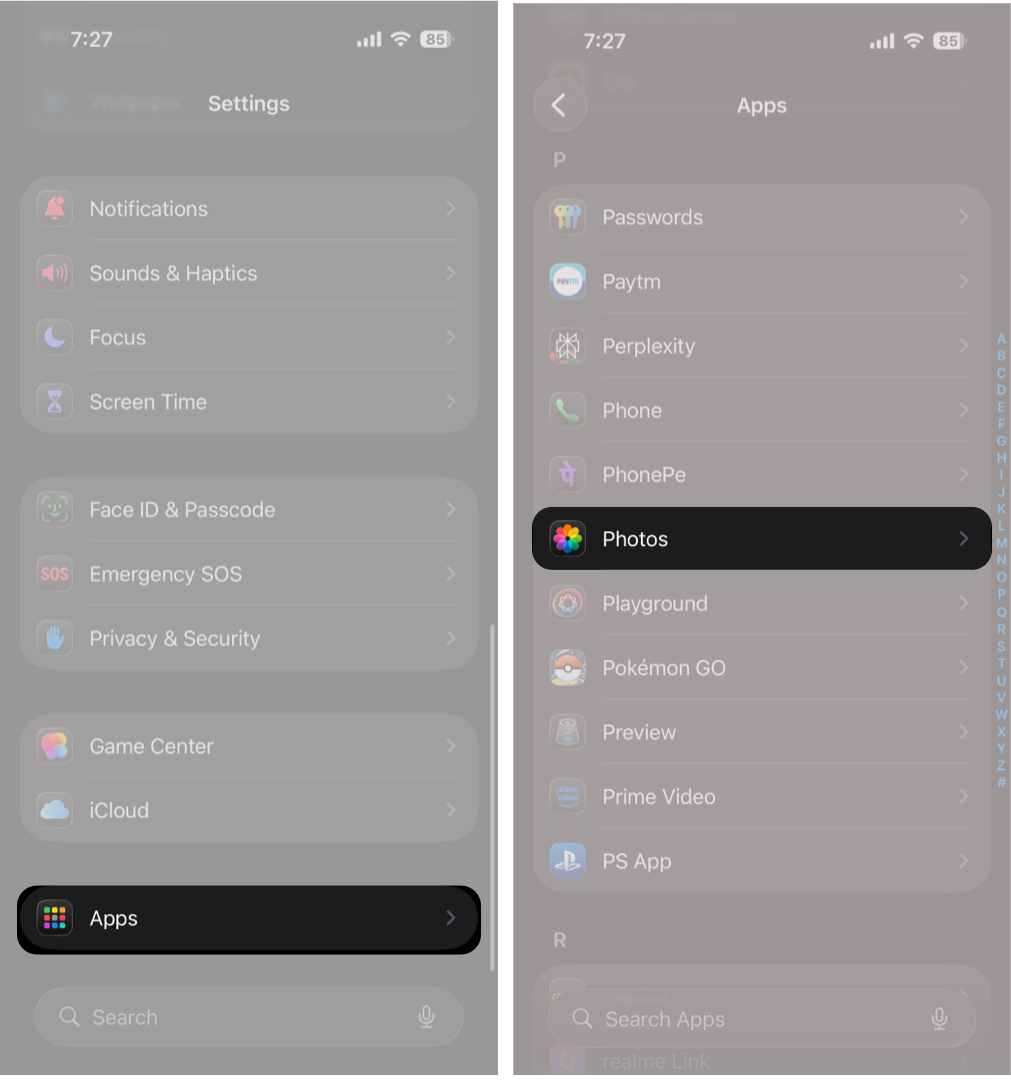
- Go to Settings → Apps → Photos.
- Tap Cellular Data.
- Toggle off Cellular Data.

Reset Cellular Data Statistics to Track Monthly Usage
Your iPhone or iPad does not reset data usage automatically, which makes it difficult to track monthly consumption. Resetting statistics at the start of each billing cycle helps you monitor usage more accurately.
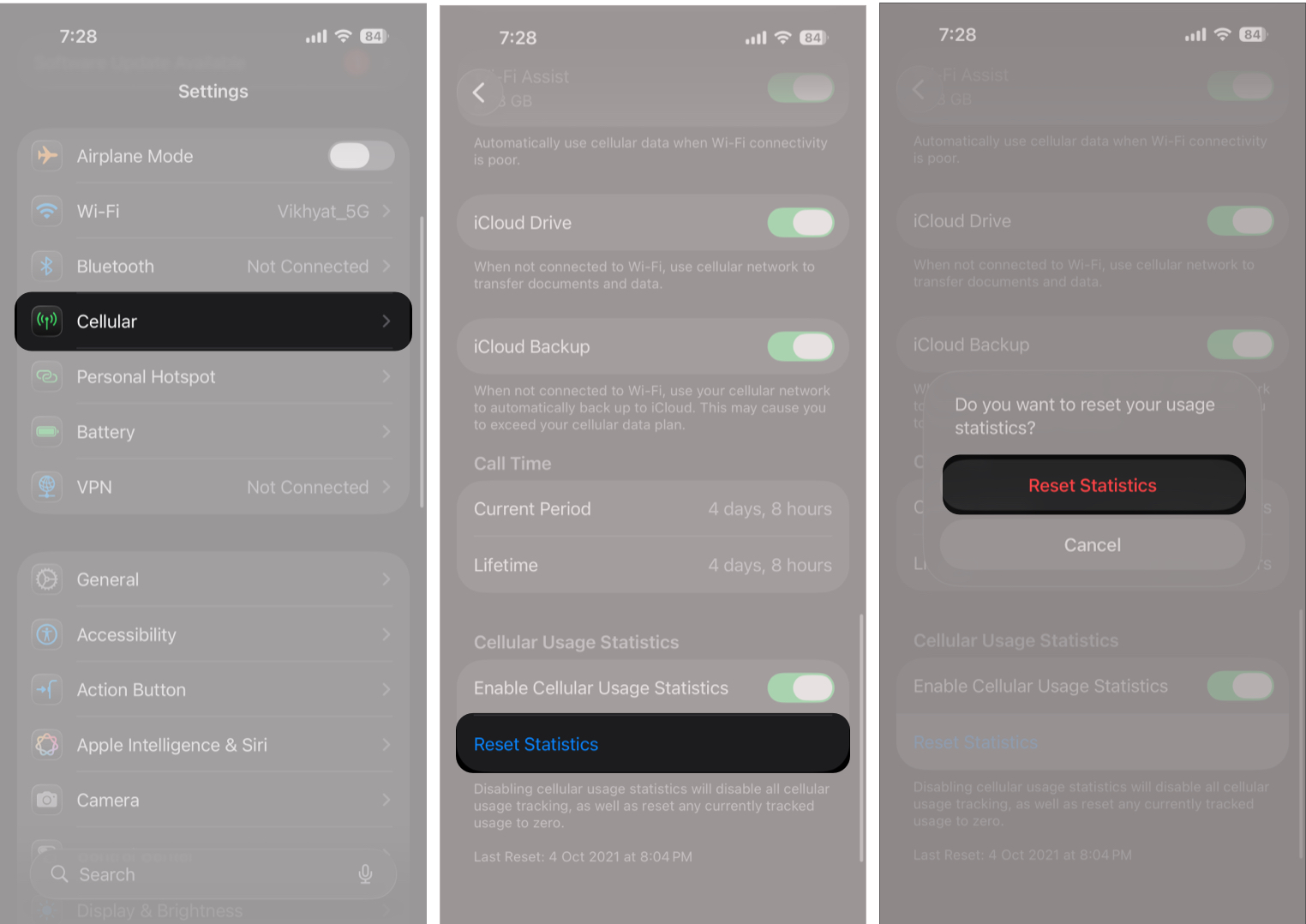
- Open Settings → Cellular.
- Scroll down to Cellular Usage Statistics and tap Reset Statistics under it.
- Tap Reset Statistics to confirm.

Common Mistakes That Increase Cellular Data Usage
Avoid these habits to prevent unnecessary data loss:
- Leaving automatic app updates enabled on cellular data
- Streaming high-resolution video on mobile networks
- Forgetting to disable data roaming while traveling
- Ignoring background sync from cloud storage and social apps
Stay in Control of Mobile Data
Restricting cellular data on iPhone or iPad comes down to three things: controlling app access, enabling Low Data Mode, and limiting background activity. Spending a few minutes adjusting these settings can significantly reduce data usage, cut down on overage alerts, and even improve battery life.
Let us know which setting helped you the most.


