
How to Request the Desktop Site on iPhone (Safari, Chrome and Firefox)
Get the full desktop view on your iPhone by switching from the mobile site in Safari, Chrome, or Firefox. It takes only a moment and helps when a page hides features or layout options.
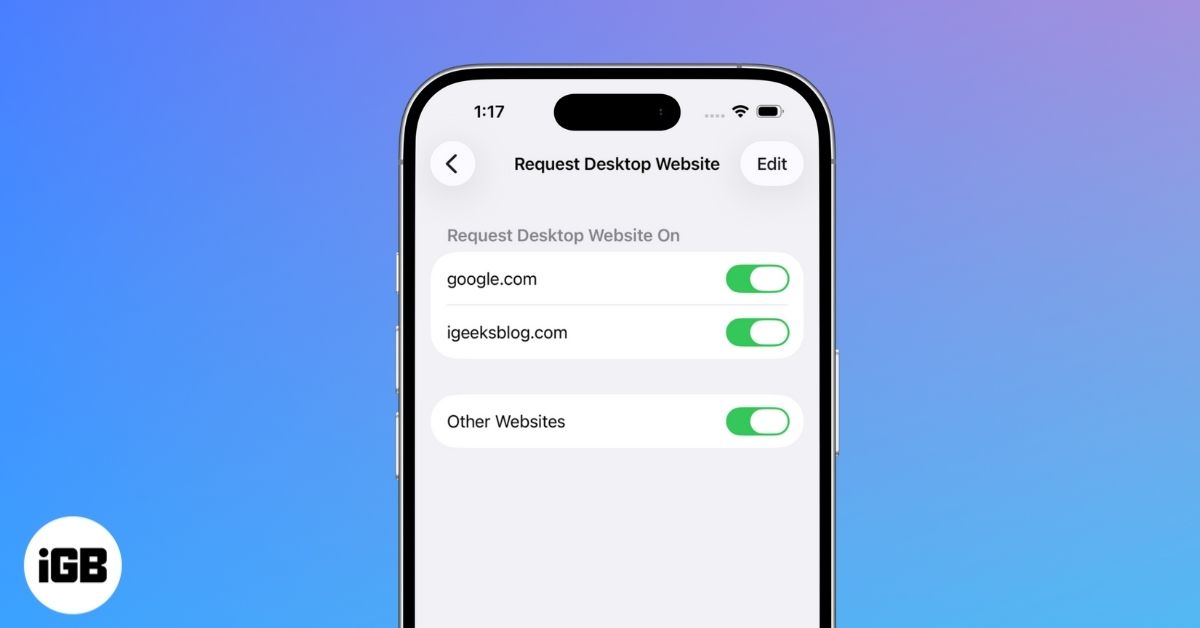
Sometimes mobile websites just don’t cut it. Maybe you need a button that appears only on desktop, or you just want the full layout. Whatever the reason, iPhones let you request desktop versions of websites across all major browsers, but the steps vary slightly.
Here’s a simple guide to help you access the desktop version of any site, whether you’re using Safari, Chrome, or Firefox.
How to Request Desktop Site on iPhone in Safari
Safari is the default browser on iPhones, and Apple has changed how desktop mode works in iOS 26 and later.
One-Time Desktop View
You can temporarily switch to desktop mode for any webpage you’re currently on.
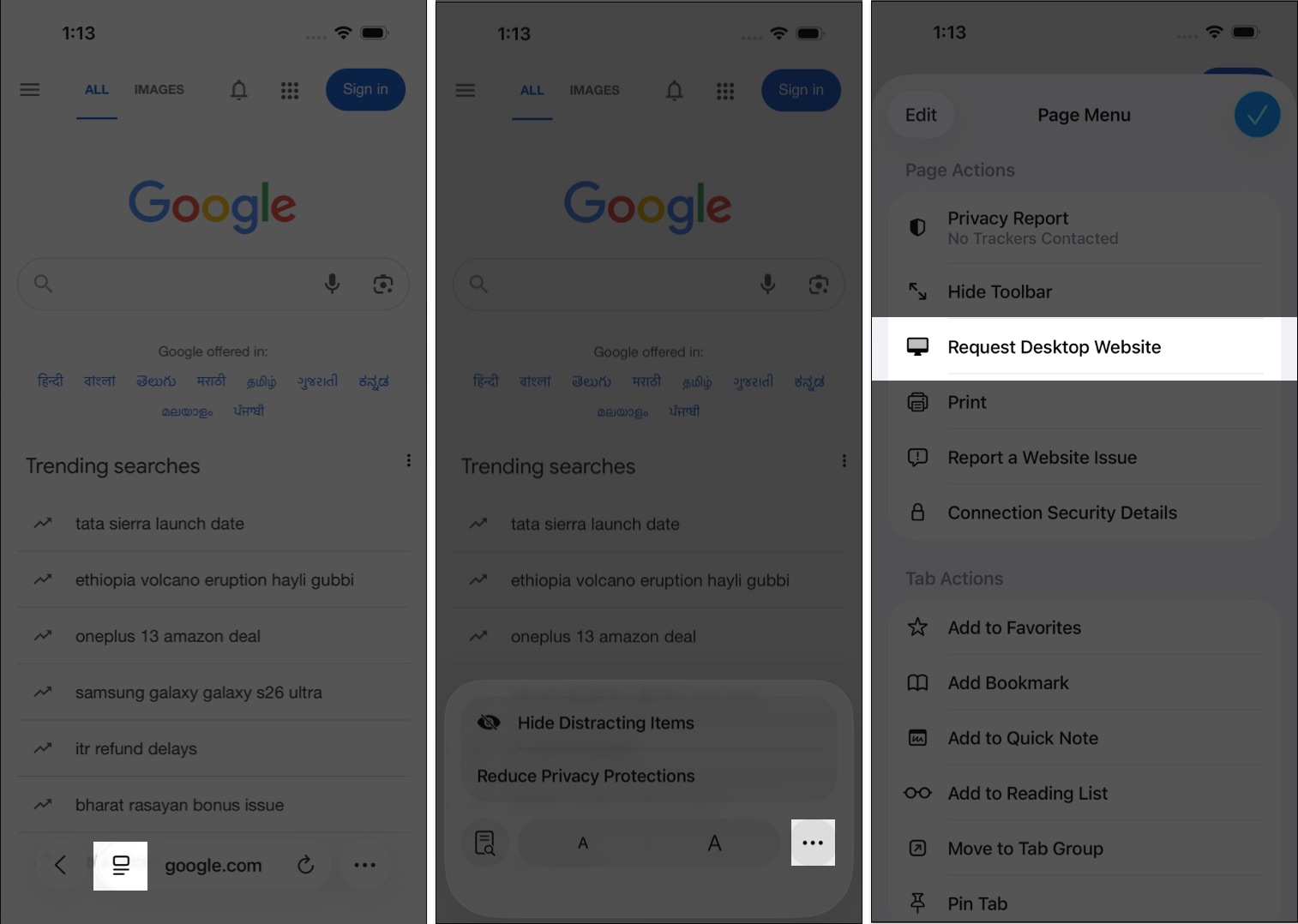
On iOS 26 or later:
- Open Safari and visit the website.
- Tap the Reader button (page icon) in the bottom toolbar.
- Tap the three-dot menu on the right.
- Choose Request Desktop Website.
On iOS 18 or earlier:
- Open Safari and go to the website.
- Tap the aA icon in the address bar.
- Select Request Desktop Website.
How to Always Load Desktop Sites in Safari
Instead of manually switching each time, you can set Safari to load the desktop version by default.
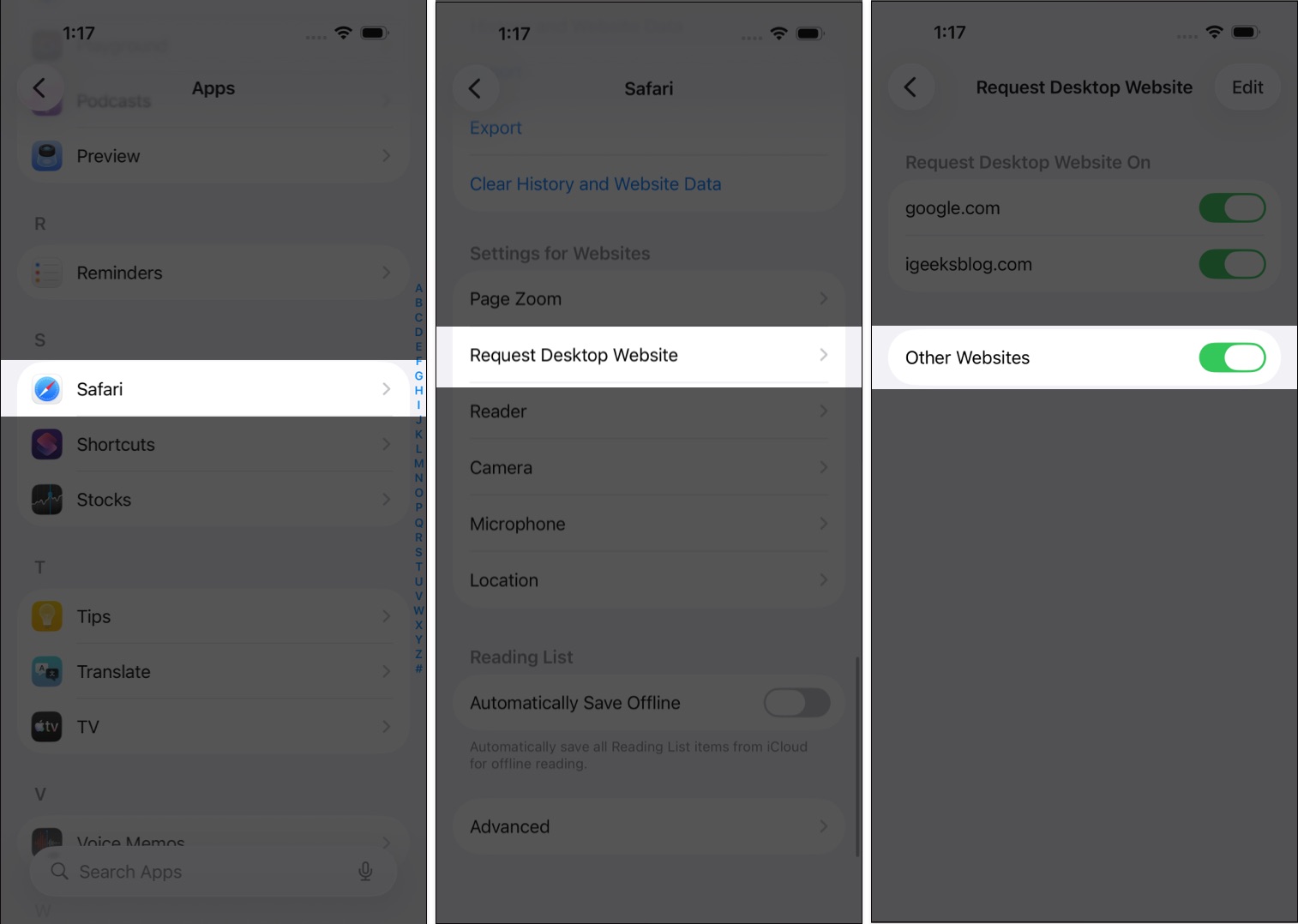
For all websites:
- Open Settings > Apps > Safari.
- Tap Request Desktop Website.
- Turn on Other Websites.
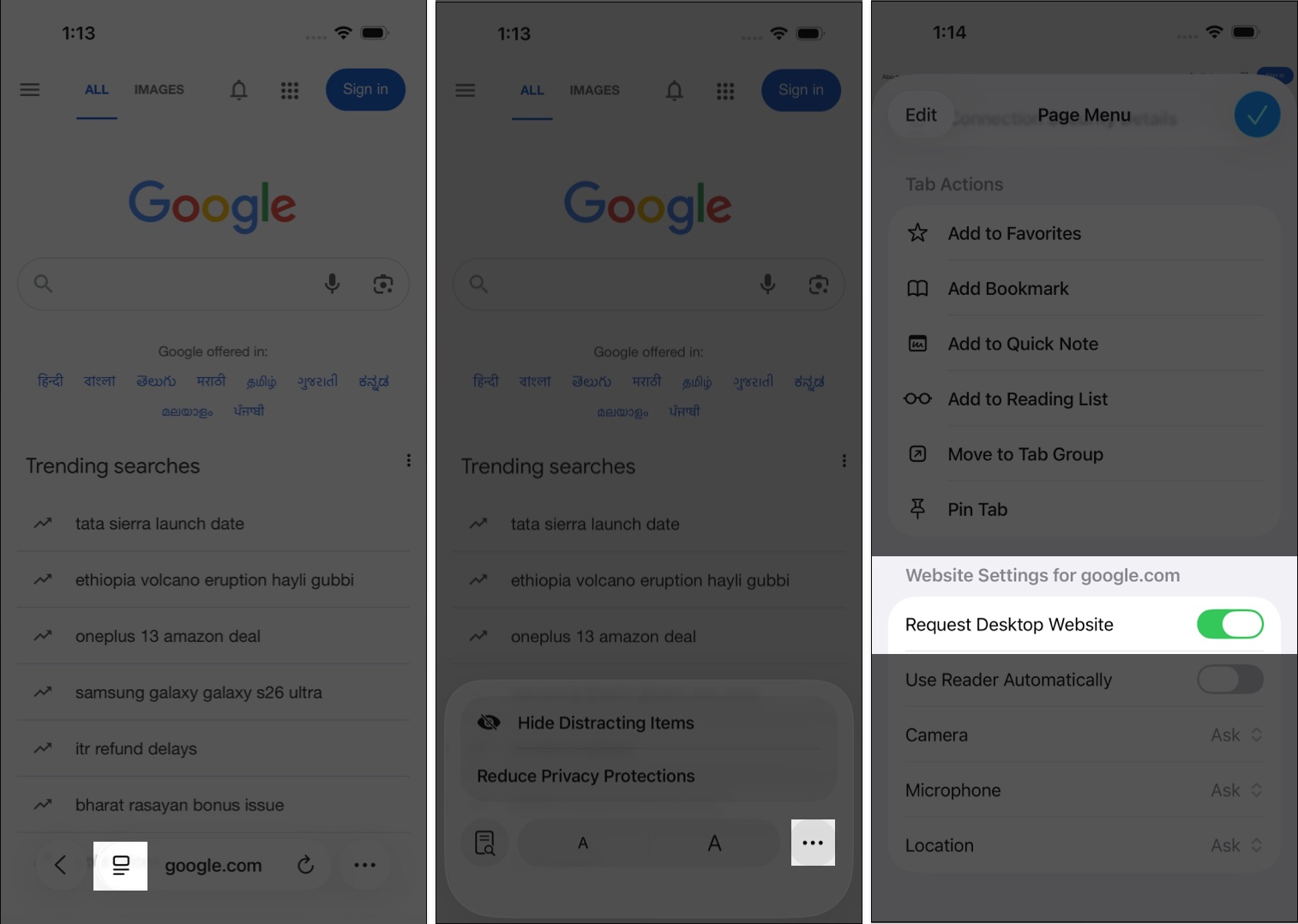
For a single site:
- Open the site in Safari.
- Tap the Reader button, then the three-dot menu.
- Under Website Settings, toggle on Request Desktop Website.
Why Safari May Ignore Desktop Mode
Even after enabling desktop mode, some websites may still load the mobile version. This can happen if:
- The site uses aggressive device detection.
- Most responsive websites still show you a mobile layout.
- If the site uses a different domain for mobiles, like m.facebook.com, you cannot show the desktop version as the URL is not the same.
For the reasons above, many sites still won’t switch to their desktop version. That said, most of them don’t remove any major features on mobile, so you can usually get everything done without needing desktop mode.
How to Request Desktop Site on iPhone in Chrome
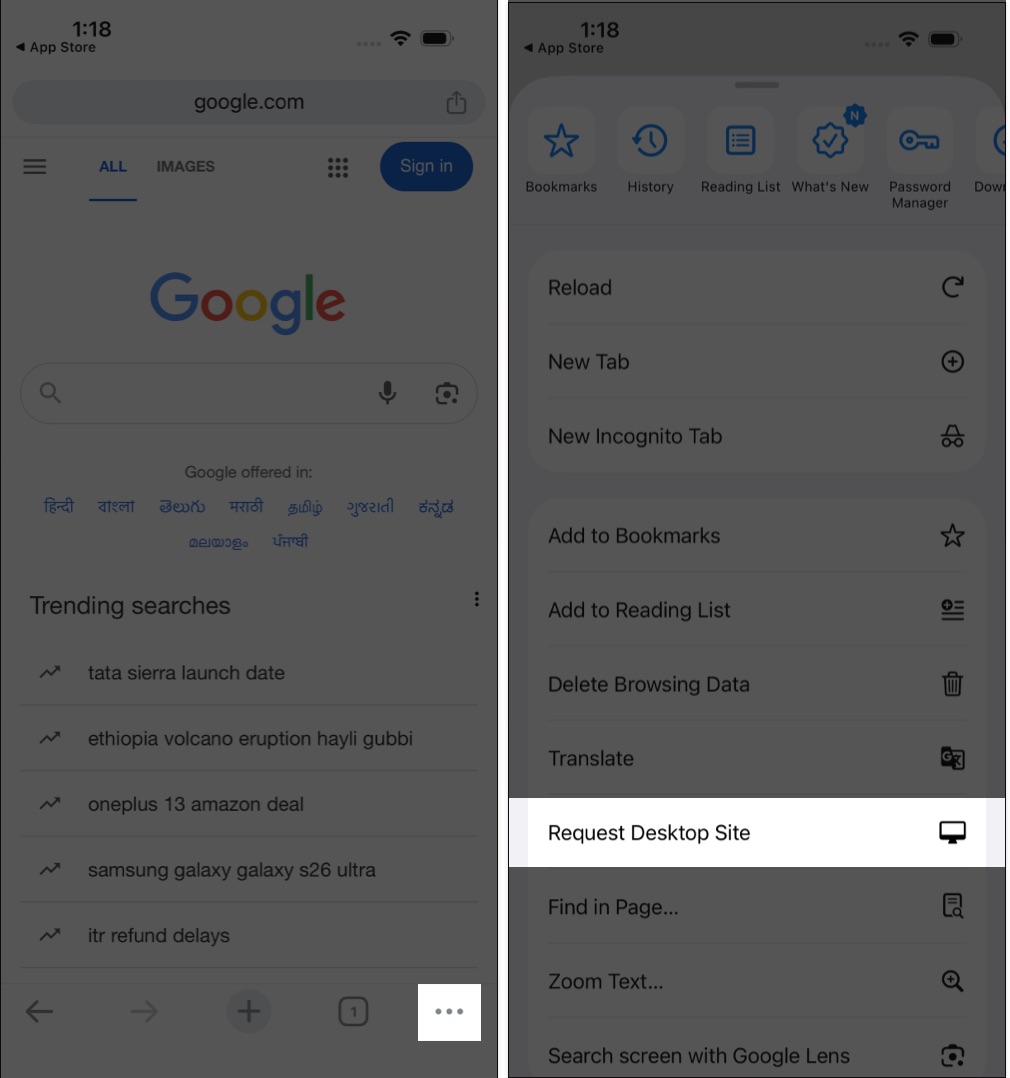
Chrome makes it pretty straightforward to switch to desktop view.
- Open the website in Chrome.
- Tap the three-dot menu at the bottom right.
- Tap Request Desktop Site.
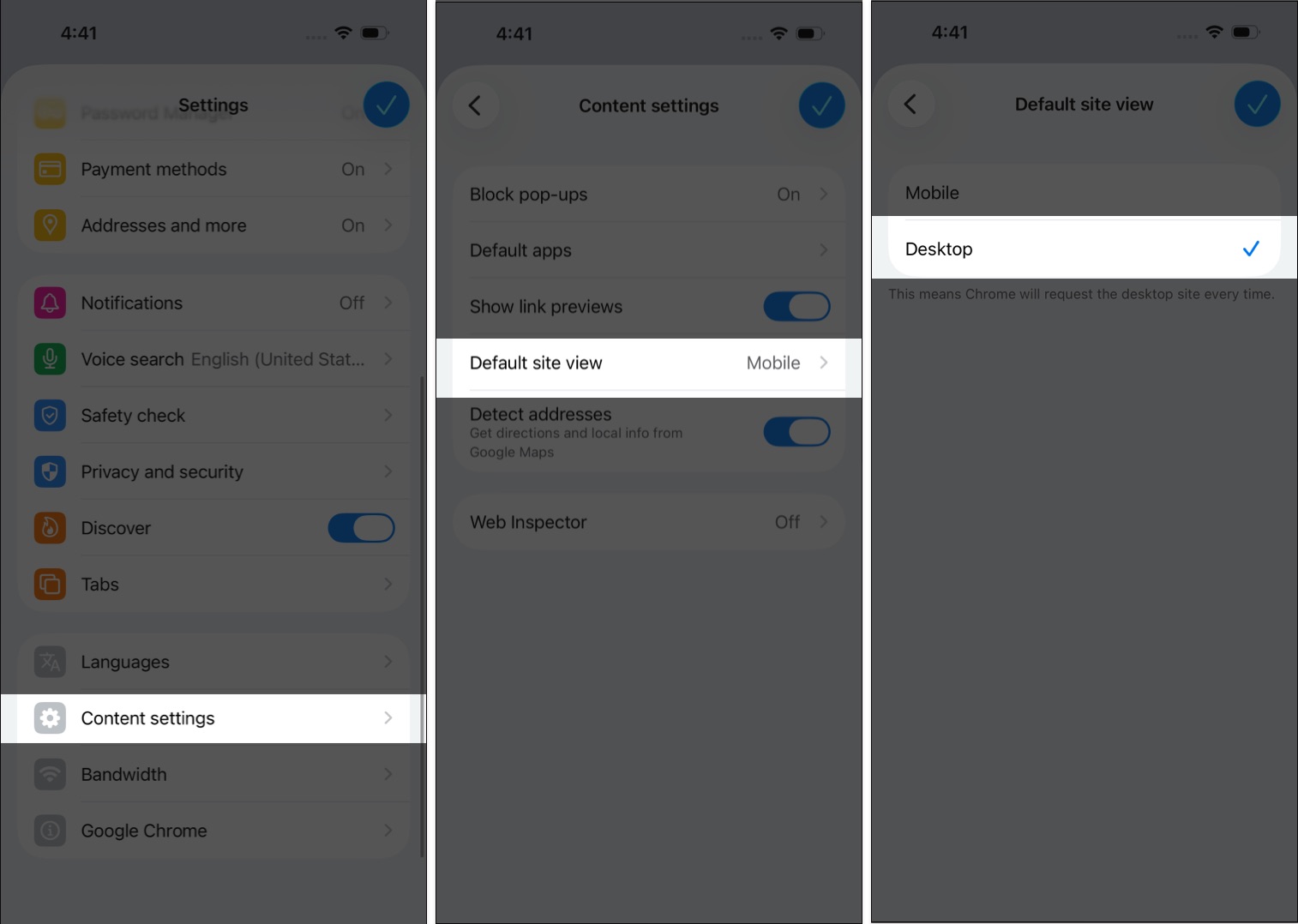
You can also go to Chrome Settings > Content Settings > Default site view to choose desktop view as the default.
How to Request Desktop Site on iPhone in Firefox
Firefox also supports quick toggling.
- Open the site in Firefox.
- Tap the three-dot menu in the toolbar. (It can be above or below according to your preference in settings)
- Select Desktop Site.
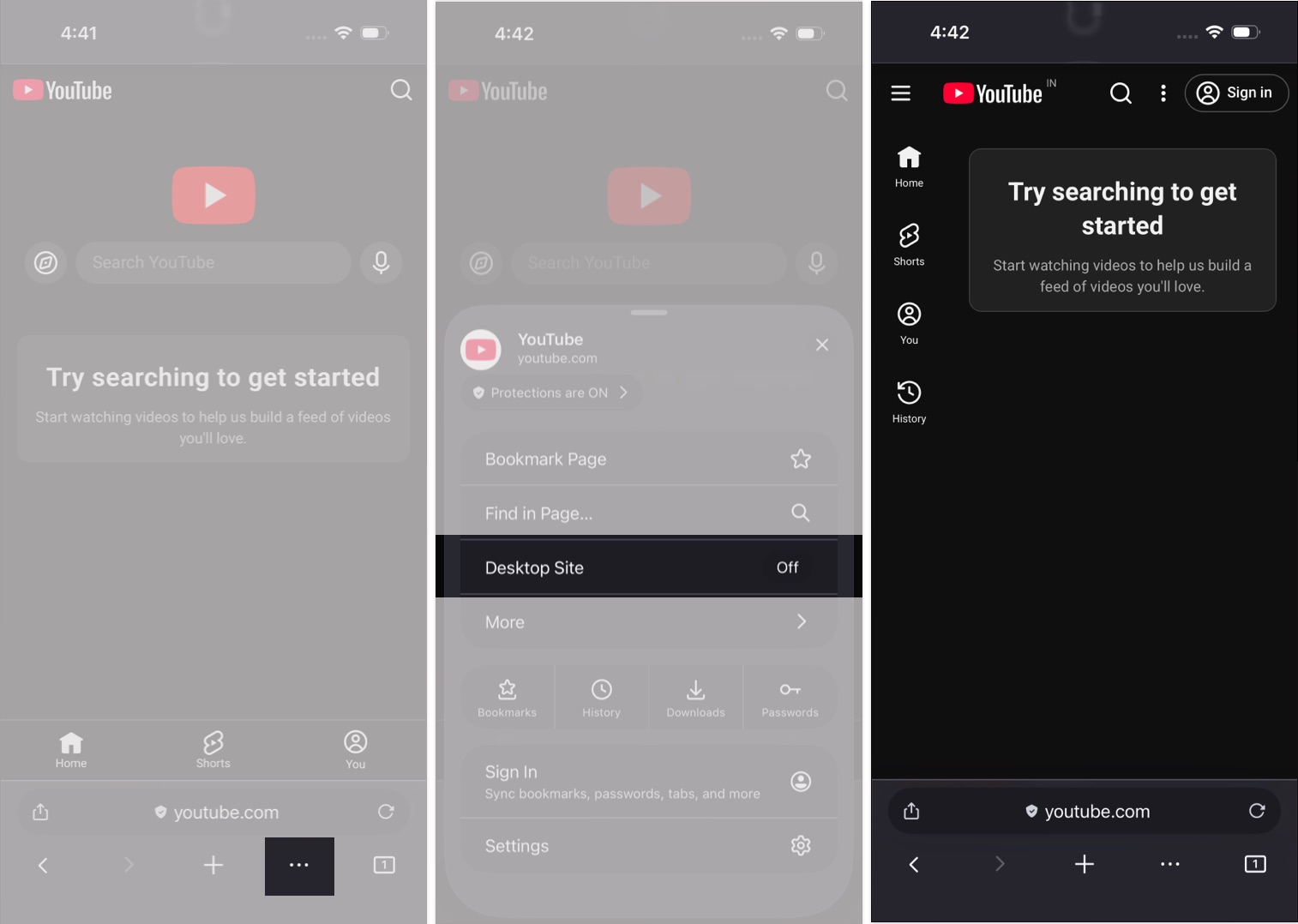
You might have to repeat this step if you reload or open a new page.
When to Use Desktop View on iPhone
Desktop mode isn’t just for developers or testers. It helps when:
- A feature is missing on mobile.
- You need to download something from a desktop-only button.
- A website’s layout is broken on mobile.
Just remember: text will be smaller, and load times might increase.
Frequently Asked Questions

Written by
Jignesh PadhiyarJignesh Padhiyar is the co-founder of iGeeksBlog.com, who has a keen eye for news, rumors, and all the unusual stuff around Apple products. During his tight schedule, Jignesh finds some moments of respite to share side-splitting content on social media.
View all posts →