
How to remove password protection from PDF files on Mac
Password protection is a great feature to prevent your PDF documents from unwanted people. However, if you receive plenty of PDF files daily, it can be a curse. Remembering a wealth of passwords and accessing those encrypted documents can be daunting. However, you can remove password protection from PDF files!
This blog will show you a quick and effective way to do that using your Mac! Keep reading to learn more.
Note:
You can also remove password protection from PDF files using your iPhone. Check out our explainer to find out more.
Mac generally opens all PDF files in Preview by default. Hence, this is the simplest way to remove the PDF password on Mac. Here’s how you can do it.
How to remove PDF password on Mac using Preview
- Open the file with Preview.
- Enter the password.
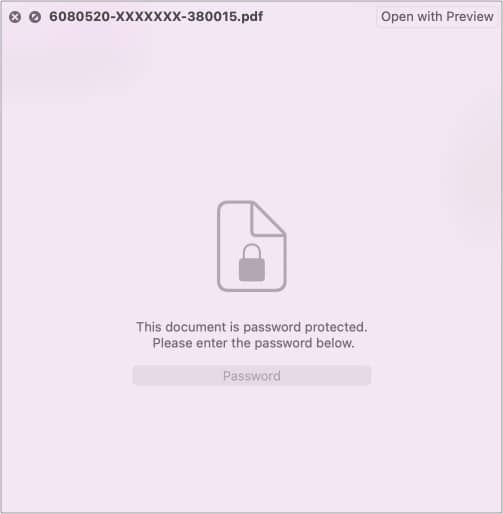
- Go to File → Export.
- Rename the file in the Export As field.
- Uncheck the Encrypt field, if not already.
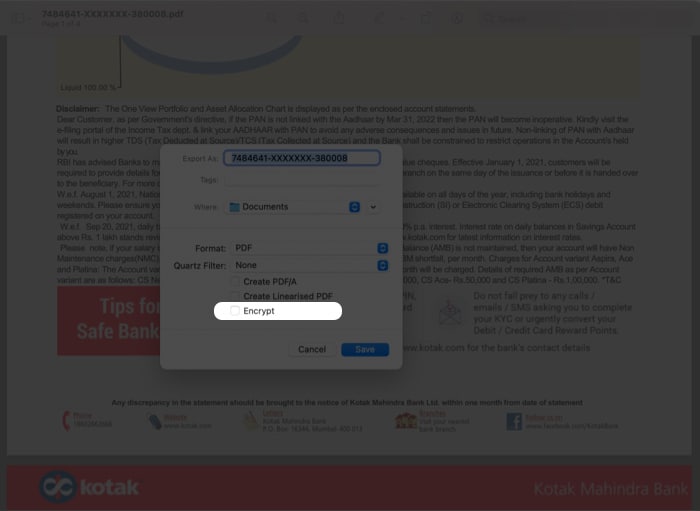
- Now, click Save.
You can now access it without the password. You can also find the old encrypted file in your local drive or docs.
How to remove PDF password on Mac using a web browser
For all those who love using Google Chrome or Safari, there is a pretty solid way to remove your PDF password on Mac using the same. Here’s how:
- Right-click your PDF file → Open With → Google Chrome or Safari.
- Enter the password to unlock the file.
- Press Command + P to open the print dialog box.
- In Google Chrome, Click Save.
- In Safari, select Save as PDF in the drop-down menu.
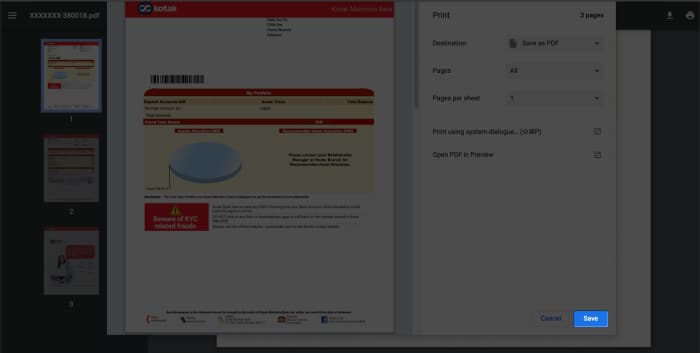
- In Safari, select Save as PDF in the drop-down menu.
- Save the file with a new file name.
You can now access this file without the password. It will be saved locally on your device.
Remove PDF password on Mac using third-party apps
If you want to edit or merge two or more PDFs after removing the password, then it’s wiser to depend on a third-party app. And if you want a host of amazing editing features without the hassle of downloading an app, then you should go for pdfFiller.
It is a cloud-based, all-in-one PDF editing software that’ll do the job in seconds and help you add/delete text, sign, spell check, and more. And here’s how you can remove passwords from PDF with pdfFiller.
- Go to pdfFiller.com and click Select From Device.
- Open the password-protected file.
- Enter the password and hit Submit.
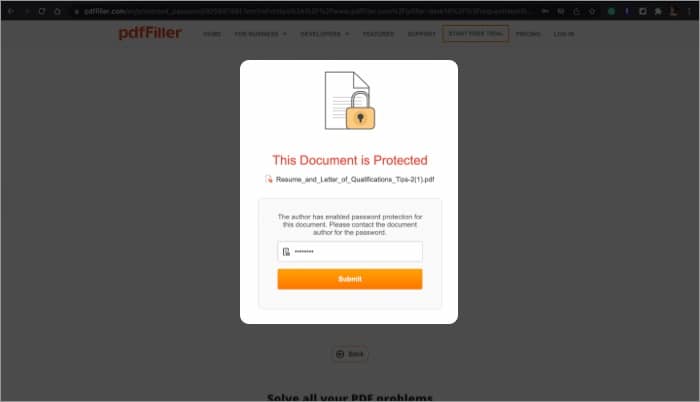
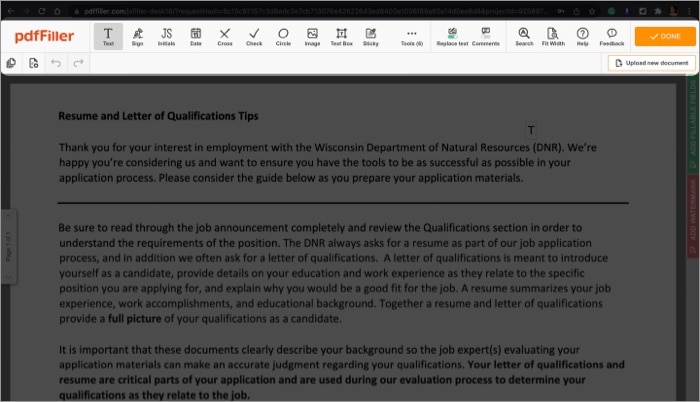
- Make some changes if you want.
- Click Done.
- In the web dashboard, click Send to and select Save, Share, or Email as per preference.
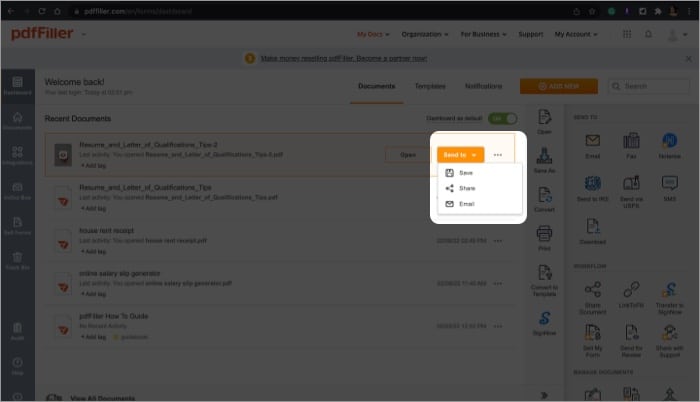
The saved or shared file will not have a password anymore.
Signing off
Well, here you go. You have three ingenious methods to permanently remove the PDF password and easily access the file. You can choose your favorite method or try them all to see which one you prefer.
Share your experience with us in the comment section below.
Read our related articles:

Written by
Arshmeet KaurA self-professed Geek who loves to explore all things Apple. I thoroughly enjoy discovering new hacks, troubleshooting issues, and finding and reviewing the best products and apps currently available. My expertise also includes curating opinionated and honest editorials. If not this, you might find me surfing the web or listening to audiobooks.
View all posts →More from How-to

How to Turn Off Location on Snapchat (Step-by-Step Guide)
Want to stop sharing your location on Snapchat? This guide explains how Snapchat location sharing works and shows simple ways to turn off your location using Ghost Mode or phone settings. Stay in control of your privacy in just a few steps.
 VikhyatMarch 5, 2026
Snapchat Parental Controls: How to Set Up Family Center and Keep Your Teen Safe
Snapchat’s Family Center lets parents monitor their teen’s friend activity and screen time without reading private messages. Here’s how to set it up and what to expect.
VikhyatMarch 3, 2026
How to Block and Unblock Someone on Instagram
Instagram lets you block or unblock someone in seconds. Follow these simple steps to take full control of your privacy and online peace.
 Ava BiswasMarch 2, 2026