The iPhone has separate controls for softening loud sounds from its built-in speaker, setting a maximum speaker volume, and reducing headphone audio. Reduce Loud Sounds applies to the built-in speaker. It is a toggle, not a slider, and it is different from the setting that caps maximum volume. The names are easy to mix up, so use the control that matches the audio you want to change.
Turn on Reduce Loud Sounds
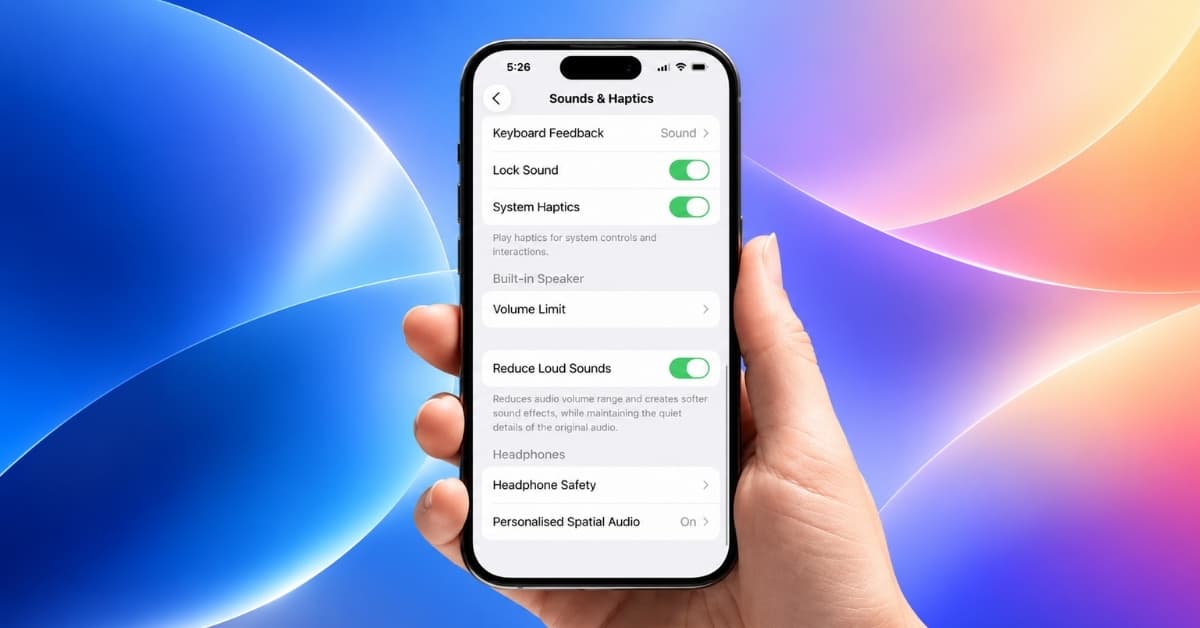
Open Settings > Sounds & Haptics. Under Built-In Speaker, turn on Reduce Loud Sounds. There is no level slider for this control; the switch enables the speaker setting.
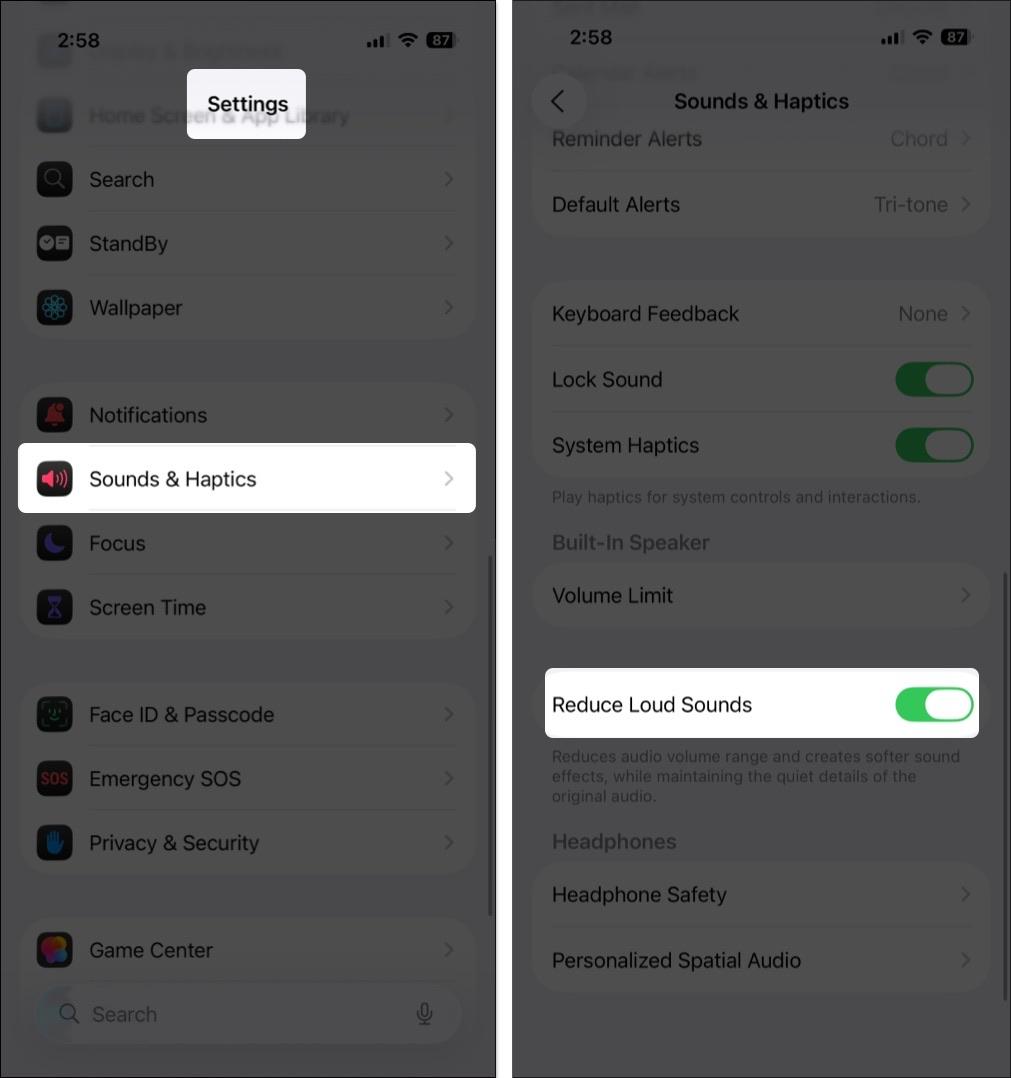
This setting is for playback through the iPhone’s built-in speaker. It does not control headphones or AirPods, and Apple describes it as a way to soften loud speaker sounds. It does not set a chosen decibel level or a maximum volume. If you want a specific output cap, use Volume Limit instead.
Set a maximum speaker volume
Go to Settings > Sounds & Haptics > Built-In Speaker > Volume Limit. Turn on Limit Maximum Volume, then drag the slider to choose the highest speaker output you want.
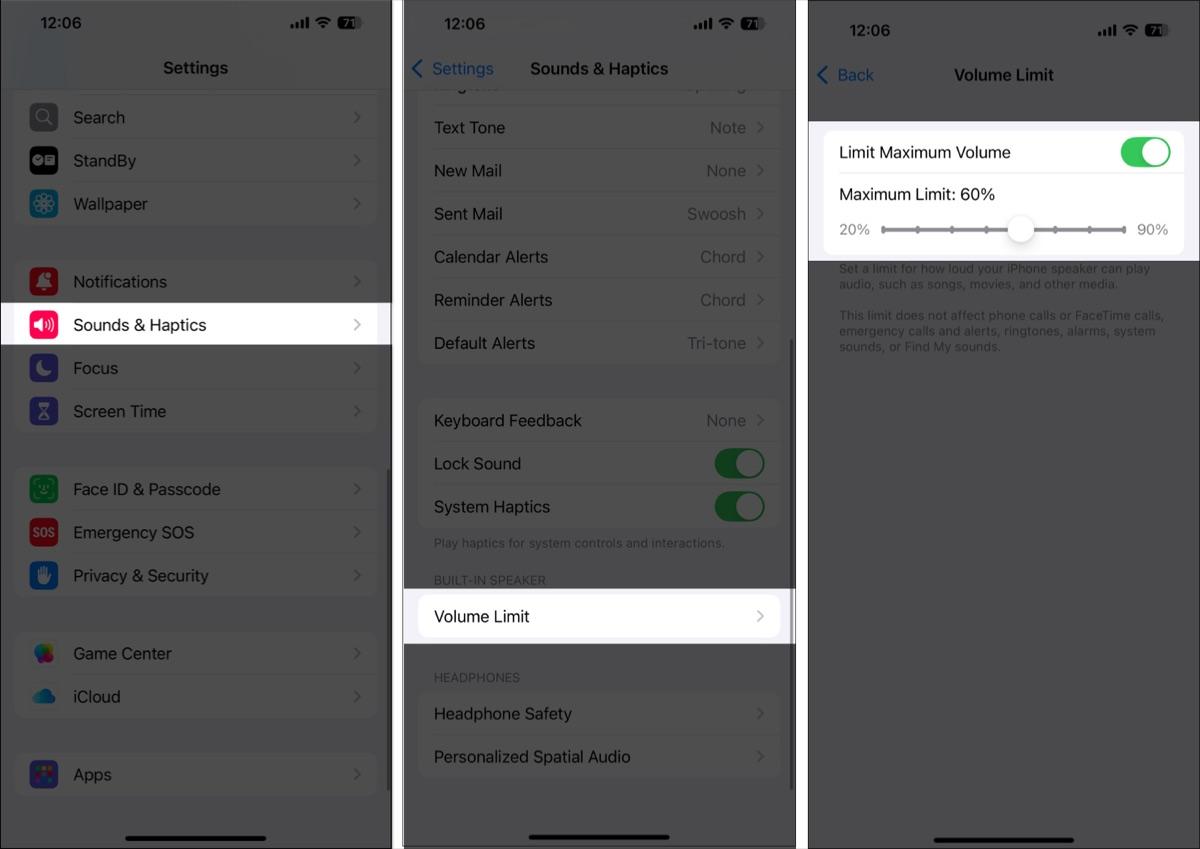
Use this option when you want a cap that applies to speaker playback overall. You can use it alongside Reduce Loud Sounds; one softens loud sounds, and the other limits the maximum level. Set the slider where you want it, then play audio at your usual level to see whether the cap feels right. For a separate walkthrough, see how to set a limit on iPhone speaker volume.
Reduce loud audio in headphones
For headphones or AirPods, open Settings > Sounds & Haptics > Headphone Safety. Turn on Reduce Loud Audio, then adjust its slider to set the level at which headphone audio is reduced. This control is separate from the built-in speaker settings. If the option is missing, connect your headphones and check again; the headphone controls apply to supported headphones.
If you are trying to raise the volume of music that sounds unusually quiet, check our guide to fixing low music volume on iPhone or making AirPods louder.
Keep media and alert volume separate
The side volume buttons adjust media while audio is playing. When nothing is playing, they adjust ringer and alert volume. To prevent the buttons from changing alert volume, go to Settings > Sounds & Haptics and turn off Change with Buttons. You can still change media volume from Control Center or while a song or video is playing. If an alert is too loud, use the Ringtone and Alert Volume slider in Sounds & Haptics; Reduce Loud Sounds does not control notification volume.
Is Reduce Loud Sounds a headphone safety feature?
No. It applies to the iPhone’s built-in speaker. To reduce headphone audio, use Headphone Safety > Reduce Loud Audio. The speaker’s Volume Limit is a third, separate control for capping maximum output. If you hear low music volume after changing these settings, check the media slider first, then review your headphone or speaker limit.
In case you missed: