
How to use Inspect Element on a Mac to modify webpages
Learn how to inspect elements using browsers like Safari, Chrome, and Firefox, and debug your website in real time.
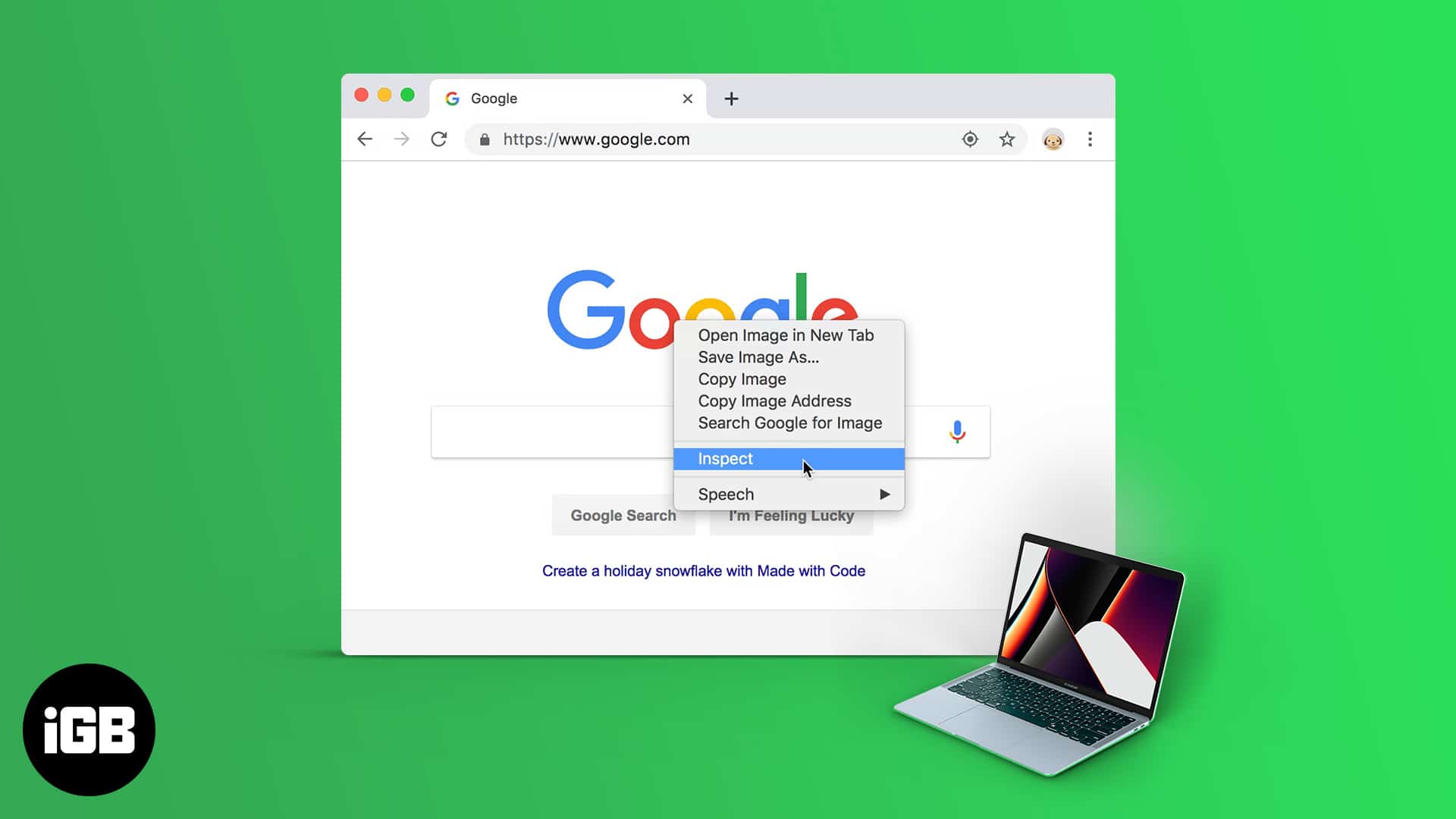
- Overview: Inspect Element is a built-in browser tool for developers and designers to view, debug, and temporarily modify the HTML and CSS code of any webpage.
- Uses of Inspect Element: Use it to test design changes in real-time, debug layout issues, identify performance bottlenecks, or extract specific text and image assets from a webpage.
- How to Access It: To open it, right-click and select “Inspect.” For Safari, you must first enable the “Develop” menu in the Advanced settings before you can access it.
- Temporarily Modify Webpages: Any changes you make to a webpage’s code using Inspect Element are temporary and only visible on your computer; they disappear when you refresh the page.
- Important Tips: Always use this tool ethically for learning and testing. Modifying websites for malicious purposes or to create misleading screenshots can have serious consequences.
Inspect Element, also called Inspect, is a versatile tool built into browsers. Contrary to popular misconception, it’s as valuable for designers and developers as casual users. As a casual user, you can use Inspect Element on macOS devices to learn more about a webpage, extract some information or data from a webpage, or modify web page content, among other things.
Keep reading, and I will show you how to use Inspect Element on your Mac.
What is Inspect Element?
If you always wondered what makes a website work, including the one you’re on right now, here’s an analogy that could help. Think of a website as a building: the structure and framework are crafted with HTML and JavaScript, while CSS adds the paint and decor.
Inspect Element lets you peel back the layers to see the blueprint of any webpage. But there’s more to it, and you may use Inspect Element to do a whole bunch of other things, like:
- Debug errors in code: You can quickly check and resolve issues in HTML, CSS, or JavaScript.
- Test design changes: You can even experiment with layouts, colors, and fonts.
- Analyze website performance: You can check for website’s responsiveness and understand loading behaviors.
- Copy elements: You can easily grab text, images, or styles from websites as long as you’re not violating anything.
- Modify content temporarily: You can edit text, images, or other elements that will reflect in real-time.
- Understanding SEO: You can analyze meta tags, headers (H1, H2, H3…), and keyword placement.
How to access Inspect Element on different browsers
Now that you have a basic idea of what Inspect Element can do, let’s see how to use it on your Mac across different browsers. You can use Inspect Element across popular browsers such as Safari, Chrome and Firefox. I’ll show you how.
On Safari
- Open Safari.
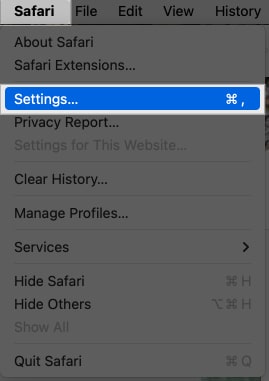
- Click Safari in the top menu bar and select Settings.
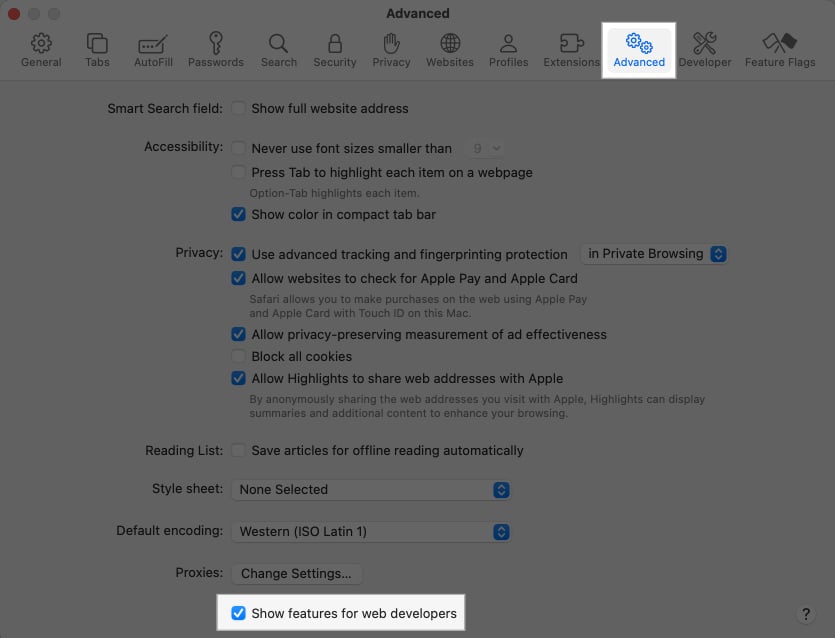
- Go to the Advanced tab and make sure to enable the Show Features for Web Developers option.
- Go to the webpage you want to analyze or modify, Control-click on any element, and select Inspect Element.
On Chrome
- Open Chrome and go to the webpage you want to inspect.
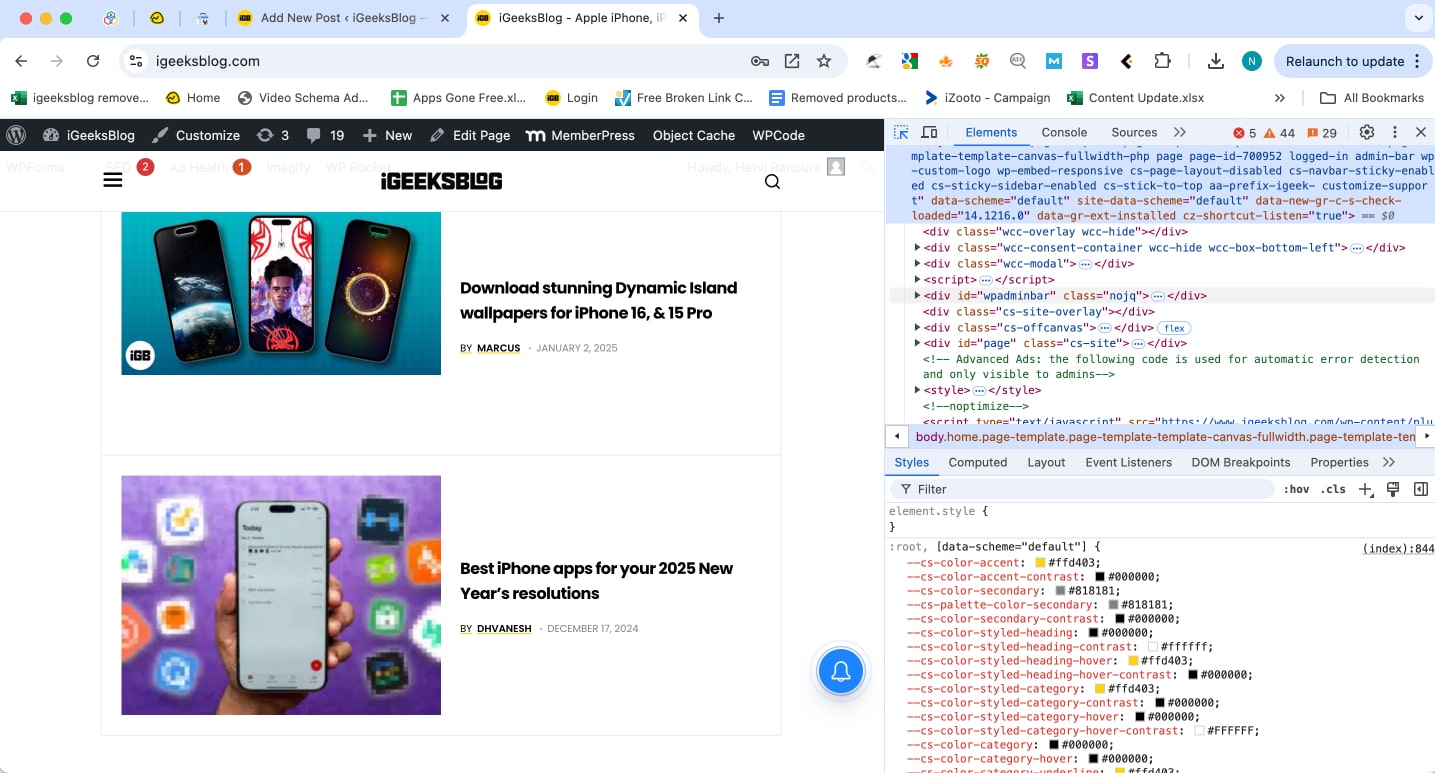
- Control-click anywhere on the page and select Inspect. Alternatively, you can use the Command+Option+I keyboard shortcut to bring up the DevTools panel.
Note:
On Firefox
- Open Firefox and go to the website you’d like to inspect.
- Control-click on any element and choose Inspect. Or use Command+Option+I to bring up the Developer Tools.
How to use Inspect Element to modify a webpage
As already mentioned, you can use Inspect Element to edit website content temporarily, which can be useful for design experimentation, testing changes, or just pulling pranks. Here’s how to do this.
Edit text on a webpage
- Open the webpage and select the text you want to modify.
- Control-click the text and select Inspect.
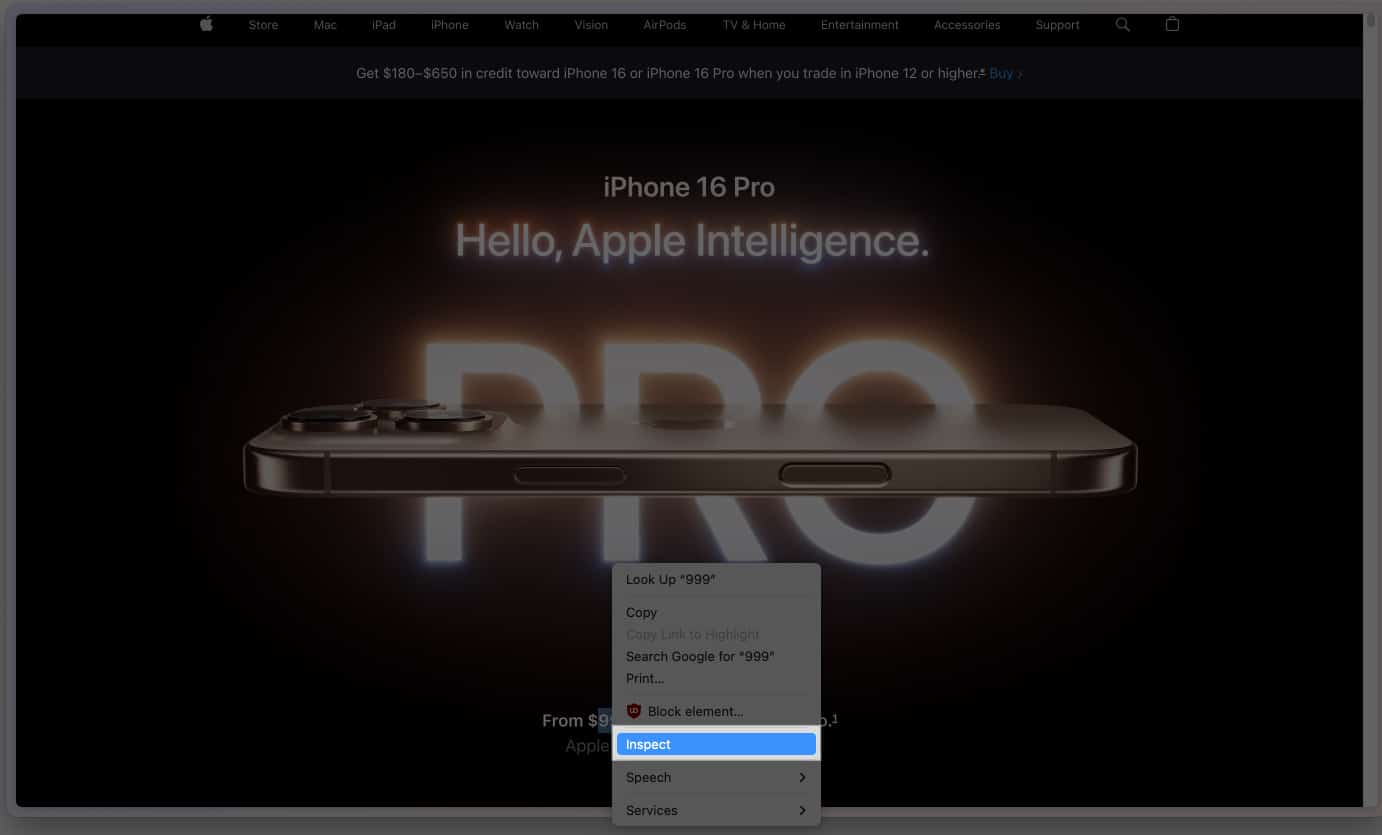
- You will now see the HTML code for the selected element highlighted in the Developer Tools panel. Click it, type your new text, and hit Return.
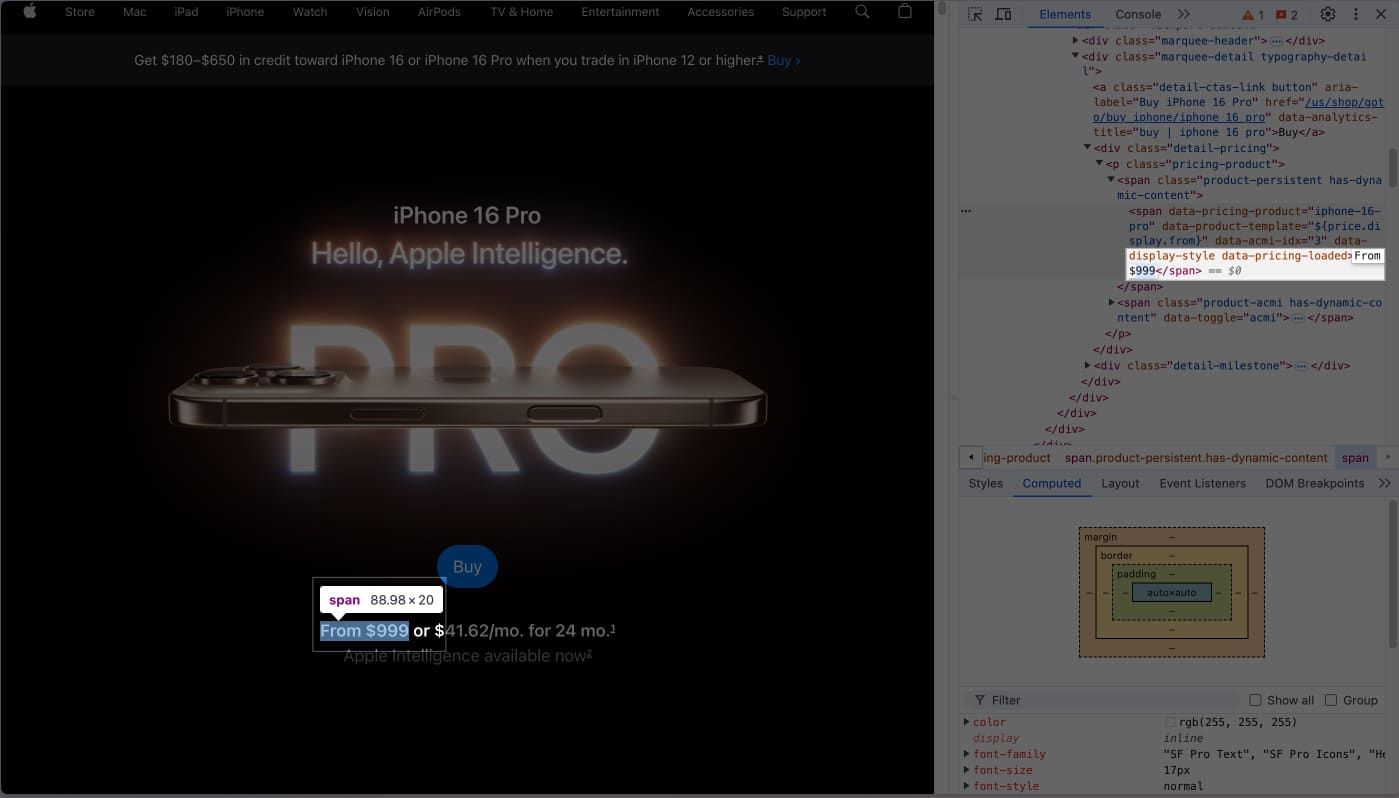
Your changes will appear instantly on the webpage. However, take note that they are temporary.

Change images on a webpage
- Control-click the image you want to modify and select Inspect.
- In the Developer Tools panel, look for the tag with the src attribute. (Here, src implies source of the image.)
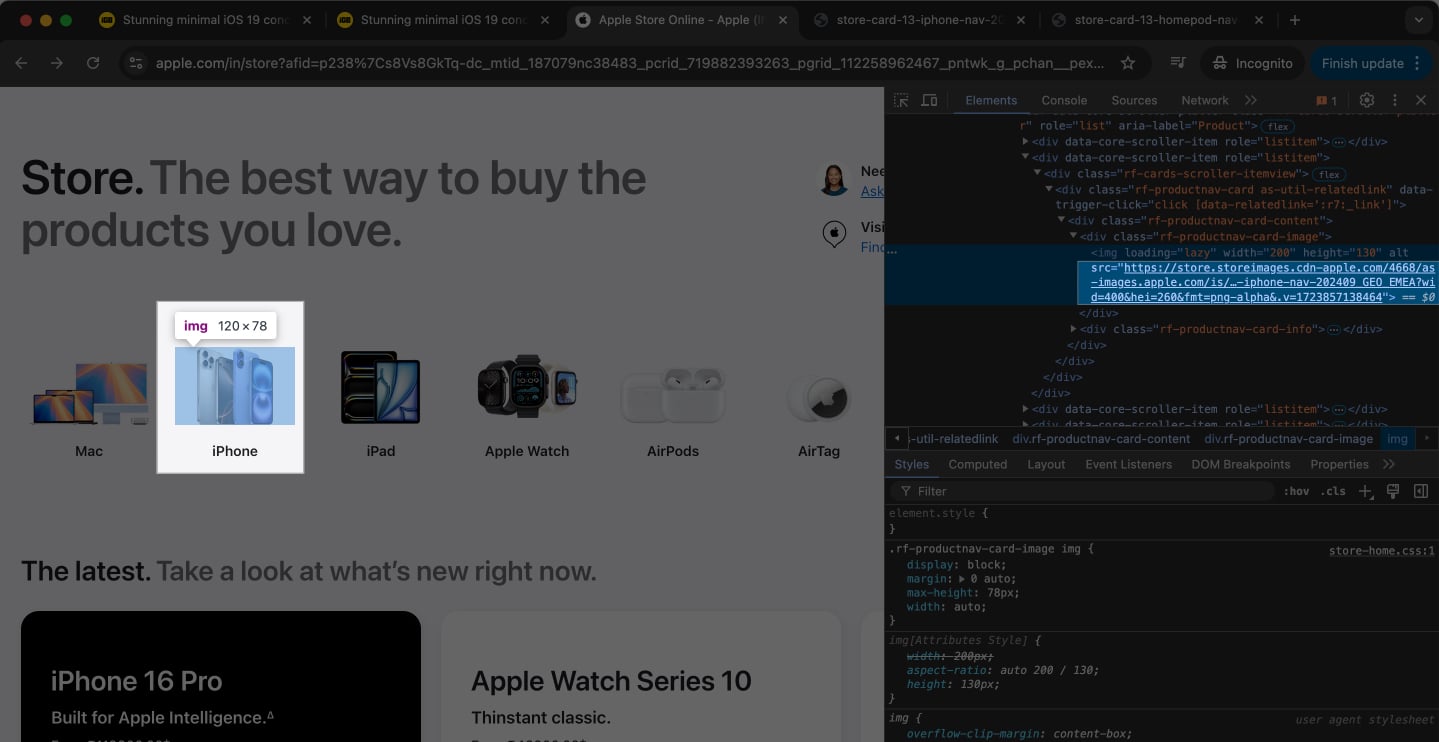
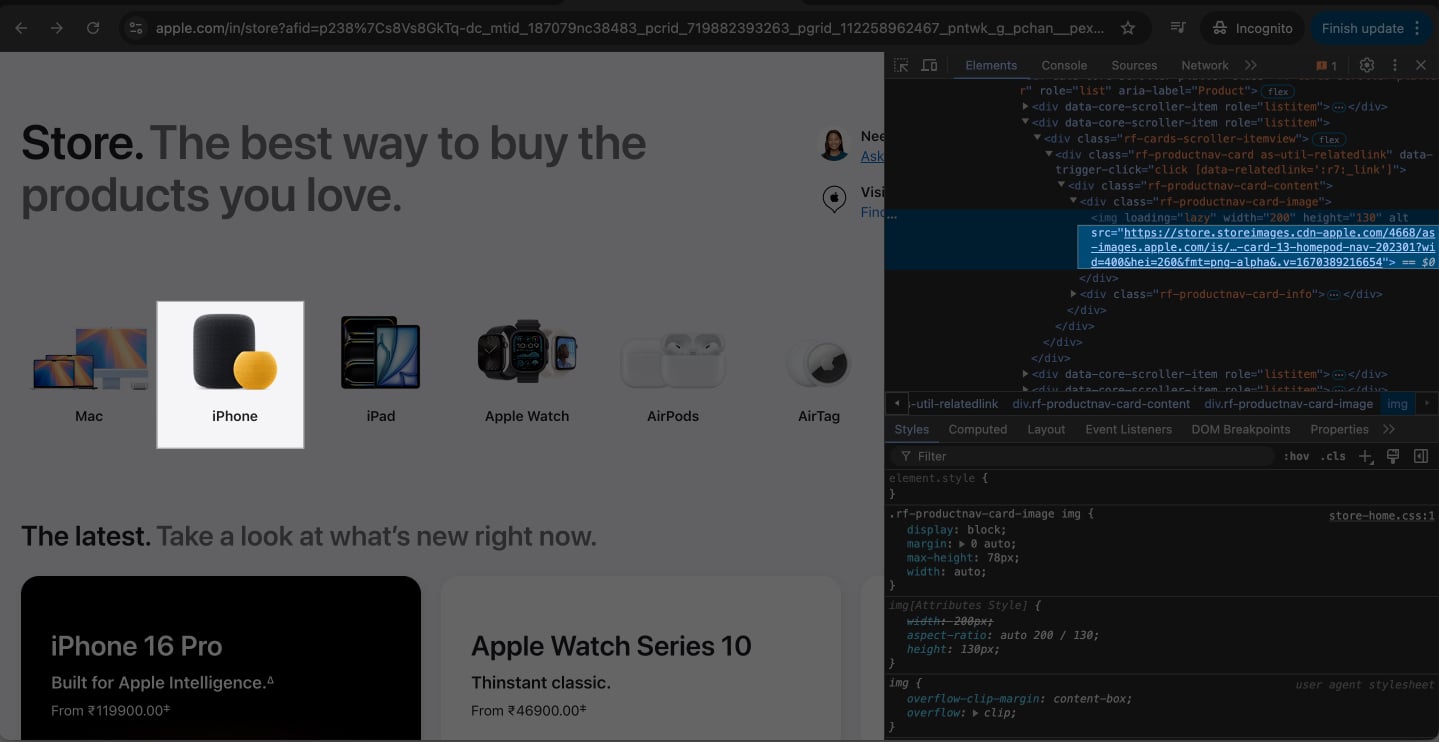
- Replace the URL in the src attribute with the URL of the new image you want to display.
- Press Return, and the image will update instantly.
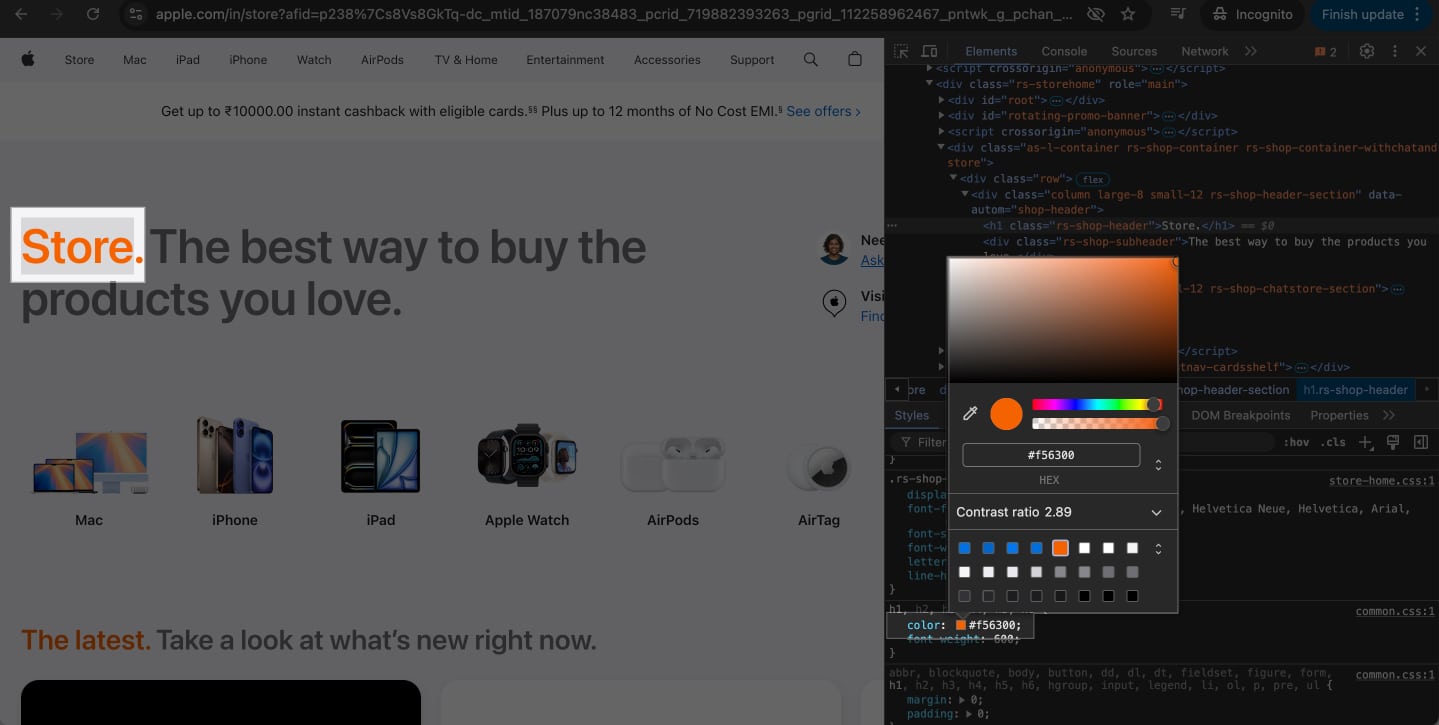
Modify colors and styles
- Control-click on the element whose style you want to change and select Inspect.
- Navigate to the Styles section in the Developer Tools panel.
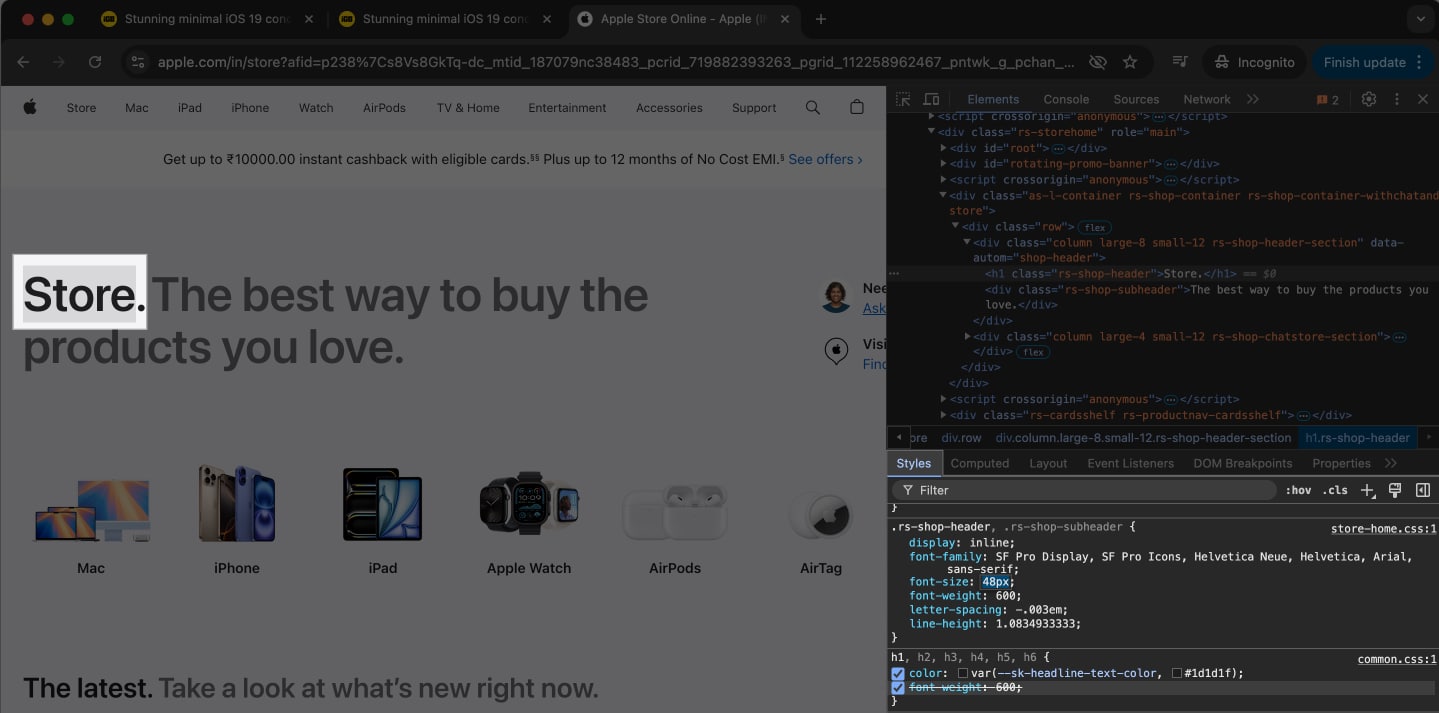
- Edit CSS properties like color, font-size, or background-color directly in the panel. You can check out HTML Color Codes to quickly get HTML color codes.
Replace hyperlinks
- Control-click on a hyperlink and select Inspect.
- Locate the tag in the HTML with the href attribute.
- Change the href value to a different URL and press Return.
- Click the modified link to test the new destination.
Pro Tip:
Signing off…
As you just saw, it’s easy to use Inspect Element on a Mac to perform various manipulations and operations on a webpage. Sure, you may feel intimidated looking at website code at first, but as you use the tool more and more, you will find yourself at ease and be able to do much more than what we have covered in the guide.
Frequently Asked Questions

Written by
Darryl DsouzaConsumer Technology and Motorcycles are the two things that excite Darryl the most. Why? Because Tech helps better people's lives, and solving people's problems related to tech is something he enjoys. And what about bikes, you ask? Well, drop a gear and disappear.
View all posts →More from How-to

How to Turn Off Location on Snapchat (Step-by-Step Guide)
Want to stop sharing your location on Snapchat? This guide explains how Snapchat location sharing works and shows simple ways to turn off your location using Ghost Mode or phone settings. Stay in control of your privacy in just a few steps.
 VikhyatMarch 5, 2026
Snapchat Parental Controls: How to Set Up Family Center and Keep Your Teen Safe
Snapchat’s Family Center lets parents monitor their teen’s friend activity and screen time without reading private messages. Here’s how to set it up and what to expect.
VikhyatMarch 3, 2026
How to Block and Unblock Someone on Instagram
Instagram lets you block or unblock someone in seconds. Follow these simple steps to take full control of your privacy and online peace.
 Ava BiswasMarch 2, 2026