
How to Hide WhatsApp Message Preview on iPhone
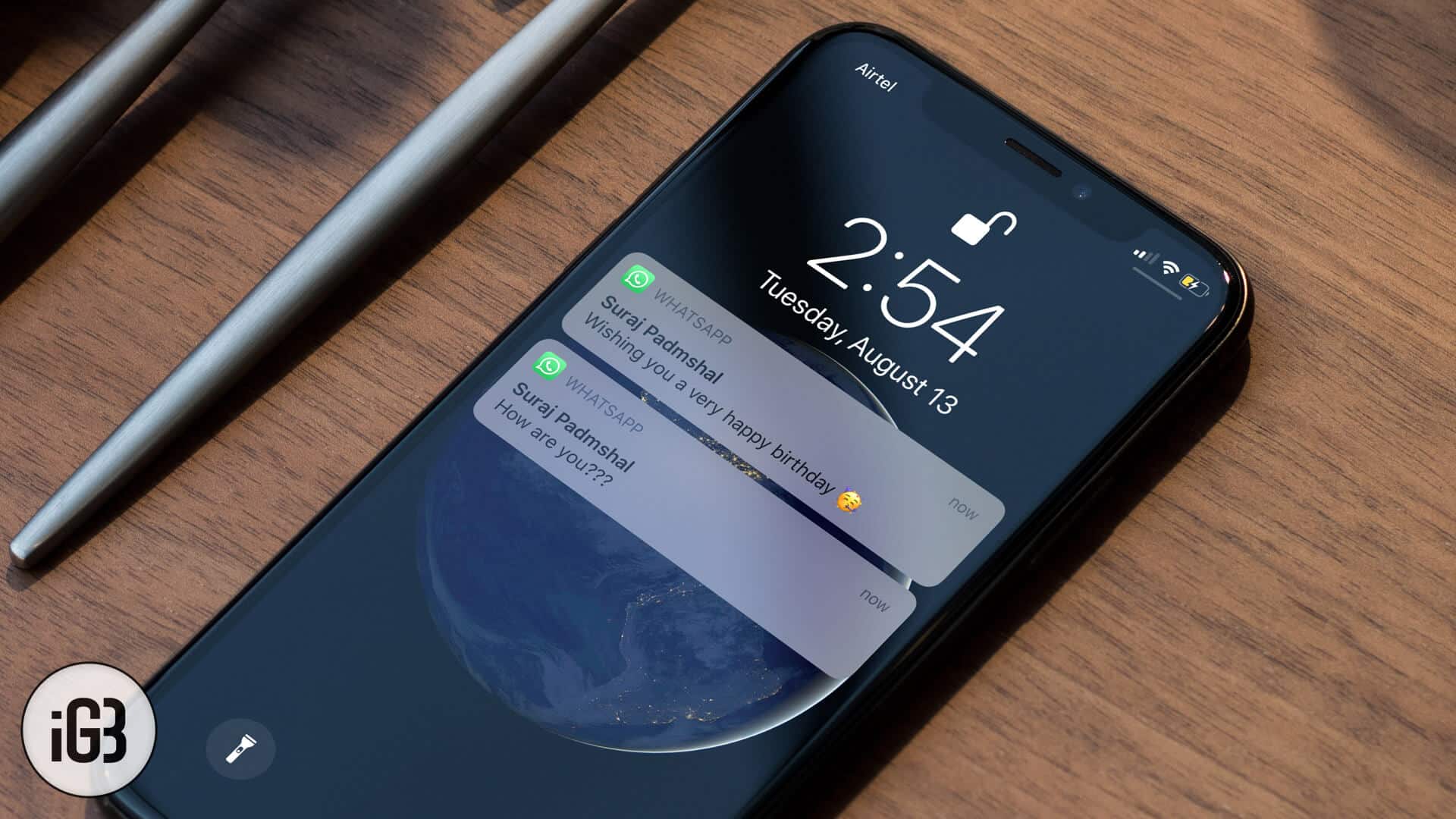
With the increasing use of WhatsApp, the free instant messaging app, people have stopped communicating via SMS, which is now nearly defunct. Apart from sharing jokes, crazy pictures, and funny audio/video content, WhatsApp users are also using this app to communicate serious & private matters. And when it comes to privacy, one has to protect it at any cost.
Whenever a WhatsApp message pops up, the preview shows some content of the message in notifications. While you are with your friends, relatives or colleagues, you would never like to disclose any personal content. To avoid this situation, either you have to go away from the group or follow the below mentioned simple steps to hide WhatsApp message preview on your iPhone or Android device.
Quick links:
How to Turn Off WhatsApp Message Preview on iPhone
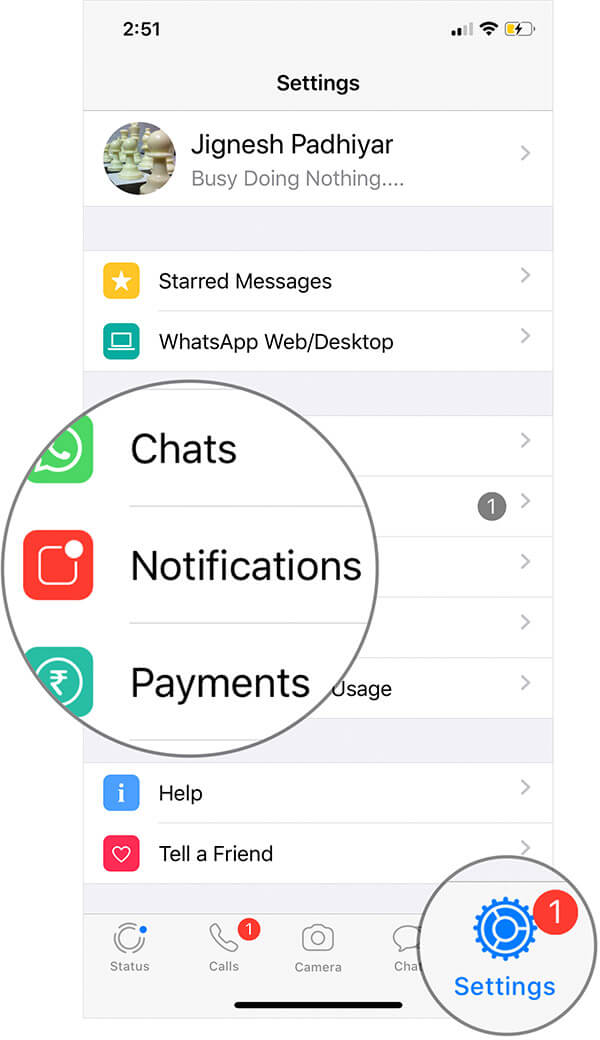
Step #1. Open WhatsApp on your iPhone → Tap on Settings of WhatsApp → Tap on Notifications.
Step #2. Turn off the switch next to Show Preview off.
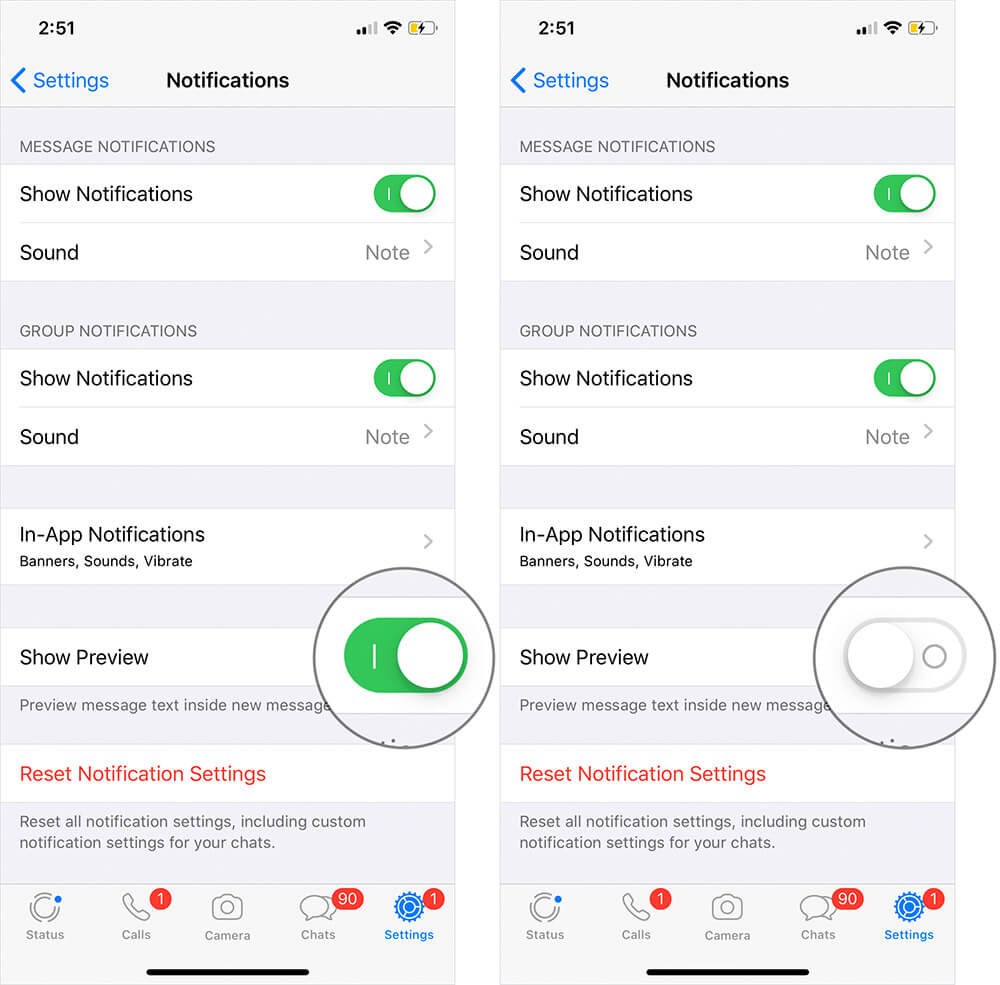
The above two simple steps will turn off the preview of WhatsApp notifications on your iPhone. You will only receive the sender’s name whenever there a notification from someone.
If you wish to undo this action, simply toggle Show Preview on after following the first three steps.
For Android, you can hide the previews from the lockscreen but the name of the sender will also be hidden. On top of that, this will hide previews for all the apps.
How to Hide WhatsApp Message Preview on Android
Step #1. Go to your Phone Settings → Tap on Apps & Notifications.
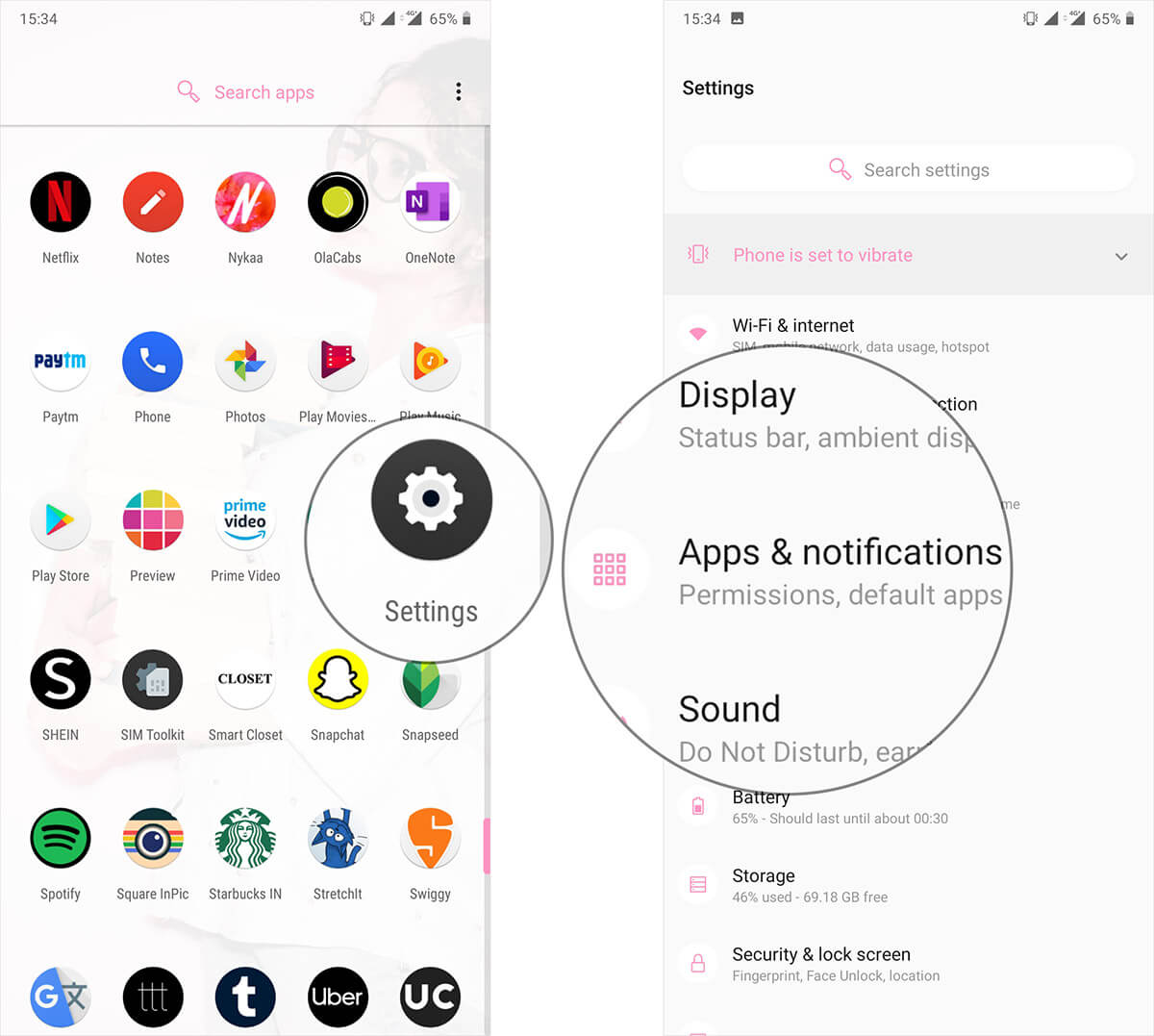
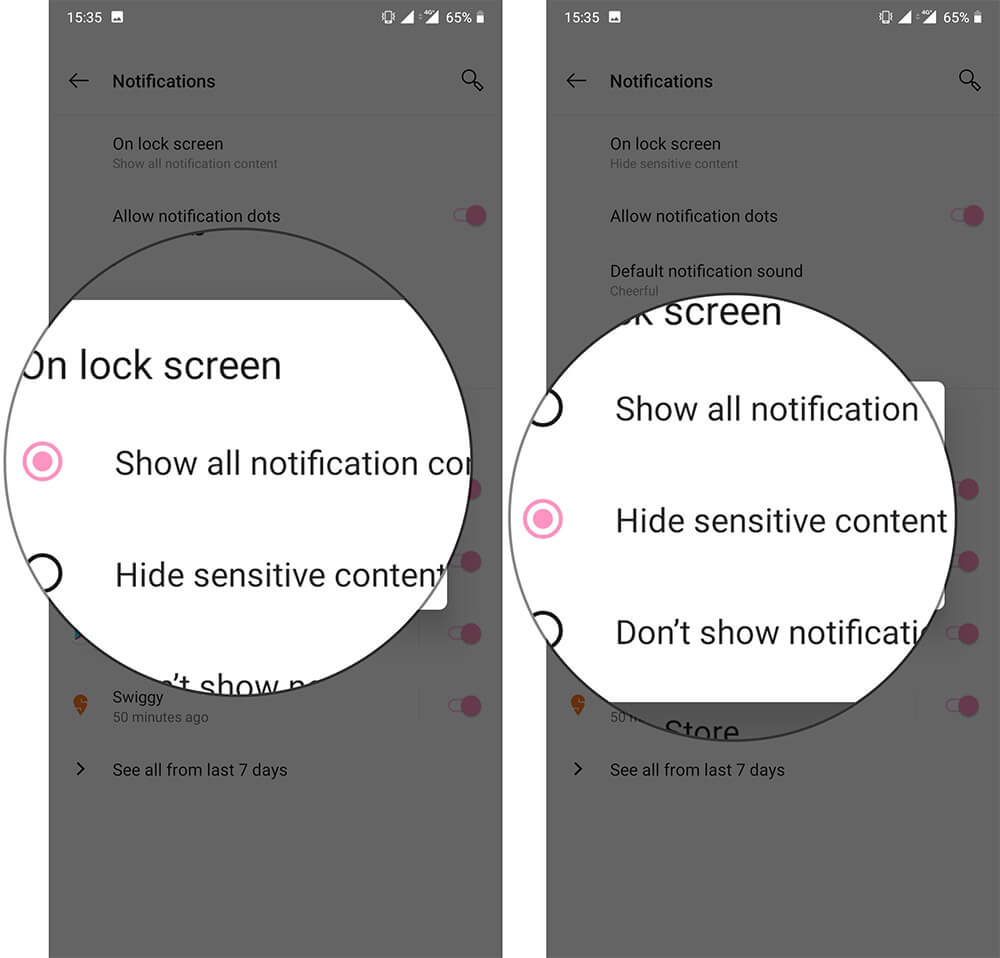
Step #2. Tap on Notifications → Tap on On lock screen.
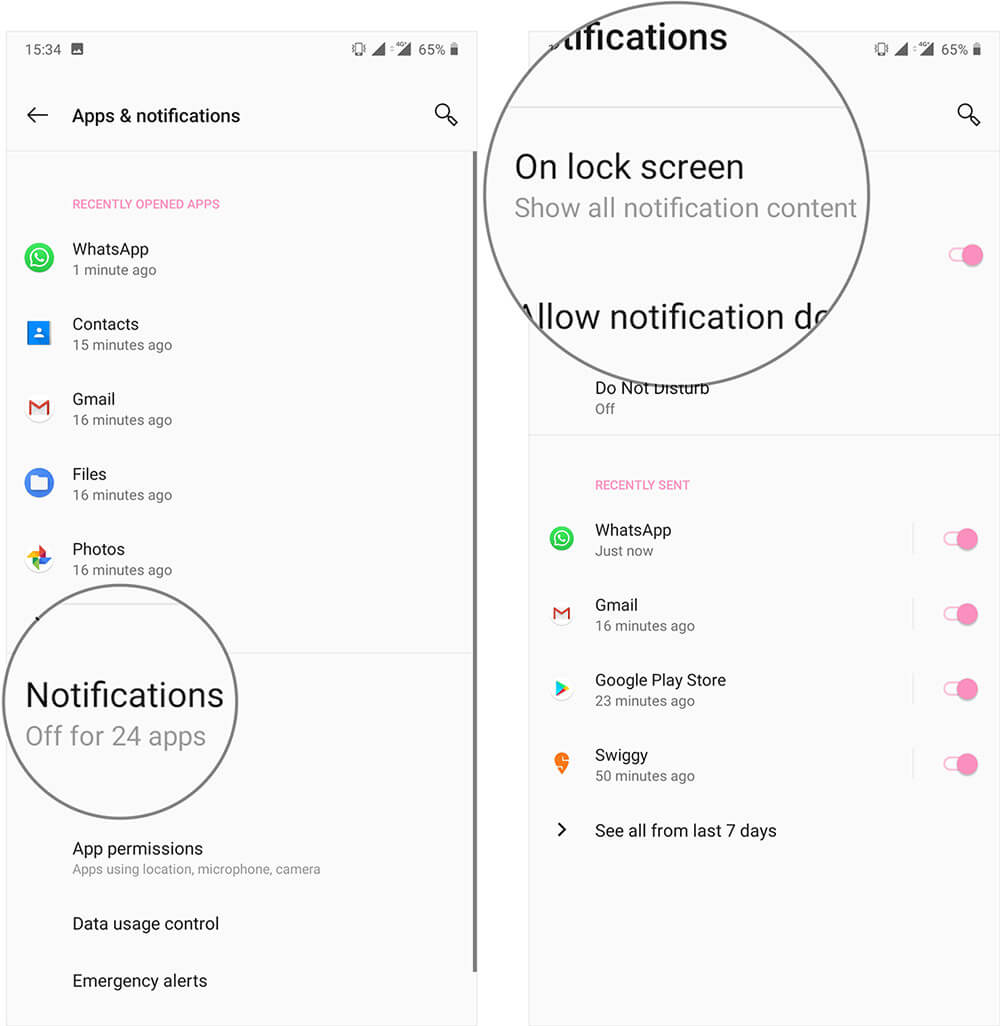
Step #3. Tap on Hide Sensitive content.
As more and more people are using smart gadgets, life has become more personal and private, hence, such tricks are handy to protect your privacy when you are surrounded by many people. At the same time, such tricks save you from those who are in the habit of shoulder-surfing in congested places like elevator or queue.
Read More Informative Posts on WhatsApp
That’s all, folks!
Topics

Written by
Jignesh PadhiyarJignesh Padhiyar is the co-founder of iGeeksBlog.com, who has a keen eye for news, rumors, and all the unusual stuff around Apple products. During his tight schedule, Jignesh finds some moments of respite to share side-splitting content on social media.
View all posts →More from How-to

How to Turn Off Location on Snapchat (Step-by-Step Guide)
Want to stop sharing your location on Snapchat? This guide explains how Snapchat location sharing works and shows simple ways to turn off your location using Ghost Mode or phone settings. Stay in control of your privacy in just a few steps.
 VikhyatMarch 5, 2026
Snapchat Parental Controls: How to Set Up Family Center and Keep Your Teen Safe
Snapchat’s Family Center lets parents monitor their teen’s friend activity and screen time without reading private messages. Here’s how to set it up and what to expect.
VikhyatMarch 6, 2026
How to Block and Unblock Someone on Instagram
Instagram lets you block or unblock someone in seconds. Follow these simple steps to take full control of your privacy and online peace.
 Ava BiswasMarch 2, 2026