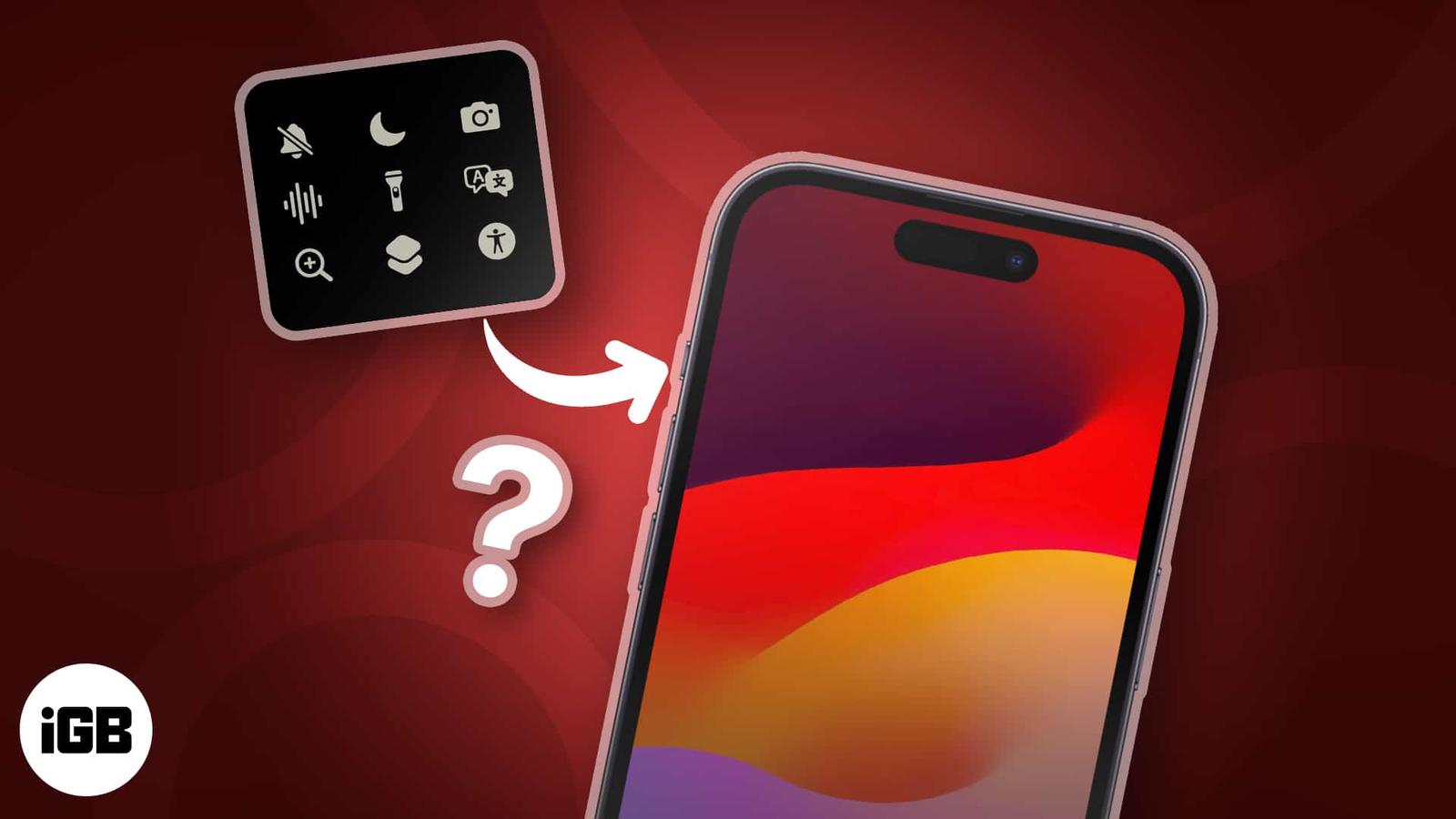
The Action Button is a welcome addition to the iPhone 15 Pro series, letting you do all sorts of things with just a tap. Rocking an older model? Don’t feel bad! There’s a nifty workaround for you to get a taste of using an Action Button, even without the actual button. Thanks to a clever shortcut named Rebind, you can turn your volume buttons into Action Buttons—so they can do more than just adjust the volume on your iPhone. Here’s everything you need to know.
- Things required to get Action button on any iPhone
- How to use Shortcuts to convert your iPhone volume buttons into Action Buttons
Things required to get Action button on any iPhone
To convert your iPhone’s volume buttons into Action buttons, you’ll need the software magic of Shortcuts. Fortunately, most iPhone models can use this feature if it runs at least iOS 13. You can always redownload Shortcuts in the App Store if you have accidentally deleted it.
Once that’s done, download the Rebind shortcut on Routinehub by tapping Get Shortcut. You should see a shortcut named Rebind once you go to Shortcuts.
How to use Shortcuts to convert your iPhone volume buttons into Action Buttons
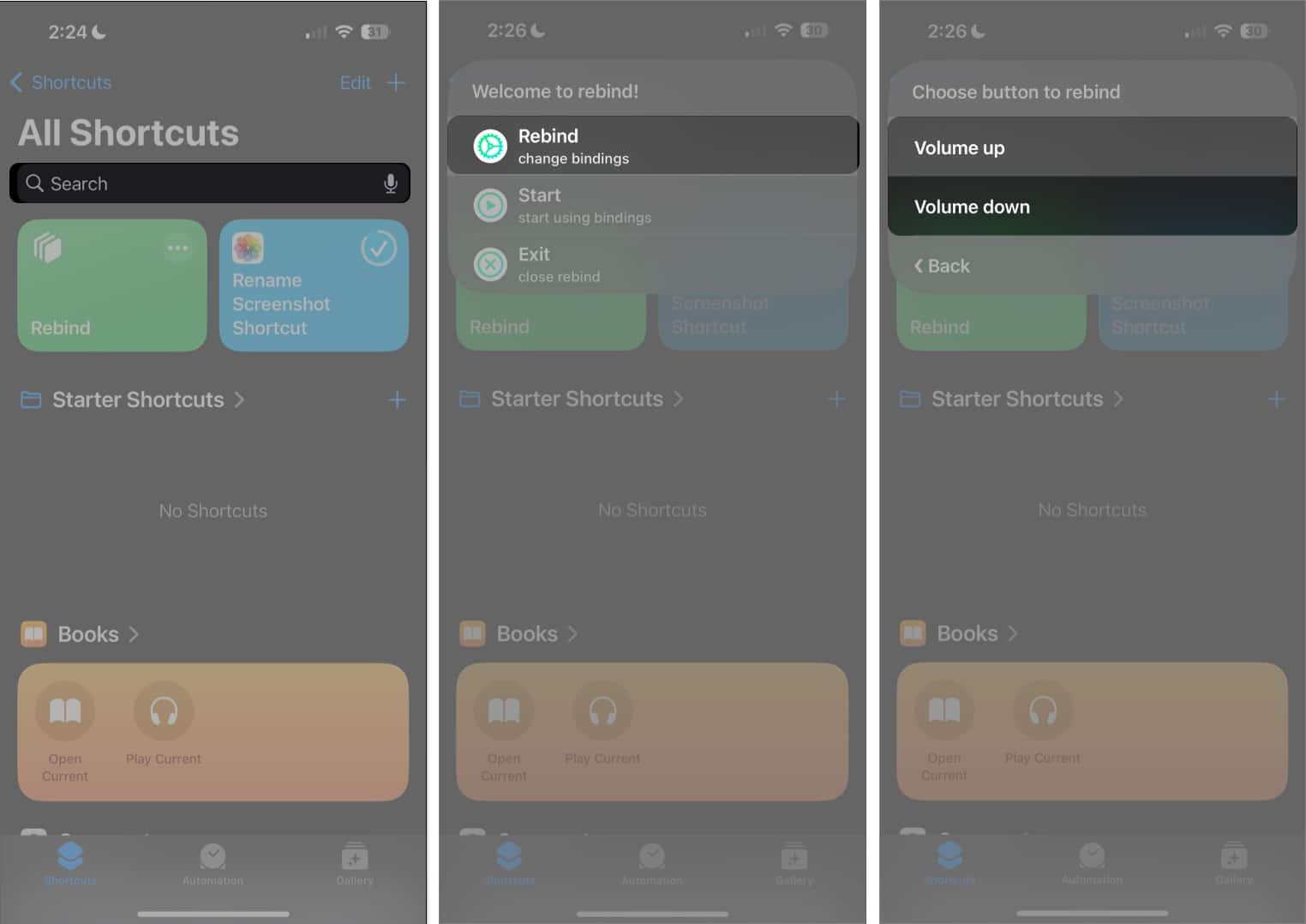
- Open the Shortcuts app on your iPhone.
- Tap Rebind → Select Rebind from the options.
- Choose a Volume button.
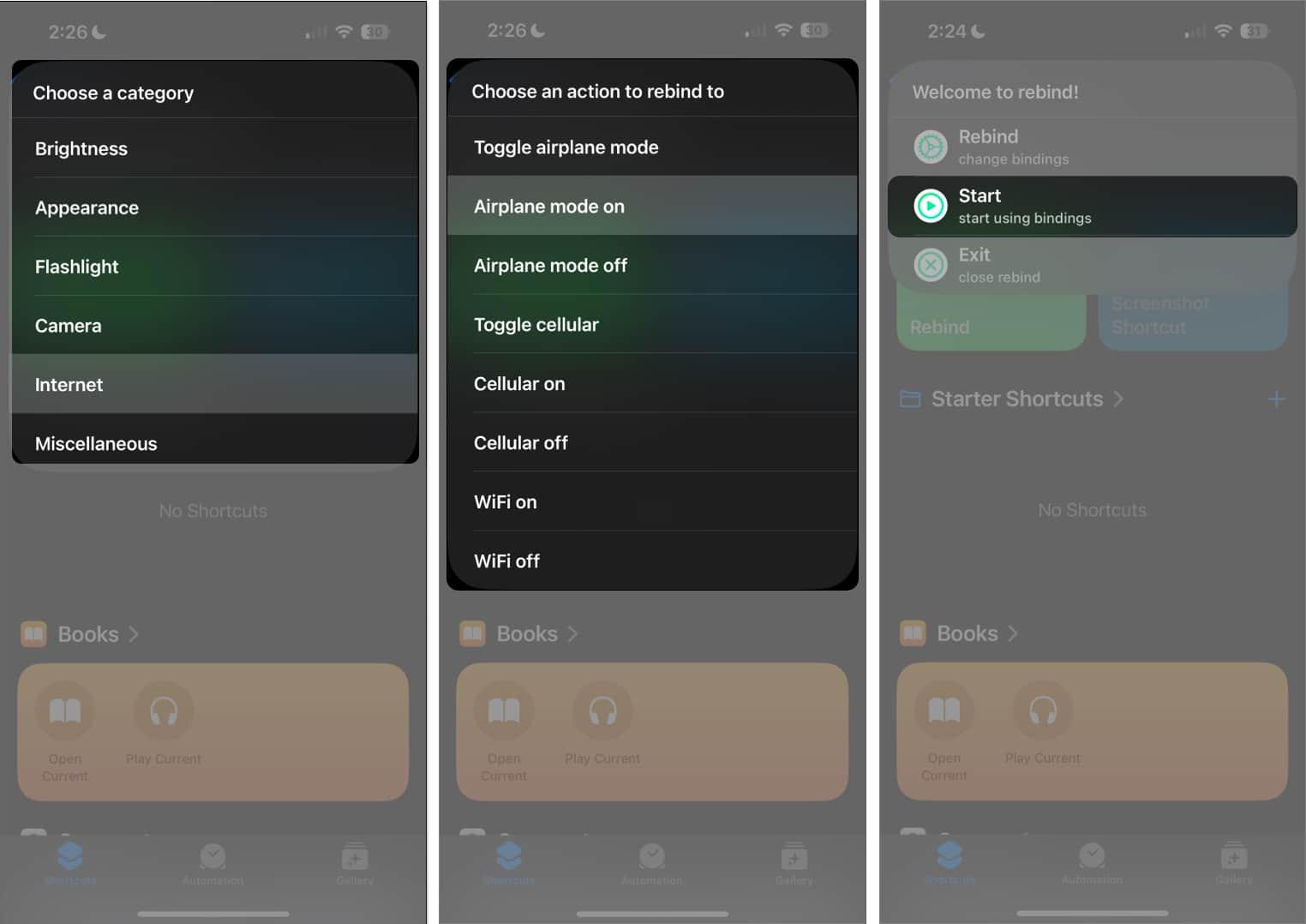
- Choose from the available categories or functions.
- Select an action you want to bind your selected button to.
- If you want to assign a function to the other Volume button, tap Rebind and select the other Volume button. Choose another category or function for it.
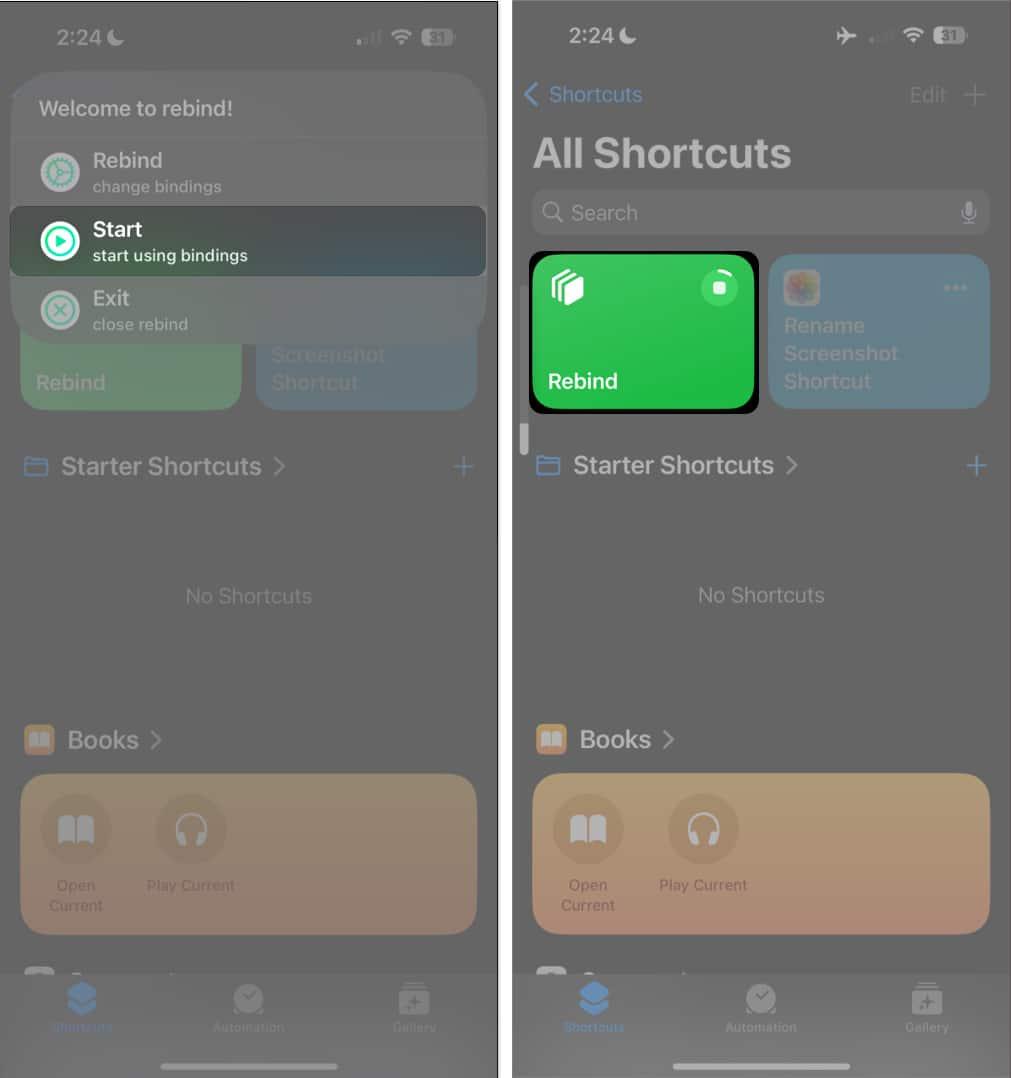
- To begin running the shortcut, tap Start.
- Press the volume up or volume down button to make them perform their newly assigned functions.
- It’s important to note that the shortcut will be on standby as long as Shortcuts is running. Seeing the Rebind icon on Dynamic Island indicates that it is active. As long as it is, you can trigger the shortcut even while on another app.
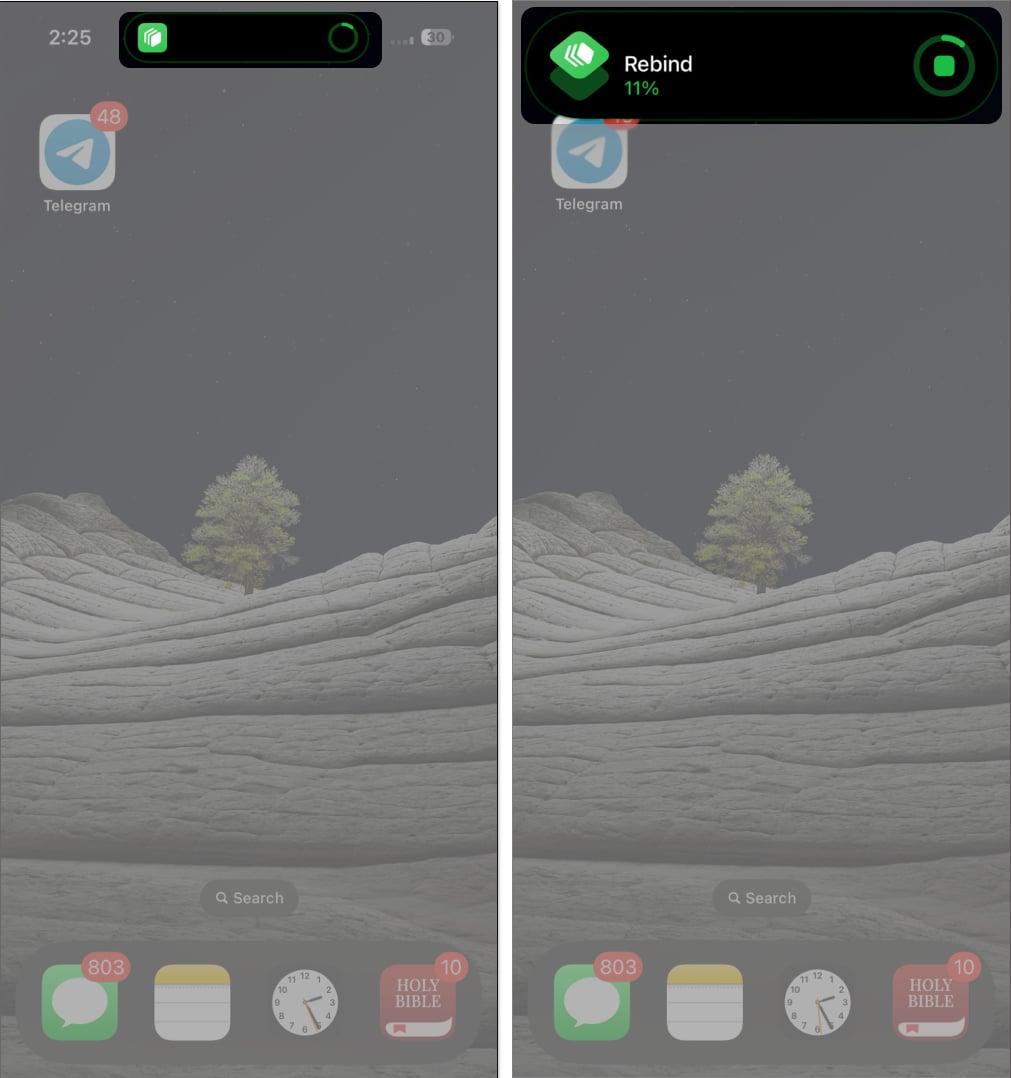
- Another way to see if it’s running is by going to Shortcuts. If you see an ellipsis on the upper-right of the Rebind shortcut, then it’s not running, but if you see a Square (stop) button, then it’s actively running.
- Tip: Avoid running an app that requires the volume up and down function, such as Music and Podcasts, since these may interfere with the shortcut.
- It’s important to note that the shortcut will be on standby as long as Shortcuts is running. Seeing the Rebind icon on Dynamic Island indicates that it is active. As long as it is, you can trigger the shortcut even while on another app.
- Tap the Stop (square) button to stop the shortcut from running. A check mark should appear, confirming that you’ve stopped the shortcut.
If you want to give a new function to those volume buttons, just tap the Rebind shortcut and then hit Rebind. This will swap out any old functions you had set up for the buttons.
Also, a quick heads-up! Duplicating the Rebind shortcut doesn’t change things up—no matter how many copies you make, they’ll all perform the same action, sticking to the most recent function you’ve assigned to the volume buttons.
Actions the Volume buttons can take with Rebind
Rebind currently has the following categories:
- Brightness: turn the brightness up or down
- Appearance: enable Light or Dark mode
- Flashlight: turn the Flashlight on or off
- Camera: take a shot using the front or back camera
- Internet: turn on or off your WiFi, Cellular Data, or Airplane mode
- Miscellaneous: take a screenshot
Wrapping up…
Giving your volume buttons some new tricks is a neat idea, but the shortcut is still clunky. And heads up, your iPhone might feel hot if you let the shortcut run for too long. Still, it’s an entertaining workaround for those curious about the Action button experience on the iPhone.
What’s your verdict? Will you stick with the shortcut? We’d love to hear your thoughts. Drop them below!
Read more: