ECG is one of the best health-tracking features on an Apple Watch. It can be a lifesaver in many instances as it plays a crucial role in detecting irregular heart rhythms, such as atrial fibrillation. However, even the most sought-after features like ECG can sometimes malfunction and fail to deliver accurate readings or, worse, not work on your Apple Watch.
Considering the price you paid for your Apple Watch, this can be really frustrating. But don’t worry, as we have you covered. Let’s check out all the possible fixes you can try to troubleshoot ECG on your Apple Watch when it isn’t working.
Common reasons why ECG is not working on Apple Watch
Before we head into the troubleshooting tips, it is crucial to understand what could be interfering with the ECG functionality. Here are some common reasons why ECG isn’t working on your Apple Watch:
- Unsupported Apple Watch model: Not all Apple Watch models support the ECG app. You must own an Apple Watch Series 4 or newer to use the ECG functionality.
- Unavailability in your region: Even if you have a supported model, there is a chance that Apple Watch ECG support isn’t available in your region. So, checking whether your ECG is available in your country is important.
- Software issues: Sometimes, a software issue or incompatibility with a watchOS version, such as an older beta version, can be why ECG is unavailable on your Apple Watch.
- Poor contact with your wrist: Loose or improper wear may affect ECG readings.
- Dirty or wet wrist: Sweat, moisture, or dirt on your wrist can interfere.
- Medical restrictions: Some heart conditions may prevent accurate readings.
7 ways to fix ECG not working on Apple Watch
Now that you know the possible reasons why ECG isn’t working on your Apple Watch, here are the troubleshooting tips you can use to fix the issue on your own.
1. Wear your Apple Watch properly
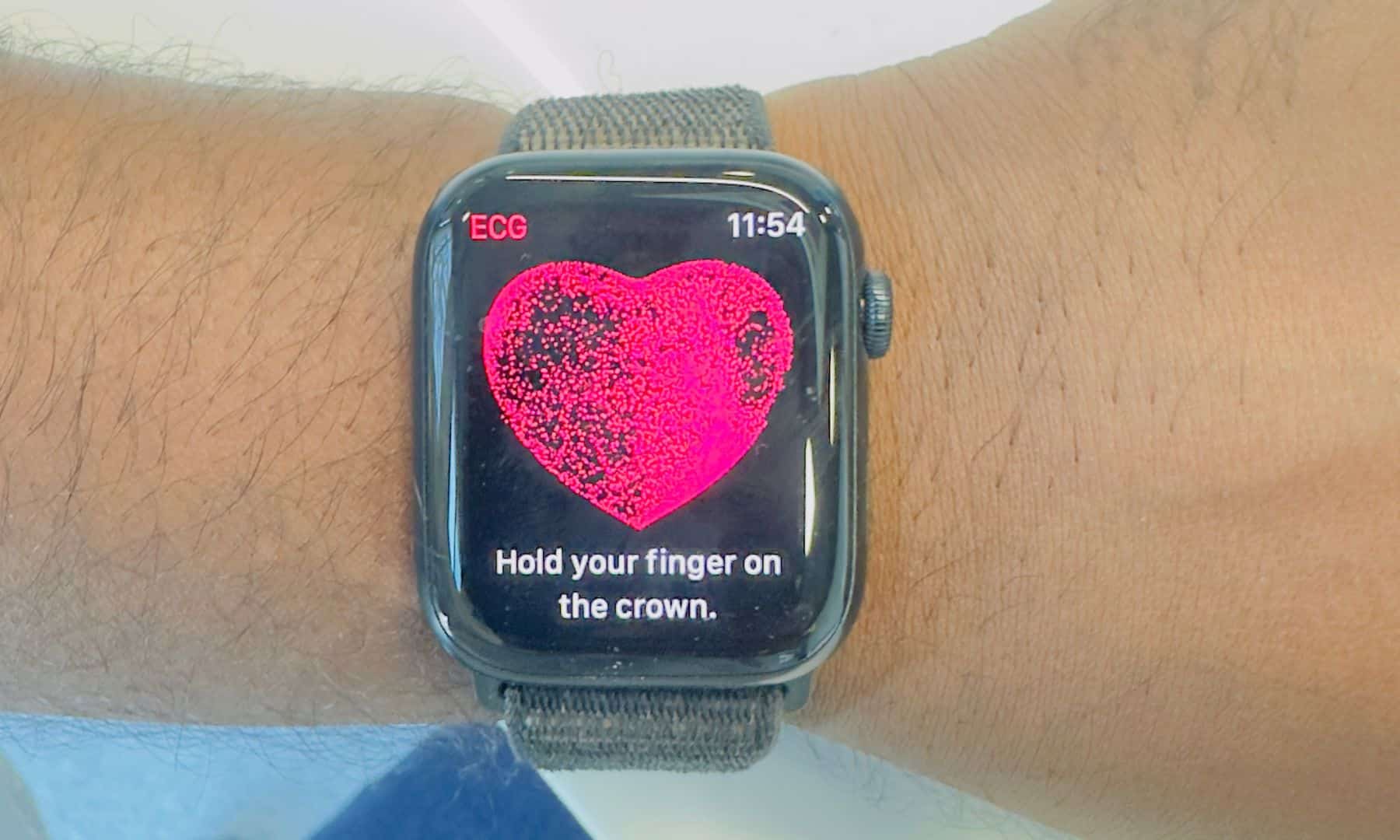
Apple Watch sensors work at their best when the watch snugly fits your wrist. As such, make sure the Apple Watch is tight enough (without causing discomfort) for proper contact with your skin. If your band fails to offer a snug fit, try replacing it. Besides, ensure that your wrist is clean and dry, as water and dust can cause the ECG sensors to malfunction. Once done, place your hand on a flat surface, begin the test, and ensure the Apple Watch remains stationary during the process.
2. Ensure ECG is enabled in the Health app
You won’t see the ECG app on your Apple Watch, even if you own a supported model and reside in a country where the ECG feature is available if you haven’t enabled ECG in the Health app on the paired iPhone. Setting up an ECG in the Health app is necessary for the app to be available on your Apple Watch and to record your heartbeat.
If you haven’t yet, here’s how you can:
- Open the Health app on the paired iPhone.
- Now, head to the Browse tab and tap Heart under Health Categories.
- Locate and tap on Electrocardiogram (ECG).
- Finally, tap the Set Up button and follow the on-screen instructions to set it up.
3. Make sure both Apple Watch and iPhone are on beta or stable operating systems
Mismatched software versions (e.g., a beta watchOS and a stable iOS) can cause compatibility problems and prevent the ECG app from appearing on your Apple Watch. As a result, you won’t be able to use ECG on your Apple Watch even if it supports it.
While you can use ECG when both Apple Watch and iPhone are running on beta OS, consider switching to a stable version, as beta versions are experimental and may cause glitches.
- To switch to stable watchOS: Open the Watch app on your iPhone and go to General → Software Update → Beta Updates. From here, choose the Off option.
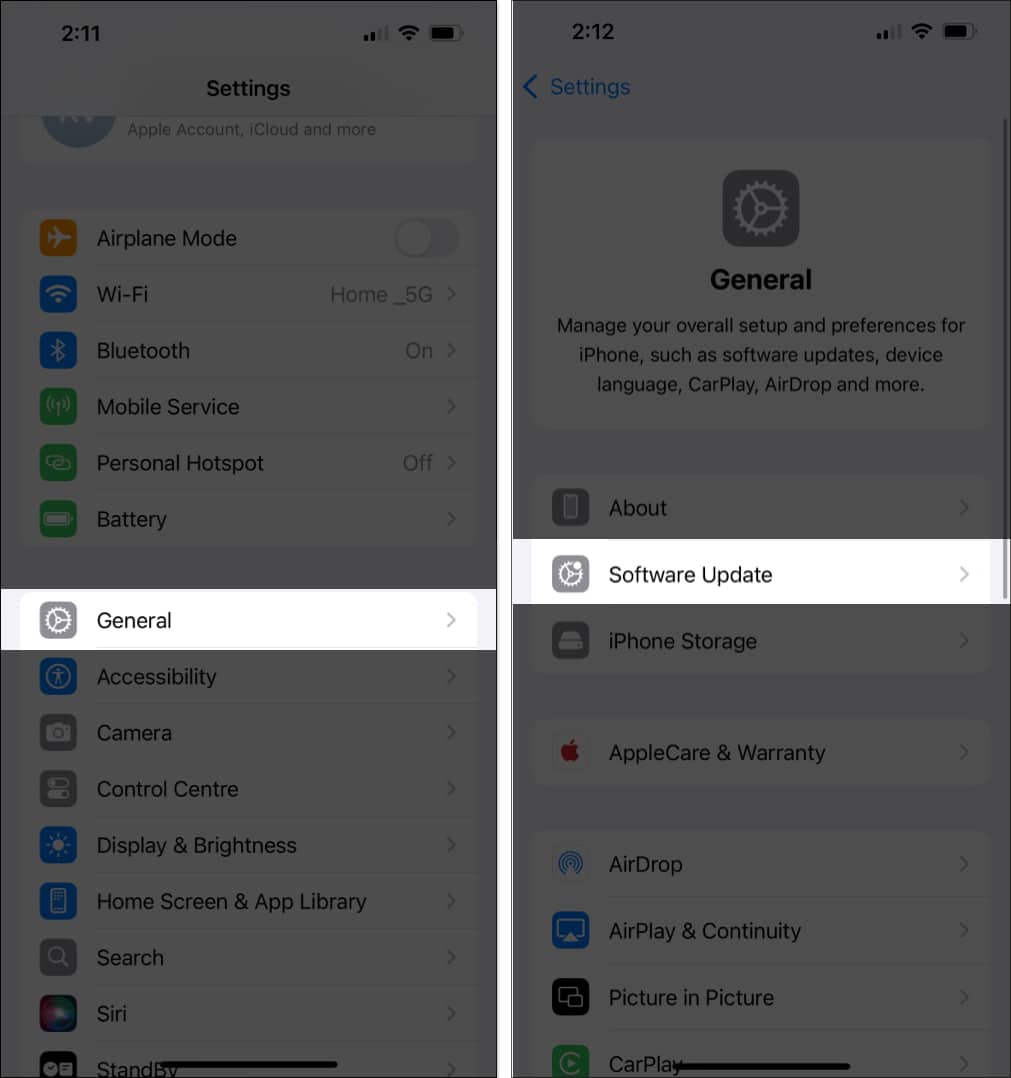
- To switch to stable iOS: Open the Settings app on your iPhone and go to General → Software Update → Beta Updates. Select Off.
Once you do this, next watchOS or iOS update that you see for your Apple Watch or iPhone will be stable rather than beta.
4. Restart your Apple Watch and paired iPhone
More often than not, minor software glitches or bugs can interfere with the general functioning of your Apple Watch and iPhone. While knowing what glitch is causing the issue is impossible, restarting your Apple Watch and iPhone can often help you resolve such glitches.
5. Update watchOS and iOS
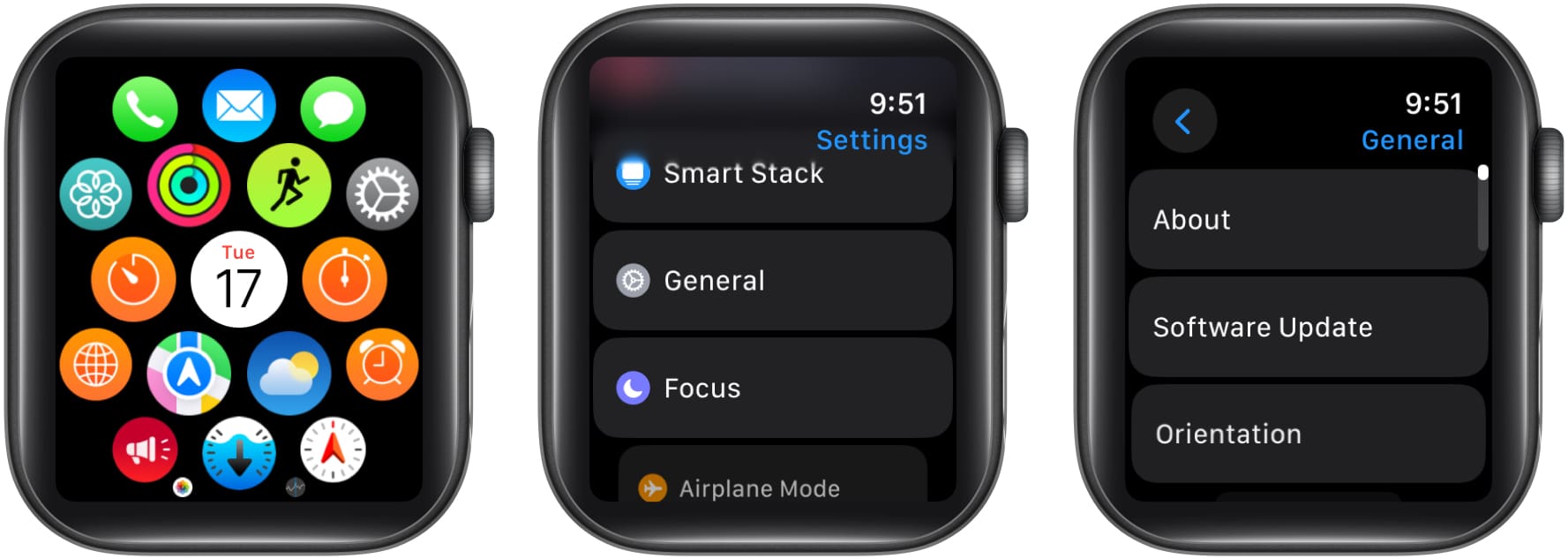
Keeping your Apple Watch and iPhone up to date with the latest available watchOS and iOS software is a good practice, as outdated software often can cause issues such as Apple Watch ECG not working.
- To update your iPhone, go to Settings → General → Software Update. If an update is available, download and install it.
- To update your Apple Watch, open the Watch app on your iPhone, go to General → Software Update, and install any pending software.


6. Unpair and pair your Apple Watch
In some cases, sync issues between the Apple Watch and the iPhone can cause the ECG app to malfunction and stop recording vitals in the Health app on the iPhone. While you can fix the Apple Watch not syncing with the iPhone issue by trying a few fixes, unpairing and pairing your Apple Watch with the iPhone can save you time.
To unpair the Apple Watch and iPhone, open the Watch app. Then, go to All Watches, tap the i button, and hit Unpair the Apple Watch at the bottom. Follow the on-screen instructions to finish.

Wait for the unparing process to complete, then pair the Apple Watch with your iPhone again.
7. Factory reset your Apple Watch
If nothing helps, factory resetting your Apple Watch is your last resort. Doing this will wipe off all the existing data on your Apple Watch and return it to the out-of-the-box condition.
To factory reset your Apple Watch, go to Settings → General → Reset and tap Erase All Contents and Settings. Follow the on-screen instructions to complete the process.

Summing up…
And that’s it; these were some quick fixes you can employ to fix the Apple Watch ECG not working issue. However, if the issue persists, we advise you to contact Apple Support; tech experts there can find out the root cause and get the ECG app running on your Apple Watch in no time.
If you know of any other fixes that should be included in this post, do let us know in the comments.