
How to find the serial number of your iPhone even if it is lost
Lost your iPhone? Here’s how to find its serial number without the device.

- Find your iPhone’s serial number in Settings by going to General > About—you can copy it directly for support or warranty use.
- Check the barcode on your iPhone box for a printed serial number, helpful if your device won’t power on or is lost.
- Log into the Apple ID site to view serials remotely—select your device under the Devices section to find its details.
- Serial numbers are listed on receipts and AppleCare docs so check purchase confirmations or upgrade program paperwork if the box is gone.
- Other Apple devices and backups can reveal it—look in Settings on linked devices or in Finder/iTunes backups on a Mac.
Knowing how to locate your device’s serial number is essential if you’re trying to check warranty information, troubleshoot a technical issue, or simply register your device. In this guide, I’ll walk you through several methods to find the serial number of your iPhone and iPad.
What does Apple product serial number mean?
Apple assigns a unique alphanumeric code known as the serial number to each iPhone or iPad it assembles. This code serves as a unique identifier and can be found in various locations on the device.
Knowing the serial number has several advantages, including tracking warranty information, reporting lost or stolen devices, and facilitating repair or replacement requests. However, understanding the significance of this code is necessary before attempting to access it.
Importance of iPhone serial number
The serial number on an iPhone is critical information that can be used in a variety of situations. Here are some of the reasons why the serial number is significant:
- If your iPhone requires repair or replacement, you must provide the serial number to Apple or an authorized service provider.
- The serial number also activates the iPhone’s Activation Lock feature.
- If you sell or transfer ownership of your device, the new owner may require the serial number to verify its authenticity.
- When you contact Apple support for help with your iPhone, the representative may request the serial number to confirm the device’s eligibility for support.
Now that you understand the significance of the serial number, let’s explore how to locate it on your iPhone.
9 Ways to find your iPhone serial number
Finding your iPhone’s serial number is easy. Just follow the methods outlined below!
1. Use the Settings app on iPhone
- Launch the Settings app on your iPhone.
- Tap General → About.
- Next to the Serial Number is your device’s unique code.
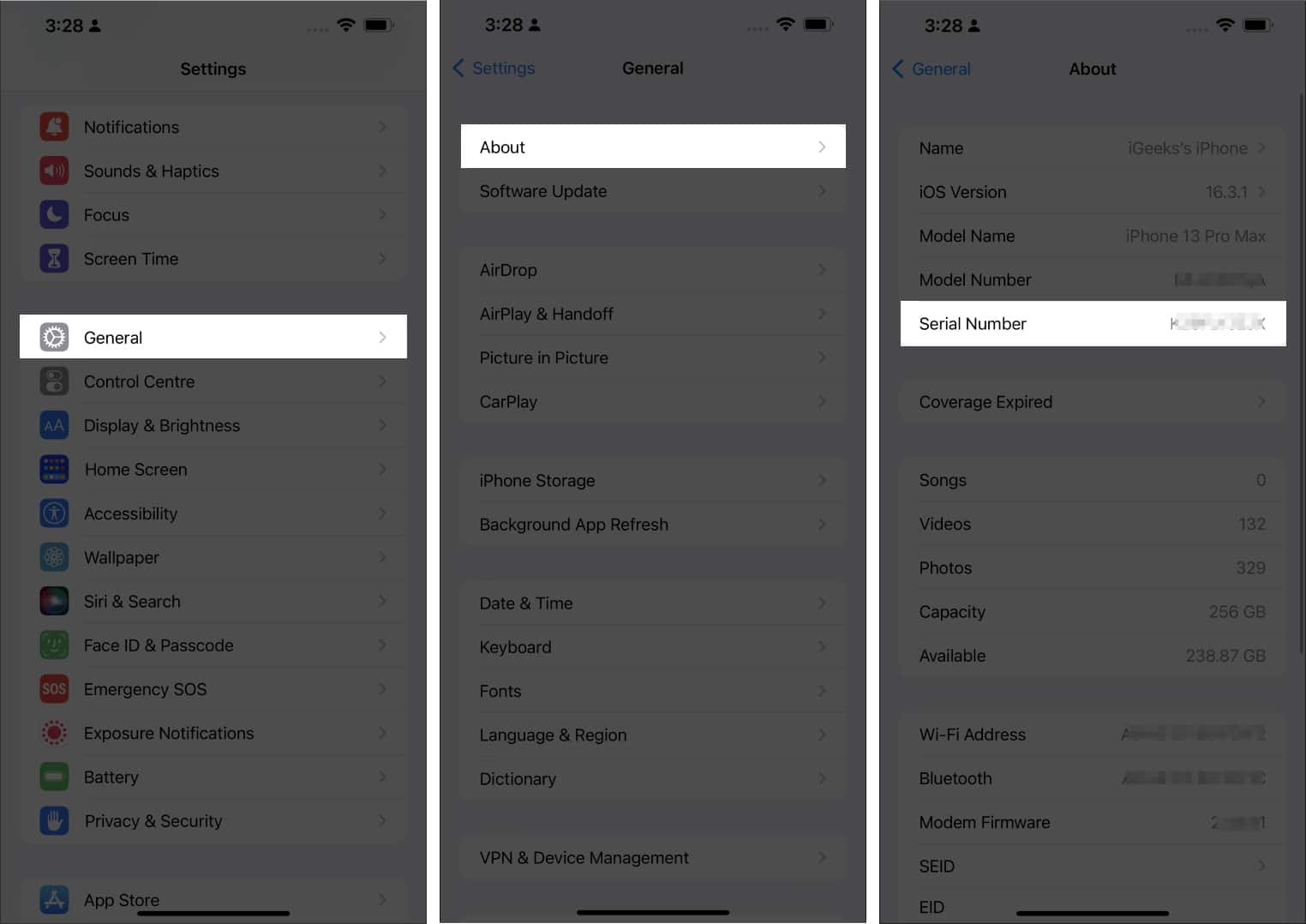
Additionally, you can tap and hold the unique serial number to copy it.
2. View the serial number via the Apple website
The steps below are performed on an iPhone. However, as the steps are particularly similar, you can also access the Apple website using a Mac or PC.
- Open any browser. I’m using Chrome browser.
- Head to the Apple ID website.
- Select Sign In.
- Enter your Apple ID and passcode to log in.
- Tap the down arrow next to Apple ID.
- Choose Devices from the dropdown list.
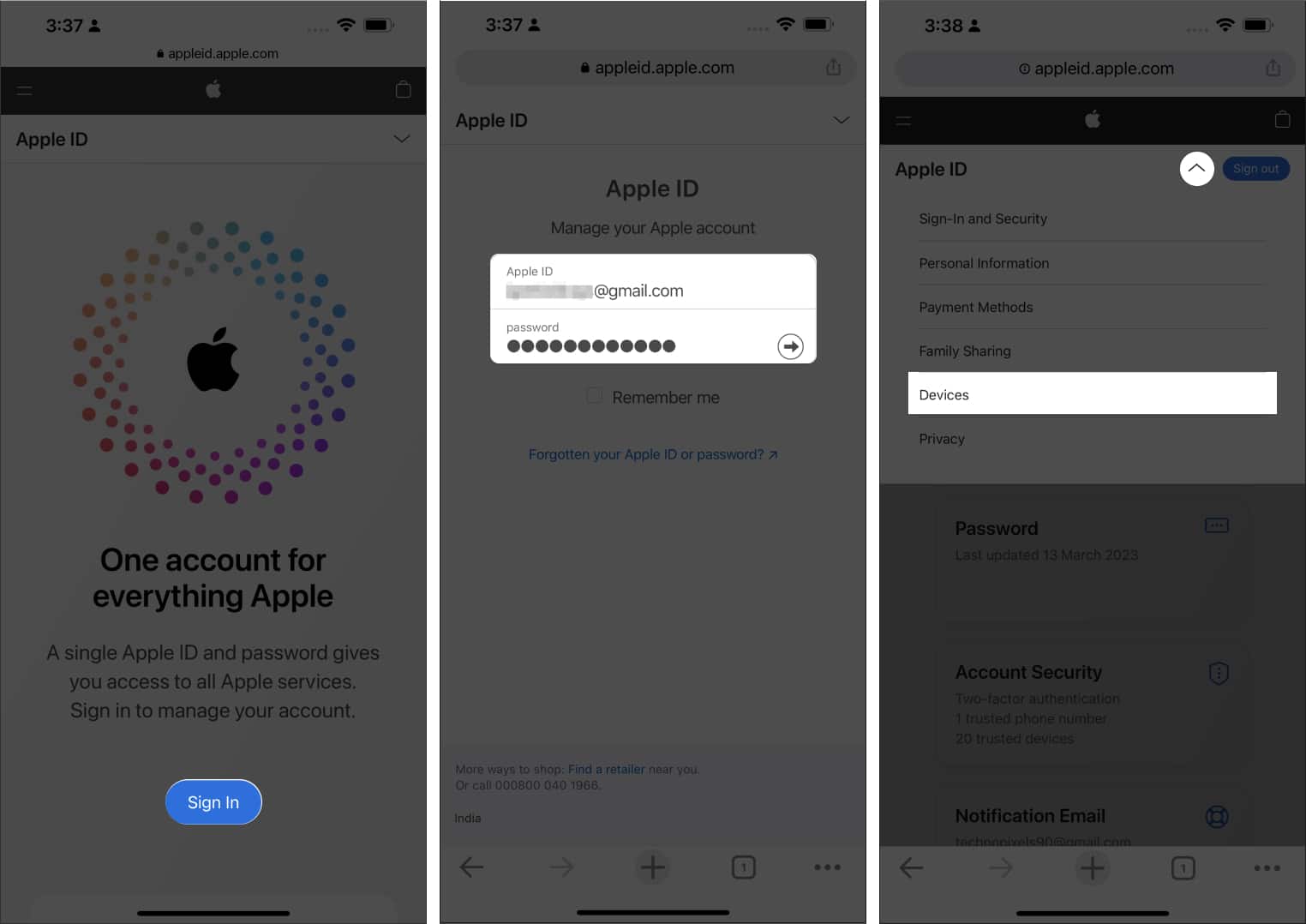
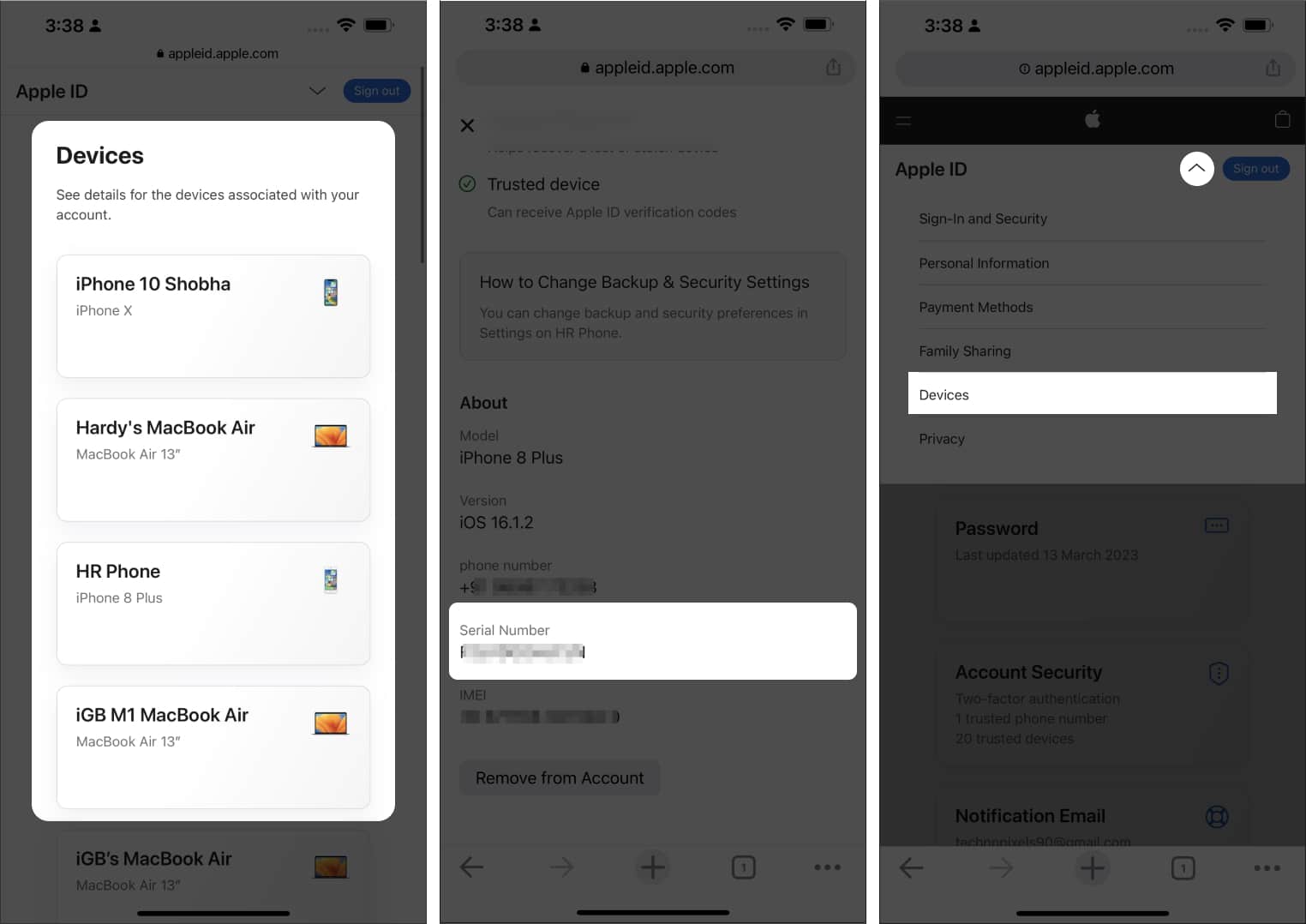
- Now, select your iPhone to check its serial number.
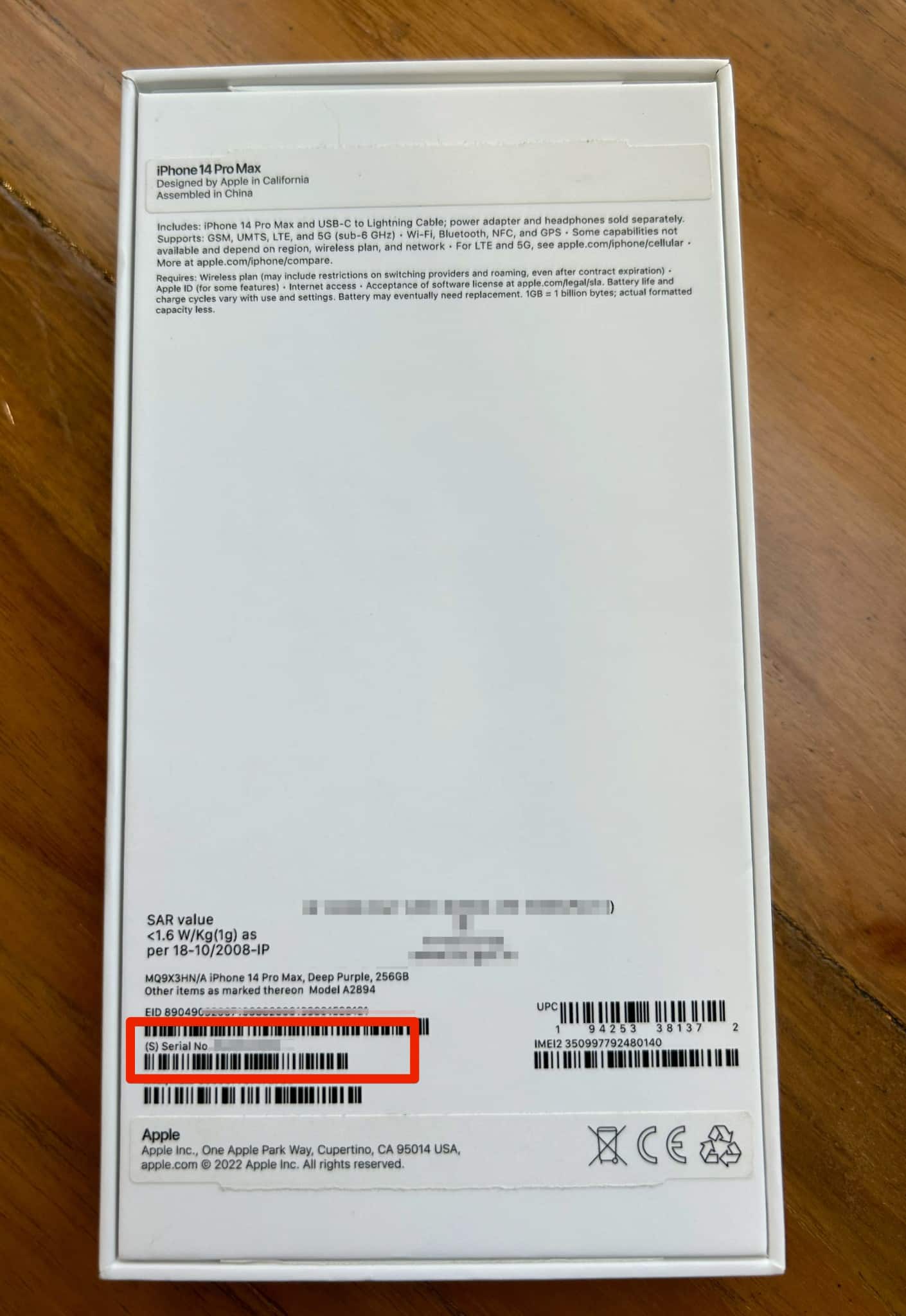
3. View the serial number on iPhone’s buying box
Looking up the unique code on your iPhone’s original box is a simple method to check for its serial number. The back of the box has an engraving of the device’s serial number, which you can use to verify its authenticity or access Apple’s various support and warranty services.
4. In purchase email
If you bought your iPhone or iPad online, you may be able to find the serial number in the purchase email itself.
- Launch the Mail app.
- Look for the purchase email you received when you purchased your iPhone or iPad.
- Open the receipt in that email.
- Look for the serial number under the purchase information section.
5. With AppleCare+ or iPhone upgrade program receipt
If you have AppleCare+ or are using the iPhone Upgrade Program, you can find the serial number of your iPhone or iPad on the receipt or confirmation email.
6. On your other Apple device
To check the serial number of a particular Apple device, you can also use another Apple device that is associated with the same Apple ID. Simply follow the steps provided below to do so.
Here, I have used another iPhone.
- Head to Settings.
- Tap on your name icon.
- Scroll down and select your device.
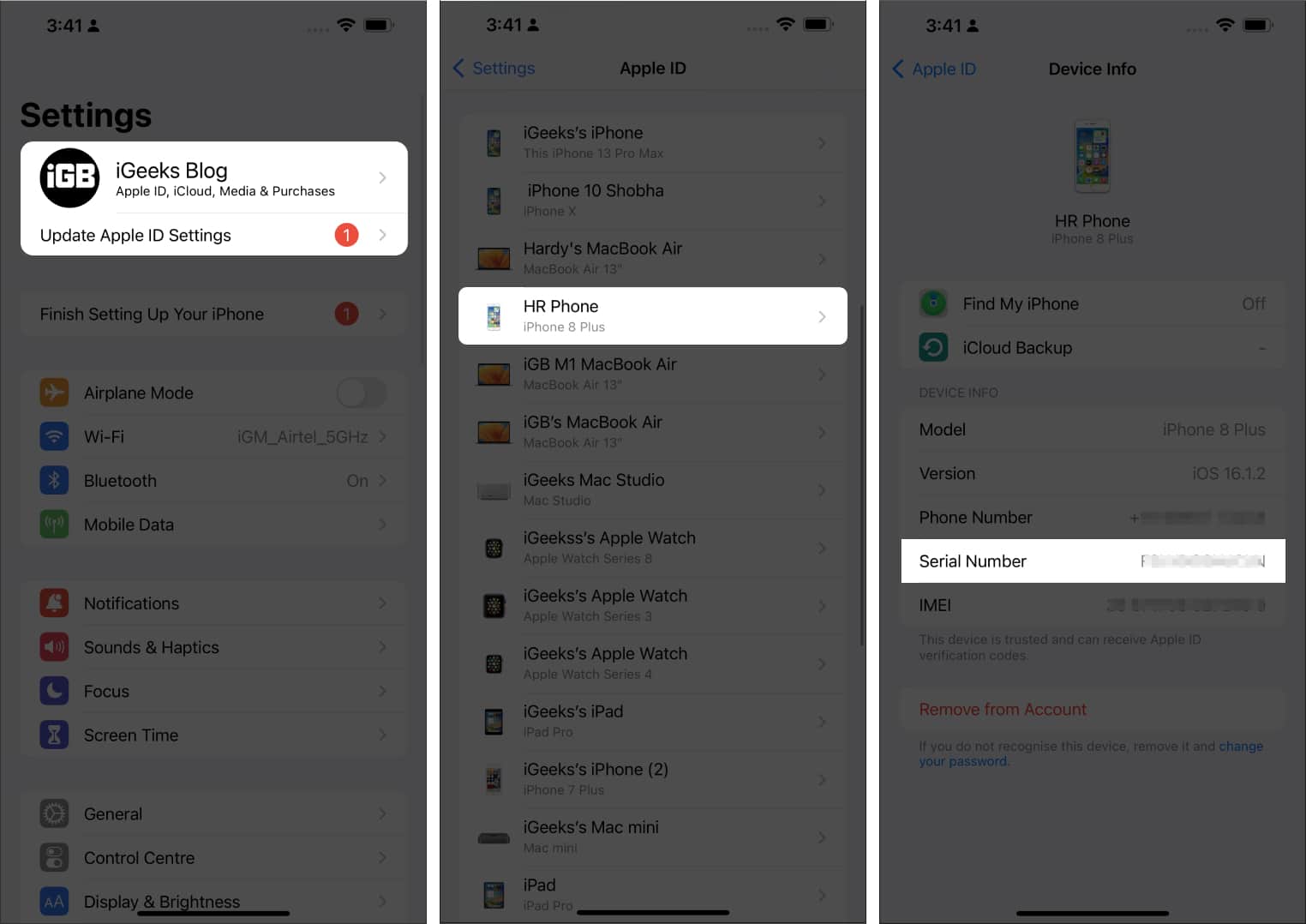
Now, next to the Serial Number, you can verify the distinctive serial number assigned to your device.
7. Check serial number by Computer backup
You can verify your iPhone or iPad’s serial number if you’ve previously backed it up on the same Mac. Simply connect your device to your Mac and follow the instructions provided below.
- Open Finder.
- Locate your iPhone or iPad under Locations.
- Select Manage Backups beneath Backups in the General tab.
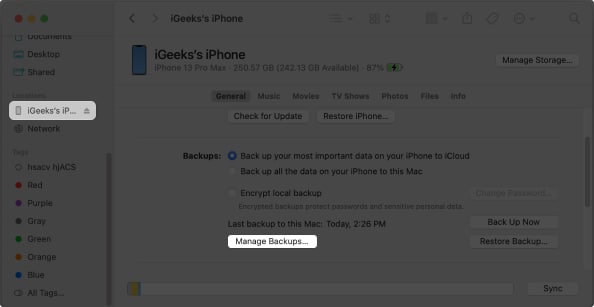
- Select the device name under Devices.
- Hover over the device name.
- You can now see the serial number with other details in the grey box.
8. Check serial number by recovery mode
If you want to check your iPhone’s serial number, you can use a USB-C to Lightning cable to connect your device to a Mac and enable recovery mode. This will reveal a unique code for your device, which will be displayed alongside the Serial label located below the device name.
9. Check the serial number engraved on the device
Although newer iPhones lack this feature, if you have an iPhone 4S or an older model, you can find the serial number on the SIM tray. The serial number is also engraved on the back of the original iPhone.
Concluding…
Knowing your device’s serial number is useful for troubleshooting and repairs, as well as for important tasks such as warranty registration and insurance claims. By locating your device’s serial number, you can ensure you have all the required information to maintain and protect your iPhone or iPad.
Frequently Asked Questions

Written by
Bhaskar SharmaBhaskar is a tech guru who turned wordsmith. Hiding his B.Tech degree in a closet, he ditched the corporate path to simplify tech for everyone. For the past 5 years, he's been dishing out how-tos, reviews, and sharp insights. But there's more! He's a witty interview champ and has been sharing his wisdom for 3 years. Furthermore, he has honed his editing skills for 1.5 years and is now delving into marketing to assist newcomers. When not jamming his fingers on those mechanical keyboards, you may find him on strings or engaging in sports. And by evening, his quotes will be appearing on your Instagram feeds.
View all posts →More from How-to

Snapchat Parental Controls: How to Set Up Family Center and Keep Your Teen Safe
Snapchat’s Family Center lets parents monitor their teen’s friend activity and screen time without reading private messages. Here’s how to set it up and what to expect.
 VikhyatMarch 3, 2026
How to Block and Unblock Someone on Instagram
Instagram lets you block or unblock someone in seconds. Follow these simple steps to take full control of your privacy and online peace.
 Ava BiswasMarch 2, 2026
Apple Watch Not Responding? 8 Fixes That Actually Work
Is your Apple Watch unresponsive or stuck on a black screen? Here are 8 proven fixes to help you unfreeze it and get it working again quickly.
VikhyatMarch 3, 2026