
How to Extract Messages from your iPhone Backup
Follow this detailed guide to extract text messages from your iPhone backup to a computer. Export your messages as txt or pdf files and save your photos and videos.
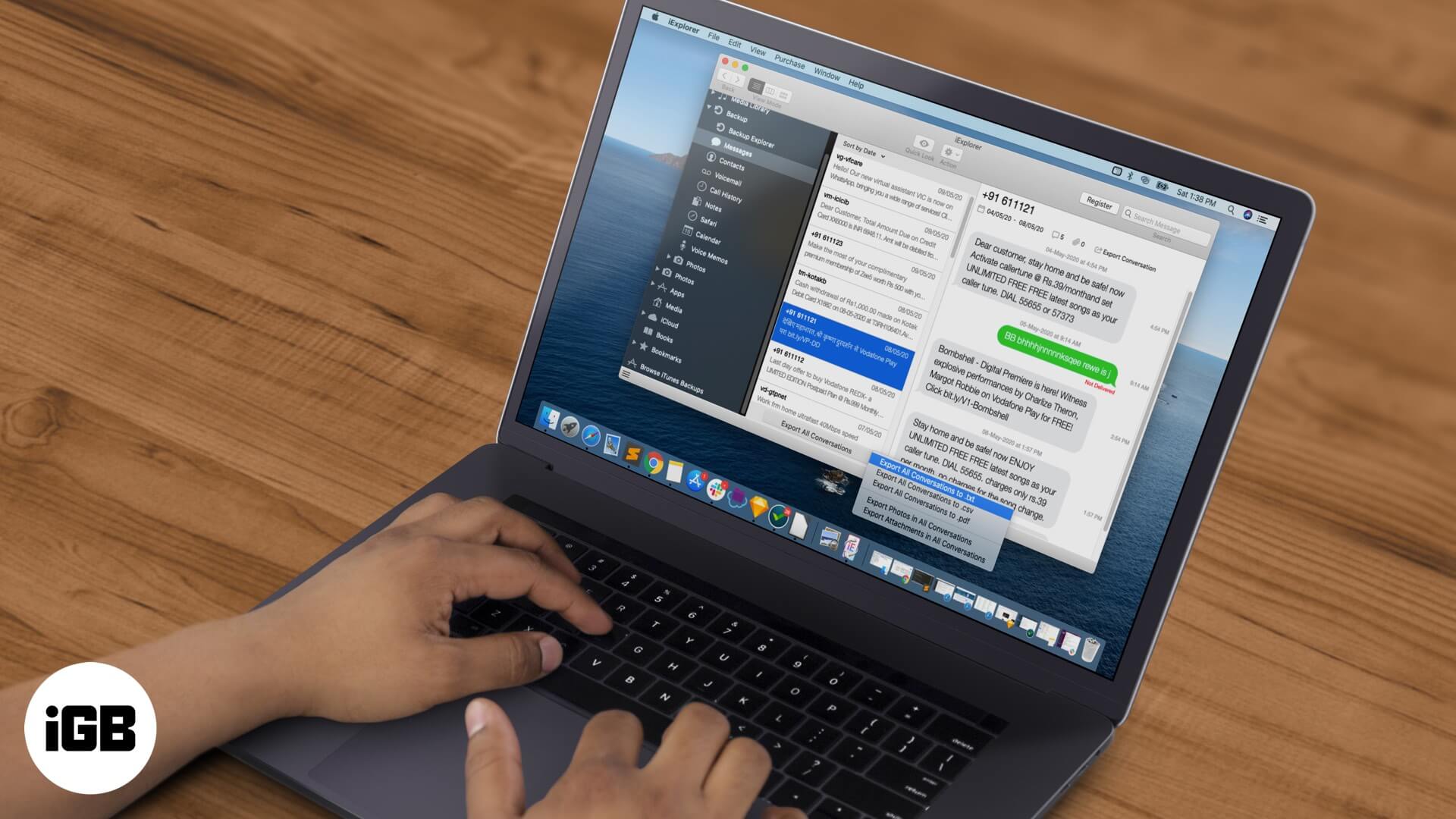
While iCloud makes it easy to recover permanently deleted text messages whenever needed, it doesn’t provide any way to just extract messages from your iPhone backup for future reference. For instance, what if you want to get a copy of your past conversations to save on your PC as a memory? Well, there are several third-party tools that make it easy to export text messages from your iPhone to varied file formats such as pdf or txt. So let’s check out the options.
- How to Extract Text Messages from iPhone Backup with iExplorer
- Best Tools to Export Messages from iPhone in 2020
How to Extract Text Messages from iPhone Backup with iExplorer
Step #1. First, download and install iExplorer on your Mac or Windows computer.
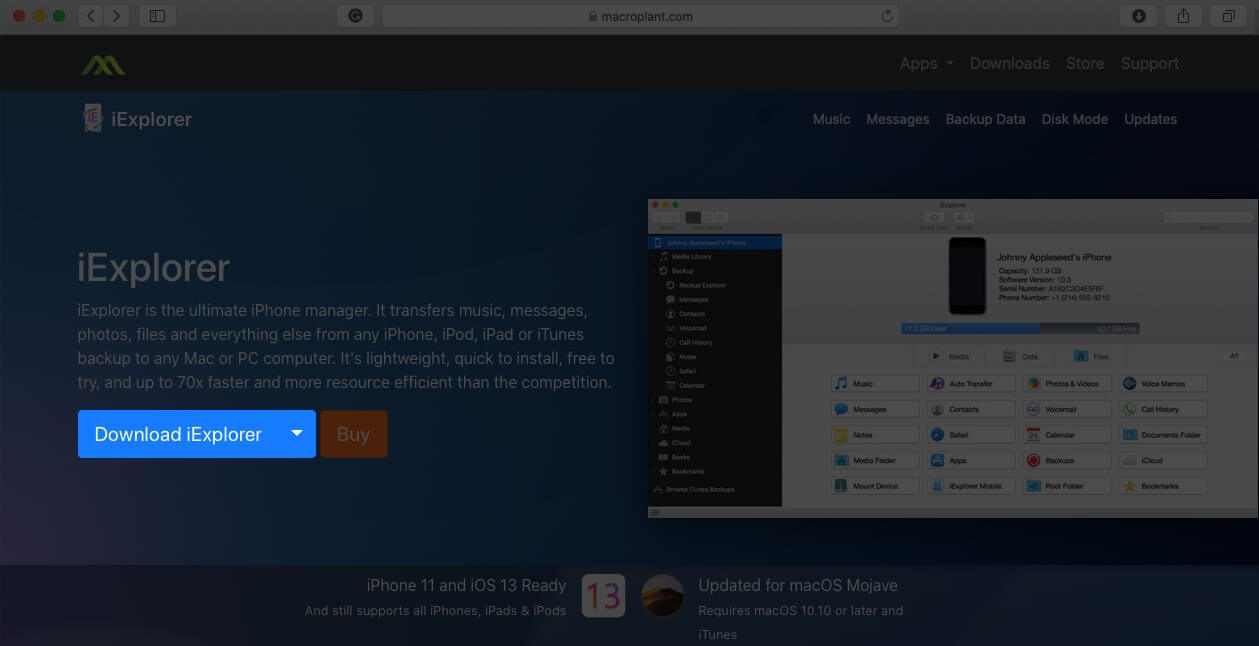
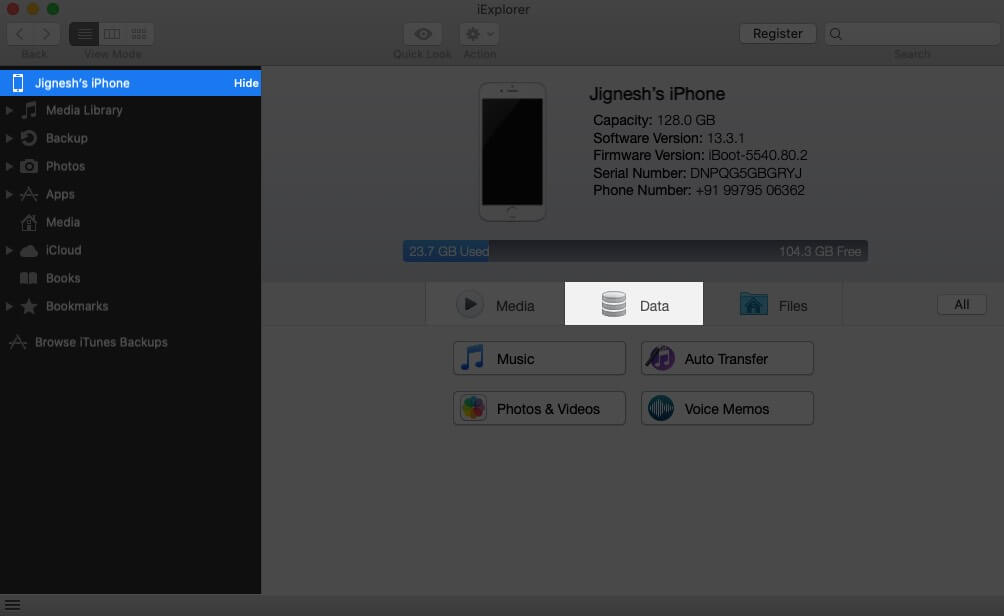
Step #2. Connect your iPhone to your computer with a USB cable and open iExplorer.
Step #3. In the Device Overview screen, click the Data tab
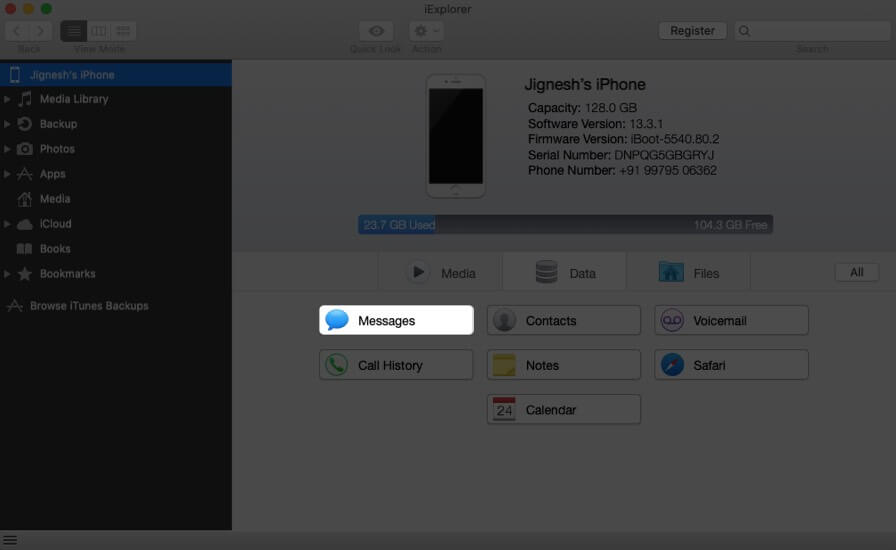
Step #4. Now, click on Messages.
Step #5. If you have not created an iTunes backup yet on the computer you’re connected to, you will be asked if you want to make one (select Yes). If you already have an iTunes backup (at least 24 hours old), iExplorer will ask whether you’d like to Use Last Backup or Refresh to create a new one.
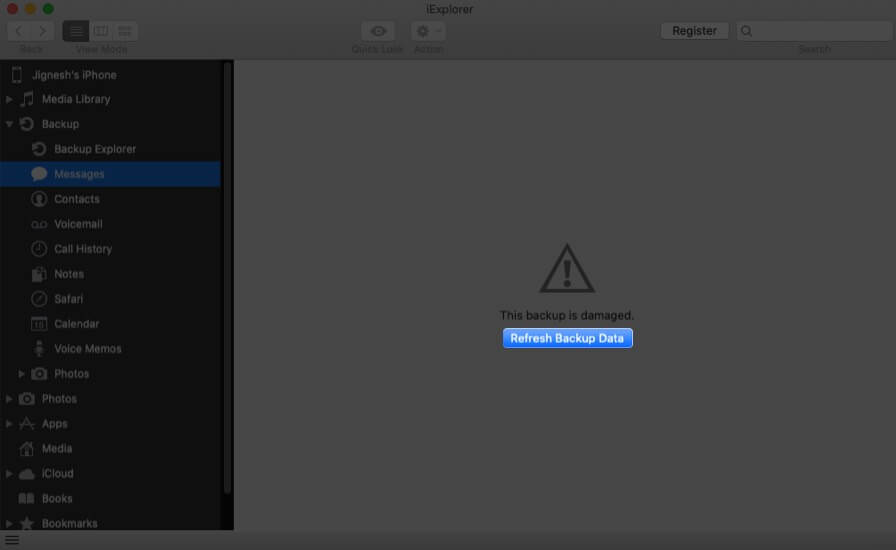
Step #6. After the iTunes backup is done, iExplorer will load your Messages on the screen. You can select a conversation in the left panel and use the icons at the top to filter by date range, show attachments, etc.
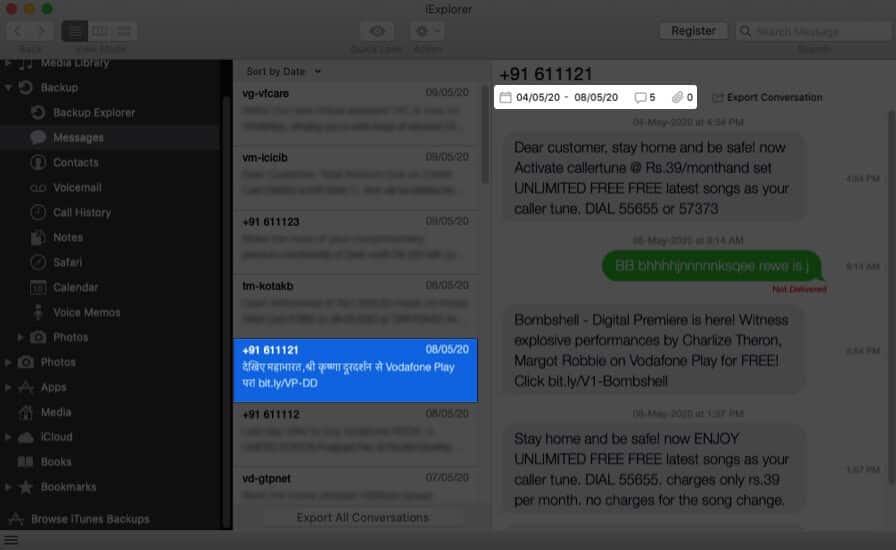
Step #7. In the conversation box, you can choose to export the entire chat. Or you may select specific message bubbles to export.
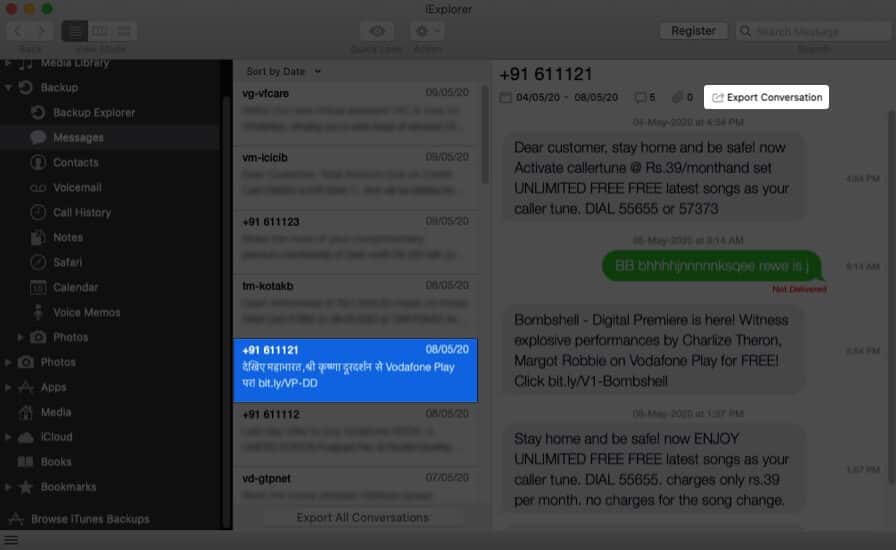
Step #8. At the bottom of the screen, there’s an option to Export All Conversations.
You can choose to export the text messages from iPhone backup to different file formats such as PDF, TXT, or CSV. Best of all, this tool is free to try.
For continued use though, you will need to purchase the product for $39.99 from macroplant.com
Alternatively, there are some other tools that also allow you to extract text messages from an iPhone backup. Let’s have a look.
Best Tools to Export Messages from iPhone in 2020
#1. iBackup Viewer
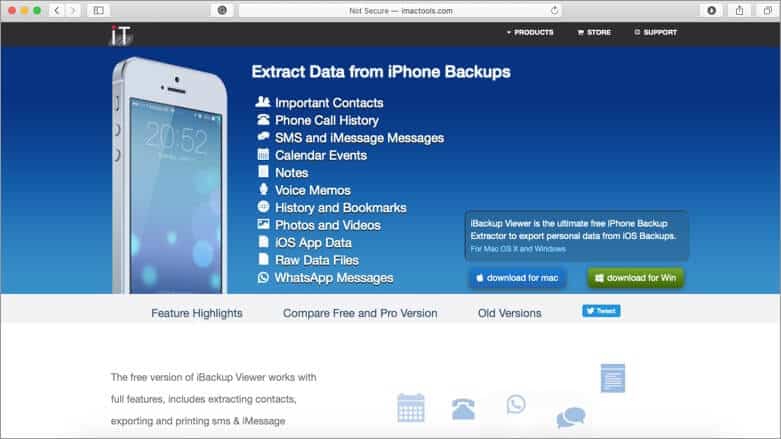
The free version of iBackup Viewer allows you to export messages and contacts to PDF files. It also supports saving photos and videos from messages.
For advanced functionality, you can get the Pro version which allows you to save messages as txt or csv files. It also supports saving messages from WhatsApp as well as notes and photos. A great all-in-one backup recovery tool.
Price: $39.95
Buy Now
#2. PhoneView

View, export, and print all your iPhone messages, WhatsApp messages, and other data using PhoneView. You can see and search your texts including pictures and video messages, even when your iPhone is not connected to your Mac.
Further, this tool lets you export your messages as PDF files. It’s packed full of other great features like automatic backups of your messages whenever your iPhone is detected, plus access to your voicemail messages and call log.
Price: $32
Buy Now
#3. CopyTrans Contacts
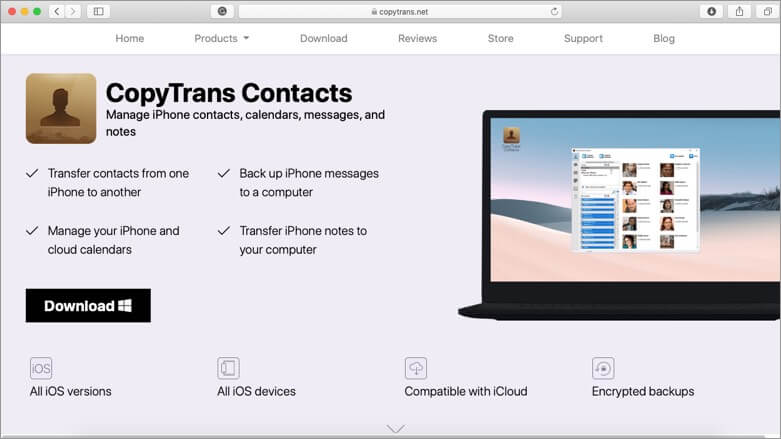
Save and backup your iMessages, WhatsApp, Viber, and Line conversations with this useful tool. Similar to other options, it also extracts all attachments like photos, videos, GIFs, voice messages, and more.
For your convenience, you can export the messages in different formats like PDF, Word, Excel, Plain Text, CSV or HTML. This makes it easy to read, print, and share those conversations anytime.
Price: $19.99
Buy Now
Summing Up
So we hope this clarifies how you can save or extract messages from your iPhone backup to your computer. Let us know in the comments below which tool you chose to use.
You may want to take a peek at:

Written by
Jignesh PadhiyarJignesh Padhiyar is the co-founder of iGeeksBlog.com, who has a keen eye for news, rumors, and all the unusual stuff around Apple products. During his tight schedule, Jignesh finds some moments of respite to share side-splitting content on social media.
View all posts →More from How-to

How to Turn Off Location on Snapchat (Step-by-Step Guide)
Want to stop sharing your location on Snapchat? This guide explains how Snapchat location sharing works and shows simple ways to turn off your location using Ghost Mode or phone settings. Stay in control of your privacy in just a few steps.
 VikhyatMarch 5, 2026
Snapchat Parental Controls: How to Set Up Family Center and Keep Your Teen Safe
Snapchat’s Family Center lets parents monitor their teen’s friend activity and screen time without reading private messages. Here’s how to set it up and what to expect.
VikhyatMarch 3, 2026
How to Block and Unblock Someone on Instagram
Instagram lets you block or unblock someone in seconds. Follow these simple steps to take full control of your privacy and online peace.
 Ava BiswasMarch 2, 2026