
How to downgrade or cancel iCloud+ plan on iPhone or Mac
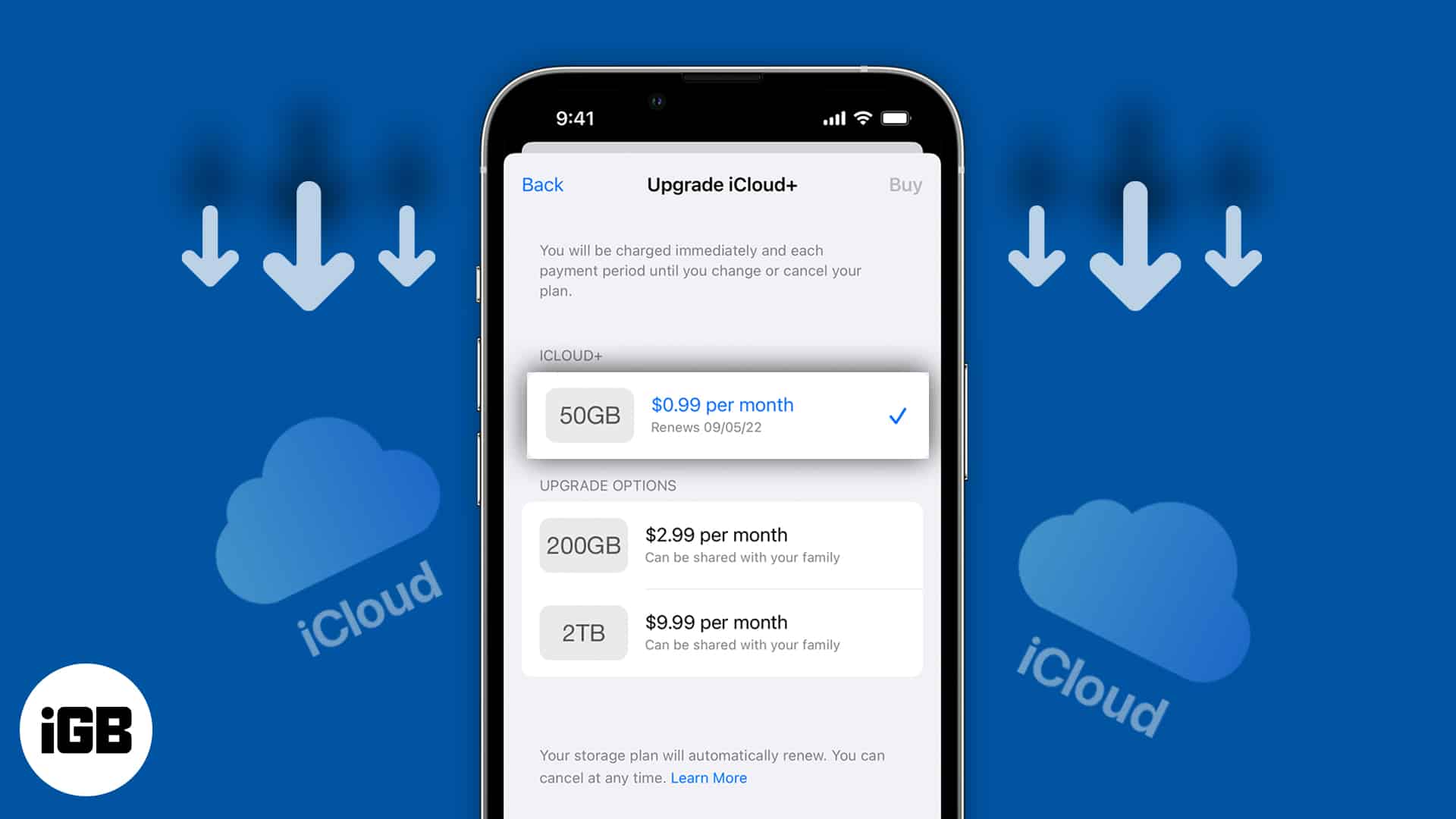
iCloud+, a paid data storage service for your Apple devices, has made it easy to back up important images and files. When you sign up for iCloud, you get free storage of 5GB. Post that, you’ll need to pay extra to get an iCloud+ plan for more storage. Now, in case you have subscribed to a plan you no longer require, here’s how to downgrade or cancel the iCloud+ plan.
- How do the iCloud storage plans work?
- How to downgrade or cancel your iCloud+ plan on iPhone or iPad
- How to downgrade or cancel your iCloud+ plan on Mac
- How to downgrade or cancel iCloud+ plan without Apple device
- What happens if I downgrade or cancel iCloud storage plan?
How do the iCloud storage plans work?
After registering your Apple ID, the tech giant automatically allocates 5GB of iCloud storage space to you. So, you can upload, access, and share iCloud files from any device for free. Besides, there are monthly paid iCloud+ premium services. You may choose from three paid plans 50GB, 200GB, and 2TB. Also, depending on your chosen subscription, you’ll get extra features like custom email domains, Hide My Email, etc.
However, you may cancel this subscription and return to the default free storage anytime. But note one thing if you paid for more storage and cancel it with a backup exceeding 5GB, iCloud may cease functioning. Therefore, delete photos from iCloud backup and make enough space.
You may downgrade or cancel your Apple iCloud storage plan if you don’t want to sync your files to iCloud. Also, you may opt for more affordable cloud services, as iCloud’s compatibility with non-Apple items is not perfect.
The downgrading or cancellation can be done from iPhone, iPad, iPod Touch, Mac, or even Windows PC. The methods are mentioned below.
How to downgrade or cancel your iCloud+ plan on iPhone or iPad
- Launch Settings on your iPhone or iPad.
- Then tap your name (Apple ID) → select iCloud.
- Tap Manage Account Storage.
- Choose Change Storage Plan.
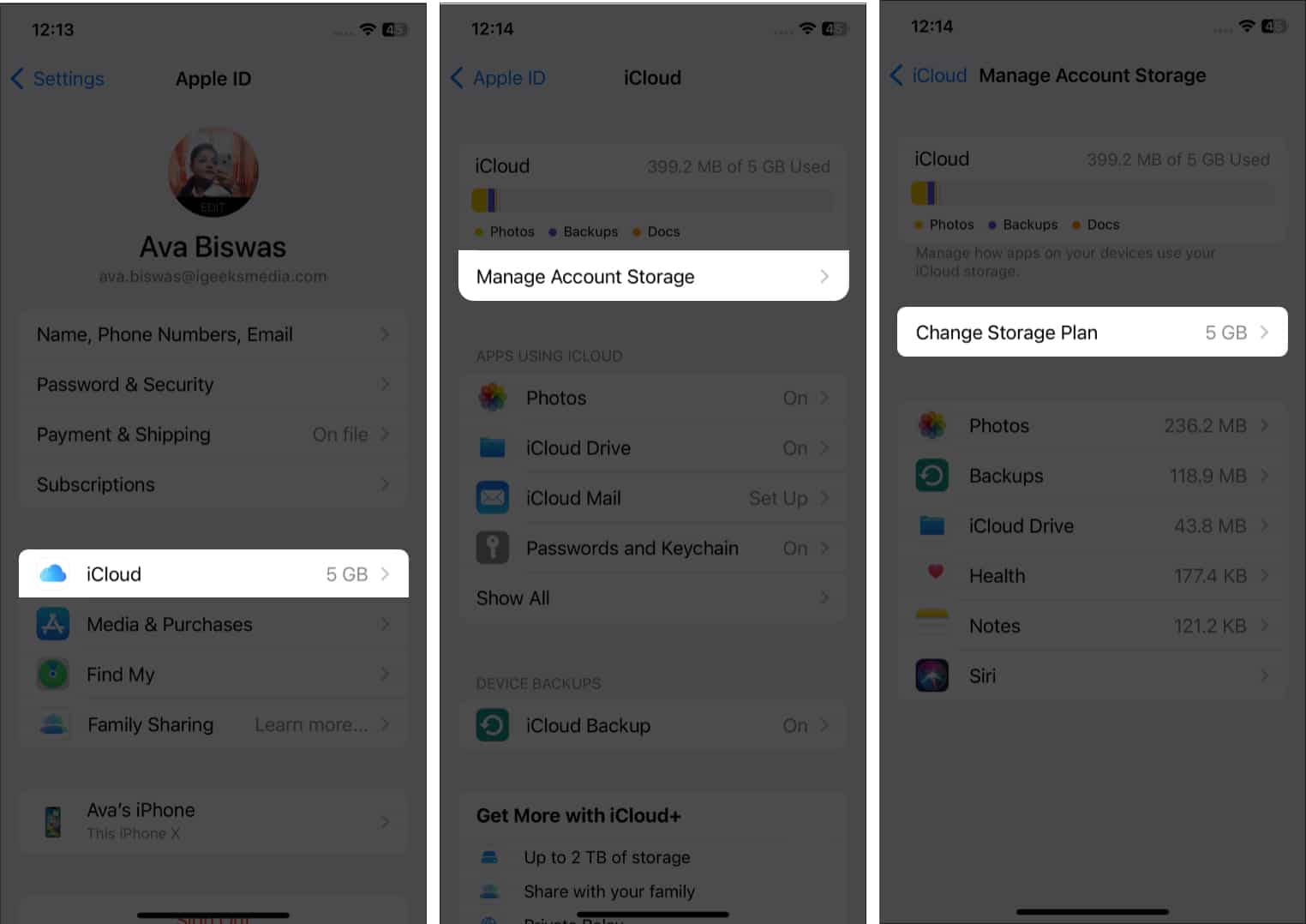
- Now, select the Downgrade Options button.
- It will pop up a window and ask you to enter your Apple ID password. Enter your credentials and tap on Manage to log in.
- Lastly, choose your preferred plan to downgrade, or selecting the free option will cancel the iCloud storage plan. You can continue to access your existing storage capacity until the end of the subscription.
Note:
If you have Apple One paid subscription, you don’t need to pay extra for iCloud. Because the Apple One plan already includes iCloud+ services.
How to downgrade or cancel your iCloud+ plan on Mac
- Click the Apple symbol in the top-left corner.
- Choose System Preferences → select Apple ID.
- After that, go to the iCloud menu.
- At the bottom, click the Manage button.
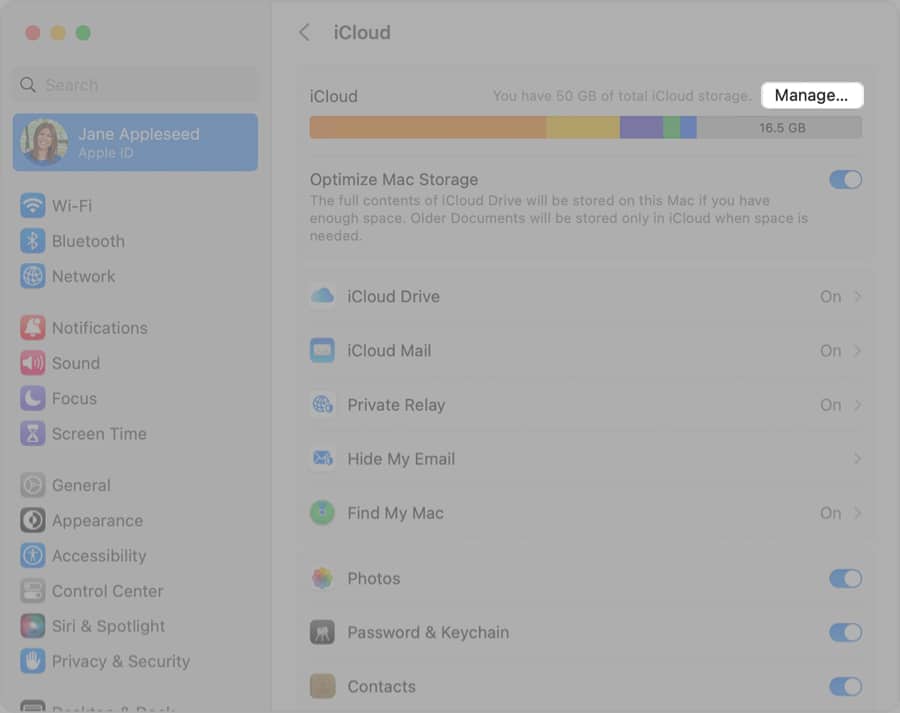
- Then choose Change Storage Plan from the top-right corner.
- Now a window will pop up showing your current subscription. Click on the Downgrade Options button.
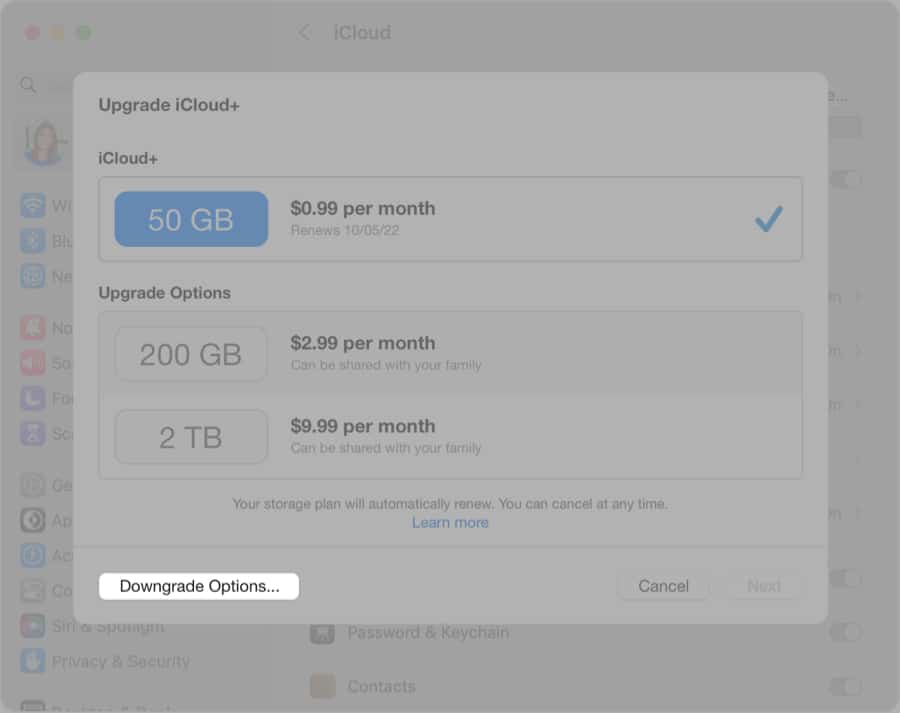
- It will ask for your Apple ID password. Type your credentials and complete logging in by tapping on Manage.
- Choose your preferred iCloud Storage Plan and confirm with the Done
- To cancel iCloud+, select the free 5GB plan or choose None and tap Done to confirm.
You may have used the incorrect Apple ID if you cannot hit the Done button. So, verify that you are logging in with the Apple ID associated with your iCloud storage subscription. Besides, if you cancel your iCloud storage plan within 14 days, get in touch with Apple support to ask for a refund.
How to downgrade or cancel iCloud+ plan without Apple device
Yes, you are reading right! You can cancel the iCloud Storage Plan from your PC without Apple devices. So, download and install iCloud for Windows if you don’t have it.
- After installing successfully, enter your credentials and launch the iCloud app on your Windows PC.
- Choose Storage from the bottom.
- Now click the Change Storage Plan option.
- To launch the Apple iCloud Storage Plans, hit Downgrade Options.
- After that, enter your Apple ID password to verify yourself. Click Manage.
- Choose the subscription plan you wish to use. Choosing the free plan will cancel your iCloud+ Plan. But remember, you can lose access to some of the additional iCloud+ services doing this.
- Select Done to confirm your changes. Whichever plan you choose, your present storage level will be accessible until the end of the current subscription.
If you cannot click the Done button, call Apple customer care. Sometimes the Done button remains grayed out even though iCloud has received the downgrade request.
What happens if I downgrade or cancel iCloud storage plan?
The modification takes effect after your last payment cycle has ended, so you may use your current iCloud subscription plan until then.
Suppose your iCloud backup surpasses the storage limit after you downgrade iCloud storage to the 5GB free capacity or a less expensive one. In that case, iCloud won’t sync the new or modified files to iCloud Drive and sync data across your Apple devices. Additionally, you won’t be able to use iCloud+ features like HomeKit Secure Video support, Private Relay, and Hide My Email.
Frequently Asked Questions
I hope you understand how to downgrade or cancel iCloud+ plan easily. Whether you activate a storage subscription on your Mac, iPhone, iPad, or Windows PC, its built-in management capabilities let you downgrade or cancel it at any time. To know more tips and tricks for iCloud services, read our following guides.
Read more:
Topics

Written by
Ava BiswasAva is a die-hard Apple aficionado and seasoned writer with a knack for breaking down complex tech concepts into easily digestible content. Having honed her writing and editing skills over 4 years at renowned media houses like TechBurner, Ava crafts informative and engaging articles including troubleshooting guides, product reviews, editorials at iGeeksBlog. When not typing, you can find her exploring the latest Apple releases or pondering the future of tech innovation.
View all posts →More from How-to

Snapchat Parental Controls: How to Set Up Family Center and Keep Your Teen Safe
Snapchat’s Family Center lets parents monitor their teen’s friend activity and screen time without reading private messages. Here’s how to set it up and what to expect.
 VikhyatMarch 3, 2026
How to Block and Unblock Someone on Instagram
Instagram lets you block or unblock someone in seconds. Follow these simple steps to take full control of your privacy and online peace.
Ava BiswasMarch 2, 2026
Apple Watch Not Responding? 8 Fixes That Actually Work
Is your Apple Watch unresponsive or stuck on a black screen? Here are 8 proven fixes to help you unfreeze it and get it working again quickly.
VikhyatMarch 3, 2026