
How to Delete Workouts on Apple Watch the Right Way
Accidentally logged a workout on Apple Watch? This guide shows how to clean it up in a few quick taps.

- Why Apple Watch blocks direct deletion: Apple Watch doesn’t offer a delete option for workouts, so you remove entries from the Fitness or Health apps on your paired iPhone.
- How to delete workouts on iPhone: You can open the Fitness app and swipe left on a workout to remove it or use the Health app to manage entries in bulk.
- What Delete Workout vs Delete Workout and Data means: The first removes the logged workout, while the second clears all Apple Health metrics tied to that session and changes your Activity history.
- How to fix accidental exercise minutes: You can search for the unwanted minutes in the Health app, swipe left on the entry, then delete it to correct your daily totals.
- Precaution while editing workout history: Removing workouts or data in the Health app can’t be undone, so double-check entries before deleting to avoid losing accurate Apple Watch records.
Apple Watch remains one of the most reliable fitness tracking smartwatches. It captures your workouts with excellent accuracy and gives you a clear view of your daily and long-term fitness journey. Still, there are moments when you may want to delete a workout on Apple Watch, especially if you logged something by mistake, ended up with a duplicate entry, noticed incorrect tracking, or had your watch auto-detect an activity you never intended to record. The process is simple, yet many users aren’t sure where to look.
If you’re one of them, you’re in the right place. This post details how to delete, edit, and manage Apple Watch workouts so your fitness history stays accurate.
Can You Delete Workouts Directly on Apple Watch?
No, you cannot delete a workout on the Apple Watch itself. Even though the Apple Watch records everything, stored workouts can only be managed in the Fitness app or the Health app on your paired iPhone. Once you delete a workout on your iPhone, the change updates across your devices.
2 Ways to Delete an Apple Watch Workout
The Fitness and Health apps store all your Apple Watch activity records, including every session you track. If you want to delete a workout on Apple Watch, this is where the actual cleanup happens.
Using the Fitness App
- Open the Fitness app and ensure you’re on the Summary tab.
- Now, tap the forward arrow icon in the Sessions tile.
- Here, you’ll see the list of all the workouts your Apple Watch has recorded so far.
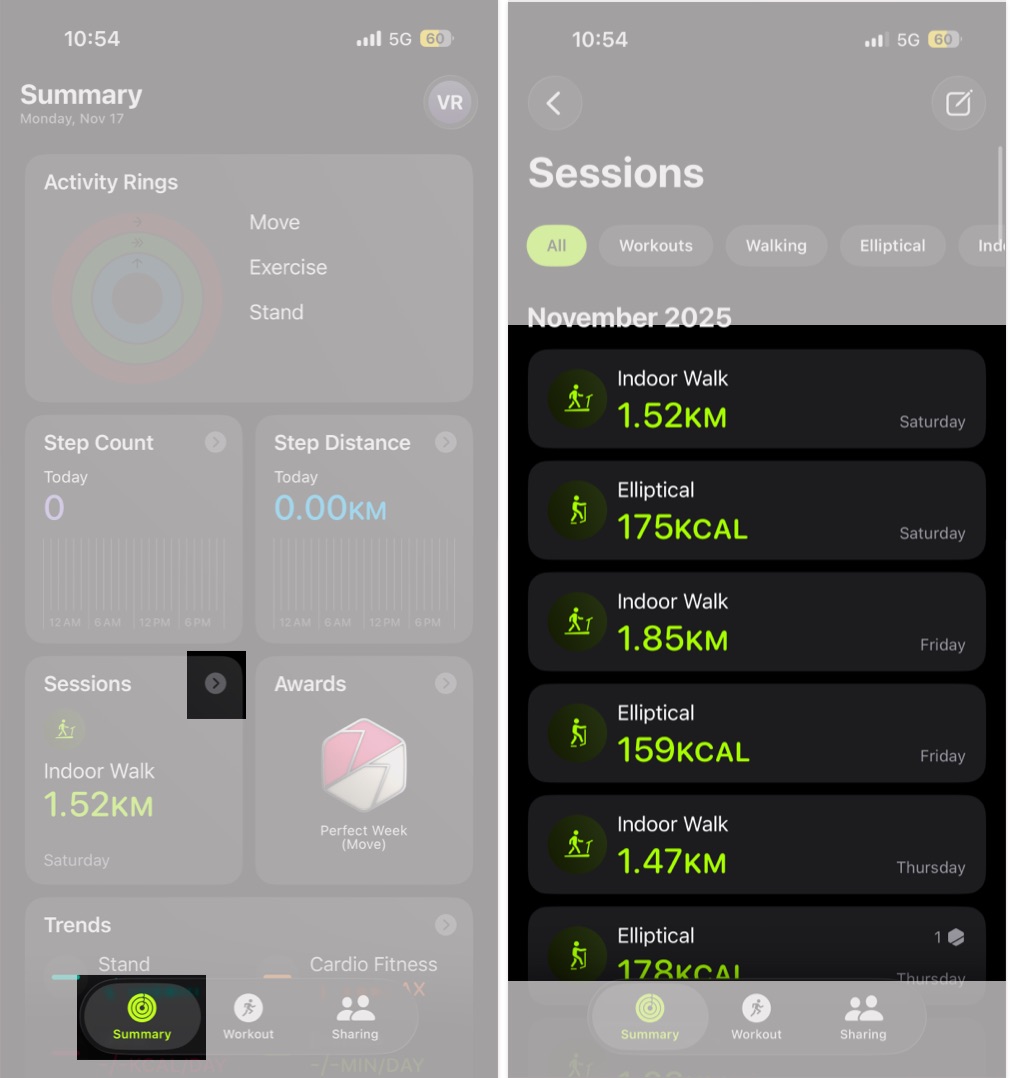
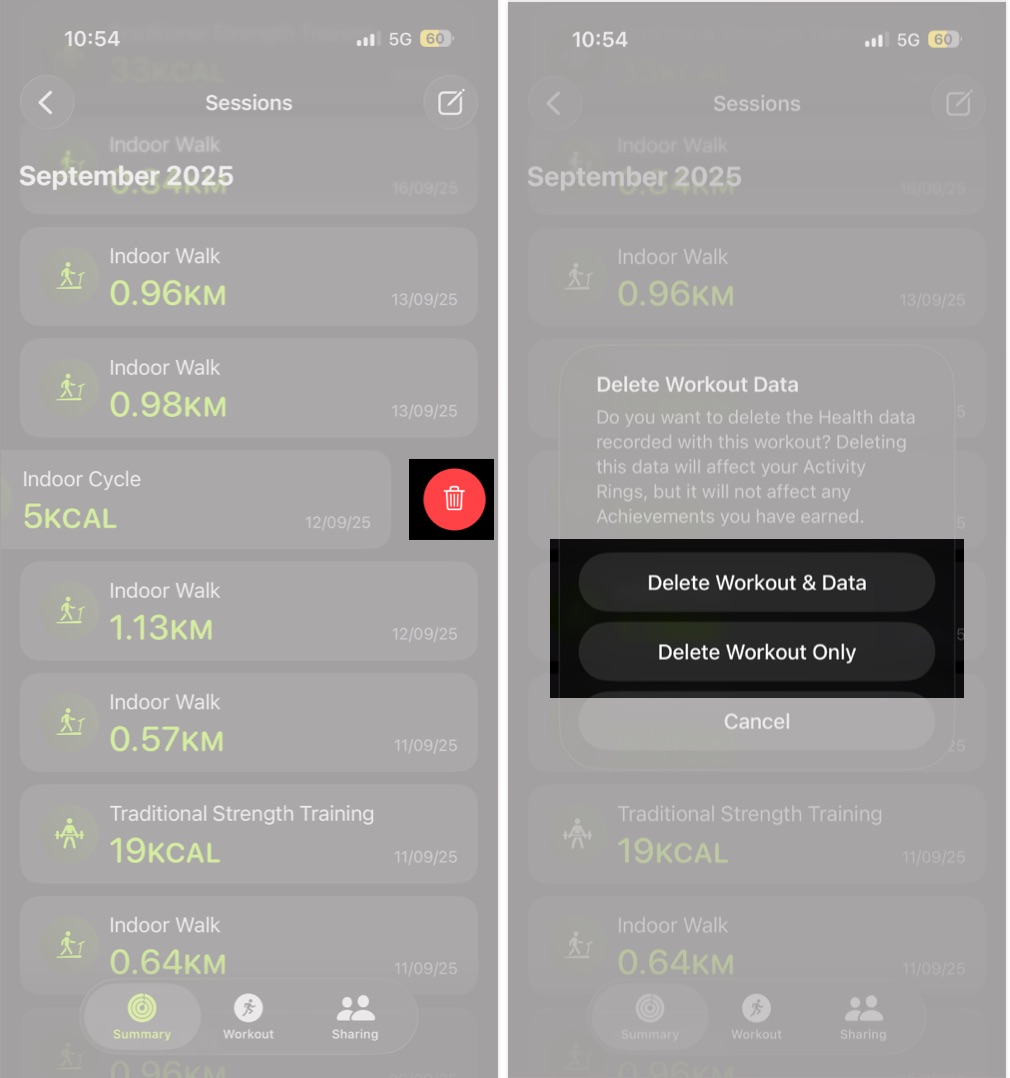
- Next, find the workout you want to delete, and swipe left on it.
- Tap the Trash Bin (Delete) icon that appears.
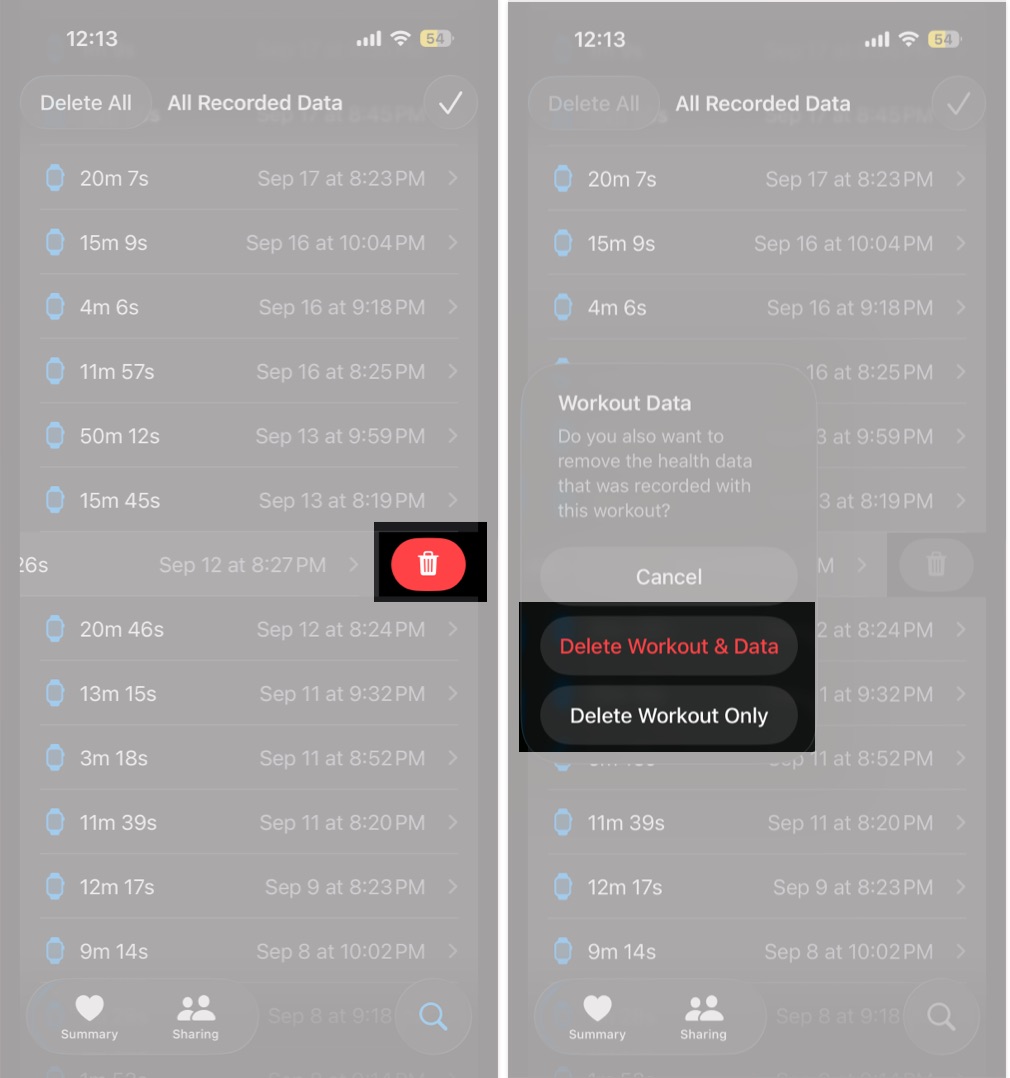
- If you want to remove the workout but keep the calories and metrics, tap Delete Workout Only. If you want it removed completely, tap Delete Workout and Data.


Using the Health App
If your Fitness data is synced with the Health app, any workout shown in the Fitness app also appears in Health. You can delete it from here as well.
- Open the Health app and tap the Magnifying Glass (Search) icon at the bottom right corner.
- Search for Workouts and select it.
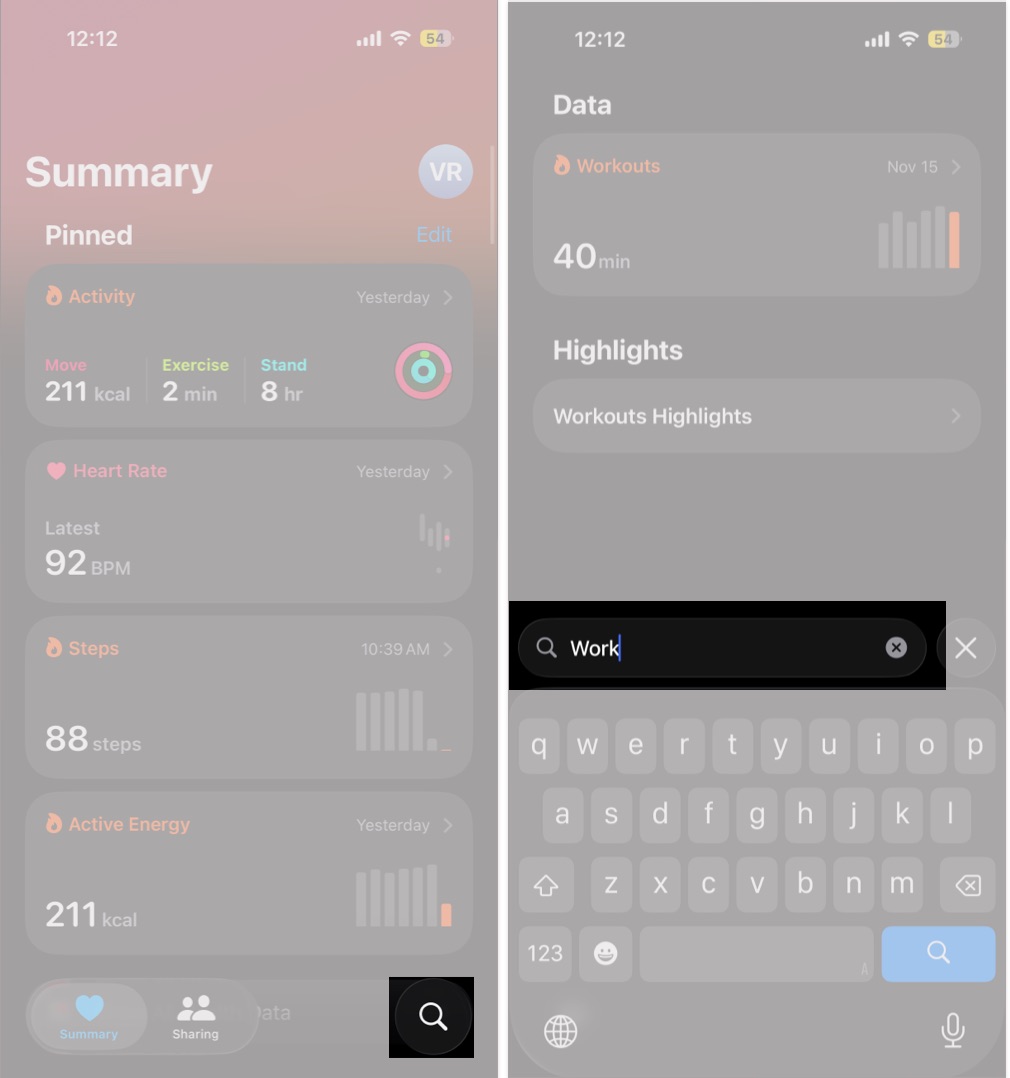
- Next, scroll down and tap Show All Data. You’ll see a list of all the workouts stored in the Health app.
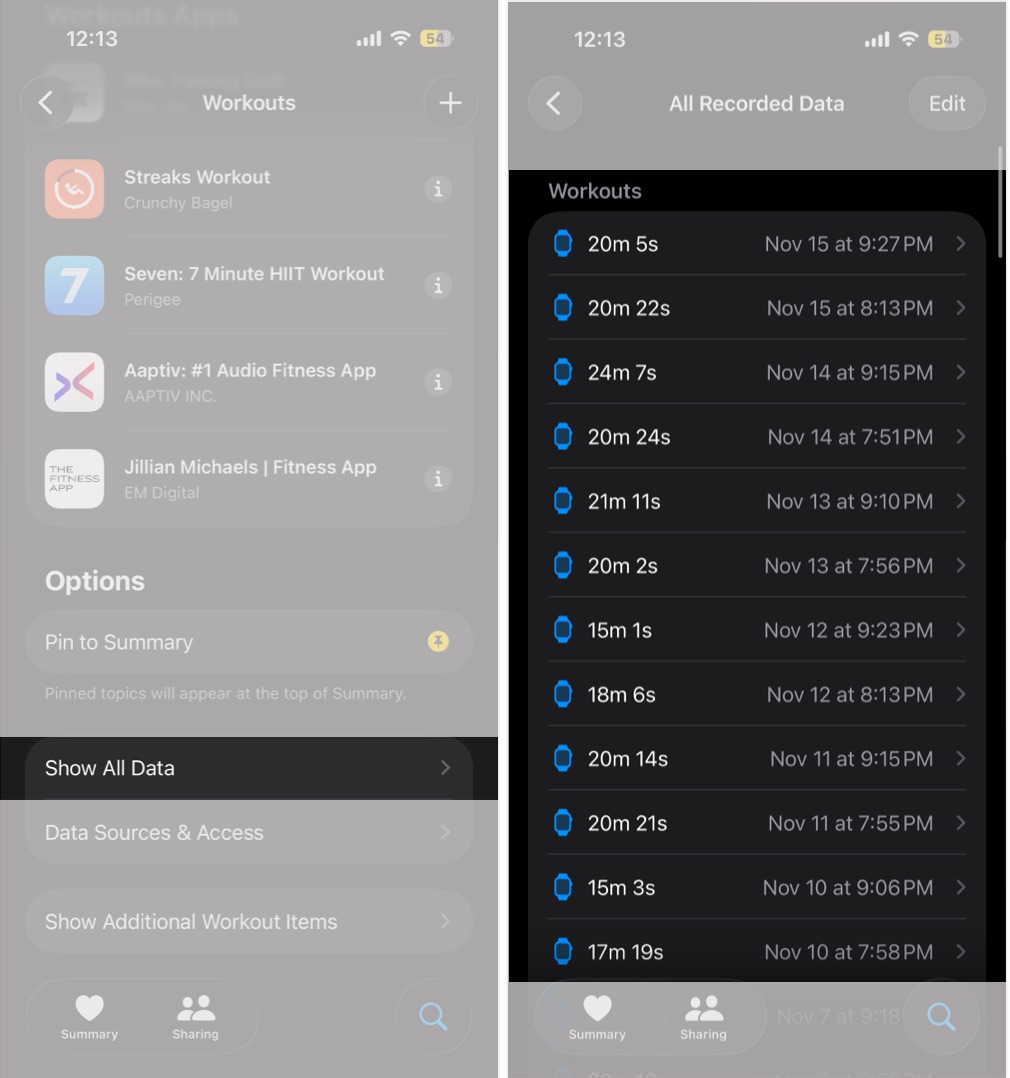
- Swipe left on the workout you want to delete.
- Tap the Trash Bin (Delete) icon that appears.
- Finally, choose whether you want to:
- Delete Workout Only
- Delete Workout and Data


Delete Workout vs. Delete Workout and Data
When you delete a workout on Apple Watch from your iPhone, two options appear. They affect your Activity rings and Health data differently, so it helps to know what they mean.
- Delete Workout Only keeps your calorie burn and exercise minutes, but removes the workout type. This is useful when the workout category was wrong, but the rest of the data is accurate.
- Delete Workout and Data removes everything linked to that workout. Your calories, exercise minutes, and metrics will update instantly across Fitness and Health. Use this when the entire entry is incorrect or logged by mistake.
How to Delete Accidental Exercise Minutes on Apple Watch
Your Apple Watch sometimes awards exercise minutes even when you weren’t intentionally working out. A quick brisk walk, heavy lifting around the house, or a bit of energetic movement can trigger the sensors. Since this data often isn’t tied to a workout, you have to delete it separately.
- Open the Health app and tap the Magnifying Glass icon.
- Search for Exercise Minutes and select it.
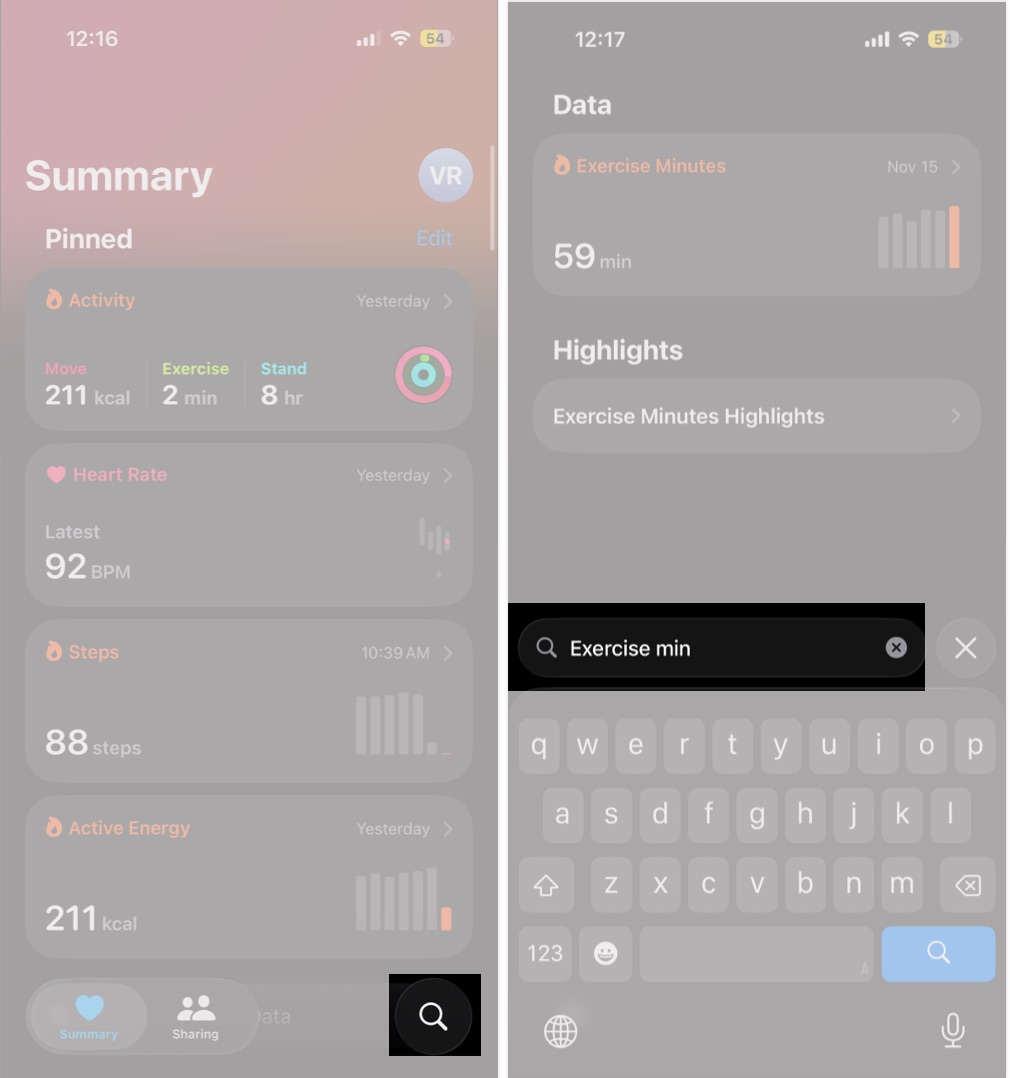
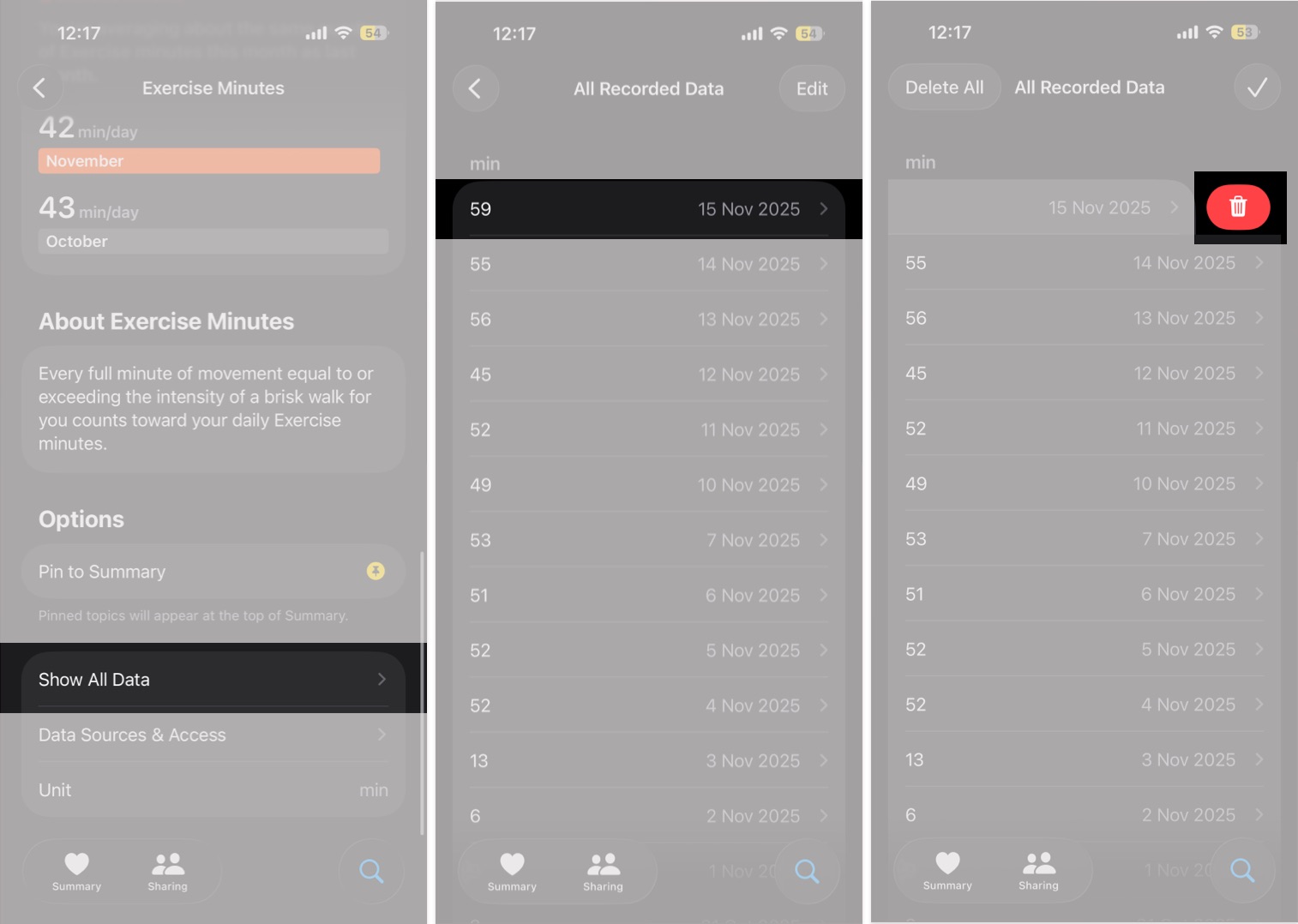
- Scroll down and tap Show All Data.
- Now, swipe left on the data you want to delete.
- Tap the Trash Bin (Delete) icon that appears.


What Happens After You Delete a Workout?
After you delete a workout on Apple Watch through the Fitness or Health app, your Activity rings adjust to reflect the corrected calories. Your trends update and the workout disappear from your history. These changes help keep your progress accurate.
If a third-party app originally recorded the entry, it may reappear after syncing. In that case, open the third-party app and remove the workout there too.
Tips for Managing Workout Accuracy
While it’s easy to delete a workout on Apple Watch using your iPhone, preventing accidental logs saves time. You can make a few habits part of your routine, like checking the Workout app before moving, turning off Auto-Detect for activities you rarely use, locking the screen during water workouts, and ending workouts manually to avoid extra tracking.
Keep Your Workout History Clean
Knowing how to delete a workout on Apple Watch helps keep your fitness data reliable. Since all edits happen through the Fitness or Health app, you don’t need to handle anything on the watch’s small screen. It helps to check your logs regularly and remove accidental entries as soon as you spot them, so your Activity records always reflect your real progress.
If you’re stuck with an issue on your Apple Watch, feel free to ask in the comments, and we’ll guide you.
Related articles worth reading:

Written by
Arshmeet KaurA self-professed Geek who loves to explore all things Apple. I thoroughly enjoy discovering new hacks, troubleshooting issues, and finding and reviewing the best products and apps currently available. My expertise also includes curating opinionated and honest editorials. If not this, you might find me surfing the web or listening to audiobooks.
View all posts →
Reviewed by
VikhyatVikhyat has a bachelor's degree in Electronic and Communication Engineering and over five years of writing experience. His passion for technology and Apple products led him to the tech writing space, where he specializes in writing App features, How-to guides, and troubleshooting guides for fellow Apple users. When not typing away on his MacBook Pro, he loves exploring the real world.
View all posts →More from Apple Watch

Apple Watch Not Responding? 8 Fixes That Actually Work
Is your Apple Watch unresponsive or stuck on a black screen? Here are 8 proven fixes to help you unfreeze it and get it working again quickly.
VikhyatMarch 3, 2026
How to Mirror Your Apple Watch on Your iPhone: A Simple Guide
Want to control your Apple Watch using your iPhone? This guide explains how to turn on Apple Watch Mirroring, use it easily, and fix common issues.
Arshmeet KaurFebruary 27, 2026
How to Restore Apple Watch From a Backup
Need to reset or switch iPhones? Here’s how to restore your Apple Watch from a backup, what data comes back, and how to make sure everything syncs properly.
VikhyatFebruary 23, 2026