
How to Crop Photos on iPhone or iPad
Zoom into the subject or cut out the distracting item from your photos
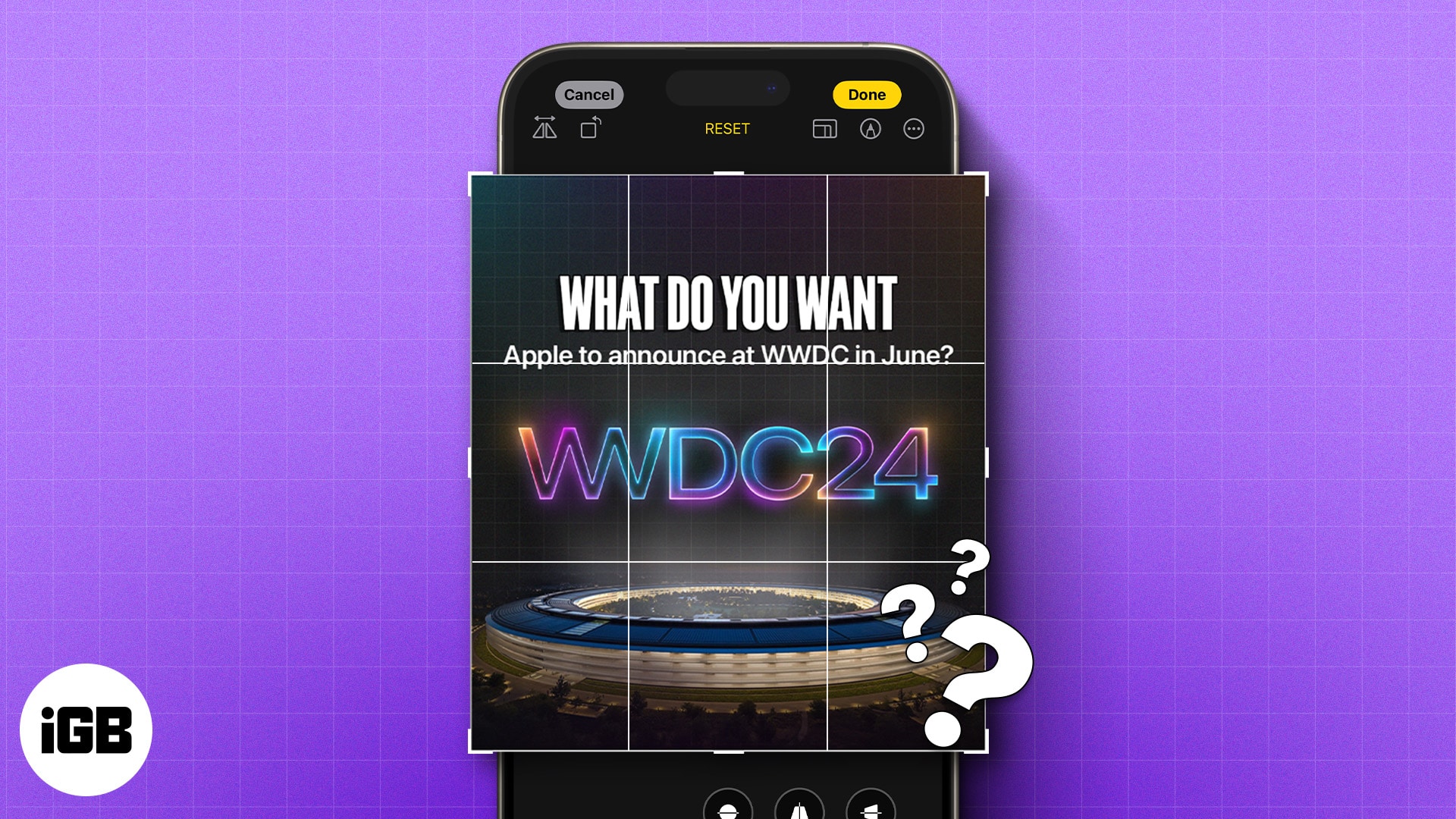
- Crop photos using Quick Crop or manual tools in the Photos app to trim or reframe images directly on your iPhone.
- Quick Crop offers fast resizing options like Square or Widescreen, ideal for social sharing or quick visual fixes.
- Use manual crop for more control—drag corners in Edit mode to crop with precision and match custom layouts.
- iOS 18 adds batch cropping support—copy crop settings from one photo and apply them to others for faster editing.
- You can always revert edits back to original—Photos app stores the original image, letting you undo cropping anytime.
Cropping photos on an iPhone is easy, thanks to the built-in editing tools in the Photos app. Not only can you easily crop photos on your iPhone with these tools, but you can also undo the changes and revert the photos to their original state if you cropped them incorrectly.
This guide details how to use the Photos app to crop photos on your iPhone.
How to crop a photo on your iPhone or iPad
The Photos app offers two ways to crop images on an iPhone or iPad. You can use the app’s built-in editing tools or the Quick Edit feature. Here’s how to do it!
Automatically crop a photo in the Photos app
- Open the Photos app and head to the image you want to crop.
- With the image opened, pinch out to zoom in to a desired level.
- Tap the Crop button in the top-right corner of the screen.
- Hit Done to save the image.
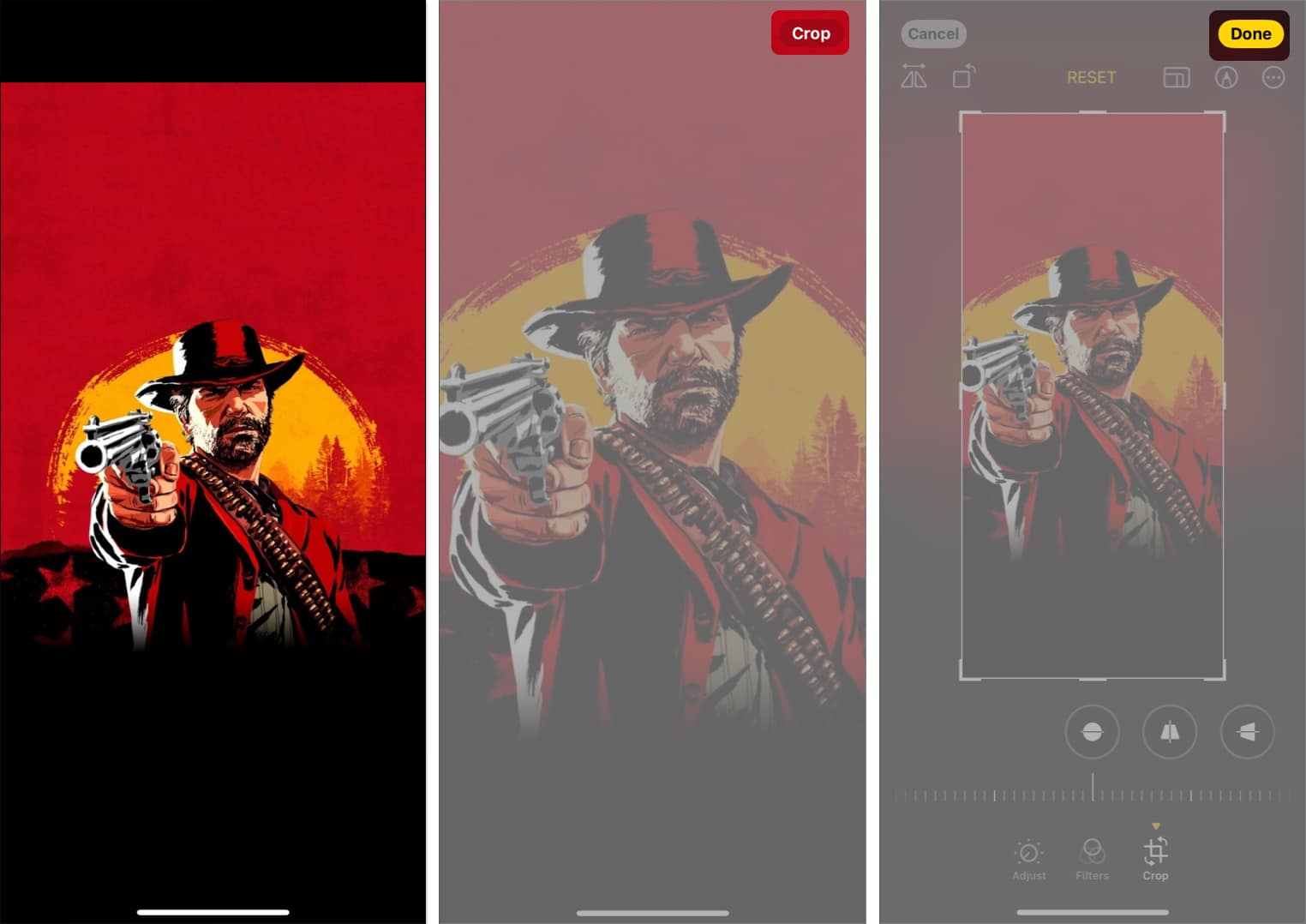
By default, the Quick Crop feature crops the image using the same aspect ratio shown on the screen. However, you can change the default setting if you want to maintain the image’s original aspect ratio or crop it in a different aspect ratio.
- With the image zoomed in, long press the Crop button.
- Choose among the four available aspect ratio options: Full Screen, Original, Widescreen, and Square.
- Hit Crop to crop the image and save it by tapping Done.
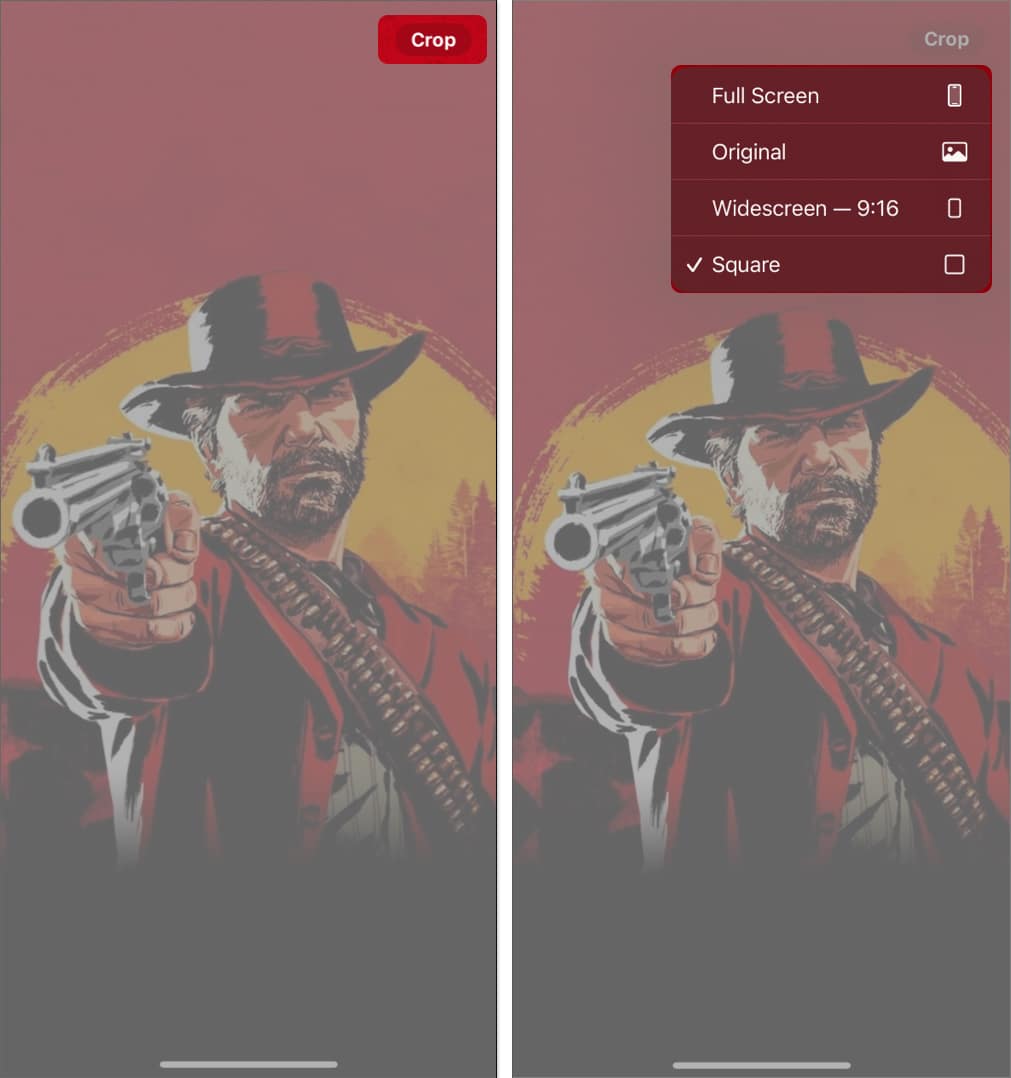
Your iPhone will remember your choice and crop your images in that aspect.
Manually crop a photo in the Photos app
If you’re using an older version of iOS on your iPhone or want more precision, you can use the built-in Crop tool in the Photos app to crop your photos. Here’s how:
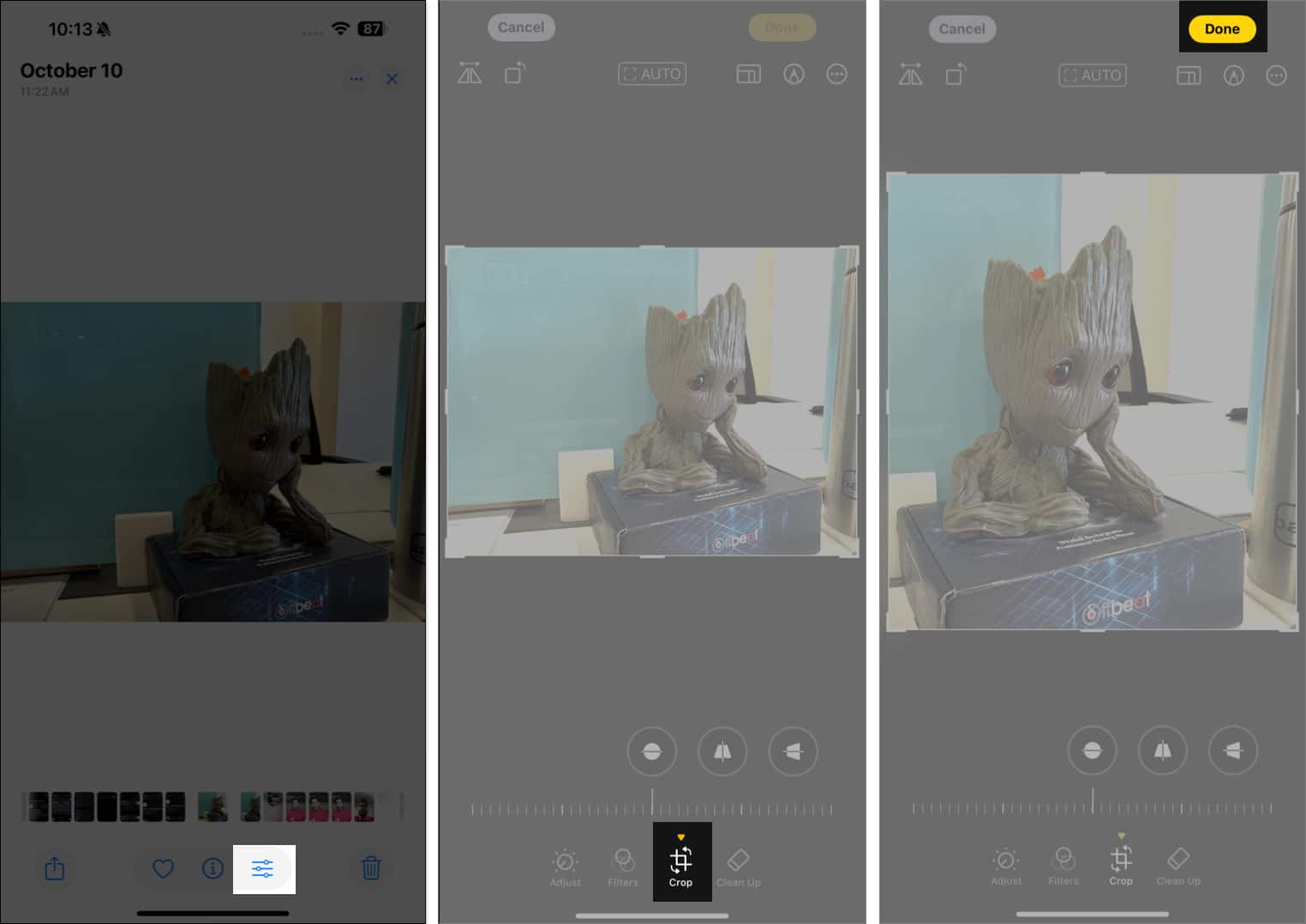
- Open the image you want to crop in the Photos app.
- Tap the Edit icon next to the “i” button at the bottom.
- Select Crop in the bottom toolbar, and a rectangular box will appear around the image.
- Drag the rectangle corners to enclose the area you want to keep in the photo.
- Tap Done in the top right corner to crop and save the image.
Resize photos on your iPhone or iPad
For times when you want to resize an image to specific dimensions after cropping it, you can select a preset aspect ratio accordingly in the Photos app like this:
- Repeat the first two steps of the previous section.
- Tap the Crop tool and choose an Aspect Ratio from the options that appear: Original, Freeform, Square, or Wallpaper.
- For more aspect ratio, tap Original and select Landscape or Portrait view. Then swipe to the right and choose a ration.
- Landscape: 16:9, 5:4, 7:5, 4:3, 5:3, or 3:2
- Portrait: 9:16, 4:5, 5:7, 3:4, 3:5, or 2:3
- Once done, use the rectangular corners to enclose the desired area in the image.
- Tap the Done button.
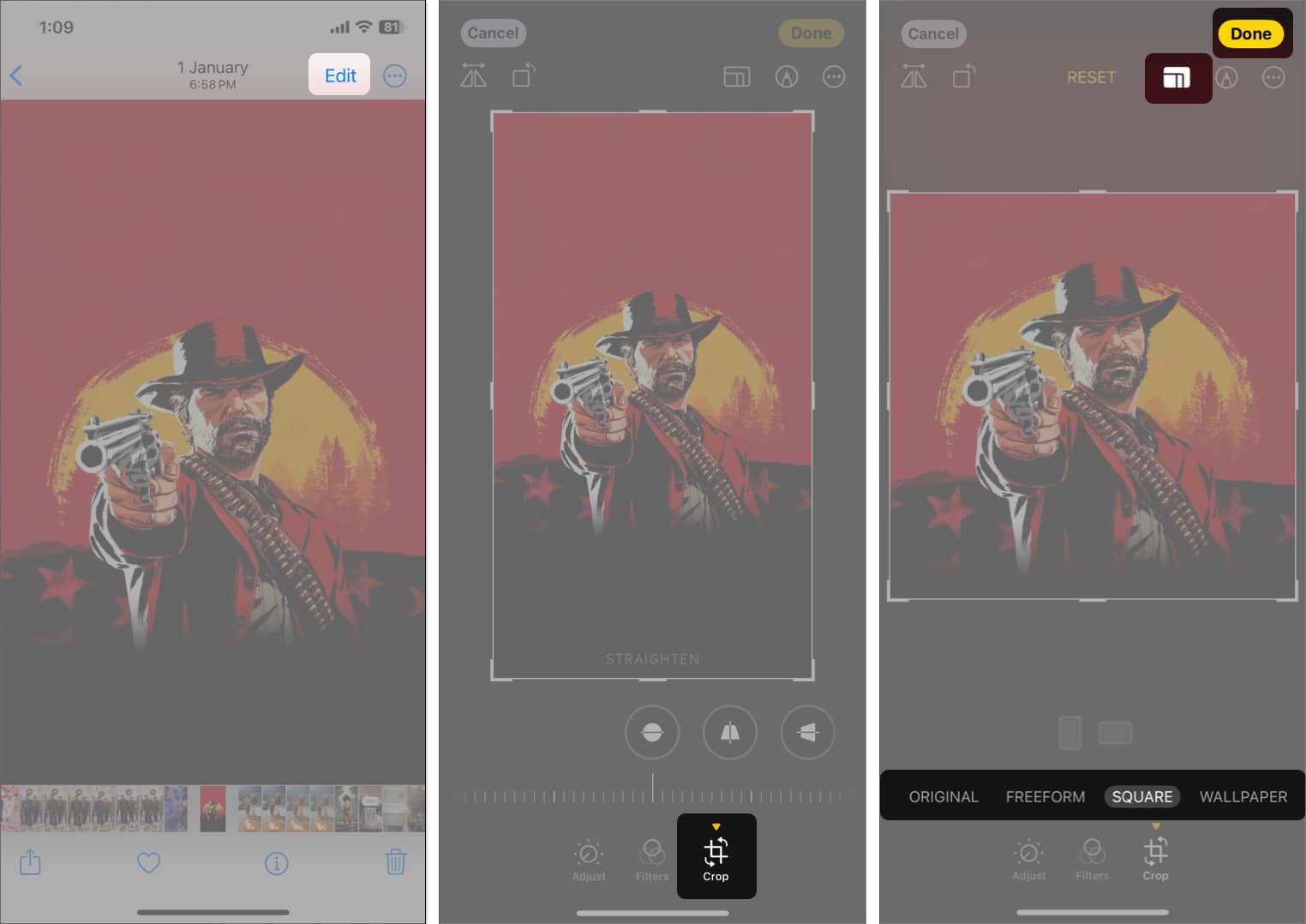
The built-in editing tools in the Photos app allow you to crop photos and rotate or flip them to your desired orientation on the iPhone.
How to crop multiple photos at once on your iPhone
The Photos app lets you copy edits and apply them to multiple images in iOS 18. All of the chosen images will be cropped like the first one.
- Open the cropped image in the Photos app.
- Tap on the three-dot icon in the top right corner and select Copy Edits.
- Toggle on Crop and tap on Copy.
- Now, go back to your library and tap Select.
- Choose the photos and tap on the three-dot icon at the bottom.
- Now, select Paste Edits.
How to revert a cropped photo to the original
At any point, if you want to revert a cropped photo to its original state, you can undo the crop using these steps:
- Open the cropped image.
- Hit the Edit icon at the bottom of the screen.
- Tap on Revert and hit Revert to Original when the confirmation prompt appears.
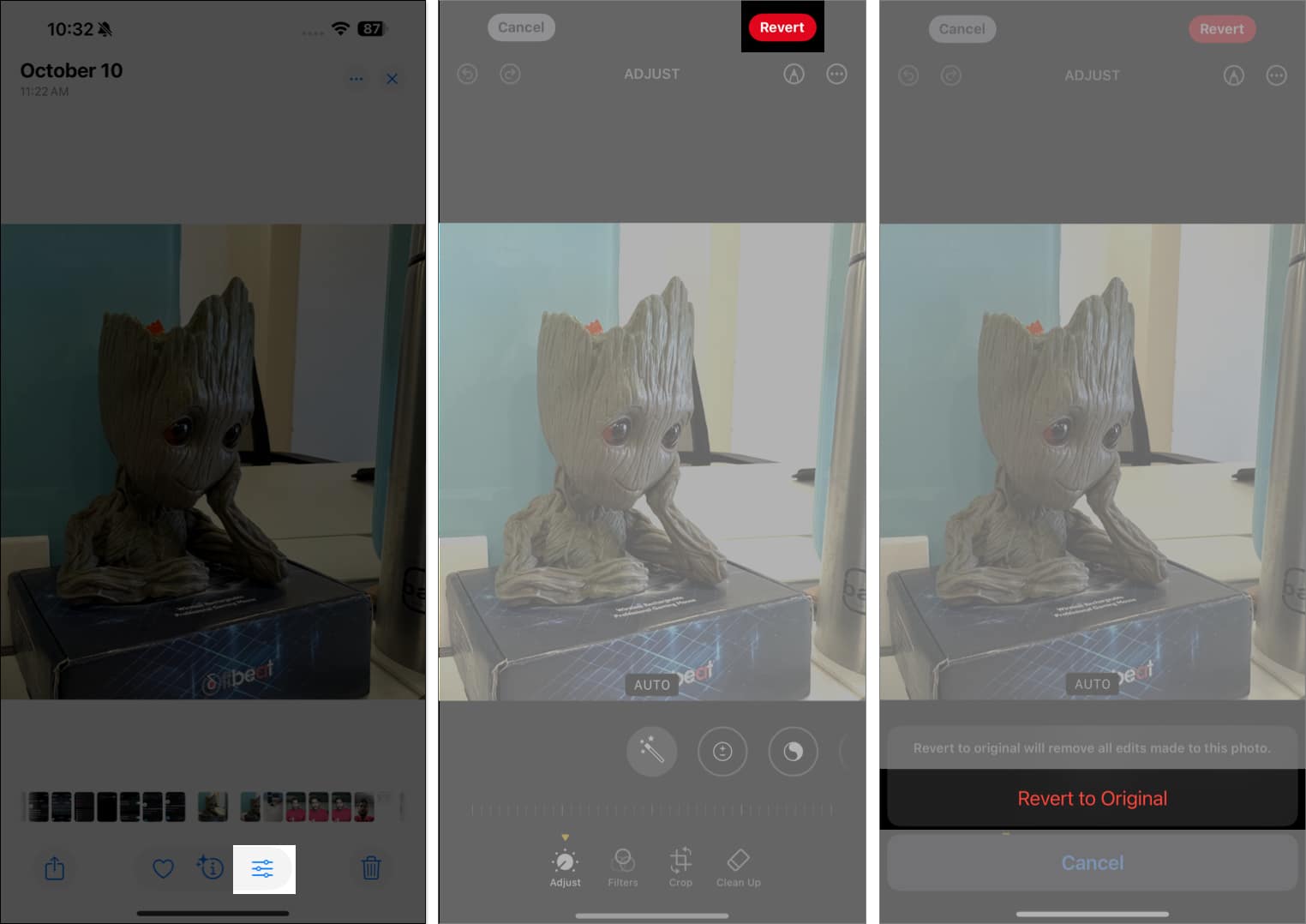
Note:
that this action will also remove any additional edits you have made to the photo.
Signing off
With just a few taps, you can crop photos on your iPhone to remove unwanted elements or empty spaces and draw attention to the main subject. While the built-in Crop tool in the Photos app can do the job just fine, if you want additional cropping or editing features, you can check out third-party photo editing apps.
Read more:

Written by
VikhyatVikhyat has a bachelor's degree in Electronic and Communication Engineering and over five years of writing experience. His passion for technology and Apple products led him to the tech writing space, where he specializes in writing App features, How-to guides, and troubleshooting guides for fellow Apple users. When not typing away on his MacBook Pro, he loves exploring the real world.
View all posts →More from How-to

How to Turn Off Location on Snapchat (Step-by-Step Guide)
Want to stop sharing your location on Snapchat? This guide explains how Snapchat location sharing works and shows simple ways to turn off your location using Ghost Mode or phone settings. Stay in control of your privacy in just a few steps.
VikhyatMarch 5, 2026
Snapchat Parental Controls: How to Set Up Family Center and Keep Your Teen Safe
Snapchat’s Family Center lets parents monitor their teen’s friend activity and screen time without reading private messages. Here’s how to set it up and what to expect.
VikhyatMarch 3, 2026
How to Block and Unblock Someone on Instagram
Instagram lets you block or unblock someone in seconds. Follow these simple steps to take full control of your privacy and online peace.
 Ava BiswasMarch 2, 2026