
How to check who viewed your Instagram Highlights
Learn how to check who viewed your Instagram Highlights on iPhone and what data you can still see after 48 hours using Instagram insights.
During my trips, I love capturing every moment on my Instagram Stories and saving them as Highlights. But, like many of you, I frequently get the urge to check who has viewed them. It can be frustrating that Instagram doesn’t show the viewer list for IG Highlights after 48 hours of publishing. If you’ve experienced this same issue, don’t worry!
In this article, I’ll show you how to check who viewed your Instagram Highlights on your iPhone as well as how you can check who viewed it after 48 hours.
How to check who viewed your Instagram Highlights on iPhone
- Open the Instagram app.
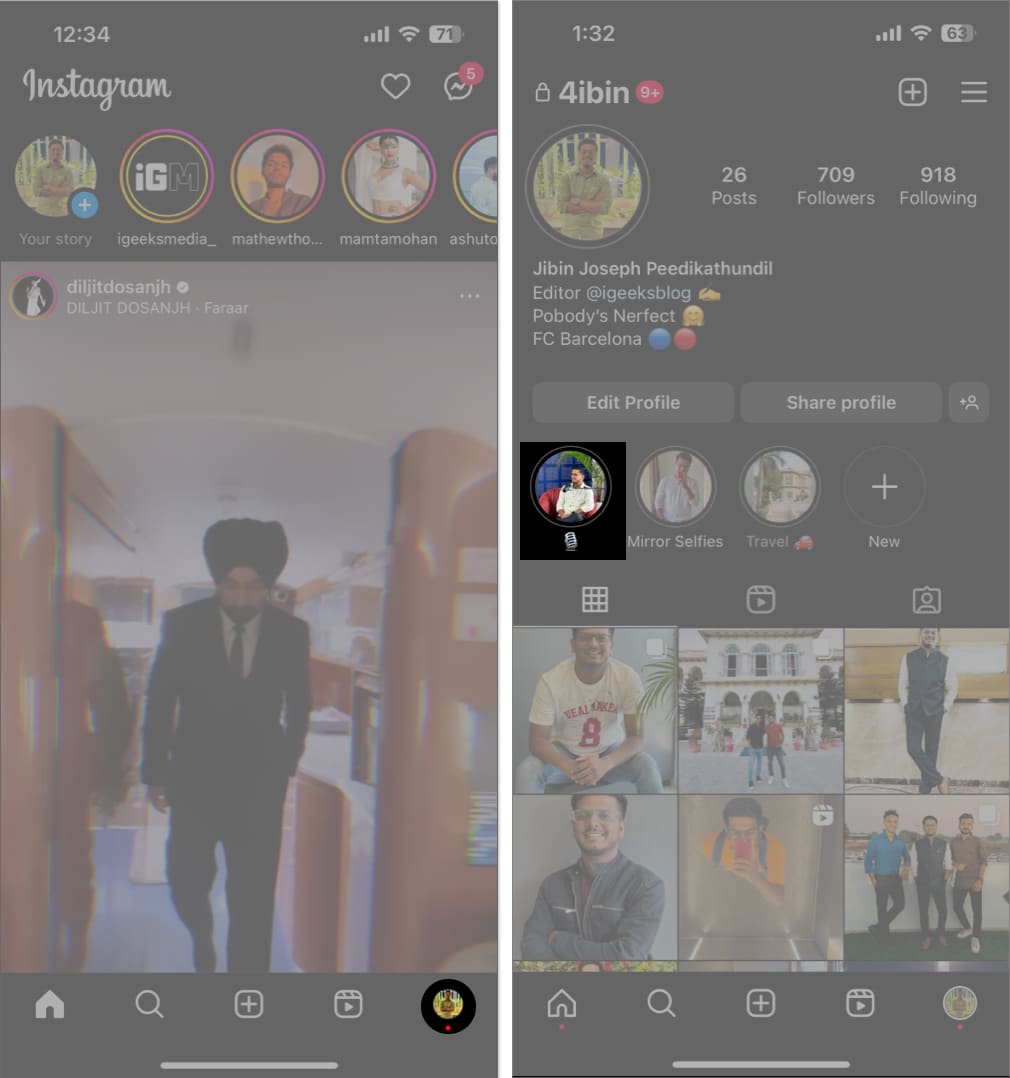
- Tap your profile photo at the bottom.
- Select a highlight.
- Tap Activity.
- Check the total number of views and a list of your IG Story Highlight viewer.
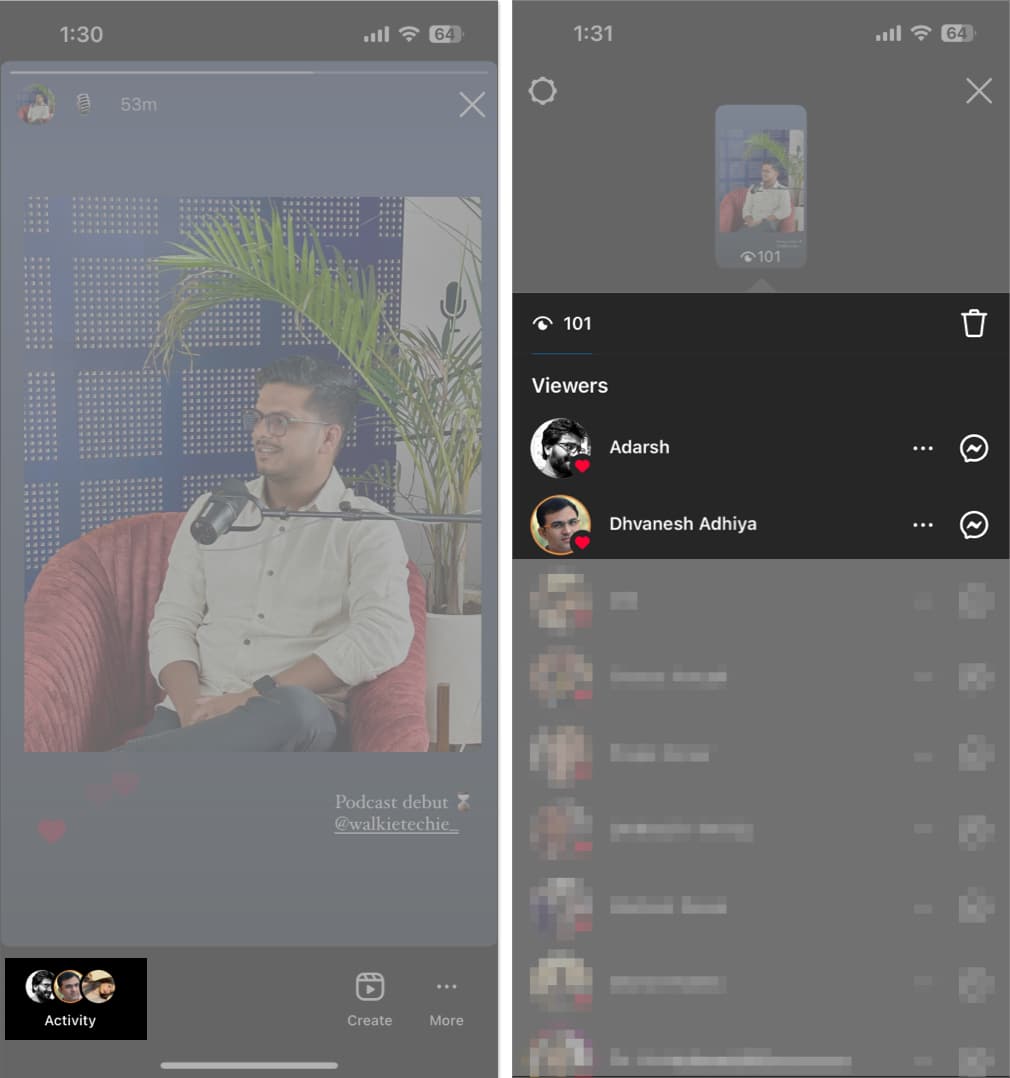
Interestingly, if any profile has reacted to your Highlight, you will see a small heart icon on their profile photo.
Also, you can send messages to viewers by tapping the messenger icon next to their profiles. If you want to view their profile or hide your story, tap the three-dot icon next to their name and select Block or Hide Your Story.
Here the only problem is you can’t see the viewers’ count after 48 hours. It’s really frustrating for creators like me as we can’t check the exposure of the Story content. So, I have tried and tested a few methods and found a way to check who viewed my Instagram Highlights after 48 hours.
Also read: How to Block and Unblock Someone on Instagram
How to check who viewed your Instagram Highlights after 48 hours
Instagram automatically removes the list of viewers when your Instagram highlight has exceeded the time limit of 48 hours from the moment it was uploaded.
However, there’s another way to get the analytics of your Instagram Highlights. You need to turn your profile into a professional account.
- Open Instagram → go to your profile.
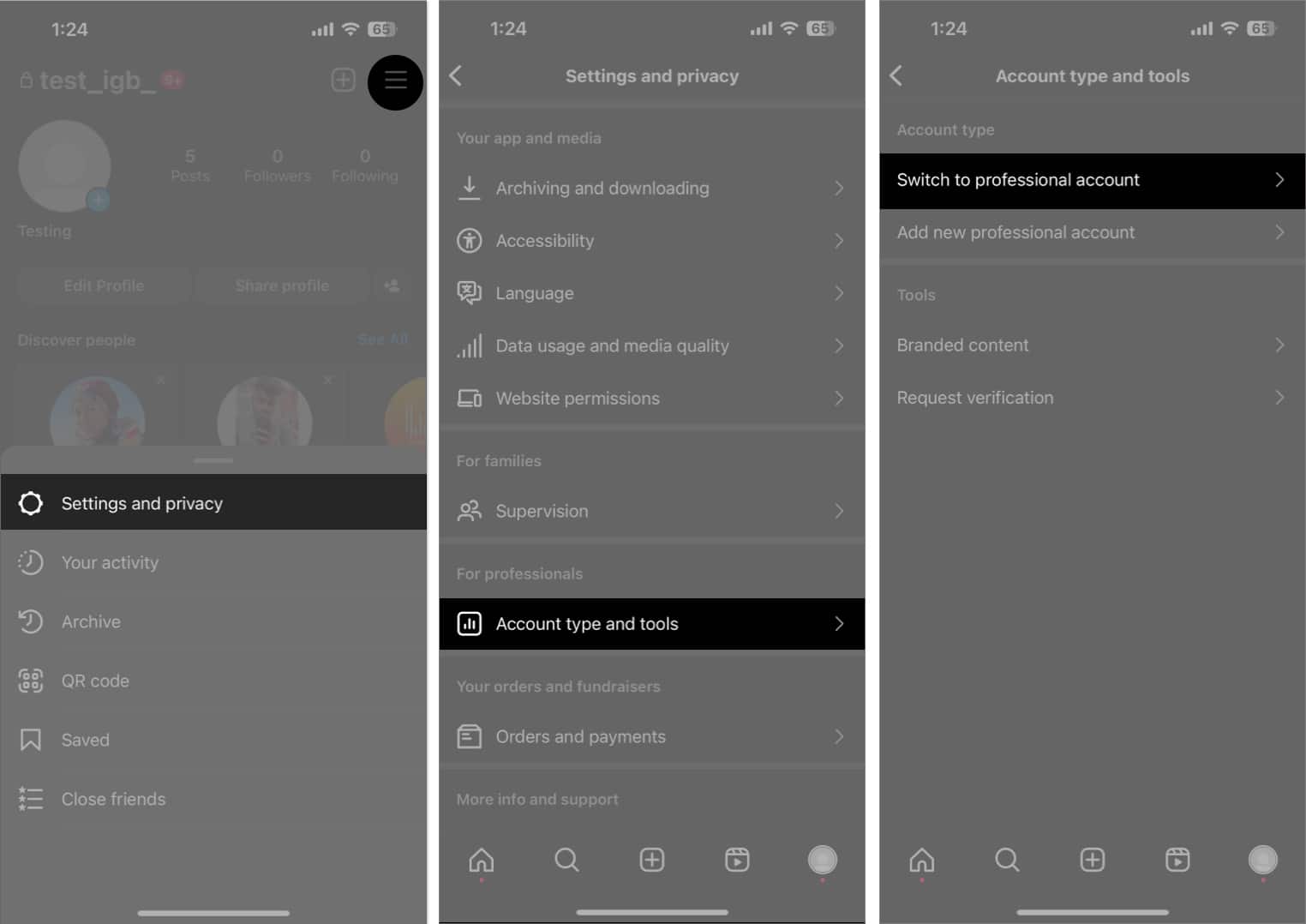
- Tap the hamburger icon → Tap Settings and privacy.
- Scroll down to Account type and tools.
- Select Switch to professional account.
- Tap Continue.
- Choose your account category and tap Done.
- Select OK to approve the conversion.
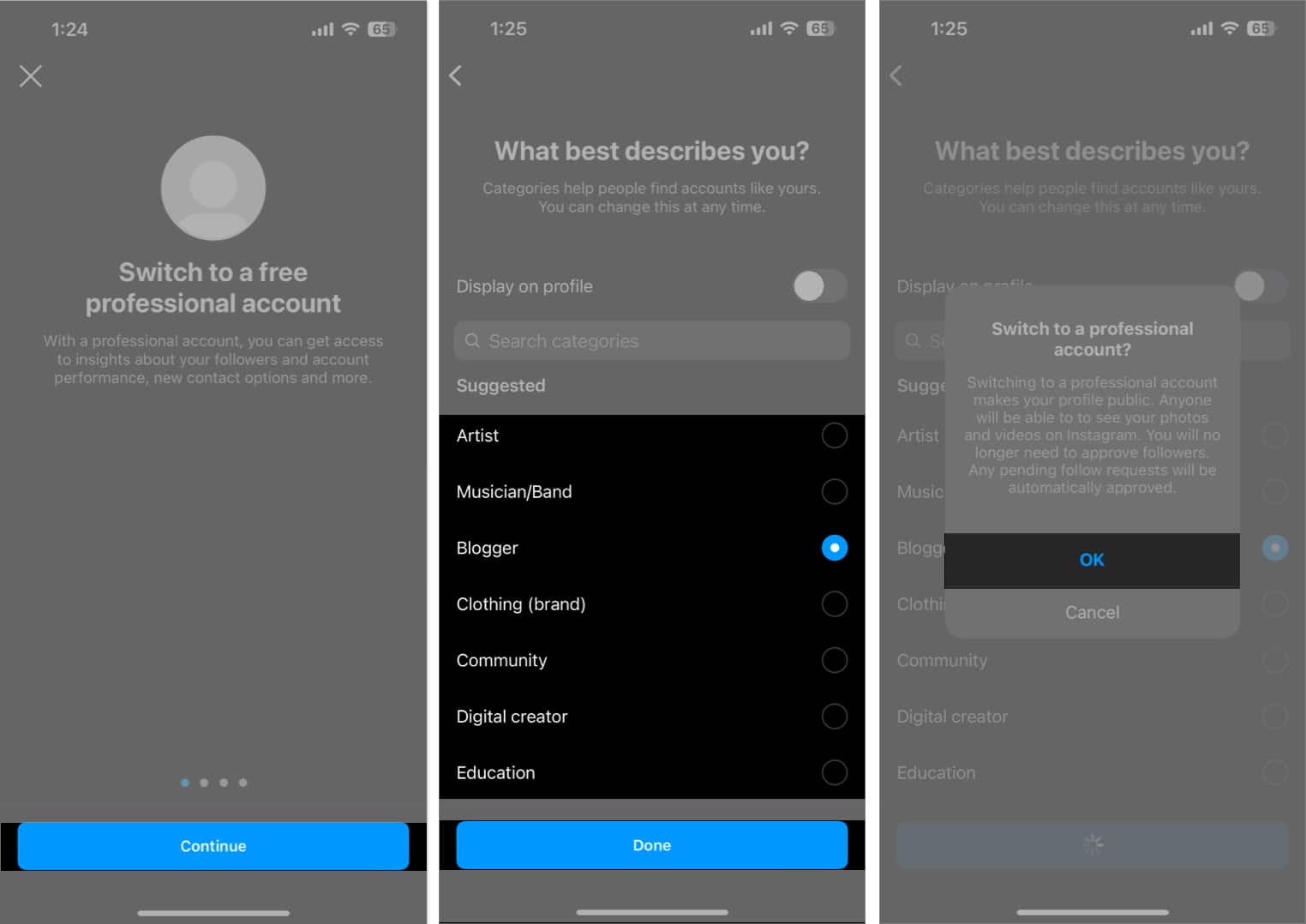
- Wait until Instagram sets up your profile.
- Choose Creator and tap Next → OK.
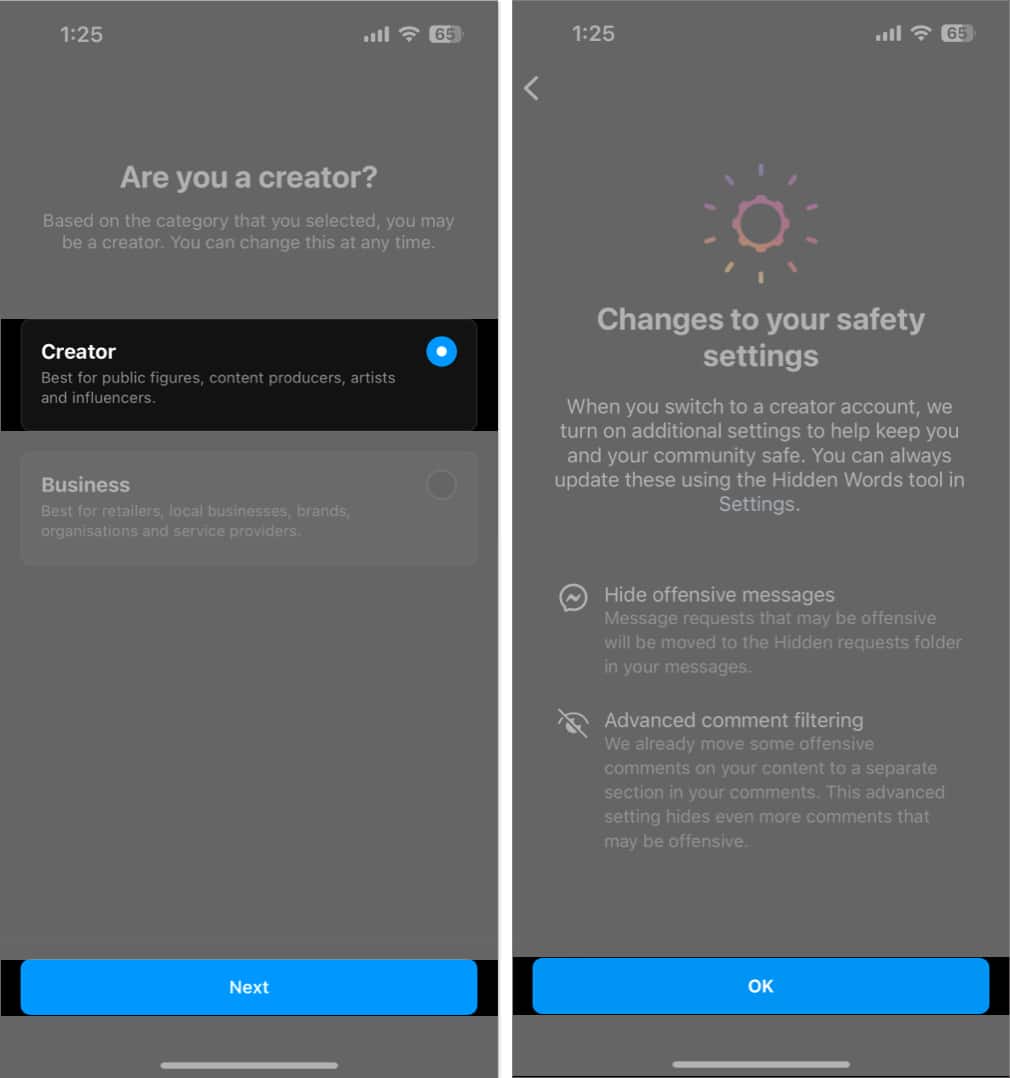
- Follow the on-screen prompts.
- Now open any Highlight, and you will see Story Insights.
Though the insights don’t provide viewer lists and view counts, you can check the reach means the unique number of accounts who have seen the story at least once. Also, the insights show who has liked your story and engagements. If you boost the story, you can get more in-depth analytics.
Note:
Happy Instagramming!
I hope now you know how to check who viewed your Instagram highlights. While Instagram does not provide an official feature to check who viewed your Highlights, these workarounds can help you get this information. If you have any questions, you may comment below.
Frequently Asked Questions
Topics

Written by
Ava BiswasAva is a die-hard Apple aficionado and seasoned writer with a knack for breaking down complex tech concepts into easily digestible content. Having honed her writing and editing skills over 4 years at renowned media houses like TechBurner, Ava crafts informative and engaging articles including troubleshooting guides, product reviews, editorials at iGeeksBlog. When not typing, you can find her exploring the latest Apple releases or pondering the future of tech innovation.
View all posts →More from How-to

How to Turn Off Location on Snapchat (Step-by-Step Guide)
Want to stop sharing your location on Snapchat? This guide explains how Snapchat location sharing works and shows simple ways to turn off your location using Ghost Mode or phone settings. Stay in control of your privacy in just a few steps.
 VikhyatMarch 5, 2026
Snapchat Parental Controls: How to Set Up Family Center and Keep Your Teen Safe
Snapchat’s Family Center lets parents monitor their teen’s friend activity and screen time without reading private messages. Here’s how to set it up and what to expect.
VikhyatMarch 6, 2026
How to Block and Unblock Someone on Instagram
Instagram lets you block or unblock someone in seconds. Follow these simple steps to take full control of your privacy and online peace.
Ava BiswasMarch 2, 2026