
How to check the warranty status of your iPhone, Mac, and other Apple devices
Check the warranty on your iPhone, Mac, and other Apple gear with this easy method.
- Use Apple’s Website: The primary method is to go to Apple’s official “Check Coverage” website and enter your device’s serial number.
- Check on iPhone/iPad: You can find warranty details directly on your device by going to `Settings > General > About` and tapping on the coverage listing.
- Use the Apple Support App: The Apple Support app provides a convenient way to see the warranty status for all devices linked to your Apple ID.
- Serial Number is Key: You need the device’s serial number for most checks, which can be found in Settings, on the original box, or sometimes on the device itself.
If your Apple device is broken or acting up, you might be wondering if you can get it fixed under warranty. But before you head to an Apple Store or contact support about the same, you must check whether or not your device is still under warranty.
Keep reading, and we’ll guide you on how to check the warranty status of different Apple devices.
Check the warranty status on your Apple device itself
Whether it’s an iPhone, iPad, Mac, or Apple Watch, checking your warranty status is easy. Here’s how you can do it for different Apple devices.
1. Check the warranty status on an iPhone or iPad
To check the warranty status of your iPhone, iPad, or iPod Touch:
- Open the Settings app on your device.
- Tap on General.
- Next, select AppleCare & Warranty.
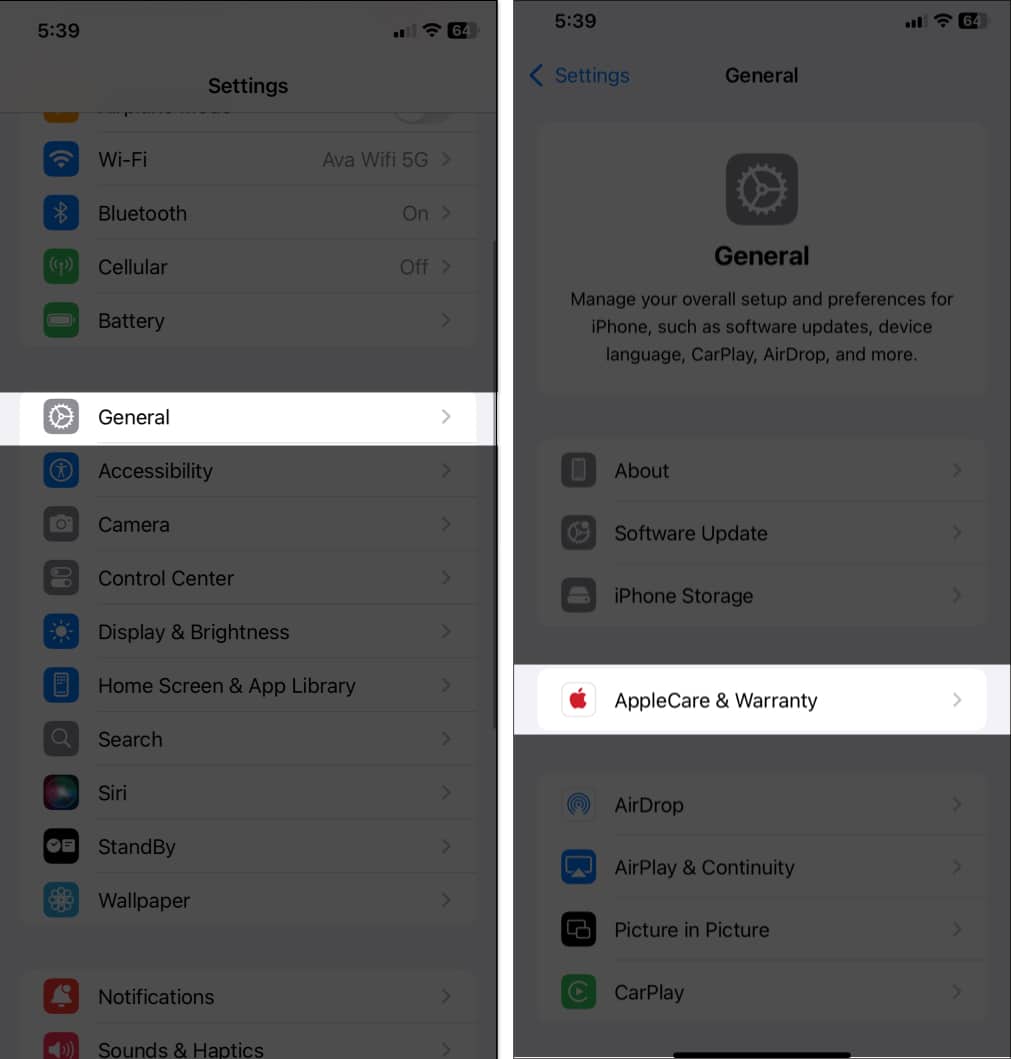
- Here, you’ll see your iPhone at the top with the warranty status displayed below it. If your warranty is still in effect, it will say Limited Warranty. Else, you’ll see Coverage Expired.
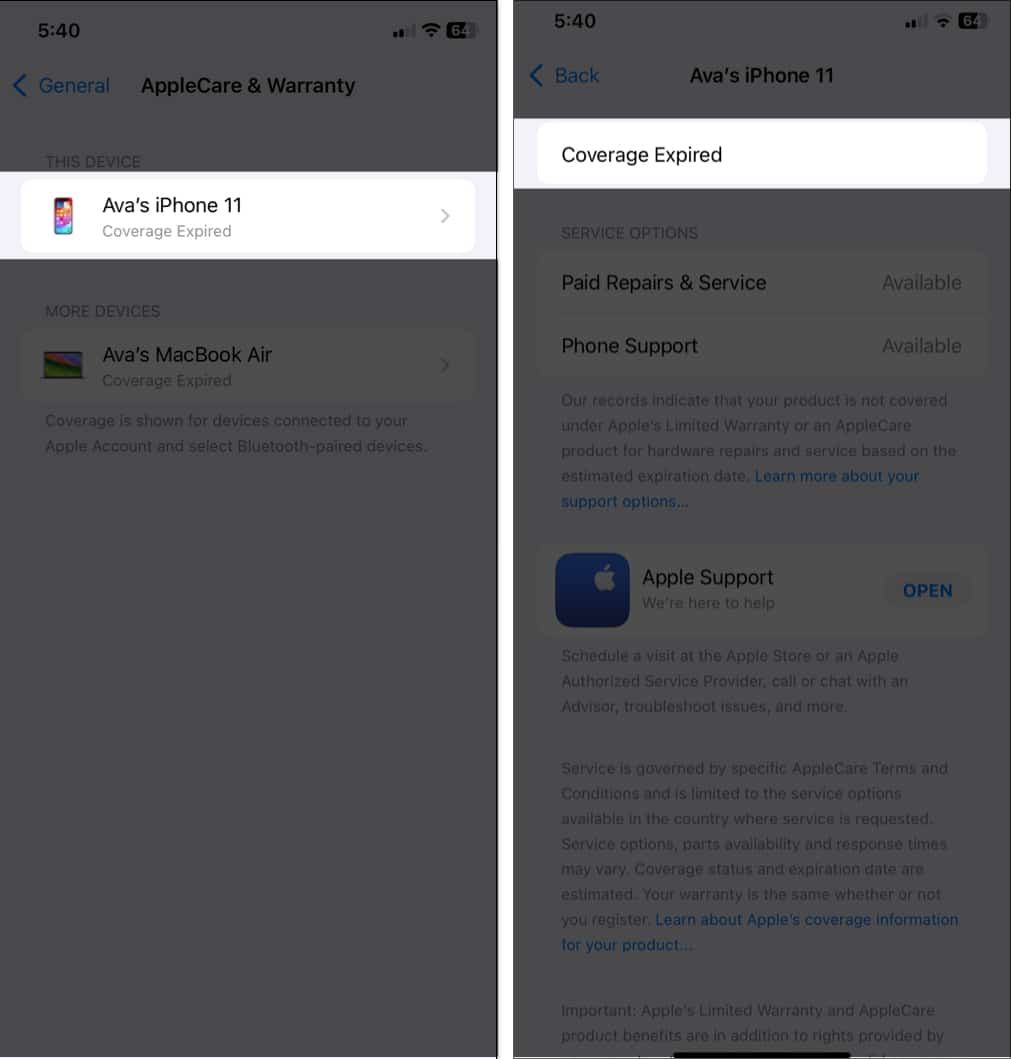
If you own any other Apple devices with the same Apple ID, they will be listed below. To view the status of a device’s warranty, simply tap it.
2. Check the warranty status on Mac
If you’re an iMac, MacBook Pro, MacBook Air, Mac mini, Mac Studio, or Mac Pro user, use the steps below to find the warranty status:
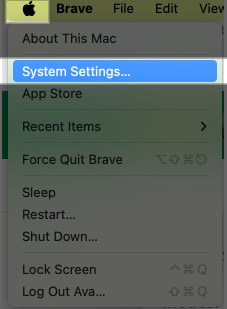
- Click on the Apple logo in the top-left corner of the screen and select System Settings.
- Click on General in the left panel.
- Select AppleCare & Warranty.
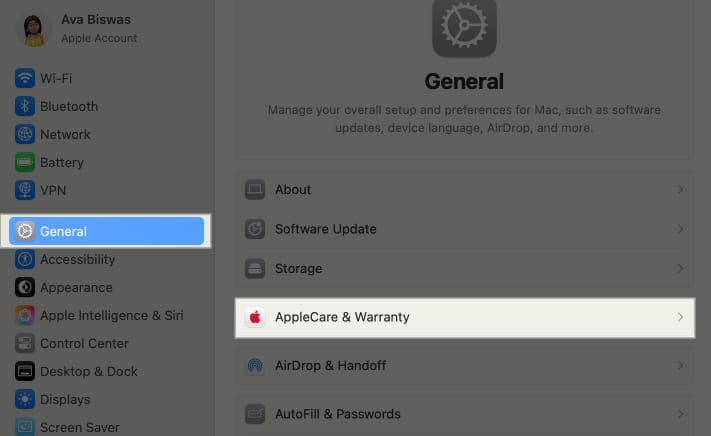
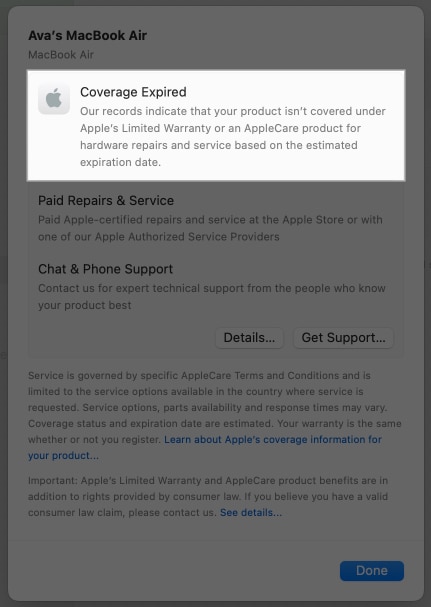
- Click on your device.
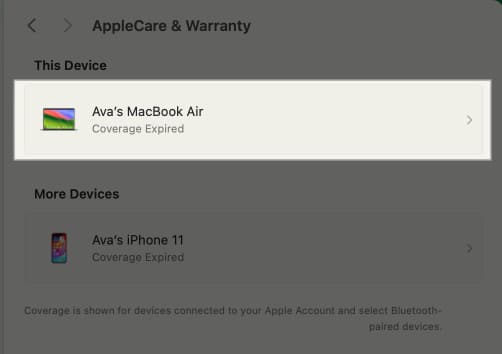
- Here, you’ll see if your Mac is still under warranty or if the coverage has expired.
3. Check the warranty status on an Apple Watch
To check your Apple Watch’s warranty information:
- Open the Watch app on your paired iPhone.
- Move to My Watch tab and tap on General.
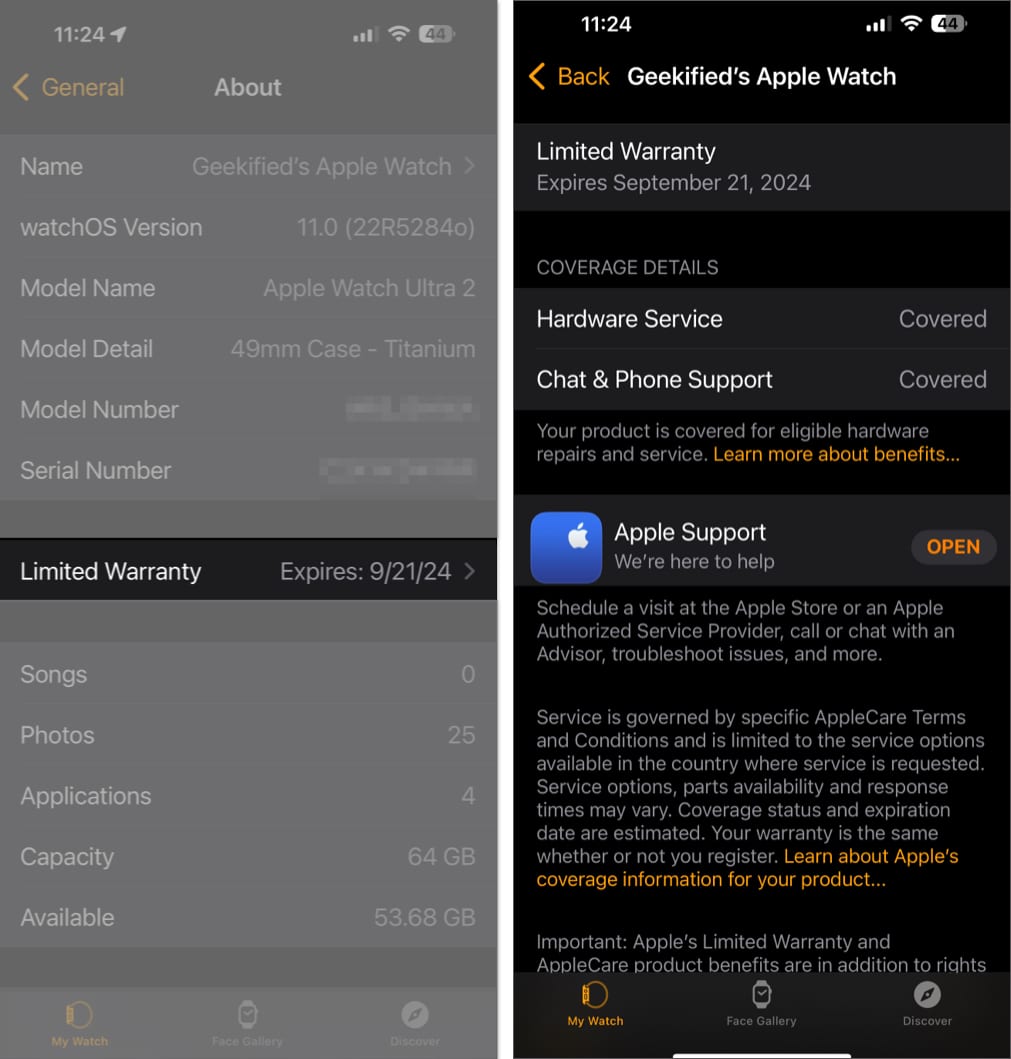
- Next, select About.
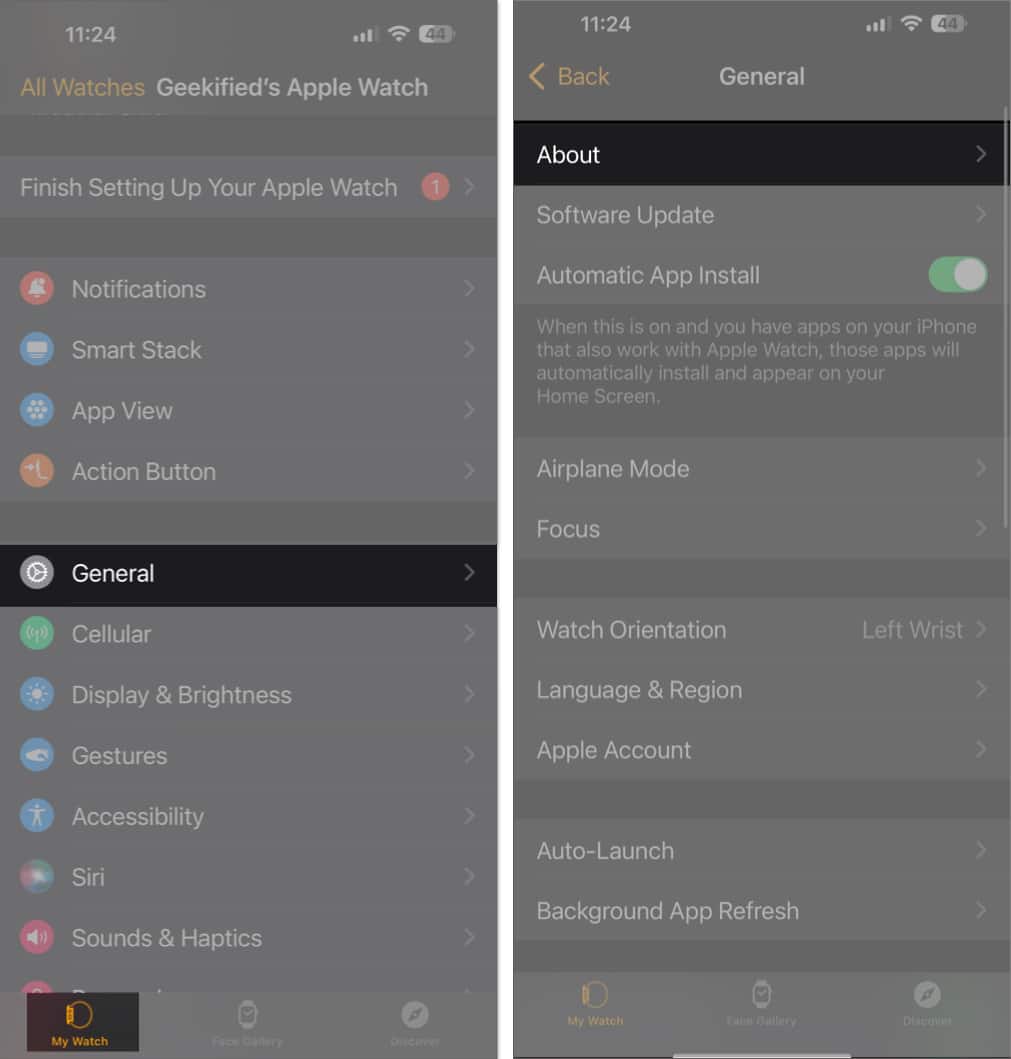
- Tap Limited Warranty or Coverage Expired to see the warranty information.
4. AirPods, AirPods Pro, and AirPods Max
Ensure that your AirPods are connected to your iPhone, and then follow the instructions below to check their warranty:
- Launch the Settings app on the paired iPhone.
- Tap your AirPods name at the top.
- Scroll down and select Limited Warranty or Coverage Expired.
You can check the warranty status of most of your Apple devices as shown above. However, if you want to check warranty coverage details for other Apple devices, such as Apple Pencil, Apple TV, and the like, use the following method.
Check the warranty status on Apple’s Check Coverage website
Another way to check Apple warranty status online is through Apple’s Check Coverage website. You’ll need the serial number of your Apple device for this method, so get it first. Follow our guides below if you don’t know how to find them.
- Find serial number of iPhone and iPad
- How to check your Mac’s specs and version
- How to find AirPods Pro serial number
Once you have the serial number with you, perform the steps below:
- Visit the Apple Check Coverage website.
- Enter your device’s serial number in the box under Enter a Device Serial Number.
- Input the code displayed in the box correctly.
- Hit Submit.
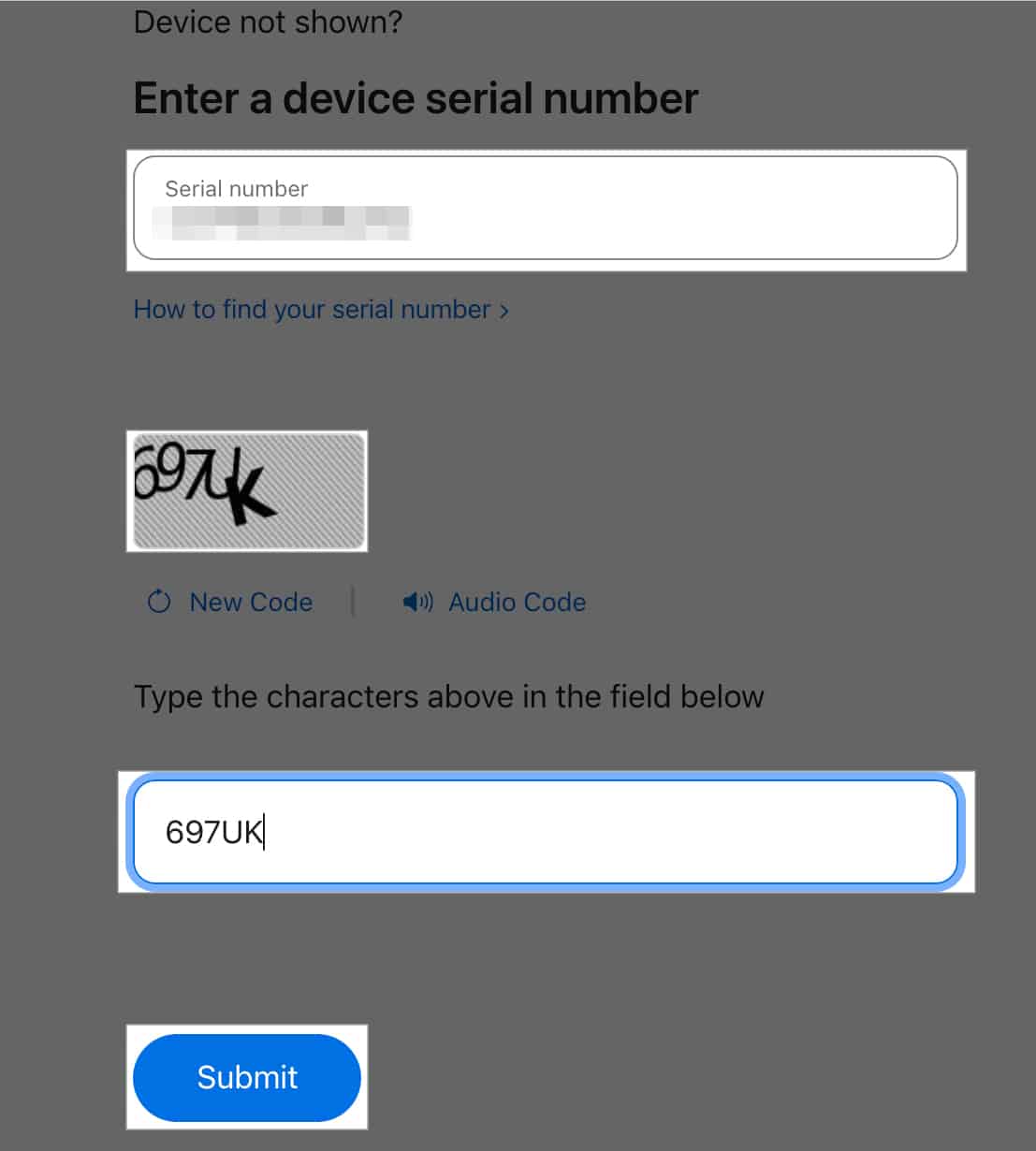
You may now see the status of your service and support warranty status including what coverage is included such as valid purchase date, telephone support, repairs and service coverage, and more.
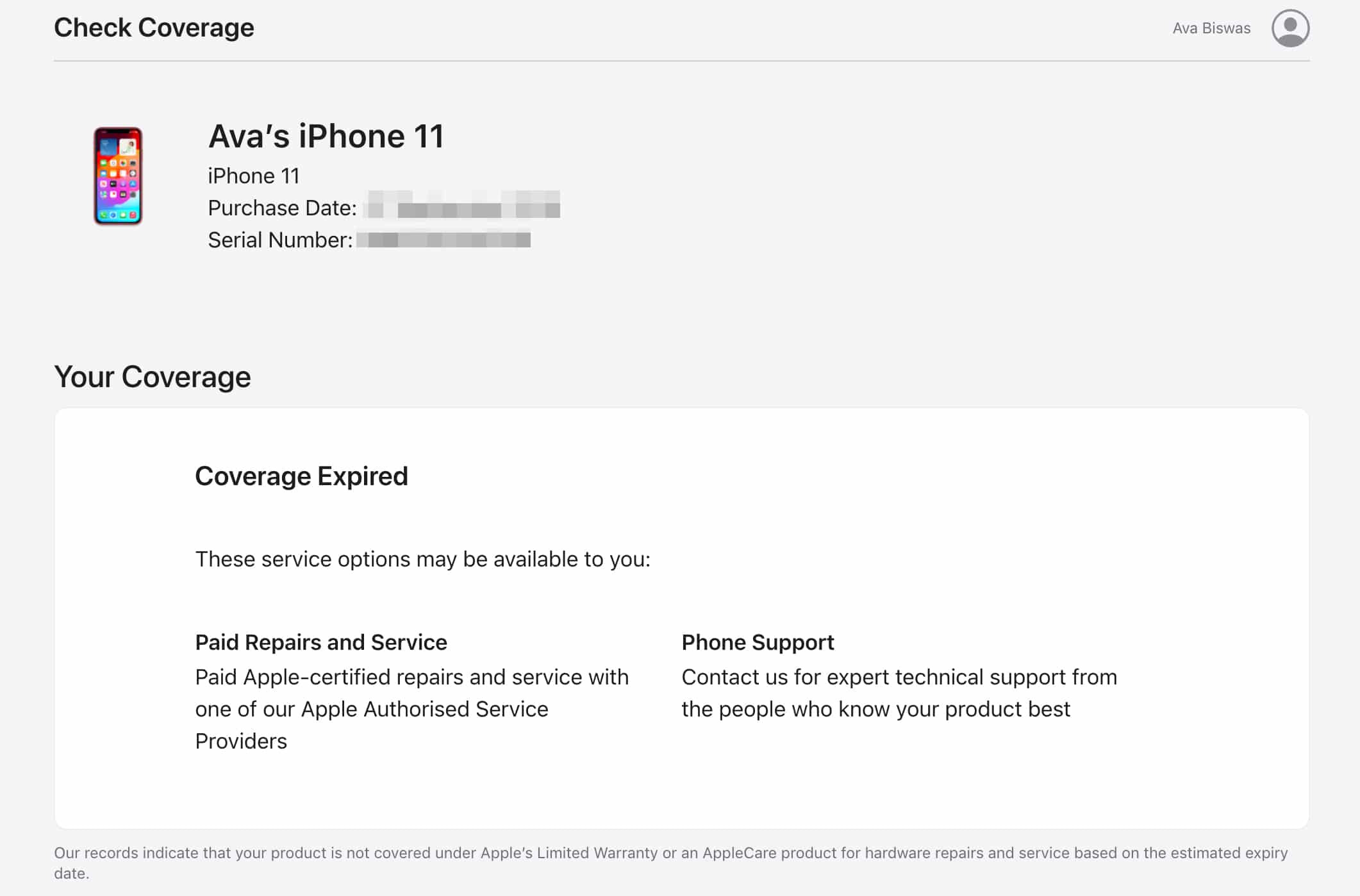
This method works for every Apple product. However, if you want to check the warranty status of your Apple accessories such as Magic Mouse, Magic Trackpad, Magic Keyboard, you may face errors on the website.
In this case, you can look at the purchase date on the invoice. Every Apple product has a one-year limited warranty. For example, if you bought a product on August 10, 2024, it will be covered until August 10, 2025.
Check the warranty status of your Apple device on the Apple Support app
The Apple Support app is a handy tool for checking the Apple warranty status that is linked to your Apple ID. You can also find out if your device is eligible for AppleCare+ coverage. We’ll talk about this in detail later in the post.
- Download the Apple Support app from the App Store.
- Open the app, set it up, and sign in to your Apple ID if you aren’t automatically logged in.
- Tap on My Devices to see a list of all your Apple devices.
- Select the device you want to check.
- Tap Device Details.
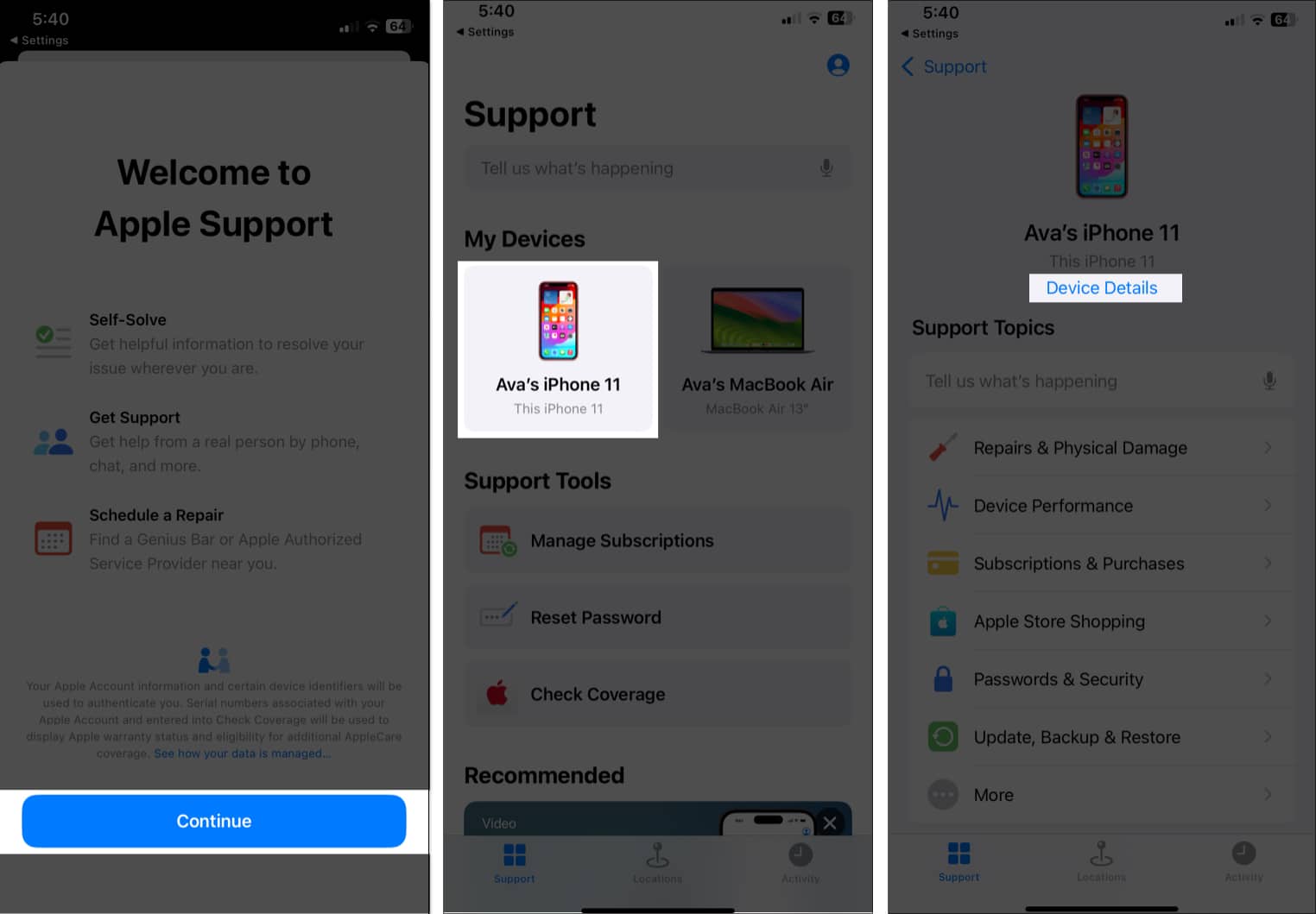
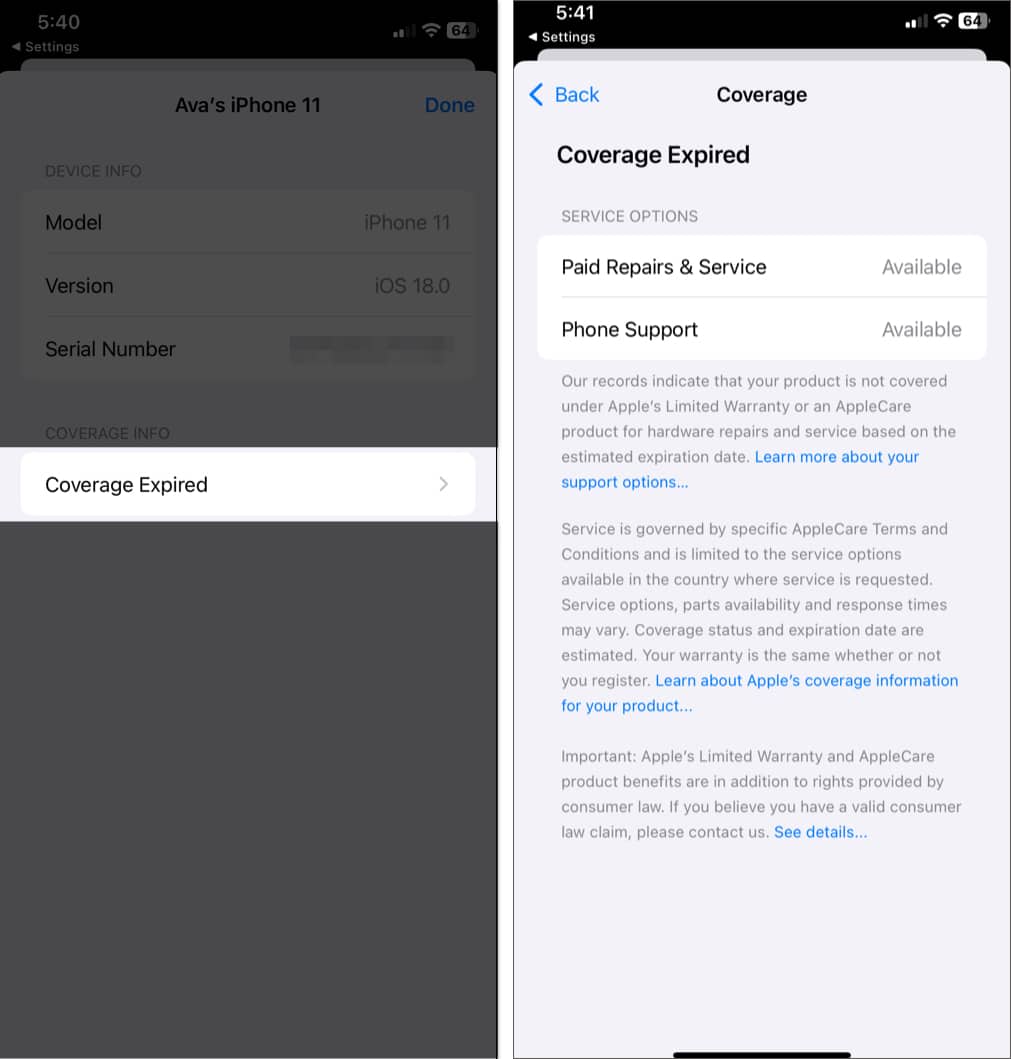
- You may see either Limited Warranty or Coverage Expired under the Coverage Info section. Tap on it to get more information.
Check your Apple device’s warranty status on Apple’s My Support page
If you are using a desktop to check the Apple device warranty status, use the Apple My Support page. Here’s how:
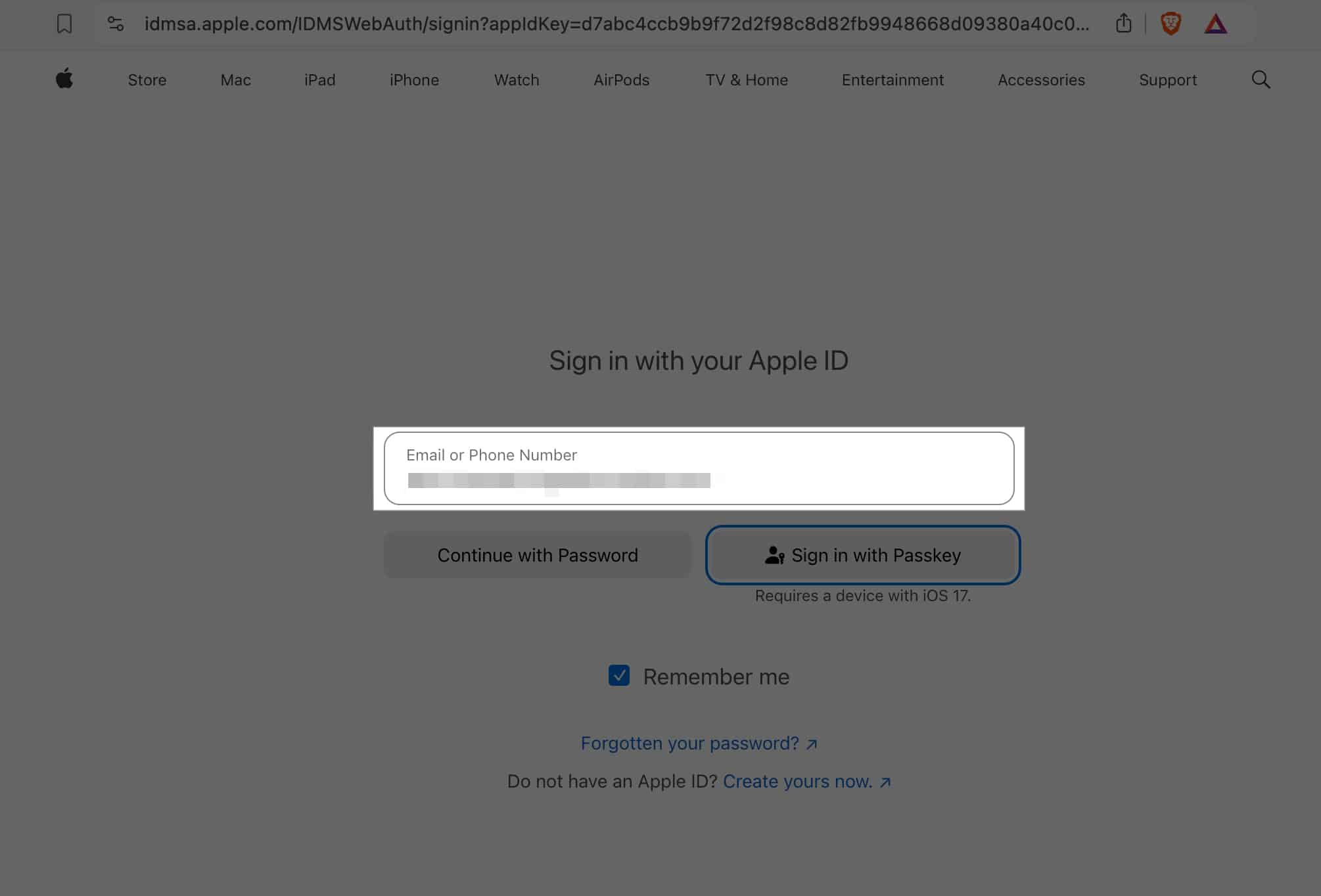
- Go to Apple’s My Support page.
- Sign in with your Apple ID.
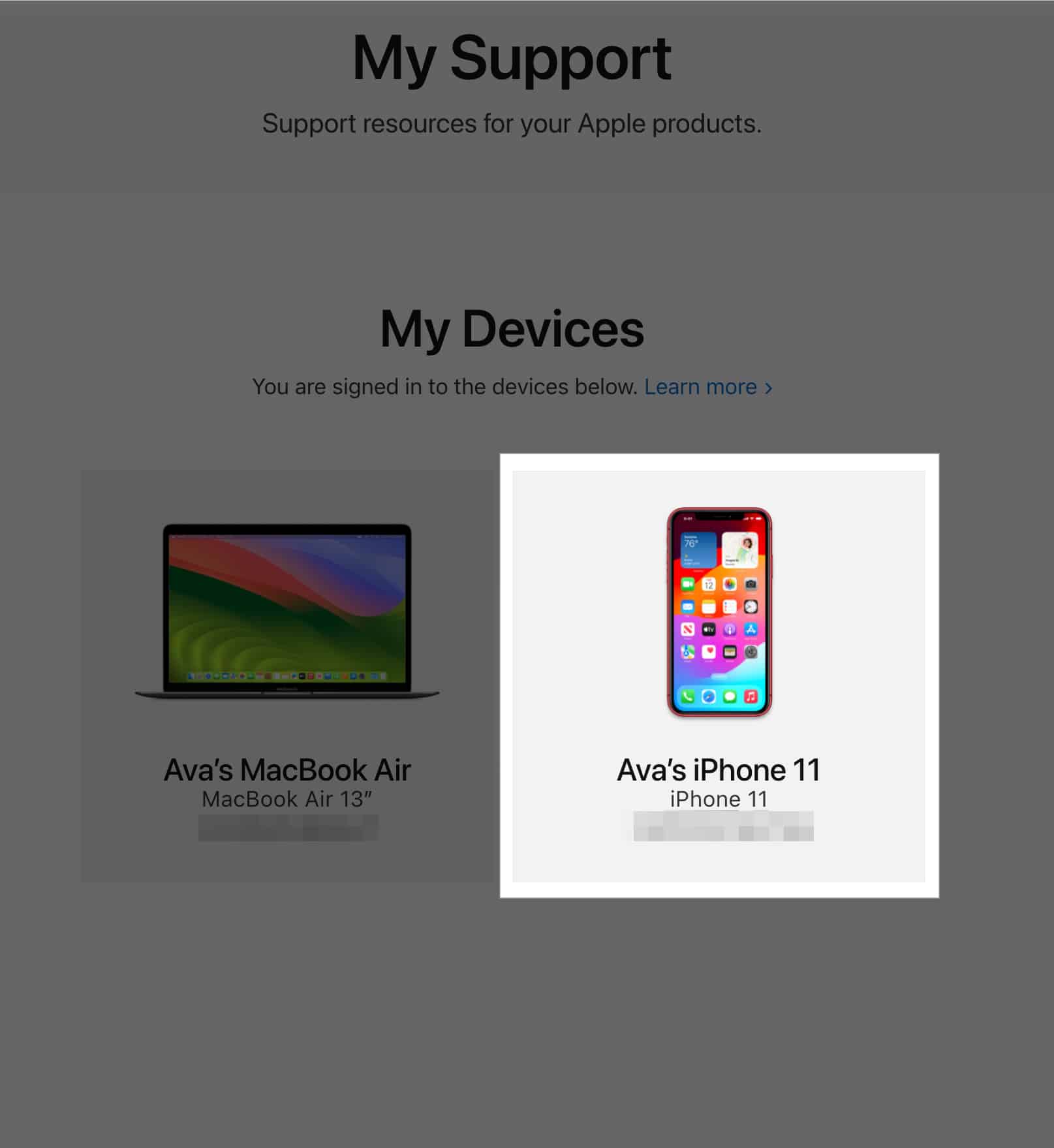
- From the list of your registered devices, select the one whose warranty status you want to check.
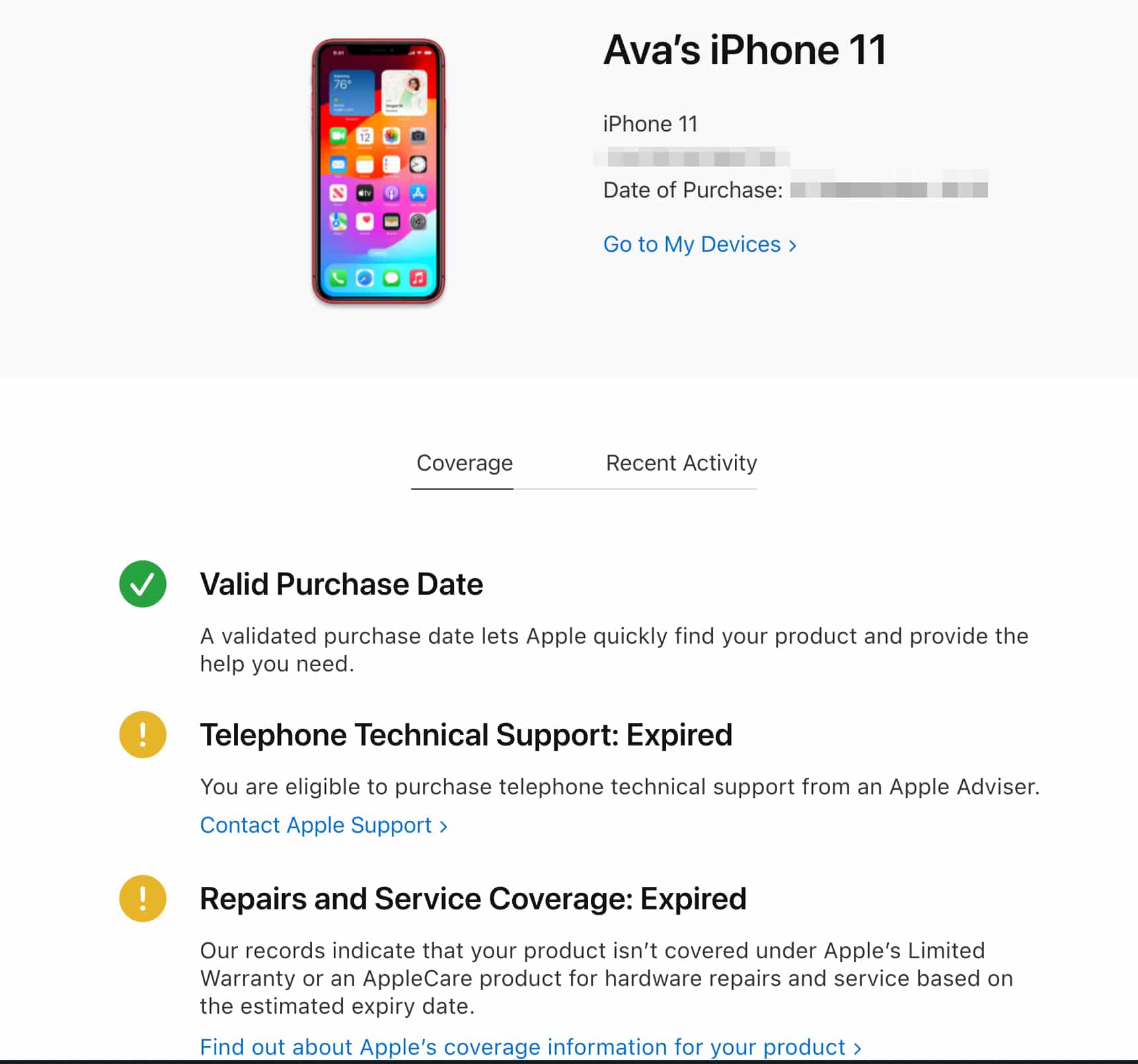
- Now, you can see the date of purchase, device warranty and repair service coverage status.
We hope you managed to find the warranty coverage status for your Apple device. But do you know you can extend the warranty coverage of your Apple device? Let’s discuss what Apple warranty plans entitle.
Understanding the types of Apple warranties and coverage
Apple offers different types of warranties and coverage plans, depending on your needs. Whenever you buy a new Apple device, it includes a standard warranty (also referred to as AppleCare), but you may also buy additional warranty coverage for better protection. Let’s look at both of them.
1. Standard Apple warranty or AppleCare
The Standard Apple warranty or AppleCare typically covers hardware repairs for one year from the purchase date and includes up to 90 days (about 3 months) of complimentary technical support from Apple Genius.
However, it doesn’t cover accidental damage, so if you drop your iPhone in water, crack its screen, or get dents, you might be out of luck. Also, you can’t repair battery-related issues under the limited warranty.
Note:
-
Your warranty gets void if you jailbreak your iPhone or get it fixed by a non-Apple authorized source. Also, Apple devices bought from non-authorized Apple resellers are not covered under this warranty.
2. AppleCare+
If you’re looking for more comprehensive coverage, AppleCare+ might be the way to go. This extended warranty plan provides additional coverage for a longer period—usually up to two years from the purchase date.
It offers two accidental damage repairs per year. However, you need to pay minimal service charges with tax for each repair. According to Apple, the prices are $29 for screen damage and $99 for other accidental damages. So, it saves you the cost of parts.
Moreover, you can get your iPhone battery repaired if it retains less than 80% of its original capacity. The best part is Apple will pick up your device from your doorstep and provide a replacement device until it is repaired.
To assist with problem-solving, you also have priority access to Apple specialists by phone or chat round the clock. AppleCare+ also offers Theft and Loss Protection. Under this, you will get a replacement device if your iPhone is stolen or lost.
You may choose to get the plan while buying your device or add the AppleCare plan after purchase within 60 days.
Signing off…
Knowing the warranty status of your Apple devices can save you time and money when something goes wrong with them. Whether you use your device’s Settings app, the Apple Support app, or the Check Coverage website, checking the warranty status of Apple devices is quick and easy. And if your device is out of warranty, AppleCare+ might be a smart investment for peace of mind.
Frequently Asked Questions

Written by
Bhaskar SharmaBhaskar is a tech guru who turned wordsmith. Hiding his B.Tech degree in a closet, he ditched the corporate path to simplify tech for everyone. For the past 5 years, he's been dishing out how-tos, reviews, and sharp insights. But there's more! He's a witty interview champ and has been sharing his wisdom for 3 years. Furthermore, he has honed his editing skills for 1.5 years and is now delving into marketing to assist newcomers. When not jamming his fingers on those mechanical keyboards, you may find him on strings or engaging in sports. And by evening, his quotes will be appearing on your Instagram feeds.
View all posts →More from How-to

Snapchat Parental Controls: How to Set Up Family Center and Keep Your Teen Safe
Snapchat’s Family Center lets parents monitor their teen’s friend activity and screen time without reading private messages. Here’s how to set it up and what to expect.
 VikhyatMarch 3, 2026
How to Block and Unblock Someone on Instagram
Instagram lets you block or unblock someone in seconds. Follow these simple steps to take full control of your privacy and online peace.
 Ava BiswasMarch 2, 2026
Apple Watch Not Responding? 8 Fixes That Actually Work
Is your Apple Watch unresponsive or stuck on a black screen? Here are 8 proven fixes to help you unfreeze it and get it working again quickly.
VikhyatMarch 3, 2026