
How to change screen resolution on Mac
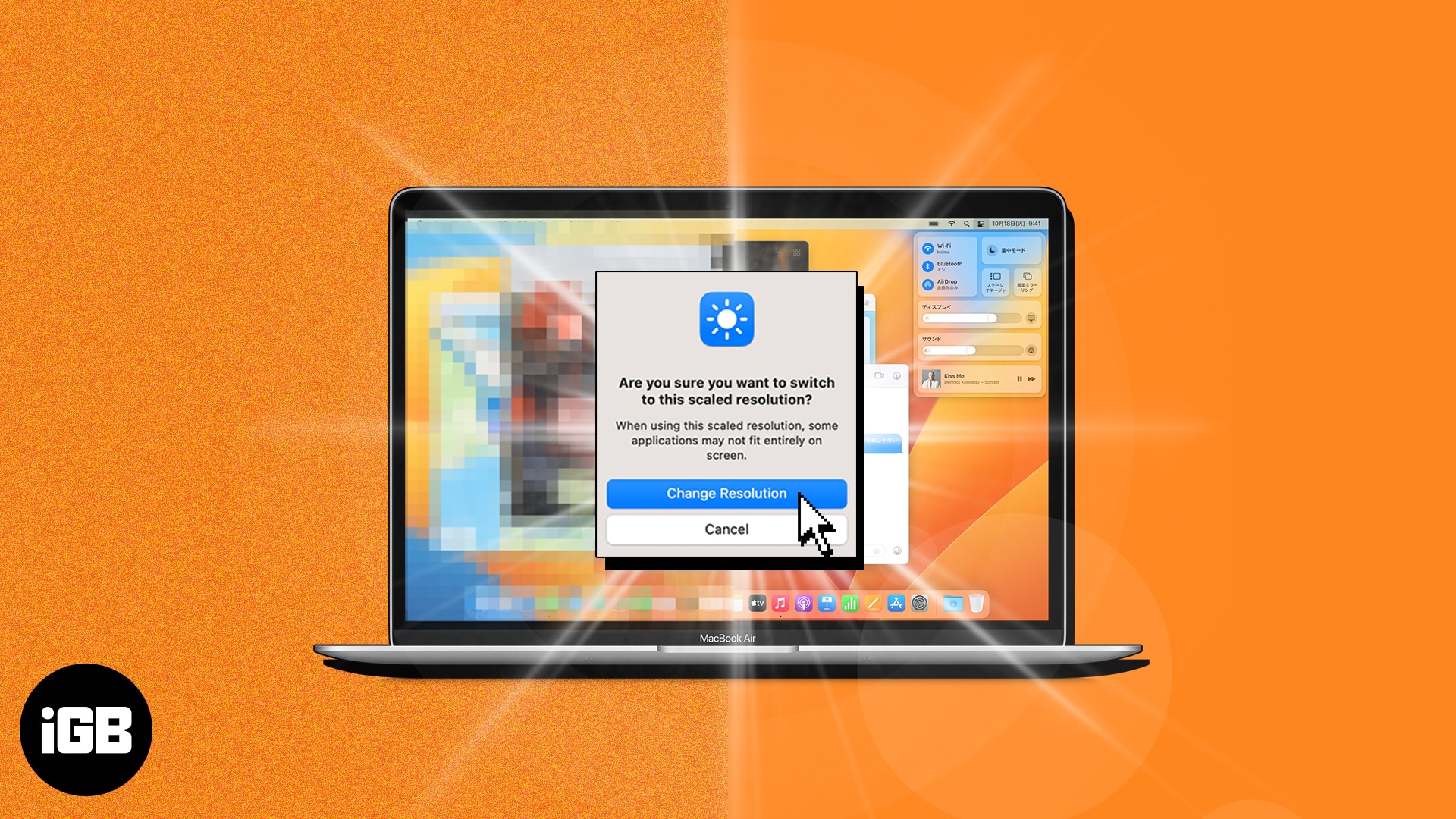
Whether you’re a seasoned or novice Mac user, knowing how to adjust your screen resolution is vital to get the most out of your display. Want to know the process? Follow this guide to change screen resolution on Mac in a few simple steps. Let’s get started!
How to change screen resolution of built-in display on Mac
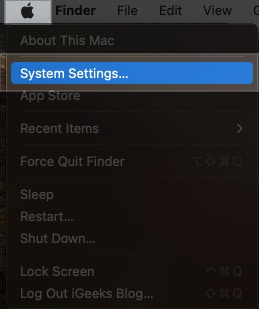
- Click the Apple Logo() → System Settings.
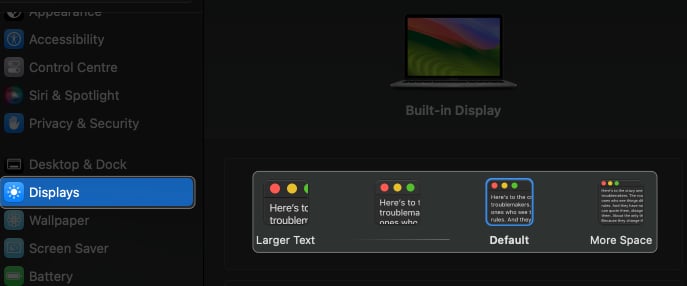
- Select Display from the left panel → Choose a resolution.
- Click Change Resolution.
Note the scaled resolution may not fit all applications on the screen.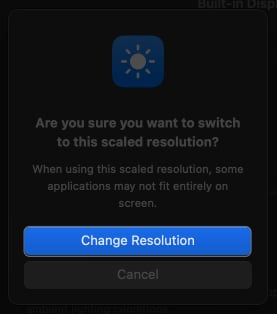
Set screen resolution manually and control it more precisely
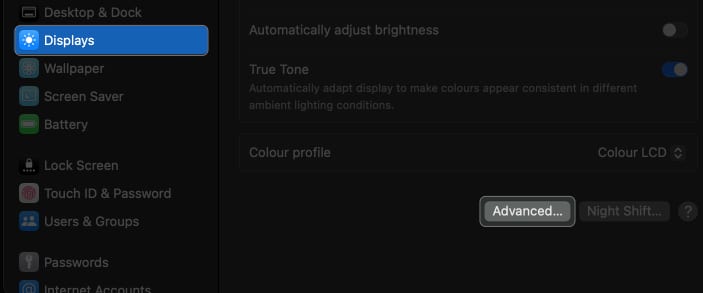
- Go to Display in System Settings → Select Advanced.
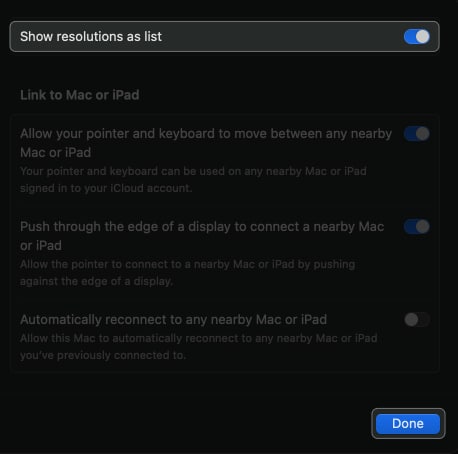
- Toggle on Show resolutions as list → Click Done.
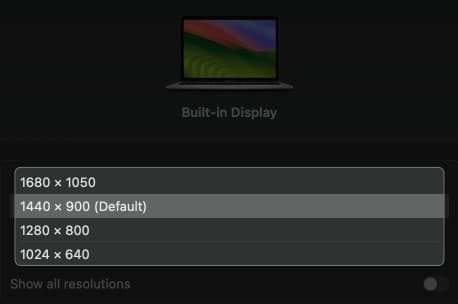
- Choose a resolution.
How to set custom resolutions for external displays on Mac
If you have an external display paired with your Mac, follow the steps below to manually set a custom resolution for the external display.
- Navigate to Apple Logo() → System Settings→ Display.
- Select your external display → Choose a resolution.
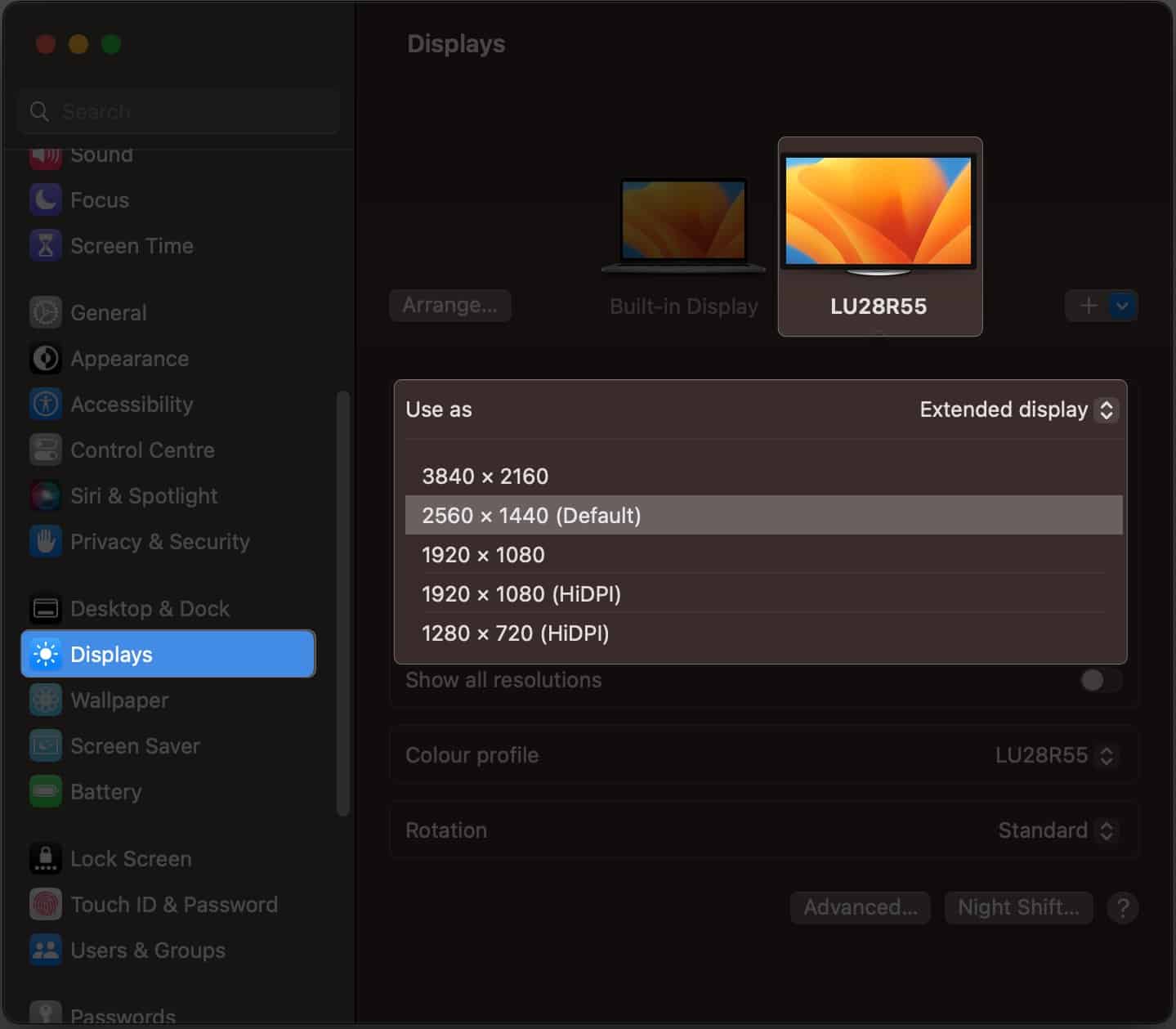
- For more customization options, toggle on Show all resolutions.
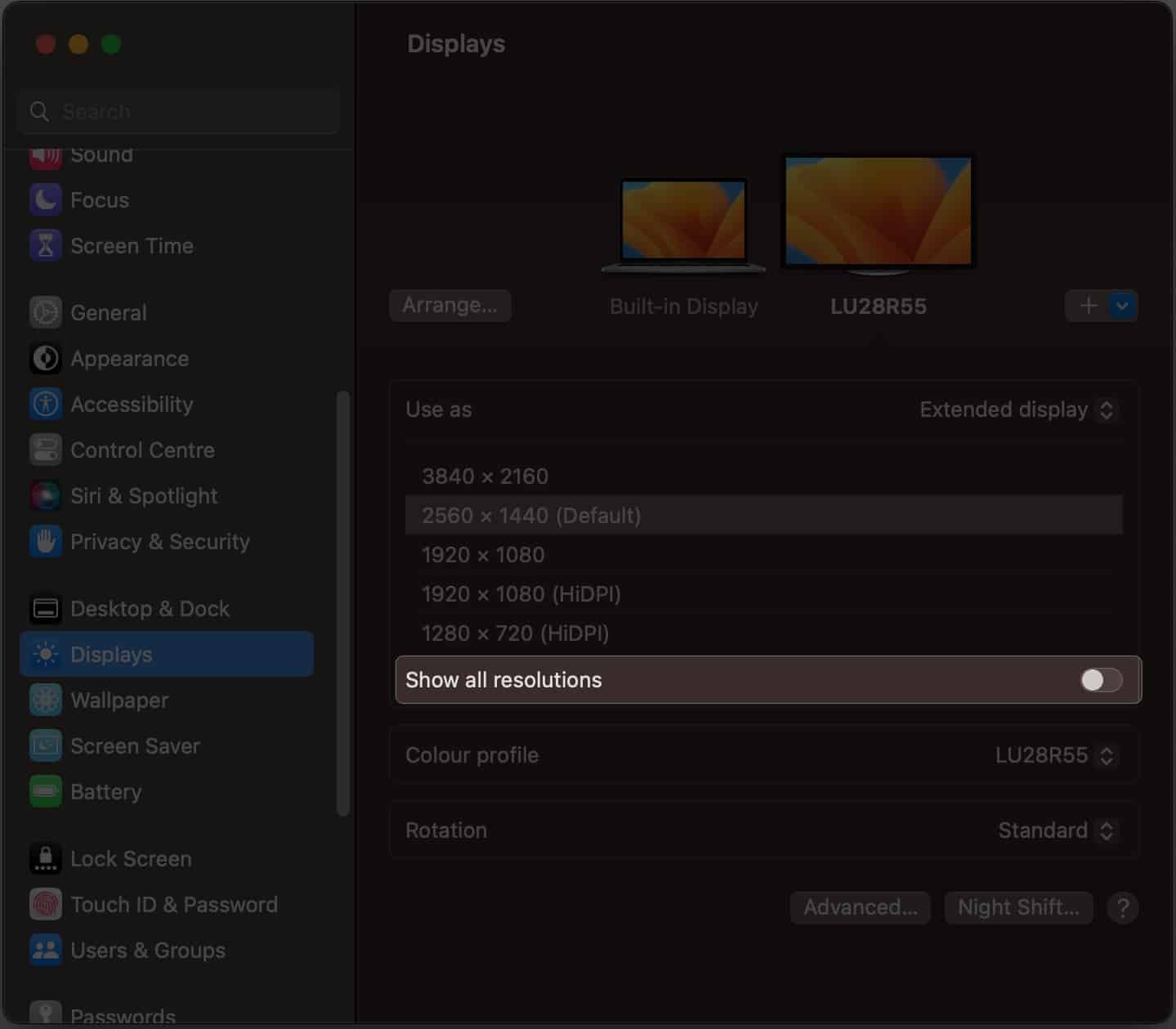
- Select the resolution of your connected screen.
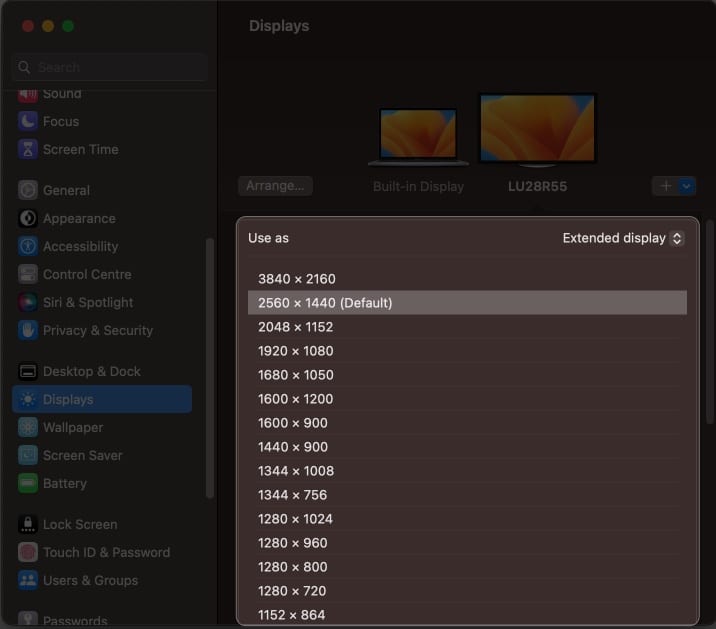
Enhance your Mac experience!
Following the steps outlined in this tutorial, you can control your Mac’s screen resolution to better suit your needs. So experiment with different resolutions until you find the one that’s perfect for you! If you face any issues, drop them in the comment section below.
Frequently Asked Questions

Written by
Jignesh PadhiyarJignesh Padhiyar is the co-founder of iGeeksBlog.com, who has a keen eye for news, rumors, and all the unusual stuff around Apple products. During his tight schedule, Jignesh finds some moments of respite to share side-splitting content on social media.
View all posts →More from How-to

Snapchat Parental Controls: How to Set Up Family Center and Keep Your Teen Safe
Snapchat’s Family Center lets parents monitor their teen’s friend activity and screen time without reading private messages. Here’s how to set it up and what to expect.
 VikhyatMarch 3, 2026
How to Block and Unblock Someone on Instagram
Instagram lets you block or unblock someone in seconds. Follow these simple steps to take full control of your privacy and online peace.
 Ava BiswasMarch 2, 2026
Apple Watch Not Responding? 8 Fixes That Actually Work
Is your Apple Watch unresponsive or stuck on a black screen? Here are 8 proven fixes to help you unfreeze it and get it working again quickly.
VikhyatMarch 3, 2026