
How to change the default email account on iPhone
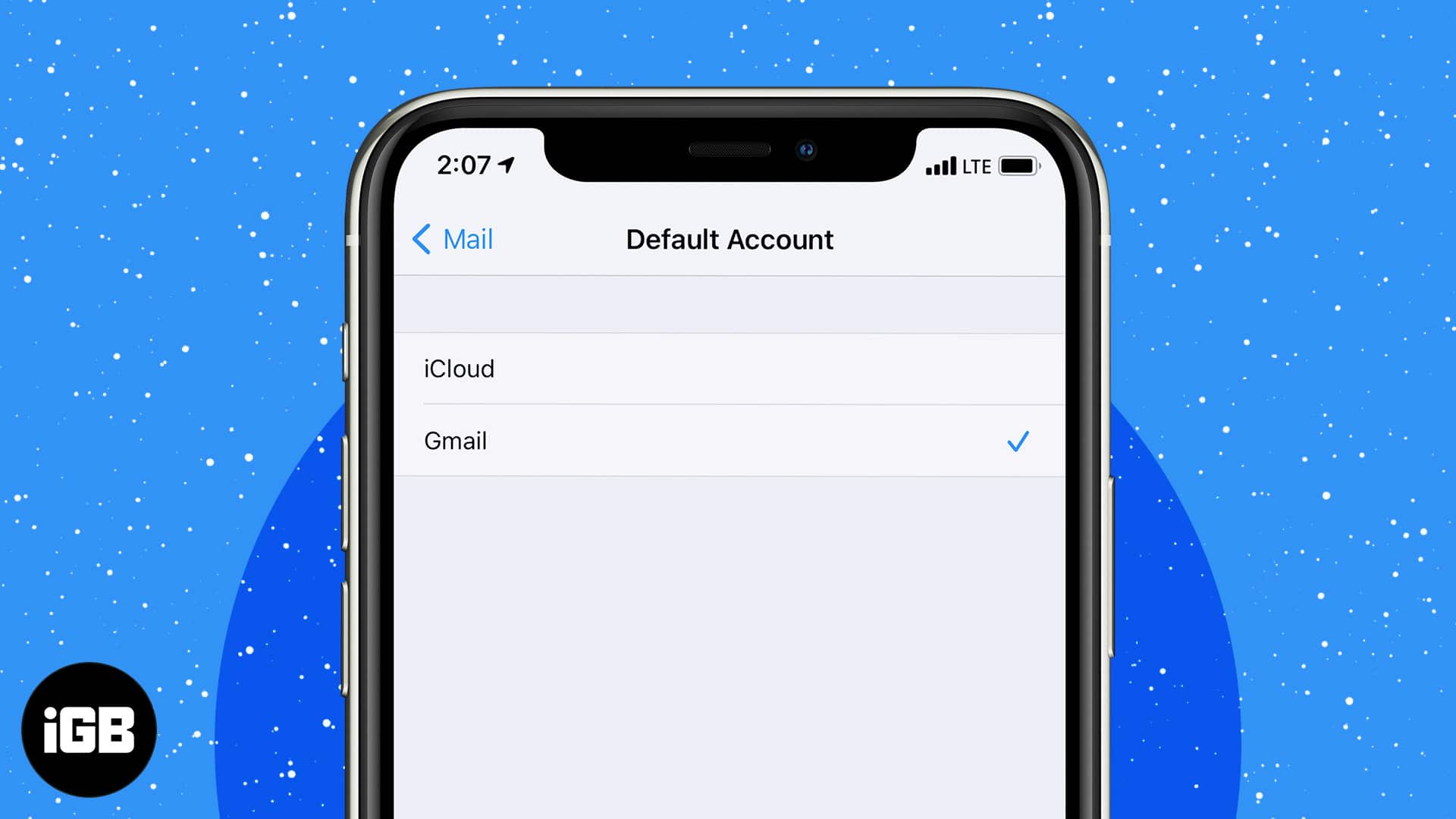
The first email you add to the iPhone Mail app becomes your default. This means that when you compose a new email or click on an email address on a website or app, it opens with this default email in the ‘From’ section.
It’s no secret that we have multiple emails, but we use one for most communications. Thus, for ease, you may like to set this one as the default. To help, let me show you a quick way to change the default email account on your iPhone or iPad, along with the steps to switch, disable, and delete it.
Note:
This is different than changing the default email app on iPhone.
- How to set default email on iPhone and iPad
- How to switch email accounts on iPhone and iPad
- Disable an email account on iOS device
- Delete or remove an email account on iPhone and iPad
How to set default email on iPhone
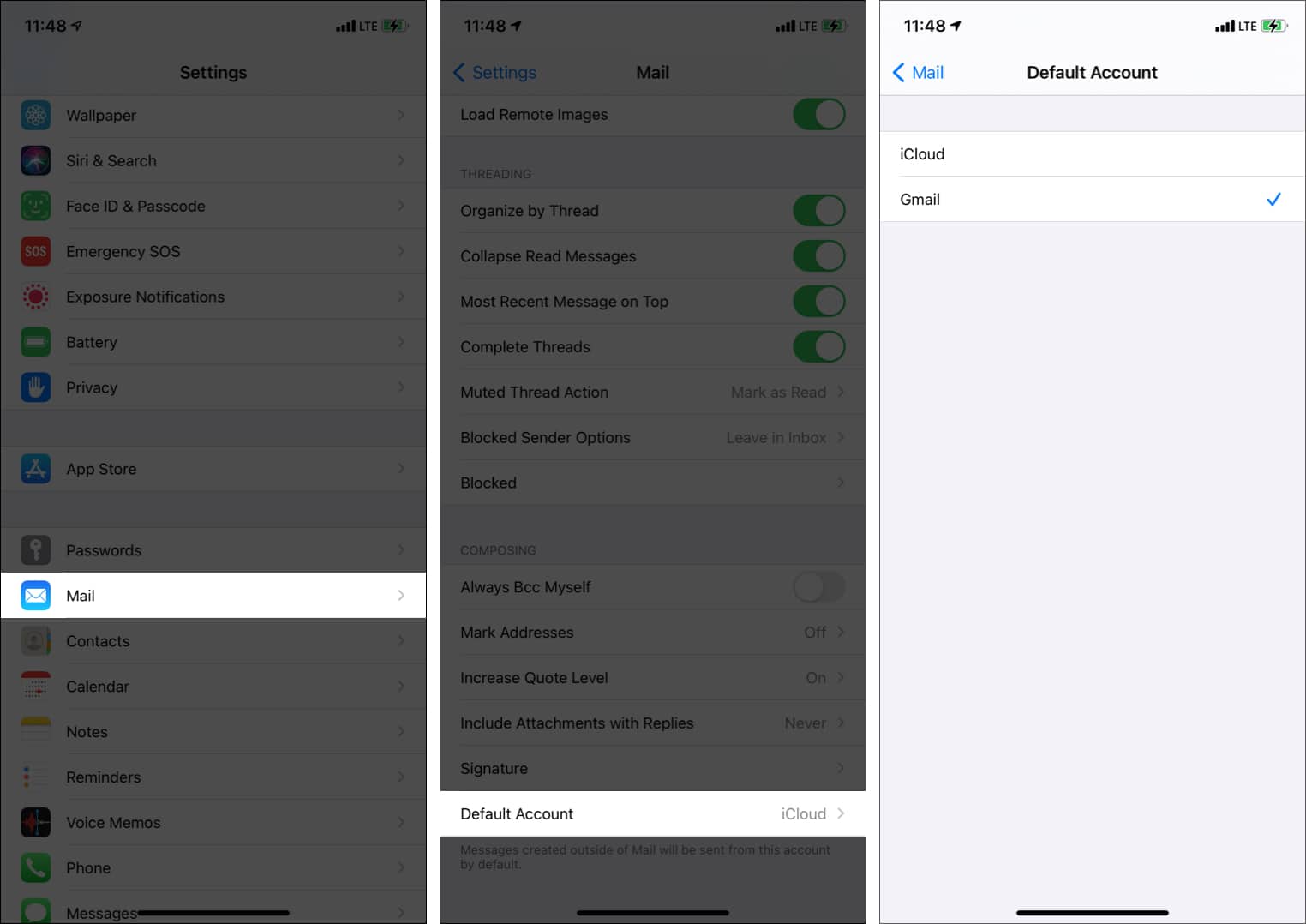
Before you begin, make sure you have added multiple (at least two) emails to the Mail app. Now, follow the below steps to change the default email.
- Open Settings and tap Mail.
- Tap Default Account at the bottom.
- Choose the desired email account to set it as the default.
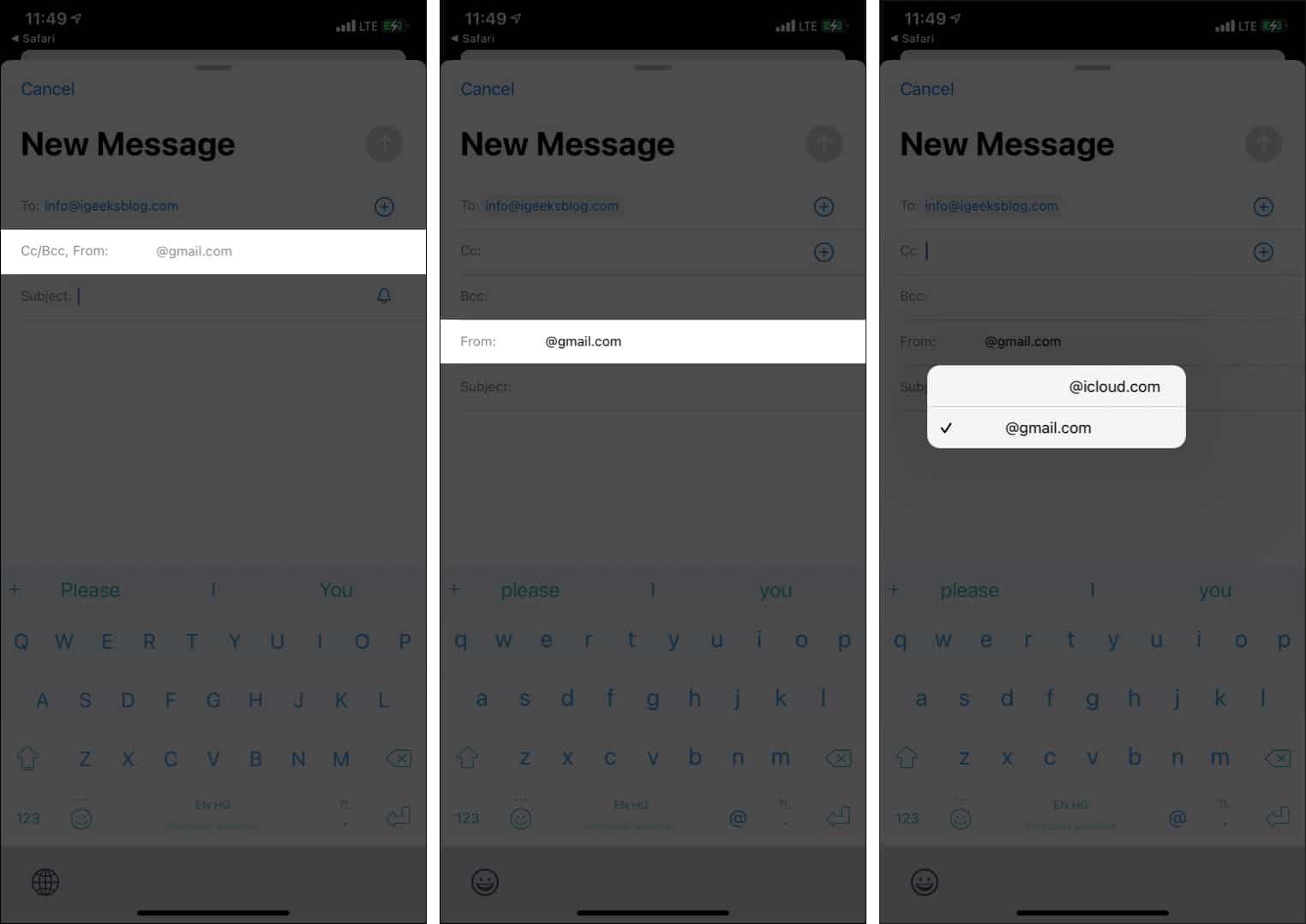
To check: Tap the following email info@igeeksblog.com. The ‘compose a new message’ screen will open with the default email (you set in step 3) under the ‘From:‘ section.
How to switch email accounts on iPhone and iPad
Setting the default email will help you use the one by default when you start composing a new email. But what if, at times, you do not want to use your other email? Well, in these cases, it is effortless to switch among the various added email accounts. Here’s how.
- While you are on the New Message screen, tap the default email address. It will expand. Tap once more.
- Choose another added email to switch to this one.
- This email will now be sent from the non-default account you choose.
Disable an email account on iOS device
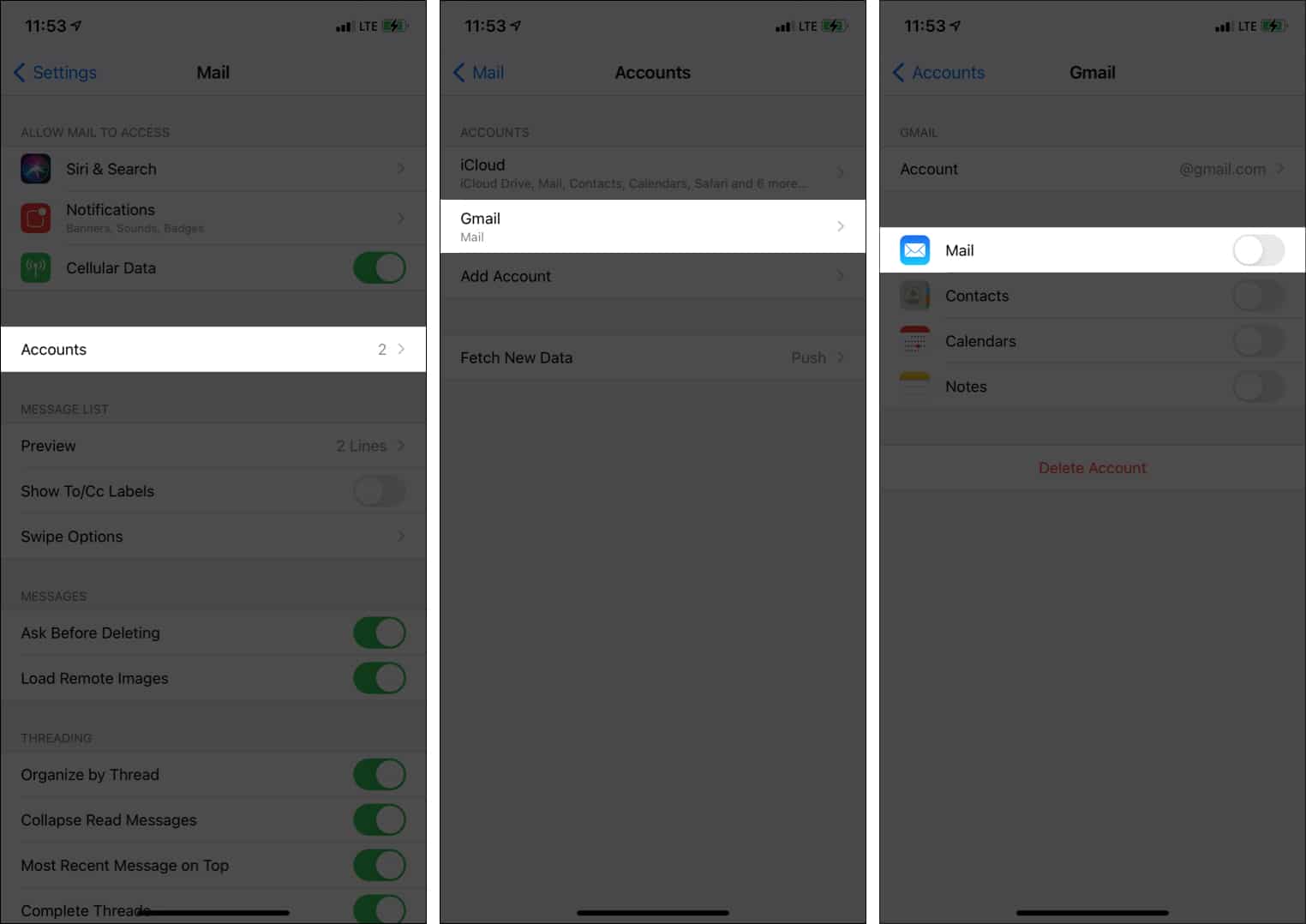
- Open iPhone Settings and tap Mail.
- Tap Accounts.
- Tap the account you wish to disable.
- Toggle off Mail.
- Note: If you wish to turn off iCloud Mail, it requires two more steps. After step 3, tap iCloud and toggle off Mail.
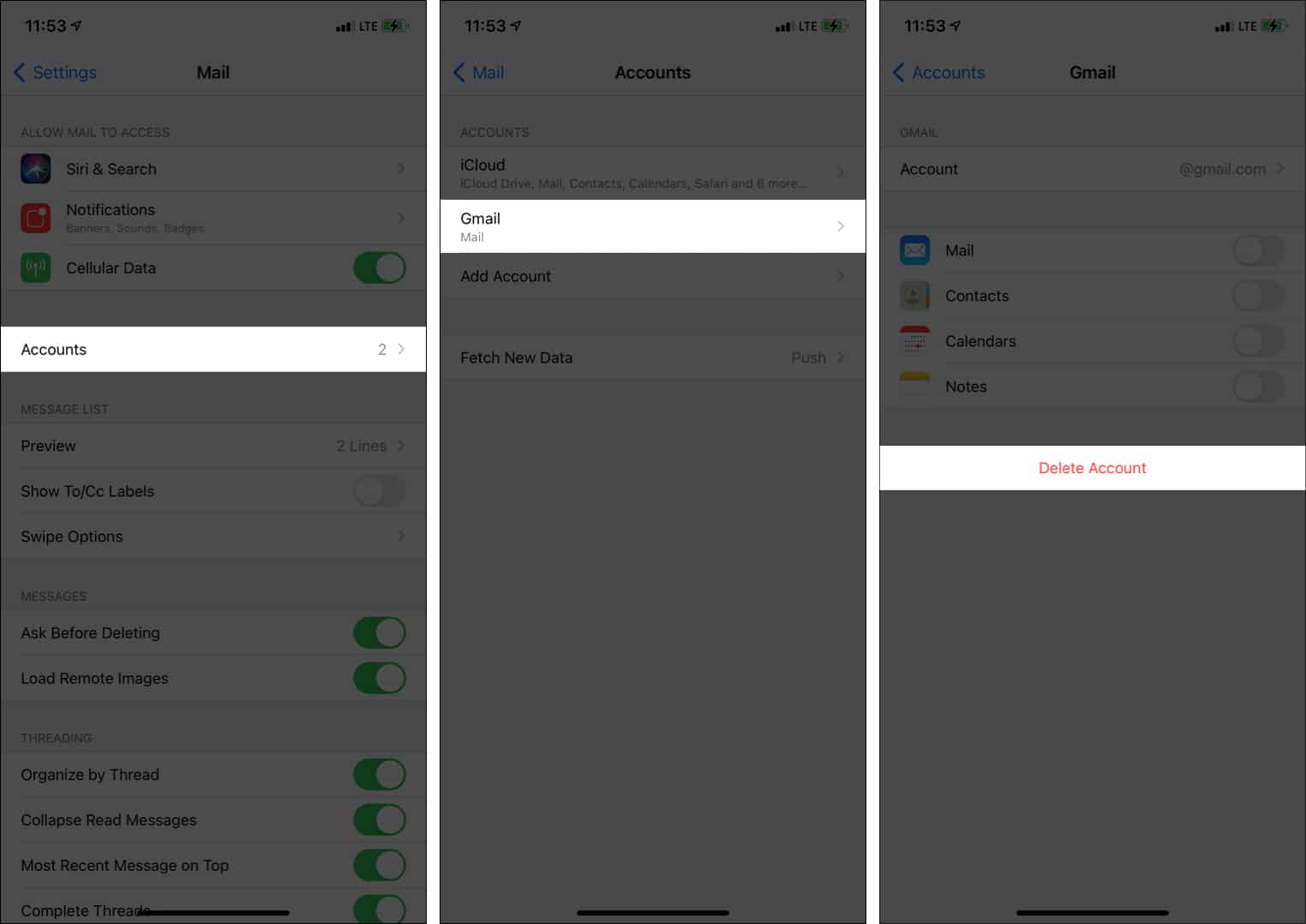
Delete or remove an email account on iPhone and iPad
- Inside Settings, tap Mail.
- Tap Accounts.
- Choose the email account you wish to remove.
- Tap Delete Account and confirm.
- Note: If you want to remove the iCloud account, you will have to Sign Out of your Apple ID. Or, you may turn off the iCloud email from the preceding heading.
This is how you can set a default email account, switch among multiple emails while composing a new email, or disable and remove the ones you no longer need.
I hope this quick guide was helpful. If you have further related questions, please feel free to reach me via the comments section below.
More email related posts:

Written by
Ankur ThakurI have been an Apple user for over seven years now. At iGeeksBlog, I love creating how-tos and troubleshooting guides that help people do more with their iPhone, iPad, Mac, AirPods, and Apple Watch. In my free time, I like to watch stand up comedy videos, tech documentaries, news debates, and political speeches.
View all posts →More from How-to

How to Turn Off Location on Snapchat (Step-by-Step Guide)
Want to stop sharing your location on Snapchat? This guide explains how Snapchat location sharing works and shows simple ways to turn off your location using Ghost Mode or phone settings. Stay in control of your privacy in just a few steps.
 VikhyatMarch 5, 2026
Snapchat Parental Controls: How to Set Up Family Center and Keep Your Teen Safe
Snapchat’s Family Center lets parents monitor their teen’s friend activity and screen time without reading private messages. Here’s how to set it up and what to expect.
VikhyatMarch 3, 2026
How to Block and Unblock Someone on Instagram
Instagram lets you block or unblock someone in seconds. Follow these simple steps to take full control of your privacy and online peace.
 Ava BiswasMarch 2, 2026