
How to fix “Message Blocking is Active” error on iPhone
Easy and effective fixes for the ‘Message Blocking Is Active’ error on iPhone.
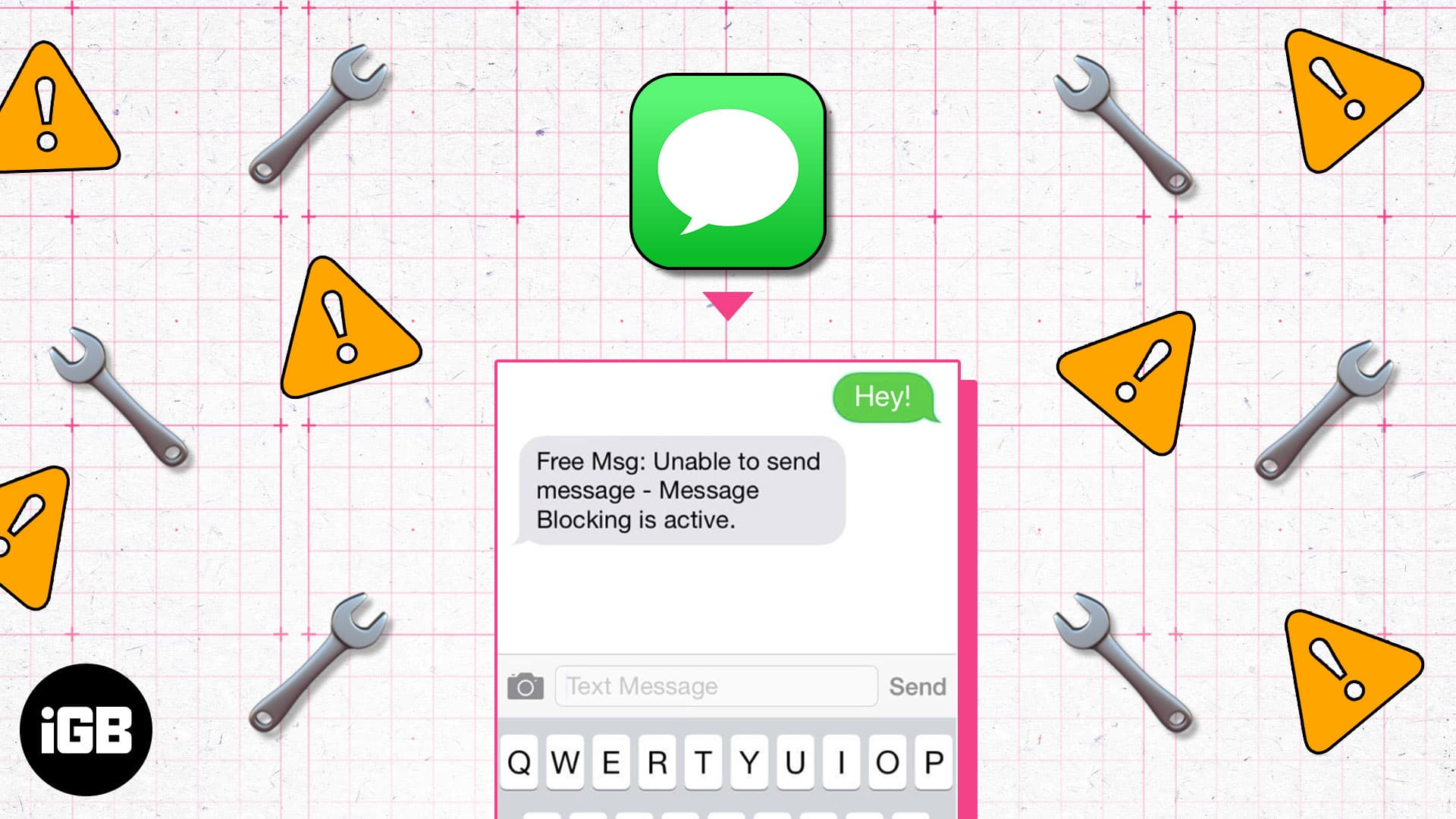
If you see the “Unable to send message – Message Blocking is Active” error when trying to send a text on your iPhone, it means your message isn’t going through. This issue can be caused by various factors, but fortunately, it’s an easy fix. In this guide, I’ll share the possible reasons behind this error and provide step-by-step solutions to fix it.
What does “Message Blocking Is Active” mean?
When you encounter the “Message Blocking Is Active” error on your iPhone, it means your phone can’t send a text message. This error suggests that either your messaging service is restricted, the recipient’s number is blocked, or there’s a problem with your carrier, preventing the message from being delivered.
Let’s understand the reasons in detail!
Why is “Message Blocking Is Active” appearing?
Your iPhone may be unable to send messages due to several factors such as:
- Blocked contacts: You might have mistakenly added the recipient’s number to your block list, or the recipient may have blocked your number. In such cases, messages cannot be exchanged between the two numbers.
- Carrier restrictions: Your carrier may have limited your messaging activity because of billing problems, outages of their service network, or your plan itself. For example, some data-only plans don’t support SMS messaging.
- Service outages: This error can also be caused by temporary service outages or maintenance by your carrier that is preventing messages from going through.
- Short code problems: If you’re a T-Mobile customer, problems with short codes—numbers that businesses use—can lead to this message-blocking issue.
- Incorrect message settings: Message settings such as disabled SMS, MMS, or iMessage options can block message sending.
- Wrong date and time: If your iPhone’s date and time settings are wrong, it may fail to communicate to servers and send the message.
- System glitches: Bugs and glitches in the Phone app or iOS system can interrupt the messaging services.
Understanding these potential causes can help you quickly diagnose and resolve the “Message Blocking Is Active” error on your iPhone.
11 ways to fix Message Blocking is Active on iPhone
We will guide you through step-by-step solutions to fix the error message. You can follow them in order until you find the one that works for you.
1. Unblock the contact
If you have the intended recipient blocked, you may receive the “Message Blocking is active” status. Here’s how to check:
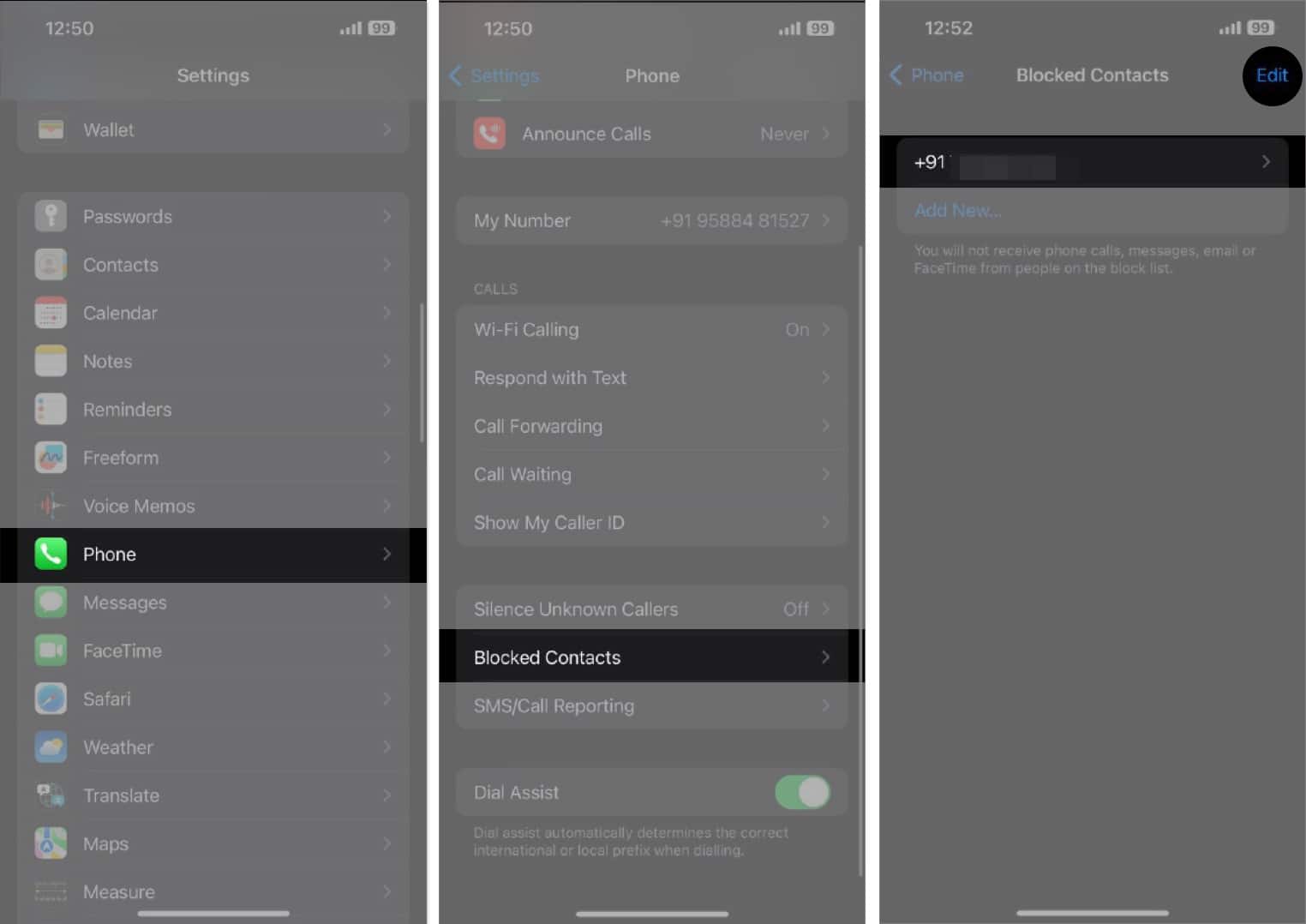
- Open the Settings app → Navigate to Phone.
- Tap Blocked Contacts.
- Check the list for the number you want to unblock ➝ Tap Edit at the top right corner.
- Tap the minus icon to the left of the number you want to unblock, then tap Unblock to the right of the contact number.
- Tap Done.
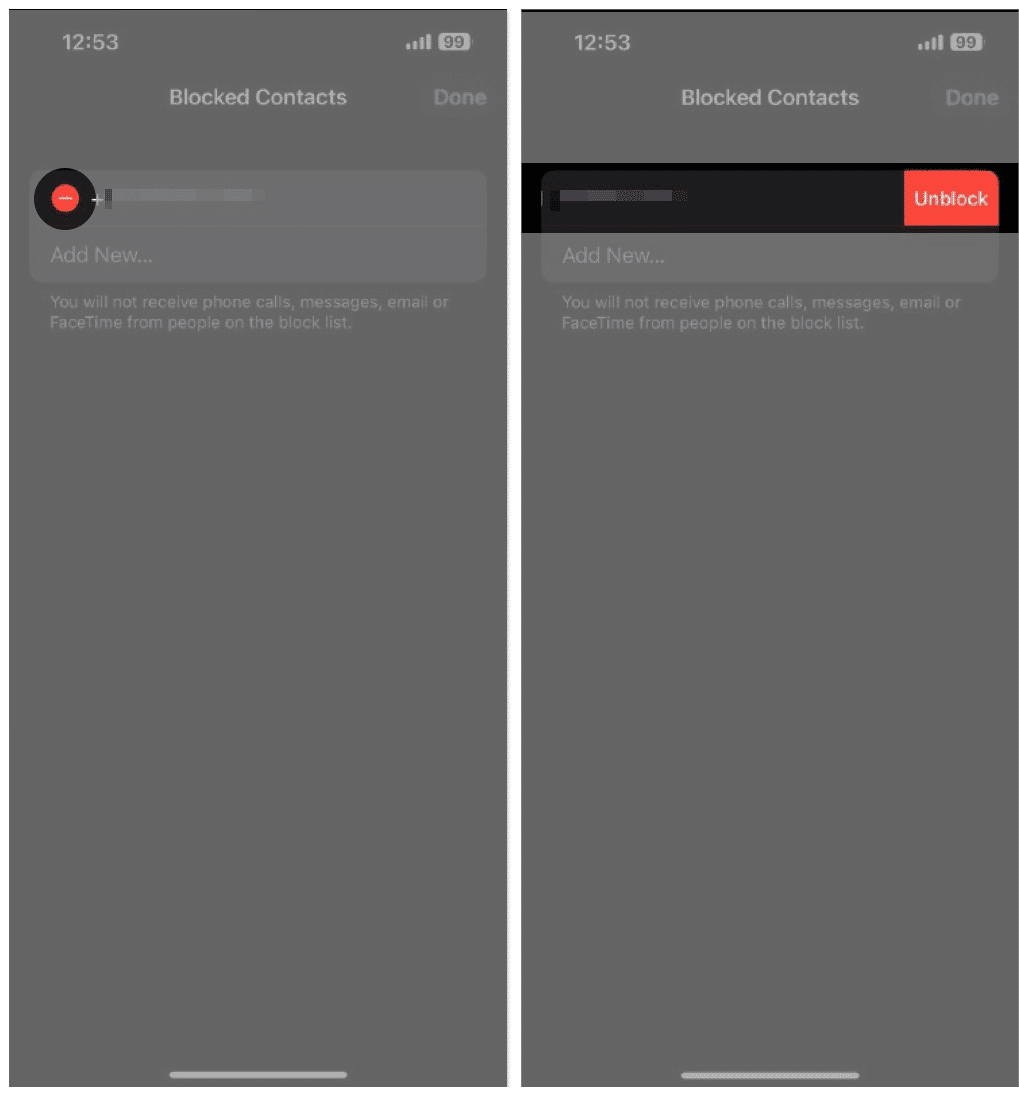
You have successfully unblocked the contact and can proceed to send them a text message.
If you don’t see the number in this list, they may have blocked you instead. For more information, see our guide on how to tell if you’ve been blocked on iMessage. The easiest way to check this is to mask your caller ID by dialing *67 before entering their number.
2. Check the phone number
If you accidentally enter the number incorrectly in a hurry, you may receive the “Message Blocking is active” text when trying to send a message.
So, before we proceed to the next step, re-check the recipient’s phone number and make sure you’ve entered the correct digits.
3. Disable iMessage
There’s a chance you’ve come face to face with an iMessage glitch. If that’s the case, flipping iMessage off and on again could be the simple fix you’re looking for. Here’s how:
- Open the Settings app → Navigate to Messages.
- Turn off the iMessage toggle.
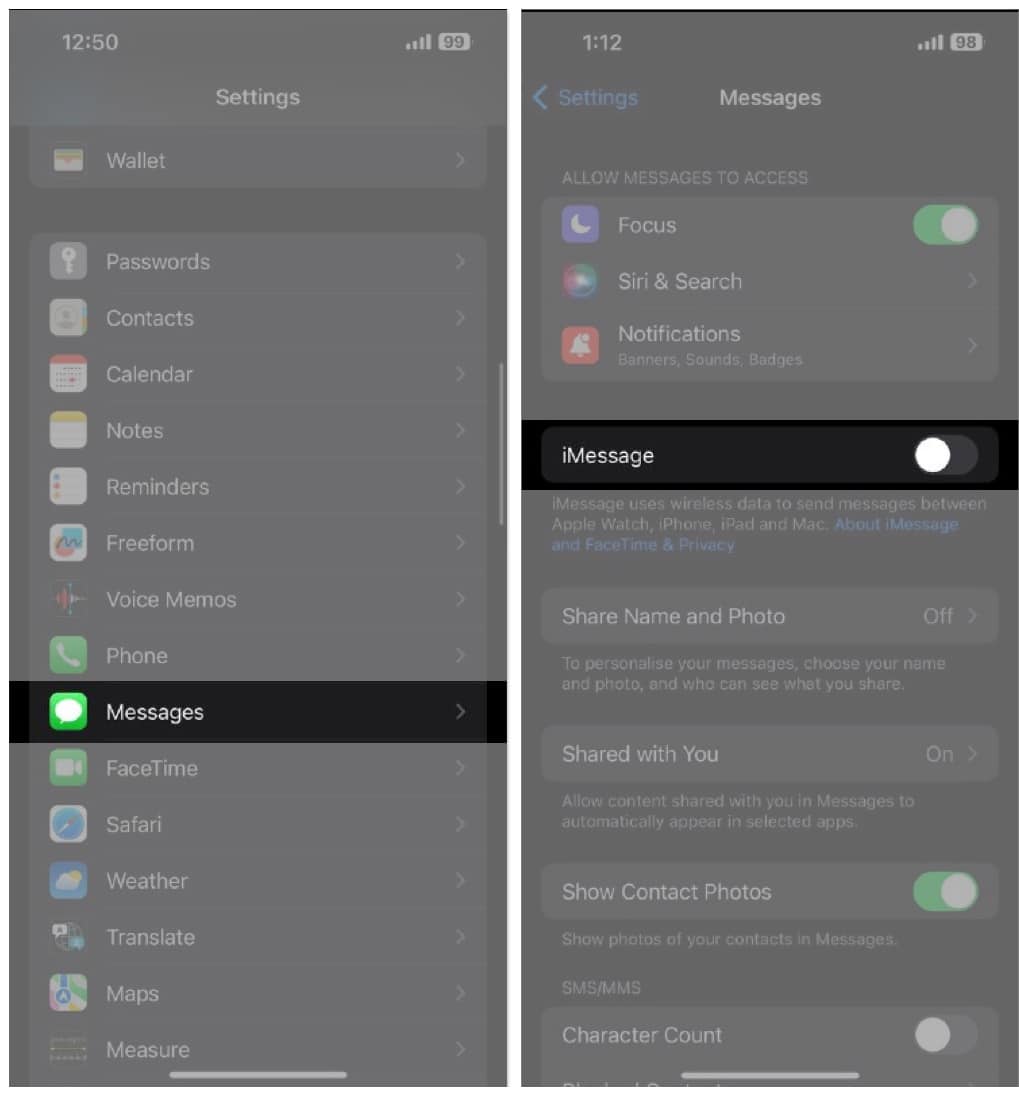
Now that you’ve disabled iMessage, try sending the text through SMS. If you are still getting the “Message Blocking is active” message, move on to the next step.
Note:
You can re-enable iMessage through the same place, Settings → Messages.
4. Check your SIM card
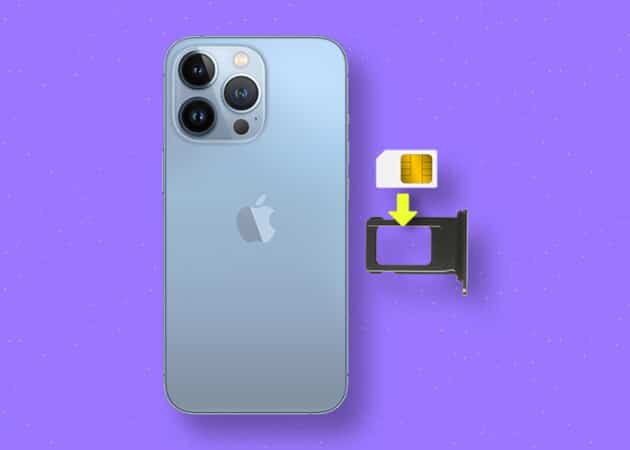
If you have switched to eSIM, you can skip this step and move on to the next one.
If you still use a physical SIM and are facing the “Message Blocking is an active” error, check if you’ve inserted the SIM card correctly.
First, eject the SIM tray out of the slot using a small, thin object like a paper clip. Align the SIM card correctly with the SIM tray, then reinsert it into your iPhone.
You can also restart your iPhone if you cannot see the cellular network icon.
5. Fix Date and Time settings
Your iPhone’s date and time settings should always be set accurately. If they’re different from your region’s actual date and time, many services may cease to work as intended.
If your iPhone’s date and time settings are inconsistent, we recommend enabling the Set Automatically option in Settings.
- Open the Settings app → General.
- Select the Date and Time option.
- Turn on the Set Automatically toggle.
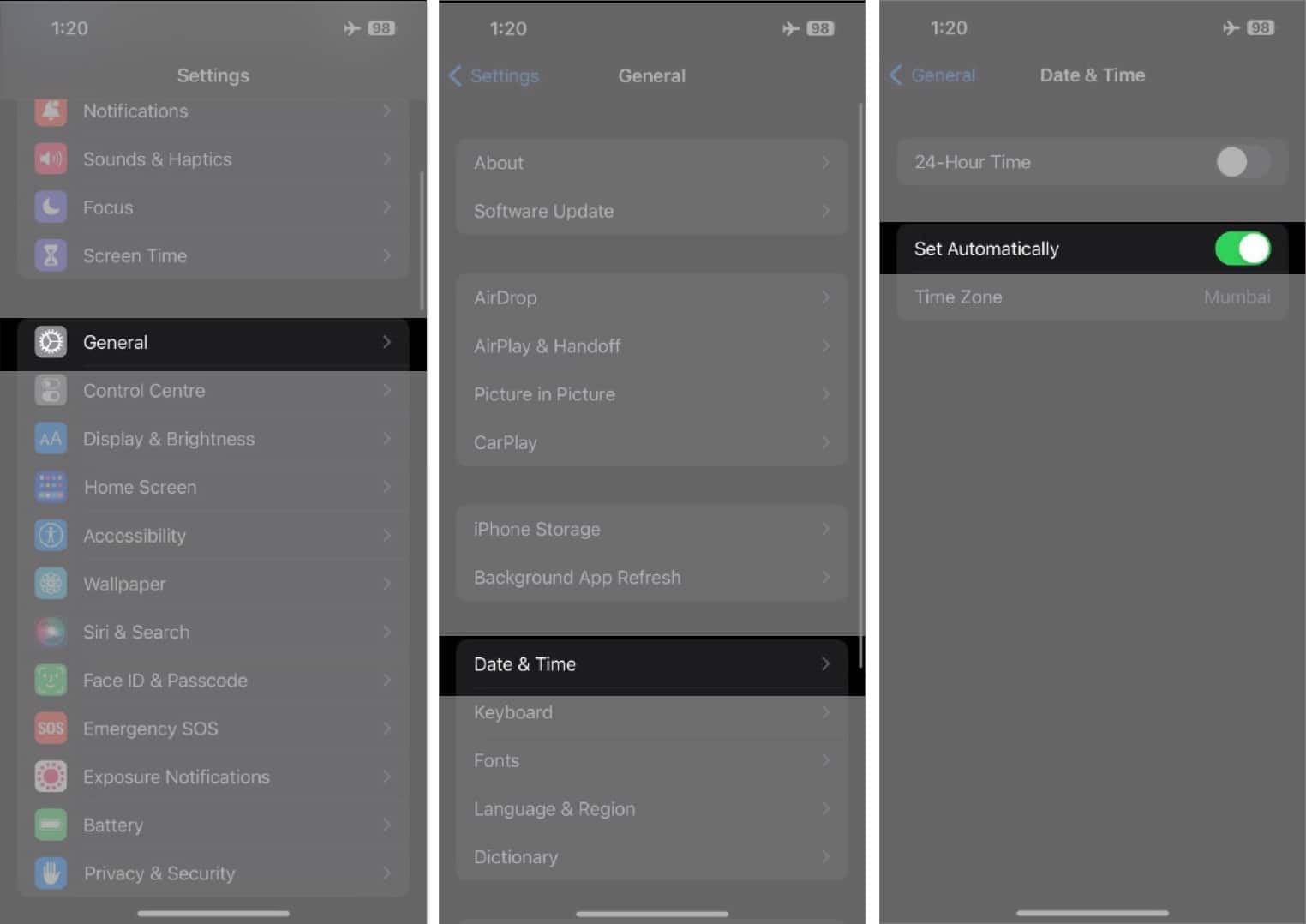
Check if you can send a text. If you’re still getting the “active blocking” message, check your carrier settings.
6. Update carrier settings
Cellular network providers, aka carriers, push out updates to the network that help improve connectivity, performance, and more. These updates also enable features like 5G and Wi-Fi calling. Follow the steps mentioned below to update the carrier settings on your iPhone.
- Open Settings → General.
- Tap About.
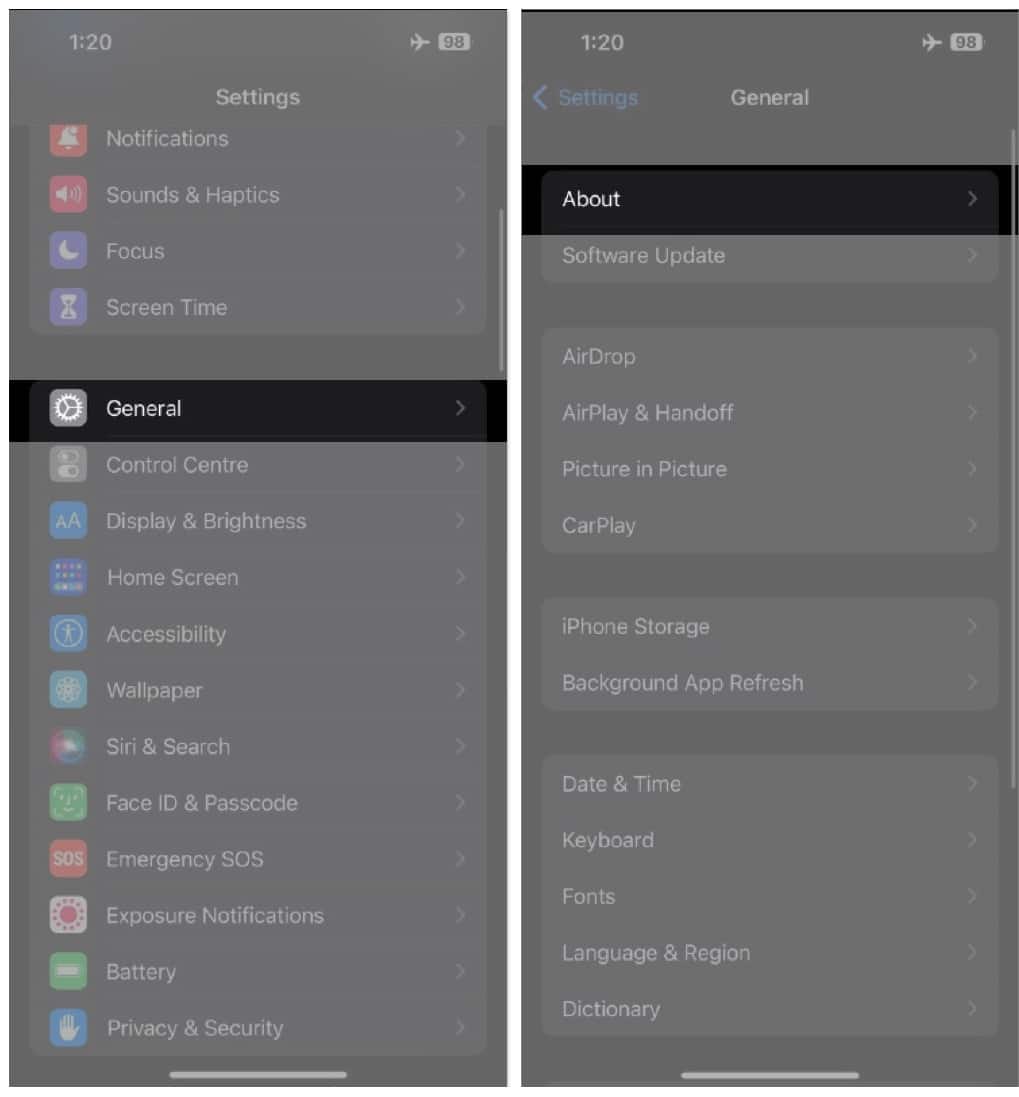
If there are any updates, you should see a red icon beside the About option. If there is a new version, a pop-up will prompt you to update. Follow the on-screen instructions, and you’re good to go.
7. Update to the latest iOS version
Another possible reason you’re receiving the “Message Blocking is active” status is an iOS software bug.
Update:
your iPhone to the latest stable iOS version to ensure there is no software issue causing this problem.
- Open Settings → General.
- Tap Software Update.
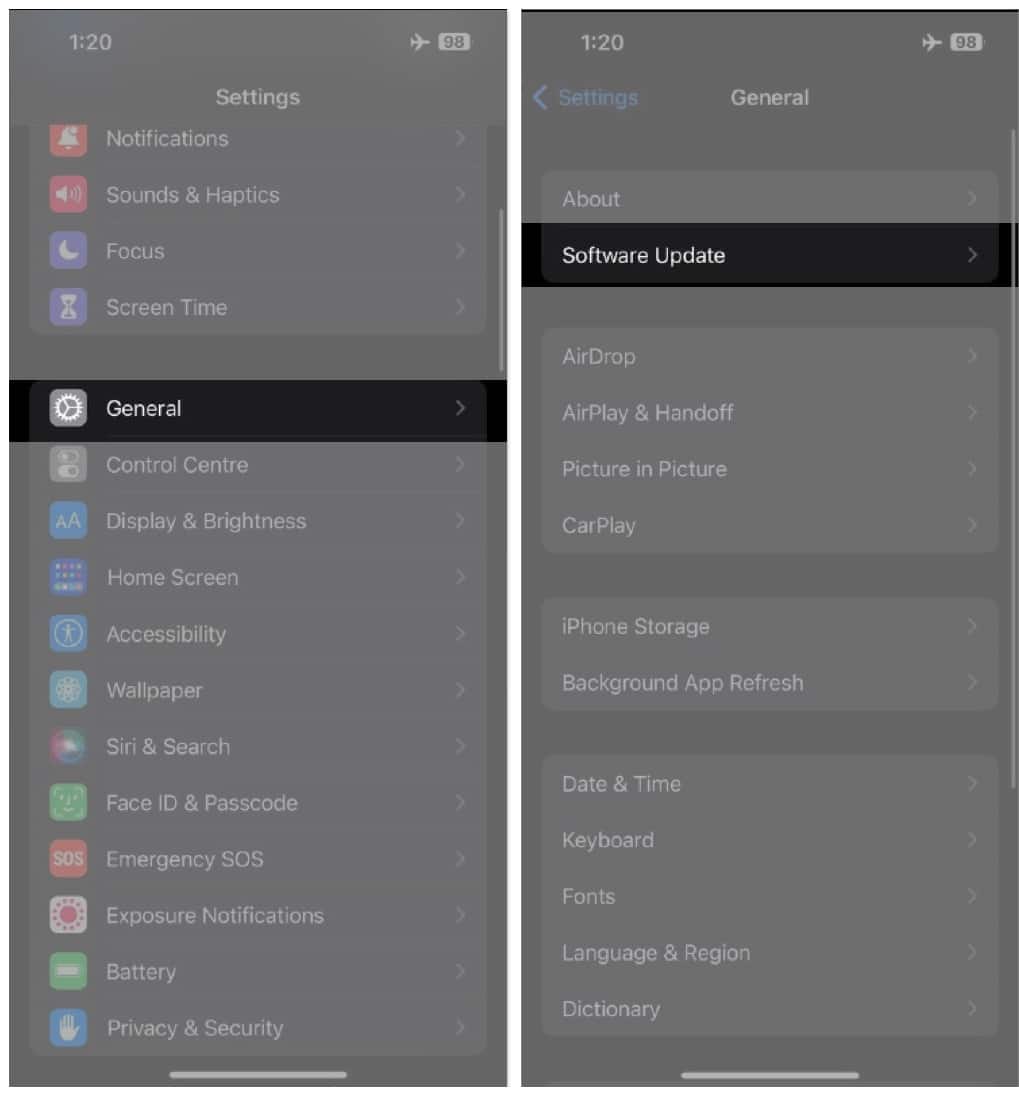
- If an update is available, tap the Download and Install option at the bottom of the screen.
Give that text another crack. Still no dice? Then it may be time to reset your Network Settings.
8. Reset Network Settings
Sometimes, issues arise in your iPhone’s Network Settings that you can’t resolve with the usual solutions. In such cases, it’s best to reset your iPhone’s network settings.
- Open Settings → General.
- Scroll down and select Transfer or Reset iPhone.
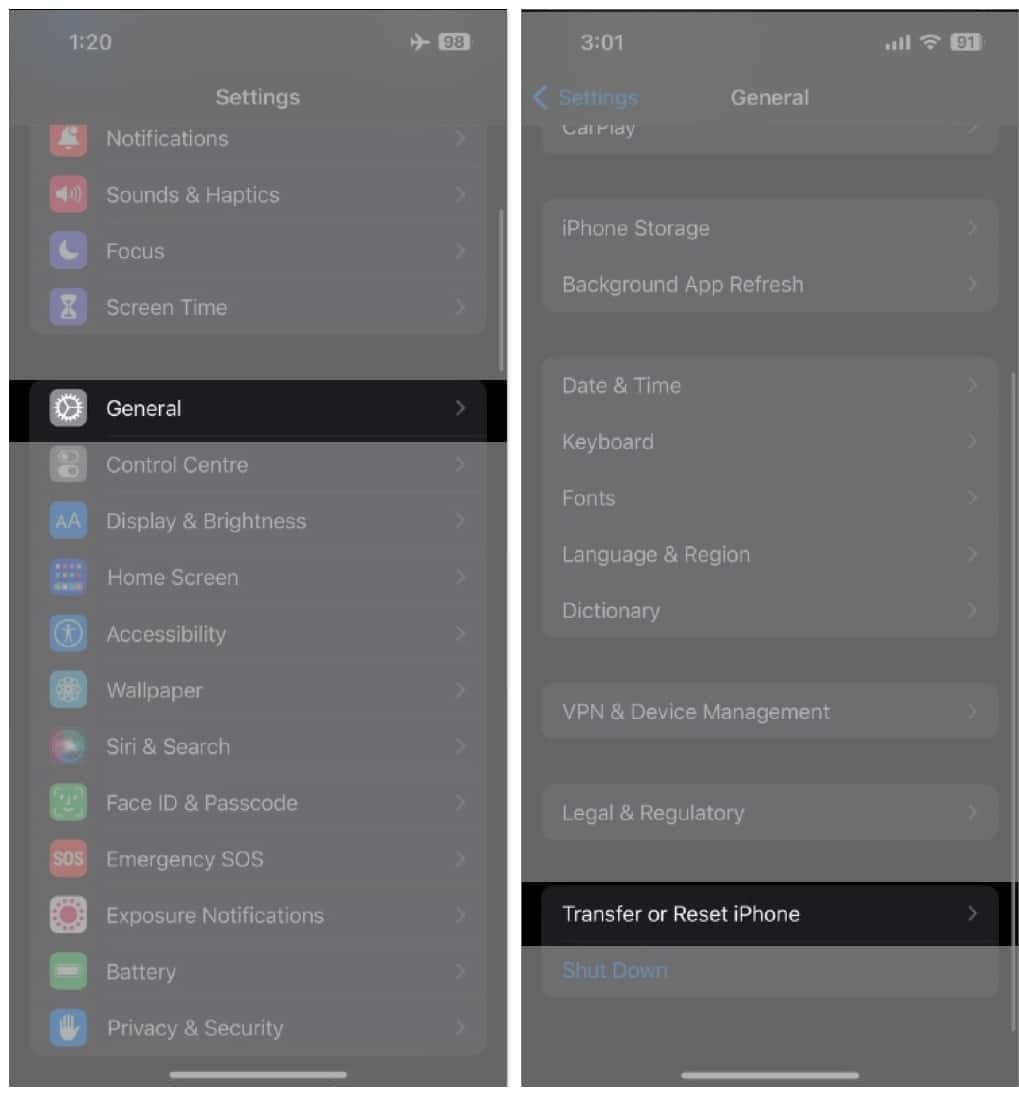
- Tap Reset and select the Reset Network Settings option.
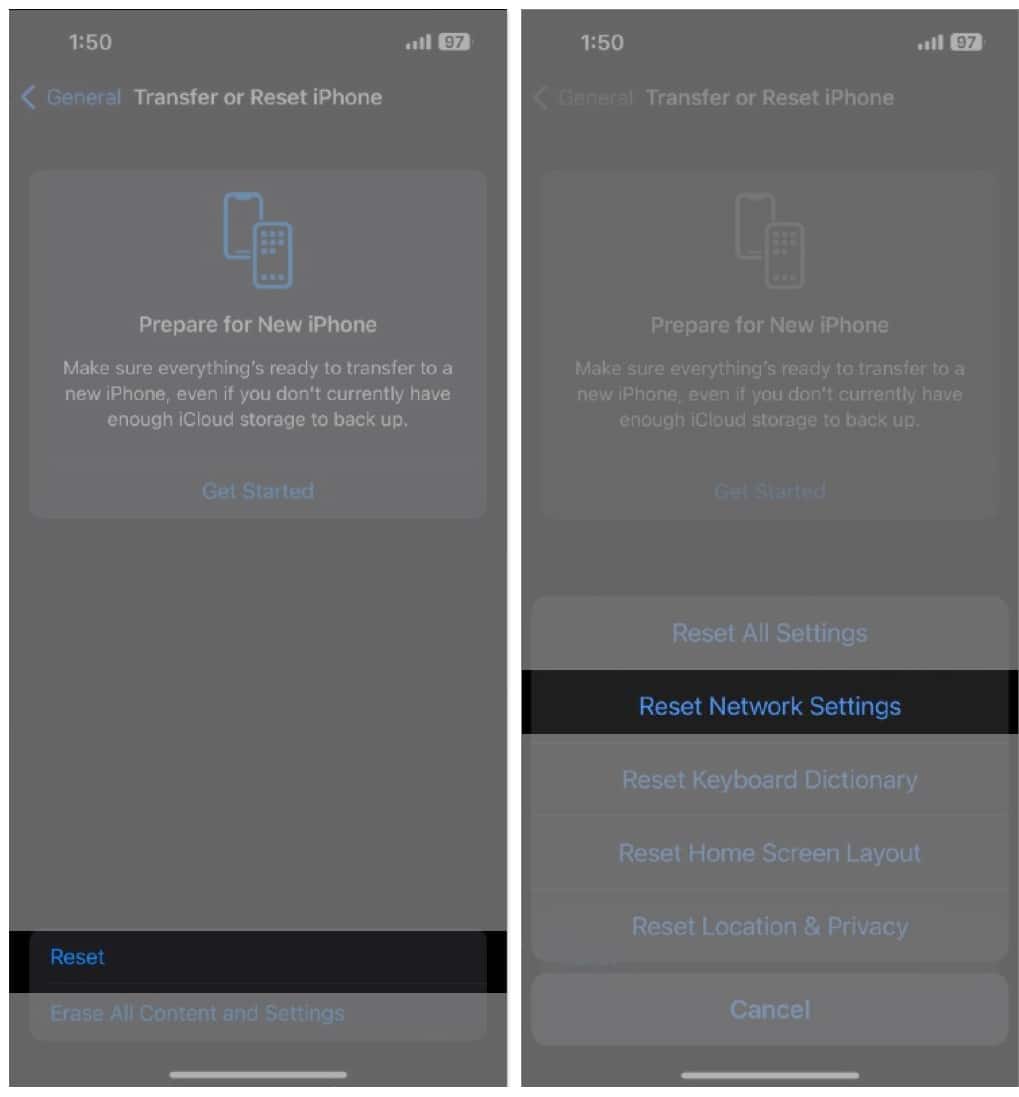
- Now enter the iPhone’s passcode to reset all the Network Settings.
This will NOT delete any photos, videos, or files on your iPhone. However, it would still be wise to create a backup beforehand.
9. Verify your cellular plan details
You need an active cellular plan to send text messages. If you have an active plan and are still facing this issue, please check if you have exhausted your text message quota (if you aren’t on an unlimited plan).
If your plan has expired, renewing it will resolve the “Message Blocking is active” error.
10. Contact your carrier
If none of the above troubleshooting methods helped you resolve the issue, you should try contacting your carrier and asking for a solution. This problem may be specific to your carrier, and they might not have noticed it yet.
You can contact your carrier on their respective website or through their support number. If the support team is aware of the issue, they will likely be able to resolve it.
11. Contact Apple Support
Contacting Apple Support should be the last resort for all issues. They tend to have solutions. At the very least, you’ll get an idea if the issue is widespread or explicitly affects your device.
Additionally, if a hardware problem is causing this issue, you can get it fixed if your device is under warranty or if you have subscribed to an AppleCare+ plan. Head to the nearest Apple Store or contact Apple Support.
Send Messages without any errors
I hope one of the methods in this list solved the “Message Blocking is active” error on your iPhone. If you know of another method that helped you resolve the issue, please let us know in the comments below, and we’ll include it in our list to help others with the same problem.
Also, if you have any other questions about Apple devices, please comment, and we’ll do our best to answer them.
Frequently Asked Questions

Written by
Darryl DsouzaConsumer Technology and Motorcycles are the two things that excite Darryl the most. Why? Because Tech helps better people's lives, and solving people's problems related to tech is something he enjoys. And what about bikes, you ask? Well, drop a gear and disappear.
View all posts →More from How-to

How to Turn Off Location on Snapchat (Step-by-Step Guide)
Want to stop sharing your location on Snapchat? This guide explains how Snapchat location sharing works and shows simple ways to turn off your location using Ghost Mode or phone settings. Stay in control of your privacy in just a few steps.
 VikhyatMarch 5, 2026
Snapchat Parental Controls: How to Set Up Family Center and Keep Your Teen Safe
Snapchat’s Family Center lets parents monitor their teen’s friend activity and screen time without reading private messages. Here’s how to set it up and what to expect.
VikhyatMarch 3, 2026
How to Block and Unblock Someone on Instagram
Instagram lets you block or unblock someone in seconds. Follow these simple steps to take full control of your privacy and online peace.
 Ava BiswasMarch 2, 2026