
Help a Friend Find Their iPhone in Seconds: A Quick Guide
Need to find someone else’s iPhone? Use the “Help a Friend” feature in the Find My app to locate their lost device in seconds.

We all have that one friend who constantly misplaces their iPhone—patting pockets, checking under cushions, and pacing the room while shouting, “Where’s my iPhone?” Losing a phone, even for a minute, can trigger instant panic. Fortunately, Apple’s Find My app makes it incredibly easy to locate a friend’s lost or stolen iPhone in just a few taps.
Here’s how you can quickly help your friend find their iPhone—no stress, no tech drama.
What You Need to Get Started
Before offering a helping hand, make sure the basics are covered:
- Your friend has Find My iPhone enabled on the lost device.
- They remember their Apple ID and password.
- You have an Apple device with the Find My app or access to the iCloud website.
Use the Find My App to Locate Their iPhone
If you have an iPhone or iPad, this method is the fastest and most reliable:
- Open the Find My app and go to the Me tab.
- Scroll down and tap Help a Friend.
- Safari will open iCloud.com automatically.
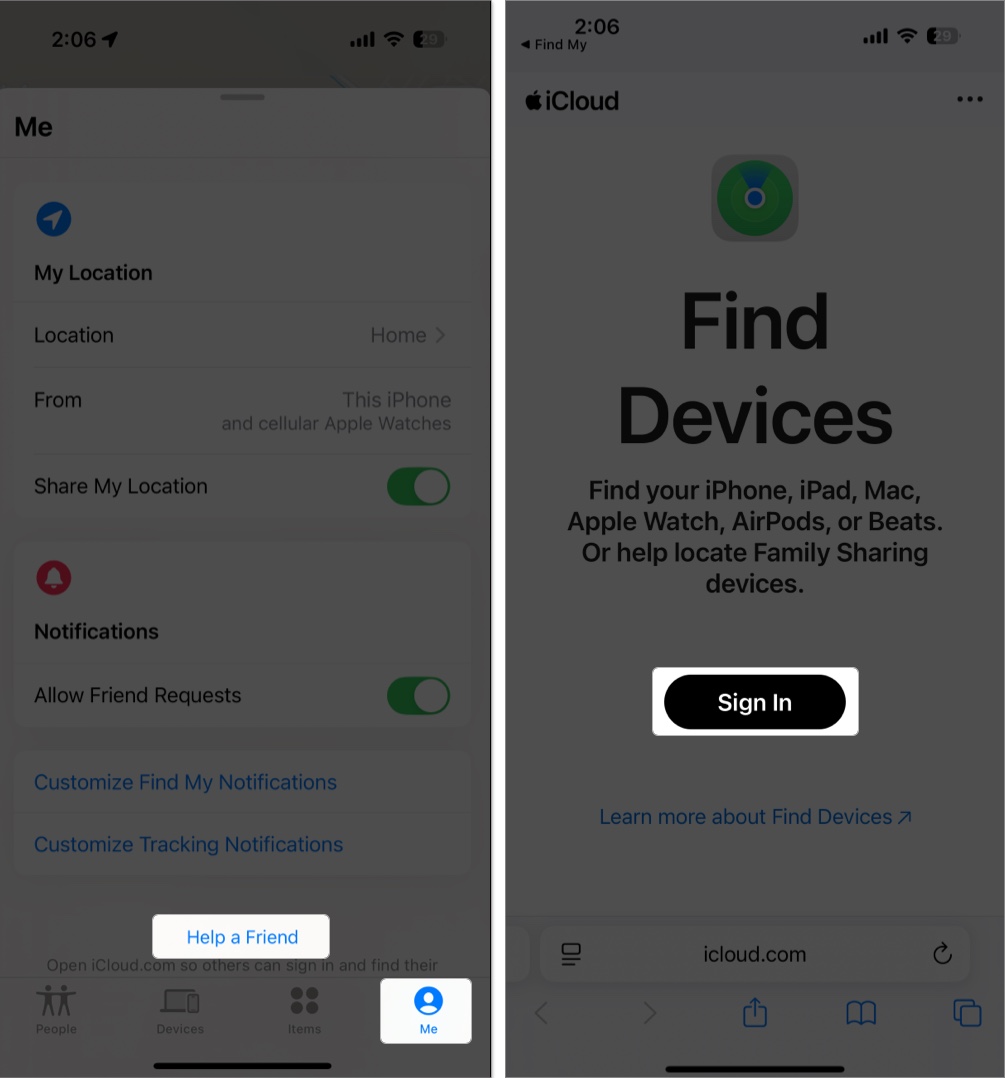
- Ask your friend to log in with their Apple ID and password.
- Once signed in, a map will appear showing the location of their Apple devices.
- Tap the missing iPhone → Tap Play Sound to make it ring (even on silent).
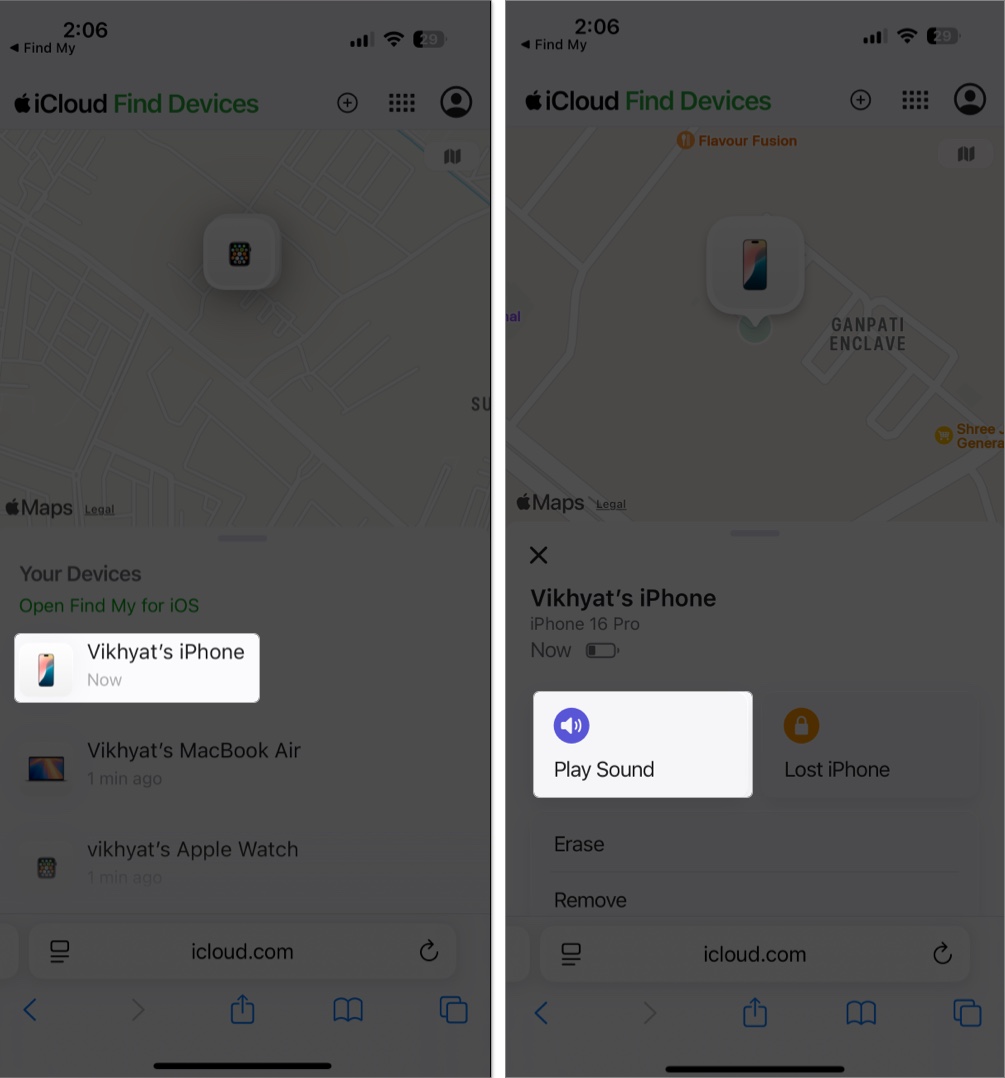
This method works best if the lost iPhone is nearby.
Use iCloud.com on Any Device (Even Android)
No iPhone? No problem. You can still help your friend using any browser:
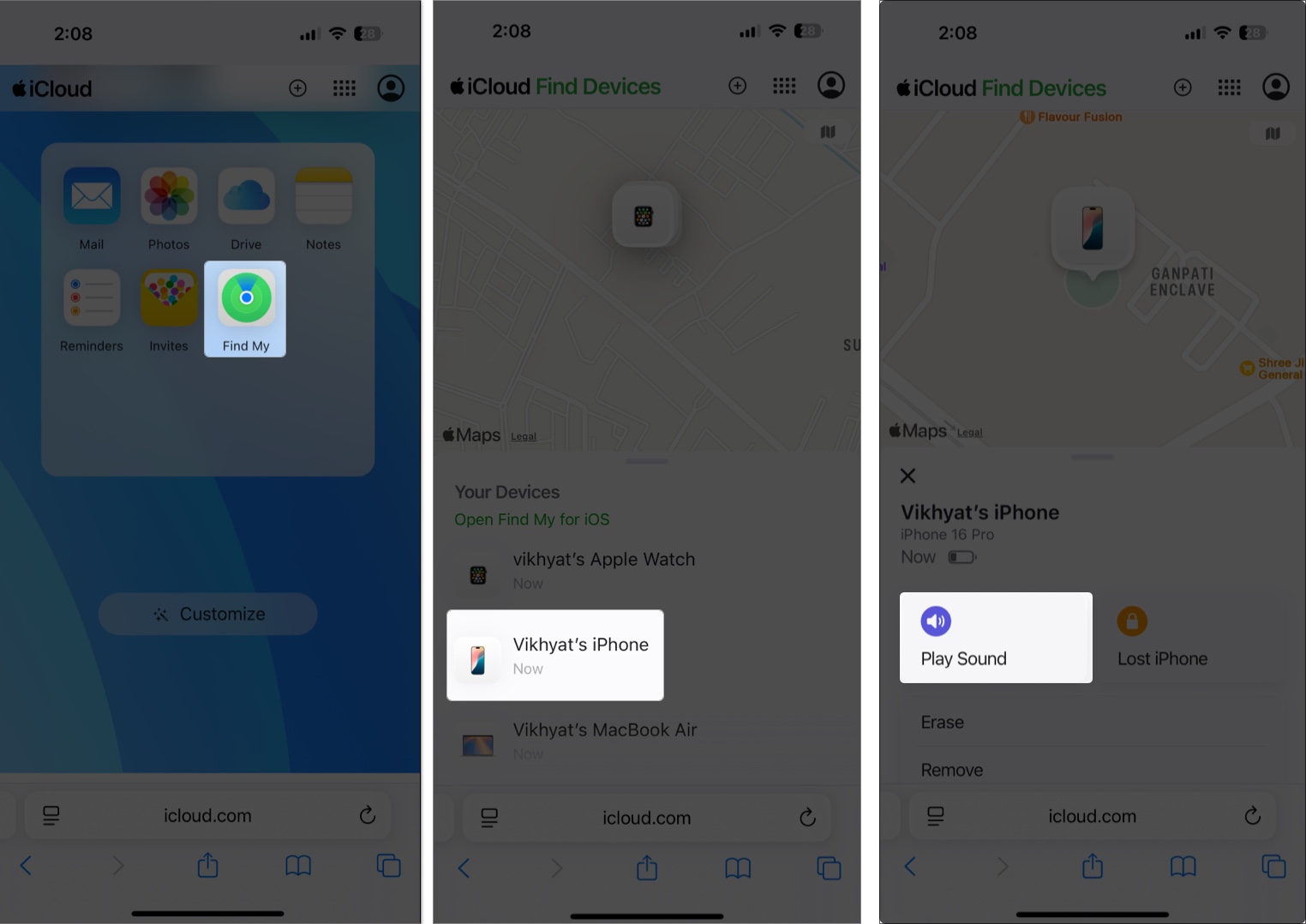
- Visit iCloud.com using your preferred web browser.
- Let your friend log in using their Apple credentials.
- Scroll and tap the Find iPhone icon.
- A map will appear showing all linked devices.
- Tap on the lost iPhone → Hit Play Sound if nearby.
Tip:
Bonus: Use Family Sharing to Find Their iPhone Instantly
If you and your friend are part of the same Apple Family Sharing group, you can skip the login process altogether:
- Open Find My and go to the Devices tab.
- Tap your friend’s iPhone under the list of family members.
- Tap Play Sound to locate it instantly.
No passwords, no extra steps—just one tap and done.
Related: Forgot Your Apple ID Password? Here’s How to Reset It Easily
What If the Lost iPhone Is Offline?
If your friend’s iPhone is turned off or has no internet connection, you won’t be able to make it ring or see its real-time location. Here’s what you can do in such a scenario:
- You’ll see its last known location.
- Toggle Notify When Found to receive an alert once it comes back online.
- Tap Mark As Lost to remotely lock the iPhone and show a custom message with contact info.
This ensures that even if someone finds the phone, they can’t access personal data.
Privacy and Security Tips When Helping a Friend
Helping out is great—but protect both your and your friend’s privacy:
- Never save their Apple ID credentials on your device.
- Use private browsing and log out after the session.
- Recommend that they change their password if it is entered on a shared device.
No More Lost iPhones!
Apple’s Find My feature makes it incredibly easy to help a friend locate their iPhone. Whether it’s under a car seat or left behind at a café, you now know how to assist in seconds.
Share this guide with your circle—because next time, you might be the one shouting, “Where’s my iPhone?!”
Frequently Asked Questions
Related articles worth reading:

Written by
VikhyatVikhyat has a bachelor's degree in Electronic and Communication Engineering and over five years of writing experience. His passion for technology and Apple products led him to the tech writing space, where he specializes in writing App features, How-to guides, and troubleshooting guides for fellow Apple users. When not typing away on his MacBook Pro, he loves exploring the real world.
View all posts →More from How-to

How to Turn Off Location on Snapchat (Step-by-Step Guide)
Want to stop sharing your location on Snapchat? This guide explains how Snapchat location sharing works and shows simple ways to turn off your location using Ghost Mode or phone settings. Stay in control of your privacy in just a few steps.
VikhyatMarch 5, 2026
Snapchat Parental Controls: How to Set Up Family Center and Keep Your Teen Safe
Snapchat’s Family Center lets parents monitor their teen’s friend activity and screen time without reading private messages. Here’s how to set it up and what to expect.
VikhyatMarch 3, 2026
How to Block and Unblock Someone on Instagram
Instagram lets you block or unblock someone in seconds. Follow these simple steps to take full control of your privacy and online peace.
 Ava BiswasMarch 2, 2026