
Invite collaborator not showing on Instagram? 7 Easy fixes
Have you made a reel with your friend or featured a brand in a post and want to add them as collaborators? This add-on allows two users to post the same posts or Reels on their feeds, helping them reach a much wider audience base.
If Instagram’s ‘Invite collaborator’ option is not showing up on your iPhone for some reason, here’s a list of a few solutions that can help you fix the issue.
1. Force quit and relaunch Instagram
If you’re unable to find the Invite Collaborator option when creating posts on Instagram on iPhone, force quit Instagram and relaunch it. This basic solution can often help you fix several glitches that may arise within the Instagram app on your iPhone. Here are the steps for the same:
- Open the App Switcher on your iPhone.
- Swipe up on Instagram to close it.
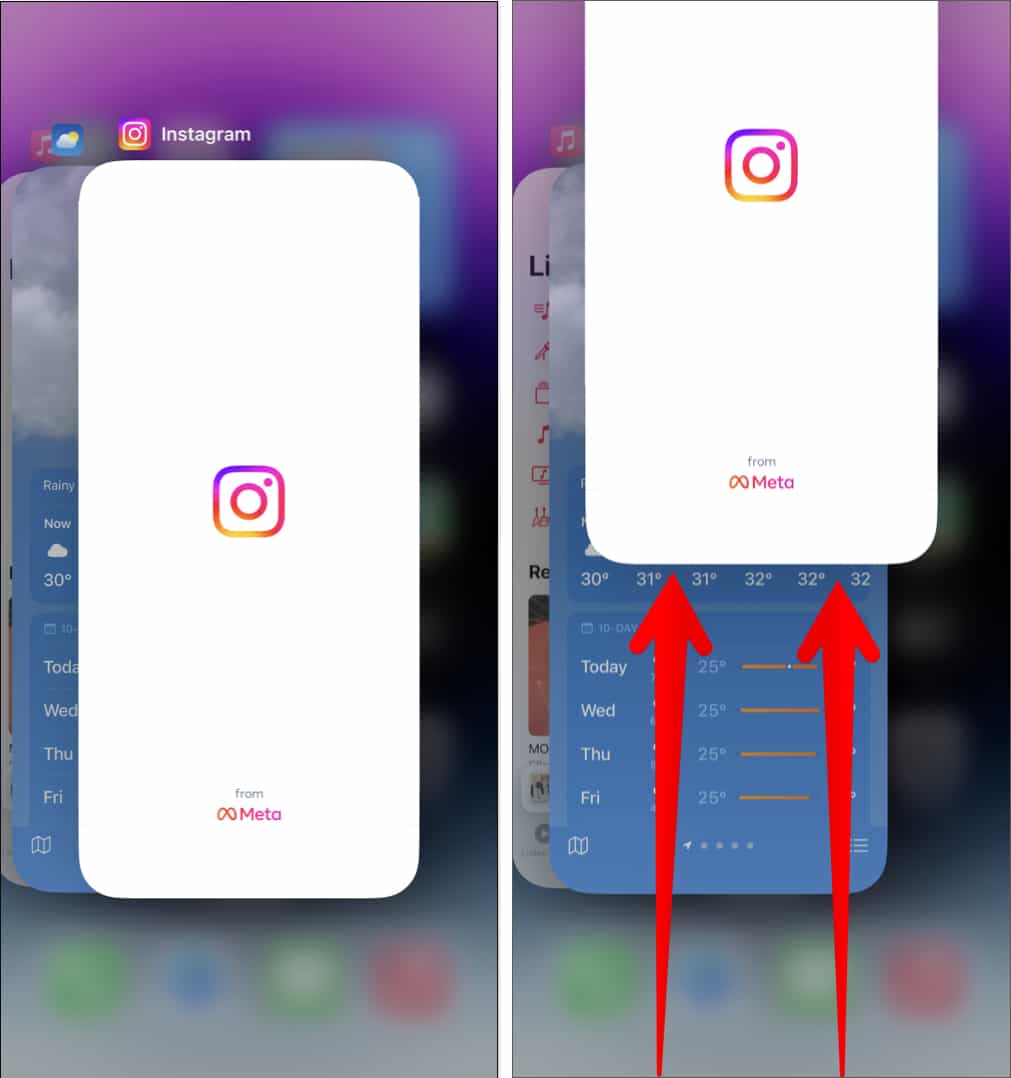
- Then, reopen Instagram to see if the Invite Collaborator option shows up when creating posts on Instagram.
2. Allow everyone to tag you on Instagram
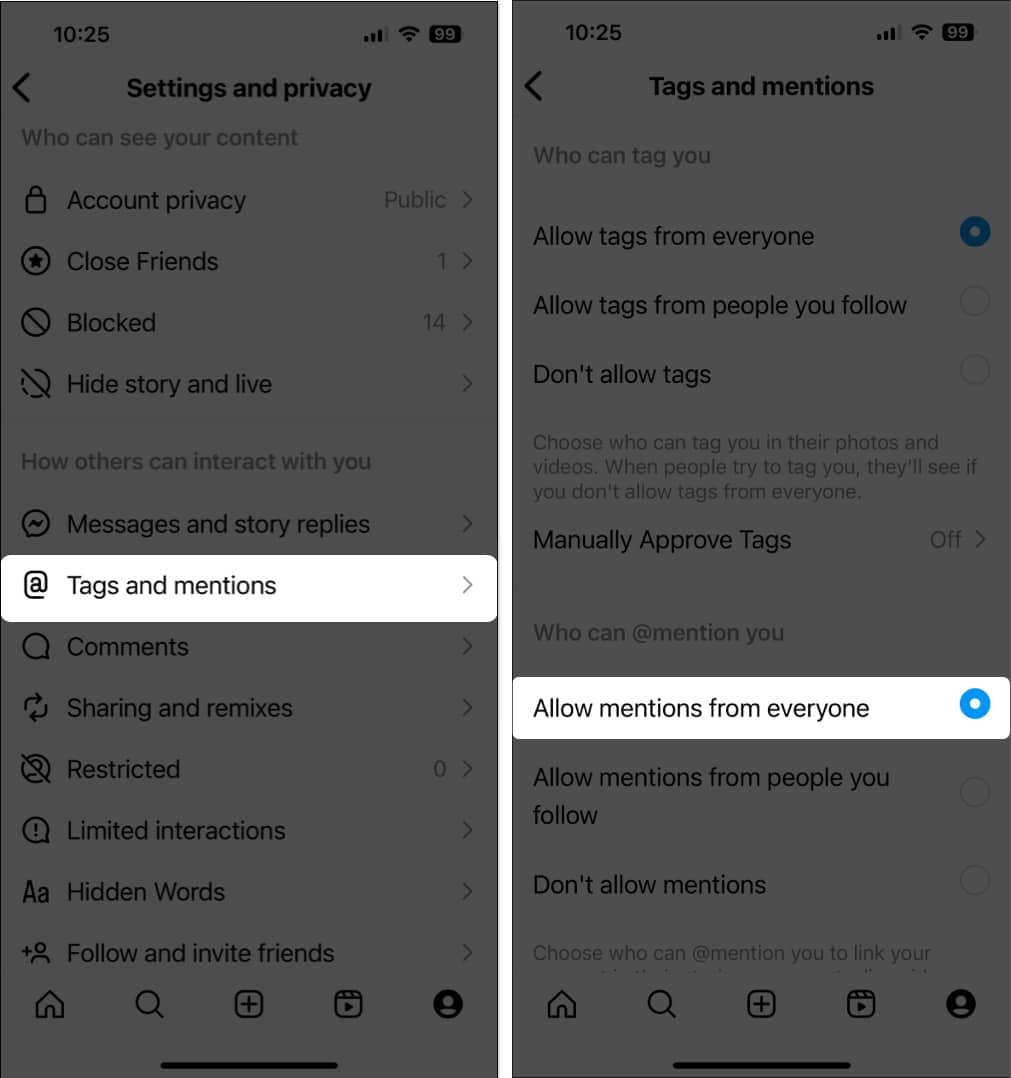
Are you able to send invites to collaborators but are unable to receive collaboration requests from others? In that case, you must allow everyone to tag you on Instagram before they can send you collaboration invites.
- Open Instagram → Tap your profile picture at the bottom right.
- Tap the hamburger icon.
- Tap on Tags and mentions → select Allow Tags from everyone.
3. Ensure that your account is set to public
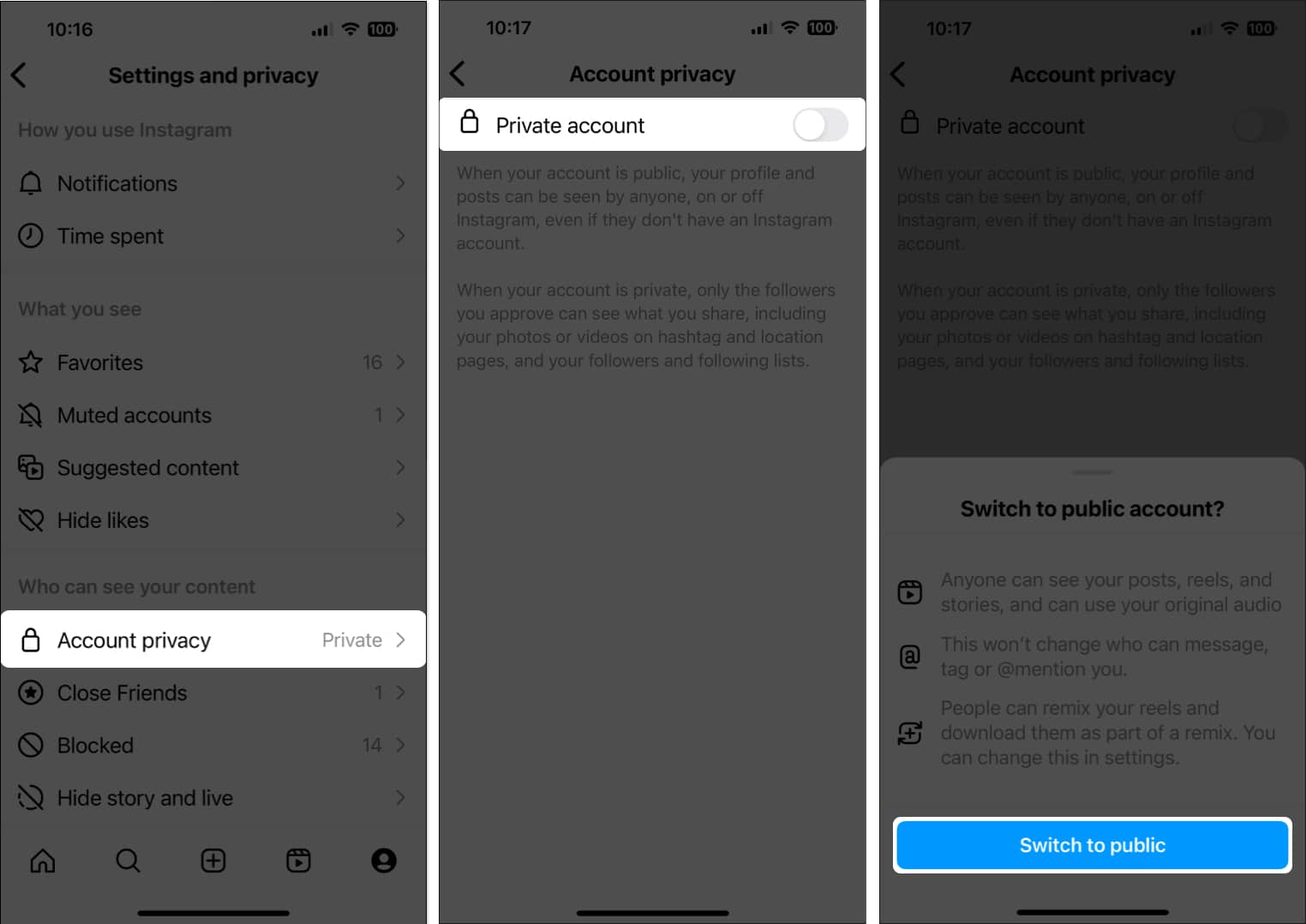
If you can still receive collaboration invites but can’t send them, you need to ensure that your account is set to public, as shown below. With a private account, you can only receive collaboration requests from your followers. But you can’t access the ‘Invite Collaboration’ function.
- Open Instagram → Tap your profile picture at the bottom right.
- Tap the hamburger icon → tap Account privacy.
- Then, toggle off Private account → Tap Switch to public.
4. Switch to a professional account
For some reason, Instagram sometimes randomly turns off a few features for personal accounts that are generally available to most users. The only way you can force Instagram to let you access these features is to switch from a personal to a professional account. Here are the steps for the same:
- Open Instagram → Tap your profile picture at the bottom right.
- Tap the hamburger icon.
- Scroll down and tap Account type and tools.
- Then, tap Switch to professional account → Continue.
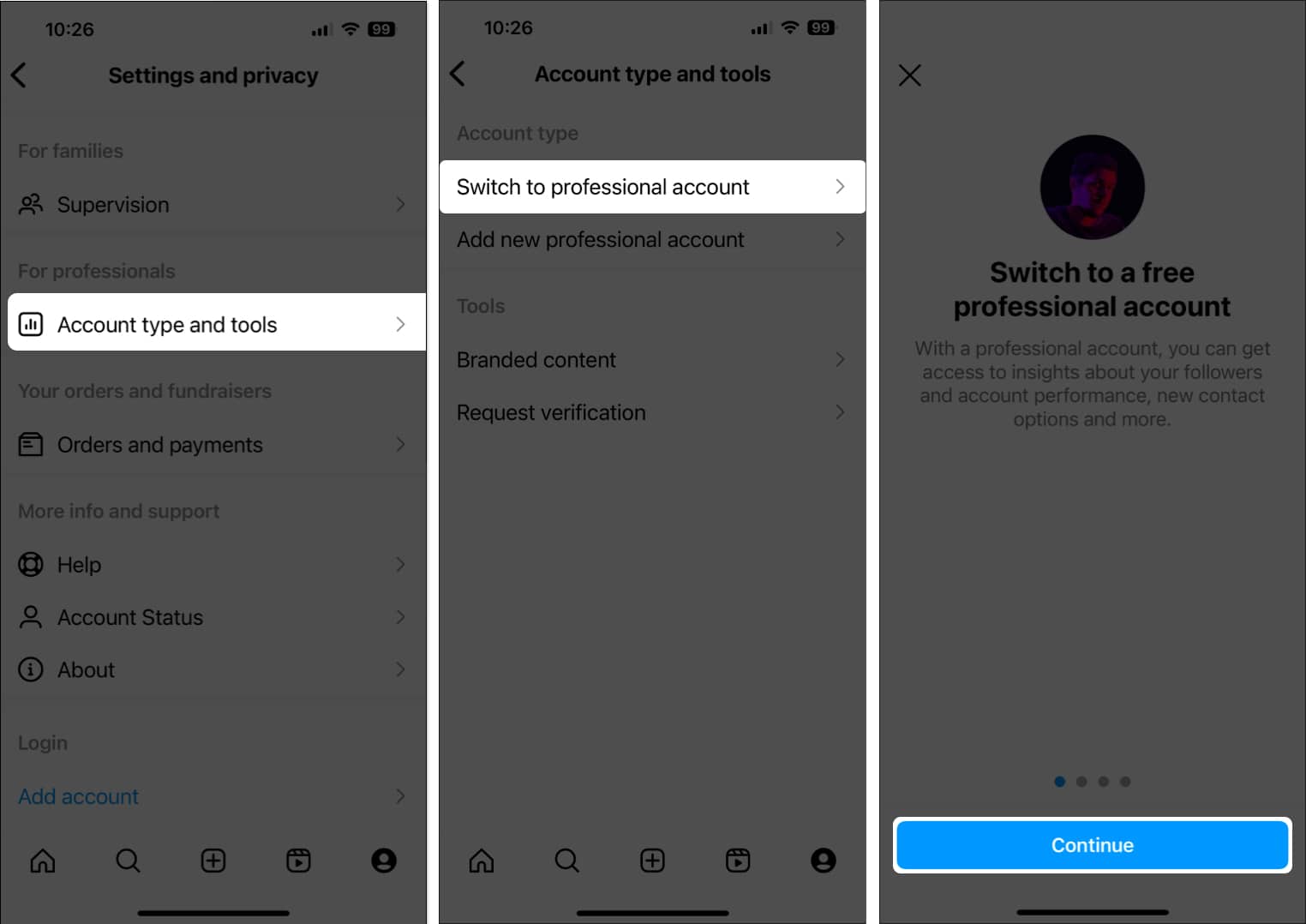
- Follow the on-screen instructions to complete setting up the professional account.
5. Log out and log in to your account
If the previous methods didn’t help you bring back the Invite Collaborator option in Instagram, you should try logging out and re-logging into your Instagram account to rule out the possibility of temporary glitches with your account causing the issue. Here’s how you can do this quickly:
- Open Instagram → Tap your profile picture at the bottom right.
- Select the hamburger icon from the top right.
- Scroll down and tap Log out.
- Enter your credentials and tap login to access your account.
6. Update or reinstall Instagram on iPhone
Glitches in the Instagram app can also prevent the Invite Collaborator option from appearing on your iPhone. To fix such issues, you’ll need to update the app or reinstall it if no update is available.
- Open the App Store → Tap your profile picture at the top right corner.
- Scroll down and check if an update for Instagram is available.
- If an update is available, tap on Update.
If no update is available, move to the next step.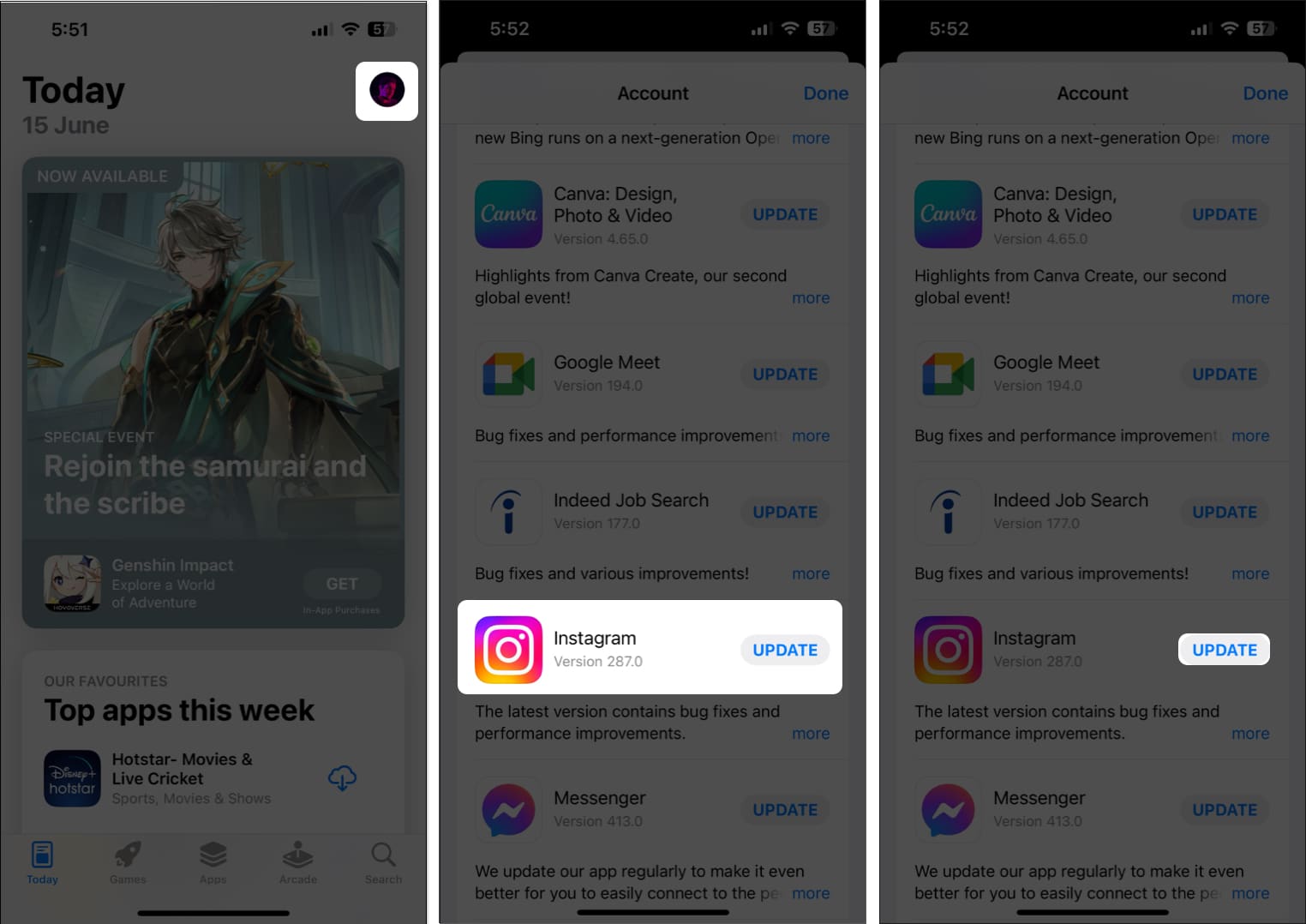
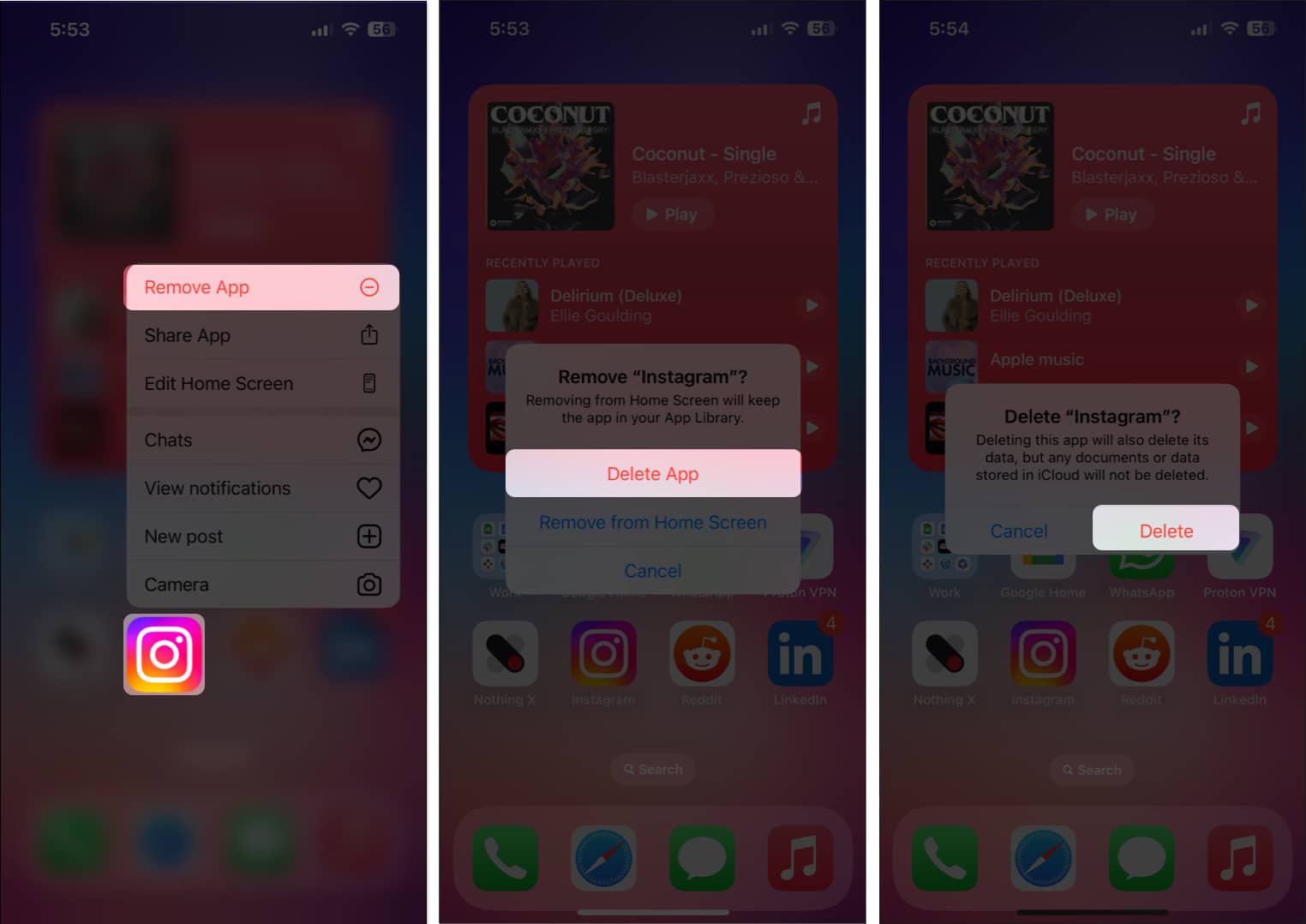
- Tap and hold the icon for Instagram. Then, tap on Remove App → Delete App → Delete.
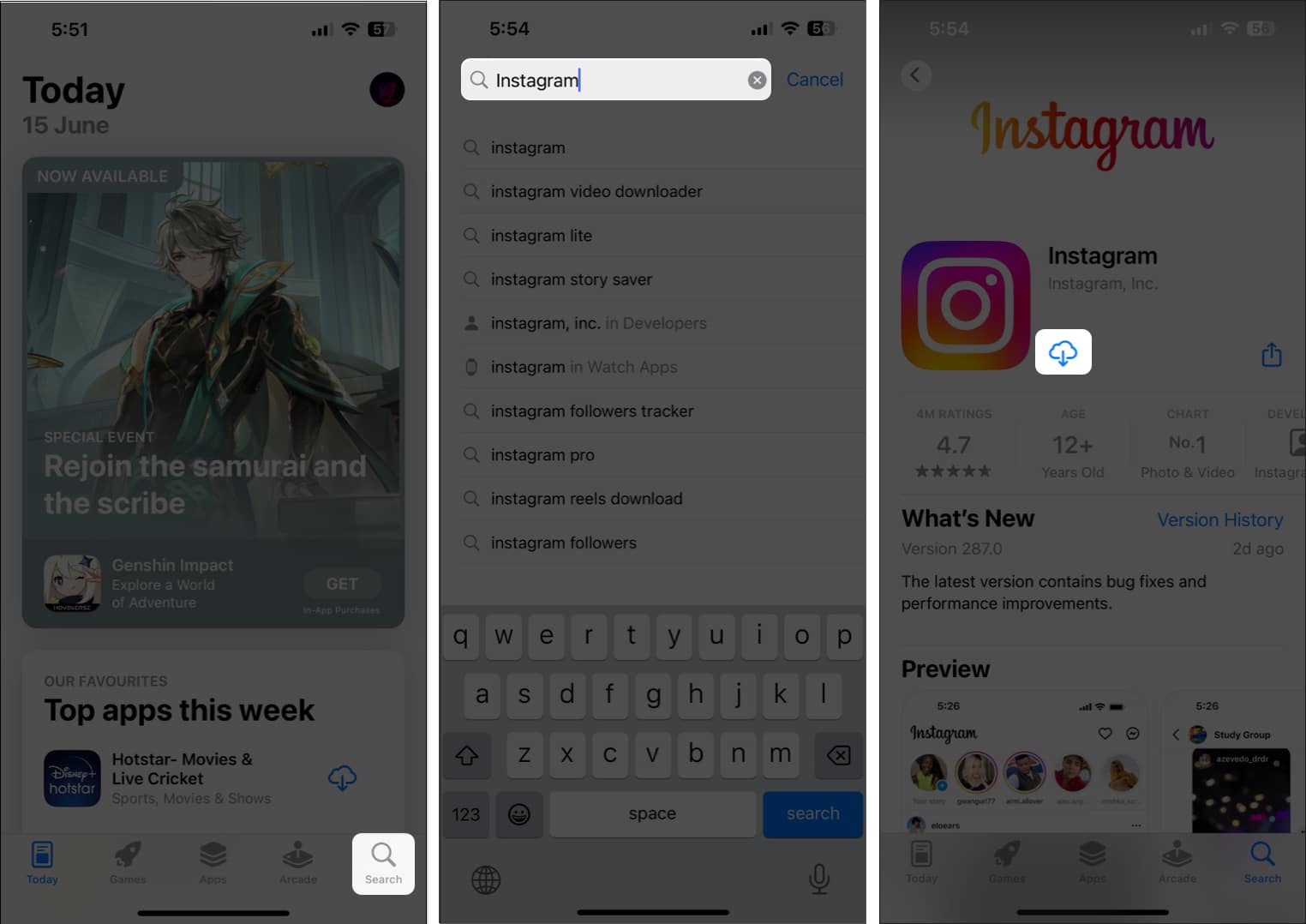
- Open the App Store → Go to the Search tab → Search for Instagram.
- Tap the blue cloud icon beside the Instagram icon.
7. Report a Problem to Instagram support
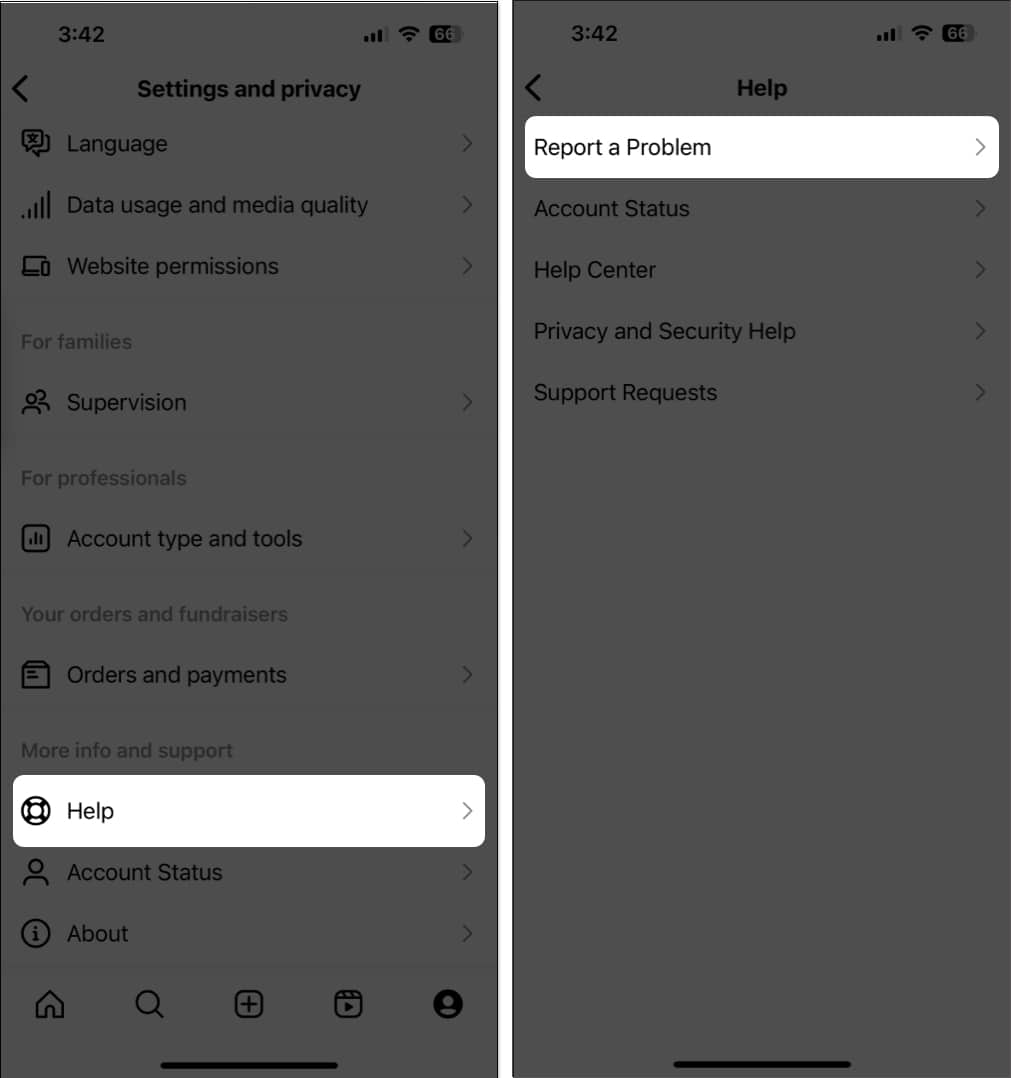
If you’ve tried all of the solutions listed above, but you’re still having trouble finding the Invite collaborator option when creating an Instagram post on your iPhone, you can report the problem to Instagram support as detailed in these steps:
- Open Instagram and tap your profile picture at the bottom right.
- Tap the hamburger icon.
- Scroll down and select the option for Help.
- Now, tap Report a Problem and follow the on-screen instructions.
- Describe the issue you’re facing → Tap Send on the top right.
Wrapping up…
Creating collaborative posts and Reels on Instagram is a great way to drive user engagement and expand your account’s outreach. If you’re unable to access this useful feature on Instagram, the fixes listed in this guide should help you resolve the issue. If you found this guide helpful, let us know which solution fixed the issue for you in the comment section.
Frequently Asked Questions

Written by
Ayush PatelAyush is a writer with a keen interest in consumer technology and the Apple ecosystem. He has over three years of working experience at several big-name publications, including Guiding Tech, TechPP, and MobiGyaan. Here at iGeeksBlog, he specializes in crafting how-to guides, buying guides, and editorials related to all things Apple.
View all posts →More from How-to

How to Turn Off Location on Snapchat (Step-by-Step Guide)
Want to stop sharing your location on Snapchat? This guide explains how Snapchat location sharing works and shows simple ways to turn off your location using Ghost Mode or phone settings. Stay in control of your privacy in just a few steps.
 VikhyatMarch 5, 2026
Snapchat Parental Controls: How to Set Up Family Center and Keep Your Teen Safe
Snapchat’s Family Center lets parents monitor their teen’s friend activity and screen time without reading private messages. Here’s how to set it up and what to expect.
VikhyatMarch 3, 2026
How to Block and Unblock Someone on Instagram
Instagram lets you block or unblock someone in seconds. Follow these simple steps to take full control of your privacy and online peace.
 Ava BiswasMarch 2, 2026