
How to fix Discord notifications not working on iPhone
Discord is a platform where a person usually joins servers to connect with other people over mutually shared interests. While the overall experience is great on the iPhone app, one particular issue irks many; Discord notifications stop working on iPhone or are delayed.
If you’re facing this issue, don’t worry! It’s a pretty minor error and can be fixed easily. I will ensure you find a solution in this detailed guide. Read on.
- Check Discord notification settings
- Check iPhone notification settings
- Restart the app
- Turn off DND on iPhone
- Unmute conversations and channels
- Change Push Notification Inactive Timeout settings
- Sign out from PC
- Check server notifications
- Restart iPhone
- Update the app and iPhone’s software
- Reinstall the app
- Reset all settings
1. Check Discord notification settings
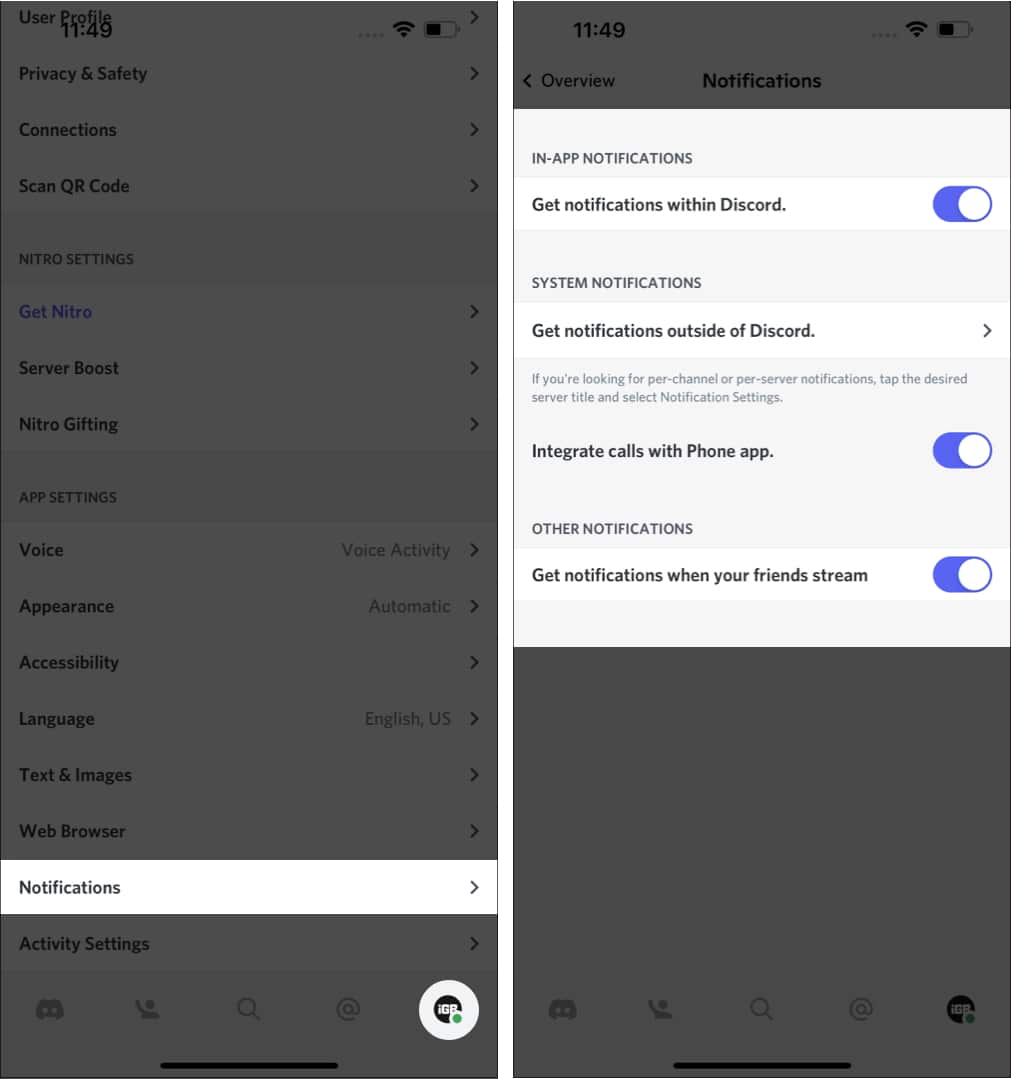
The first setting you should change is in the discord app itself. While notifications are enabled by default, you or someone might have disabled them by mistake. Here’s how to check and fix it.
- Tap your Profile Picture at the bottom right.
- Scroll down and select Notifications.
- Toggle on all notification options.
2. Check iPhone notification settings
- Open iPhone settings.
- Scroll down and select Discord.
- Select Notifications.
- Toggle on Allow Notifications.
Additionally, also allow alerts for Lock Screen, Notification Center, and Banners.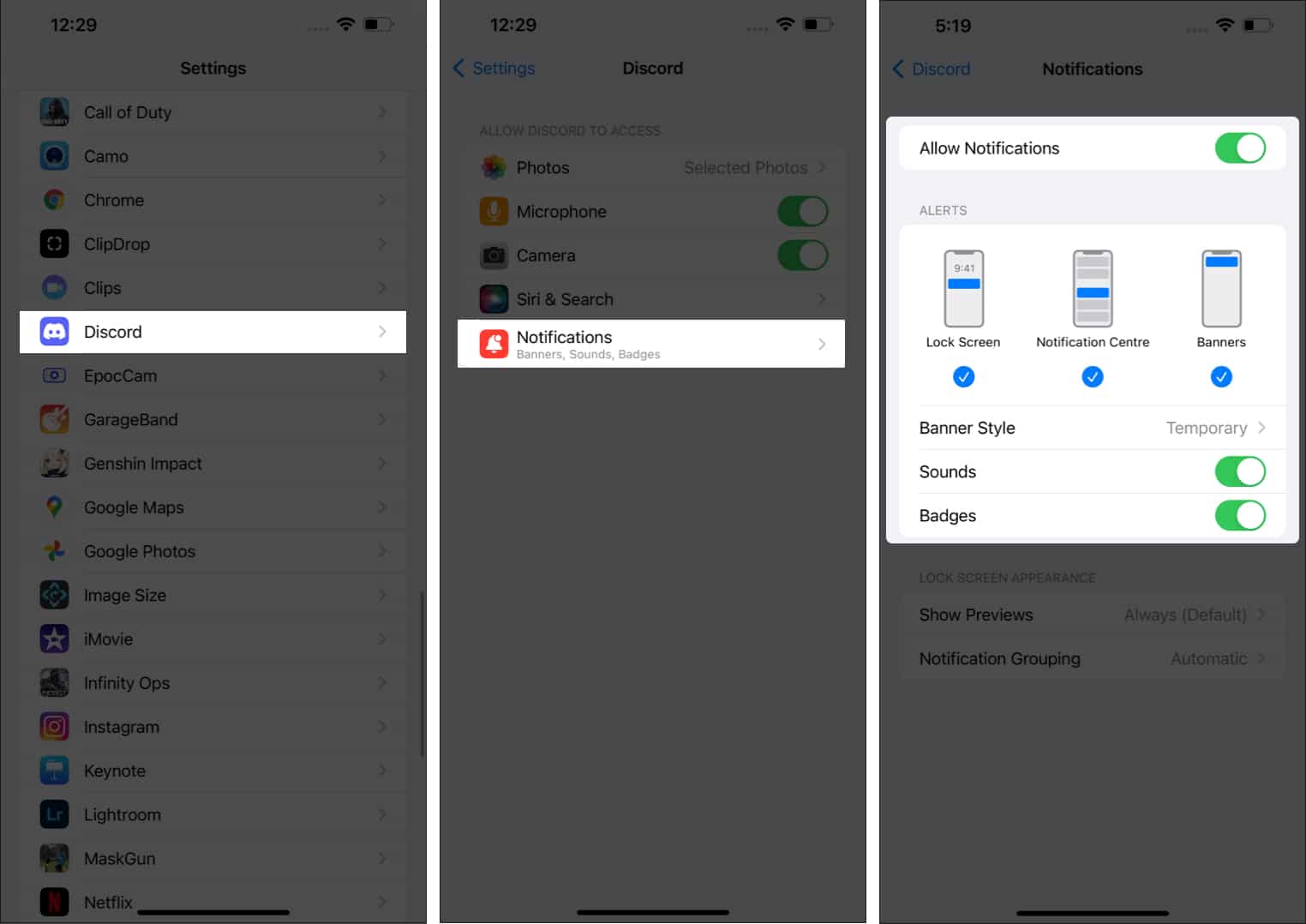
3. Restart the app
While this may sound naive, it’s one of the most efficient fixes for almost any problem. So, try restarting the app once. Follow the below steps to force quit the app and open it again. Here’s how to close the app:
- Go to iPhone’s Home Page and
- On iPhones with Touch ID: Double-tap the home button.
- On iPhones with Face ID: Swipe up from the bottom and hold.
- Swipe up and remove Discord from the recent applications.
4. Turn off DND on iPhone
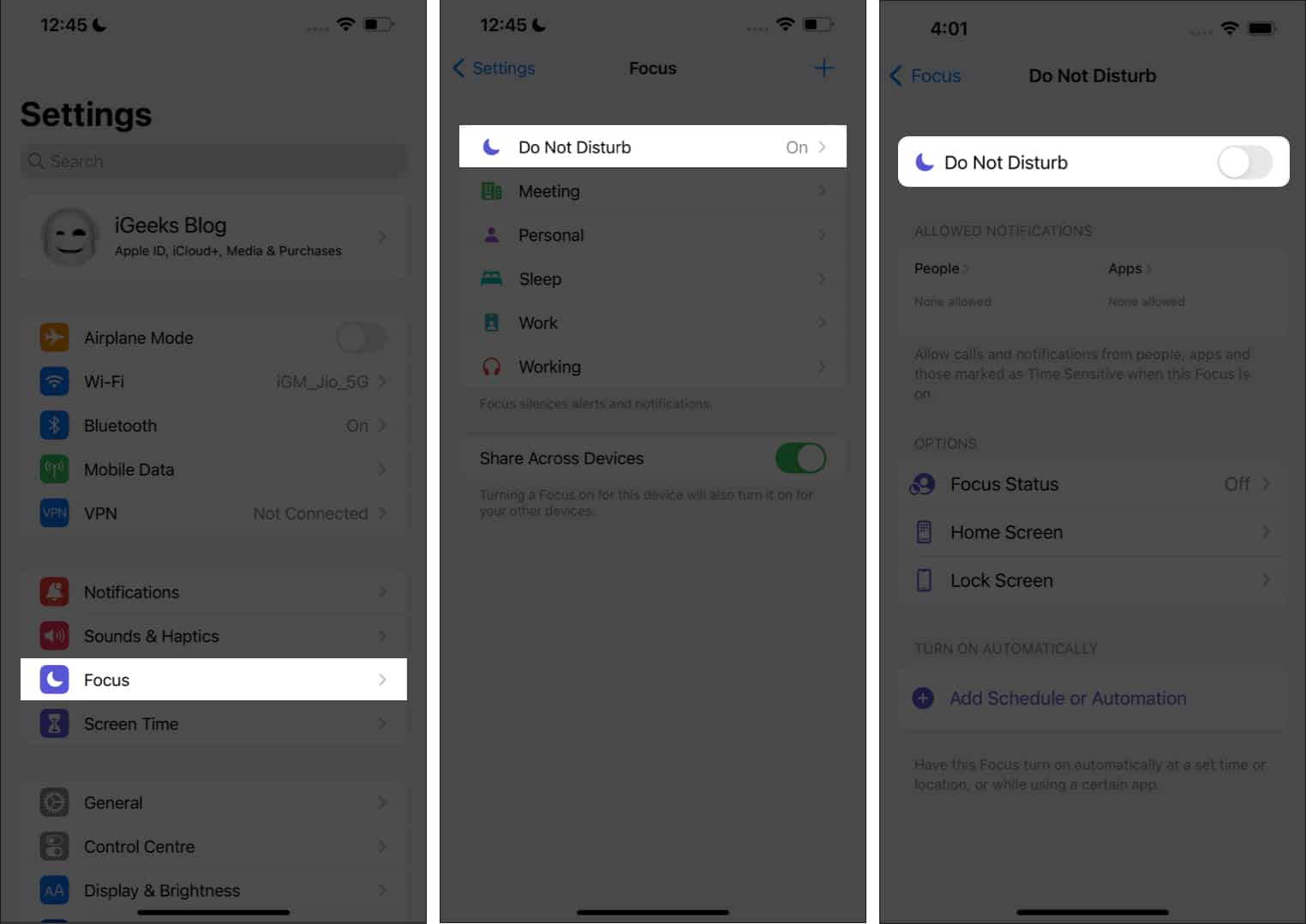
There are several instances where the solution is right in front of us, and we keep looking for answers elsewhere. The same can be applied in this scenario where if you have switched on DND mode on your iPhone, you will not receive notifications.
- Open Settings on your iPhone.
- Select Focus.
- Tap Do Not Disturb and toggle it off.
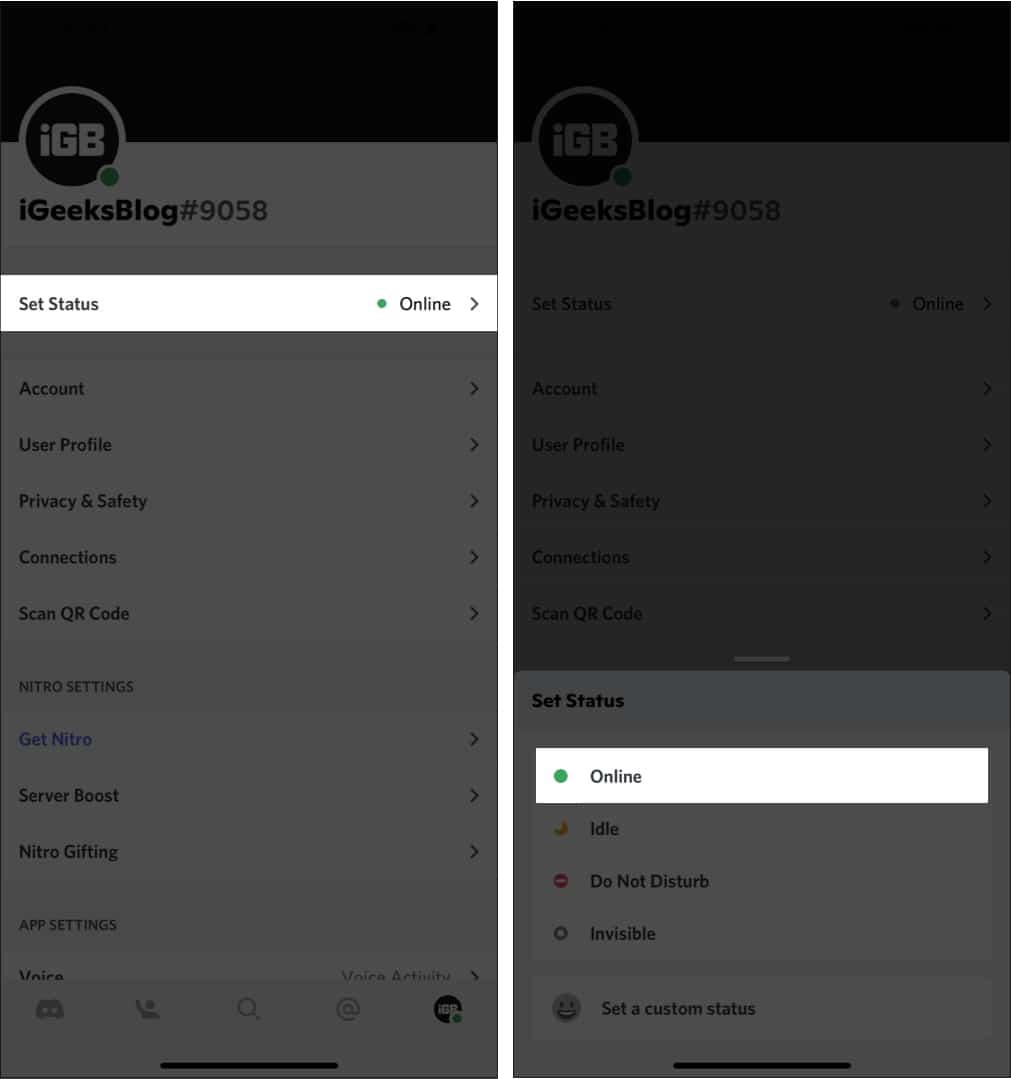
Another DND you should turn off is from your activity status.
- Go to Discord Profile.
- Tap Set Status.
- Set it as Online.
5. Unmute conversations and channels
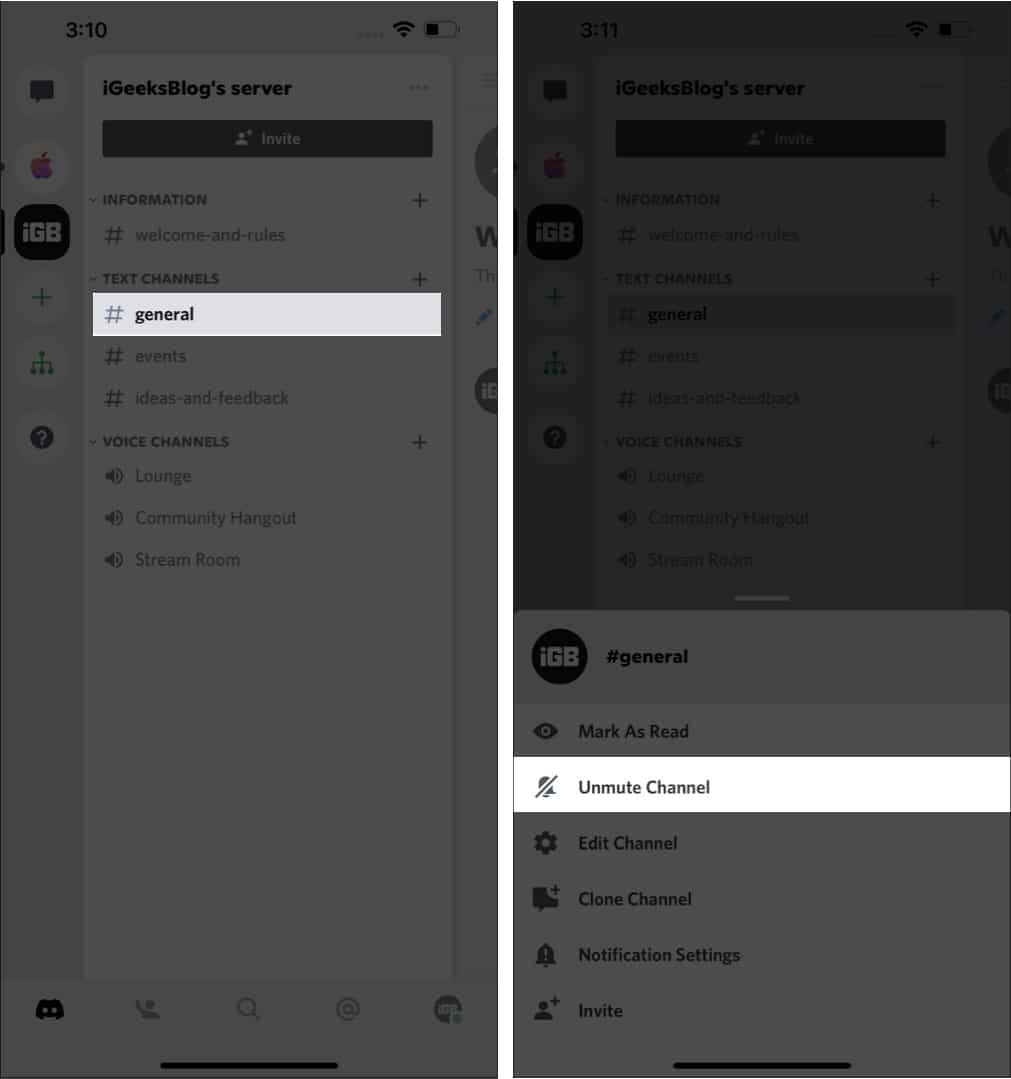
You might have muted some channel or user, so you did not receive notifications from them. To undo this,
For Channels:
- Tap the three lines ≡ at the top left.
- Long-press a channel and tap Unmute if you have muted the channel.
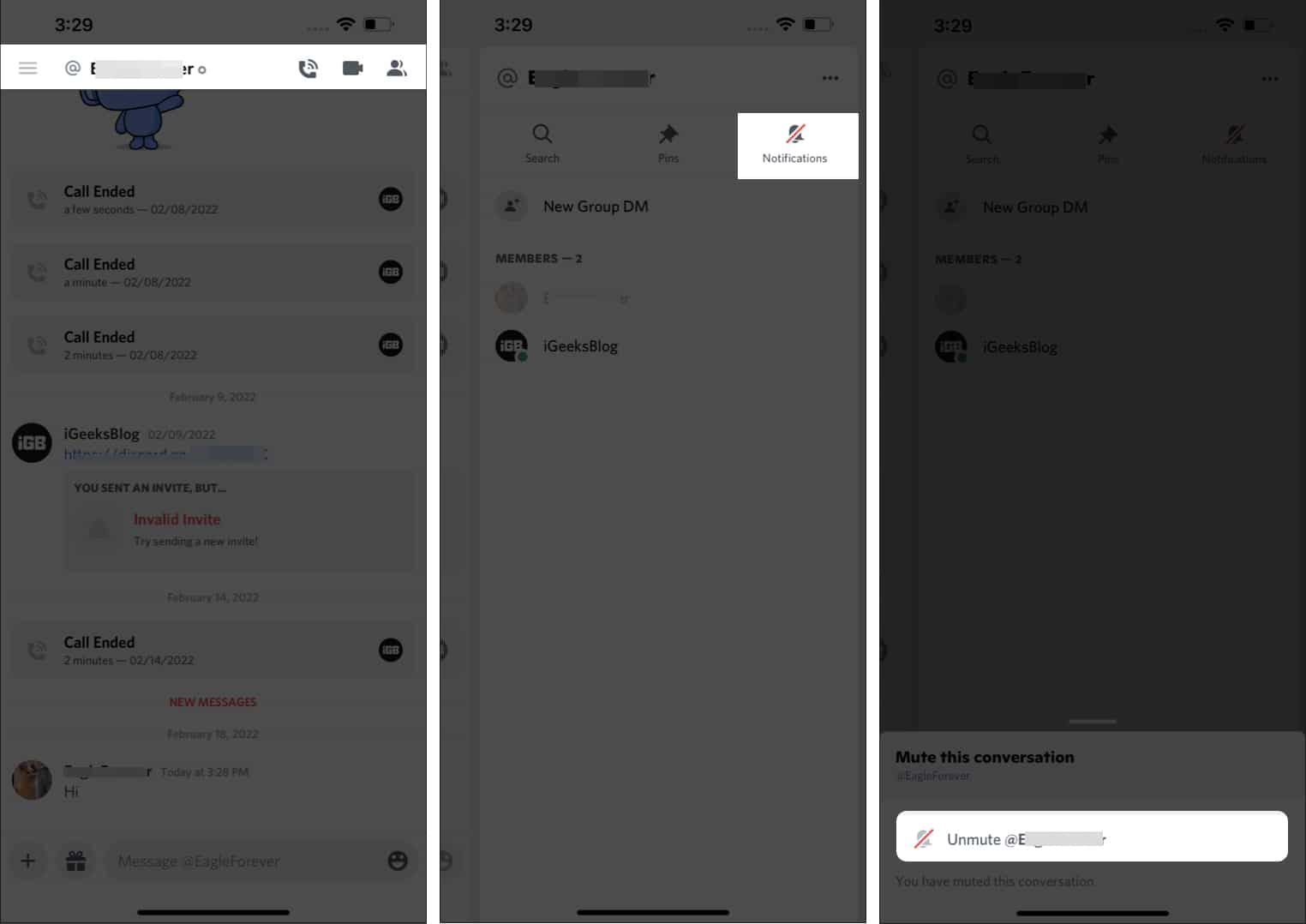
For Conversations:
- Go to your DMs and tap your friend’s username at the top.
- Tap Notifications and Unmute the Notifications.
6. Change Push Notification Inactive Timeout settings
Whenever you are logged into the desktop version of Discord, it will avoid sending you notifications on the iPhone. To avoid this from happening,
- Open Discord on your PC → User Settings.
- Tap Notifications → select Push Notification Inactive Timeout.
- Now, set the duration to the lowest.
7. Sign out from PC
If you are still facing issues regarding notifications, the next step to take is quite simple. Just sign out from your PC.
- Click User Settings in the desktop version of Discord.
- Scroll down and click Log Out.
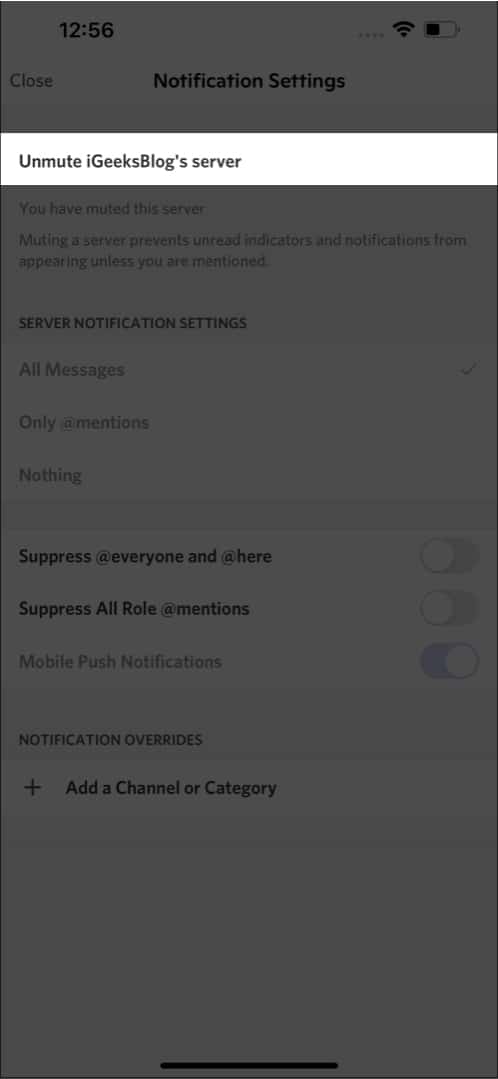
8. Check server notifications
- Open Discord on iPhone.
- Swipe left or tap the three lines ≡ at the top left.
- Tap the three dots (…) at the top right corner.
- Select Notifications.
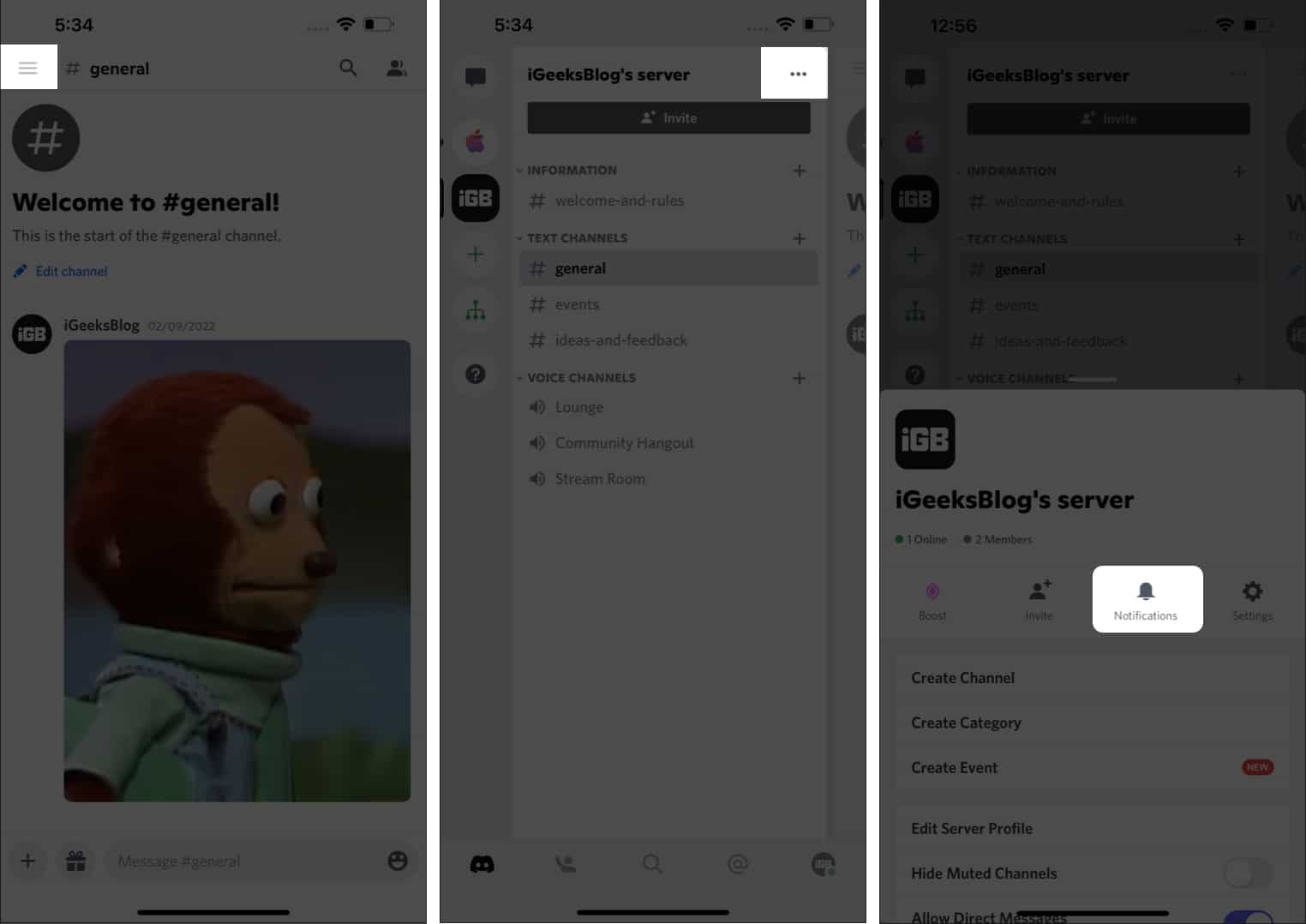
- Unmute the Server.
9. Restart iPhone
If all these options fail, there’s one old, tried, and tested method that works most of the time. It is none other than restarting your iPhone. If you can’t figure out how to restart your iPhone, read our guide on how to restart iPhone.
10. Update the app and iPhone’s software
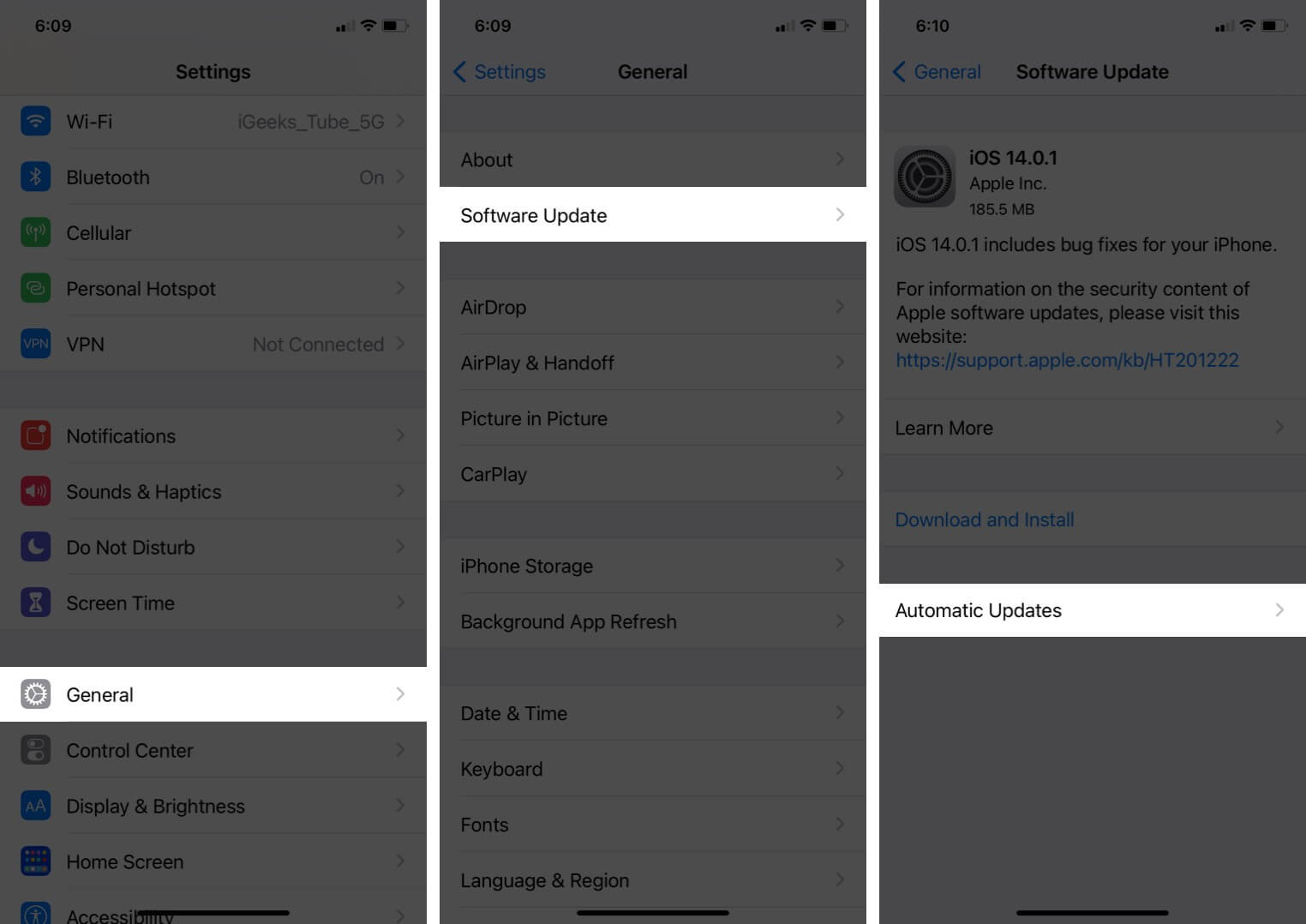
By default, automatic updates are turned on. However, there is a possibility that it might be off. So, head into the App Store and update the app manually. If you don’t know to do so, read our guide on how to update apps on iPhone. To update the software on your iPhone,
- Go to Settings and tap General.
- Select Software update.
- If a software update is available, tap Update.
- Toggle on Automatic Updates.
If you can’t download an iOS update, read our article on possible fixes for the same.
11. Reinstall the app
If none of the methods mentioned above work for you, the next step would be to uninstall the app and reinstall the app from the App Store.
12. Reset all settings
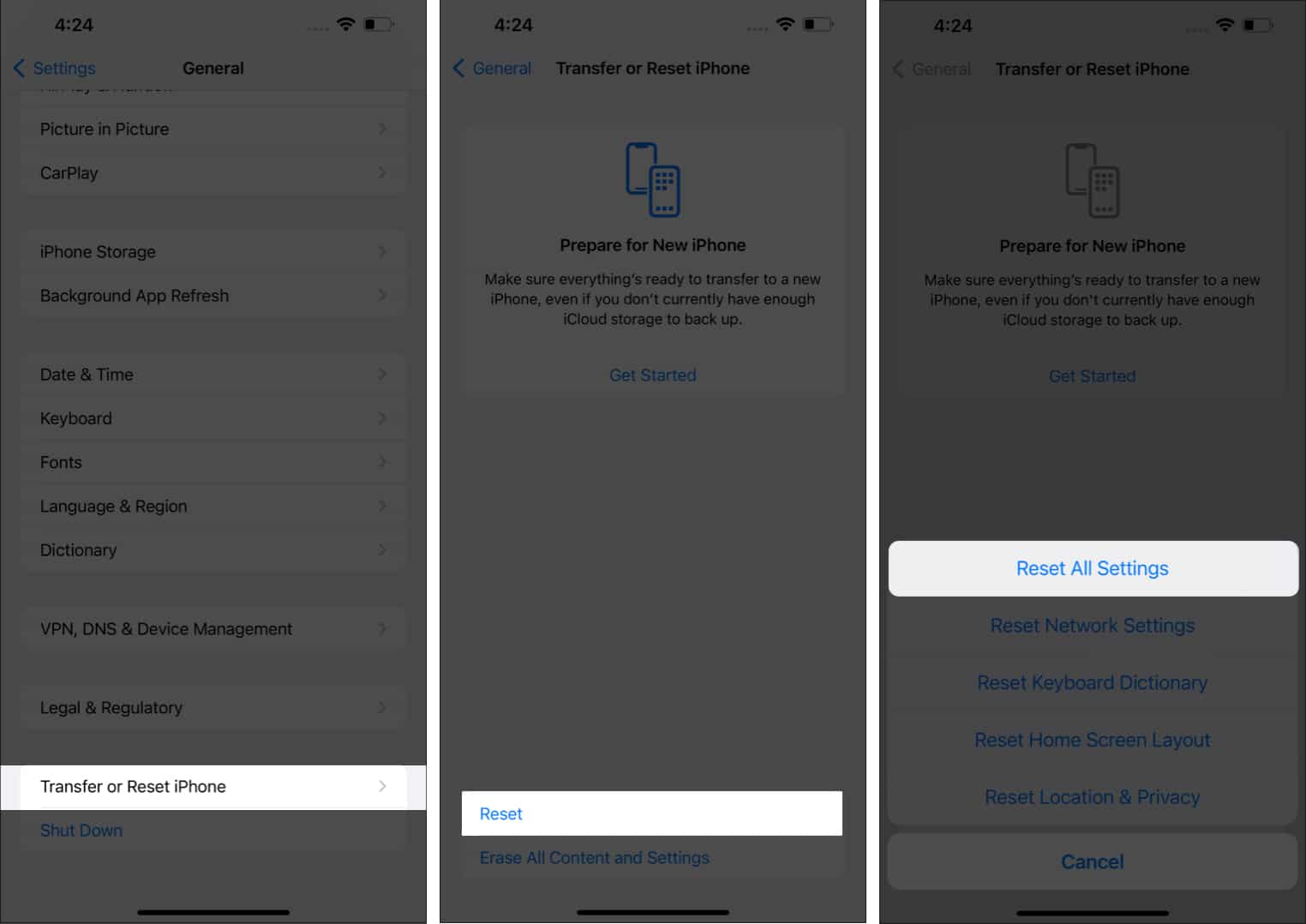
- Open Settings and select General.
- Scroll down and select Transfer or Reset iPhone.
- Tap Reset and select Reset All Settings.
That’s it!
I am sure that one of these steps will help you fix the Discord notifications not working on iPhone. However, if none of these methods work, let us know in the comments. We will try our best to help you out!
Read more:
Topics

Written by
Darryl DsouzaConsumer Technology and Motorcycles are the two things that excite Darryl the most. Why? Because Tech helps better people's lives, and solving people's problems related to tech is something he enjoys. And what about bikes, you ask? Well, drop a gear and disappear.
View all posts →More from How-to

How to Turn Off Location on Snapchat (Step-by-Step Guide)
Want to stop sharing your location on Snapchat? This guide explains how Snapchat location sharing works and shows simple ways to turn off your location using Ghost Mode or phone settings. Stay in control of your privacy in just a few steps.
 VikhyatMarch 5, 2026
Snapchat Parental Controls: How to Set Up Family Center and Keep Your Teen Safe
Snapchat’s Family Center lets parents monitor their teen’s friend activity and screen time without reading private messages. Here’s how to set it up and what to expect.
VikhyatMarch 3, 2026
How to Block and Unblock Someone on Instagram
Instagram lets you block or unblock someone in seconds. Follow these simple steps to take full control of your privacy and online peace.
 Ava BiswasMarch 2, 2026