
How to turn off location on iPhone photos and videos
Turn off geotagging and remove location data from iPhone photos to protect your privacy.
- What Geotagging Is: Your iPhone automatically embeds GPS coordinates and other metadata, known as a “geotag,” into every photo and video you take with the Camera app.
- The Privacy Risk: Sharing photos with location data intact can unintentionally reveal your home, workplace, or daily routine, posing a significant risk to your personal privacy and safety.
- Prevent Future Geotagging: To stop geotagging all future photos, go to Settings > Privacy & Security > Location Services, find the Camera app, and set its access to “Never.”
- Remove from Existing Photos: For photos already in your library, you can remove location data by opening a photo, tapping “Adjust Location,” and selecting “No Location.”
- Share Without Location: When sharing a photo, tap “Options” at the top of the Share Sheet and turn off the “Location” toggle to send it without geotag data.
Your iPhone automatically adds location data to photos and videos you capture. While this can help organize memories, it can also pose a privacy and safety risk, especially when shared publicly or in real time.
In this guide, I’ll show you how to disable geotagging on iPhone photos and videos, and how to remove location metadata from existing media—so you stay in control of what you’re sharing.
What is location data in iPhone photos and videos?
Ever heard of geotagging? It’s a feature that embeds GPS location data into your media files using EXIF metadata (Exchangeable Image File Format). This data includes your iPhone camera settings, the date and time, and the exact location where the image or video was captured.
By default, the iPhone Camera app automatically saves this information. While this is handy for sorting and memories, the risks outweigh the benefits for many. Disabling location tagging will prevent new photos and videos from including location data, while older ones can be edited anytime (I’ll show you how later).
Why you should turn off location data on iPhone photos
Sharing geotagged media—especially in real-time—can unintentionally reveal your whereabouts. Here’s why you might want to turn off location services for your photos:
- Protect your privacy: Publishing images with embedded location data could reveal sensitive locations like your home, workplace, or favorite hangouts—info you probably didn’t intend to share.
- Stay safe: Sharing real-time media can disclose where you are right now—potentially making you a target for theft or stalking, especially while traveling.
- Avoid oversharing: Most users don’t realize their photos contain hidden geolocation data. Disabling this ensures you’re not sharing more than you intend.
- You have full control: Apple makes it easy to disable or remove location data—either automatically or before sharing specific photos.
How to disable location for photos and videos on iPhone
To stop your iPhone from tagging new photos with location data, follow these steps:
- Open the Settings app on your iPhone.
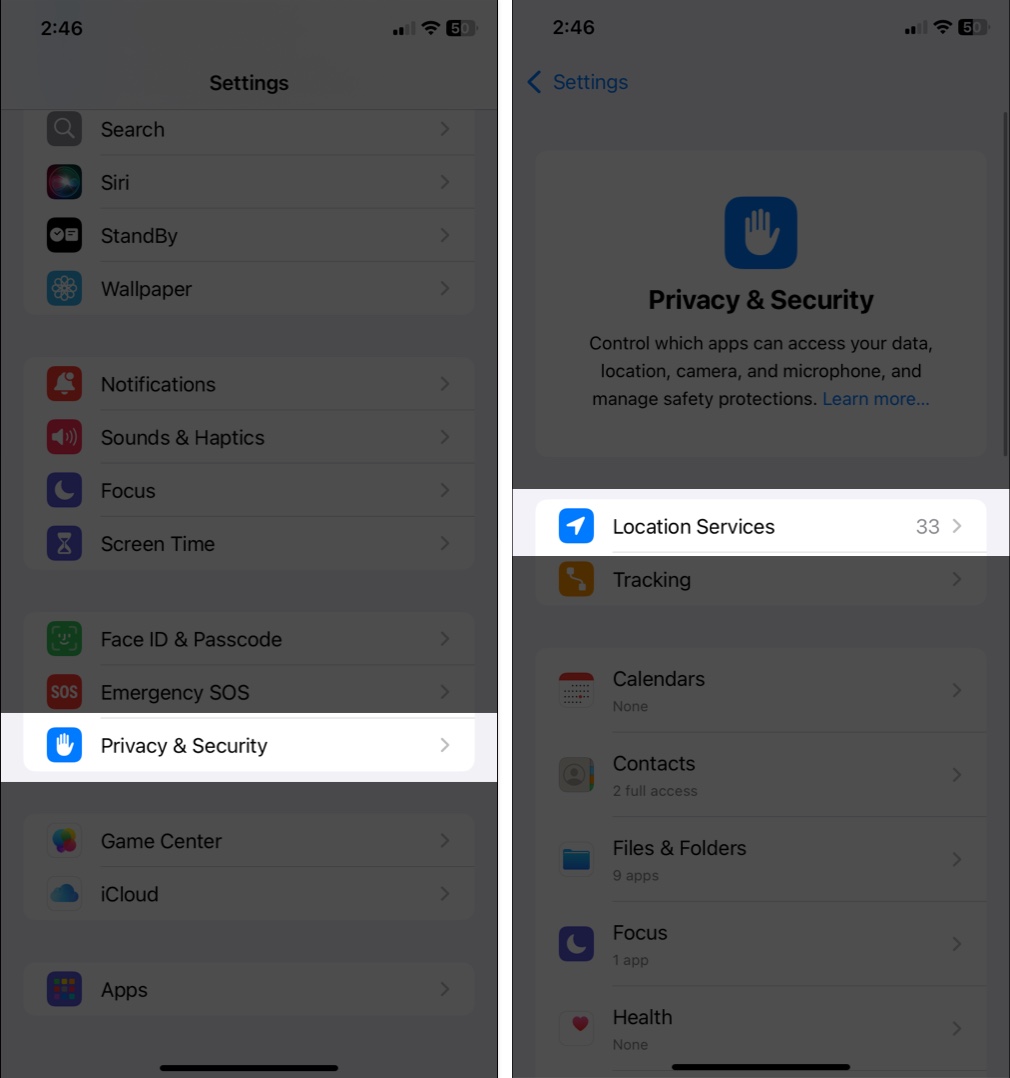
- Scroll down and tap Privacy & Security.
- Tap Location Services.
- Scroll down and select Camera.
- Choose Never to deny location access to the Camera app.
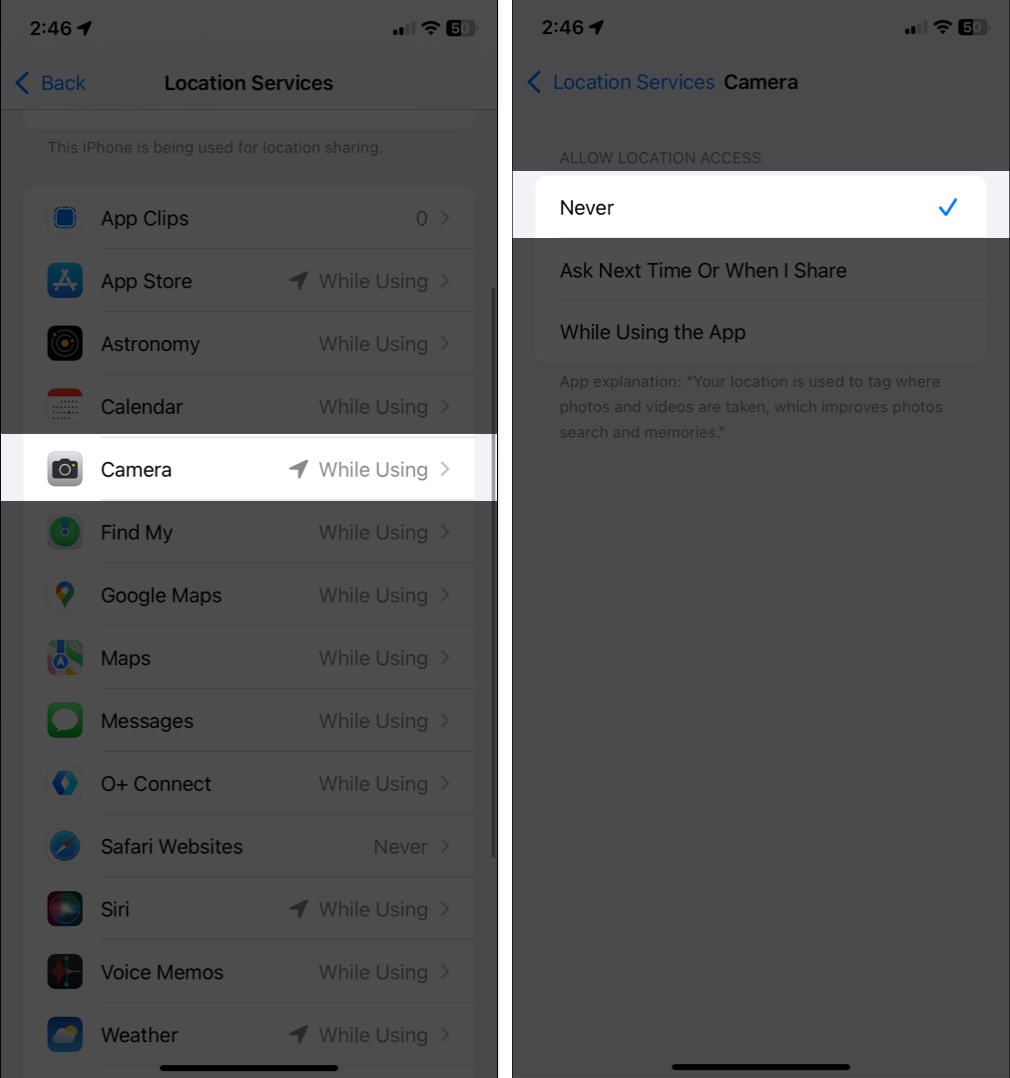
After this, your iPhone Camera won’t save GPS data to any new photos or videos.
How to remove location data from existing iPhone photos and videos
Already have photos with geotags? No worries—your iPhone lets you delete that info easily.
For a single photo or video
- Launch the Photos app and find that image or video.
- Tap the Info (i) button or swipe up.
- Tap Adjust next to the location field.
- Tap No Location to remove it.
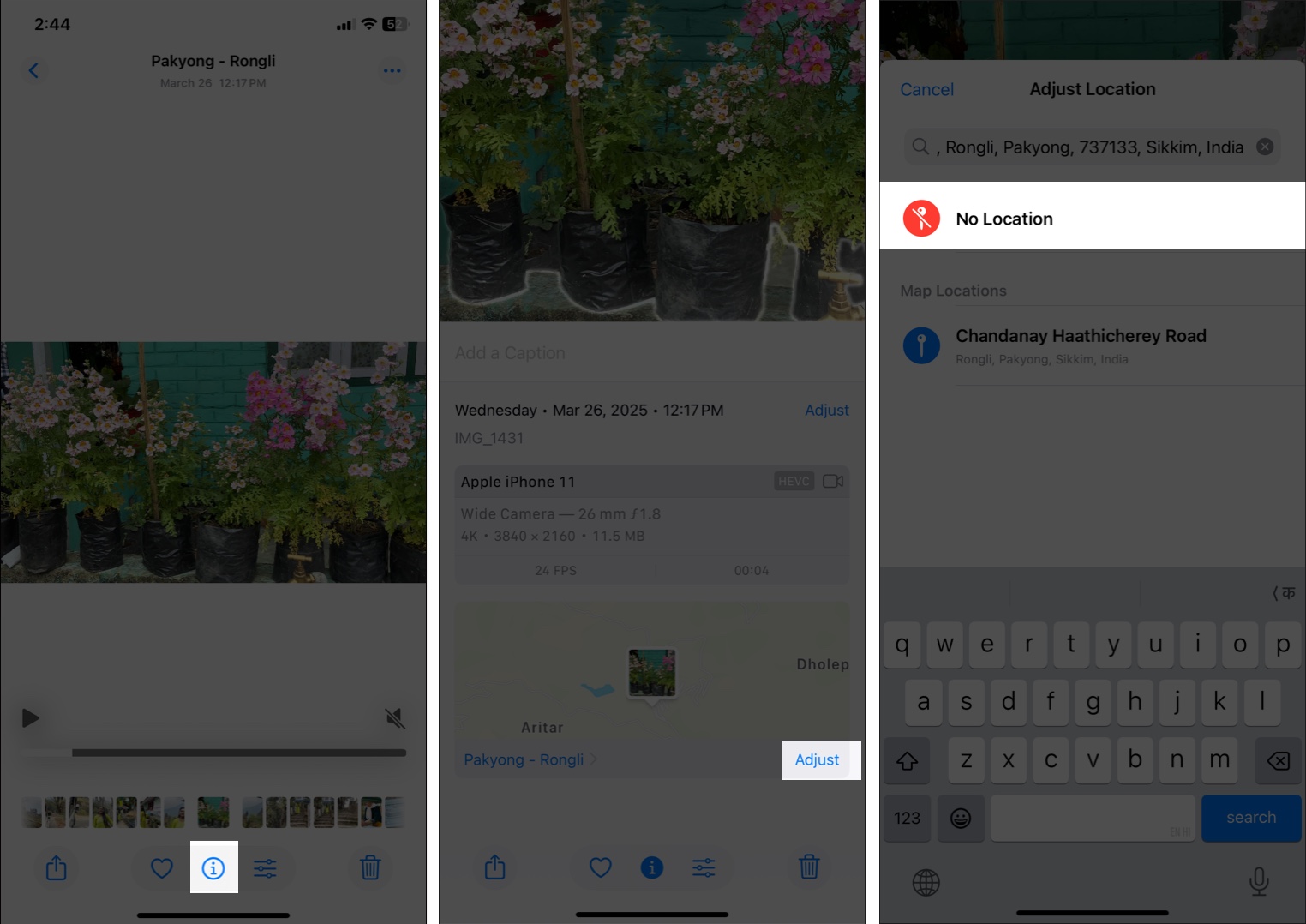
That’s all! Your location information is wiped out instantly.
For multiple photos or videos
Need to wipe geolocation from a bunch of pics?
- Open the Photos app, go to an album or the Recents tab.
- Tap Select, then choose multiple photos.
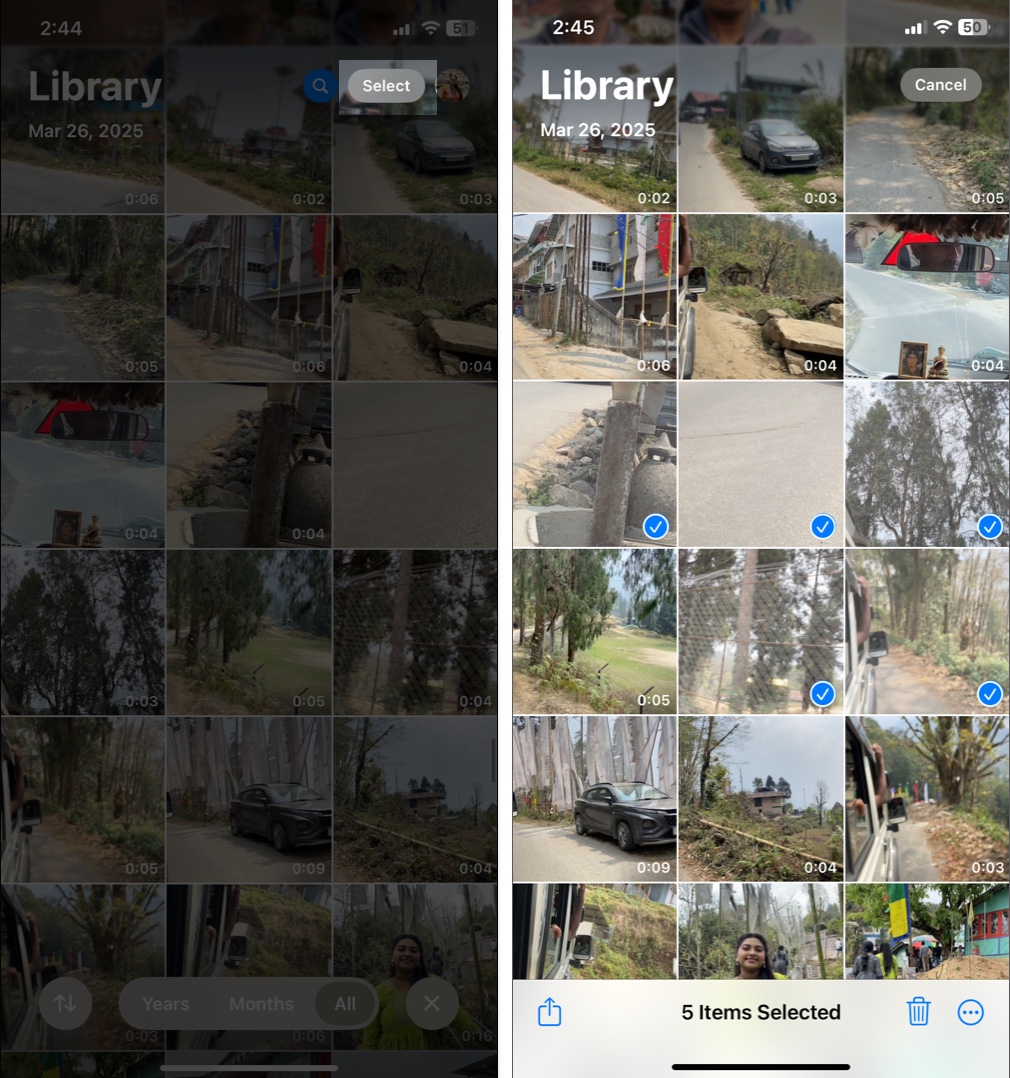
- Tap the three-dot icon at the bottom.
- Select Adjust Location and tap No Location.
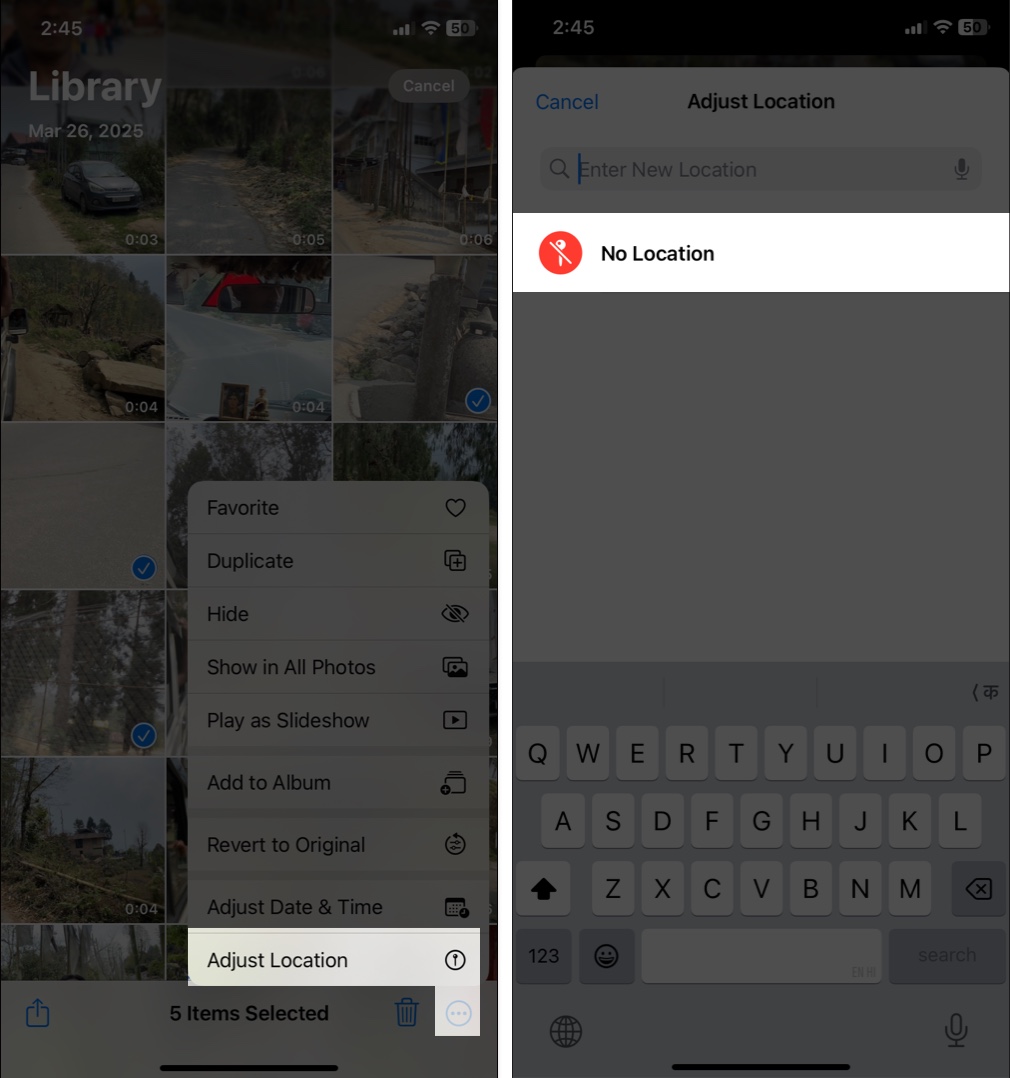
And just like that, all selected items are cleared of their GPS tags.
How to remove location when sharing iPhone photo or video
Don’t want to permanently delete the info, but still want to keep it private when sharing? You can disable it per share:
- Open the Photos app and choose the image.
- Tap that share icon.
- Tap Options at the top of the share sheet.
- Under the Include section, turn off Location.
- Tap Done and share away—location-free!
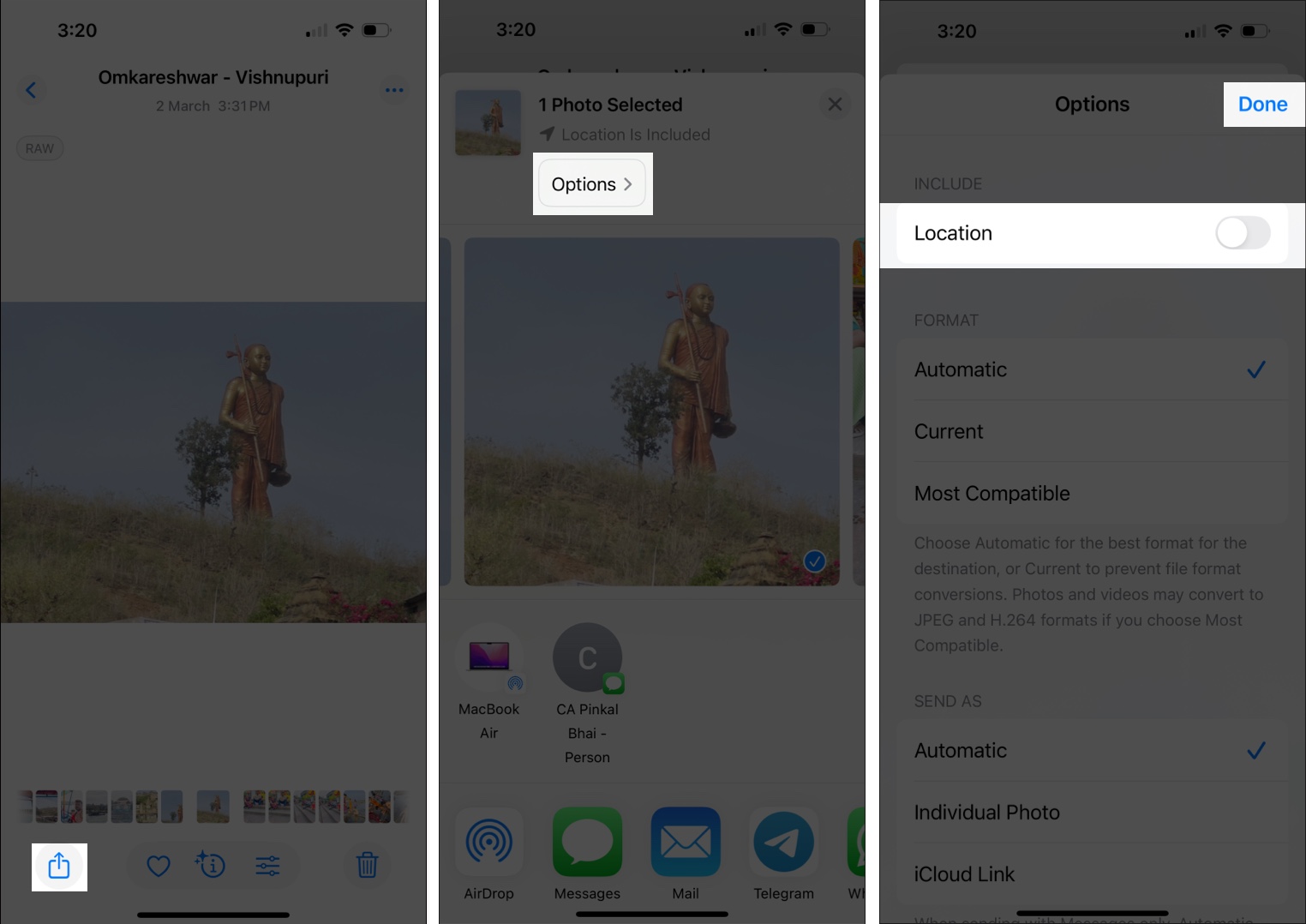
This is perfect for sending photos via Messages, AirDrop, or social media without revealing your GPS data.
Keep your iPhone photos private
There you go—you now know how to take full control of location settings on iPhone photos and videos. Whether you turn off Camera location access, remove metadata from old images, or disable it just before sharing, your privacy stays protected.
So snap those beautiful shots, and share them with confidence—minus the creepy location tags.
Check out next:

Written by
AbhinavI have been a tech enthusiast for as long as I can remember. I enjoy explaining tech to the internet and doing this since I was old enough to understand mathematics. At iGeeksBlog, I will be guiding the internet in solving some common issues with their iPhone, iPad, Mac, AirPods, and Apple Watch. When not writing, you can find me preparing for my debut standup show or roaming around with my camera in the whole city.
View all posts →More from How-to

Snapchat Parental Controls: How to Set Up Family Center and Keep Your Teen Safe
Snapchat’s Family Center lets parents monitor their teen’s friend activity and screen time without reading private messages. Here’s how to set it up and what to expect.
 VikhyatMarch 3, 2026
How to Block and Unblock Someone on Instagram
Instagram lets you block or unblock someone in seconds. Follow these simple steps to take full control of your privacy and online peace.
 Ava BiswasMarch 2, 2026
Apple Watch Not Responding? 8 Fixes That Actually Work
Is your Apple Watch unresponsive or stuck on a black screen? Here are 8 proven fixes to help you unfreeze it and get it working again quickly.
VikhyatMarch 3, 2026