
I thought Gemini only remembered a few things from my previous chats, but its new Memory summary showed me how much it actually knew about me. From my personal preferences to details I had shared in earlier conversations, some of it genuinely surprised me.
If you feel the same, here’s how to check what Gemini remembers about you, edit or delete those details, and stop it from saving new memories.
What Gemini actually knew about me
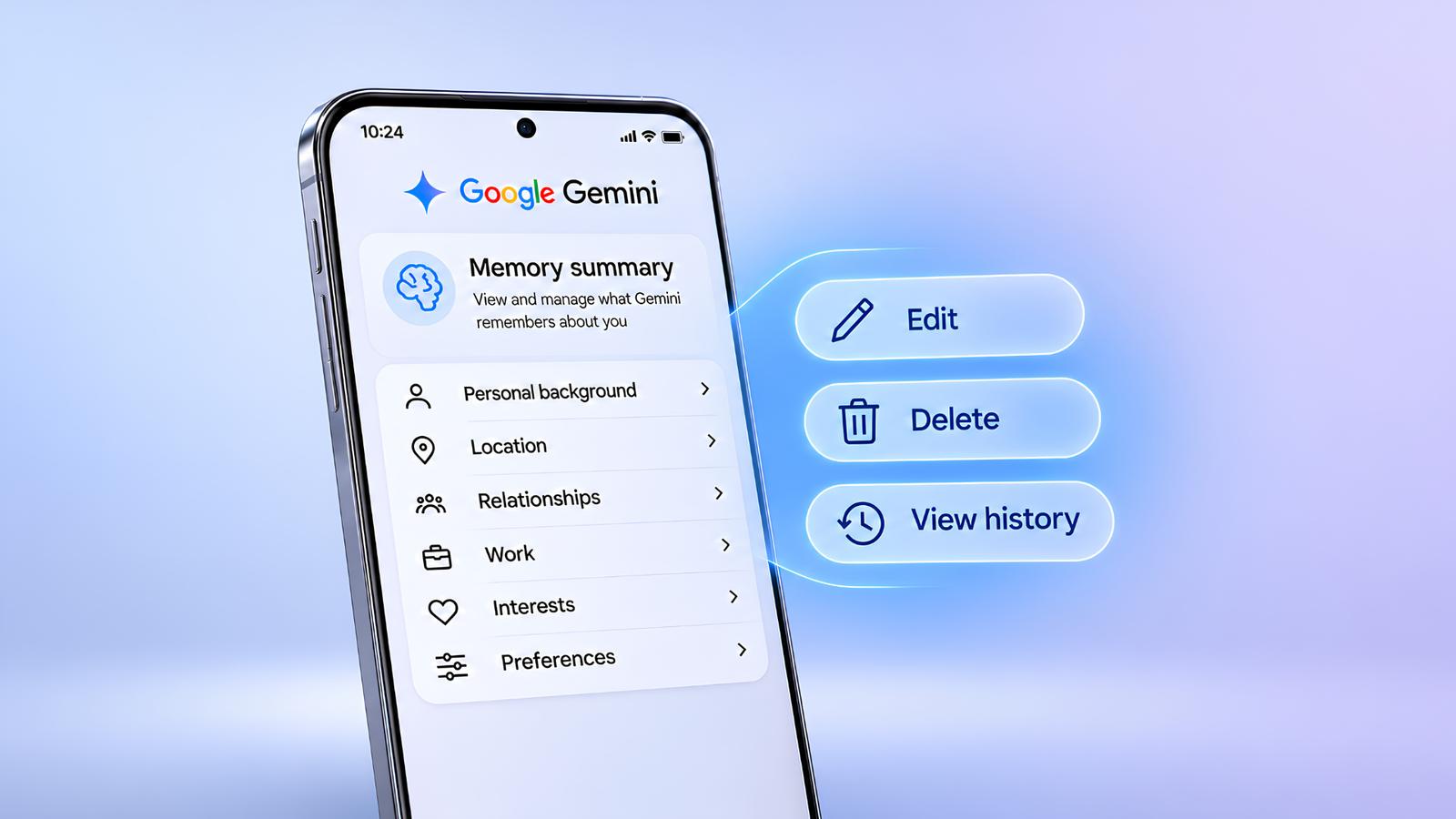
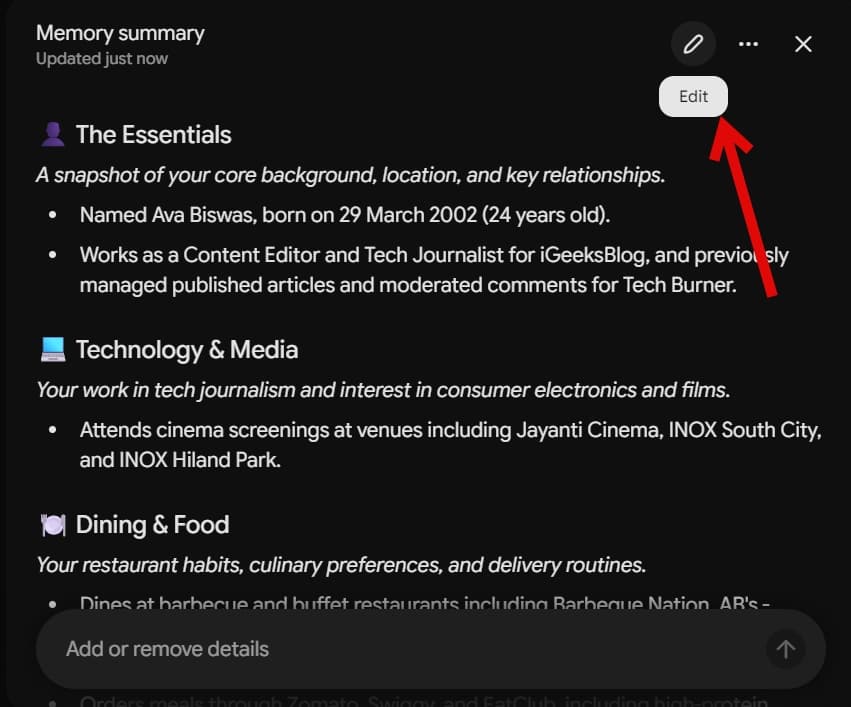
The first thing I wanted to check was how much information Gemini had collected from my previous conversations. Its new Memory summary feature answers that question by organizing remembered information into different categories.
For example, these may include:
- The Essentials: Background information, location, and important relationships.
- Career & Professional Projects: Work-related information and ongoing projects.
- Travel & Daily Gear: Travel preferences and devices you use.
- Media & Entertainment: Interests in movies, television, music, and entertainment.
- Fitness & Lifestyle: Personal interests and lifestyle preferences.
- Dining & Food: Your restaurant habits, culinary preferences, and delivery routines.
Depending on your conversations, you may see other summaries, such as Career & Job Search for your current career goals or Shopping & Apparel for your clothing preferences. Everyone gets different summaries, but The Essentials section appears to be standard for everyone.
What surprised me was how seemingly unrelated conversations could contribute to a bigger picture. Asking Gemini to compare smartphones might reveal which device I use. Discussing a work project repeatedly could help it understand my professional interests.
Where does Gemini get this information?
Gemini can personalize responses using information from several sources:
- Previous conversations: It can reference details you’ve shared in earlier Gemini chats.
- Imported AI conversations: Google’s import feature lets you bring memories and conversations from ChatGPT or Claude into Gemini.
- Connected Google apps: Depending on your permissions, Personal Intelligence can use information from Gmail, Google Photos, YouTube, and other supported services.
These sources don’t necessarily work the same way. Disconnecting Gmail, for example, doesn’t automatically delete information Gemini has already used in a conversation.
Quick answer: How to delete Gemini’s memory
If you want to remove personal information Gemini remembers, follow these steps:
- Open Gemini’s Personal Intelligence settings and edit your Memory summary.
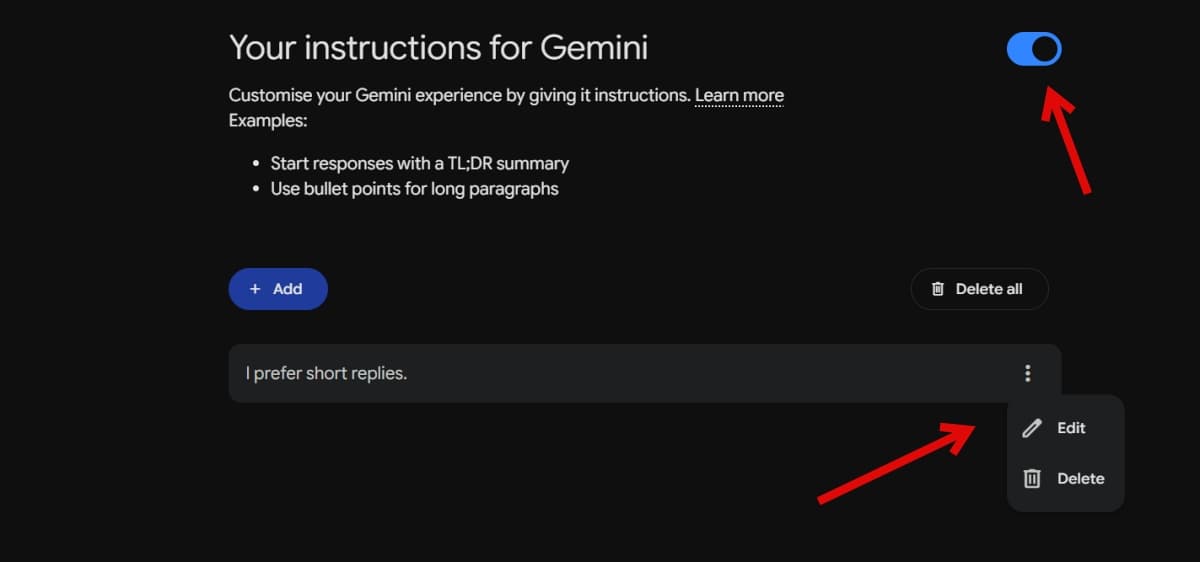
- Delete unwanted entries under Instructions for Gemini.
- Remove conversations containing personal information from Gemini Apps Activity.
- Disconnect Gmail, Photos, and other apps you no longer want Gemini to access.
- Turn off Memory to stop future personalization using past conversations.
- Review History settings to control whether future chats are saved.
I recommend checking all these settings rather than relying on the Memory toggle alone.
Who can see Gemini’s memory summary?
Google’s official rollout requirements for Memory summary are relatively restrictive.
| Requirement | Official availability |
|---|---|
| Age | 18 or older |
| Account | Personal Google Account |
| History | Enabled |
| Memory | Enabled |
I tried checking the Memory summary on an account with a Google AI Pro subscription and on a free account. It appeared on both. If you don’t see the option yet, don’t worry, as Google is gradually rolling out the feature.
How to view and edit your Gemini memory summary
The easiest way to inspect Gemini’s memory is through its Personal Intelligence settings.
On the web
- Open Gemini.
- Click the Settings icon beside your name.
- Select Personal Intelligence.
- Scroll down and open Memory summary.
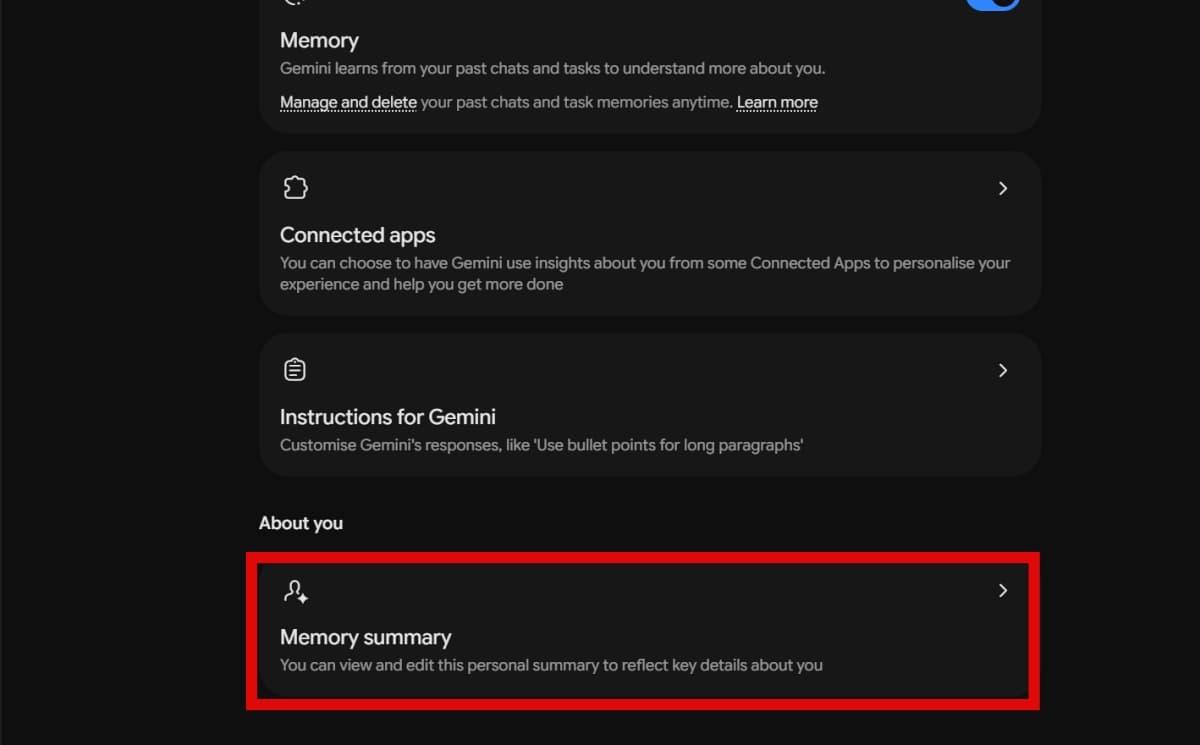
You can also visit Gemini personalization settings at gemini.google.com/personalization-settings.
If your account supports the feature, you’ll see the information Gemini has organized into different categories.
Look for the pencil icon to edit your summary, then click Save. You can also use the Add or remove details box to tell Gemini what to change. The three-dot menu provides access to Memory history.
On Android and iPhone
If the feature is available in your mobile app:
- Open the Gemini app.
- Tap the hamburger menu to open the sidebar or your profile picture.
- Select Settings.
- Open Personal Intelligence.
- Scroll down and tap Memory summary.
The option may be missing if your account hasn’t received the rollout. If it’s missing, try the desktop website.
How to remove specific details from Gemini’s memory
You don’t have to delete every conversation to correct something in your memory summary. Gemini supports natural-language instructions for editing remembered information.
For example, try writing these prompts in the Add or remove details box in the summary:
- “Remove my old phone number from your memory.”
- “Forget my previous workplace.”
- “Remove information about my smartphone.”
- “Forget my previous travel preferences.”
Gemini may ask follow-up questions if your request isn’t specific enough.
However, editing the Memory summary doesn’t necessarily delete the original conversation. If you want to remove the source information too, delete the relevant chat from Gemini Apps Activity.
Can’t access Memory summary? Ask Gemini, “What do you know about me based on our previous conversations?” This can help you identify the information it uses for personalization.
How to delete instructions for Gemini (Formerly saved info)
Memory summary isn’t the only place where Gemini can store personalization information.
Instructions for Gemini lets you save persistent preferences, such as asking Gemini to use simple language, keep answers short, or follow a particular writing style, such as “use bullet points for long paragraphs.”
To remove an instruction:
- Open Gemini settings.
- Select Personal Intelligence.
- Open Instructions for Gemini.
- Find the instruction you want to remove.
- Select More (three-dot) and tap Delete.
These instructions remain until you remove them, so it’s worth checking this section if Gemini continues following an outdated preference.
How to delete your Gemini chats and activity
Deleting conversations is important because Gemini may use information from previous chats to personalize future responses.
Delete one conversation
- Open Gemini.
- Find the conversation in the side panel.
- Click its three-dot menu.
- Select Delete and confirm.
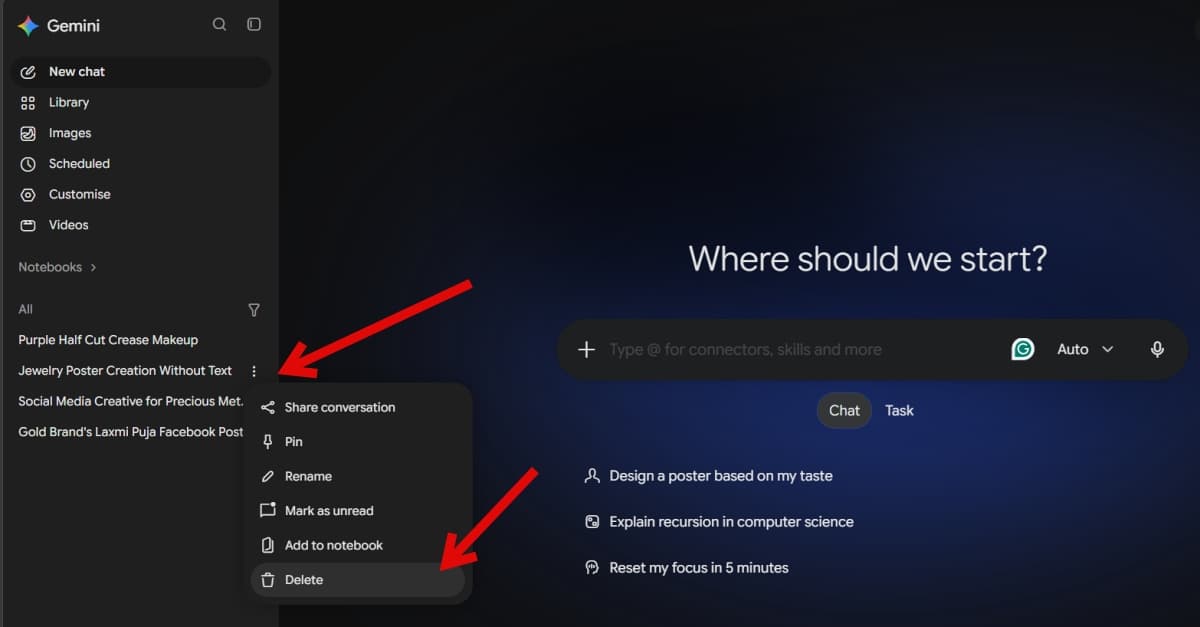
Google confirms that deleting a conversation also removes its associated entry from Gemini Apps Activity.
However, conversations reviewed by human reviewers may be retained separately for up to three years. Therefore, deleting a conversation doesn’t guarantee that every associated copy disappears immediately.
Delete all activity or choose a date range
If you want to remove multiple conversations, visit Gemini Apps Activity. Select Delete and choose Last hour, Last day, All time, or Custom range to remove chats from a specific period.
You can also enable automatic deletion from the Choose an auto-delete option menu. The default Gemini activity retention period is 18 months. You can change it to 3 months or 36 months.
Google is also rolling out a new privacy setting that separates chat history from AI training. Previously, the Keep Activity setting controlled both, meaning you had to turn off chat history to prevent your conversations from being used for AI training. Now, you can keep your Gemini chats saved without allowing Google to use future conversations to train its AI models.
To access the new controls:
- Open Gemini and go to Settings.
- Select Activity to open your History settings.
- Keep History enabled if you want to save and revisit your conversations.
- Under Help train generative AI models with, turn off Chat content including text & attachments.
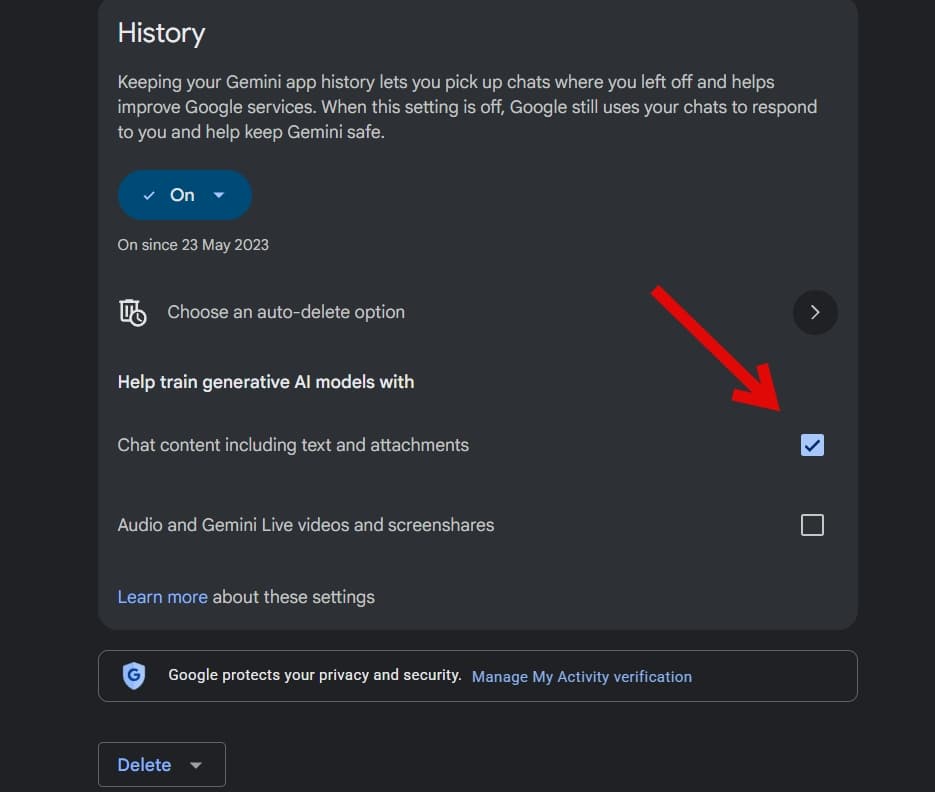
This lets you keep your chat history while opting out of AI training. However, the training setting is enabled by default for eligible users, so check it manually.
If you turn History off, Gemini won’t save future chats to your visible history, but Google may retain them for around two months for service, feedback, and safety purposes. That’s much longer than the previous 72-hour window.
How to stop Gemini reading Gmail, Photos, and other apps
This is the most important step, as Gemini draws on your personal context from two separate places. One is the explicit Memory summary, which you can edit. The other is the information Personal Intelligence can pull from your connected Google apps, like past Gmail messages, which doesn’t show up in that summary.
Therefore, you must disconnect Gemini from supported Google services, including Gmail, Google Photos, and YouTube.
Here’s how to remove app access from Gemini:
- Open Gemini settings.
- Select Personal Intelligence.
- Find the Connected apps section.
- Choose the app you want to disconnect.
- Follow the instructions to remove access.
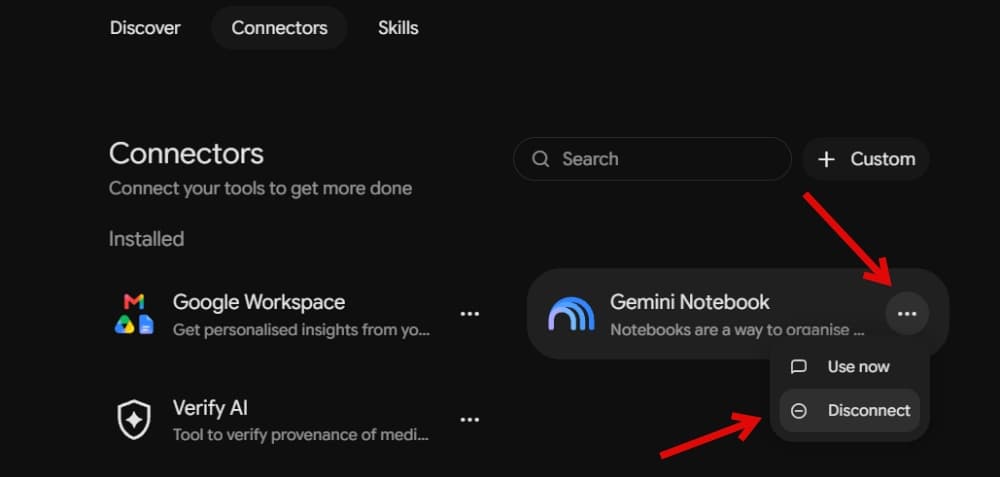
There’s one important catch: disconnecting an app doesn’t necessarily remove information Gemini has already used in previous conversations. Delete those related chats as well.
How to turn off Gemini memory completely
If you don’t want Gemini using information from previous conversations, you can turn off Memory.
On the web:
- Open Gemini and go to Settings & help.
- Select Personal Intelligence.
- Turn off the Memory toggle.
On Android and iPhone:
- Open Gemini.
- Tap your profile or go to the side panel.
- Select Personal Intelligence.
- Disable the Memory toggle.
Remember, this prevents future personalization using past-chat memory. It doesn’t automatically delete existing conversations or saved instructions.
What happened when I asked Gemini again
After editing my Memory summary, I asked Gemini about details it had previously remembered about me. You can start by asking, “What do you know about me based on our previous conversations?” If you made any changes, also ask about specific details like your previous job or phone preference.
However, some responses still contained the old details, which made me unsure whether my edit was successful. Gemini assured me that it would treat my corrections to the Memory summary as the updated details going forward.
This means editing your Memory may not instantly erase old details from your responses. If you notice something outdated, correct it directly in the Memory summary and give Gemini some time to reflect those changes.
Gemini still remembers? Try these fixes
If Gemini continues mentioning something you deleted, check these possibilities:
- Wait a little longer: Deletion may take time to affect personalization.
- Check connected apps: Disconnect Gmail or Photos and delete related conversations.
- Check imported chats: Make sure you’ve deleted the original import entry if necessary.
- Review saved instructions: Remove outdated entries from Instructions for Gemini and memory summary.
- Check your account type: Work and school accounts may have administrator-controlled settings.
Use temporary chat for things you don’t want Gemini to remember
Sometimes, I don’t want a conversation influencing future responses at all. That’s where Temporary chat comes in. Temporary chats don’t appear in your regular Gemini chat history or Gemini Apps Activity, and they don’t contribute to normal personalization and memory.
Look for the Temporary chat option before entering your prompt.
However, temporary doesn’t mean zero retention. Google may retain these conversations for around two months (up from 72 hours) for safety and security purposes.
Final thoughts
I was surprised by how much Gemini remembered about me, but I appreciate that Google now lets me review and edit those details.
If you also want more control over your privacy, don’t rely on the Memory toggle alone. Make sure to remove the data stored in your Memory summary, Instructions for Gemini, connected apps, and conversation history.
It’s nice to have an AI assistant that remembers things, but I want to decide what it remembers. Would you feel okay with Gemini remembering personal things about you? Let me know in the comments.