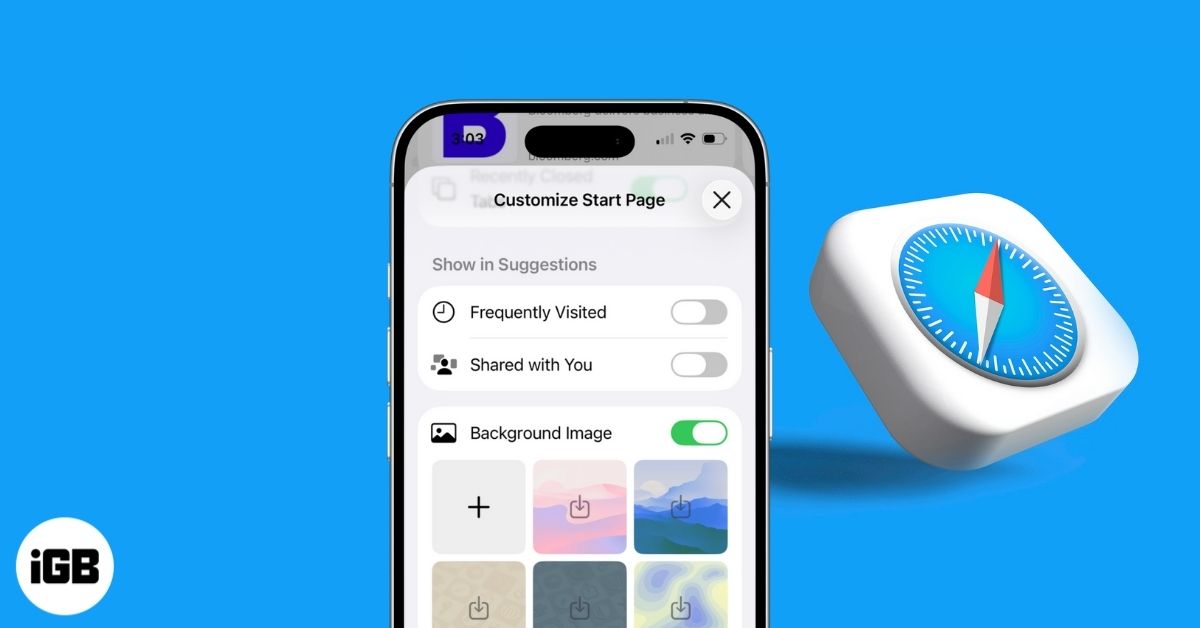
Having quick access to the websites you frequently visit is useful, as it saves time without requiring you to bookmark each one. However, while Apple designed the Frequently Visited section for convenience, it can quickly become cluttered or expose sites you would prefer to keep private, especially on shared devices. Safari now groups these websites under the Suggestions section alongside websites Shared with You. That said, if you want to remove individual sites or hide the section entirely, you have full control over this section.
This post covers everything you need to know about Frequently Visited websites in Safari.
What Are the Frequently Visited Sites in Safari?
Because Safari keeps a record of your browsing activity, it automatically surfaces the websites you visit most often as large thumbnail shortcuts on the Safari Start Page. These shortcuts are generated based on your usage patterns and update over time.
Previously, Safari displayed Frequently Visited websites in a dedicated section. Apple has now moved them into a consolidated Suggestions section on the Safari Start Page.
Most importantly, these are not bookmarks, reading list items, or pinned tabs. Removing them does not delete the website from your browsing history unless you explicitly clear browsing data.
How to Remove Frequently Visited Sites on Your iPhone’s Safari
The Suggestions section, which now combines Frequently Visited websites and Shared with You content, is enabled by default in Safari settings. As a result, Safari automatically displays website shortcuts on the Start Page based on your browsing activity.
Here’s how you can manage or remove these suggestions directly from the Start Page, depending on how much control you want over what appears.
Remove a Single Site from Frequently Visited
If you want a specific website to stop appearing under Suggestions on your Safari Start Page, you can remove it individually instead of disabling the entire section. Here’s how:
- Open the Safari app and tap the Tabs icon at the bottom left corner.
- Here, tap the + button at the bottom right corner to open a new Start Page.
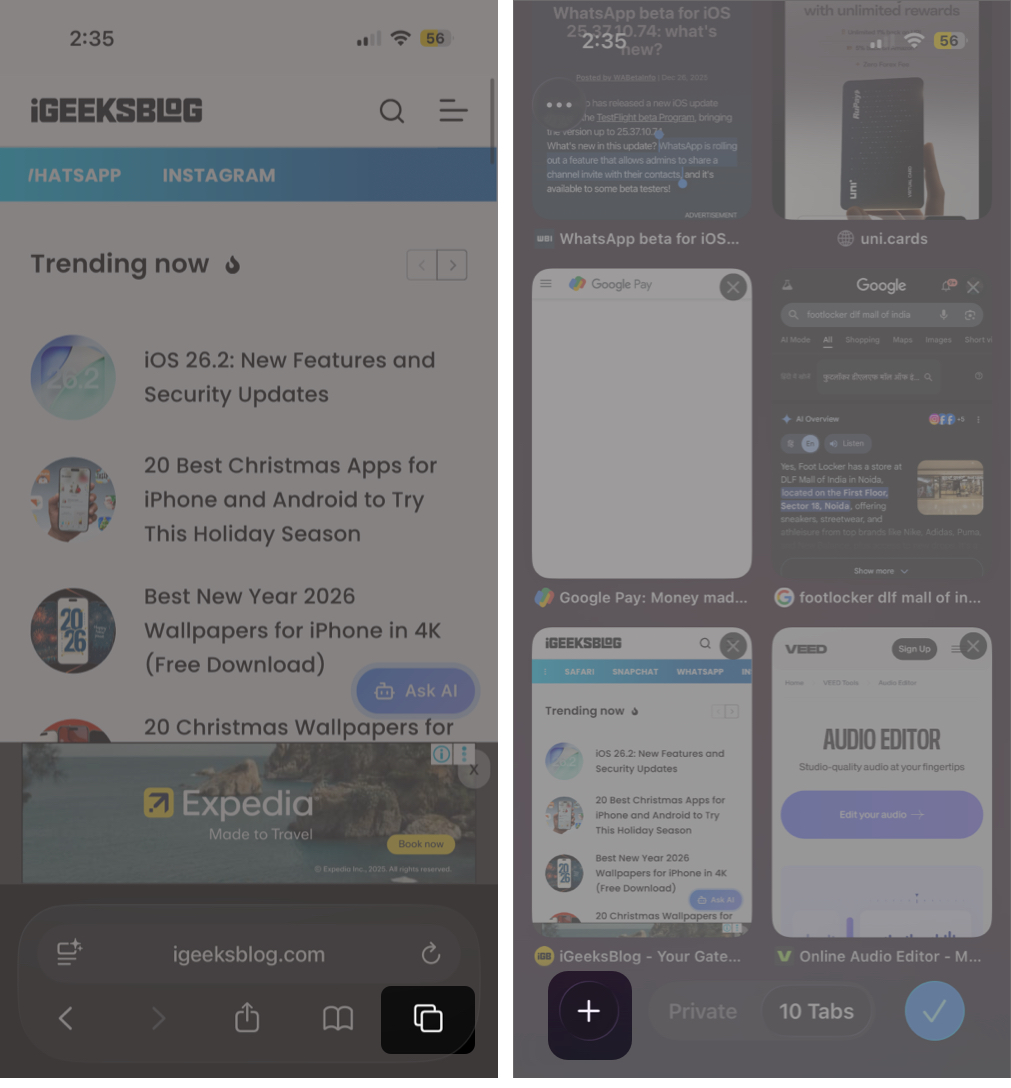
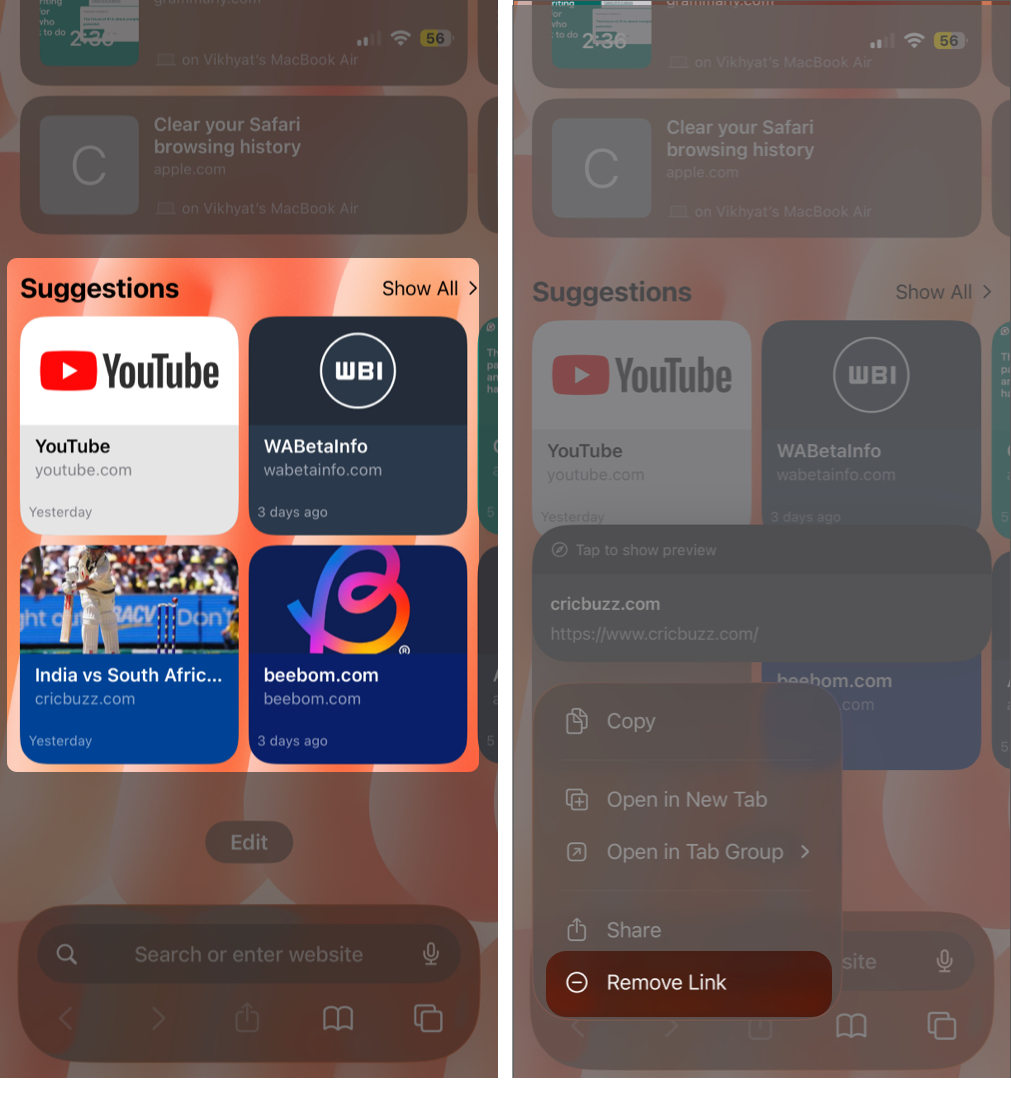
- Scroll down to the Suggestions section, and you’ll find all your Frequently Visited websites presented in a swipeable thumbnail view below it.
- Tap and hold the website thumbnail shortcut you want to remove.
- Tap Remove Link on the pop-up menu that appears.
Hide the Frequently Visited Section Completely
If you share your iPhone with your friends and family, and don’t want them to know about the websites you visit often, you can easily hide all the frequently visited website thumbnails from your Safari Start Page at once. Here’s how you can do this:
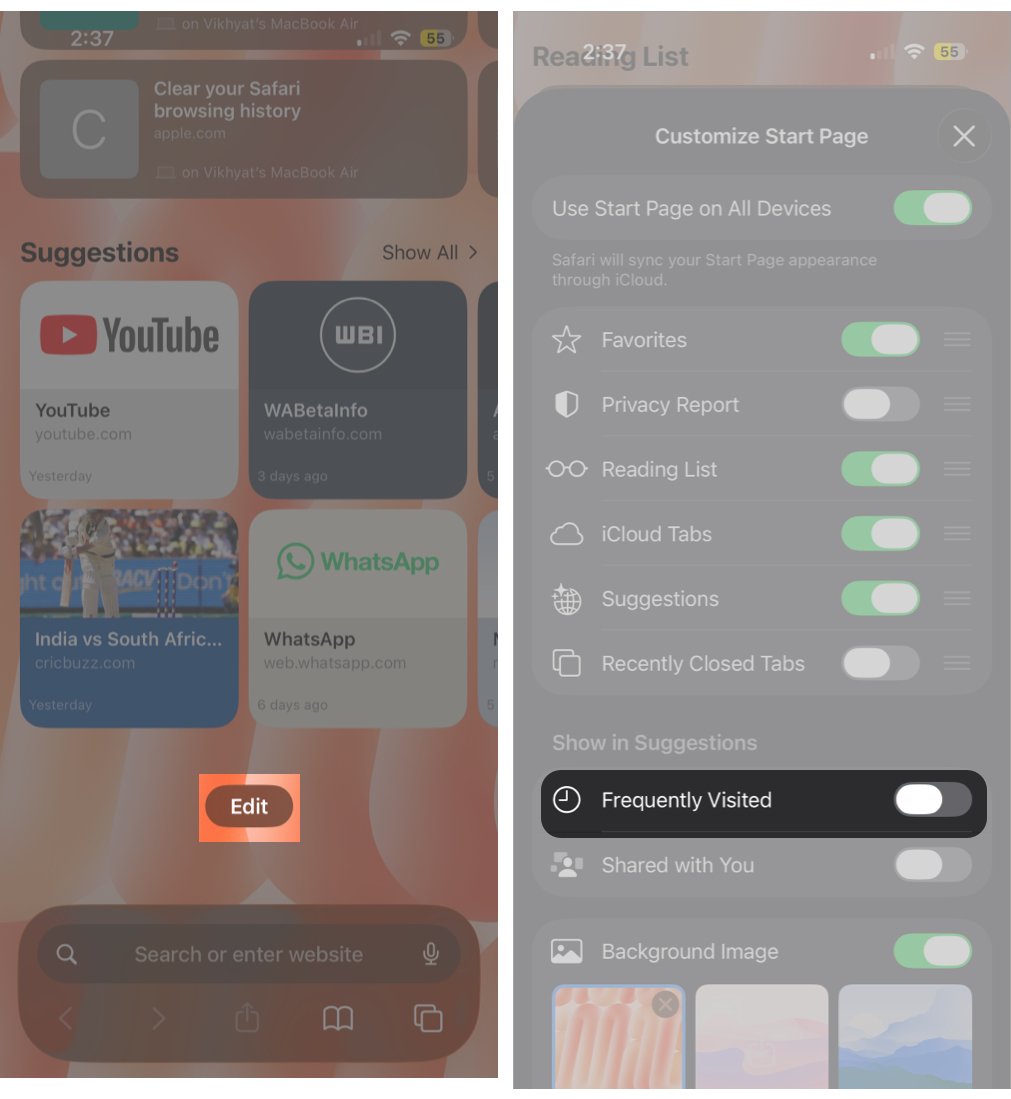
- Open a new tab in Safari.
- Scroll down to the bottom and tap the Edit button.
- Here, toggle off Frequently Visited under Show in Suggestions.
Remove All Frequently Visited Sites at Once
Hiding the Frequently Visited section may not be sufficient if the person you share your iPhone with knows how to re-enable it. In such cases, clearing your Safari browsing history ensures that no frequently visited website thumbnails appear on the Safari Start Page, even when the section is turned back on.
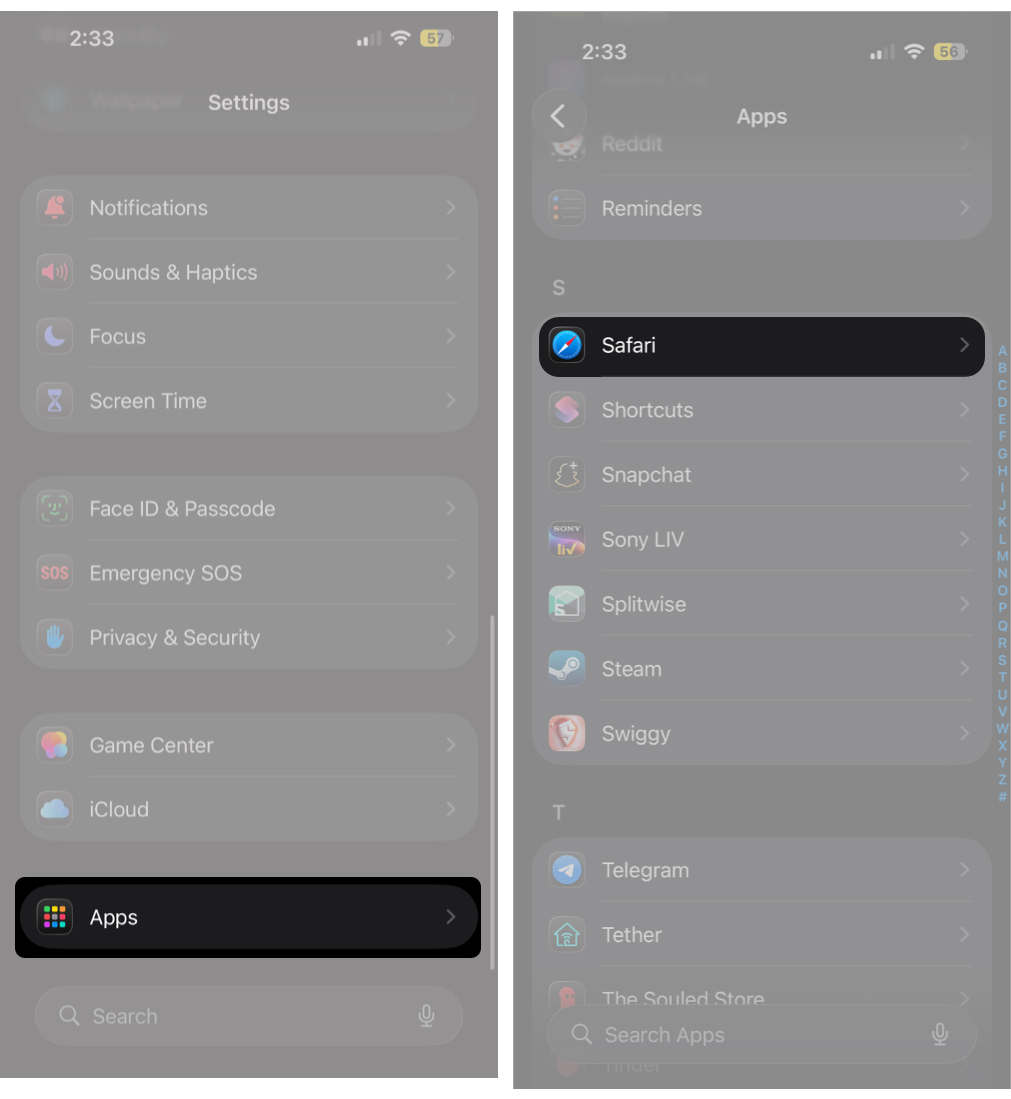
- Go to Settings → Apps → Safari.
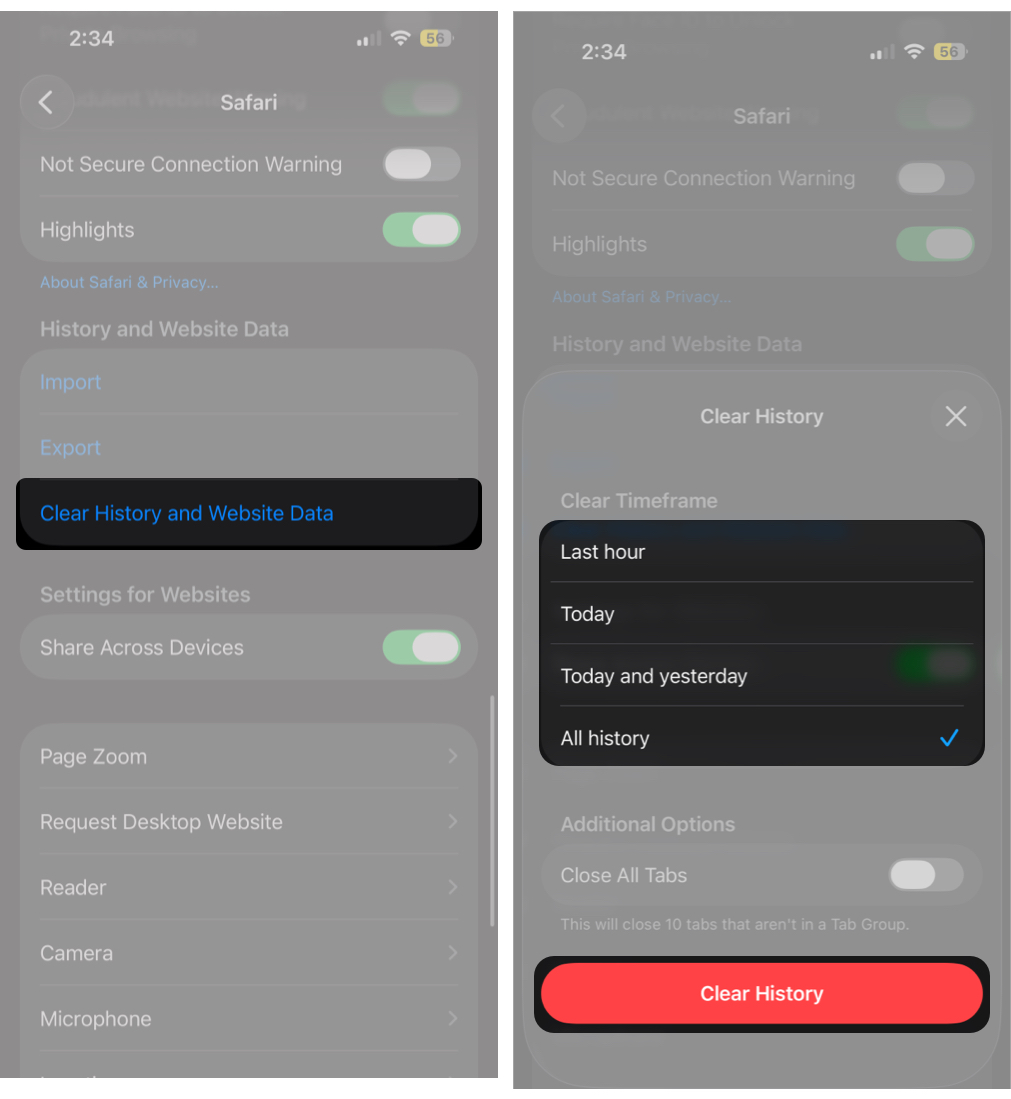
- Tap Clear History and Clear Website Data under the History and Website Data section.
- Next, select All History under Clear Timeframe, then tap the Clear History button.


How to Remove Frequently Visited Sites on Your Mac’s Safari
Like on iPhone, the Safari Start Page on Mac automatically shows websites you visit often. Managing or removing these Frequently Visited shortcuts is straightforward and can be done directly from the Start Page or Safari settings. Here’s how:
Remove Individual Frequently Visited Sites
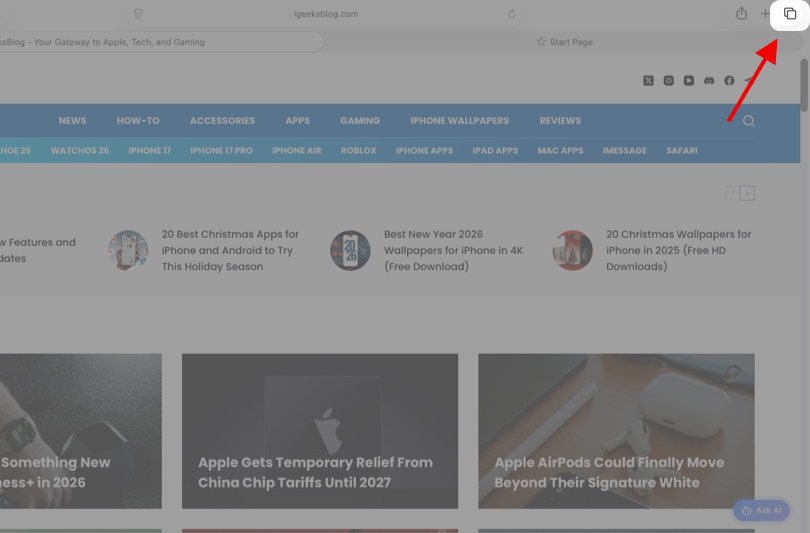
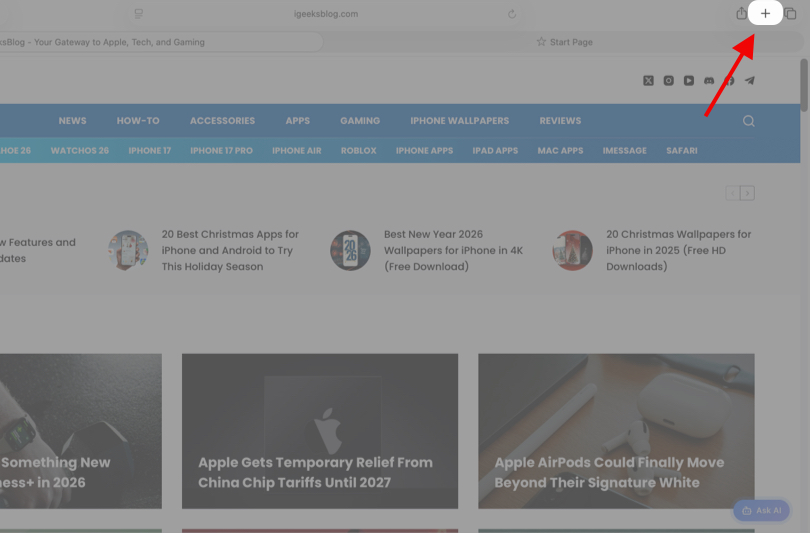
- In Safari, click the + button at the top right corner to open a new tab.
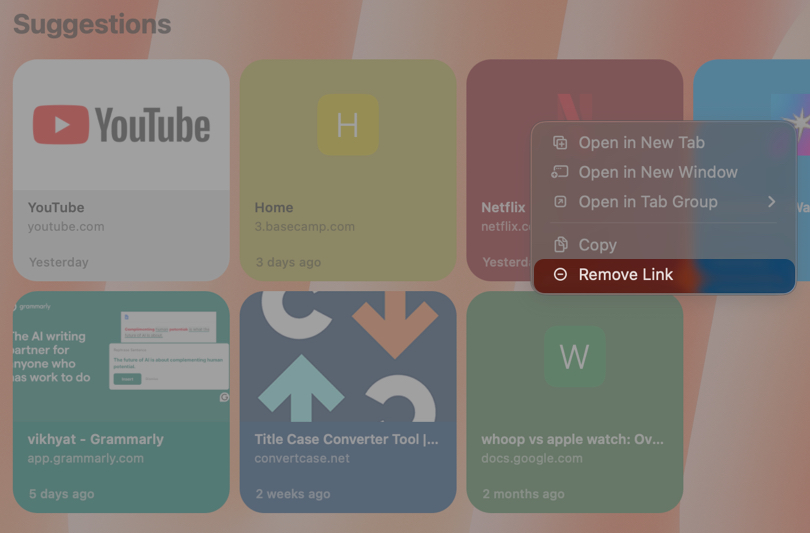
- Now, Control-click the website thumbnail you want to remove.
- Next, select Remove Link in the contextual menu that appears.


Hide the Frequently Visited Section Completely
- Open a new tab in the Safari browser.
- Here, click the Edit button at the bottom right corner of the Safari Start Page.
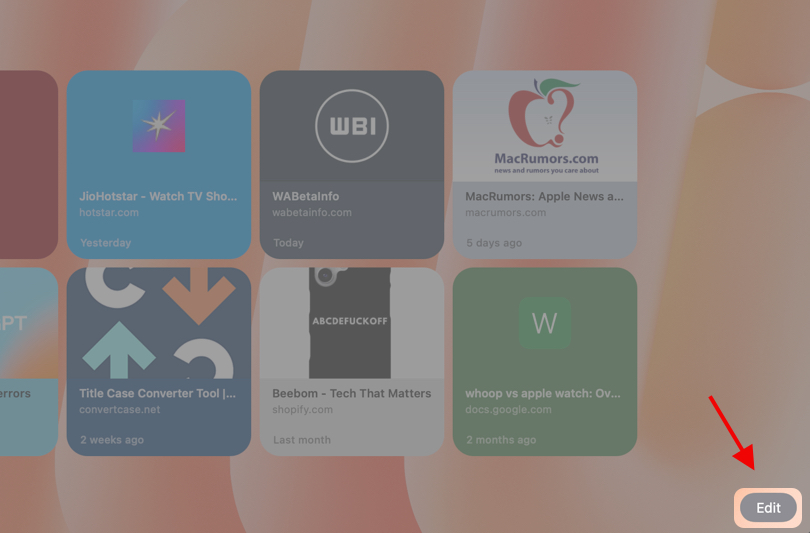
- Next, uncheck Frequently Visited under Show in Suggestions.


Clear Safari History to Reset Frequently Visited
- With the Safari app open, click History in the menu bar.
- Here, click “Clear History” on the drop-down menu.
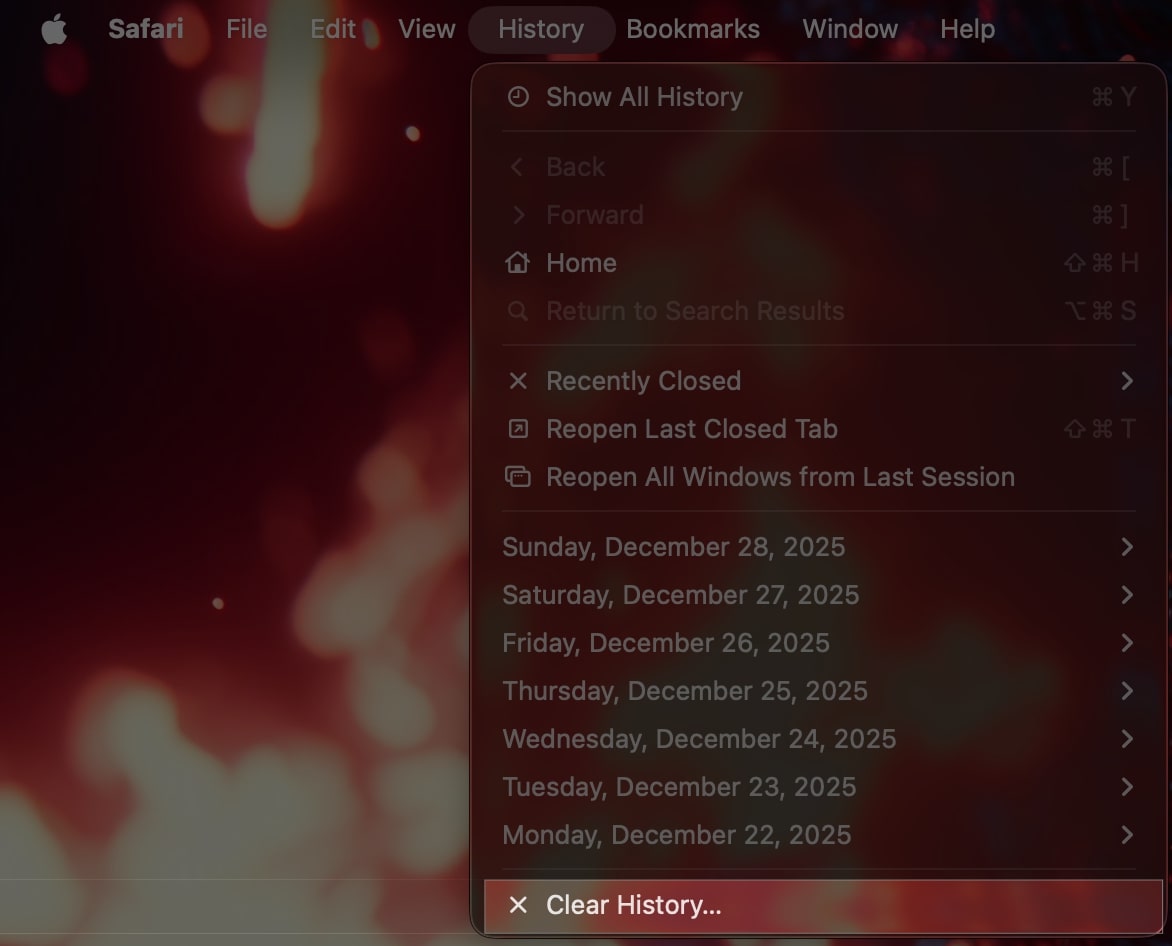
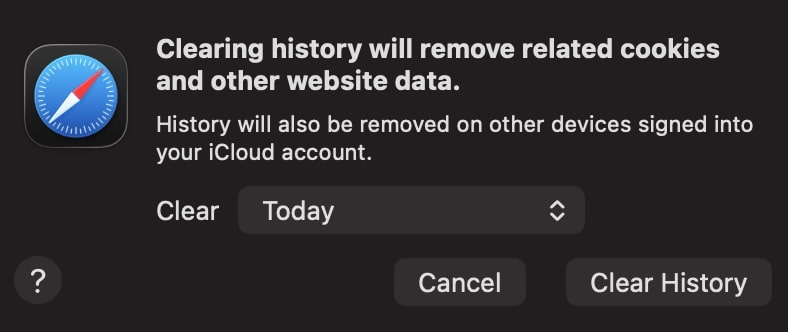
- Next, choose how far back you want your browsing history cleared, then click the Clear History button.


What Happens When You Clear Your Safari History?
When you clear your browsing history, Safari removes records of the websites you have visited along with associated data such as cookies and cached files. As a result, Frequently Visited site suggestions and related shortcuts are temporarily reset and removed from the Start Page.
The downside is that clearing your history also signs you out of websites, removes stored site preferences, and may temporarily affect website load times.
Bookmarks, Reading List items, and saved tabs remain untouched, and browsing-based suggestions are rebuilt over time as you continue using Safari.
Why Do Deleted Websites Sometimes Reappear?
Removing a site from Suggestions does not block Safari from recommending it again. If you continue to visit the same website, Safari may surface it again based on your usage.
To prevent this:
- Use Private Browsing for sensitive sessions.
- Clear cookies and website data for specific domains.
- Keep Suggestions disabled on the Start Page.
Best Practices for Privacy and a Cleaner Start Page
Use these tips to keep your Safari Start Page intentional and privacy-friendly:
- Remove individual tiles for quick cleanup.
- Disable Suggestions on shared devices.
- Use bookmarks instead of relying on auto-surfaced sites.
- Periodically clear Safari website data.
- Use Private Browsing for one-off visits.
A Cleaner Safari Start Page…
While Safari’s suggestions for frequently visited websites are helpful, they should work on your terms. Therefore, knowing how to remove individual suggestions, hide the section entirely, or reset Safari’s browsing data helps you keep your browsing habits private and your Start Page clutter-free.
Running into issues or seeing something new in Safari? Tell us about it in the comments below.