
How to check battery health on MacBook: 2 Easy ways!
Is your MacBook’s battery acting funny-like draining quickly or taking time to charge? This could signify its poor health.
Apple’s MacBook lineup is known for its reliability and longevity. However, as is the case with any lithium-ion batteries, Mac batteries have a limited time span. Thus, affecting the device’s performance over time.
But before deciding on replacing the battery, check its health to be sure as the issue could simply be due to heavy usage (among other reasons). Let’s learn how to check it and better understand how Apple measures battery health on MacBook.
How to check battery health in macOS Sonoma and Ventura
Traditionally, there are two ways to deduce this information.
Method 1: Via System Settings
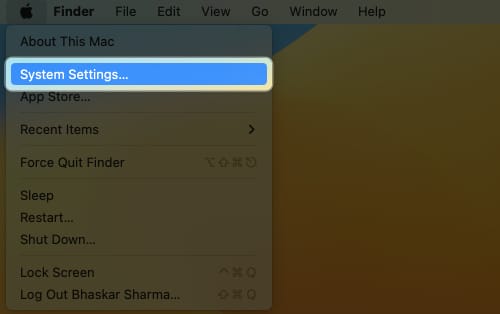
- Click the Apple logo () → System Settings.
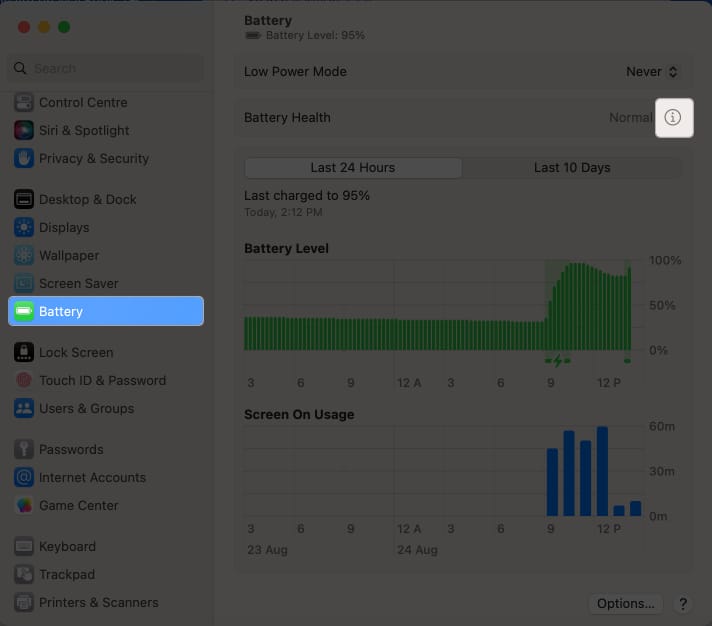
- Navigate to the Battery option from the menu.
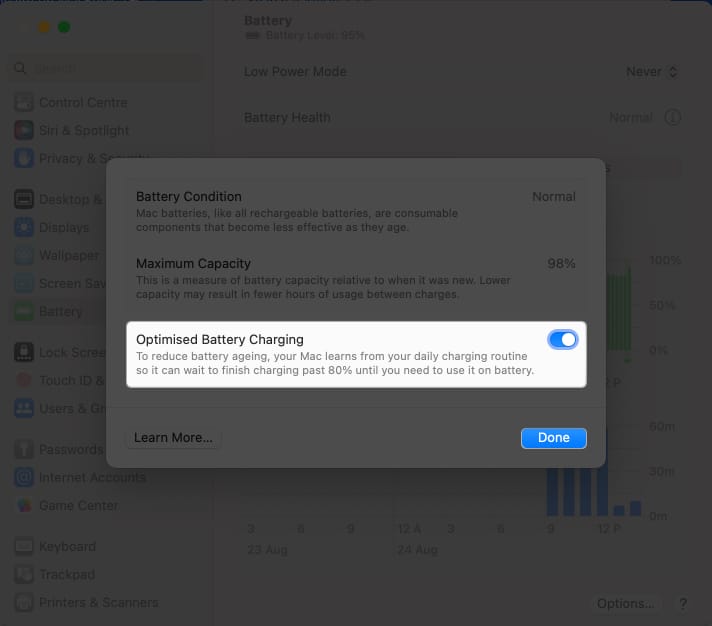
- Hit the info icon next to Battery Health.
- Here, you can monitor the following factors:
- Battery Condition: It prompts the effectiveness of the battery.
- Maximum Capacity: This reading shows the current capacity of the battery in comparison to when it was new.
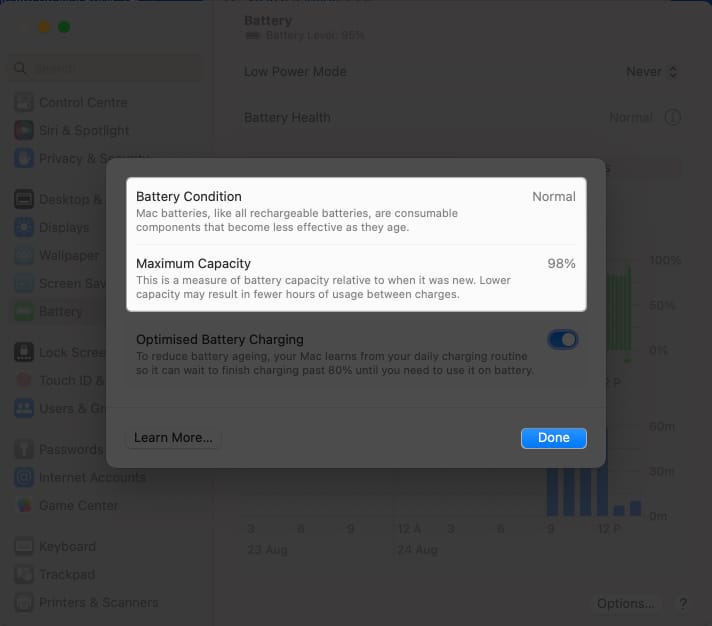
- While you’re at it, I recommend enabling the Optimized Battery Charging feature for the betterment of your MacBook.
- Select Done to exit the interface.
Method 2: Via System Information
- Click the Apple logo ().
- Press and hold the Option key and select the System Information option.
- Scroll down to the Power menu.
- In this instance, take a look at the Charge Information and Health Information categories.
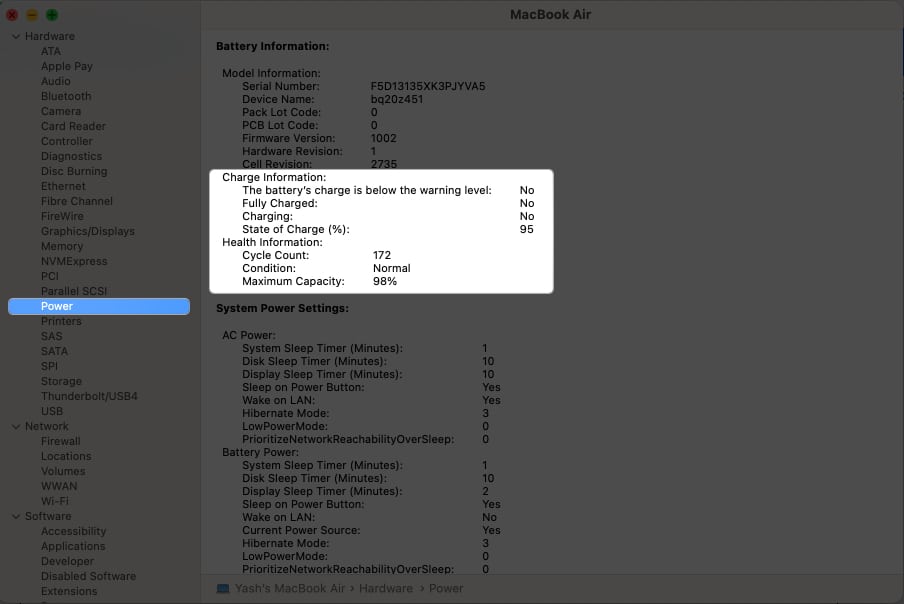
- Close the interface if your device prompts positive results.
After reviewing both criteria outlined above, if you feel that your MacBook’s battery health is compromised, you should contact Apple Support for extensive assistance.
However, if you don’t want to get involved in a comprehensive resolution, here’s our take on improving the battery health of MacBook.
Save it while you can!
Taking care of your MacBook’s battery health is a smart investment in its long-term performance. The methods mentioned in the article allow you to quickly check your battery’s health and take action if necessary.
So, make sure to check your battery health regularly, and enjoy using your MacBook to its fullest potential!
Frequently Asked Questions

Written by
ParthParth previously worked at EOTO.tech covering tech news. He is currently freelancing at iGeeksBlog, Guiding Tech, iPhonehacks, and TechWiser writing about apps comparisons, tutorials, software tips and tricks, and diving deep into iOS, Android, macOS, and Windows platforms.
View all posts →More from How-to

Snapchat Parental Controls: How to Set Up Family Center and Keep Your Teen Safe
Snapchat’s Family Center lets parents monitor their teen’s friend activity and screen time without reading private messages. Here’s how to set it up and what to expect.
 VikhyatMarch 3, 2026
How to Block and Unblock Someone on Instagram
Instagram lets you block or unblock someone in seconds. Follow these simple steps to take full control of your privacy and online peace.
 Ava BiswasMarch 2, 2026
Apple Watch Not Responding? 8 Fixes That Actually Work
Is your Apple Watch unresponsive or stuck on a black screen? Here are 8 proven fixes to help you unfreeze it and get it working again quickly.
VikhyatMarch 3, 2026