
How to fix Time Machine stuck on preparing backup
Time Machine, Apple’s built-in backup feature, is an extremely handy tool that lets you backup files and folders regularly. These backups typically take time to finish. However, Time Machine gets stuck on preparing backup when you back up for the first time, or you’ve added a bunch of large files to your device.
If Time Machine is taking longer than usual or seems stuck in the preparation process, don’t worry. This guide will help you fix the issue in no time.
- How to know if Time Machine is stuck in the preparation process
- Reasons why the preparation stage can take longer
- How to fix Time Machine stuck on “Preparing Backup”
How to know if Time Machine is stuck in the preparation process
Before you fix the issue, it is essential to know that Time Machine is stuck and is not just taking a little longer than usual to prepare.
When you launch a backup on Time Machine after the initial backup, you’ll see a message that says, Preparing… What happens is it compares your current files and folders to the files in the most recent backup.
If you’re asking how long Time Machine’s preparing backup process takes, it depends largely on the speed of the connection between the backup disk and your device, the amount of information on your Mac, and the size of your backup.
The preparation time may take some time if you’re creating a backup for the first time and your device has many files and apps. However, the preparation process shouldn’t take more than 5-10 minutes if you barely have anything stored on your Mac.
Similarly, if you regularly back up your files, it should not take long since Time Machine only backs up new or modified data since your last backup. However, Preparing a Backup may take time if you don’t do it regularly.
To know for sure, go to System Preferences → Time Machine. Check to see if Preparing Backup progress bar is moving. If it is moving, even in small increments, it is still working. However, if you see the progress bar frozen for more than 30 minutes, your backup is likely stuck.
Reasons why the preparation stage can take longer
There are many reasons why Time Machine can become stuck on Preparing backup. Here’re a few:
- files are too large
- Outdated or damaged backup disk
- macOS is not up to date
- a recent software update is preventing it
- there is malware on the backup disk or Mac
- the previous Time Machine backup was interrupted
- the Mac wasn’t shut down properly
- other apps, like antivirus software, are trying to use the backup disk
- You didn’t eject the backup disk from the Mac properly
- You used the Mac for several days without performing a backup
How to fix Time Machine stuck on “Preparing Backup”
If your Time Machine is hanging on preparing backup, here’s what you need to do.
1. Stop the Current Time Machine Backup
The first step is to stop the current Time Machine backup process. To do this, go to the Time Machine window and click the X button next to the progress bar. Wait for the Preparing backup progress bar to disappear. Be sure to deselect Back Up Automatically.
2. Delete “.inProgress” file
After stopping the current backup process, you must delete the .inProgress file or the canceled backup process found on your backup drive. To do this:
- Open Finder → select your Time Machine drive on the sidebar.
- Select Backups.backupd.
Look for the file with a .inProgress extension. - Select and delete it, and proceed to empty your Trash.
You may try switching to List view if you cannot find the file. The file you’re looking for will contain the date when the Time Machine backup was initiated in a YYYY-MM-DD-HHMMSS format.
3. Restart your Mac
Once done with the steps above, restart your Mac before attempting to rerun Time Machine. Restarting may sometimes help fix glitches and minor issues.
4. Resume your Time Machine Backup
Once everything is done, you can re-attempt backing up your Mac with Time Machine. If the problem persists, read the following fixes.
5. Other troubleshooting tips to fix time machine hanging on preparing backup
If the process above doesn’t work, here are several troubleshooting tips before re-launching Time Machine.
I. Ensure that you have a strong network connection
A poor or non-existent Wi-Fi connection can be the culprit if you’re trying to back up over a network. Ensure that you have a strong Wi-Fi or internet connection.
II. Update your macOS
An outdated operating system can also cause issues with the Time Machine. Be sure to update your macOS to the latest. To see if your macOS is up to date, click the Apple menu → About This Mac. Click Software Update. The window will show you if your Mac is up to date. If not, you’ll find a button that tells you to update.
III. Exclude large files
If you have large files like photos and videos, these may be the culprit behind your Time Machine hanging up. Try bypassing them to see if it will fix the issue:
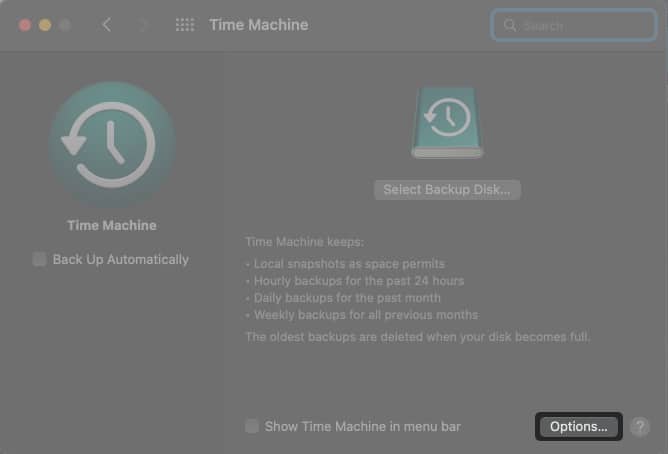
- Go to the Time Machine window → click Options.
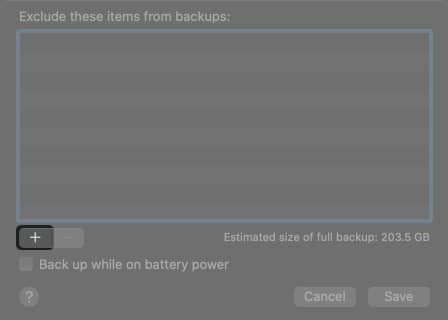
- Click +.
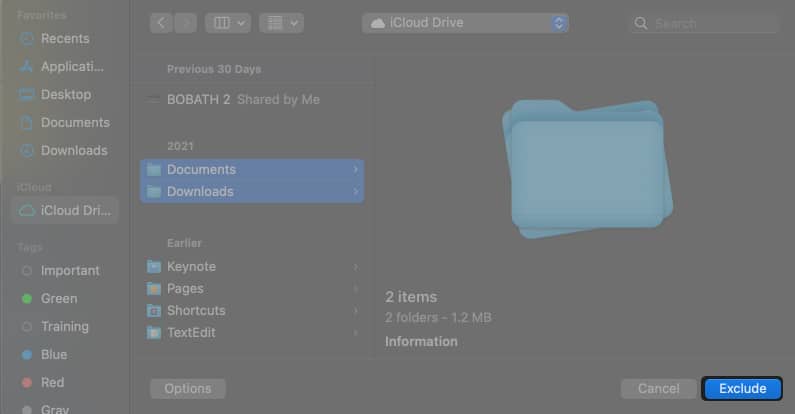
- Select the files or folders you want to exclude → click Exclude.
- Click Save.
IV. Prevent Spotlight from indexing Time Machine backup volume
Spotlight may index Time Machine backup volume and interfere with the Tim Machine preparation process. You may prevent Spotlight from indexing Time Machine by altering Spotlight’s preferences. Here’s how:
- Head to System Preferences → Spotlight.
- Click the Privacy tab.
- Select +.
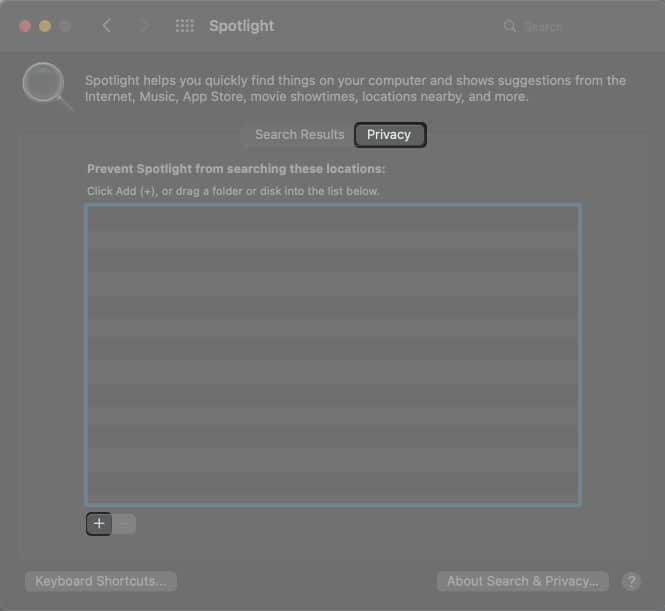
- Navigate to your Time Machine backup volume and drag it to the window.
This will stop Spotlight from indexing your Time Machine backup volume.
V. Check your antivirus settings
Your antivirus software can use your external hard drive and scan it for viruses. However, this might interfere with the Time Machine backup. You may want to exclude your Time Machine drive from your antivirus scans.
Frequently Asked Questions
Wrapping up…
The fixes above should fix your Time Machine stuck at preparing backup. However, if it still hangs, my next suggestion would be to use a new external hard drive to back up your files.
If the issue persists, you may need to visit your local Genius Bar or contact Apple Support to resolve the problem.
Read more:

Written by
Rachel Ann Tee-MelegritoRachel, an experienced Apple technology writer since 2021 and a long-time user since 2003, began her journey with a silver iPod Classic. Currently, she owns an array of modern Apple gadgets. At iGeeksBlog, her expertise shines through in the crafting of comprehensive how-to articles, informative guides, and well-curated roundups.
View all posts →More from How-to

How to Turn Off Location on Snapchat (Step-by-Step Guide)
Want to stop sharing your location on Snapchat? This guide explains how Snapchat location sharing works and shows simple ways to turn off your location using Ghost Mode or phone settings. Stay in control of your privacy in just a few steps.
 VikhyatMarch 5, 2026
Snapchat Parental Controls: How to Set Up Family Center and Keep Your Teen Safe
Snapchat’s Family Center lets parents monitor their teen’s friend activity and screen time without reading private messages. Here’s how to set it up and what to expect.
VikhyatMarch 3, 2026
How to Block and Unblock Someone on Instagram
Instagram lets you block or unblock someone in seconds. Follow these simple steps to take full control of your privacy and online peace.
 Ava BiswasMarch 2, 2026