
Safari Not Working on Mac? How to Fix Crashes, Freezing, and Page Loading Issues
If Safari has stopped working on your Mac, you are not alone. This guide walks through common Safari issues and practical fixes to get your browser running smoothly again.
If you rely entirely on Safari on your Mac for all your browsing-related work, things can go downhill fast when Safari suddenly stops working. In my case, I do not have a backup browser installed. I do not use Chrome or Firefox, and these browsers are not available on the App Store for quick installation. When Safari stops loading pages or refuses to open, I am effectively stuck. I cannot browse, research, or even download another browser to fix the problem. At that point, it is no longer just a Safari issue. It becomes a workflow problem.
If you are facing something similar, you are in the right place. This guide covers the most effective fixes to get Safari working again on your Mac.
Common Safari Issues on Mac Users Experience
You do not need to panic or jump into random troubleshooting steps if Safari suddenly stops working on your Mac during an important task. Most Safari issues fall into a few common patterns, and identifying the exact problem early makes troubleshooting much easier.
Start by matching your experience with one of the issues below before moving on to the fixes.
- Safari does not open at all
- Web pages fail to load or get stuck on a white screen
- Safari crashes or freezes repeatedly
- Videos do not play on websites
- Safari feels extremely slow, even with only a few tabs open
Once you have identified the issue, move on to the relevant fixes below.
Quick Checks to Try Before Fixing Safari
Before changing settings or deleting files, rule out basic issues first:
- Confirm your Mac is connected to the internet
- Open a different website to check if the issue is site-specific
- Quit Safari completely and reopen it
- Restart your Mac to clear temporary system glitches
- Force-quit Safari using Activity Monitor if it is unresponsive
If Safari still does not work, move on to targeted fixes.
How to Fix Safari Not Loading Pages on Mac
If Safari opens but refuses to load websites, the issue is usually minor and easy to fix. Try the steps below.
1. Clear Safari cache and website data
Go to Safari settings → Privacy → Manage Website Data → Remove All. 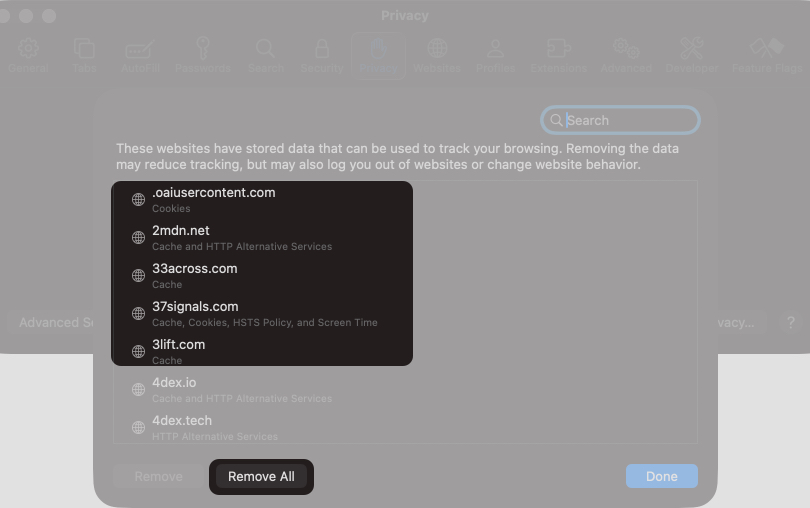
This clears stored cookies and cache that may be causing conflicts.
2. Turn Off Safari Extensions Temporarily
- Go to Safari settings → Extensions.
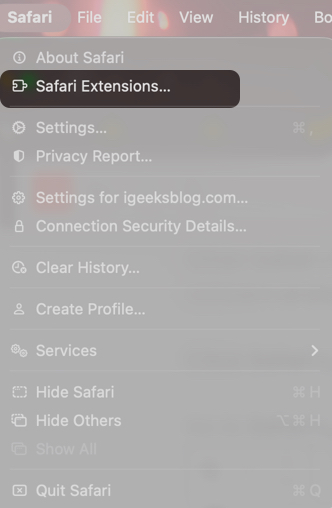
- Disable all the extensions and test Safari.
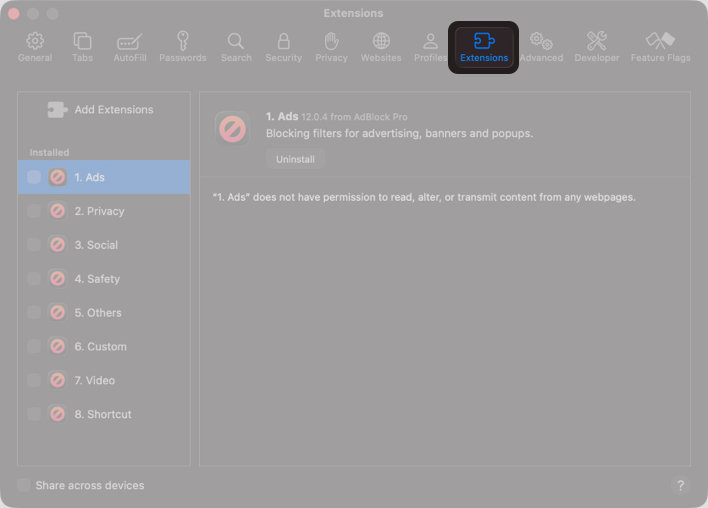
If Safari works fine, re-enable each extension one by one to identify the culprit.
3. Check Proxy Settings
Incorrect proxy settings often prevent pages from loading.
- Open Settings → Network → Wi-Fi.
- Click the Details button next to the connected Wi-Fi network name.
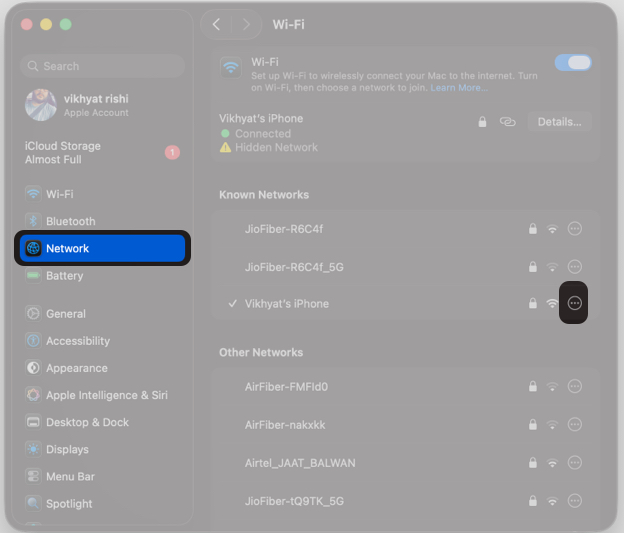
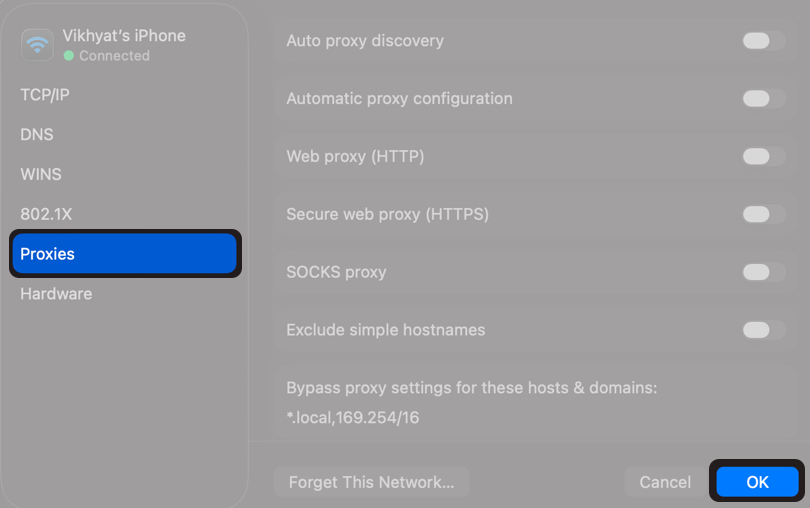
- Select Proxies on the left.
- Here, review and turn off any proxy you don’t use.
How to Fix Safari Crashing or Freezing on Mac
Frequent crashes or freezes usually point to system conflicts or memory pressure.
1. Check Activity Monitor for High Memory Usage
Open Activity Monitor and look for apps, including Safari, that are consuming excessive memory. Close unnecessary processes, as low available memory can cause Safari to become unresponsive.
2. Boot Your Mac in Safe Mode
Safe Mode loads only essential system components. This helps determine whether a third-party app or login item is causing the issue. If Safari works normally in Safe Mode, a background app or startup item is likely responsible.
3. Update macOS
Safari updates are bundled with macOS updates. You cannot update Safari separately through the App Store, so keeping macOS up to date is essential.
4. Test Safari in a New User Account
Create a temporary macOS user account and open Safari there. If Safari works in the new account, the issue is isolated to your original user profile.
Safari Won’t Open on Mac? Step-by-Step Fixes
If Safari does not open at all, something in the background is likely preventing it from launching. The steps below are safe and easier than they sound when followed carefully.
1. Remove Safari Settings and Restart It
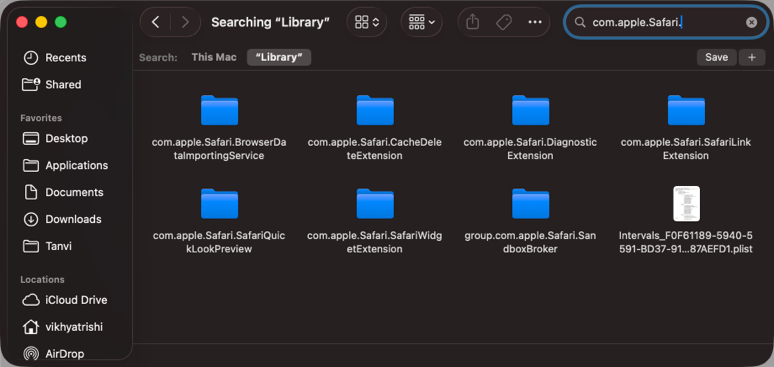
- Open Finder and click Go in the top menu bar.
- Hold the Option key and click Library in the drop-down menu.
- Find files that start with com. apple.Safari.
- Move them to the Trash.
- Restart your Mac and try opening Safari.
2. Check Startup Apps that Open with Your Mac
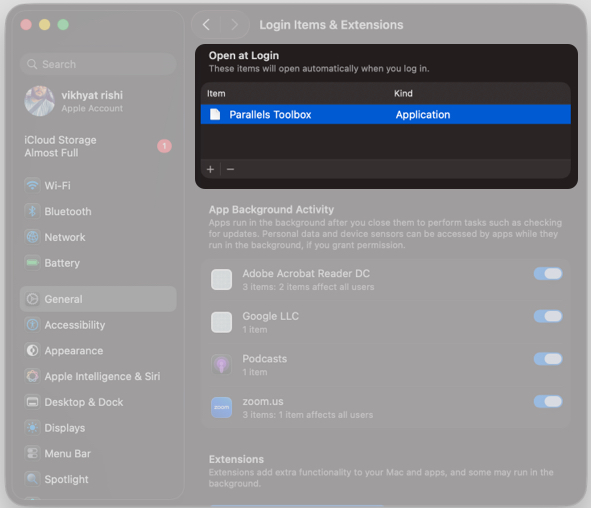
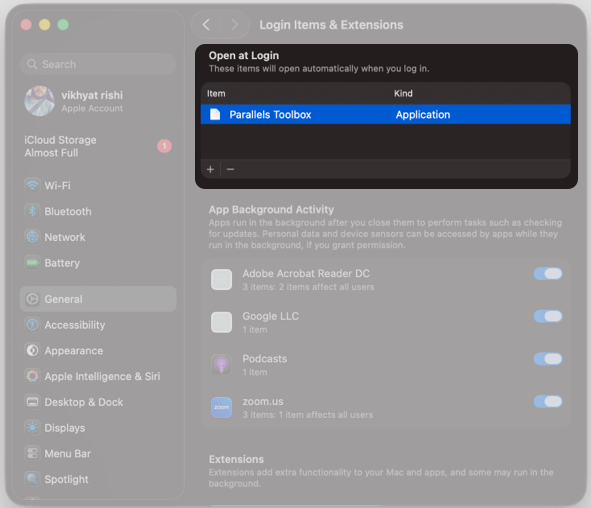
- Open Settings → General → Login Items & Extensions.
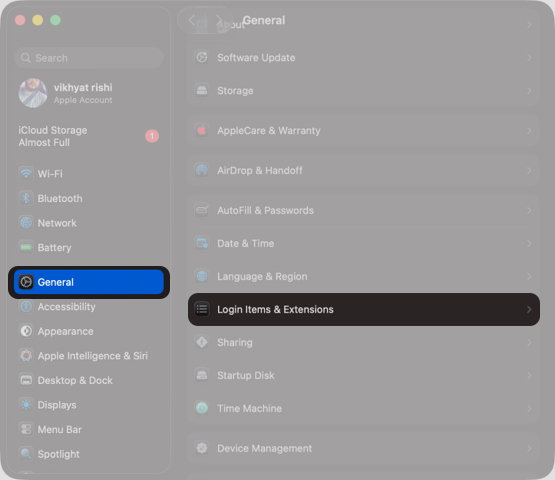
- Review the list of apps under Open at Login.
- Remove any apps you do not recognize or no longer need.
How to Fix Slow Safari Performance on Mac
If Safari works but feels unusually slow, a few performance checks can help.
1. Check Your Internet Connection
Before changing system settings, confirm your internet connection is stable. In many cases, slow browsing is caused by network issues rather than Safari itself.
2. Reduce Tab Overload
Close unused tabs. Each open tab consumes memory, and too many tabs can slow down both Safari and your Mac.
3. Disable Unnecessary Extensions
Review your Safari Extensions and turn off or uninstall any you no longer use. Too many active extensions can significantly impact performance.
4. Check Storage Space and RAM Usage
Low storage and memory pressure affect overall system performance.
- To check storage space, open Settings → General → Storage.
- To check memory pressure and free up RAM, open Activity Monitor.
Advanced Safari Troubleshooting Tips for macOS
If standard troubleshooting does not work, try the following advanced steps.
1. Reset DNS and Network Settings
Network configuration issues can block secure connections.
- Open Settings → Network → Click Details next to your active connection.
- Click DNS.
- Remove any custom DNS entries and apply changes.
- Restart your Mac and test Safari again.
2. Check VPN, Firewall, or Network Filter Apps
VPNs and network filtering apps can interfere with Safari. Disconnect any active VPN and temporarily disable firewall or network filter apps, then test Safari again.
3. Repair Disk Permissions Using Disk Utility
Disk permission issues can cause random app failures.
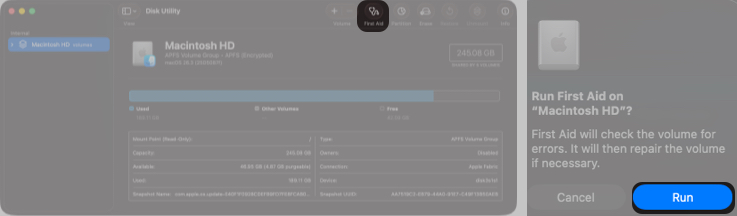
- Open Disk Utility, and select your Startup Disk.
- Click First Aid.
- Then, click Run.
Safari Still Not Working? Last-Resort Solutions
If none of the fixes work, the issue may be deeper at the system level.
1. Reinstall macOS without data loss
Reinstalling macOS refreshes system files without deleting personal data and often resolves persistent Safari problems.
2. Contact Apple Support
If nothing works, it is time you contact Apple Support. Experts there can diagnose deeper software or hardware issues.
Conclusion: Get Safari Working Properly on Your Mac
Safari problems on Mac can be frustrating, but most issues are temporary and fixable. Starting with simple checks often resolves the problem quickly, while deeper fixes address more stubborn cases.
Work through the steps methodically and avoid unnecessary changes. In most cases, Safari returns to stable performance without extreme measures.
If you have discovered another reliable fix for Safari not working on Mac, consider sharing it in the comments to help others.
Frequently Asked Questions
Topics

Written by
Anoop VargheseAnoop loves to find solutions for all your doubts on Tech. When he's not on his quest, you can find him on Twitter talking about what's in his mind.
View all posts →More from How-to

Snapchat Parental Controls: How to Set Up Family Center and Keep Your Teen Safe
Snapchat’s Family Center lets parents monitor their teen’s friend activity and screen time without reading private messages. Here’s how to set it up and what to expect.
 VikhyatMarch 3, 2026
How to Block and Unblock Someone on Instagram
Instagram lets you block or unblock someone in seconds. Follow these simple steps to take full control of your privacy and online peace.
 Ava BiswasMarch 2, 2026
Apple Watch Not Responding? 8 Fixes That Actually Work
Is your Apple Watch unresponsive or stuck on a black screen? Here are 8 proven fixes to help you unfreeze it and get it working again quickly.
VikhyatMarch 3, 2026