
16 Reasons to Use Dual SIM iPhone with iOS 26
Learn why dual-SIM iPhones offer better flexibility, coverage, and convenience for work, travel, and everyday use.
Having two phone numbers on one iPhone used to feel like a bonus feature-very useful but somewhat limited. That changes with iOS 26. Apple has improved things so much that dual-SIM is now a genuinely practical everyday tool, whether you’re juggling work and personal calls, traveling abroad, or wanting more control over your carrier plans.
In this article, we’ll break down the key reasons why using a dual-SIM iPhone on iOS 26 makes more sense than ever.
Which iPhones Support Dual SIM in 2025?
Dual-SIM support is now standard across Apple’s modern lineup, especially with the shift toward eSIM-first and eSIM-only models.
| Supported Configurations | Supported Devices |
|---|---|
| Two active eSIMs | iPhone 14, iPhone 15, iPhone 16, iPhone 17 series, and iPhone Air (US, Canada, parts of Europe and the Middle East) |
| One nano-SIM + one eSIM | iPhone SE (3rd gen), iPhone 11, and newer (sold outside US) |
| Two nano-SIMs | Select models sold in China, Hong Kong, and Macao |
Apple’s shift toward all-eSIM devices makes it easier to switch plans, store multiple profiles, and avoid physical SIM issues.
What’s New for Dual SIM in iOS 26?
iOS 26 brings major upgrades specifically for people who use two numbers.
1. Select Different Ringtones for Each SIM
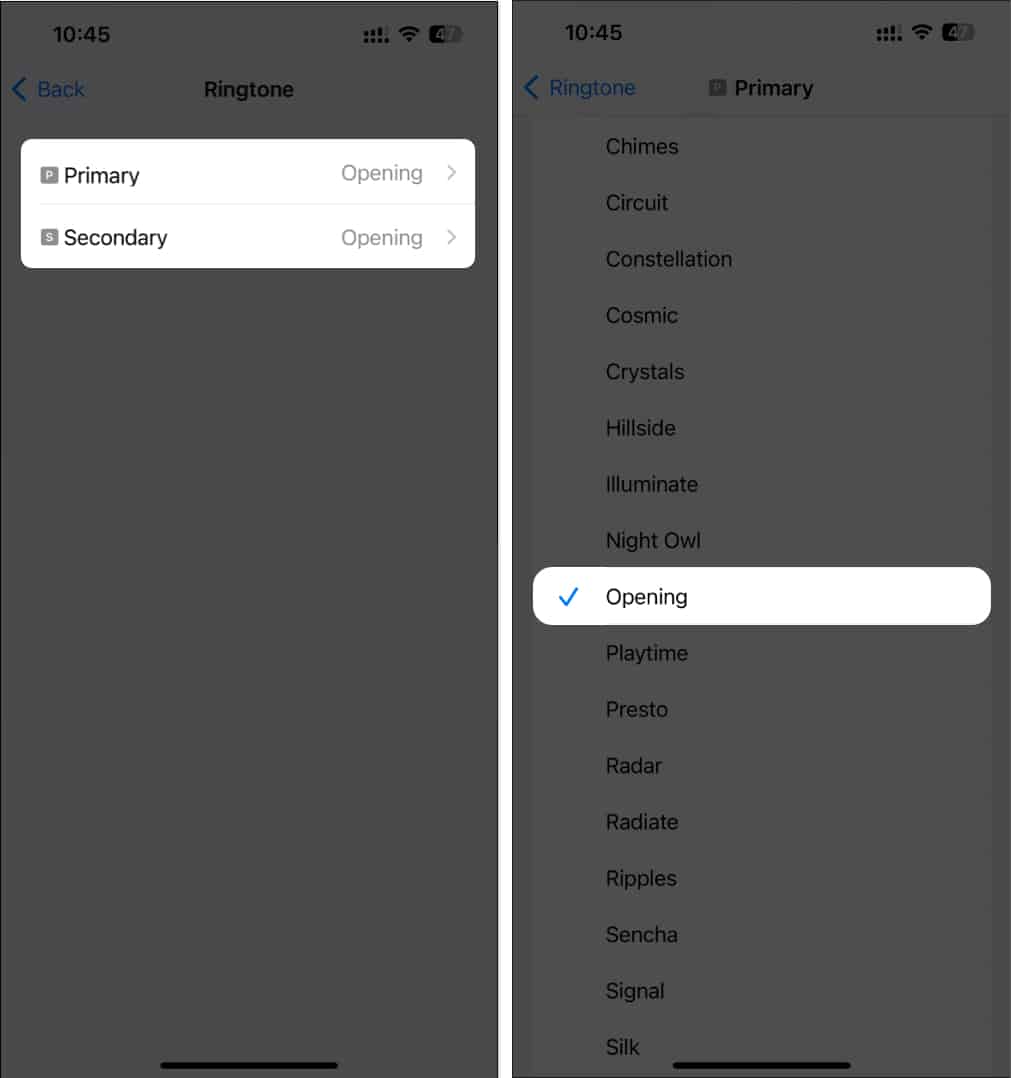
You can assign unique ringtones to each of your SIM cards. Though the incoming call shows which SIM is getting the call, the ringtone makes it easier to differentiate without having to look at your iPhone.
- Open the Settings app on your iPhone.
- Go to Sound & Haptics > Ringtone.
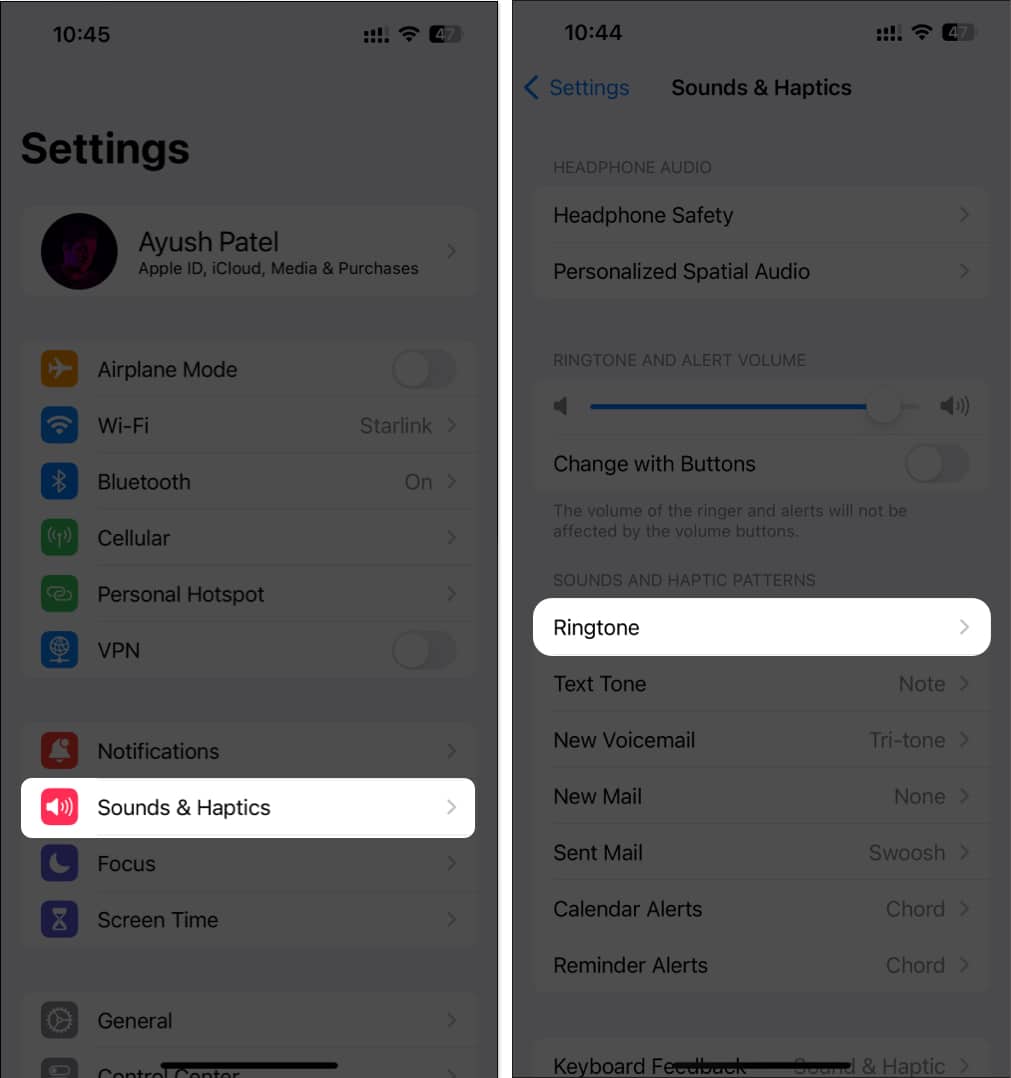
- Select your Primary or Secondary SIM/phone number.
- Select your preferred ringtone.
2. Intelligent Data Auto-Switching
iOS automatically switches data lines if:
- The active SIM loses connectivity
- You move into a poor-signal area
- A selected app needs a higher bandwidth
You can control sensitivity or disable automatic switching entirely. For that, go to Settings > Cellular > Cellular Data > toggle on Allow Cellular Data Switching.
3. Dual-Number iMessage & FaceTime Improvements
Messages are now consistently sent from the number you last used with that contact, and switching lines mid-thread is instant.
- Launch the Messages app and open a chat.
- Tap the recipient’s name at the top.
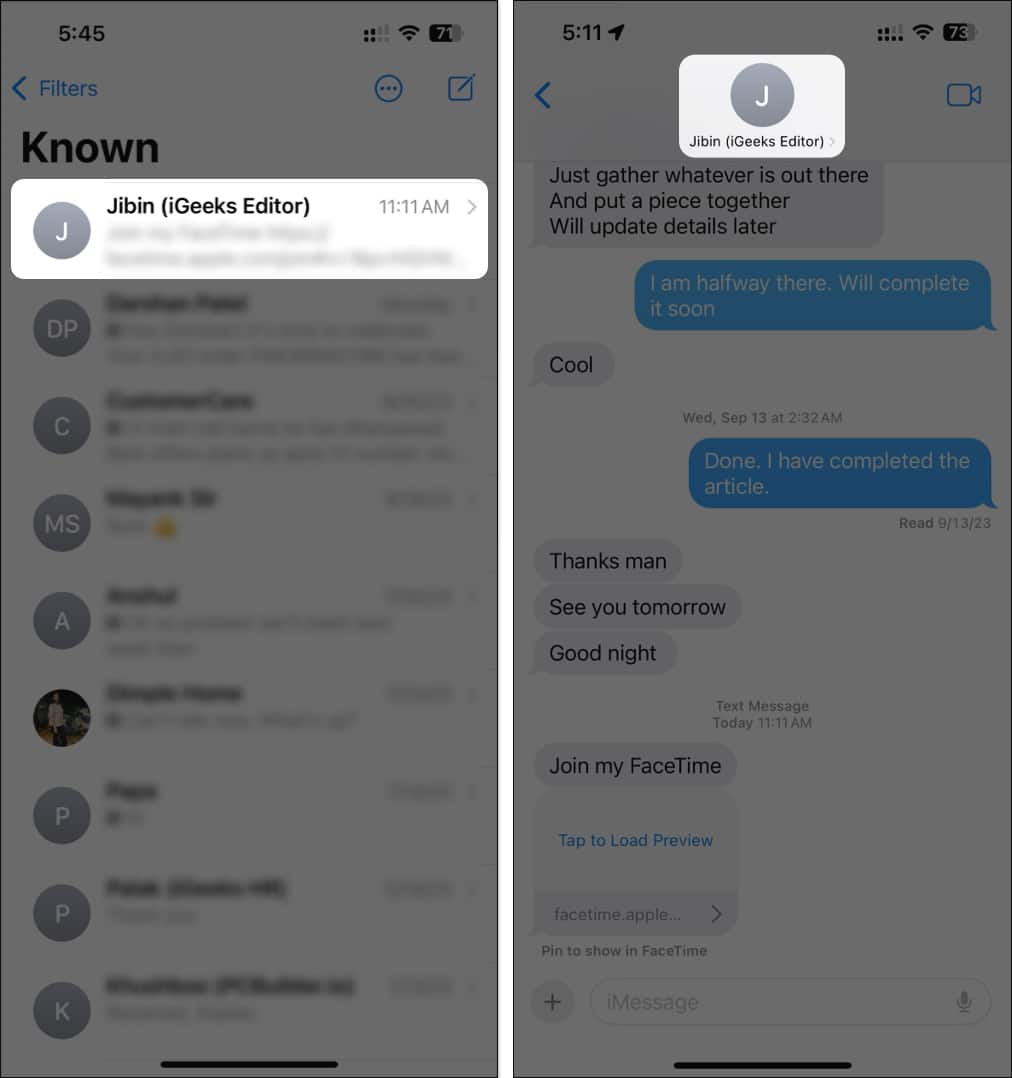
- Now tap Conversation Line, then select the number you want to use.
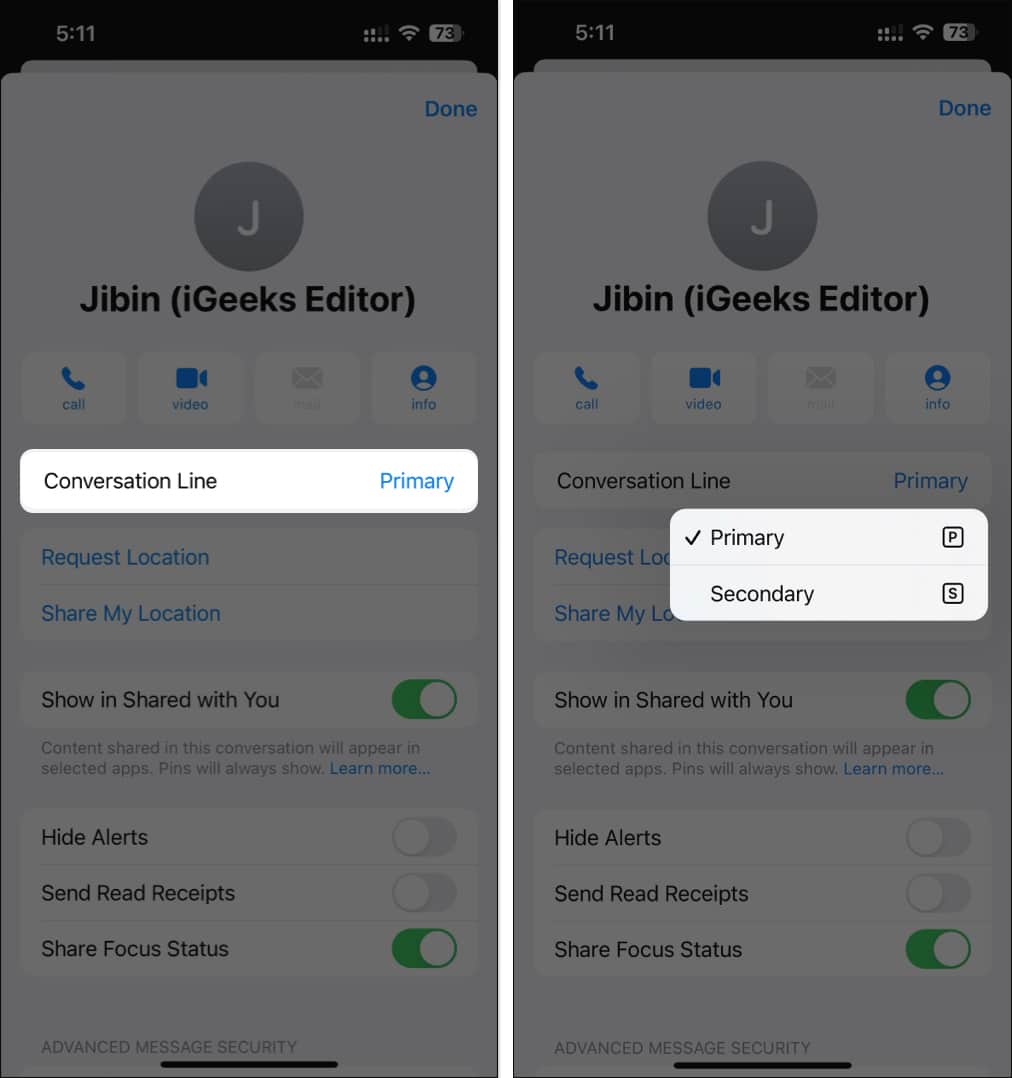
On the other hand, you can select which caller ID to show when starting a new FaceTime call.
- Open FaceTime and tap New Call at the bottom.
- Now, select your Caller ID at the top. I have set my email address as default.
- Choose between your numbers.
4. Select a Different SIM When Calling Unknown Numbers
When returning a call from an unknown number, you can quickly select which SIM line you’d like to use. This is a great privacy feature for those with separate personal and business SIMs.
- Open the Phone app on your iPhone.
- Tap the profile photo of an unknown number.
- Tap the SIM Line option above the unknown number.
- Select a SIM that you want to use when calling an unknown number.
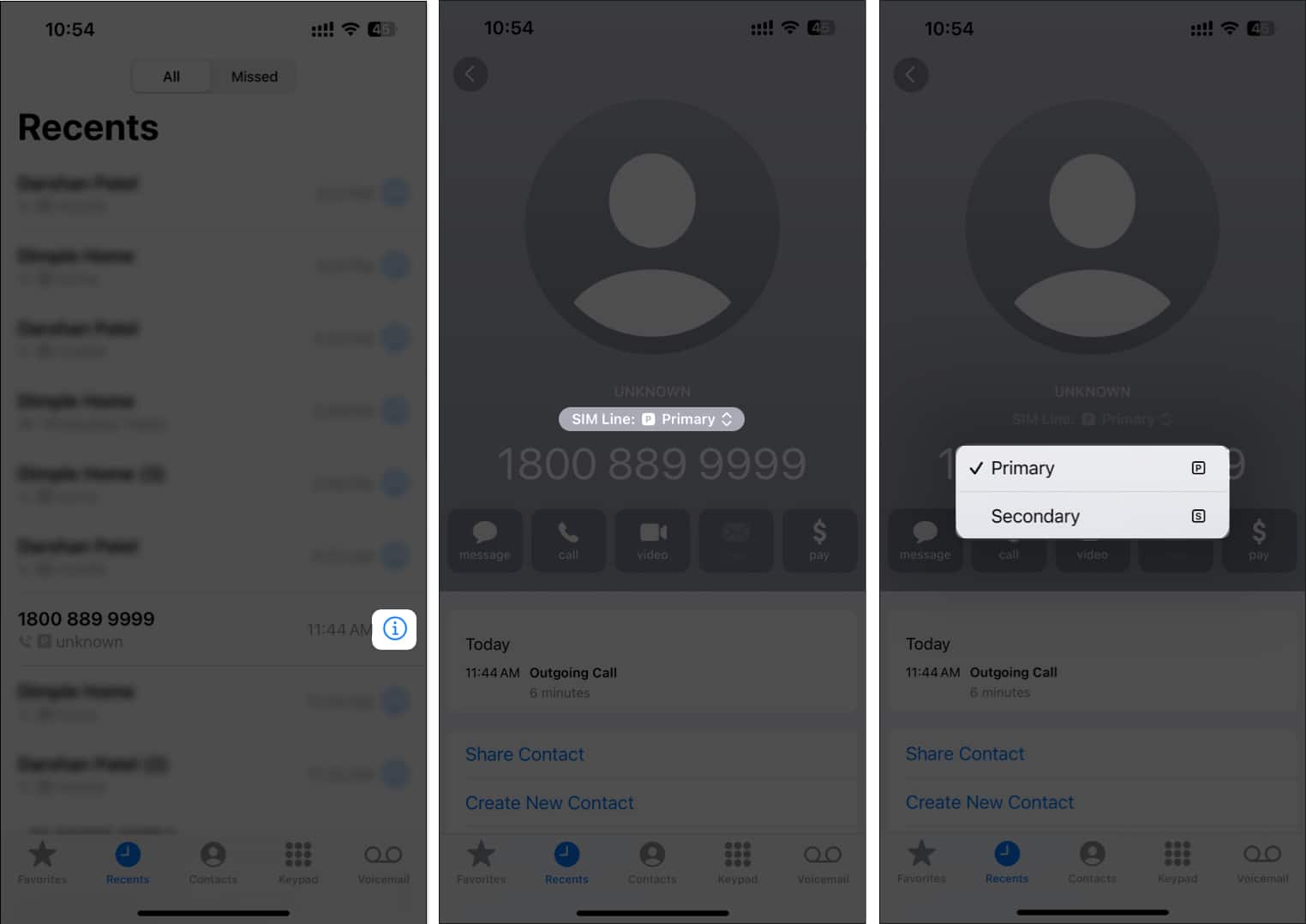
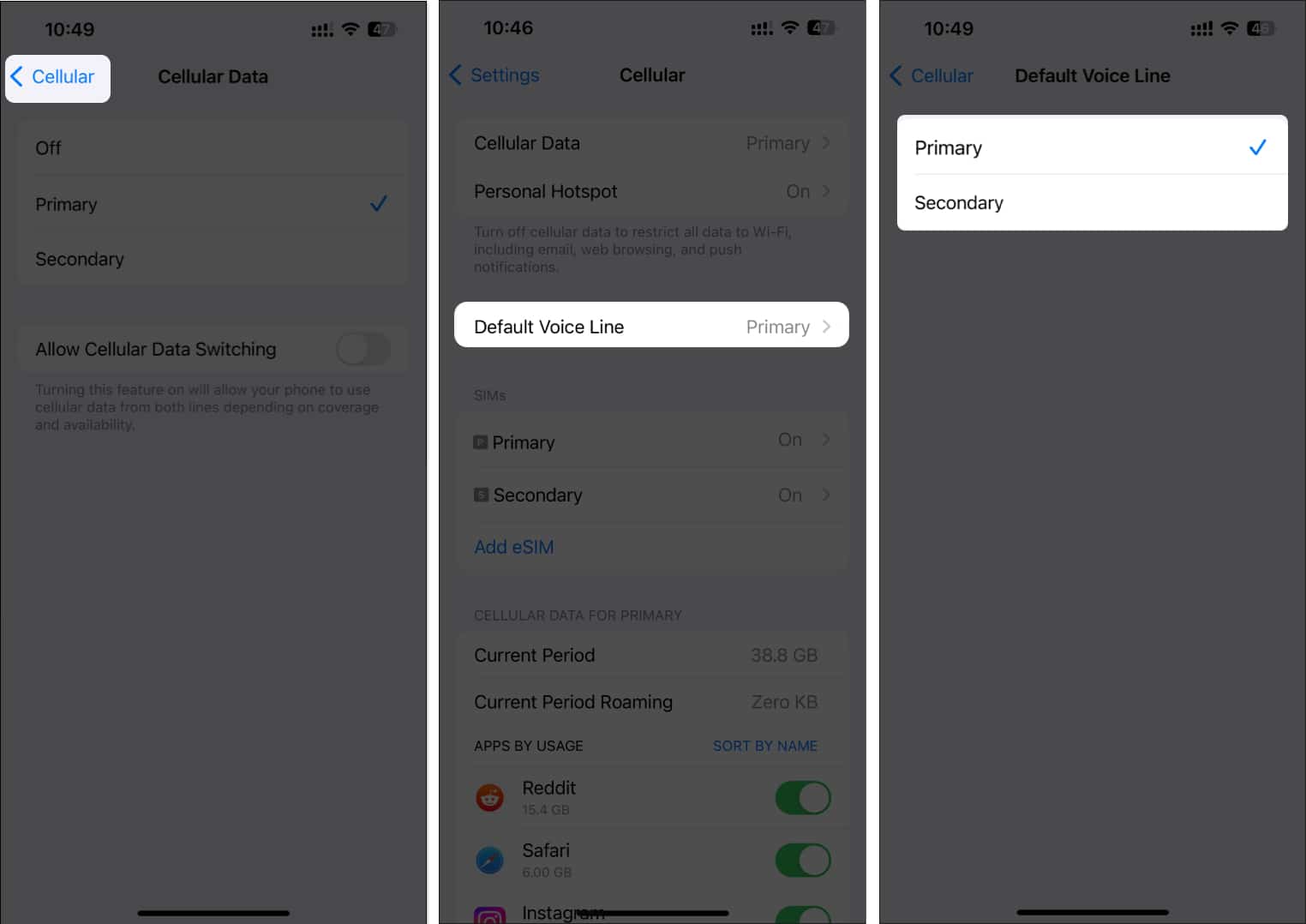
You can also set up a default SIM for all your calls from Settings > Cellular > Default Voice Line.
5. Sort Text Messages for Each SIM
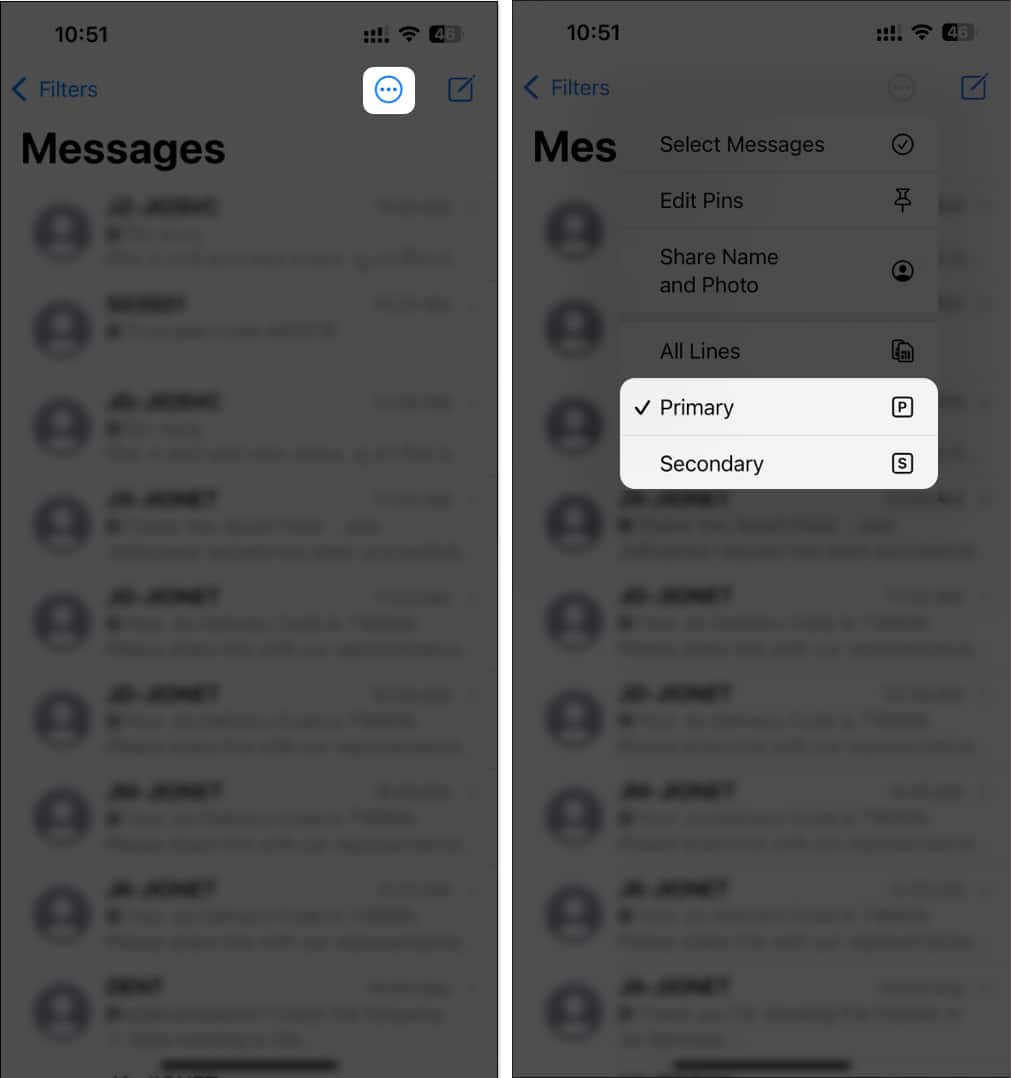
iOS 26 allows dual-SIM users to filter texts in the Messages app by SIM. For instance, you can now configure the Messages app to show texts sent to your primary number or ones sent to your secondary number.
- Open the Messages app on your iPhone.
- Tap the filter icon in the top-right corner.
- Select your preferred SIM to view messages.
6. Mute One SIM During Focus
During work hours, you can enable Do Not Disturb to avoid getting calls and voicemails from your personal SIM. So, you can focus better without interruptions.
- Go to Settings > Focus.
- Tap Do Not Disturb and select Add Filter at the bottom.
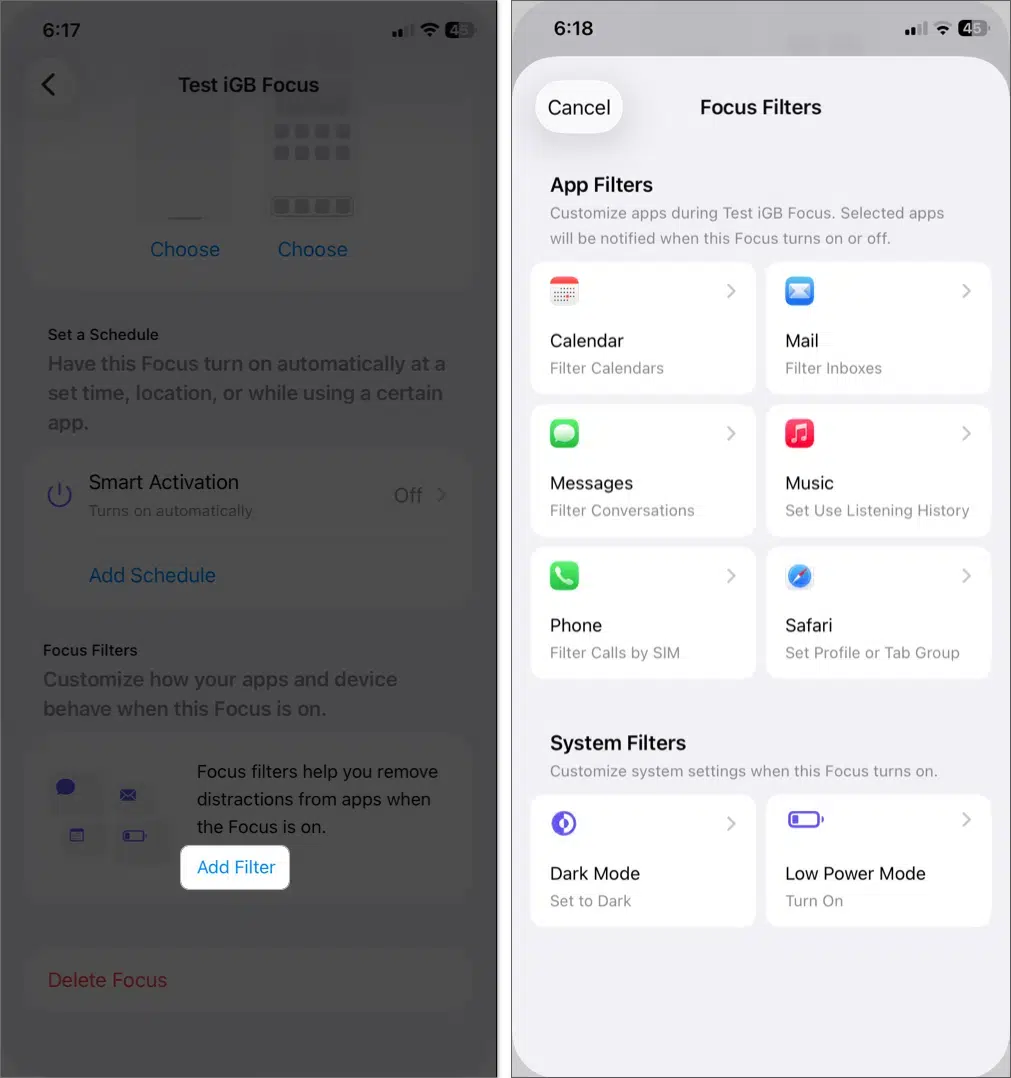
- Here, tap Phone and choose the SIM you want to use during focus.
- Tap Add to save.
Also read: How to Use Focus Mode on iPhone?
Why Use Dual SIM on an iPhone? Real Reasons That Matter
Continue reading to learn the most potent reasons to use dual SIM iPhones if you’re unsure whether you need them.
1. One Phone, Two Lives
If you manage work and personal numbers, a dual-SIM iPhone saves you from carrying two devices. iOS 26 adds:
- separate ringtones
- contact-based SIM rules
- work-hour muting for one SIM
This all makes for easier boundaries without sacrificing accessibility.
2. Improved Network Reliability
Two SIMs mean double the coverage. Even if one carrier has an outage, dead zones, or poor data speeds, you can instantly switch to the other or let iOS auto-select the best connection.
This is incredibly helpful in rural areas, high-rise buildings, or during large events where one network gets congested.
3. Save Money with Carrier Flexibility
Due to rising competition, all telcos are trying to hold their customer base. So, if one telco provides better packs for making calls, and another offers cheaper data packs, you can use a dual SIM iPhone to access both deals.
I switch carrier plans during promotional periods to grab the best deals.
4. Clean Separation for Work and Personal Calls
Dual-SIM helps keep your day organized:
- dedicated SIM for work clients
- clean phone bill separation for reimbursements
No more mixing personal life with work calls.
5. A Must-Have for Travelers
Traveling internationally is simpler and cheaper with dual SIM because you can:
- keep your home number active
- add a local eSIM for affordable data
- Avoid high roaming costs
- enjoy better local coverage
Also, several companies now offer Travel eSIMs, like Truely, to use the global carrier plans when you need them.
6. Store Multiple Plans Without Swapping SIMs
You can add multiple up to 8 eSIMs profiles to your iPhone with two actives simultaneously at a time. So, you can store plans according to your requirements and activate the one you need instantly. No more tiny SIM trays or paperclips!
7. SIM Lines Can Be Enabled or Disabled Instantly
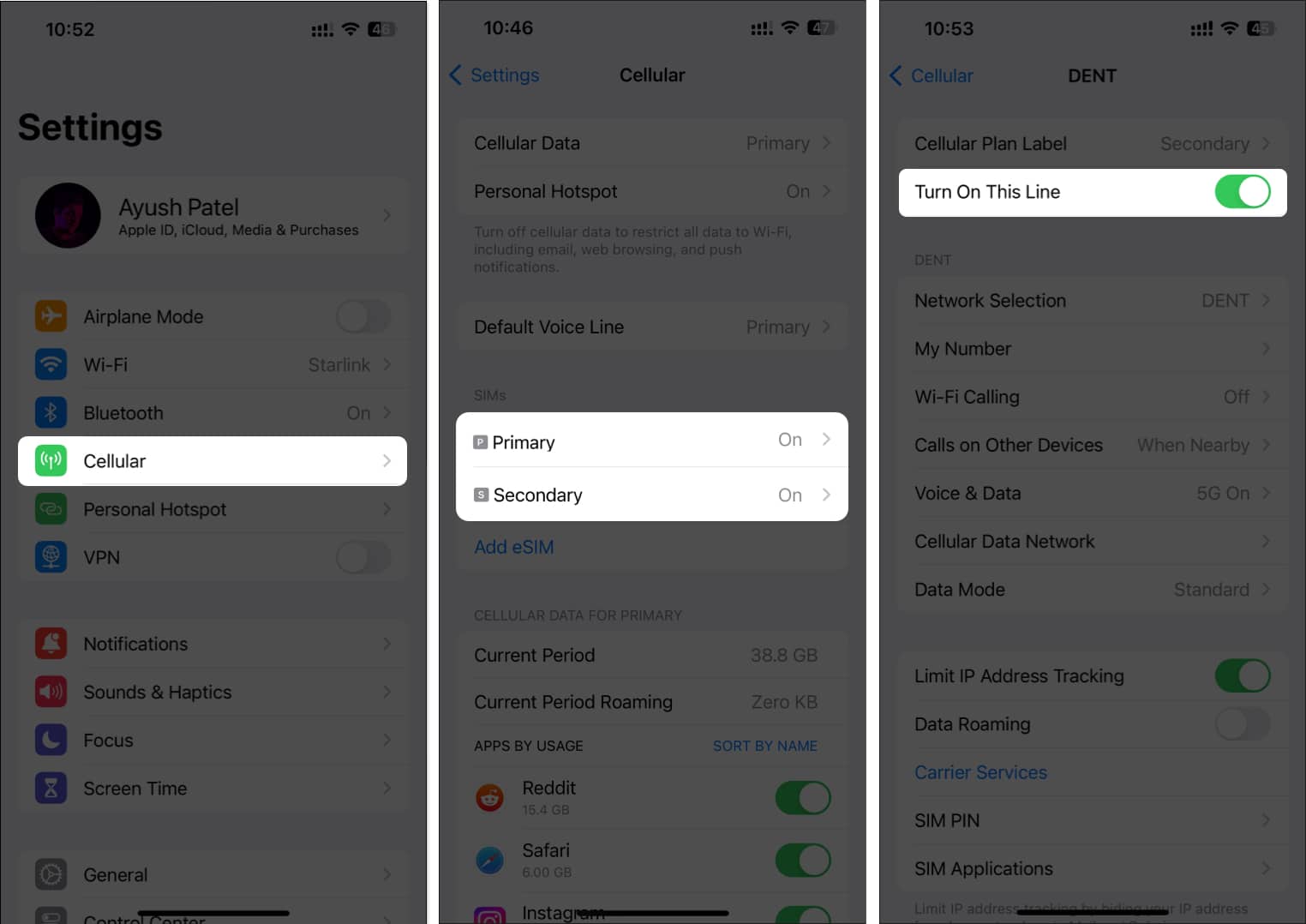
Apple makes it easy to disable a SIM line or eSIM directly from settings. It’s useful when you want to prevent roaming charges on your travel SIM or temporarily suspend work calls. Here’s how you can do this with ease:
- Go to Settings > Cellular.
- Select a SIM you want to enable or disable.
- Toggle off Turn On This Line.
8. Custom Defaults for People
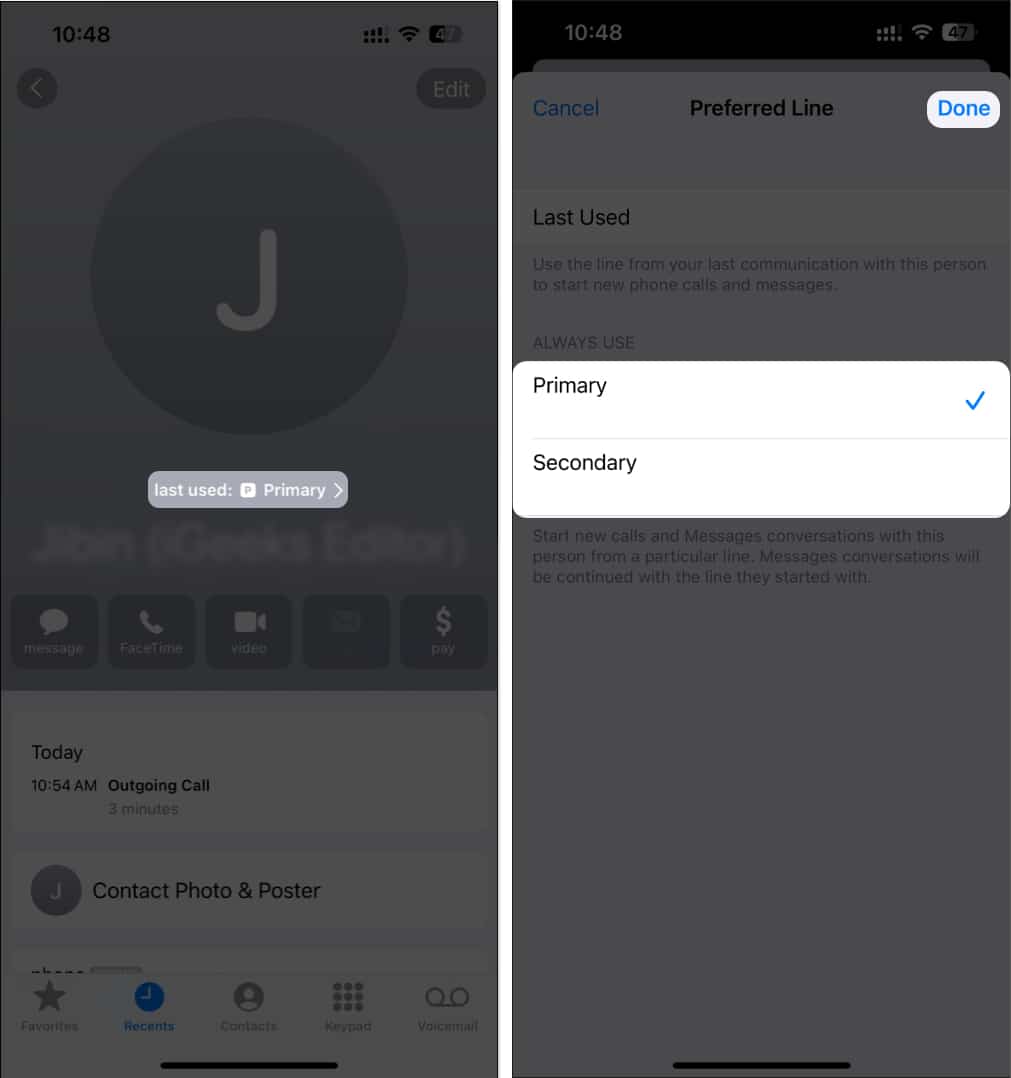
Having two SIMs makes it easy to manage your personal and professional contacts. Here’s how you can set up a certain SIM/number to be used every time you call a specific contact:
- Open a contact in the Phone or Contacts app on your iPhone.
- Tap the Default option above the contact’s name.
- Select a SIM you want to use when calling the contact and tap Done.
9. Clear SIM Labels for Easier Management
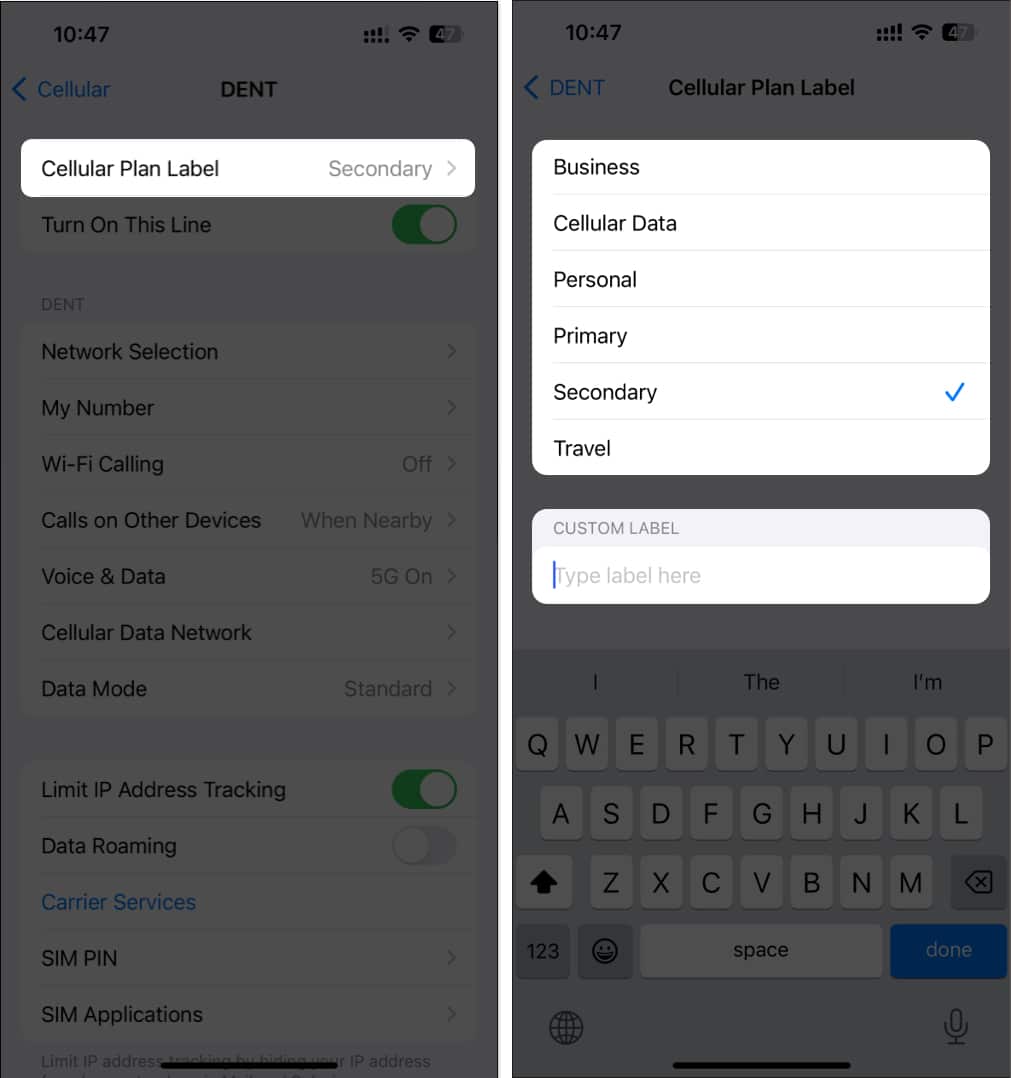
Label each number (Business, Personal, Travel, etc.) so every call, text, and data session makes sense at a glance.
- Go to Settings > Cellular.
- Select a SIM you want to rename.
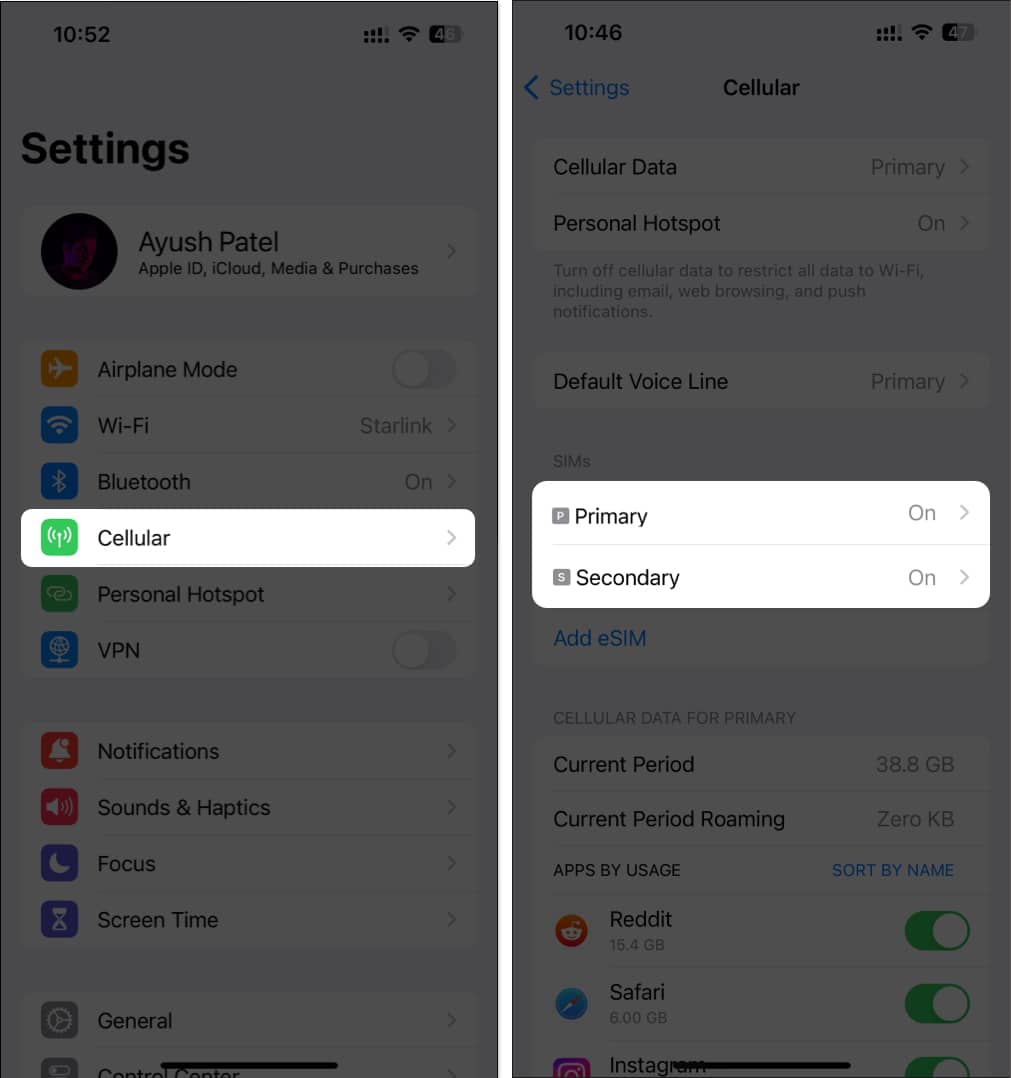
- Tap Cellular Plan Label.
- Select a suggested label or tap Custom > Edit custom label to create a new SIM name.
10. Set Up Different SIM for Voice and Data
If one carrier provides better packs for calls and another offers cheap data packs, you can get both by selecting which SIM is used for voice and data.
- Go to Settings > Cellular > Cellular Data.
- Select your preferred SIM for cellular data.
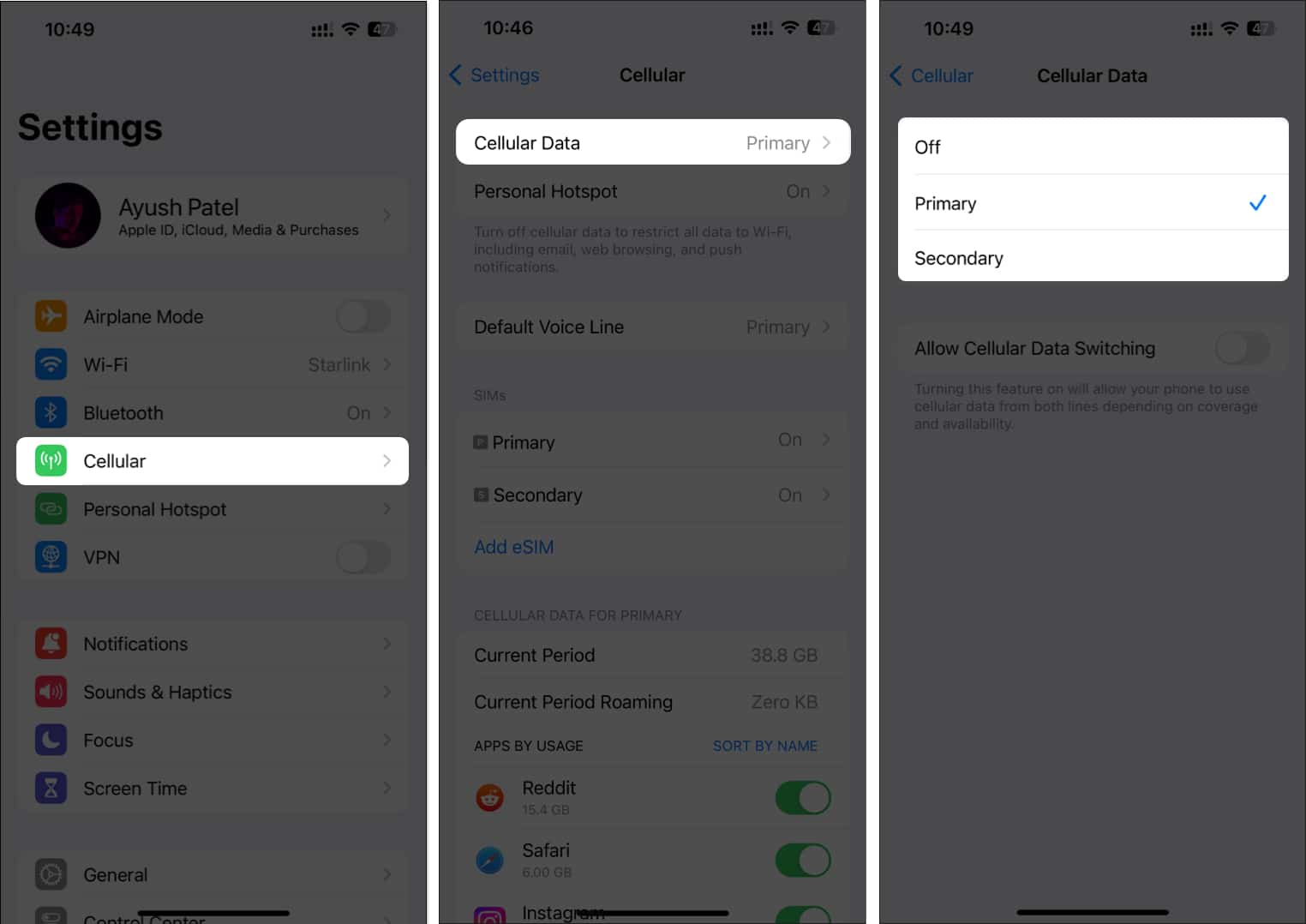
- Go back and tap Default Voice Line.
- Select your preferred SIM for voice/call.
Dual SIM is Truly a Game Changer!
Dual-SIM on iPhone has evolved from a convenience into a serious productivity and travel tool, especially with iOS 26’s smarter data handling, and improved call/message control.
If you want better coverage, separate work and personal lines, affordable travel options, and more flexibility with carrier, a dual-SIM iPhone is absolutely worth using.
Do you consider getting dual SIMs? Let me know your thoughts in the comments below!
Also read:
Topics

Written by
Ava BiswasAva is a die-hard Apple aficionado and seasoned writer with a knack for breaking down complex tech concepts into easily digestible content. Having honed her writing and editing skills over 4 years at renowned media houses like TechBurner, Ava crafts informative and engaging articles including troubleshooting guides, product reviews, editorials at iGeeksBlog. When not typing, you can find her exploring the latest Apple releases or pondering the future of tech innovation.
View all posts →More from Editorial
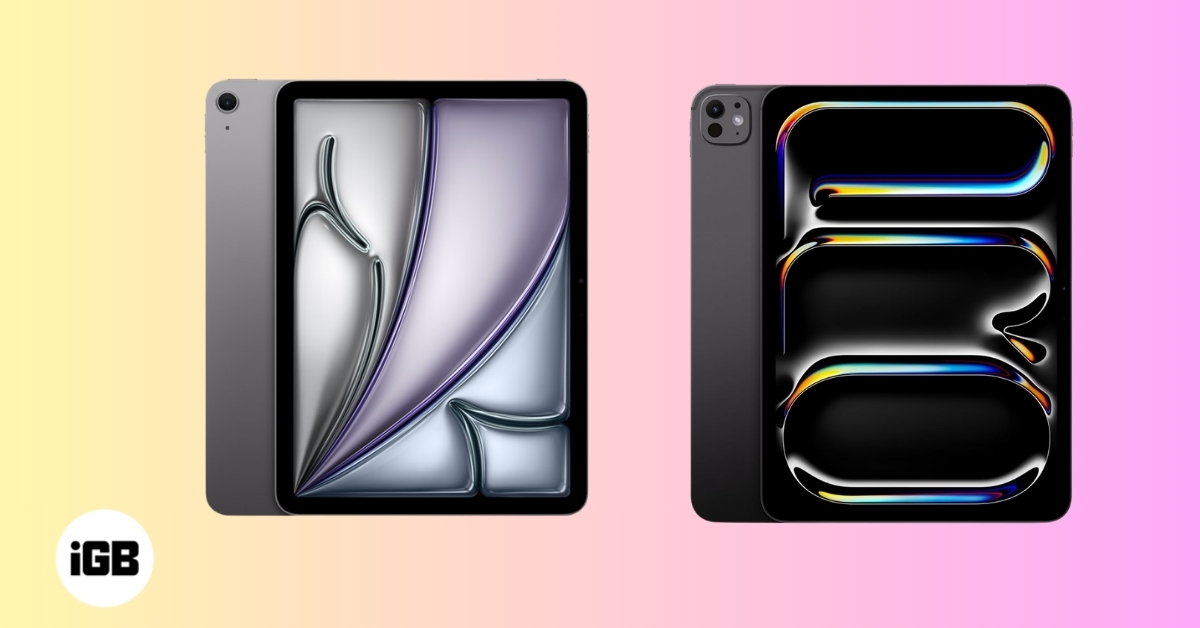
iPad Air M4 vs iPad Pro M4: Which One Should You Buy?
Trying to choose between the iPad Air M4 and iPad Pro M4? This comparison breaks down specs, display, power, and value so you can pick the best iPad for your needs.
 VikhyatMarch 4, 2026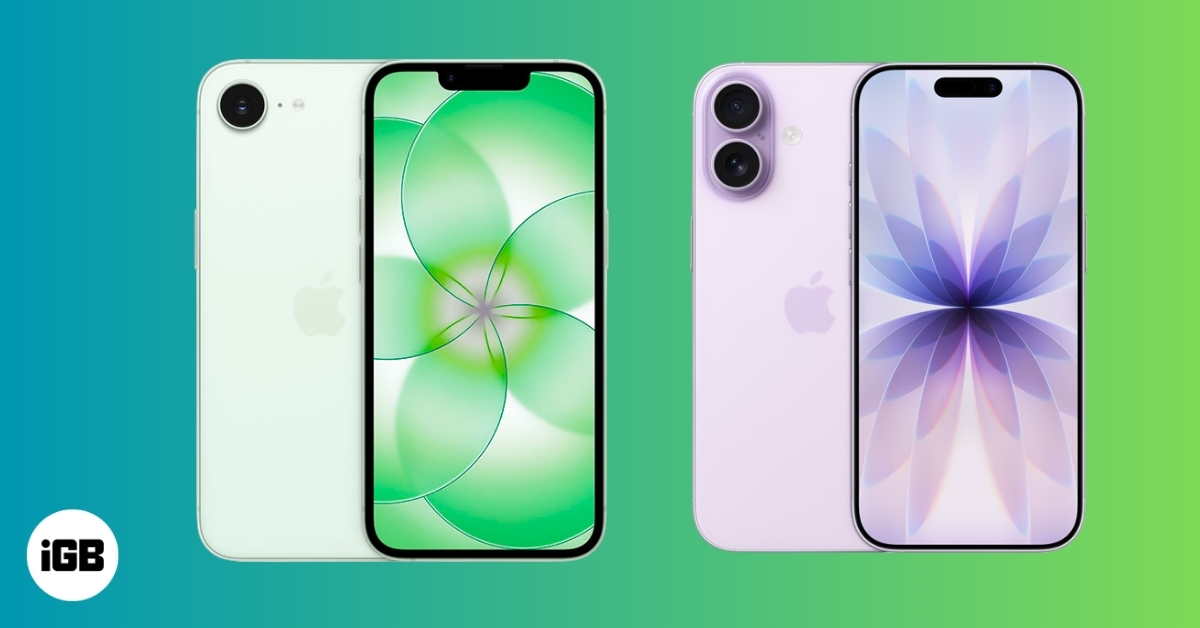
iPhone 17e vs iPhone 17: What You Give Up for $200 Less
iPhone 17e vs iPhone 17: What do you lose for $200 less? From display and cameras to battery and charging, here’s the full comparison.
 Ravi Teja KNTSMarch 5, 2026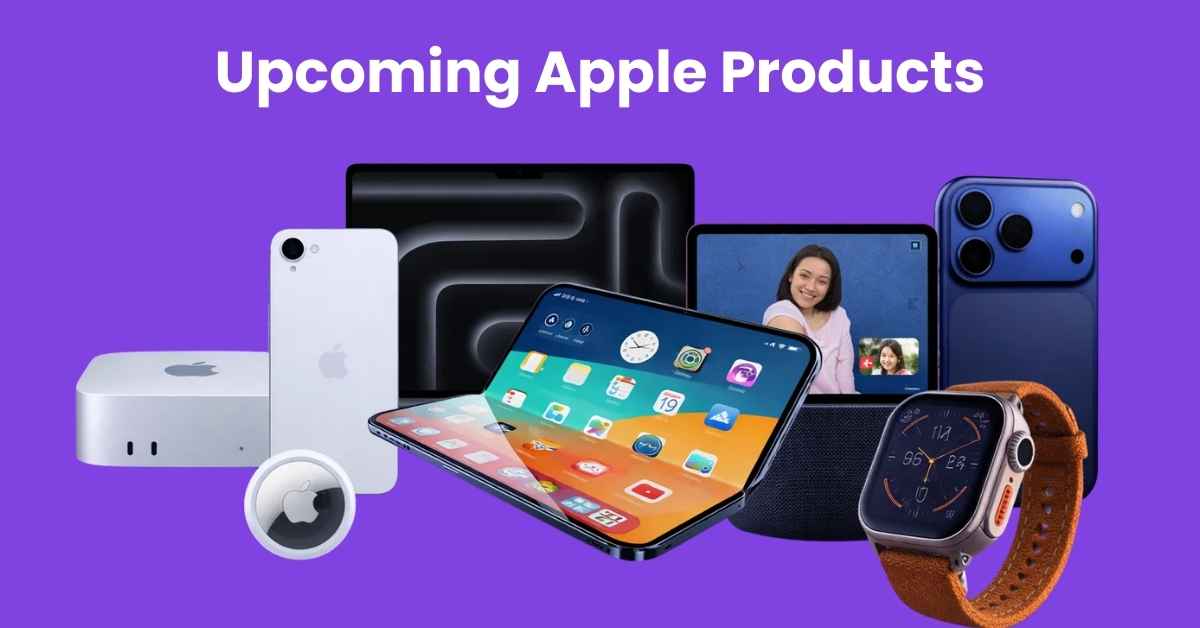
Upcoming Apple Products in 2026: Full List of What to Expect
Uncover the biggest Apple product launches coming in 2026, including new iPhones, Macs, smart home devices, and the company’s boldest innovations yet.
Ava BiswasMarch 3, 2026