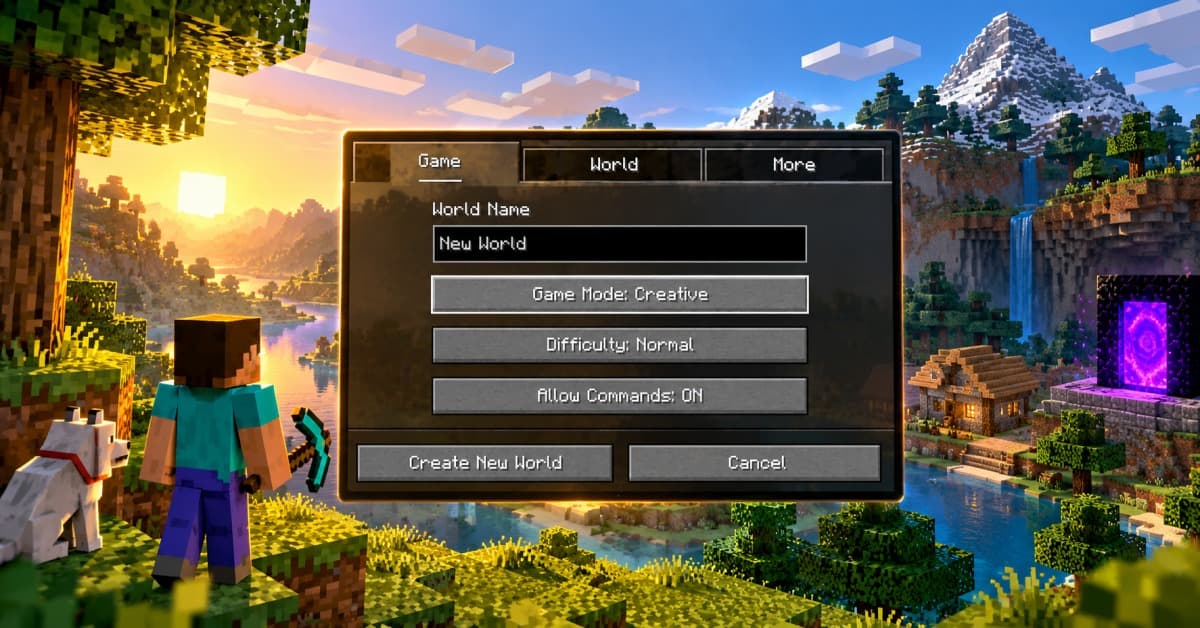
Wondering how to change gamemode in Minecraft? Well, you’re in the right place, gamers! The sandbox game offers five different gamemodes to choose from, each providing a unique experience. You can switch between them with the /gamemode command or, on Java Edition, the F3 + F4 gamemode switcher, as long as cheats are enabled.
However, switching between them can be a bit difficult, as the game doesn’t clearly explain how to do so. But there’s no need to worry, as we’ve got you covered. So, let’s take a look at how to change gamemode in Minecraft and what each one brings to the table.
All gamemodes in Minecraft explained
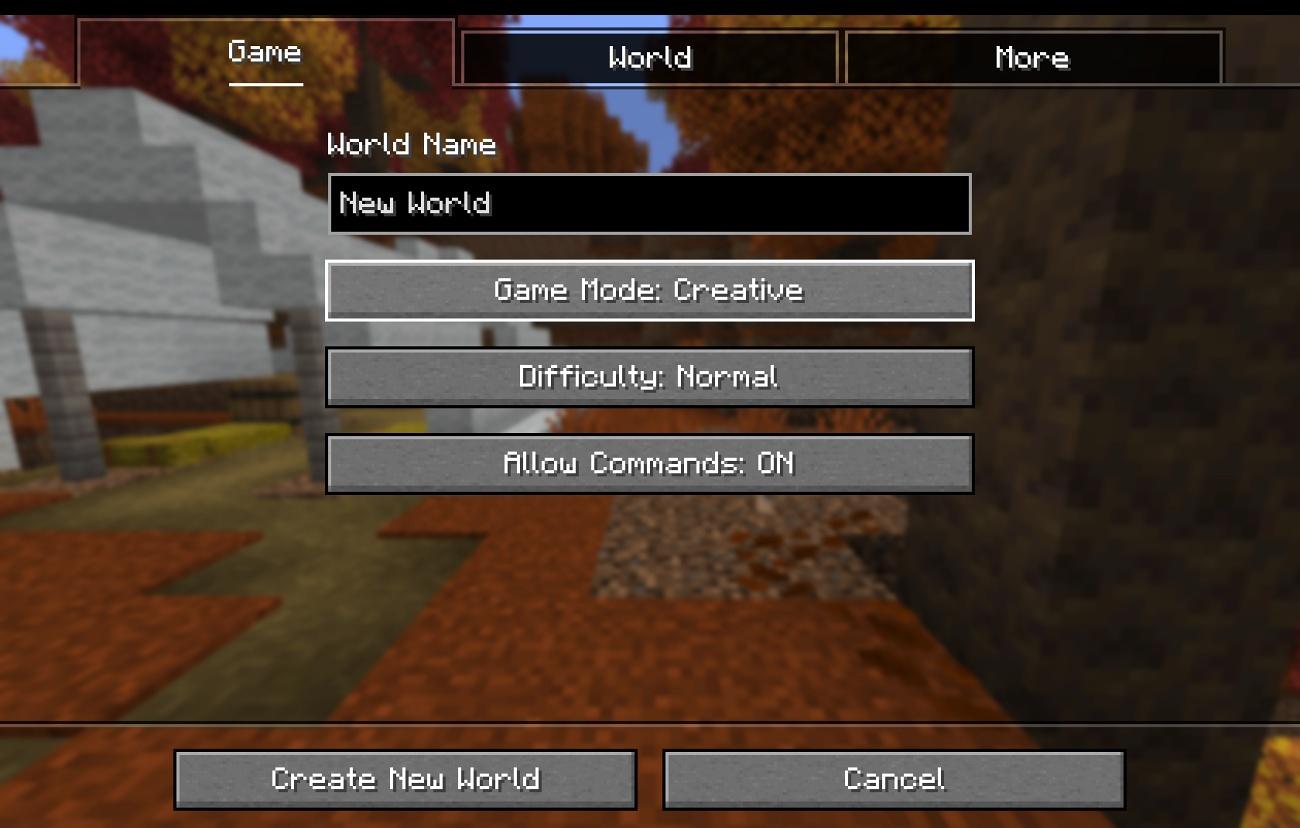
As we’ve said before, there are five gamemodes in Minecraft to choose from: Survival, Creative, Adventure, Hardcore and Spectator. Let’s take a look at each of them in detail:
1. Survival mode
Survival Mode is where the real Minecraft journey begins. You’ll be heading out to explore the world, gather resources, craft tools, and fend off hostile mobs in order to stay alive. This won’t be an easy task, as you need to keep an eye on your hunger and health while making the most of the resources you find.
It’s all about starting with nothing, building yourself up, and eventually going up against the Ender Dragon.
2. Creative mode
Want to build your dream base without spending hours gathering materials? Creative Mode has you covered. You start the game with unlimited blocks and items and the ability to fly, and you don’t need to worry about hunger or damage.
You can break blocks instantly and experiment with different building ideas without any restrictions. It’s a perfect choice for players who want to unleash their creativity or simply have fun with friends.
3. Adventure mode
Adventure Mode is all about exploring custom maps, completing quests, and taking on challenges crafted by the Minecraft community. It seems like Survival mode on paper, but there are a few catches.
By default, you won’t be able to place or break blocks freely; what you can do depends on the permissions and tools set by the map’s creator.
4. Spectator mode
Don’t want to deal with mobs or obstacles? Consider switching to Spectator Mode. You can freely fly through blocks, explore underground caves, discover hidden structures, and observe other players without affecting their run.
However, you won’t be able to interact with the world. It’s a great way to explore the world or watch how other players approach the game. Bedrock players have had Spectator mode since the 1.19.50 update, so it’s no longer a Java-only feature.
5. Hardcore mode
Hardcore Mode is just like Survival Mode, but takes everything up a notch. It locks the difficulty to Hard, which means mobs hit like a truck, and staying alive becomes even more challenging. However, the biggest catch is that you only get one life. If you die, you won’t be able to respawn and continue your adventure as usual; you can only spectate the world. It’s a high-risk game mode that puts your Minecraft survival skills to the ultimate test.
However, you can’t switch a regular world into Hardcore mode, as it can only be chosen when creating a new world. Bedrock Edition got Hardcore as a full release with version 1.21.40, so it’s now available on both editions.
How to change gamemode in Minecraft
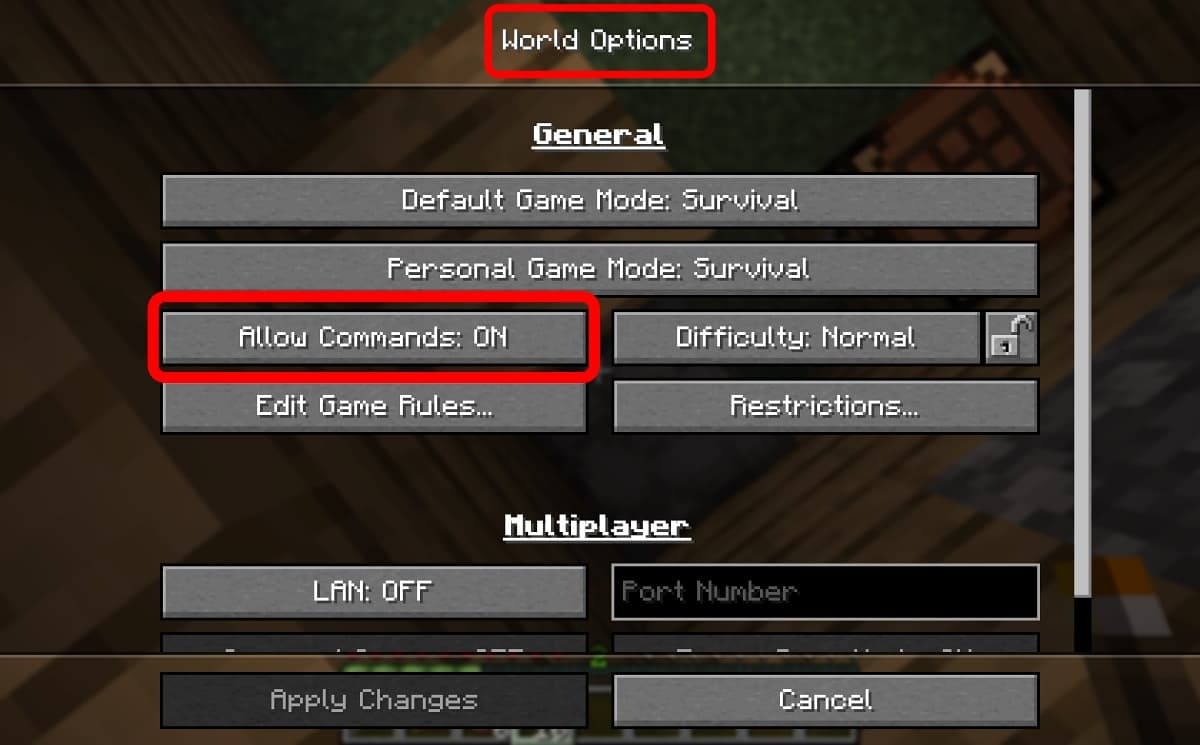
So, how do you change your gamemode in Minecraft? Well, you first need to enable cheats. If you’re creating a new world, just turn on the Allow Cheats (Java) or Cheats (Bedrock) toggle in the world settings. For an existing world:
- Java Edition: Press Esc, select Open to LAN, switch Allow Cheats to ON, and click Start LAN World. This only enables cheats for as long as the world stays open to LAN, so you’ll need to repeat it each session.
- Bedrock Edition: Pause the game, go to Settings > Game, and turn on Activate Cheats. Keep in mind that turning on cheats disables achievements in that world.
Once that’s done, you can switch between game modes using either of these two methods:
1. Use commands
Enter your world and open the chat window by pressing T on your keyboard or tapping the chat icon on your device. Now, type one of the following commands and hit Enter:
/gamemode survival/gamemode creative/gamemode adventure/gamemode spectator
On Bedrock, you can also change modes through the Personal Game Mode option in World Settings once cheats are on.
2. Use the gamemode switcher
On Java Edition, you can also use the built-in gamemode switcher to change modes without typing commands. Here’s how:
- Hold F3 and press F4 to open the gamemode switcher.
- Keep holding F3 and press F4 to cycle through Survival, Creative, Adventure, and Spectator mode.
- Release F3 to choose the game mode you wish to play on.
If you’re on a laptop and nothing happens, try holding the Fn key as well, since F3 and F4 are often mapped to hardware controls.
Wrapping up
Minecraft offers five different game modes, each providing a unique experience for players. Whether you want to build freely, survive against mobs, or explore the world, there’s a game mode for every playstyle.
To switch between them, you’ll need to enable cheats or have the required permissions. Once that’s done, you can use commands or the gamemode switcher to choose your preferred playstyle and continue your adventure in Minecraft.