
How to Use Apple Handoff Feature: A Complete Guide
Apple Handoff lets you start a task on your iPhone and continue it instantly on your iPad or Mac. This guide explains how it works and how to use it across Apple devices.

Switching between devices while working may feel like starting over. That’s exactly the problem Apple Handoff solves. When you use your iPhone, iPad, and Mac simultaneously, this feature lets you continue working from where you left off on another device without saving or syncing anything.
In this guide, you’ll learn how Apple Handoff works and how to use it to make your Apple devices feel like one seamless workspace.
What is Apple Handoff?
Apple Handoff is a Continuity feature from Apple that allows you to move an active task, like writing an email, browsing a website, or editing a note, from one Apple device to another instantly. You can begin on your iPhone and finish on your Mac, or start on your Mac and continue on your iPad, right where you left off.
What makes Handoff special is that it works automatically in the background. There’s no “export,” no file sharing, and no extra steps. As long as your devices are nearby and signed in to the same Apple ID, Handoff just appears when you need it.
It feels less like syncing and more like your devices are one extended workspace.
How Apple Handoff Works
Handoff relies on two key technologies:
- Bluetooth Low Energy (BLE) to detect nearby devices
- Wi-Fi to transfer activity data quickly and securely
Bluetooth handles discovery (finding devices in range), whereas Wi-Fi handles the actual data transfer. And note that only activity metadata is shared, not full app data. For example:
- A Safari webpage link
- A draft email state
- Ongoing FaceTime call
All communication is encrypted, and Apple cannot read your activities. Also, Handoff itself does not upload your work to the cloud in real time.
Continuity Features Ecosystem
Handoff is part of Apple’s larger Continuity ecosystem, which includes:
- Handoff: Continue apps across devices.
- Universal Clipboard: Copy on one device, paste on another.
- AirDrop: Fast file sharing.
- Universal Control: Use one keyboard and mouse across devices.
- Sidecar: Use iPad as a Mac display.
- Continuity Camera: Use iPhone as a webcam for Mac and Apple TV.
There are more such features like AirPlay, Auto Unlock, iPhone Mirroring, etc., and together they make Apple devices feel deeply connected rather than separate.
Requirements for Apple Handoff
Handoff works across almost all Apple devices, including iPhone, iPad, Mac, Apple Watch, Apple TV, and Apple Vision Pro. Keep the devices updated to the latest OS version for smooth operations.
To work properly, all devices must:
- Be signed in to iCloud using the same Apple ID
- Have Wi-Fi and Bluetooth turned on
- Have Handoff enabled in settings
- Placed within close proximity (30 feet)
How to Turn On Handoff for Your Apple Device
Now that you understand the feature well, let’s set it up.
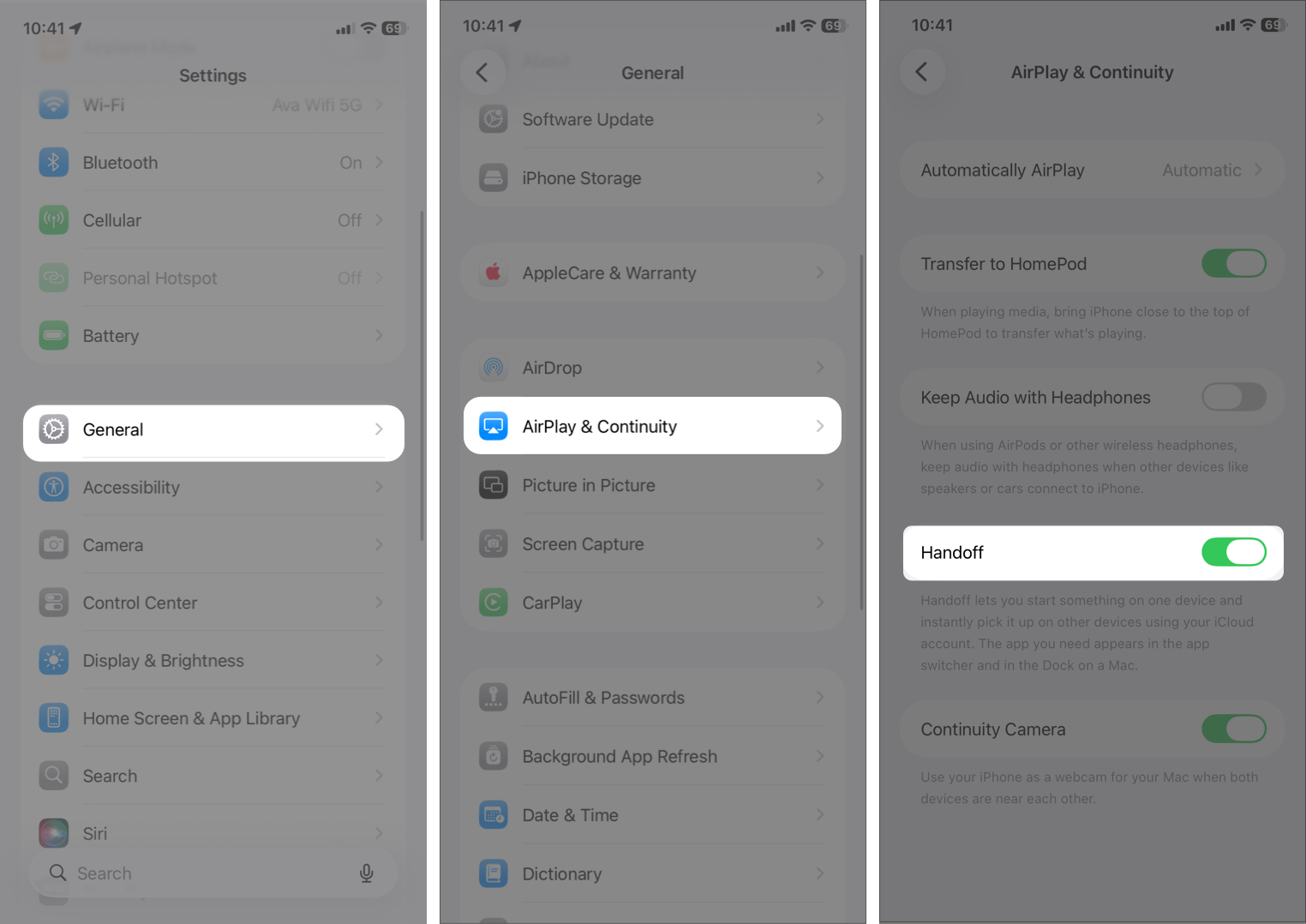
On iPhone and iPad
- Open Settings.
- Tap General
- Select AirPlay & Continuity.
- Toggle on Handoff.
On Mac
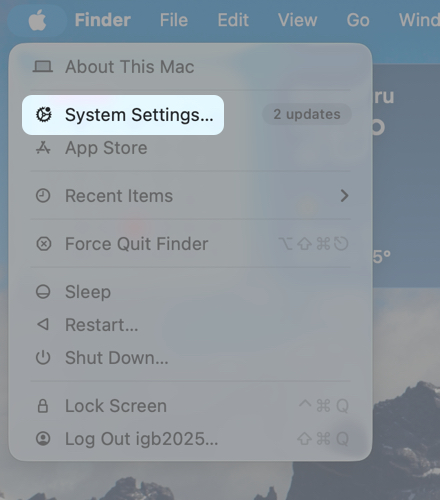
- Click the Apple Menu at the top and open System Settings.
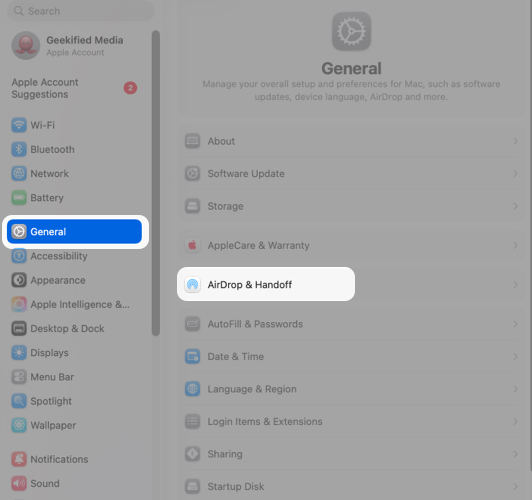
- Go to General from the left sidebar.
- Click AirDrop & Handoff.
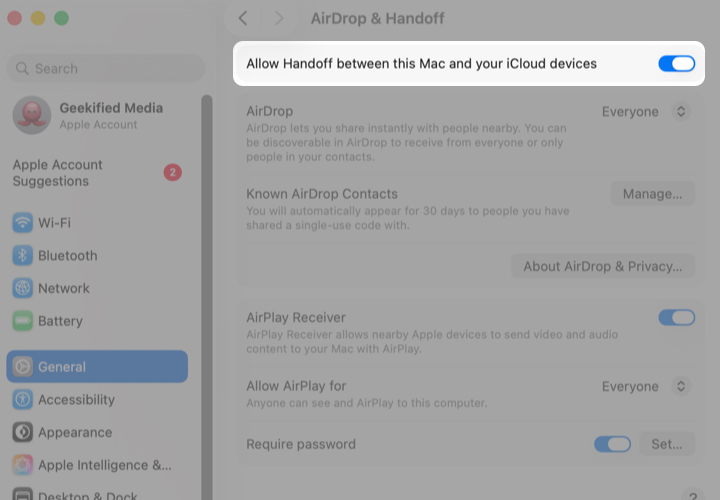
- Scroll down and toggle on Allow Handoff between this Mac and your iCloud devices.
On Apple Watch
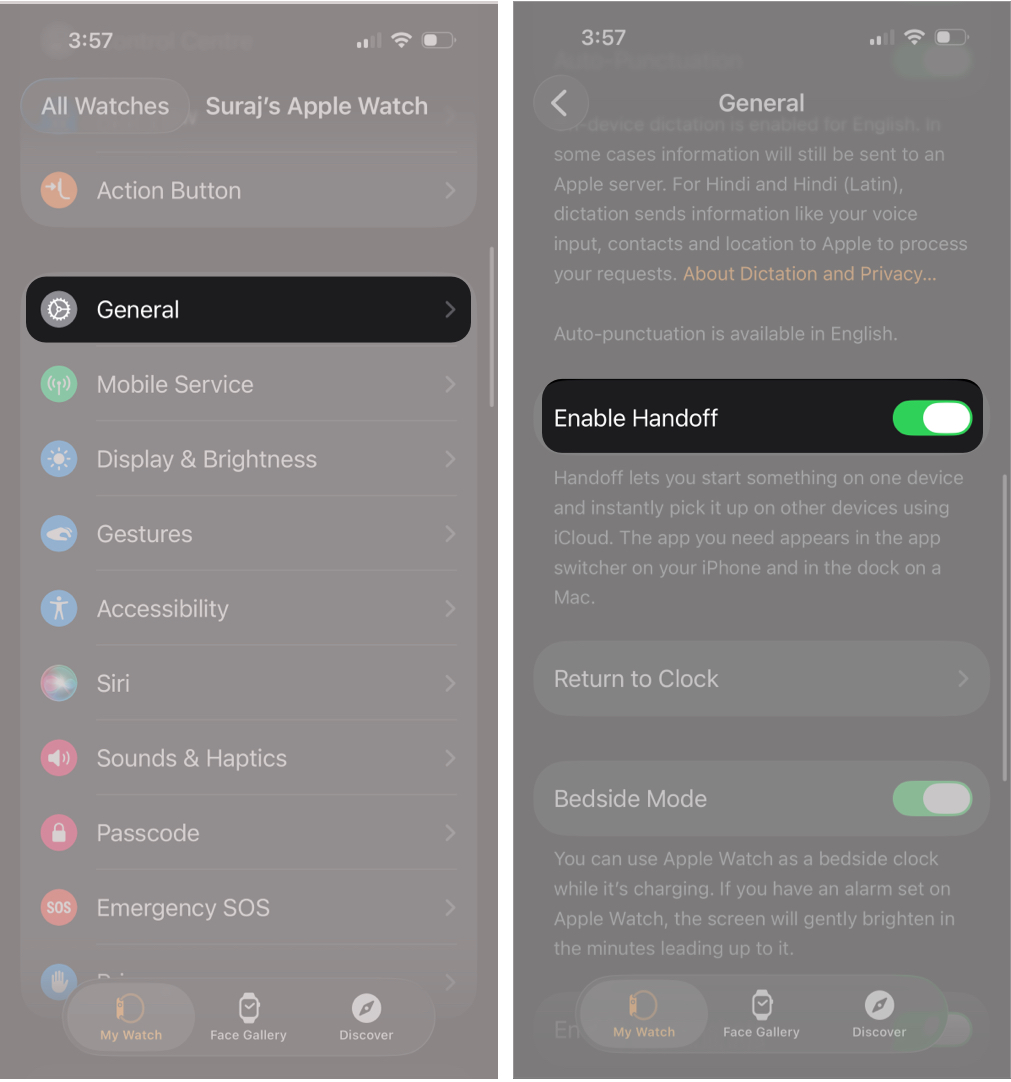
Apple has also integrated this swift feature into the Apple Watch so that you can start a task on your watch and complete it on your iPhone or Mac.
- Launch the Watch app on your iPhone.
- Tap General from the My Watch tab.
- Toggle on Enable Handoff.
How to Use the Handoff Feature Between iPhone and iPad
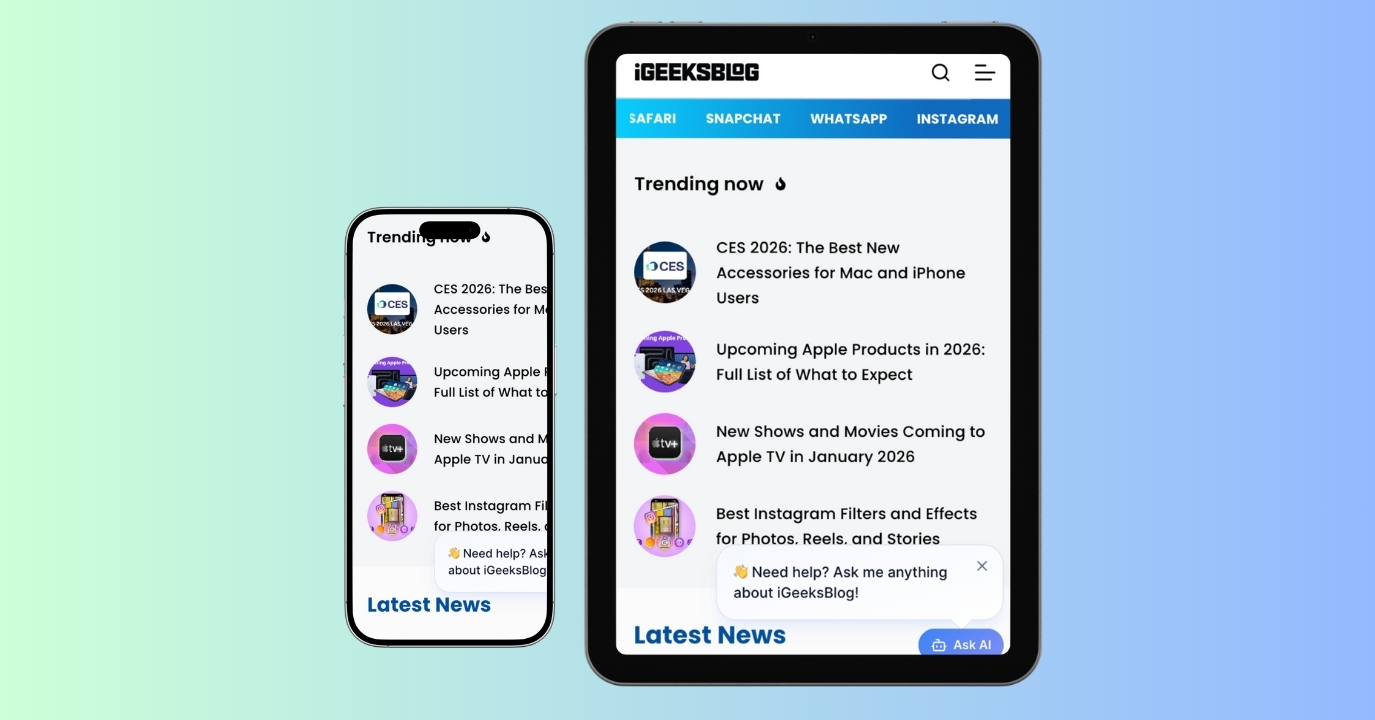
Here comes the fun part! Follow these steps to quickly hand off your tasks:
- Open a supported app, like Mail or Safari, and begin working normally.
- On the iPad Dock, you’ll see an app icon at the right end.
- To continue on your iPhone, swipe up from the bottom of your screen and hold to open App Switcher.
- You will see a banner showing the Handoff app from your nearby Apple device.
- Tap it, and the app opens exactly where you left off.
If you have an Apple Watch, you can hand off a lot of apps to your iPhone, such as Activity, Alarm, Mail, Maps, Messages, Music, Phone, Podcasts, Reminders, Settings, Stopwatch, Timers, Wallet, Weather, etc.
Tips for Switching Back and Forth
- Keep both devices unlocked for faster detection.
- Use strong Wi-Fi for near-instant transitions.
- Don’t force-close apps you want to hand off.
How to Use the Handoff Feature Between iPhone/iPad and Mac
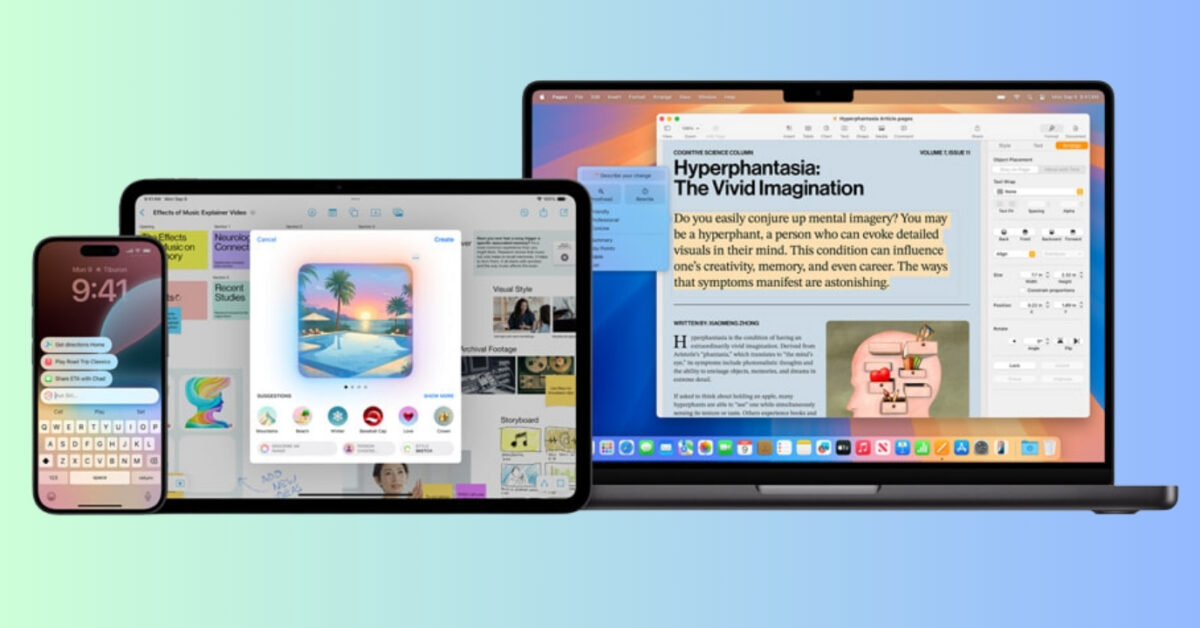
- When you start an activity on iOS or iPadOS, a Handoff icon appears on your Mac.
- On the Mac Dock near the left side, you will see the app icon itself with a small phone logo.
- Click once to open the app with your active session. You can also press Command + Tab keys to quickly switch to the Handoff app.
Example Workflows
I frequently use Handoff for day-to-day tasks because it saves time and keeps my productivity high.
- Browse an article on iPhone → finish reading on Mac.
- Start an email on iPad → send it from Mac to attach files.
- Edit a note on iPhone → continue on iPad for Apple Pencil features.
- Start a FaceTime call on iPhone → continue on Mac. The FaceTime Handoff also works across Apple TV.
- Start shopping with Apple Pay on Mac → Complete the purchase on iPhone or Apple Watch.
The most useful feature is Universal Clipboard, which lets you copy text, images, and videos from one device and simply paste them on another.
Supported Handoff Apps
Handoff works best with Apple’s own apps:
- Safari
- Contacts
- Maps
- Notes
- FaceTime
- Calendar
- Reminders
- Pages
- Numbers
- Keynote
Many third-party apps, such as Quip and The Wall Street Journal, also support Handoff. When supported, the experience looks identical to Apple apps, no setup needed.
Troubleshooting Apple Handoff
Like other Continuity features, Handoff works smoothly. However, it can sometimes experience hiccups. Here are some common issues and quick solutions you can try.
| Problems | Fixes |
| Handoff Not Showing Up | Toggle Handoff off and on again from Settings. Restart all devices. Sign out and back into Apple ID to remove iCloud glitches. |
| Devices Not Detecting Each Other | Make sure Bluetooth and Wi-Fi are on. All devices should be connected to the same Wi-Fi network. Disable VPN temporarily. Keep devices within a few feet. |
| Handoff Delays Between iPad and Mac | Avoid congested Wi-Fi networks. Close unused background apps. Update to the latest OS versions. |
If you are still facing issues, you may contact Apple Support.
Advanced Tips for Power Users
Want to boost your productivity? These tips will help you out:
Handoff in Multitasking Workflows
On iPad, combine Handoff with:
- Split View
- Stage Manager
This lets you continue a task while running multiple apps side by side. You can also use your iPad to sketch and markup on your Mac documents and see the changes in real-time on the Mac screen.
Using Handoff With Sidecar and Universal Control
Handoff works beautifully alongside Sidecar and Universal Control, letting you:
- Use iPad as a second display for your Mac.
- Control everything with one keyboard and mouse, creating an extended workplace.
Best Practices to Speed Up Device Discovery
- Keep Wi-Fi on even when using Ethernet.
- Avoid low-power Bluetooth accessories interfering.
- Don’t disable background app refresh.
Final Thoughts
Apple Handoff is one of those features that quietly changes how you work. Once enabled, it removes friction, saves time, and makes your iPhone, iPad, and Mac feel like one continuous device rather than three separate devices.
If you live inside the Apple ecosystem, learning to use Handoff well is one of the easiest productivity upgrades you can make in 2026.
Which is your favorite Continuity feature? Let us know in the comments below!
Frequently Asked Questions

Written by
Ava BiswasAva is a die-hard Apple aficionado and seasoned writer with a knack for breaking down complex tech concepts into easily digestible content. Having honed her writing and editing skills over 4 years at renowned media houses like TechBurner, Ava crafts informative and engaging articles including troubleshooting guides, product reviews, editorials at iGeeksBlog. When not typing, you can find her exploring the latest Apple releases or pondering the future of tech innovation.
View all posts →More from How-to

Snapchat Parental Controls: How to Set Up Family Center and Keep Your Teen Safe
Snapchat’s Family Center lets parents monitor their teen’s friend activity and screen time without reading private messages. Here’s how to set it up and what to expect.
 VikhyatMarch 3, 2026
How to Block and Unblock Someone on Instagram
Instagram lets you block or unblock someone in seconds. Follow these simple steps to take full control of your privacy and online peace.
Ava BiswasMarch 2, 2026
Apple Watch Not Responding? 8 Fixes That Actually Work
Is your Apple Watch unresponsive or stuck on a black screen? Here are 8 proven fixes to help you unfreeze it and get it working again quickly.
VikhyatMarch 3, 2026