
How to use Dictation on iPhone and iPad
Texting is fun, but it’s not for everyone. Some might not prefer typing more than a couple of lines on their iPhone, while some might not have the time and liberty to do so. That is where Dictation comes to the rescue.
One downside of dictation has always been that the transcription stops whenever you touch the keyboard while dictating to make some edits. But that changes with iOS 16 and the introduction of Hybrid dictation. Let’s learn how to use Dictation on iPhone and iPad.
How to enable Dictation on iPhone and iPad
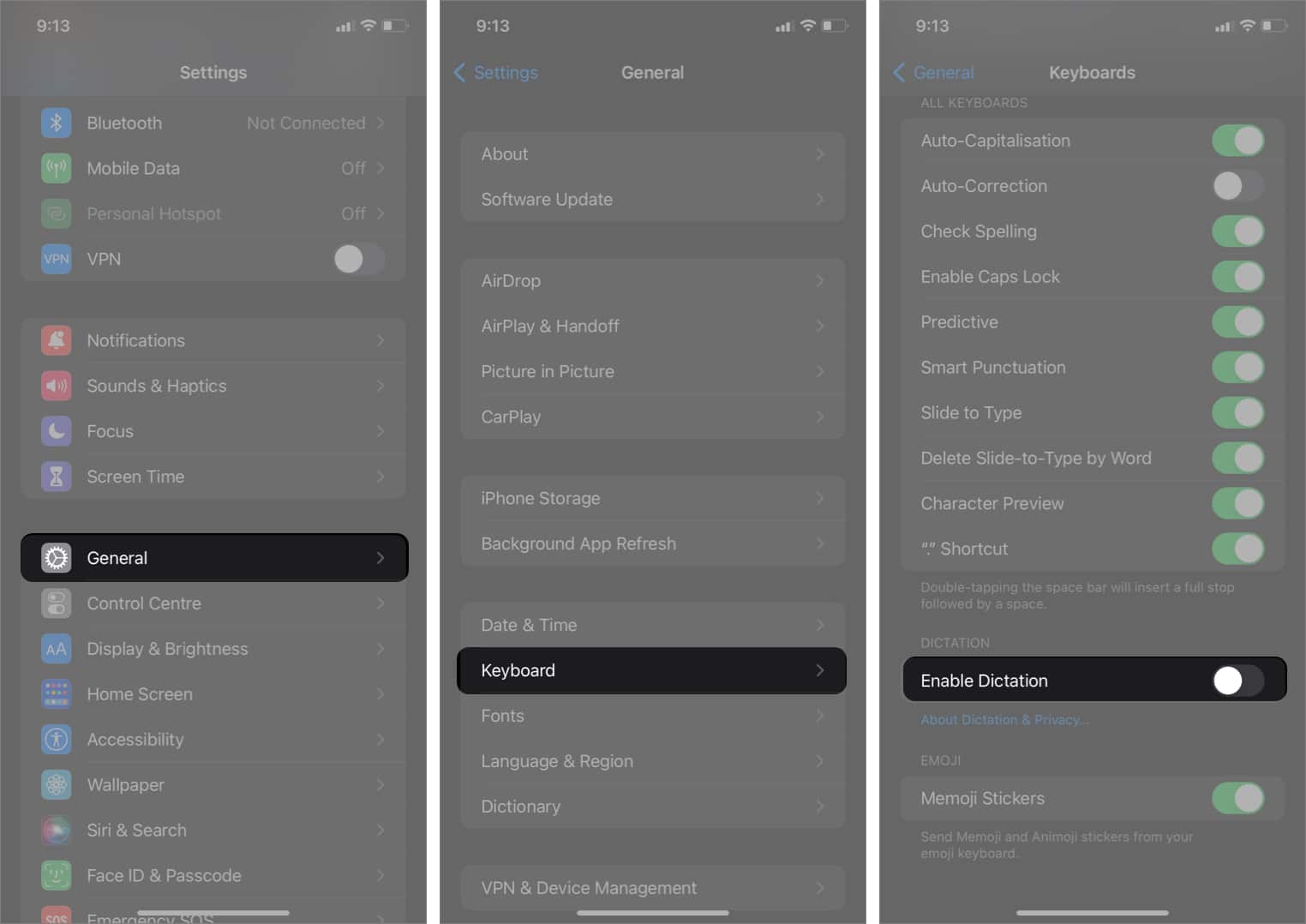
The steps to enable dictation on iPhone and the iPad are similar, and here’s how to go about it,
- Open Settings.
- Tap General.
- Navigate to Keyboard.
- Turn on the Enable Dictation toggle.
- Confirm your selection by tapping Enable Dictation.
How to use Dictation on iPhone and iPad
Now that you’ve enabled Dictation on your devices remember that Dictation works on most of the applications that support input through a keyboard. With that out of the way, here’s how to use Dictation on iPhone and iPad
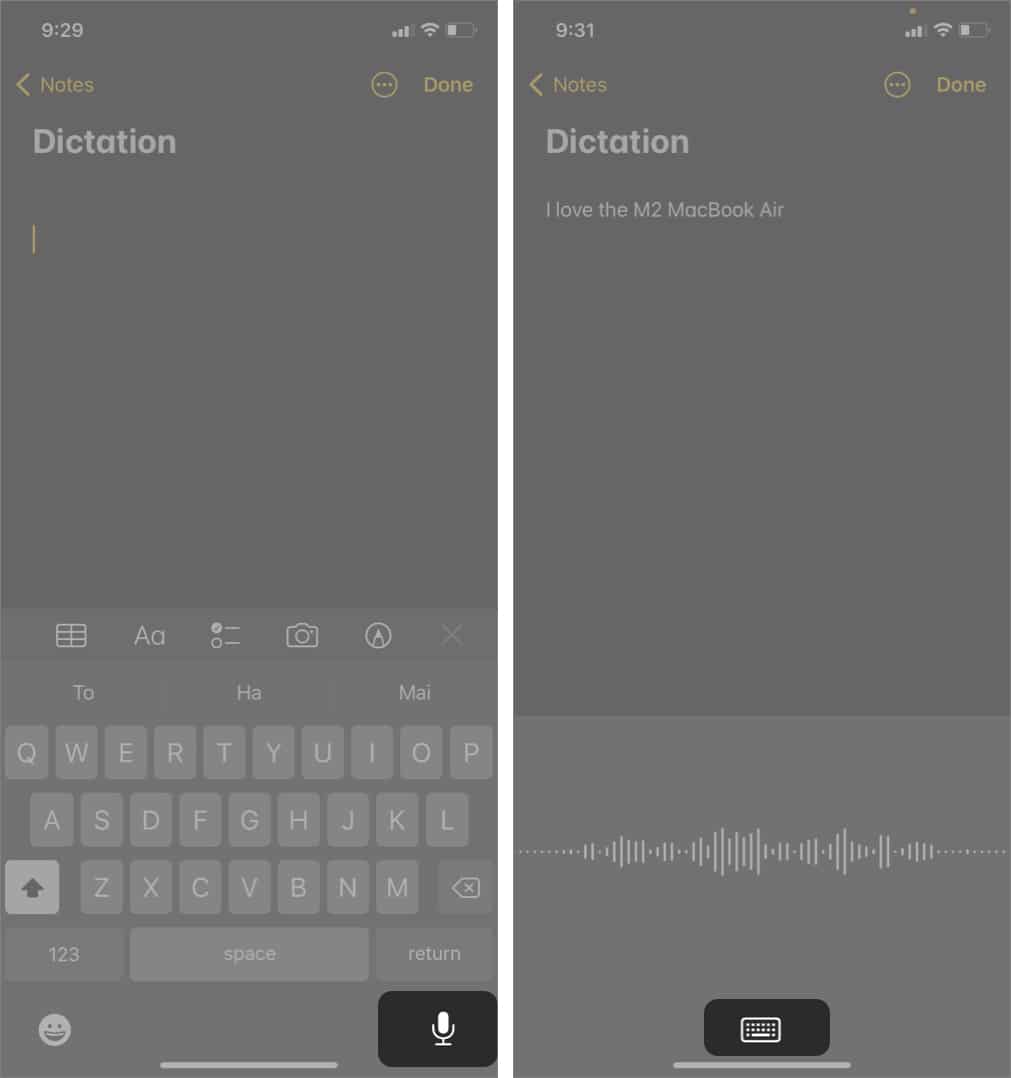
- On any app, you want to Dictate in, open the keyboard.
- Tap on the Microphone icon located at the bottom right of the screen.
- You can now dictate and tap on the keyboard icon once you’ve finished.
- If you see a blue line under the transcribed text, you can tap the word to make corrections or double-tap the word to replace it.
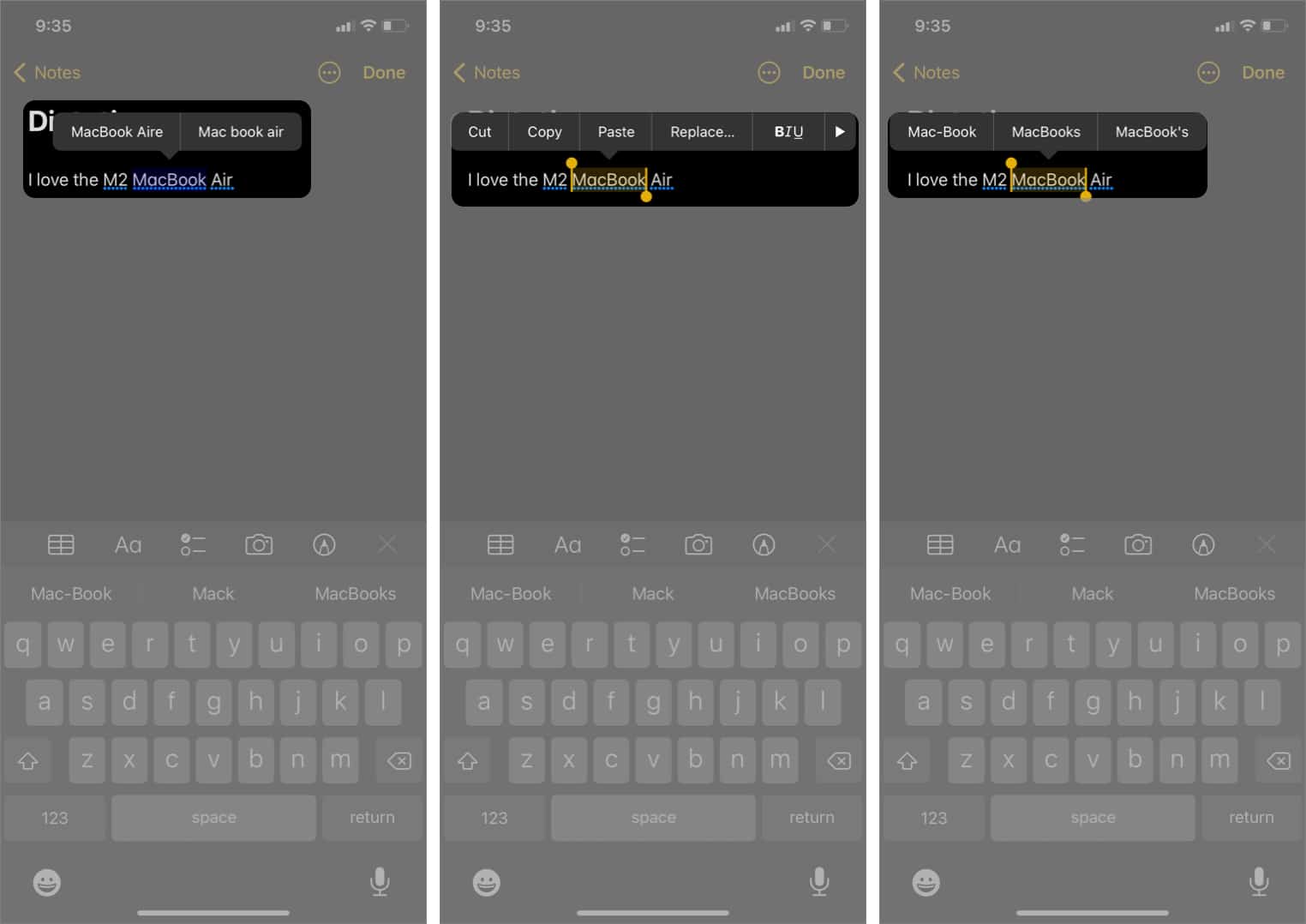
Note:
With iOS 16, you can dictate and type simultaneously.
Add punctuation and commands when dictating on iPhone
Punctuation adds more clarity to our sentences and helps emphasize what’s important. Punctuating your sentences is a must, especially if you’re writing a formal note, email, etc. Listed below are the commands that’ll help assist you in formatting your sentences better,
- Period/ Full stop: Adds “.” to the sentence.
- Comma: Adds the “,” to a sentence.
- Exclamation mark: Adds “!” to a sentence.
- Question mark: Adds “?” to a sentence.
- Dollar sign: Insert the “$” currency symbol.
- Open parenthesis/ Open bracket: Adds the “(” to a sentence.
- Close parenthesis/ Close bracket: Adds the “)” to a sentence.
- Quote and End Quote: Adds “” quotation marks.
- New paragraph: Starts a new paragraph.
- New line: Shifts to a new line.
- Colon: Adds “:” to a sentence.
- Semicolon: Adds “;” to a sentence.
- Cap: The next word after this command is capitalized.
- All caps: This command ensures the next word is in uppercase.
- Smiley: Inserts 🙂
- Frowny: Inserts 🙁
- Winky: Inserts 😉
- Hashtag: Adds the “#” symbol.
If you have any other questions regarding the Dictation feature on your iPhone or iPad, let us know in the comments below.
Frequently Asked Questions

Written by
Darryl DsouzaConsumer Technology and Motorcycles are the two things that excite Darryl the most. Why? Because Tech helps better people's lives, and solving people's problems related to tech is something he enjoys. And what about bikes, you ask? Well, drop a gear and disappear.
View all posts →More from How-to

How to Turn Off Location on Snapchat (Step-by-Step Guide)
Want to stop sharing your location on Snapchat? This guide explains how Snapchat location sharing works and shows simple ways to turn off your location using Ghost Mode or phone settings. Stay in control of your privacy in just a few steps.
 VikhyatMarch 5, 2026
Snapchat Parental Controls: How to Set Up Family Center and Keep Your Teen Safe
Snapchat’s Family Center lets parents monitor their teen’s friend activity and screen time without reading private messages. Here’s how to set it up and what to expect.
VikhyatMarch 3, 2026
How to Block and Unblock Someone on Instagram
Instagram lets you block or unblock someone in seconds. Follow these simple steps to take full control of your privacy and online peace.
 Ava BiswasMarch 2, 2026